When Palworld multiplayer stops working, you usually see one of a few error messages when you try to host or join a session. The most common is “Failed to host multiplayer session. Please check your internet connection. Restarting the game or your PC may fix this issue,” often paired with the internal message “OnCreateSessionComplete Delegate bWasSuccessful == False.” Single-player worlds keep loading normally, which points the problem at the online layer rather than your save.
Quick answer: If hosting fails, confirm the game is fully updated, then keep pressing Start Game with Multiplayer set to ON. It typically connects after two or three attempts once the servers accept the session. On Xbox, an active Xbox Game Pass Core membership is required, or the Multiplayer option stays greyed out.
Why Palworld multiplayer fails to connect
Most failed sessions come down to server load. When a large number of players try to create or join worlds at the same time, the matchmaking servers become unstable and reject new session requests. Pocketpair has confirmed this behavior during peak periods, noting that the server provider reported instability caused by high concurrent player counts.
The other causes are local. An outdated game version, a restrictive NAT type, a blocked connection from your firewall or antivirus, or missing platform requirements can all stop a session before it starts. You can check whether the outage is on Pocketpair’s side by looking at the official Palworld server status page before spending time on local fixes.
Fix “Failed to host multiplayer session”
This is the error you hit when the servers are overloaded. None of these steps require reinstalling. Work through them in order and stop as soon as your world loads.
Once your co-op world loads, do not leave it. Leaving ends the session, and you will have to host again, which can bring the error back.
Xbox: Multiplayer greyed out or invites failing
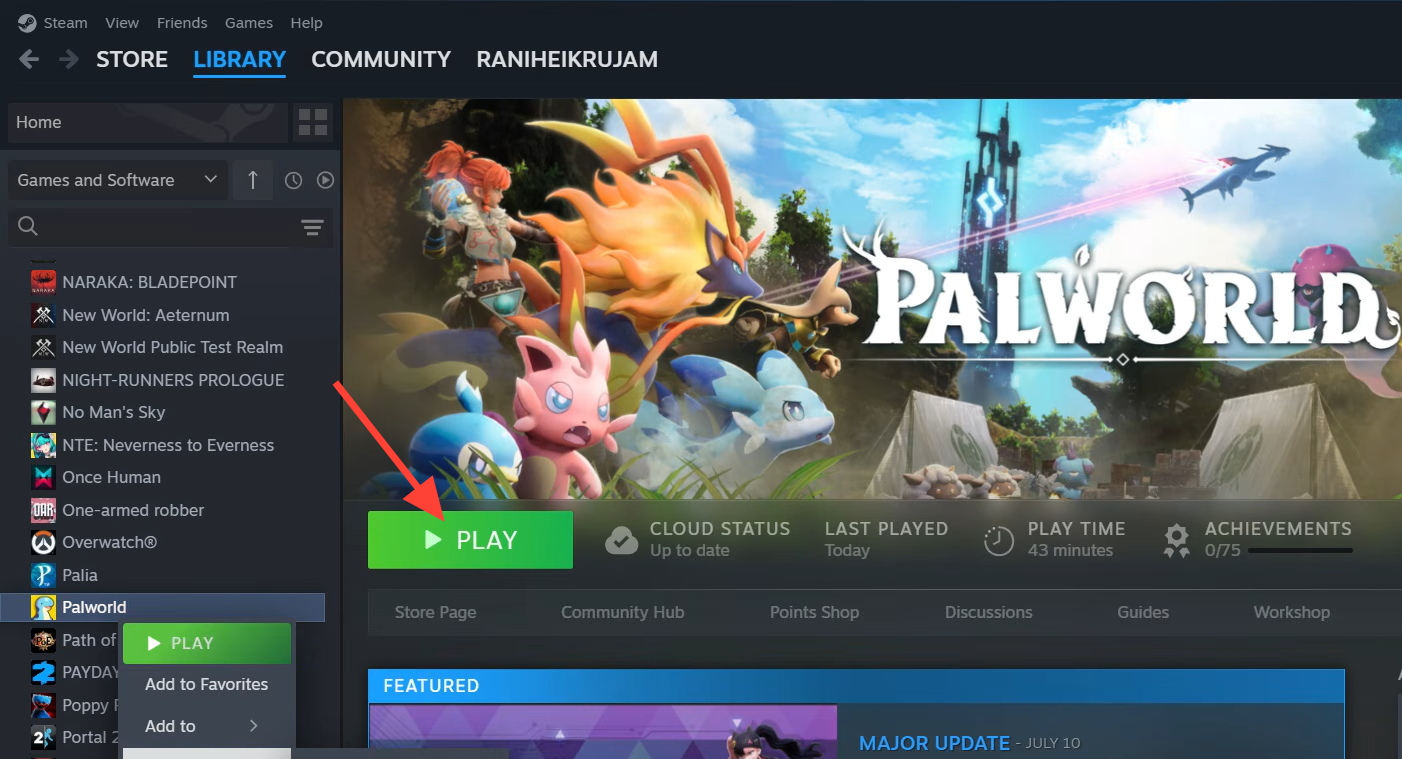
On Xbox, the Multiplayer menu item is disabled unless you own the game and hold an active Xbox Game Pass Core membership. Without it, you cannot join official servers or private co-op games, and the option is automatically greyed out. Core is priced at 6.99 euros per month and is mandatory for Palworld online play on the platform.
If the option is available but your friends still cannot get in, invites are the usual culprit. Xbox system invites do work, but they can take several attempts before an invite lands and loads. If invites keep stalling, use Palworld’s in-game invite code instead. Open Options, reveal the code hidden behind the asterisks, and share it with your friend. This method can also fail on the first try, so expect to repeat it.
An outdated game version produces a related block, with the message “Sorry, you’re currently prevented from playing online multiplayer games.” Update the game before anything else.
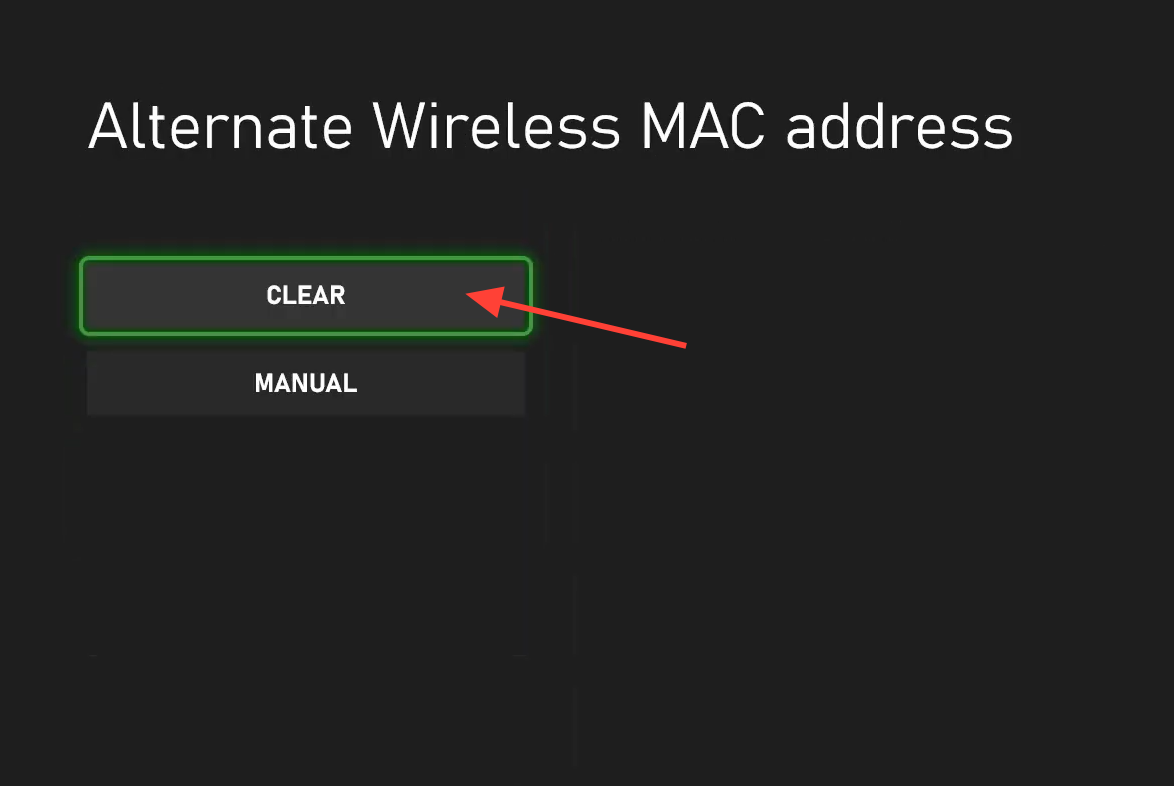
PC fixes for connection and hosting problems
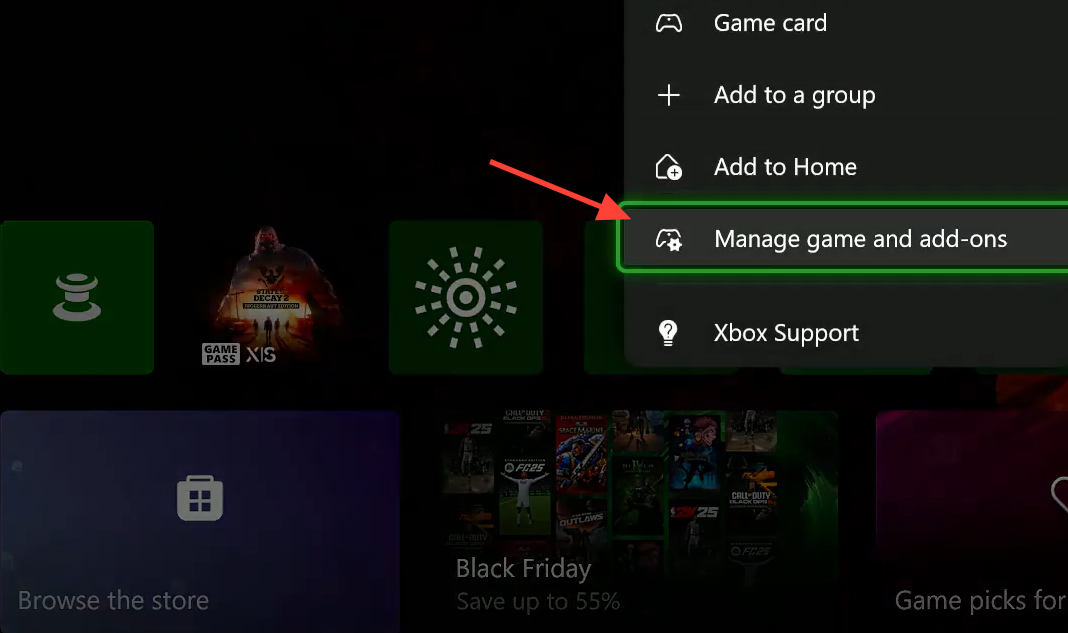
On PC, the same overload rules apply, but you have more control over local settings that block the game. Start with the low-risk checks before touching anything advanced.
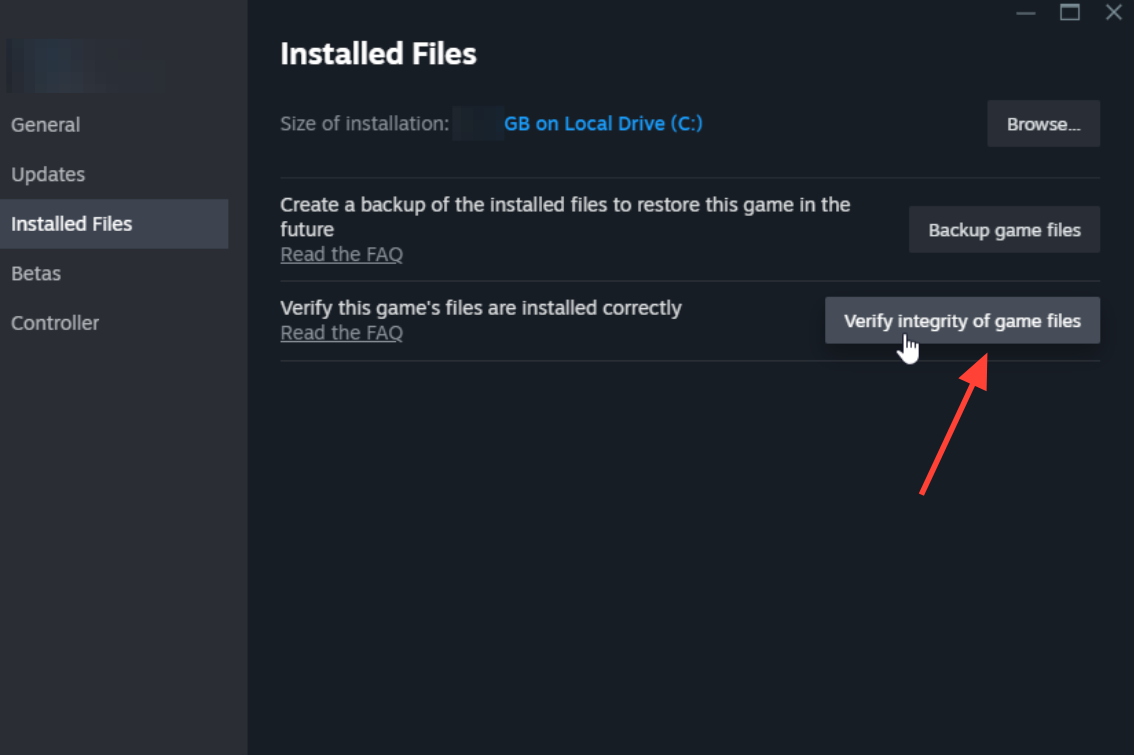
Verify game files and relaunch
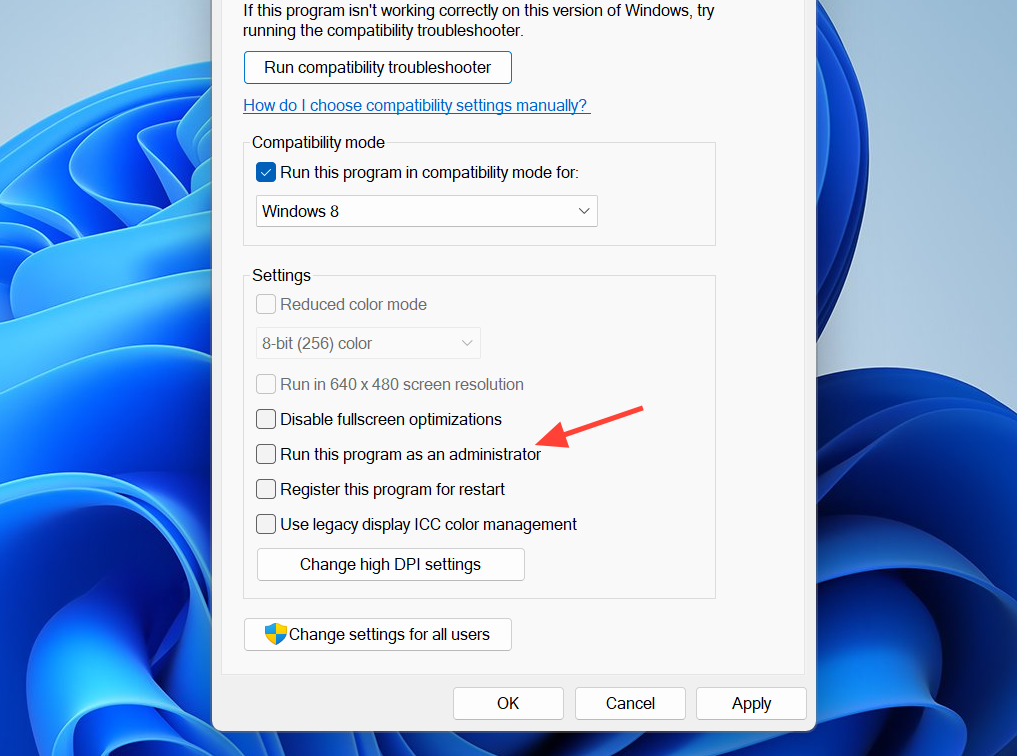
Unblock the game and adjust the network
telemetry.palworldgame.com.8.8.8.8 as the preferred and 8.8.4.4 as the alternate DNS server.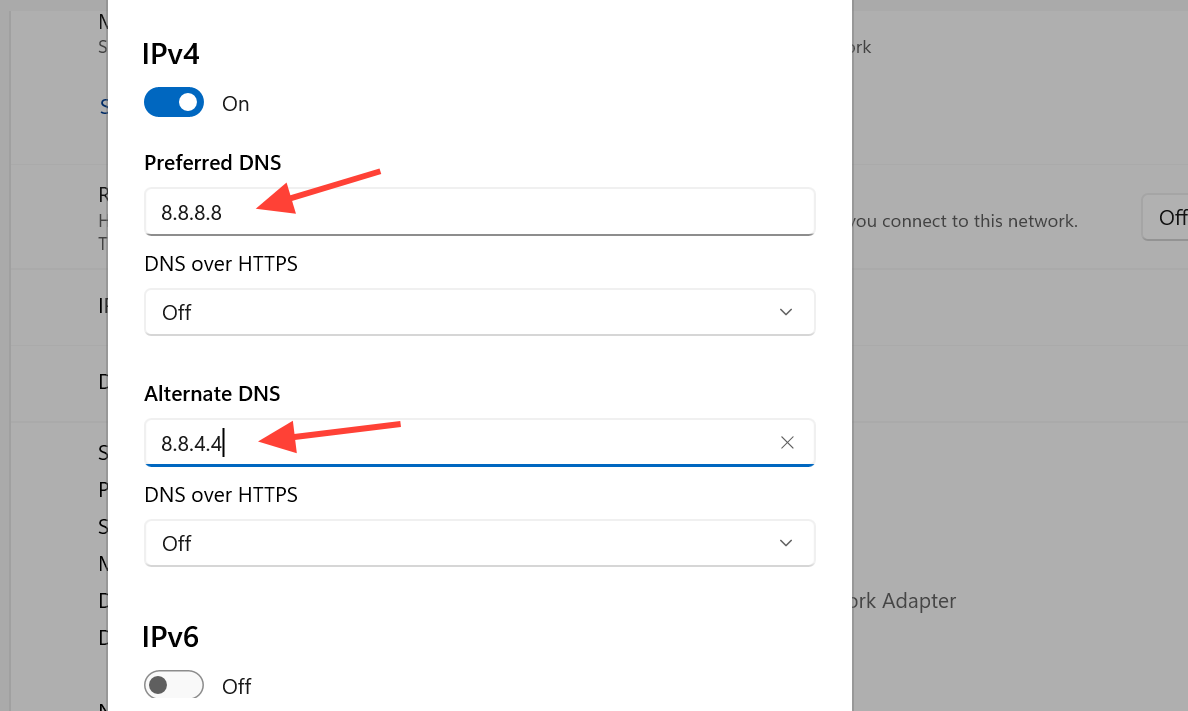
Enable multiplayer in the settings file (Steam dedicated server)
If you run a private dedicated server for you and your friends, multiplayer must be enabled in the server config. This applies to Steam only.
Steam\steamapps\common\PalServer\Pal\Saved\Config\WindowsServer\PalWorldSettings.inibIsMultiplay entry and set it so it reads bIsMultiplay=true. Save the file, then reboot and launch the game.:8211.Co-op limits by platform
Some “multiplayer not working” reports are actually platform limits rather than errors. The player caps and features differ depending on where you play.
| Feature | Steam (PC) | Xbox |
|---|---|---|
| Co-op session size | Up to 32 players via private servers | 2 to 4 player co-op |
| Dedicated servers | Supported | Not supported |
| Membership needed | None beyond the game | Xbox Game Pass Core required |
How to confirm it worked
You know hosting succeeded when the world loads past the error prompt and drops you into the game. On a fresh world, that means the character creation screen, the intro cutscene with three Pals looking down at you, and your character waking up on the beach. A joining player knows the fix worked when their invite or code loads them into your world instead of bouncing back to the menu.
If it still refuses to connect after all of this, the block is almost always one of three things. The servers are overloaded and rejecting sessions, so wait and retry. On Xbox, the Game Pass Core subscription is missing or lapsed, so the option stays greyed out. Or the game is outdated, so the update has to install first. Ruling those three out resolves the large majority of cases.
A note on multiplayer achievements
Achievements have historically been inconsistent in co-op. Defeating a boss in a session awarded the achievement to every participant, but general progress achievements such as collecting 50 different Pals only unlocked for the host. With the 1.0 release, Pocketpair stated that synchronization errors were addressed, which should mean shared achievements now register correctly for everyone in the session.