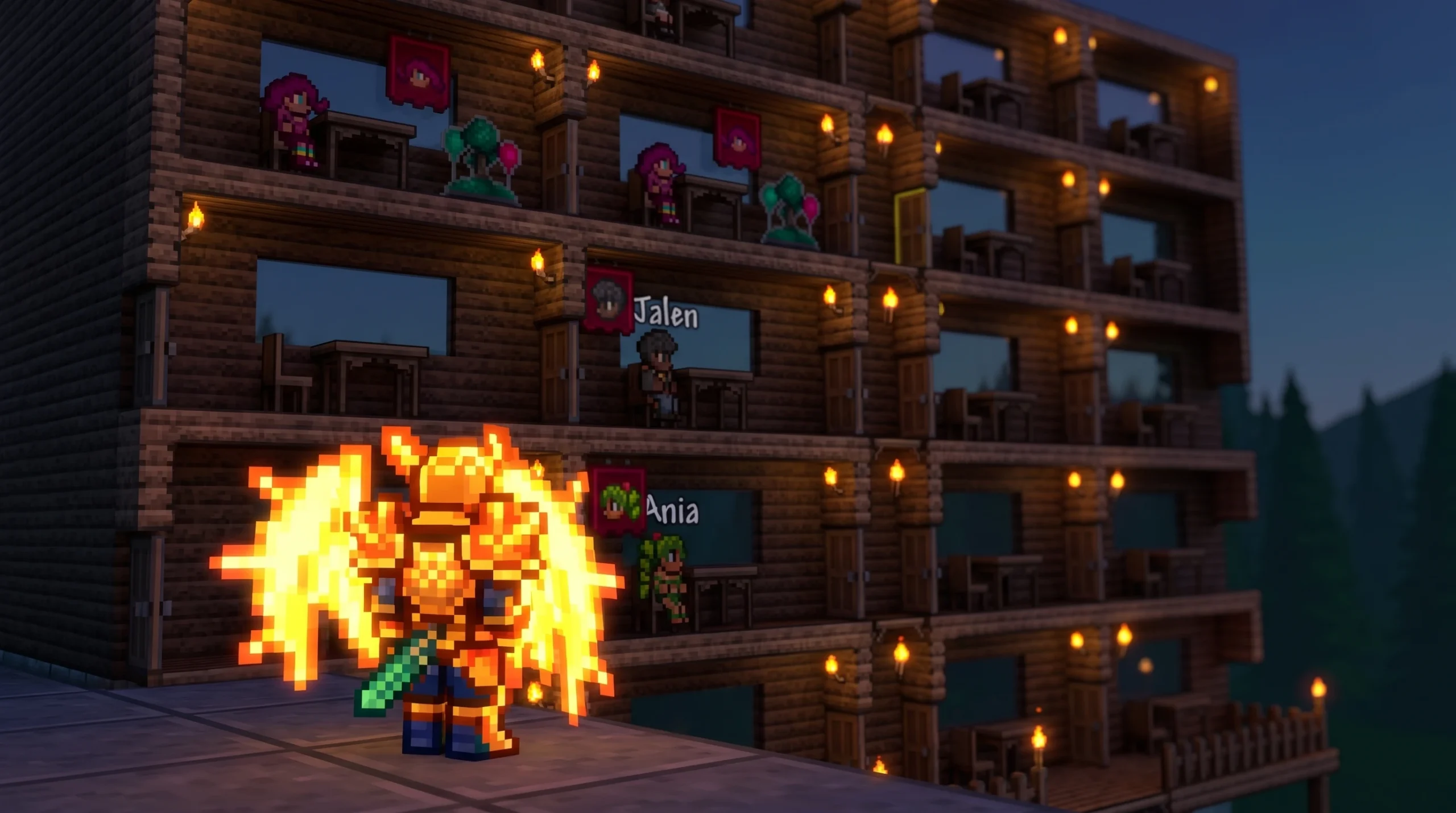
Assigning rooms in Terraria lets you decide exactly where each NPC lives instead of leaving placement to chance. The whole process runs through the Housing menu, and once a room is set, the villager walks in on their own after you leave the area for a short time.
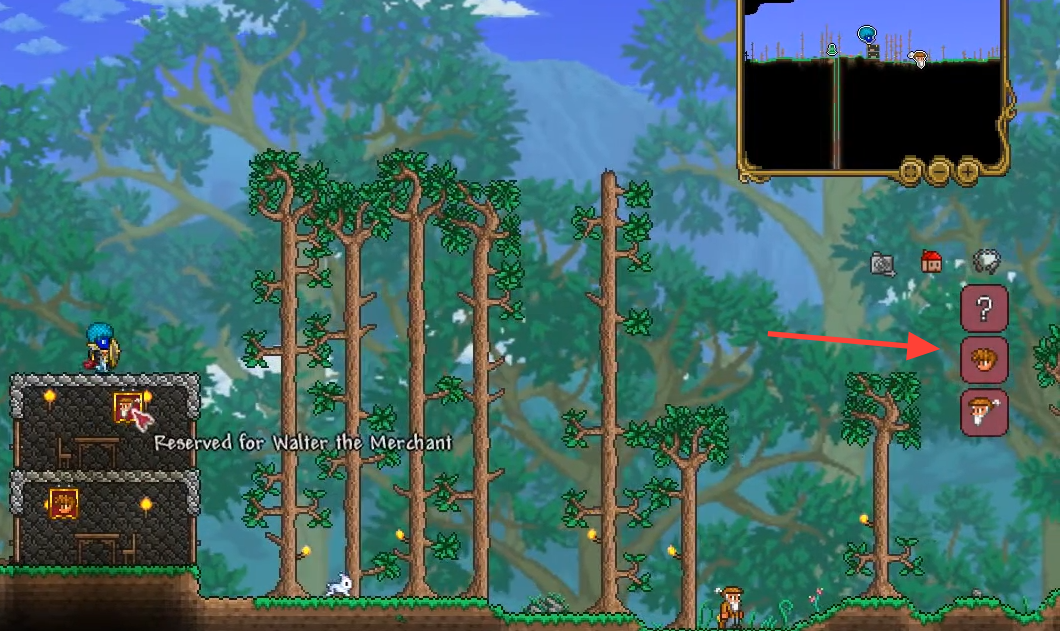
Quick answer: Press Esc, click the house icon on the right side of the inventory, click the NPC portrait you want, then click inside a valid room. A “Reserved for [NPC]” banner appears once the room is claimed.
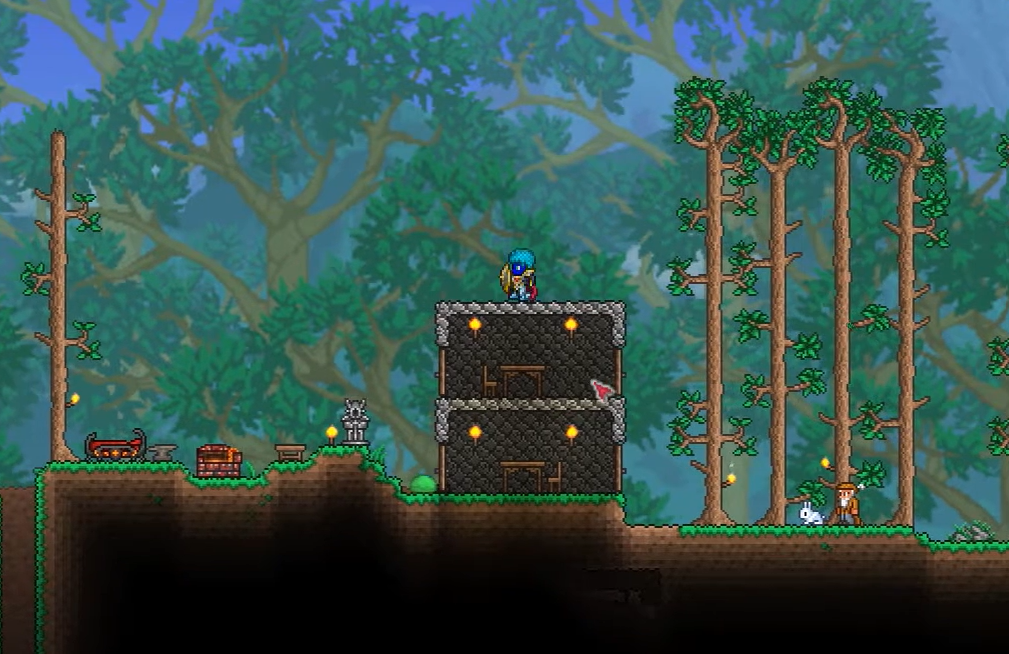
What a room needs before you can assign it
An NPC will only move into a room the game counts as valid housing. Before you open the menu, make sure the space includes every required piece. A room missing even one item will be rejected.
- Background walls filling the interior
- A door or other valid entrance
- A chair or other comfort item
- A table or other flat-surface item
- A light source, such as a torch
- A solid enclosed structure
Size also matters. A house needs at least 60 tiles of interior area. If a room has four blocks of headroom, it must run about 15 blocks wide for an NPC to actually move in. The game sometimes calls a small room “suitable,” yet the villager still refuses to relocate, so build with room to spare.
Assign an NPC to a room
Esc to open your inventory. This also brings up the housing controls on the right side of the screen.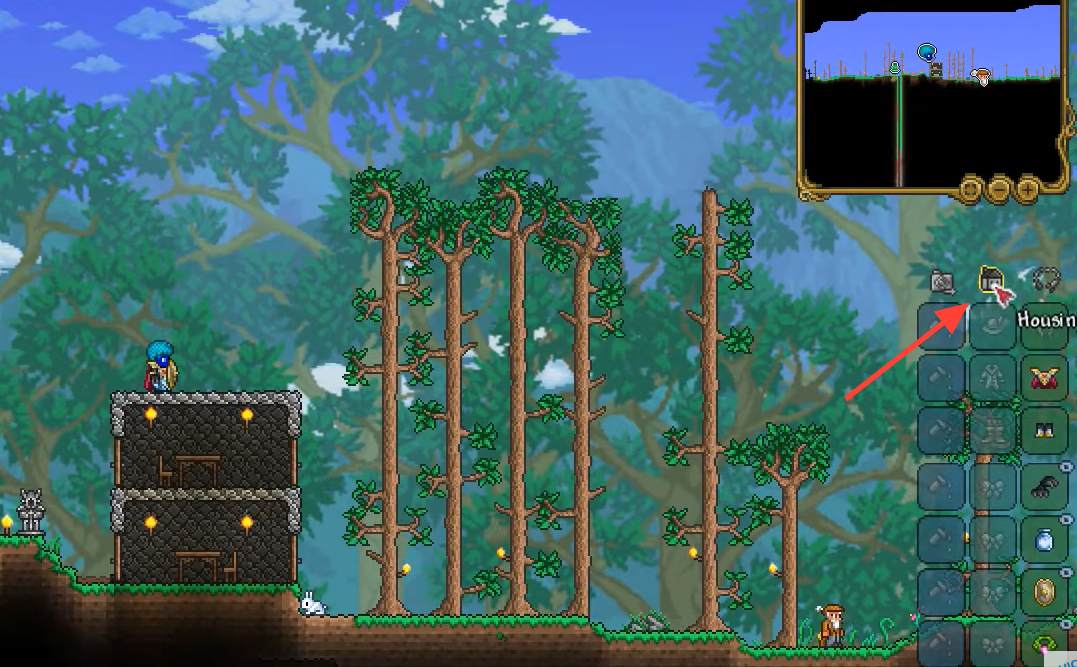
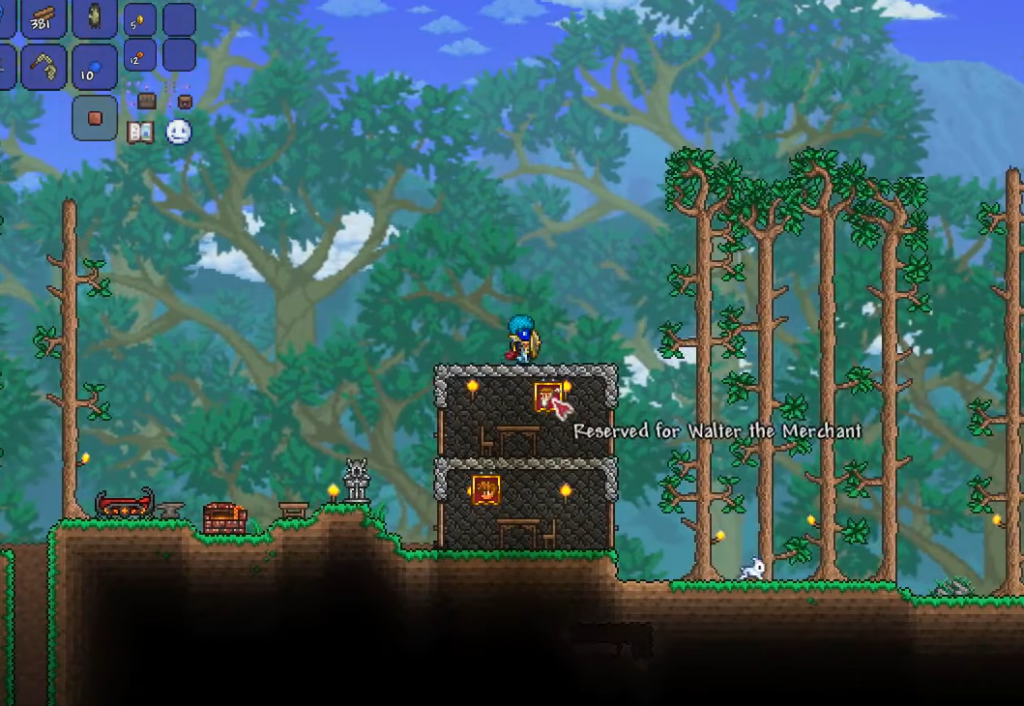
Move an NPC to a different house
Swapping villagers between rooms uses the same panel. First clear the old assignment, then place the NPC where you want them.
Why an NPC won’t move in
If a room says “suitable” but the villager never arrives, the cause is almost always a hidden housing rule rather than a bug.
| Problem | Fix |
|---|---|
| Room is too small | Enlarge it to at least 60 tiles of interior area |
| Floor is entirely wood platforms | Replace some platforms with solid blocks; only part of the floor may be platforms |
| Missing a required item | Add a chair, table, and light source |
| Gaps in walls or structure | Fill background walls and seal the enclosure |
| You stayed near the house | Leave the area so the room is off-screen for a few minutes |
The confirmation you are looking for is the villager physically standing inside the reserved room after you return. The banner alone only means the room is claimed, not that the NPC has finished walking over.
Once you know the pattern, managing a full town becomes routine. Build valid rooms, open the Housing panel, click an NPC and then the room, and give the game a moment while you step away to let everyone settle in.