
A black screen appearing after booting Windows 11 can be alarming and may prevent you from accessing your system. This issue can arise due to various reasons, including power supply problems, display settings misconfigurations, or driver issues. Fortunately, there are several methods you can try to resolve this problem and get your PC back to normal.
Restart your PC
If you’re unable to restart your PC using the power button, you can try using the shortcut Ctrl + Alt + Delete. This should bring up a screen with several options, including a power button at the bottom right. Click on it and select ‘Shut down’ to turn off your computer.
Reset Windows Explorer
If your screen is black but you can still see and move the mouse cursor, the issue might be with the File Explorer not loading correctly. Restarting Windows Explorer can help fix this problem.
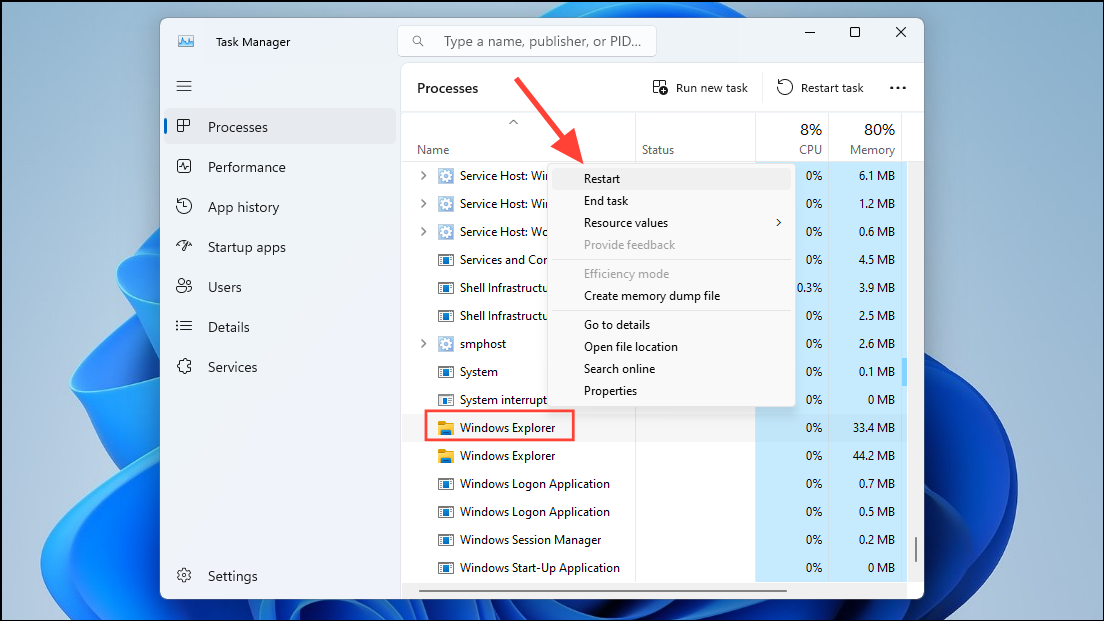
This should refresh the File Explorer and potentially resolve the black screen issue.
Boot into Safe Mode
Safe Mode starts Windows with only the essential files and drivers, which can help you troubleshoot issues caused by faulty drivers or software. Booting into Safe Mode might help you identify and fix the black screen problem.
Shift key and then click on the ‘Restart’ option from the Start menu or login screen.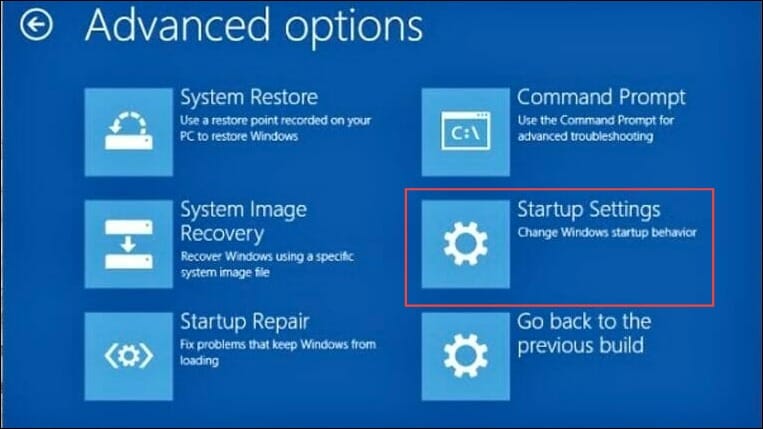
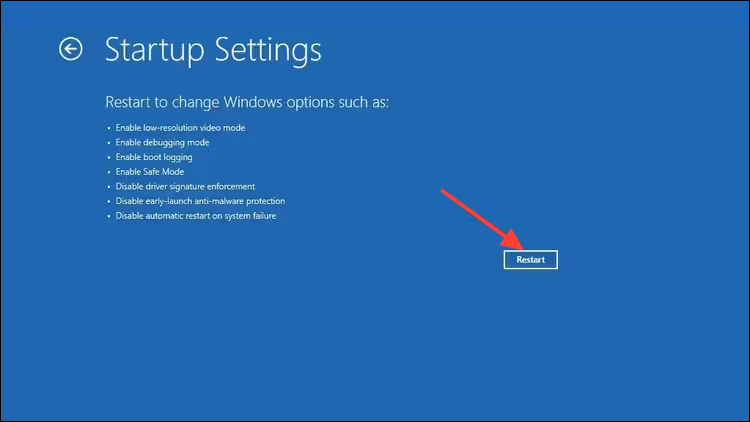
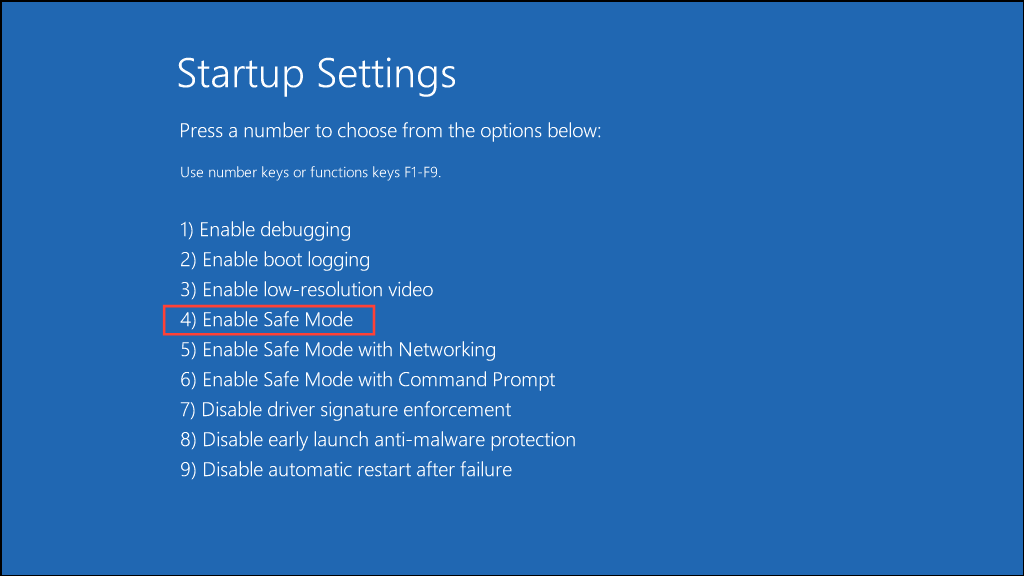
Once in Safe Mode, you can try various troubleshooting steps, such as updating or rolling back drivers, uninstalling recent software, or running system scans.
Update or Roll Back Drivers in Safe Mode
Corrupted or incompatible graphics drivers can cause the black screen issue. Updating or rolling back these drivers while in Safe Mode might resolve the problem.
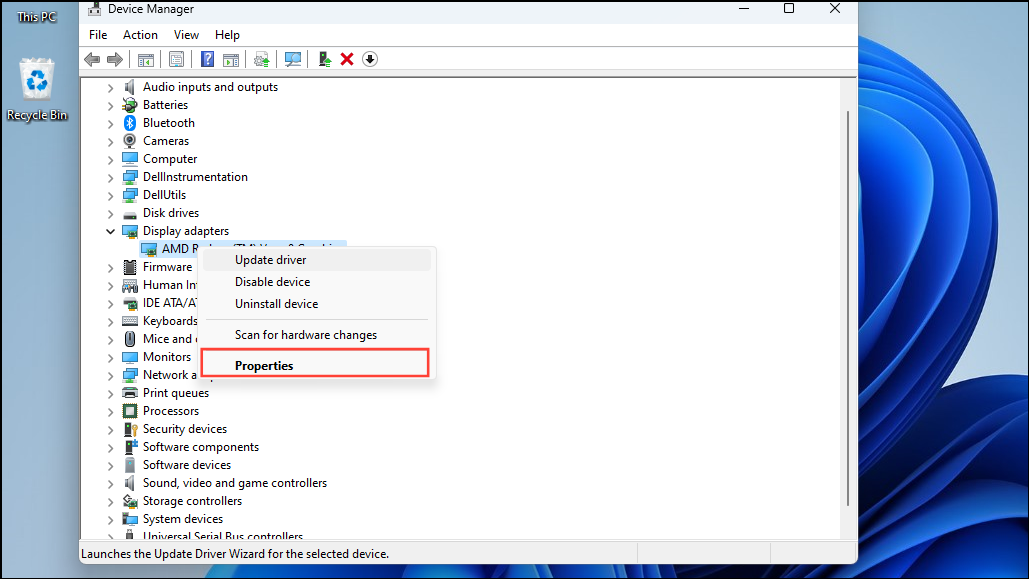
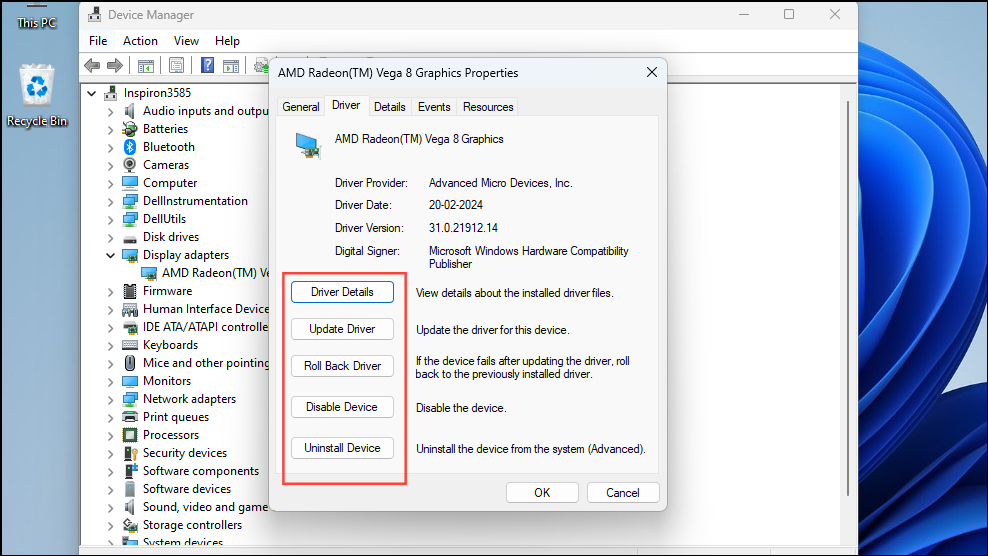
Run Startup Repair
If the black screen persists, you can use Windows’ built-in Startup Repair tool to fix issues preventing your system from booting correctly.
F11 key repeatedly (or the key specific to your system) to enter the Windows Recovery Environment.F11, F12, Esc, or another key.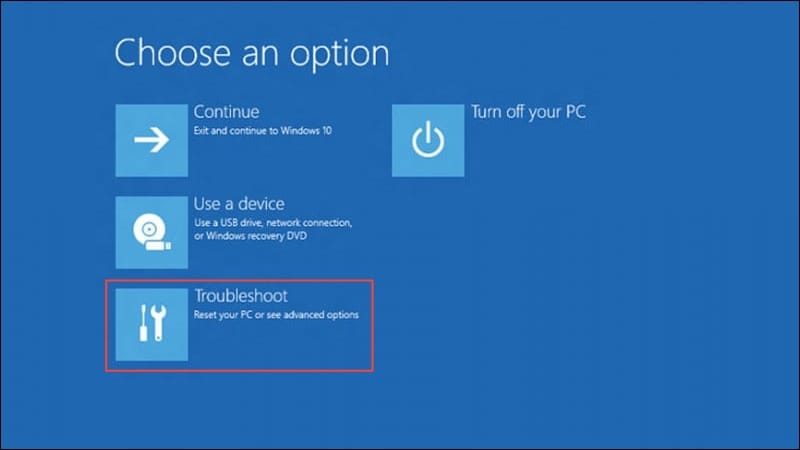
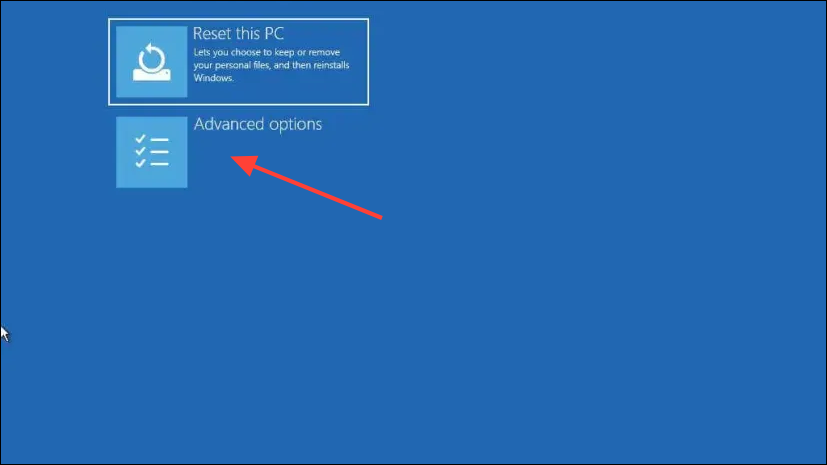
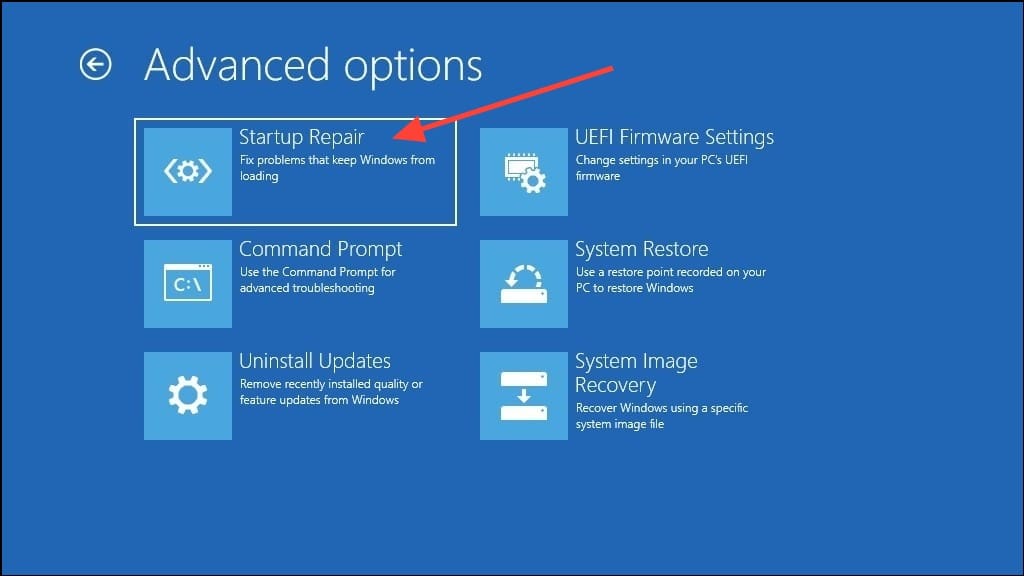
Once the process is complete, restart your PC to see if the black screen issue has been resolved.
Uninstall Windows Updates
Sometimes, recent Windows updates can cause unexpected issues. Uninstalling the most recent updates may fix the black screen problem.
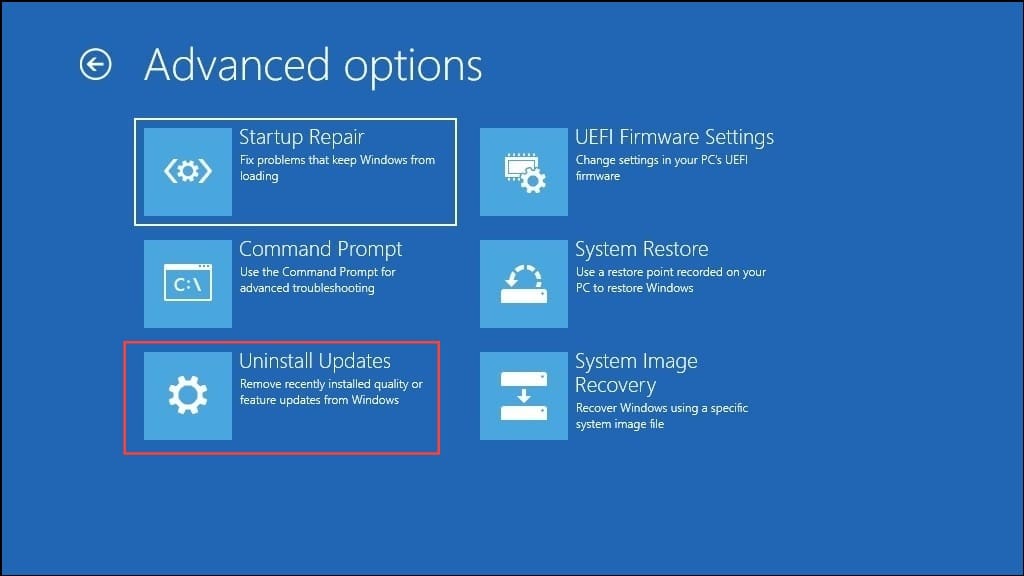
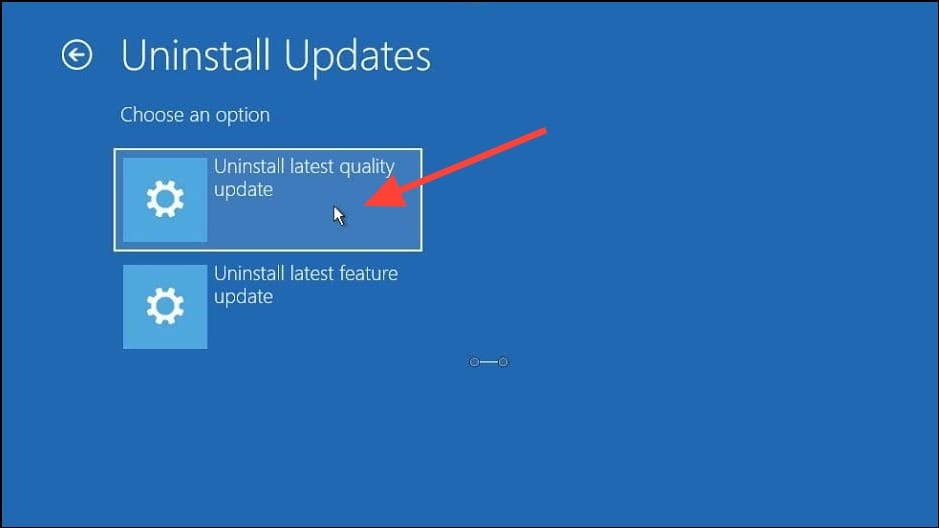
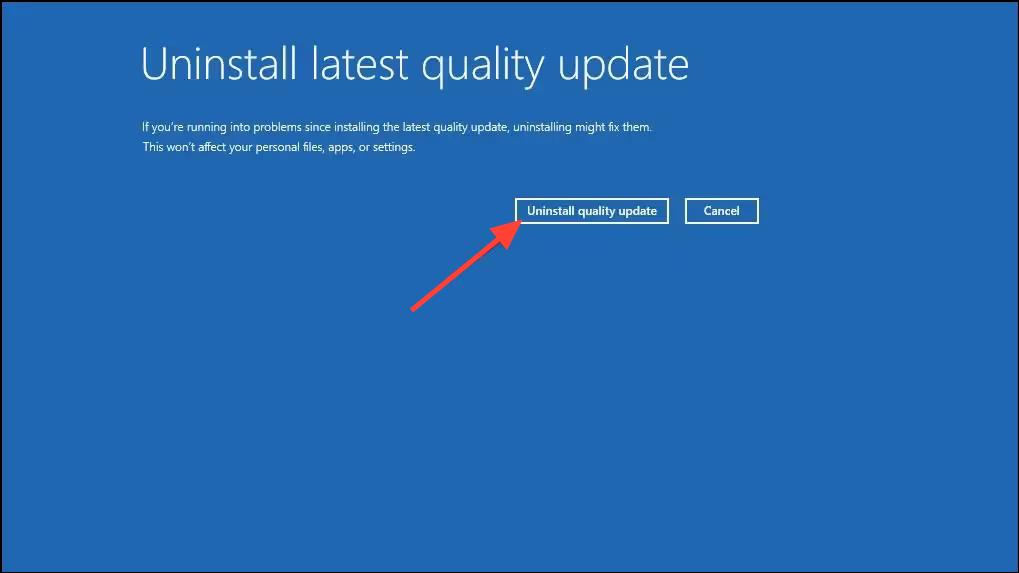
If uninstalling the quality updates doesn’t help, you can repeat the steps to uninstall the latest feature update.
Perform a System Restore
Restoring your system to an earlier point in time can undo recent changes that may have caused the black screen issue.
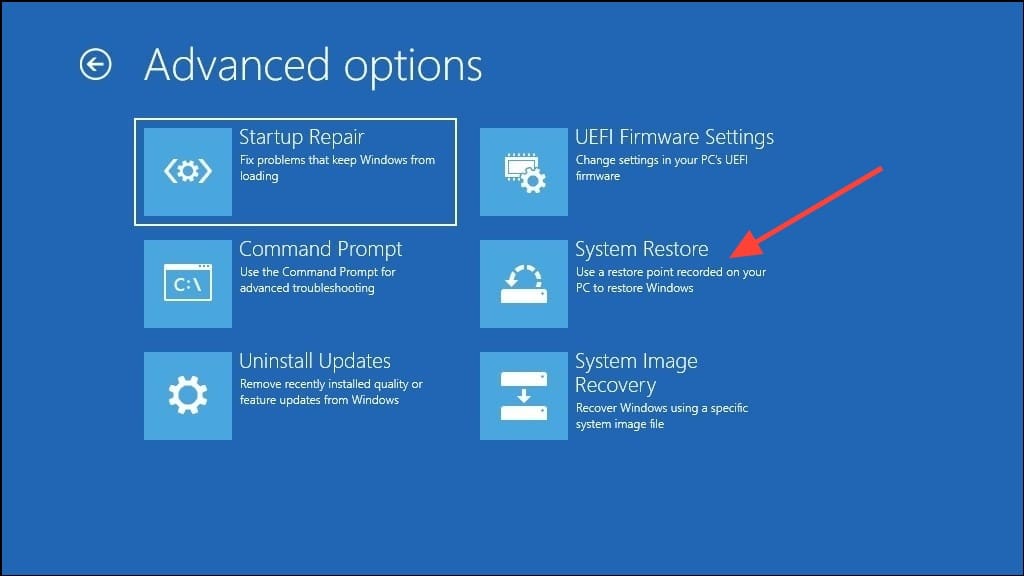
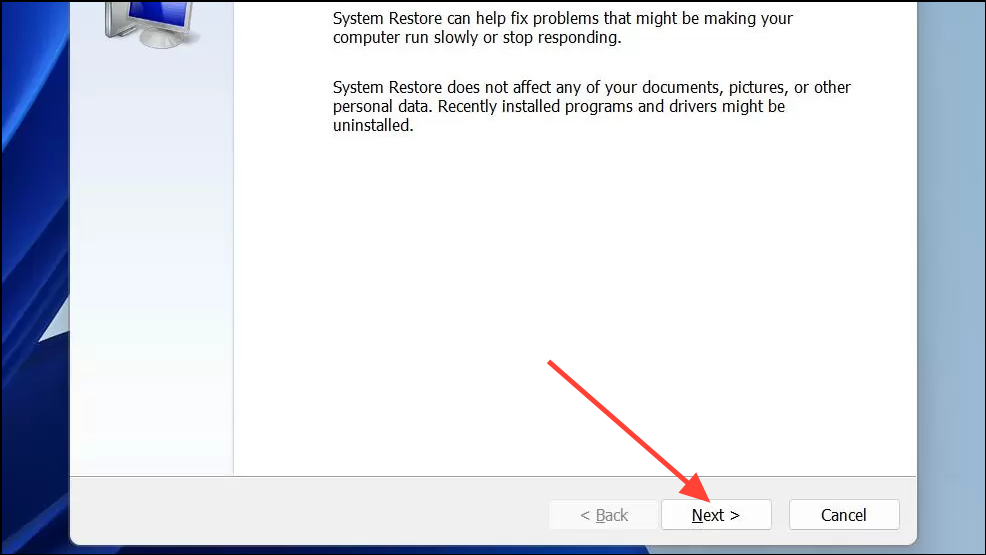
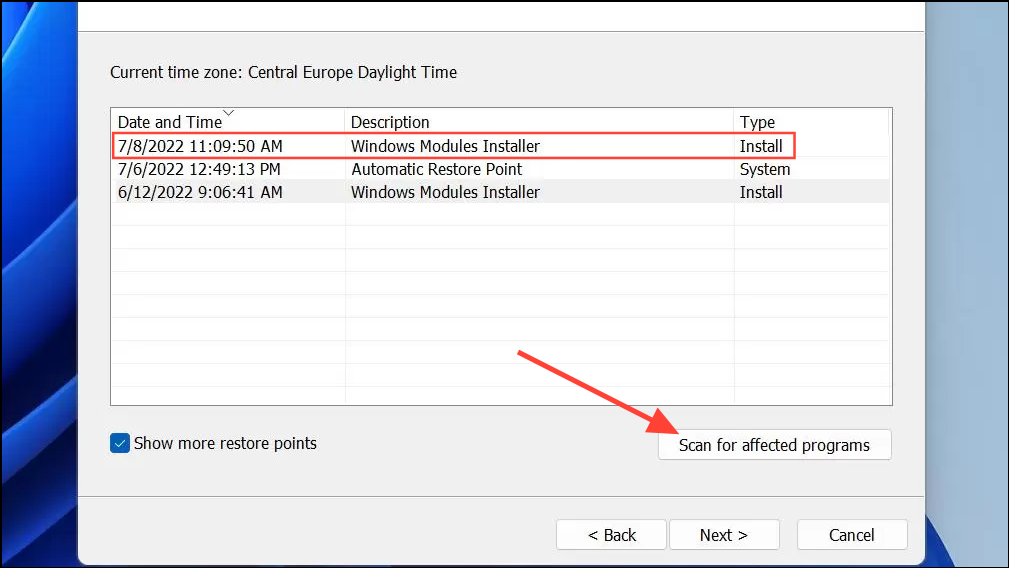
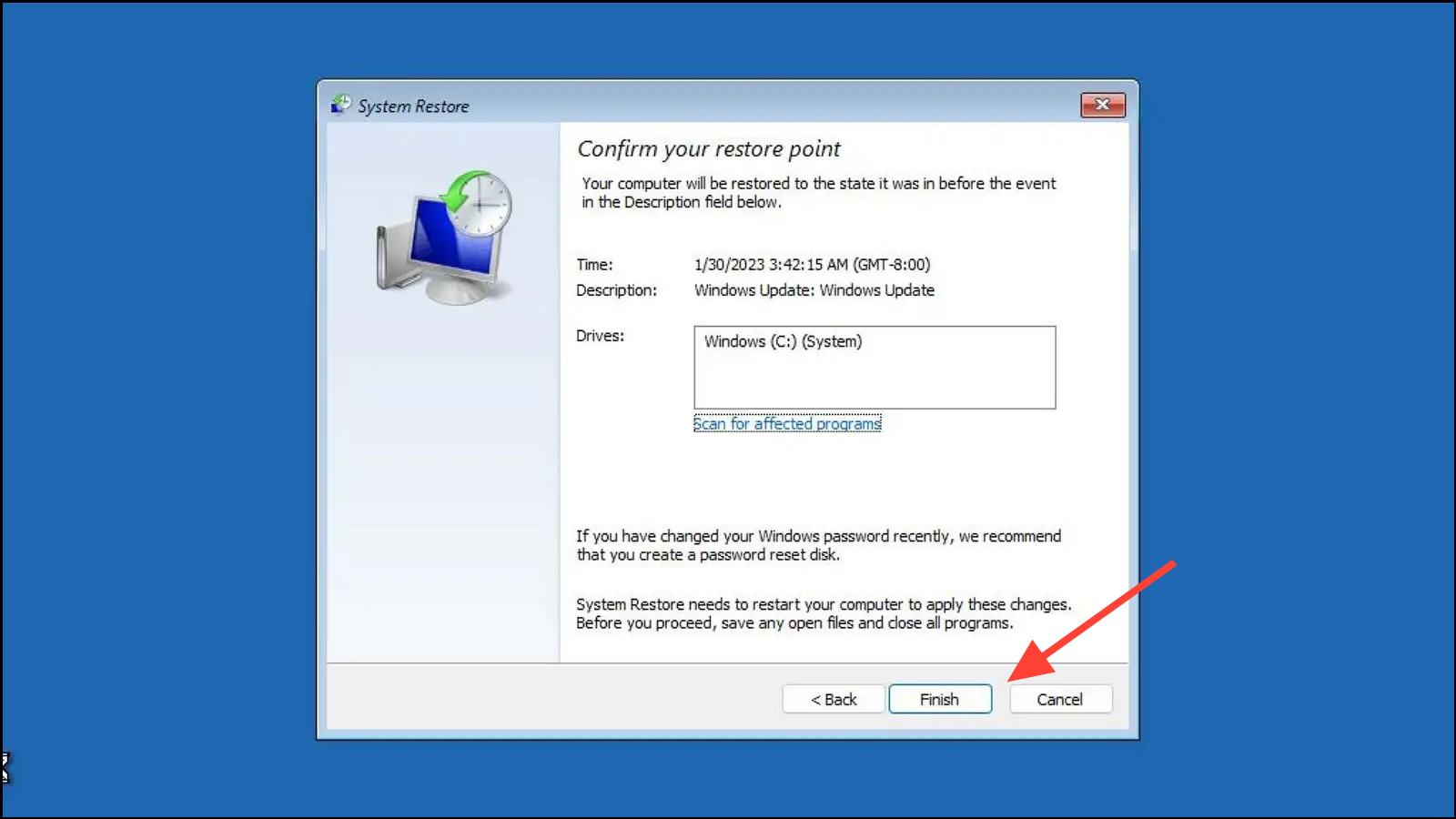
After the restoration is complete, check if the black screen issue is resolved.
Check Your Device’s Power Supply
It’s possible that power issues are causing the black screen. Ensure that all power cables are securely connected and that the outlet is functioning correctly.
Dust and debris can also interfere with connections, so consider cleaning the ports and connectors with compressed air.
Disconnect External Devices
External peripherals can sometimes cause conflicts leading to a black screen. Removing these devices can help identify the culprit.
Reset the UEFI/BIOS and Check the Boot Order
Incorrect BIOS settings or boot order can prevent your system from loading correctly. Resetting the BIOS to default settings may help.
F2 or Delete key repeatedly to enter the BIOS setup. The specific key may vary depending on your motherboard manufacturer.Enter to select.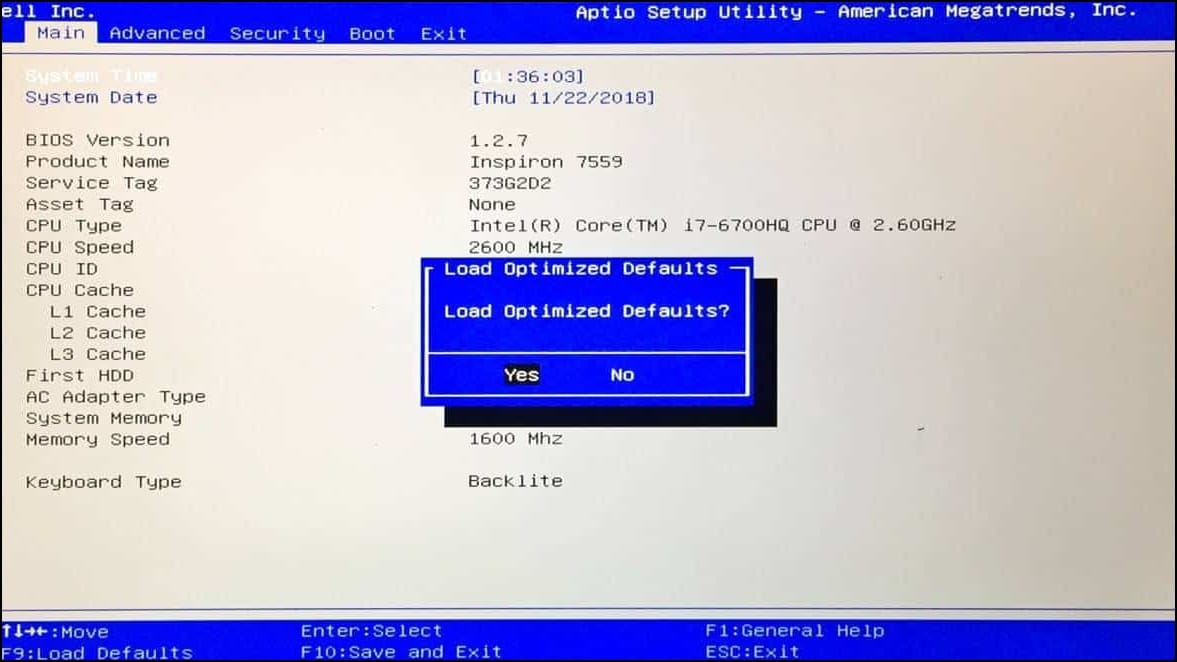
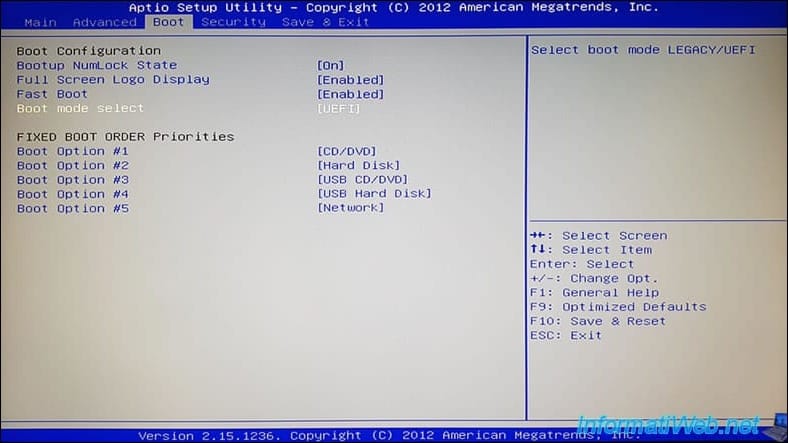
After resetting the BIOS, check if the black screen issue has been resolved during boot.
By following these methods, you should be able to resolve the black screen issue after booting Windows 11. If the problem persists, it may indicate a hardware malfunction, and you might need to consult a professional technician.



