How to Open Apps and Websites with Keyboard Shortcuts in Windows 11
Open apps or websites you visit the most with keyboard shortcuts for increased efficiency!
Open apps or websites you visit the most with keyboard shortcuts for increased efficiency!
by Sakshi Garg
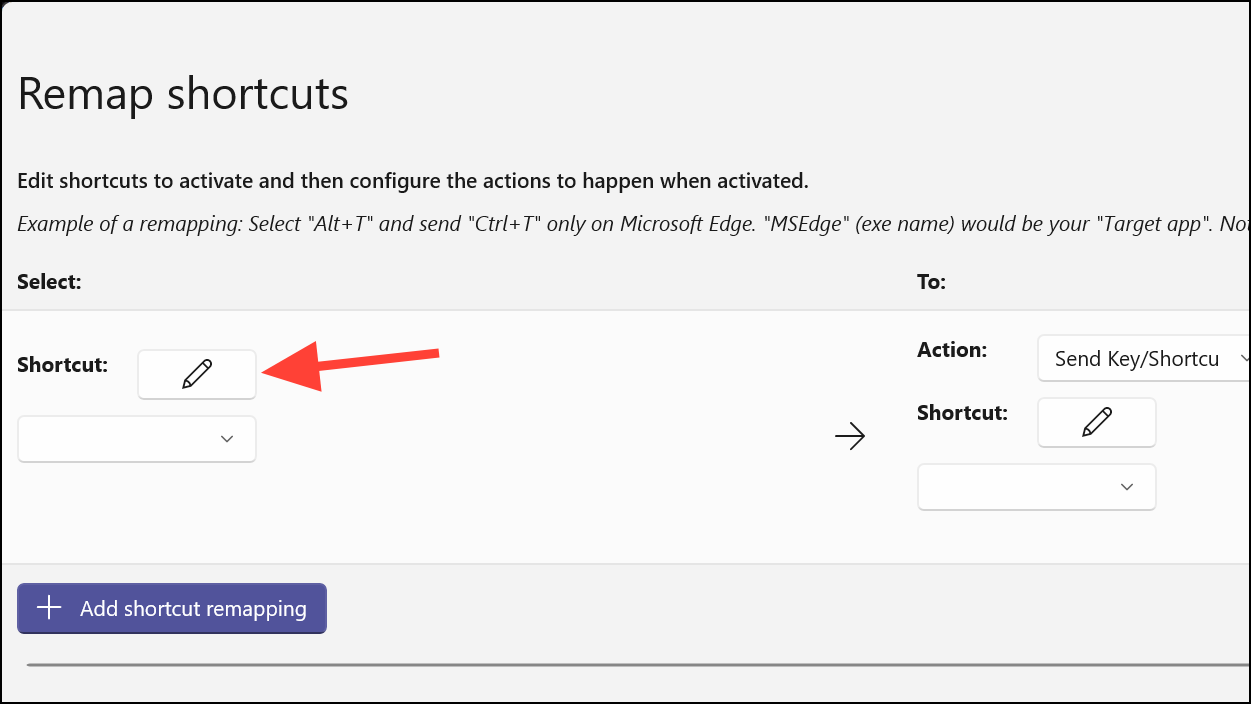
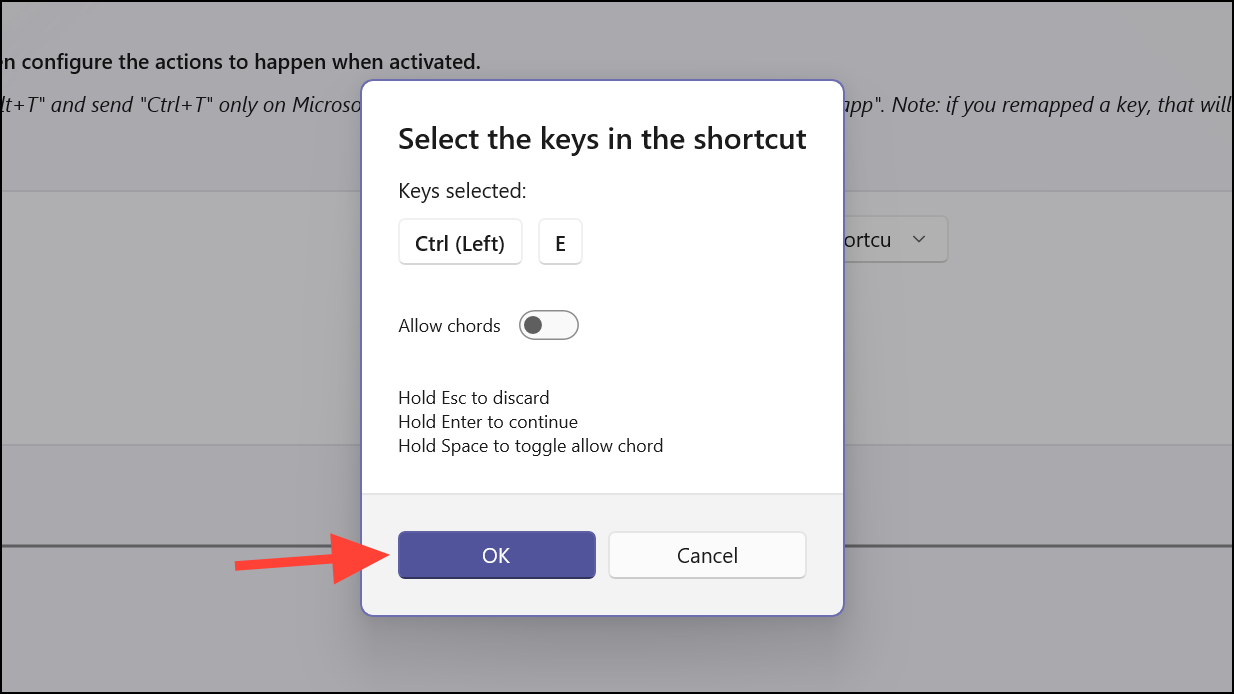
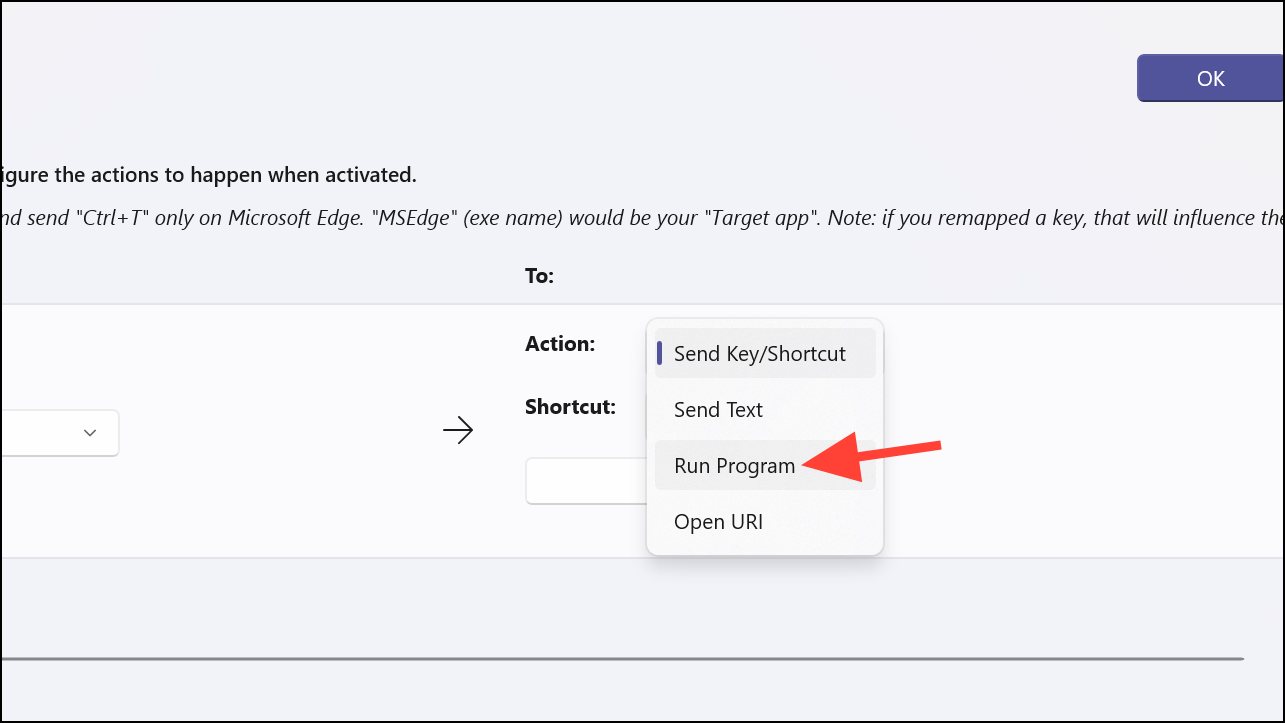
Utilizing keyboard shortcuts in Windows 11 can dramatically streamline your workflow by reducing the time spent navigating with a mouse. If you want to open apps and websites swiftly using custom keyboard shortcuts, the following methods will guide you through creating efficient shortcuts tailored to your needs.
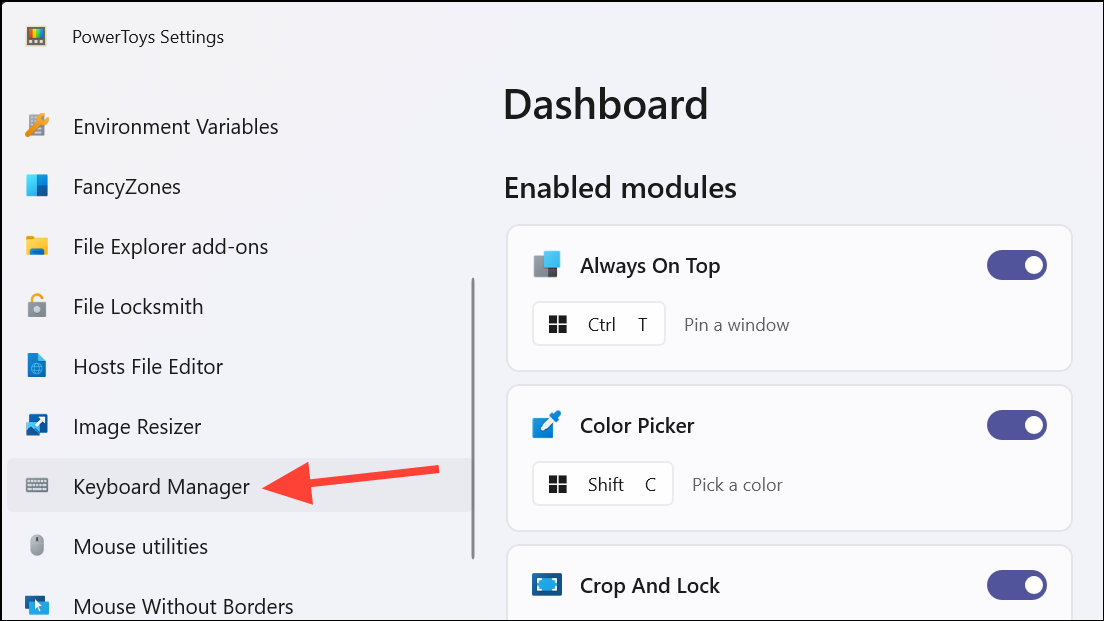
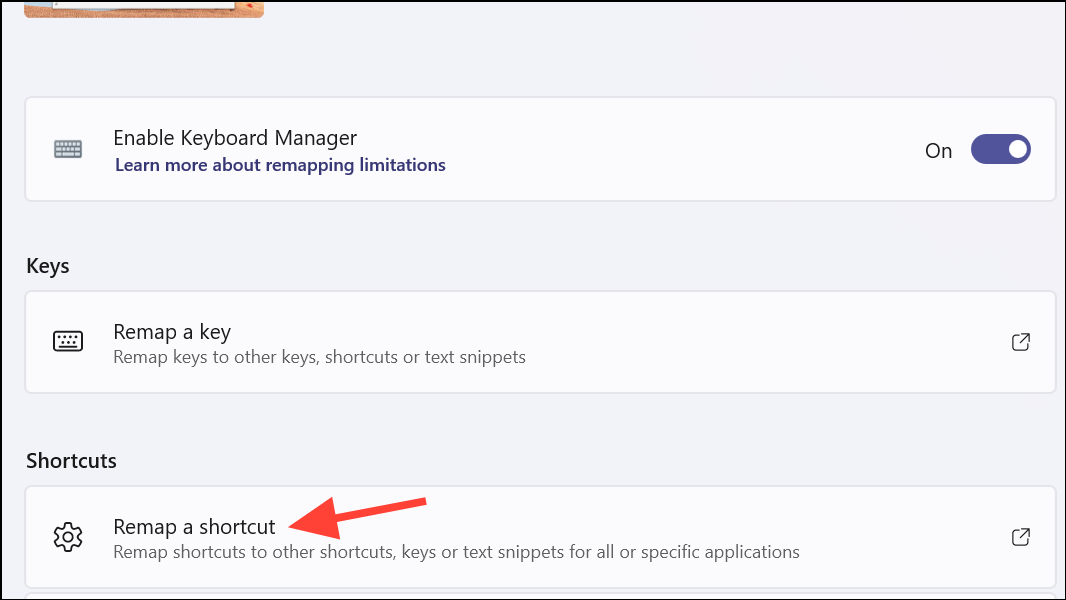
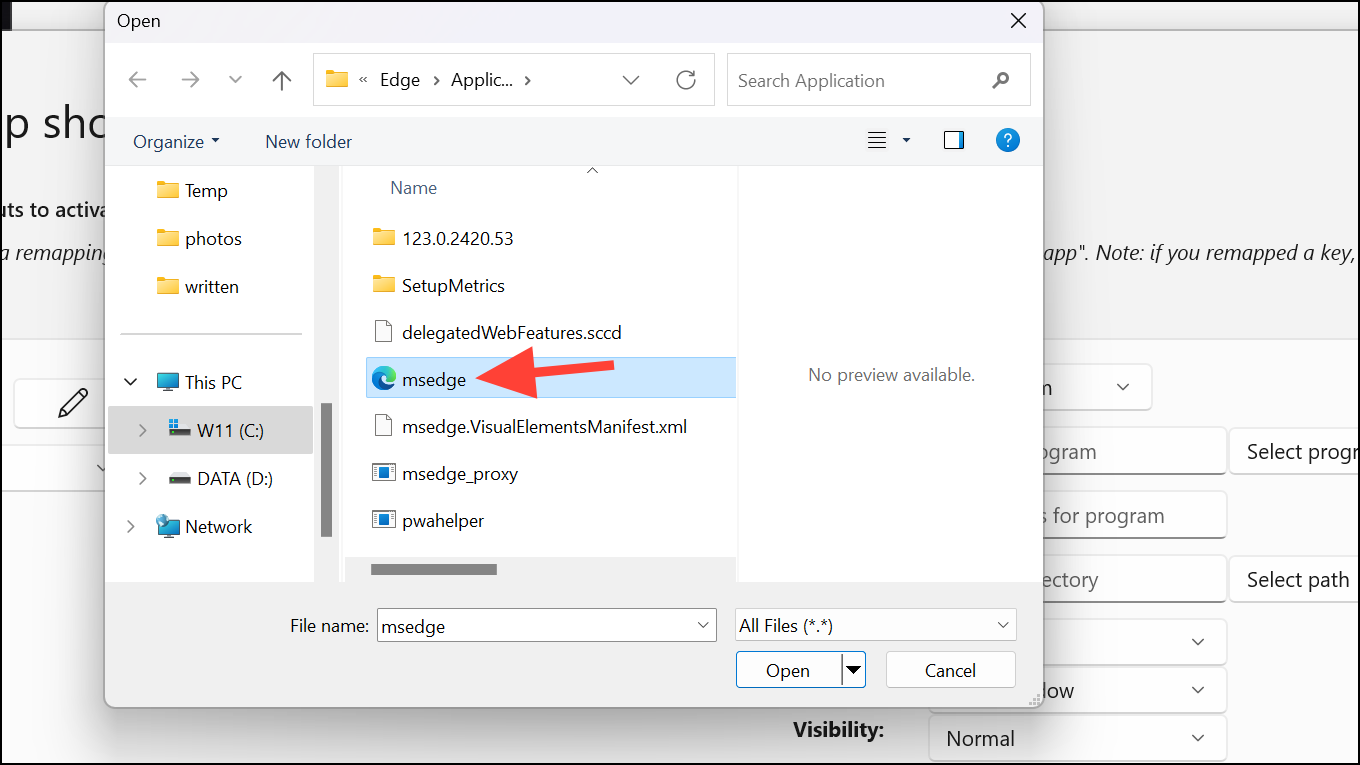
Download and install the latest version of PowerToys on your Windows 11 PC. Ensure that it’s updated to at least version v0.79.0 to access the new features in the Keyboard Manager utility.
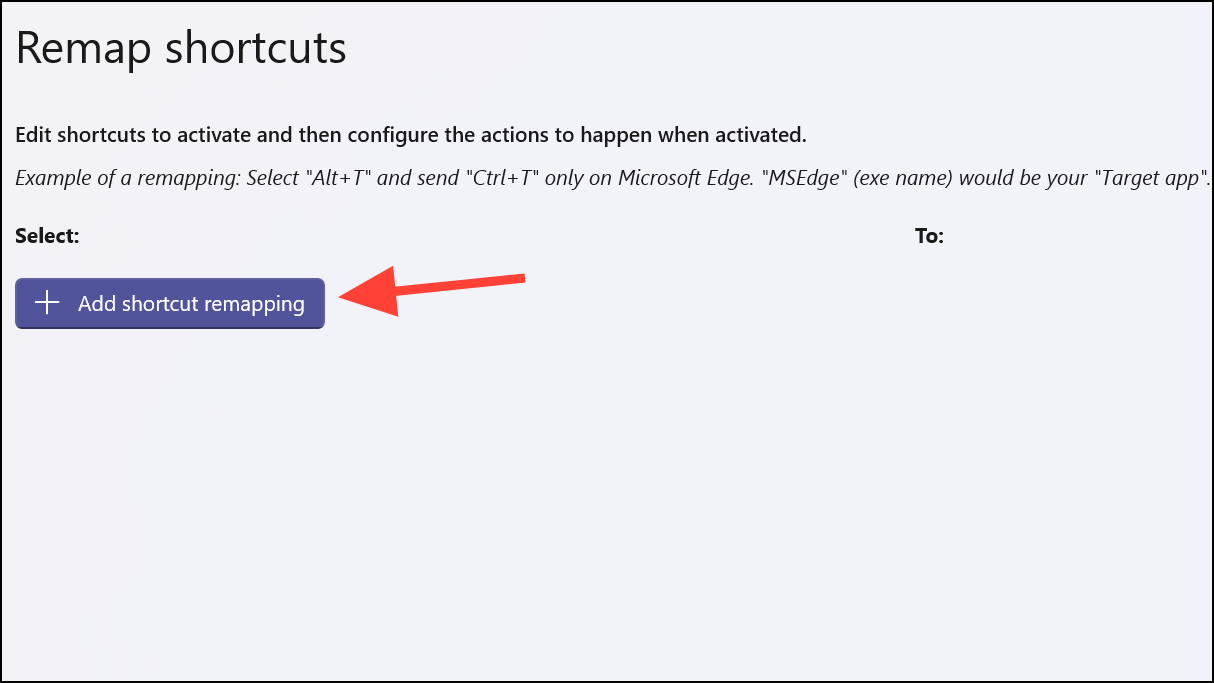
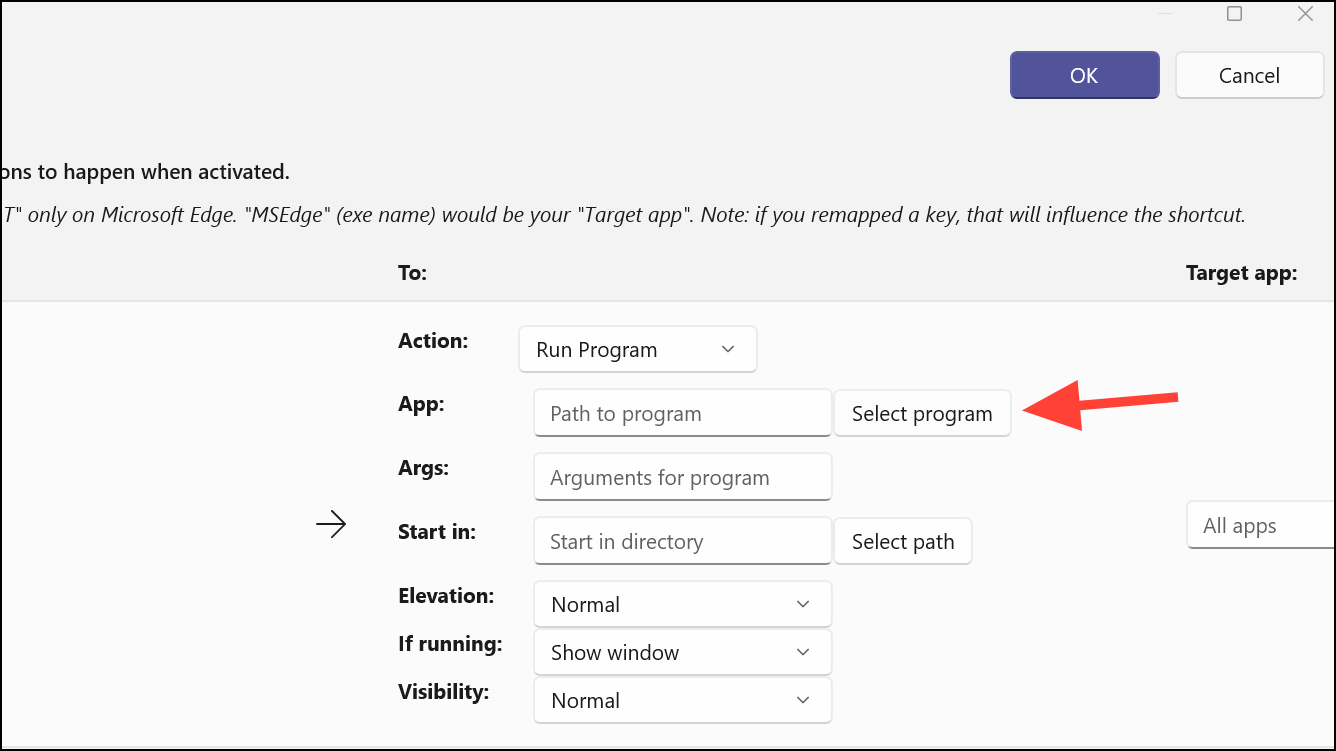
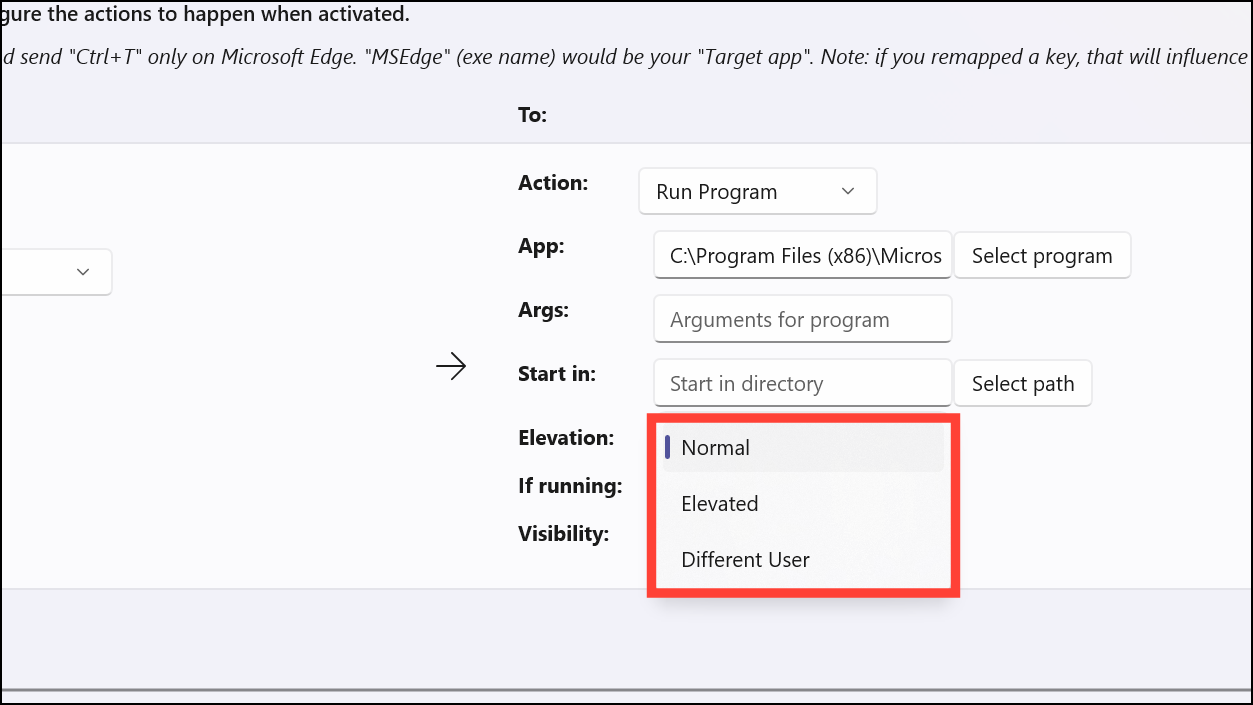
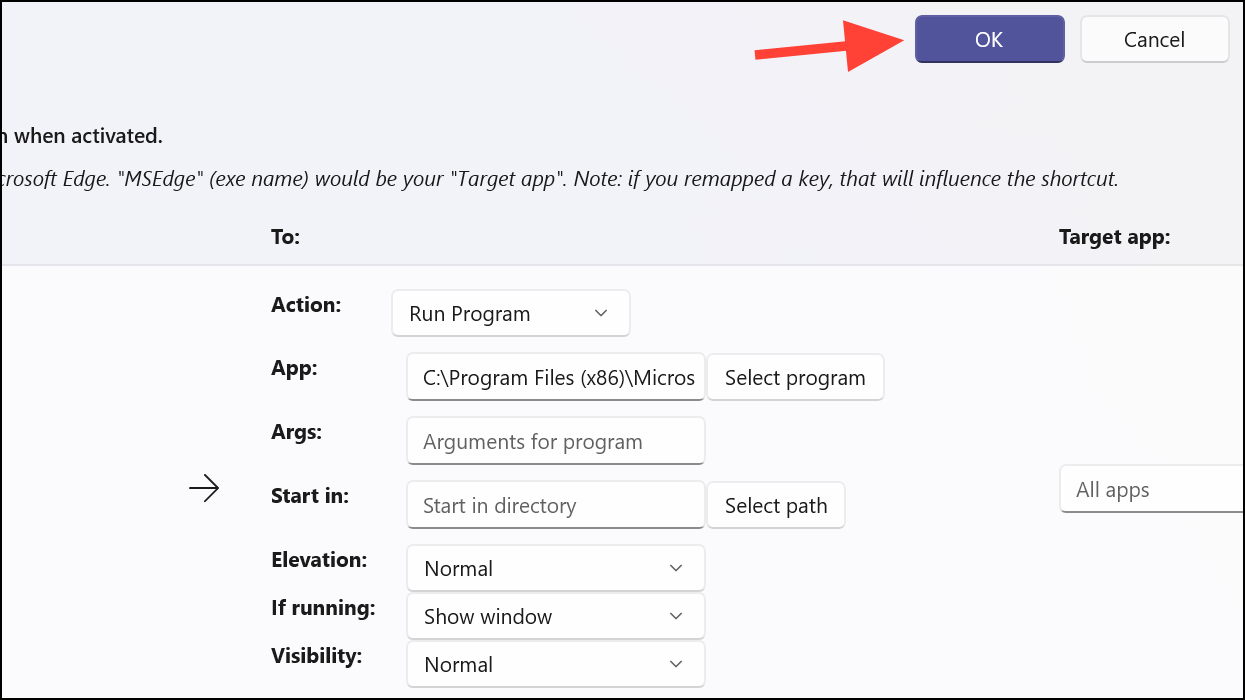
Optionally, you can adjust settings such as ‘Args’, ‘Start in’, ‘Elevation’, ‘If running’, and ‘Visibility’. For most cases, leaving them at their default settings is sufficient.
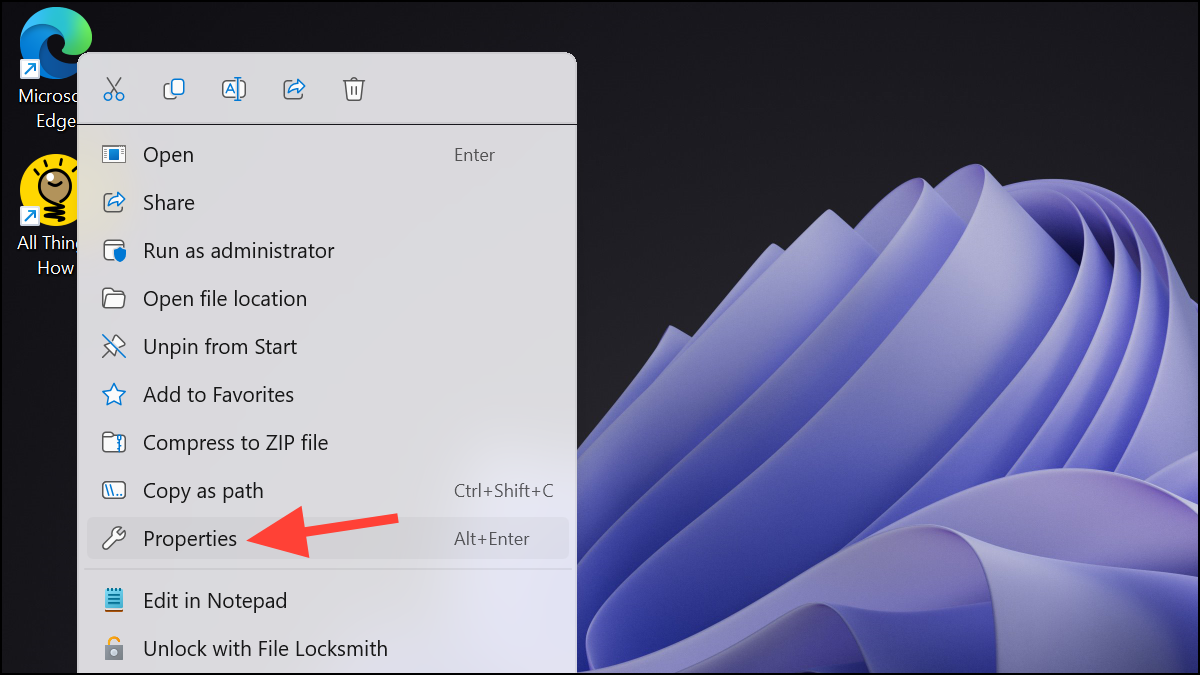
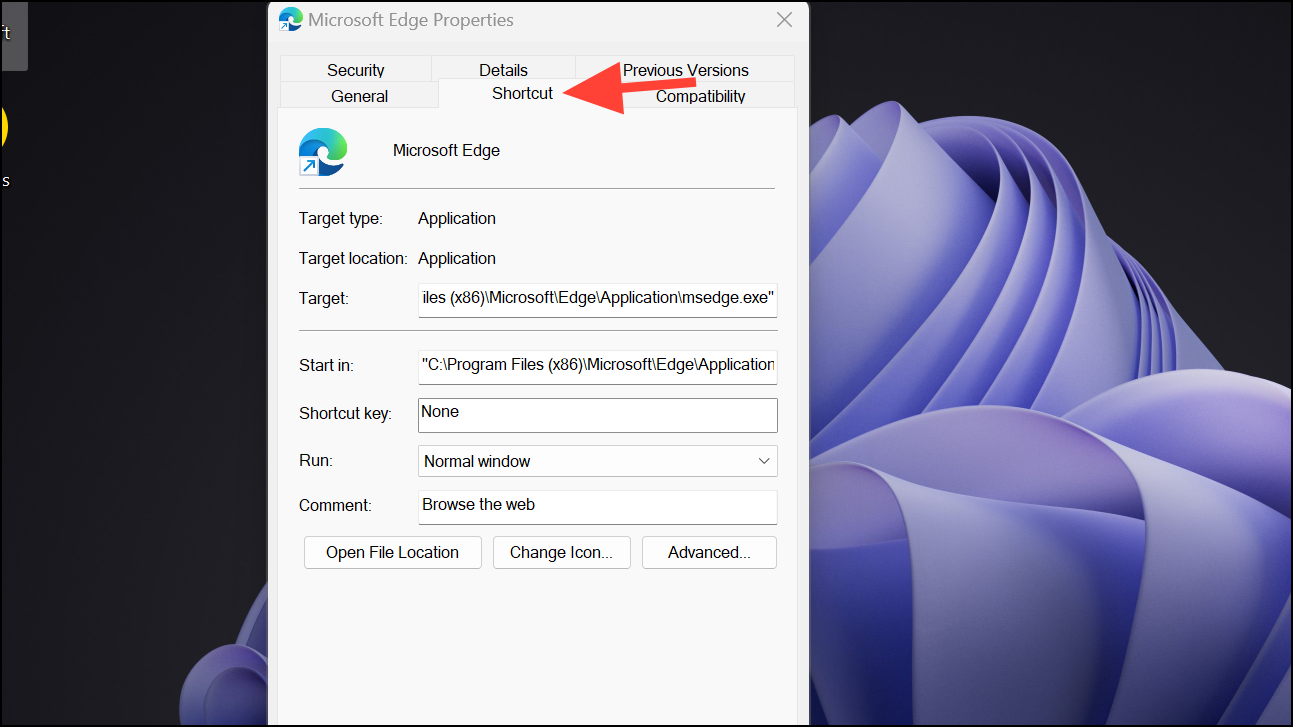
Ensure that the application you want to create a shortcut for has a desktop icon. If not, create a desktop shortcut by right-clicking the app in the Start menu, selecting ‘More’, and then ‘Open file location’. Copy the shortcut to your desktop.
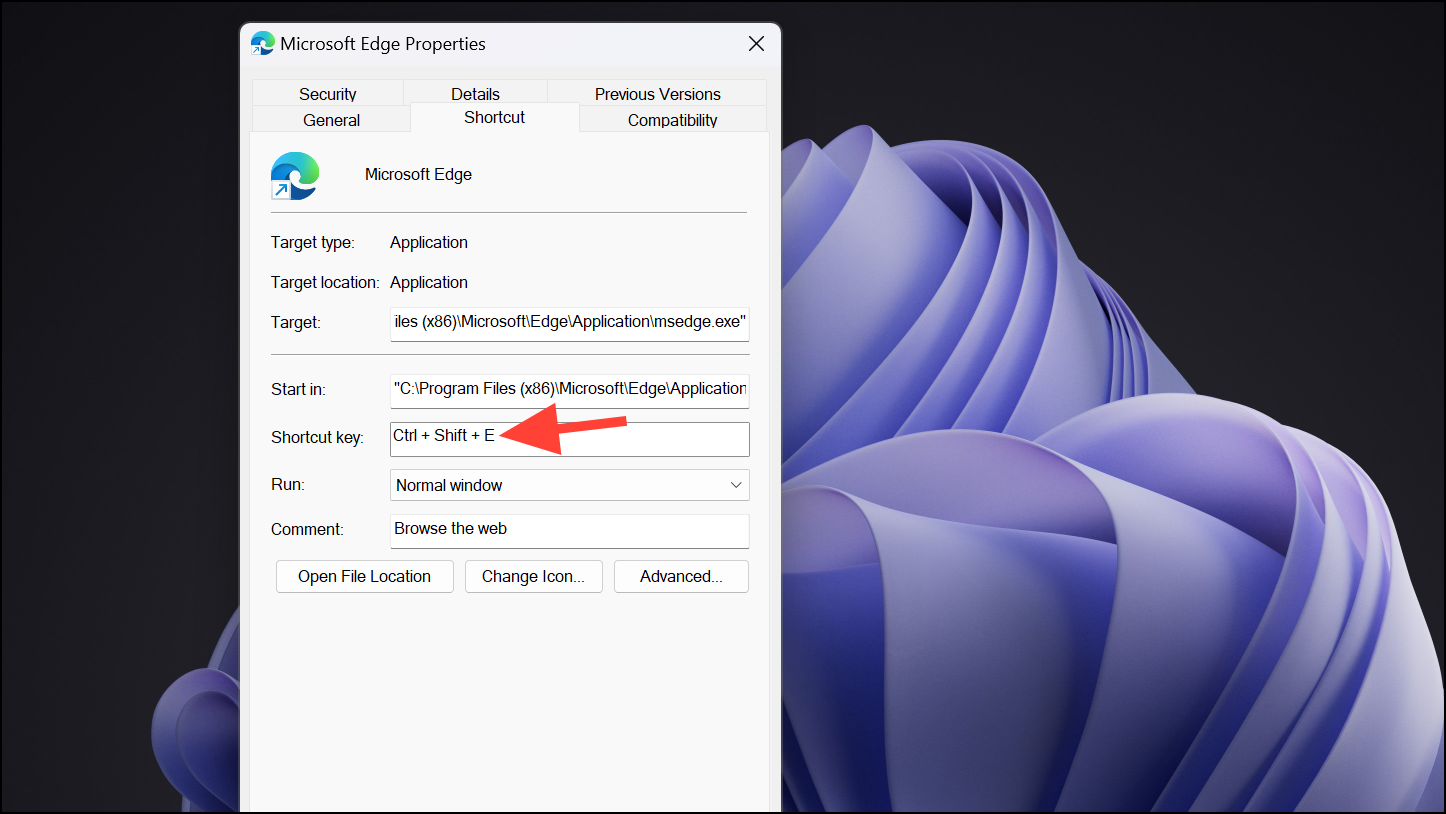
Click ‘Apply’ and then ‘OK’ to save the new keyboard shortcut. Keep in mind that the desktop shortcut must remain on your desktop for the keyboard shortcut to continue working.
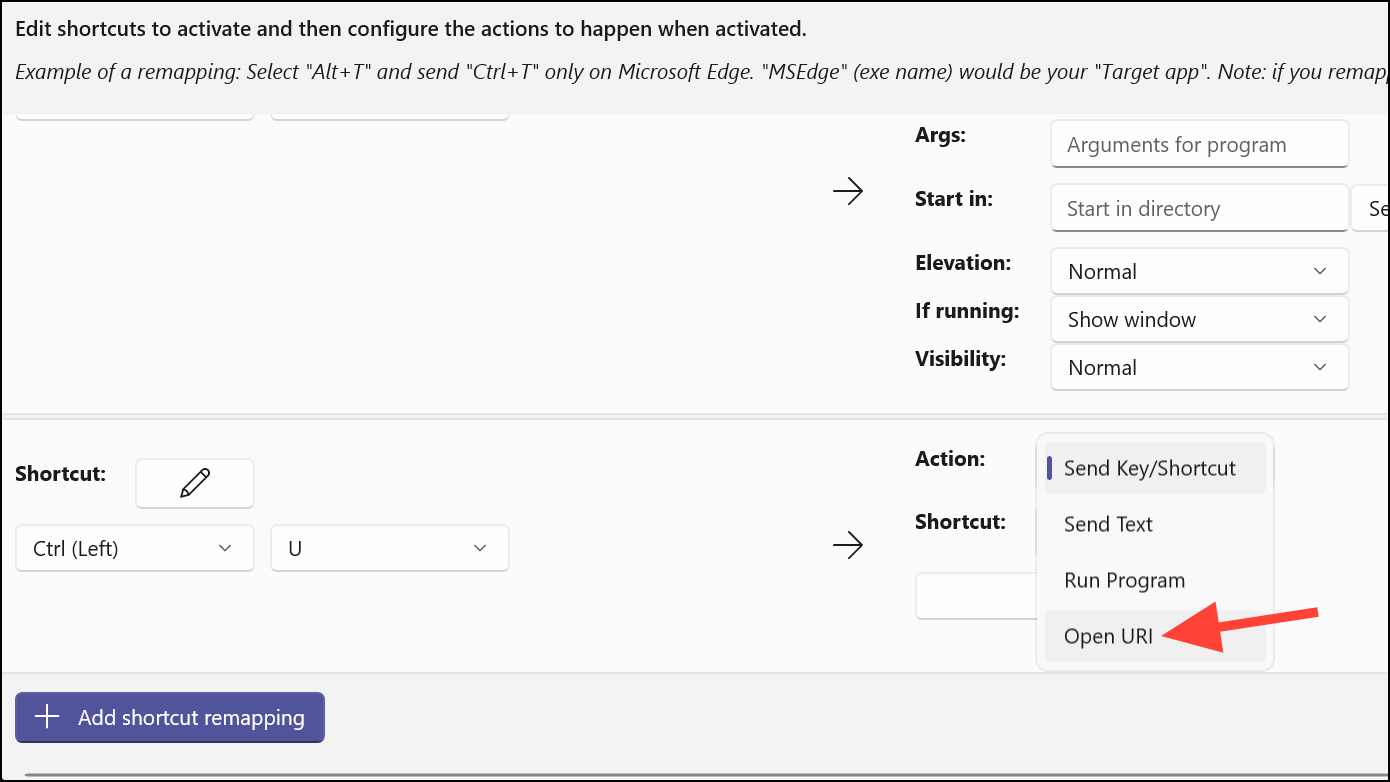
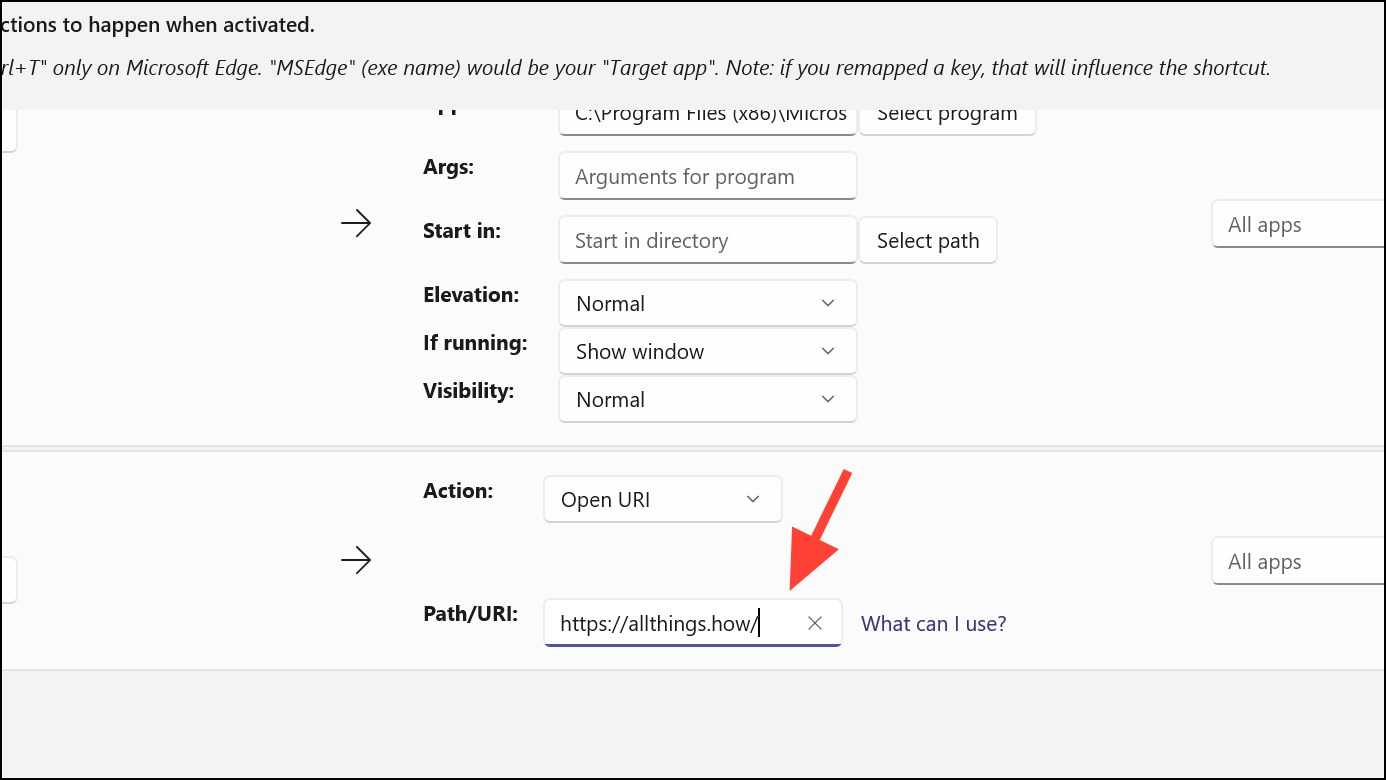
To create a keyboard shortcut for a website, you need to install the website as an app on your desktop first. Browsers like Chrome or Edge allow you to install any website as an app. Once installed, follow the same steps as above to assign a keyboard shortcut. For detailed instructions on installing a website as an app, refer to this guide:
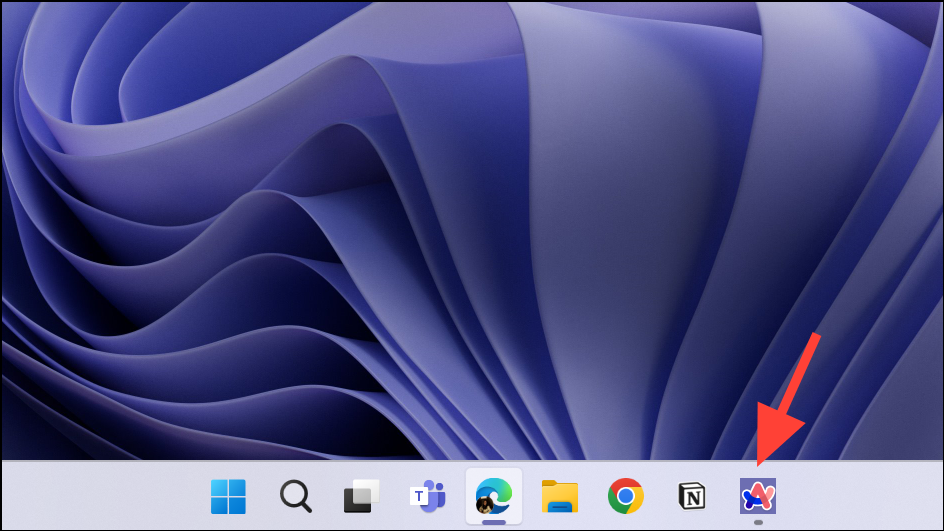
Pin your most frequently used apps to the taskbar by right-clicking an app and selecting ‘Pin to taskbar’. This makes them easily accessible at all times.
Once the apps are pinned, use the keyboard shortcut Windows logo key + [Number] to open them. The number corresponds to the app’s position on the taskbar from left to right. For example, pressing Windows key + 6 will open the sixth app pinned on your taskbar.
The keyboard shortcut works regardless of whether your taskbar is always visible or set to hide automatically. In the example below, pressing the shortcut opens the sixth app on the taskbar, which is the Arc Browser for Windows.
By setting up custom keyboard shortcuts using these methods, you can enhance your efficiency on Windows 11 by quickly launching apps and websites without the need for mouse navigation.


 Pallav Pathak