Whether you use the desktop app or the web app, clear the cache for Roblox on your Windows 11 PC using these methods.
Whether you use the desktop app or the web app, clear the cache for Roblox on your Windows 11 PC using these methods.
by Sakshi Garg
Over time, cached files from applications like Roblox can accumulate on your Windows 11 PC, potentially causing issues like slower load times, unexpected crashes, or lag during gameplay. Clearing the Roblox cache can help improve performance and provide a smoother gaming experience.
Clear the Roblox desktop app cache
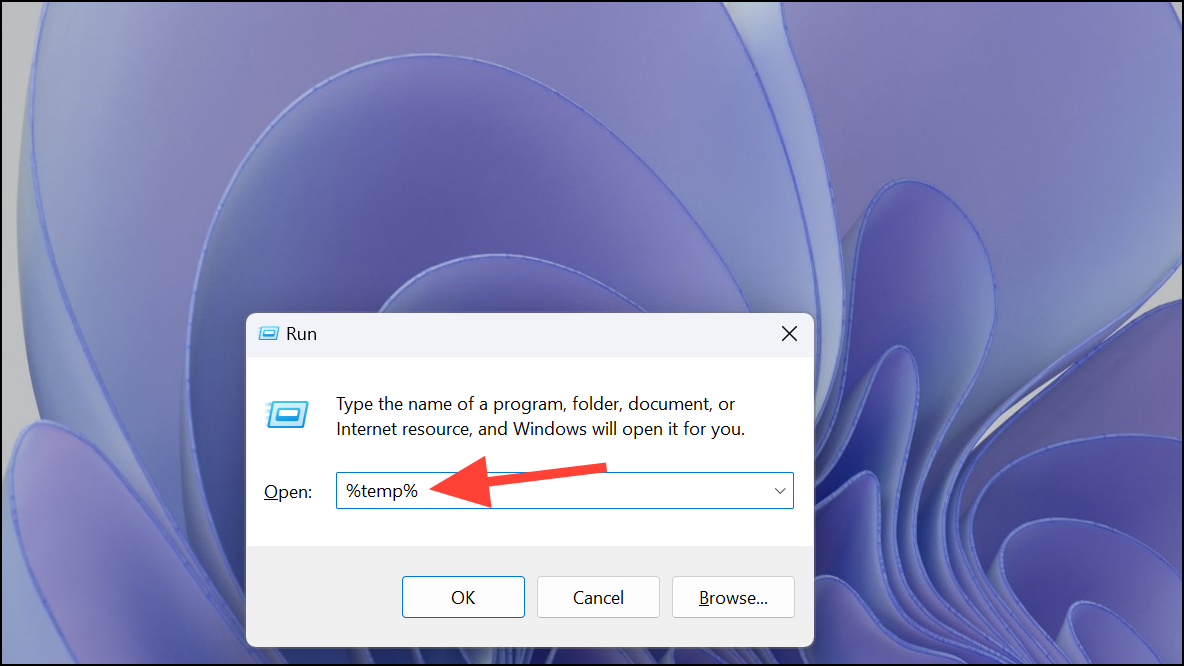
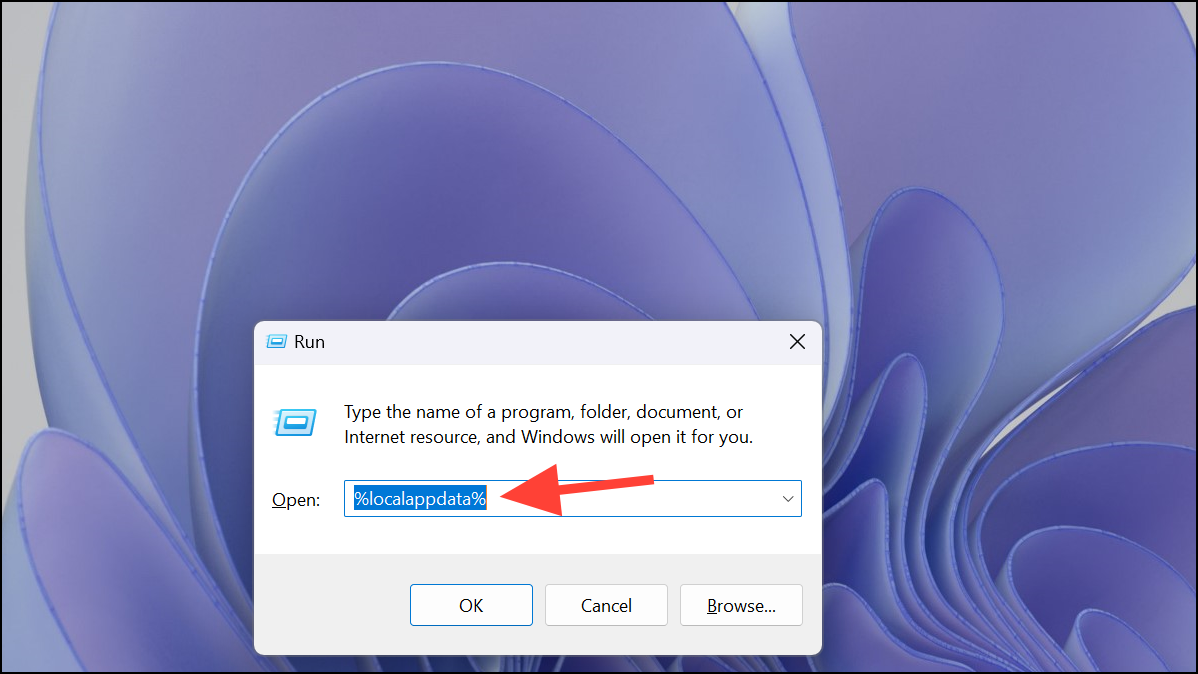
While Roblox doesn’t provide a built-in option to clear its cache, you can manually remove the cached files by following these steps.
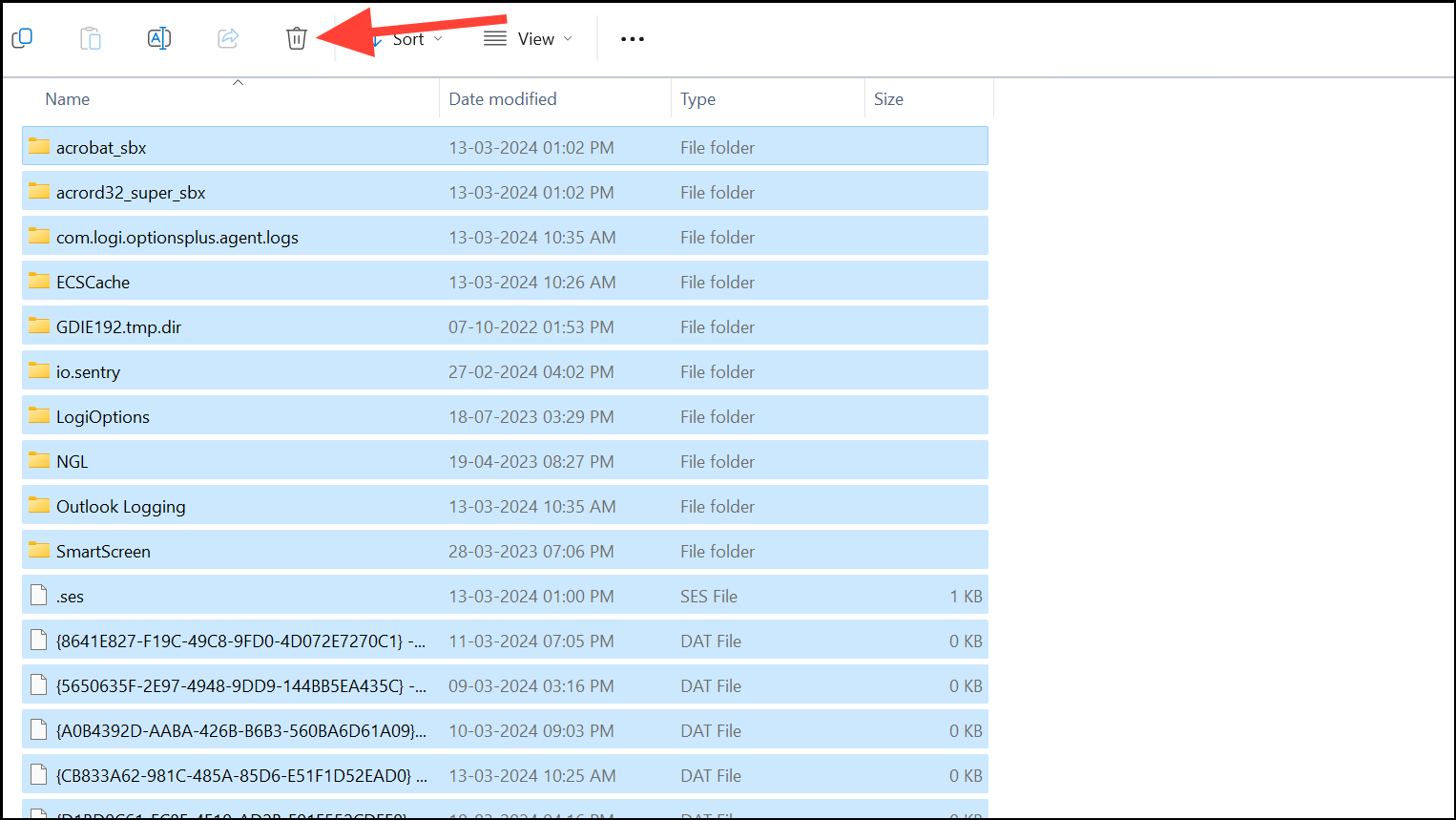
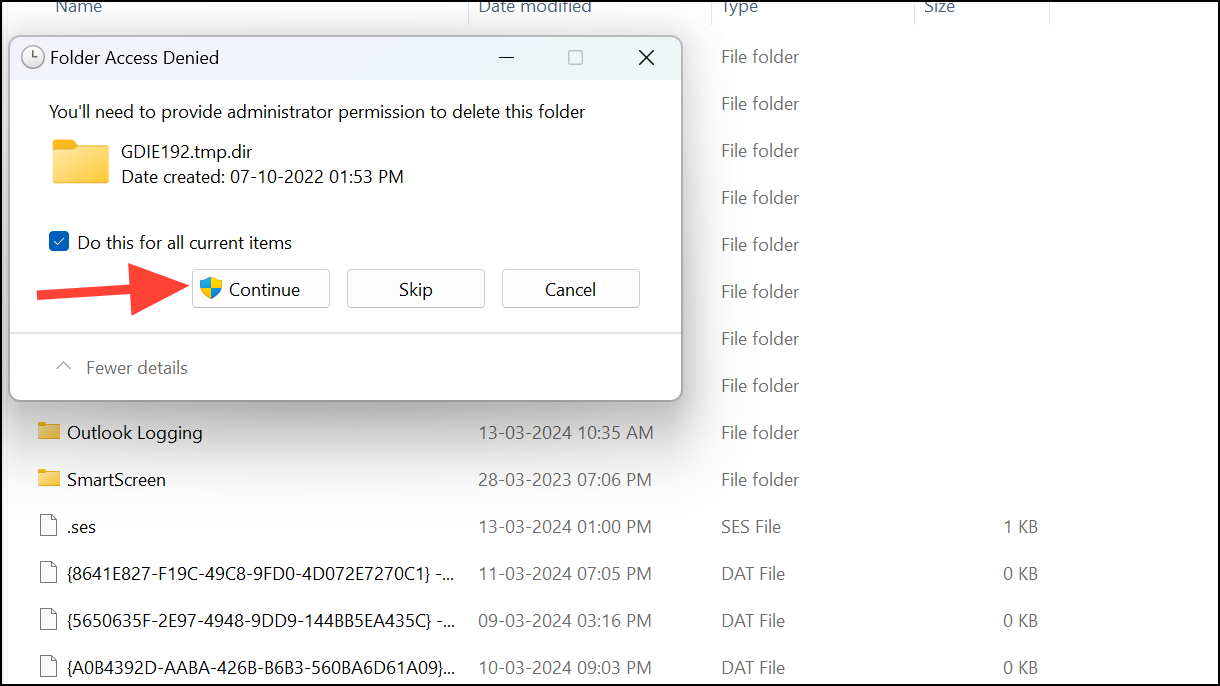
Once the Temp folder opens, select all files by pressing Ctrl + A. Delete all the selected files by clicking the ‘Delete’ icon or pressing the Delete key on your keyboard.
Inside the ‘Versions’ folder, open both the ‘Cache’ and ‘Logs’ folders one at a time. In each folder, select all files by pressing Ctrl + A and delete them. Be careful not to delete the folders themselves—only the files inside them.
Finally, restart your computer to complete the process of clearing the Roblox desktop app cache.
Clear the browser cache
If you play Roblox through a web browser, clearing your browser’s cache can help resolve performance issues. Here’s how to clear the cache on popular browsers.
Clear cache in the Chrome browser
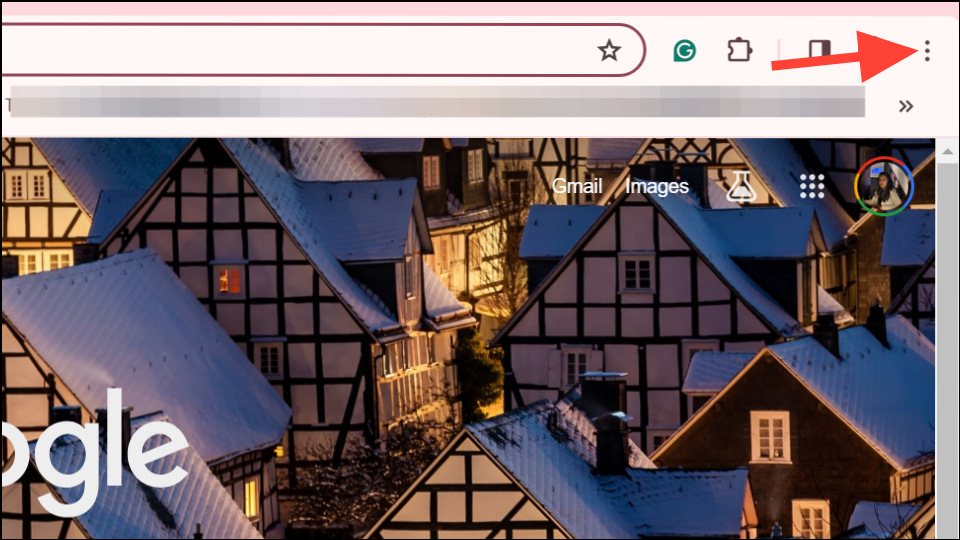
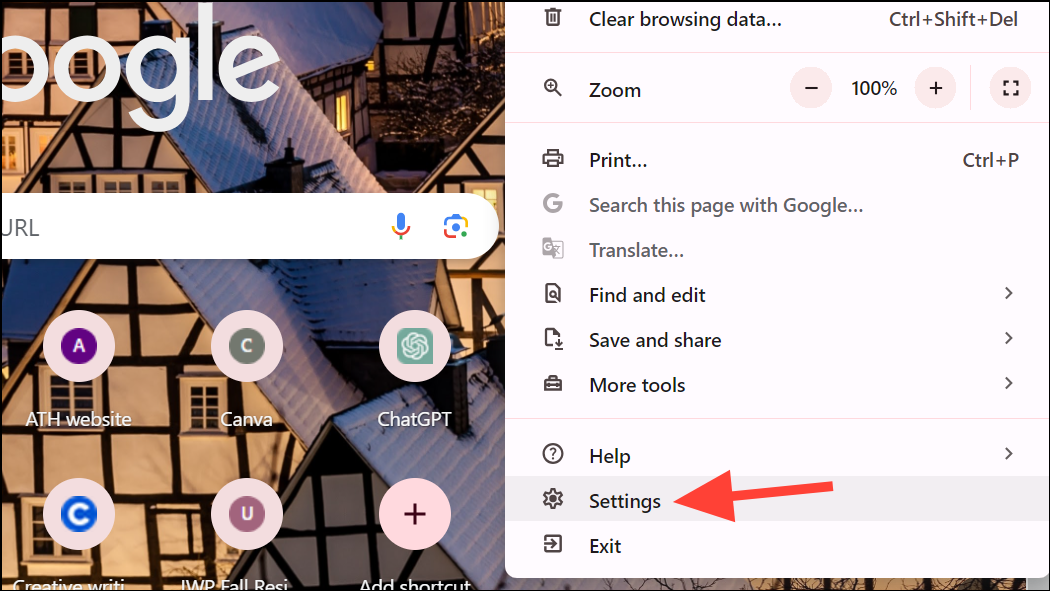
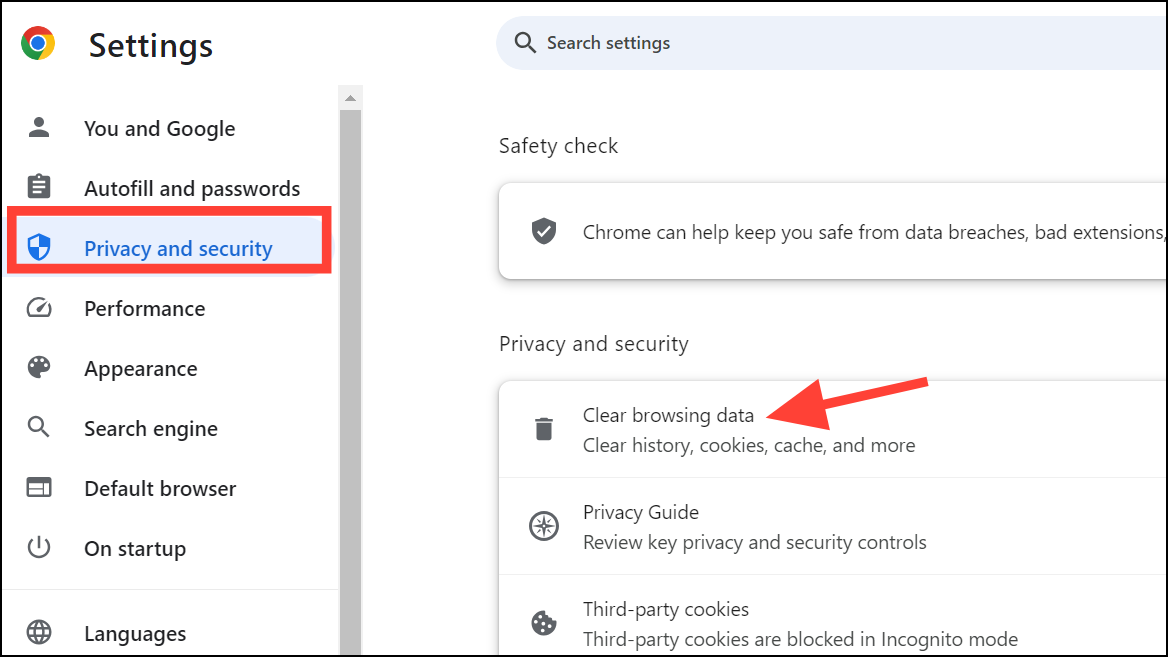
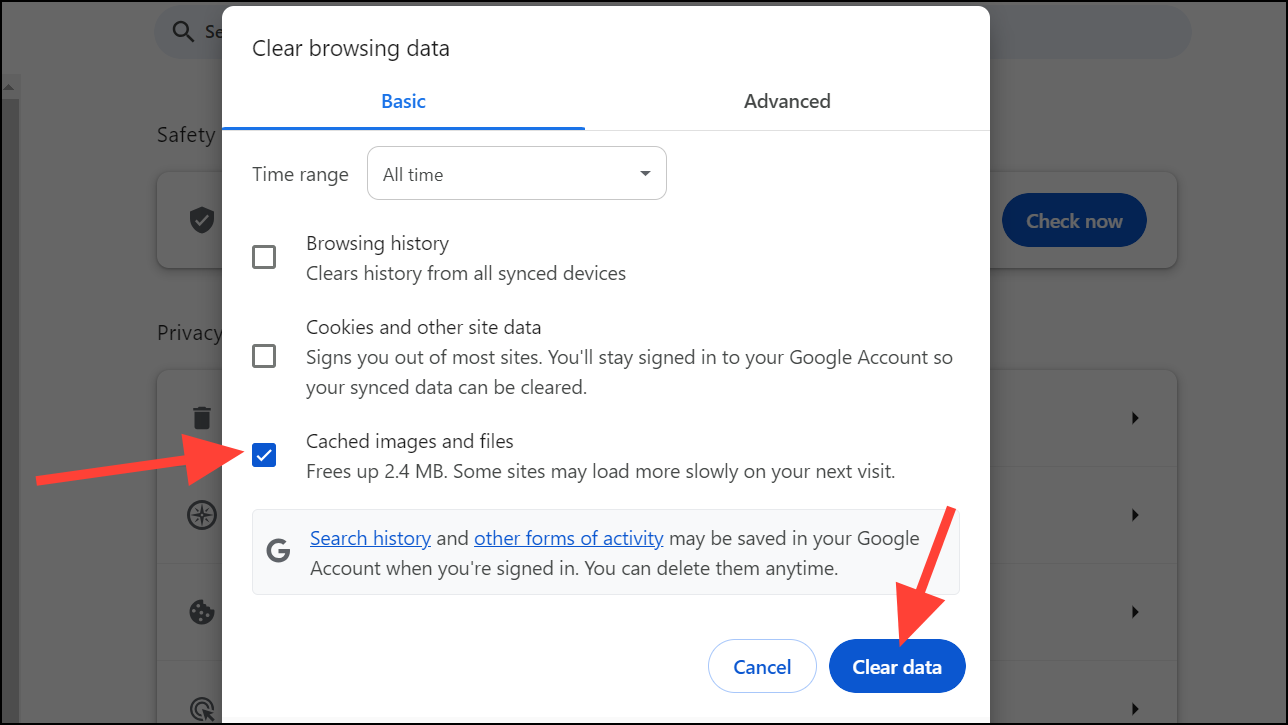
If you use Google Chrome to play Roblox, follow these steps to clear the cache.
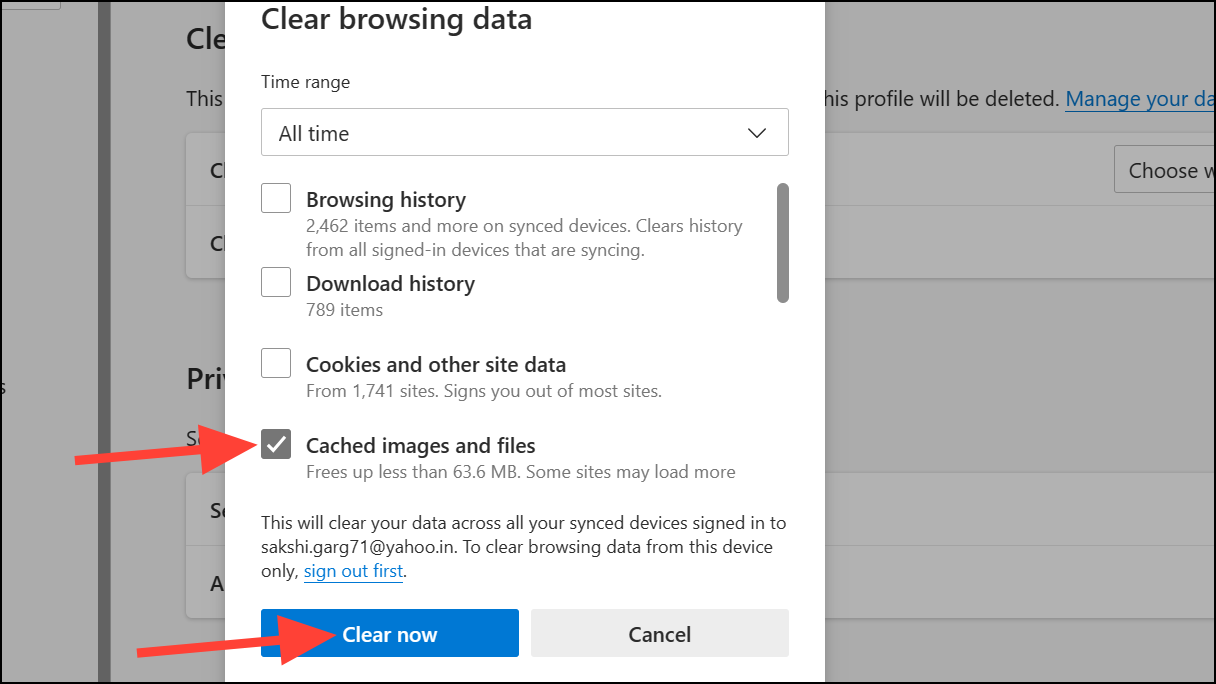
Check the box next to ‘Cached images and files’, then click on ‘Clear now’.
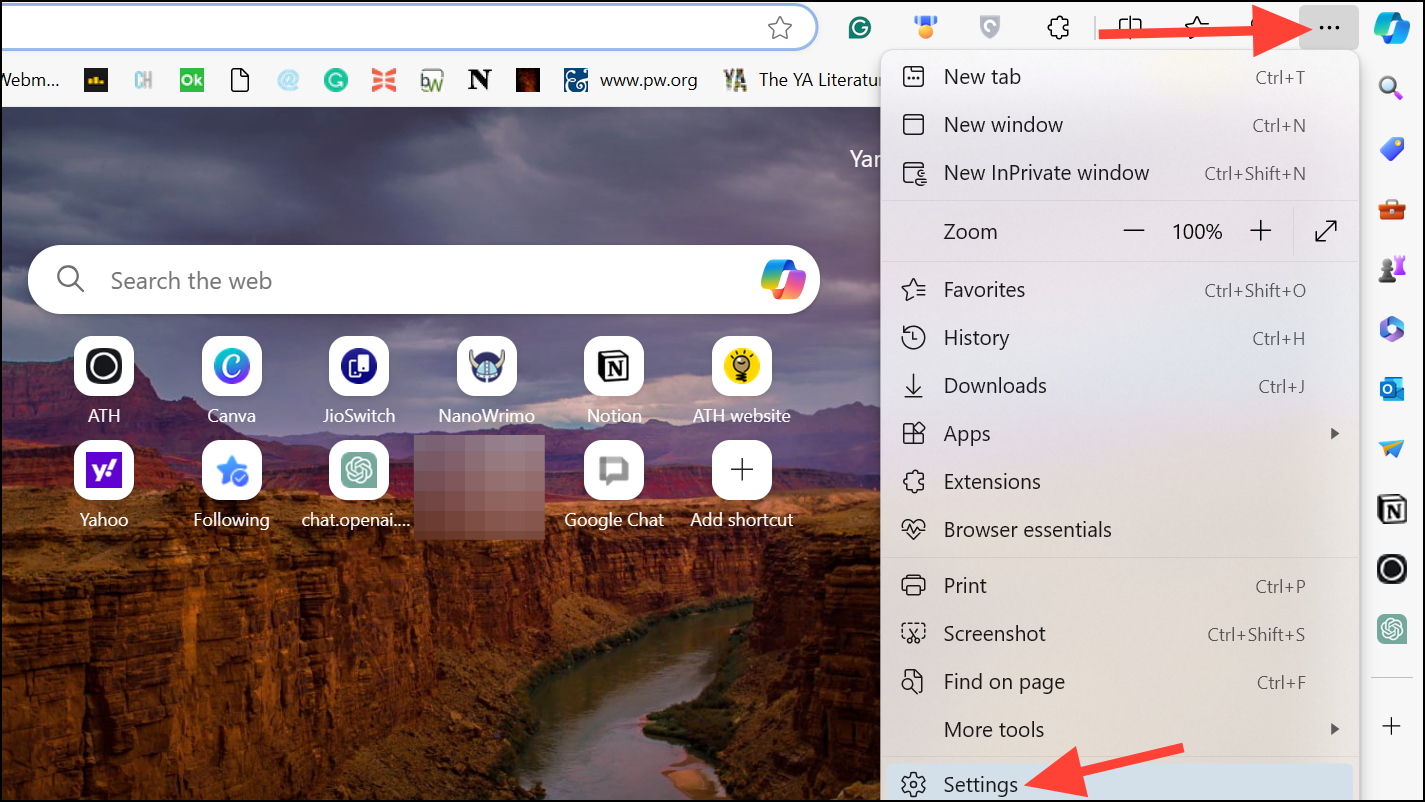
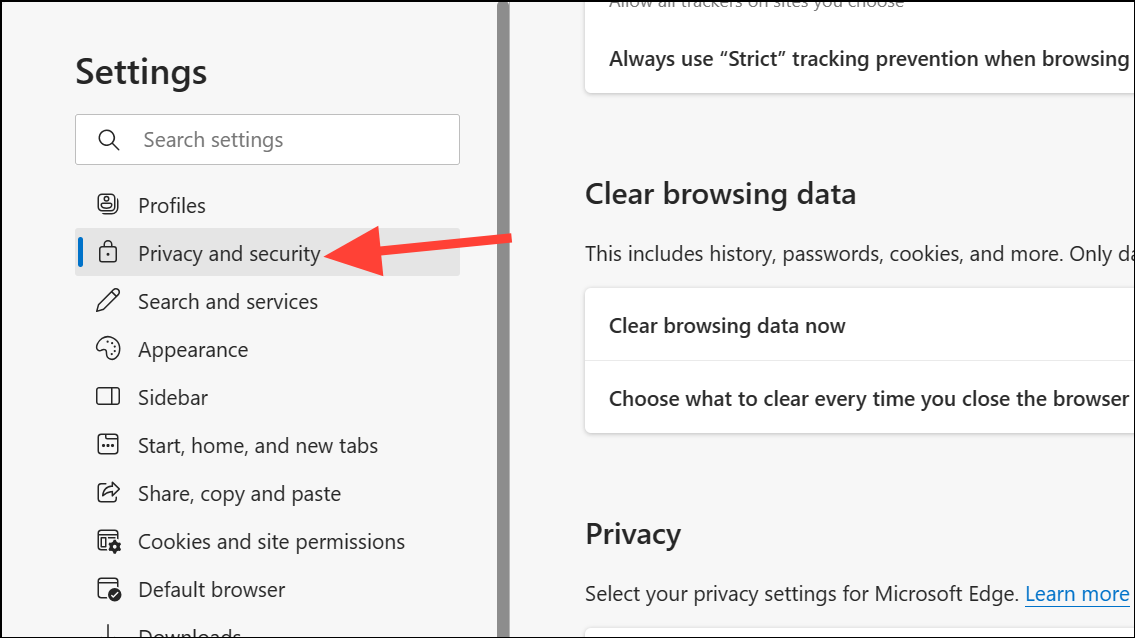
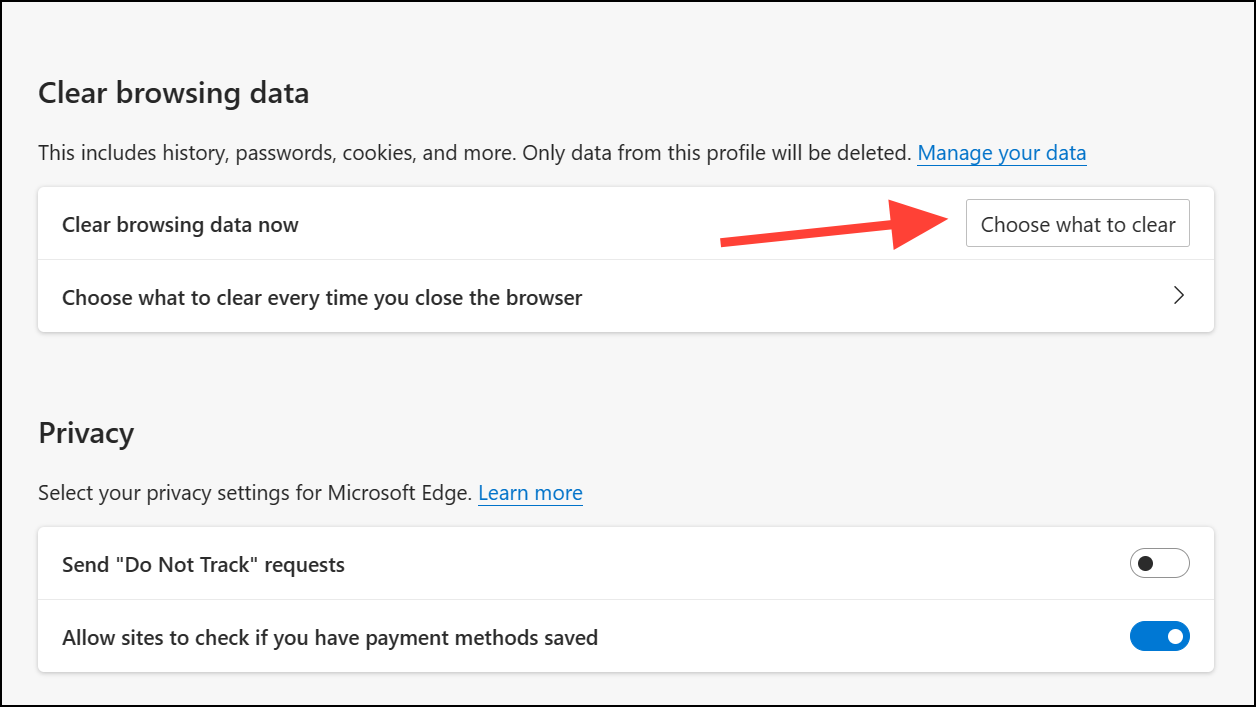
You can follow similar steps to clear the cache on other browsers if you use them to access Roblox.
Regularly clearing the Roblox cache can help ensure optimal performance and prevent issues while gaming. It’s a simple process that can significantly enhance your overall experience on your Windows 11 PC.