

PowerShell provides a secure and efficient way to manage user accounts on Windows 11. For administrators and power users, it offers the flexibility to automate tasks and handle multiple accounts effortlessly. In this guide, we’ll explore several methods to change the password of a local account using PowerShell.
Change Account Password on Windows 11 using PowerShell
Note that PowerShell can only change passwords for local accounts on your computer. If you’re using a Microsoft account to sign in, you’ll need to change your password through the Microsoft website or your account settings.
Using Get-LocalUser and Set-LocalUser Cmdlets
This method allows you to change the password securely without exposing it in plain text. Follow these steps:
PowerShell, and click on ‘Run as administrator’ to launch it with administrative privileges. Confirm the User Account Control prompt by clicking ‘Yes’.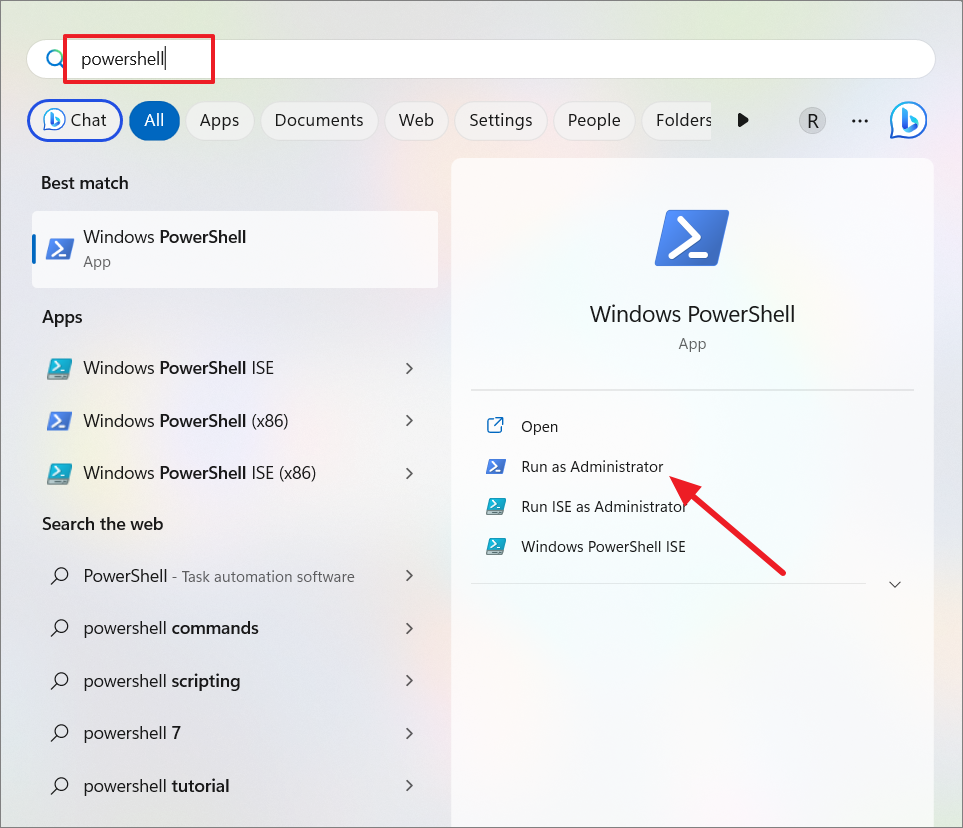
Get-LocalUser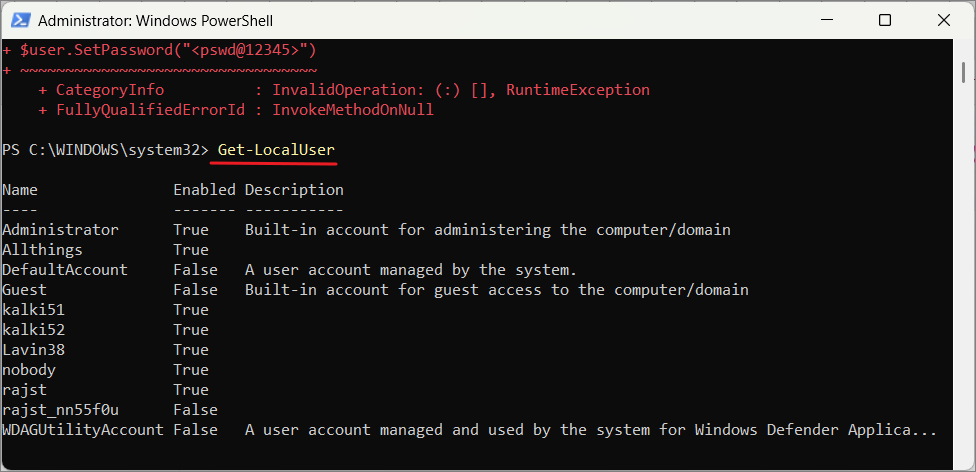
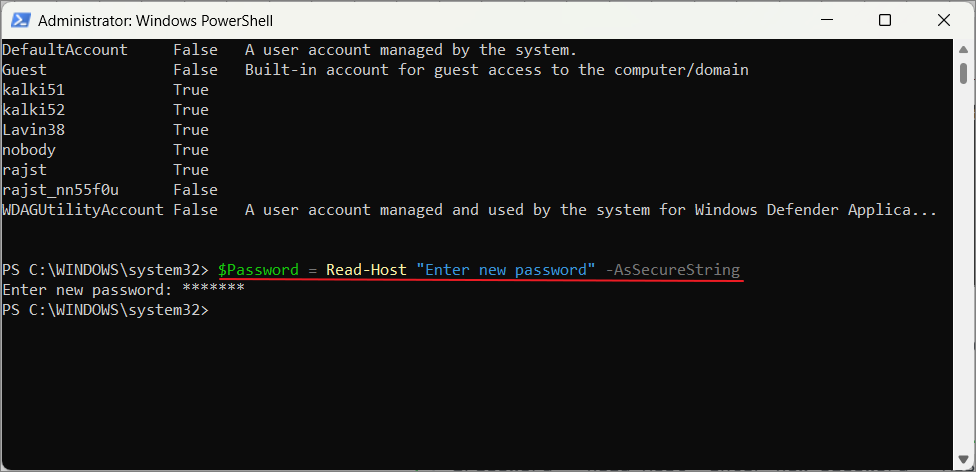
$Password = Read-Host "Enter new password" -AsSecureStringType your new password when prompted and press Enter. The password you enter will be converted into a secure string.
"Username" with the actual username:$UserAccount = Get-LocalUser -Name "Username"$UserAccount | Set-LocalUser -Password $PasswordExample:
$UserAccount = Get-LocalUser -Name "kalki51"
$UserAccount | Set-LocalUser -Password $Password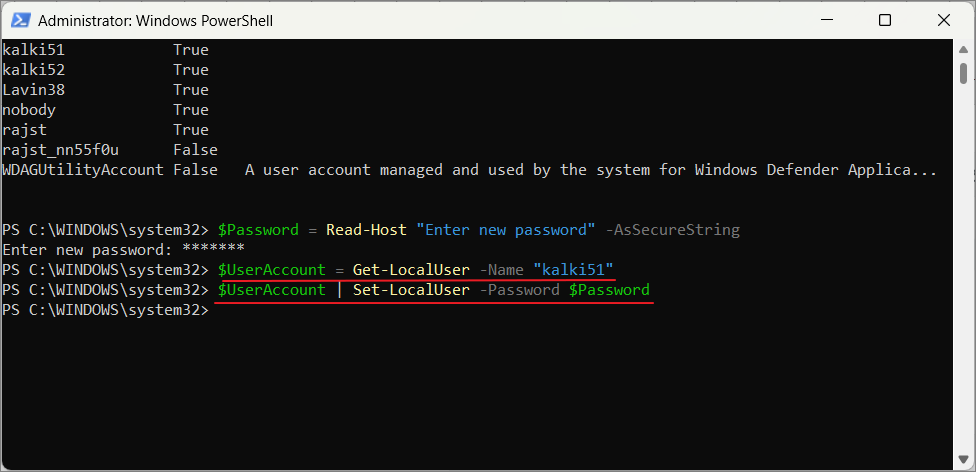
The password for the specified account has now been changed securely.
Using Set-LocalUser Command with ConvertTo-SecureString
This method changes the password by converting it into a secure string within the command:
Username with your account name and NewPassword with the desired password:Set-LocalUser -Name "Username" -Password (ConvertTo-SecureString -AsPlainText "NewPassword" -Force)The ConvertTo-SecureString cmdlet transforms the plain text password into a secure string, enhancing security.
Example:
Set-LocalUser -Name "kalki51" -Password (ConvertTo-SecureString -AsPlainText "tax234@52" -Force)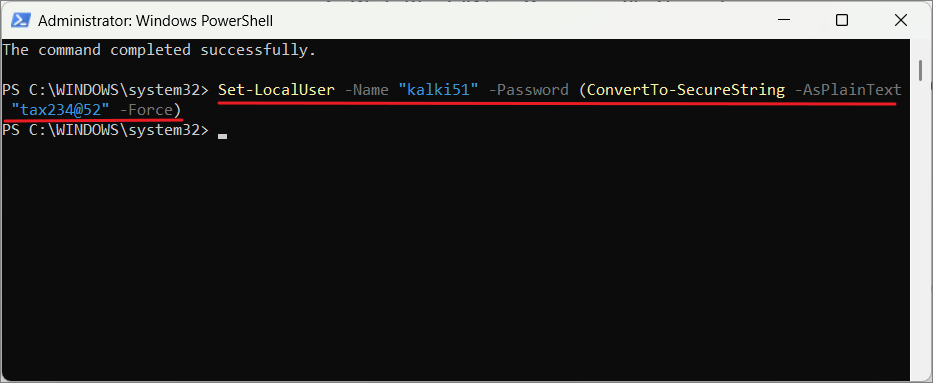
The command completes without a confirmation message. You can verify the password change by logging in with the new password.
Using the WMI Win32_UserAccount Class
This method utilizes Windows Management Instrumentation (WMI) to change the account password:
Enter after each line. Replace Username and NewPassword with your actual username and new password:$user = Get-WmiObject Win32_UserAccount -Filter "Name='Username'"$user.SetPassword("NewPassword")Example:
$user = Get-WmiObject Win32_UserAccount -Filter "Name='kalki52'"
$user.SetPassword("pswd12345")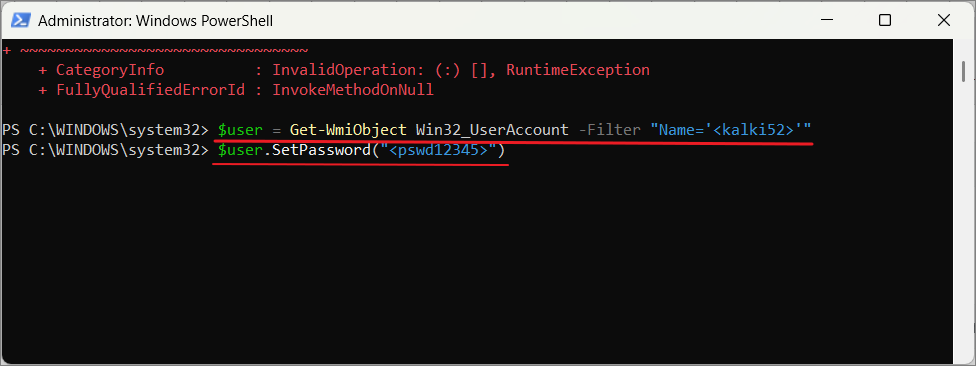
The password for the specified user account will be updated accordingly.
Using Net User Command
This traditional method changes the password but exposes it in plain text, which is less secure:
net user Username NewPasswordExample:
net user kalki51 Saht!3225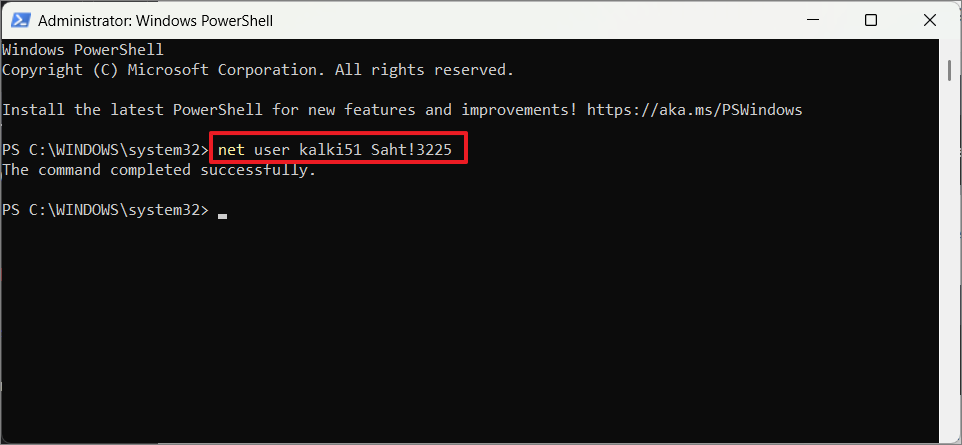
Be aware that this method stores the password in plain text, which can be viewed in command history. It’s advisable to use this method only if necessary and ensure that command history is cleared afterward.
By utilizing these PowerShell methods, you can efficiently change local account passwords on Windows 11. Choose the approach that best meets your security requirements and administrative preferences.



