
The Outlook app in Windows 11 features a redesigned interface that aligns with the modern aesthetics of the operating system. While these changes offer a fresh look, they also mean that familiar settings like Dark Mode have moved. If you’re finding it difficult to enable Dark Mode in the new Outlook app, follow the steps below to activate it effortlessly.
Enable dark mode in new Outlook app
Click on the
Start menu icon on the taskbar and type Outlook in the search bar. From the search results, select the Outlook app to open it.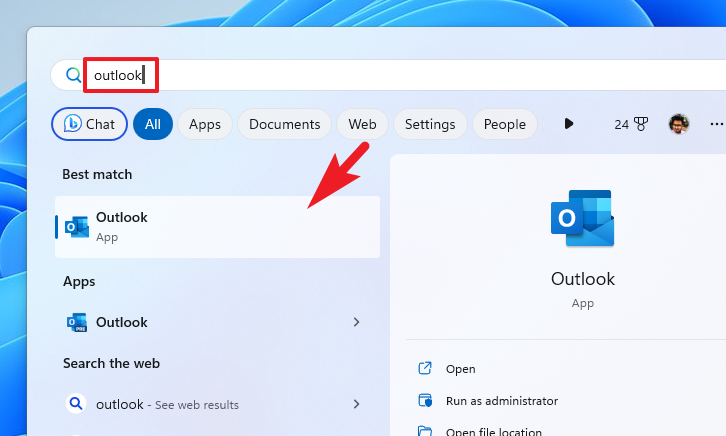
In the Outlook window, locate the toolbar at the top and click on the
gear icon to access the settings. This action will open the Settings pane on the right side of the screen.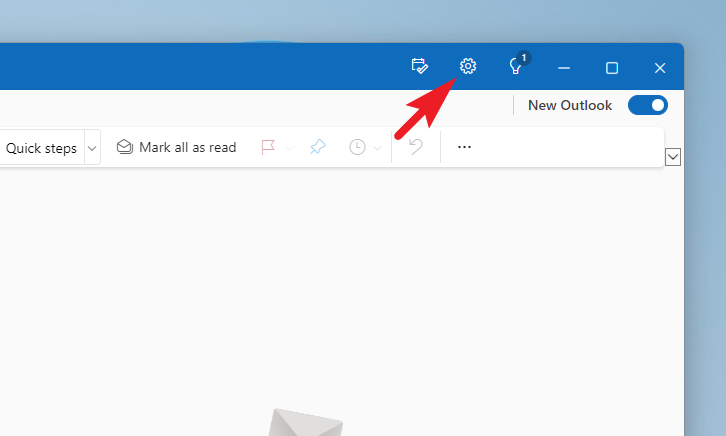
Within the Settings pane, click on the
General tab located in the left sidebar to view general settings options.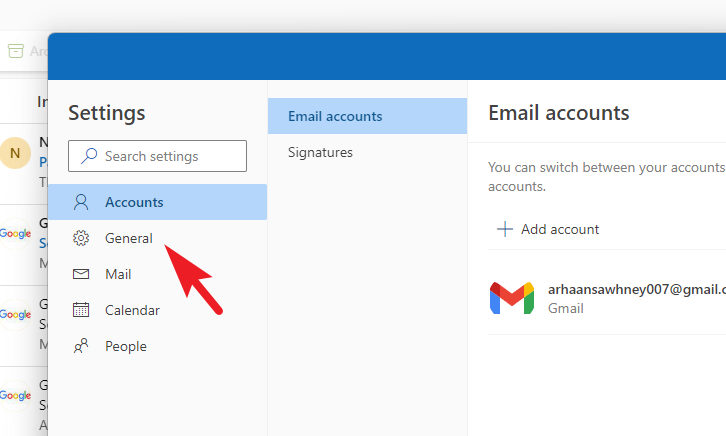
In the General settings, select the
Appearance tab. Here, you can enable Dark Mode by choosing the Dark option. If you prefer Outlook to match your system theme automatically, select Use system settings.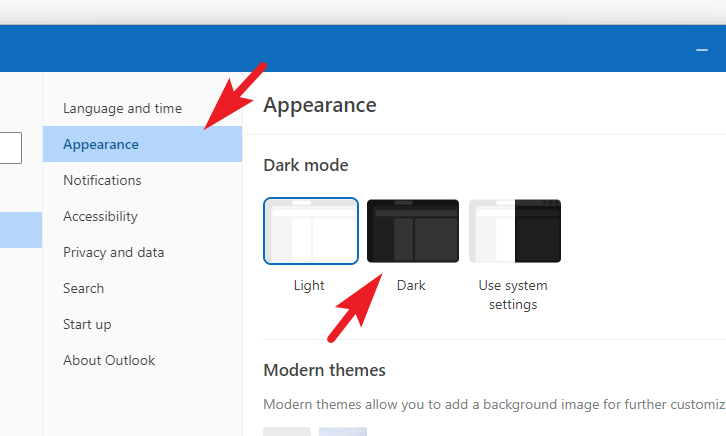
To personalize your experience further, choose a theme from the available options. Once you’ve made your selections, click on
Save to apply the changes.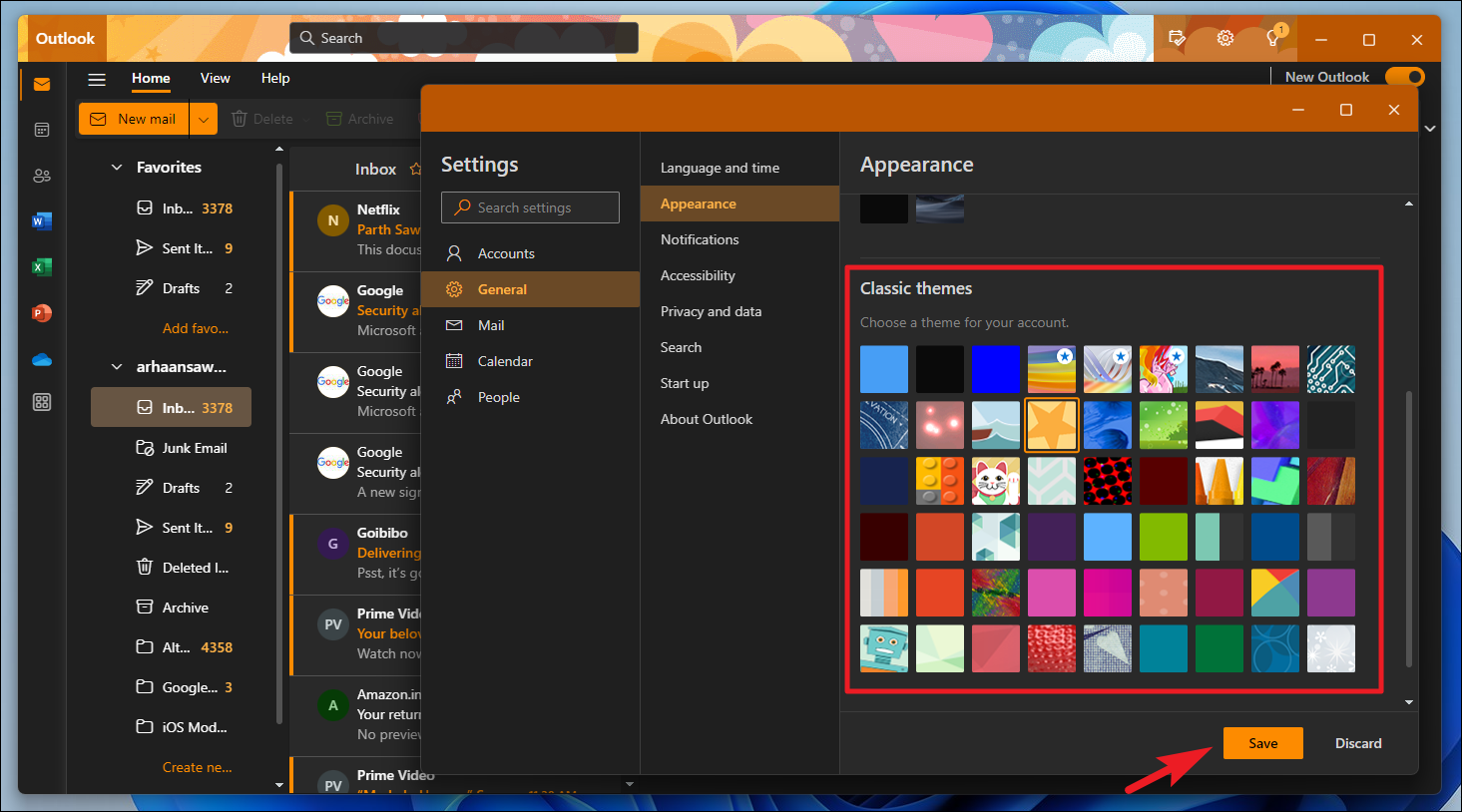
By enabling Dark Mode in the new Outlook app, you can reduce eye strain and enjoy a more comfortable viewing experience, especially in low-light conditions. Adjusting these settings allows you to tailor the app’s appearance to your preferences.



