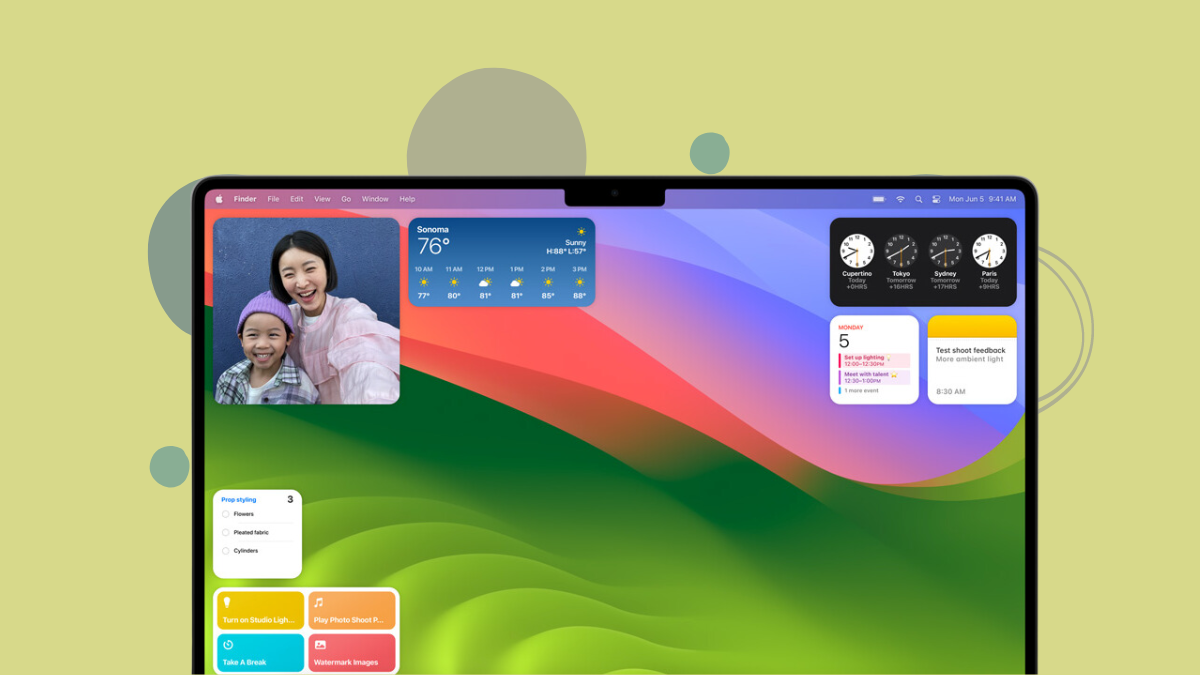
With macOS Sonoma, Apple introduces a significant enhancement by bringing widgets directly to your Mac’s desktop. This feature allows you to access important information and perform actions without navigating away from your Home Screen, streamlining your workflow and personalizing your Mac experience.
Widgets have long been a part of the iPhone and iPad ecosystems, providing quick access to apps and information. Now, they’re seamlessly integrated into macOS, allowing you to place them anywhere on your desktop and even use widgets from your iPhone via Continuity.
How Widgets Function in macOS Sonoma
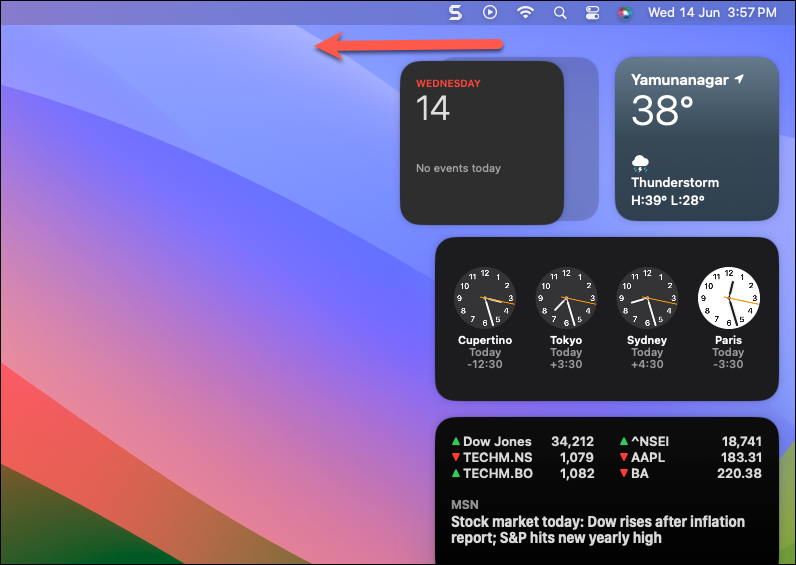
In macOS Sonoma, widgets are more than just static displays—they’re interactive tools that enhance productivity. By placing widgets on your desktop, you gain immediate access to real-time information like weather forecasts, news updates, and reminders. These widgets adapt to your desktop background with subtle transparency and tinting, ensuring they complement your wallpaper without causing distractions.
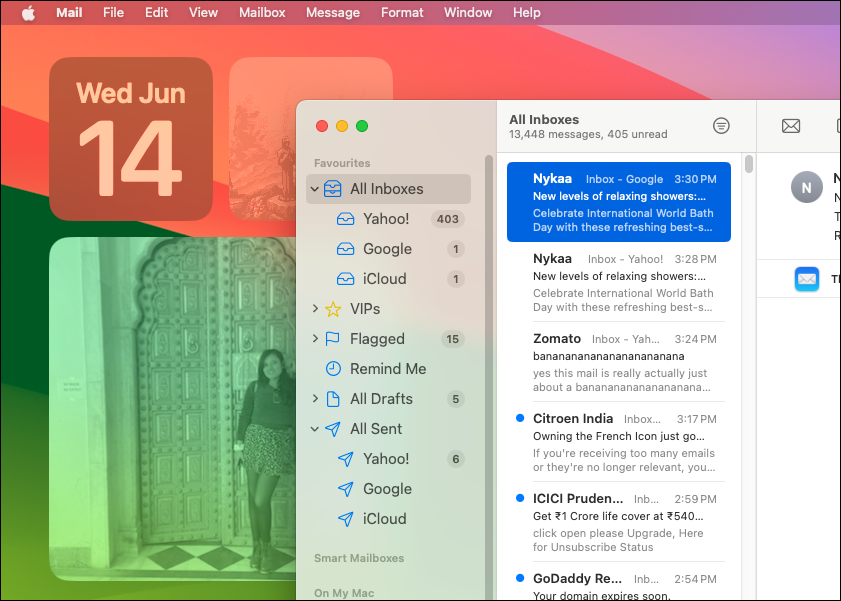
What’s more, when you open an app or activate Stage Manager, the widgets gracefully fade into the background. This feature allows you to maintain focus on your current task while still having your widgets readily available when you return to the desktop.
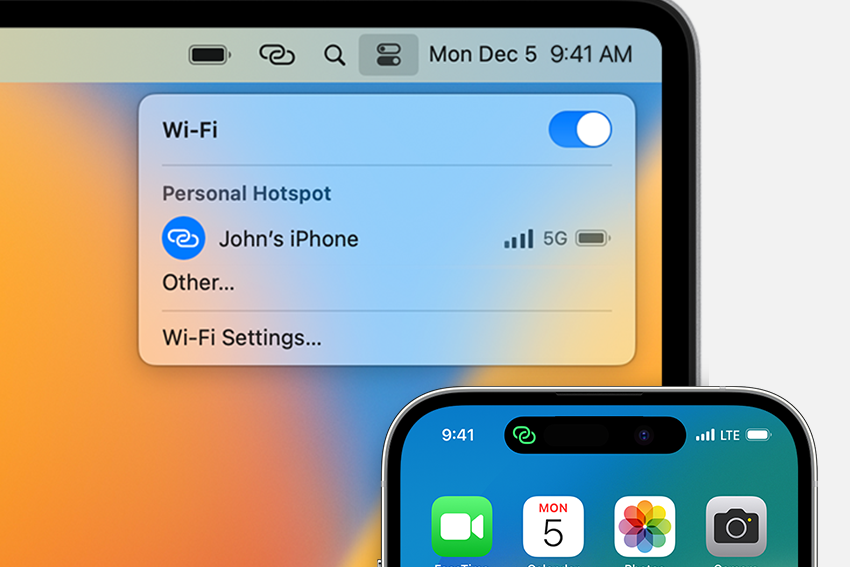
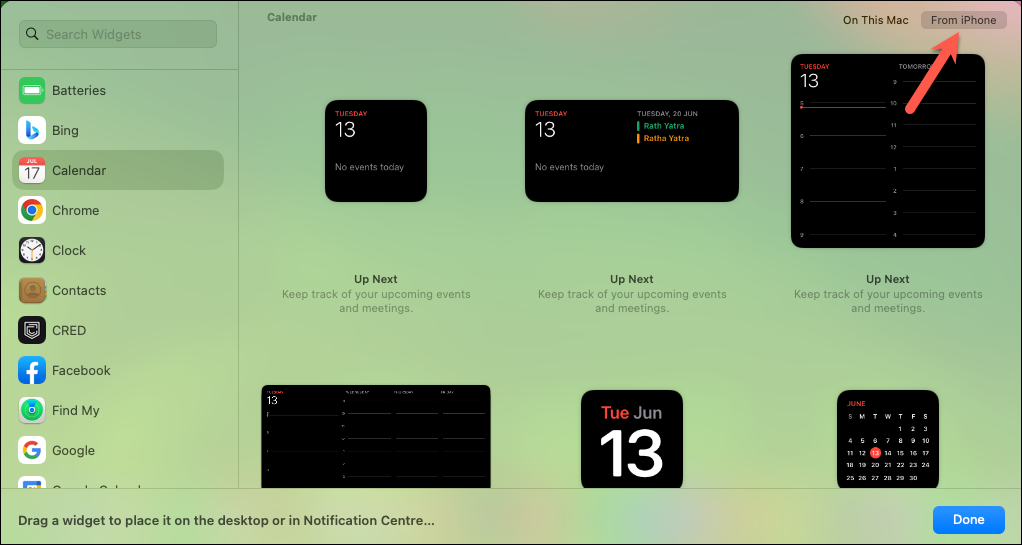
Thanks to Continuity, you can also incorporate widgets from your iPhone. This means you can use widgets for apps that aren’t installed on your Mac, expanding the utility and personalization of your desktop even further.
Adding Widgets to Your Mac Desktop
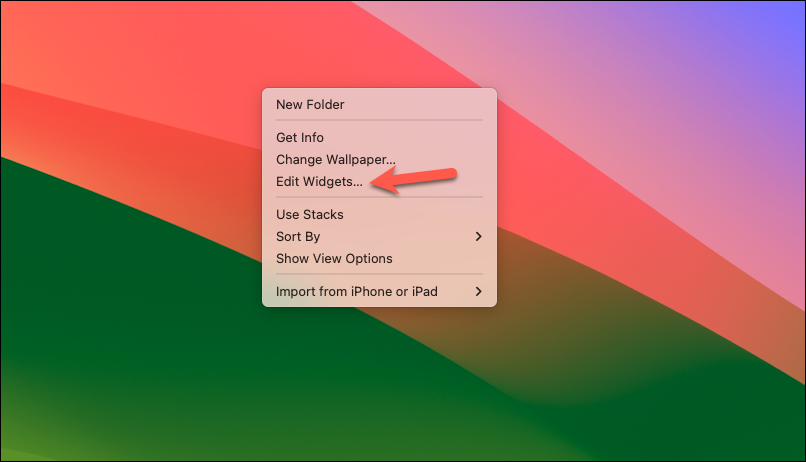
Ctrl + Click) anywhere on your desktop and select ‘Edit Widgets’ from the context menu.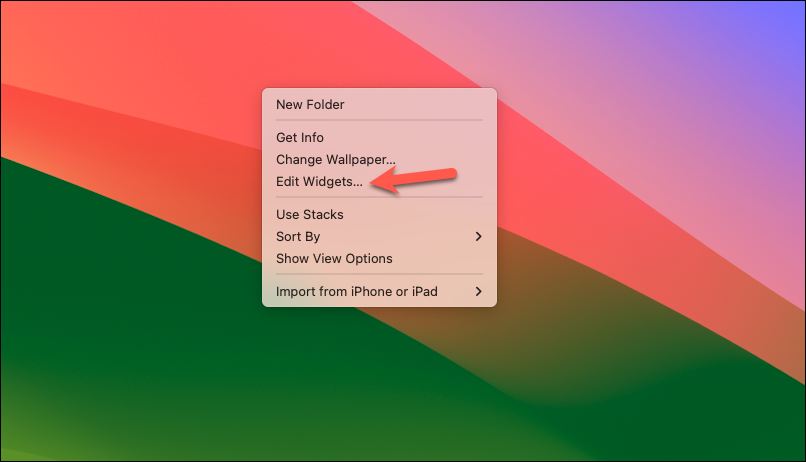
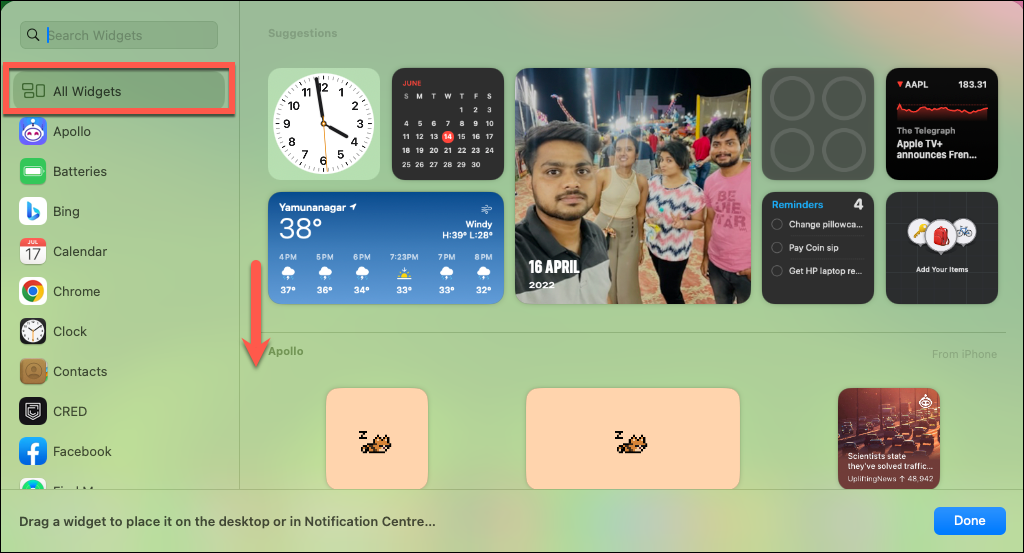
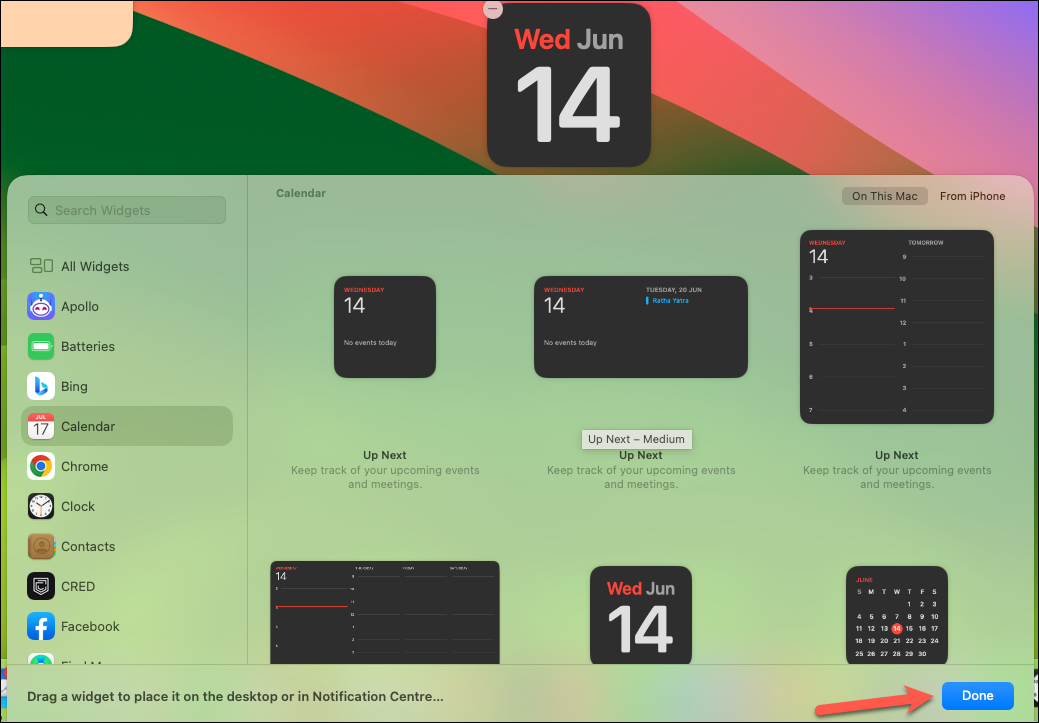
If you wish to use widgets already in your Notification Center, you can simply drag them from the Notification Center to your desktop. Keep in mind that moving a widget this way removes it from the Notification Center.
Using iPhone Widgets on Your Mac
One of the most exciting features of macOS Sonoma is the ability to use widgets from your iPhone directly on your Mac desktop. This is particularly useful for apps that aren’t available on macOS.
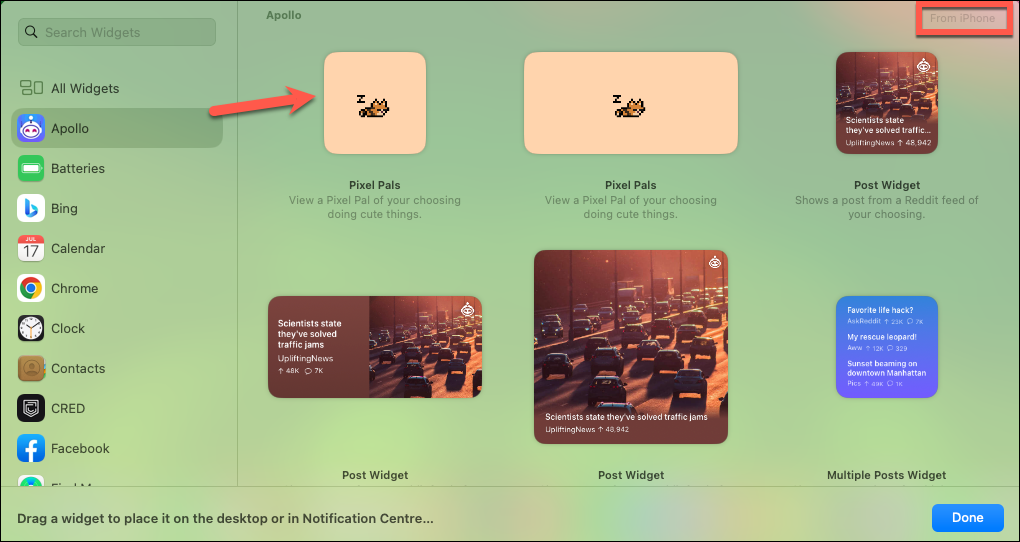
Customizing and Rearranging Widgets
You can easily rearrange your widgets to suit your preferences. Simply click and drag them to new positions on your desktop at any time—no edit mode required.
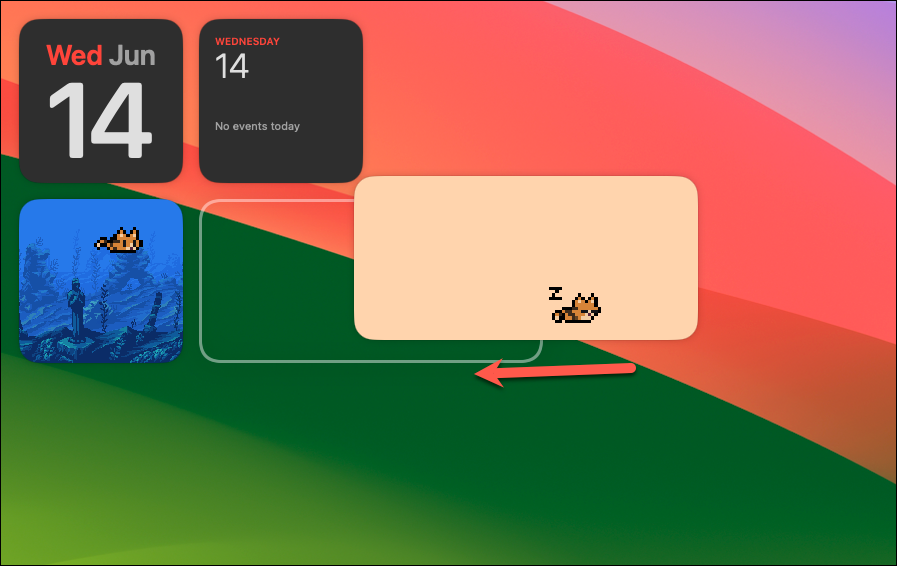
If you decide to move a widget back to the Notification Center, you’ll need to enter edit mode:
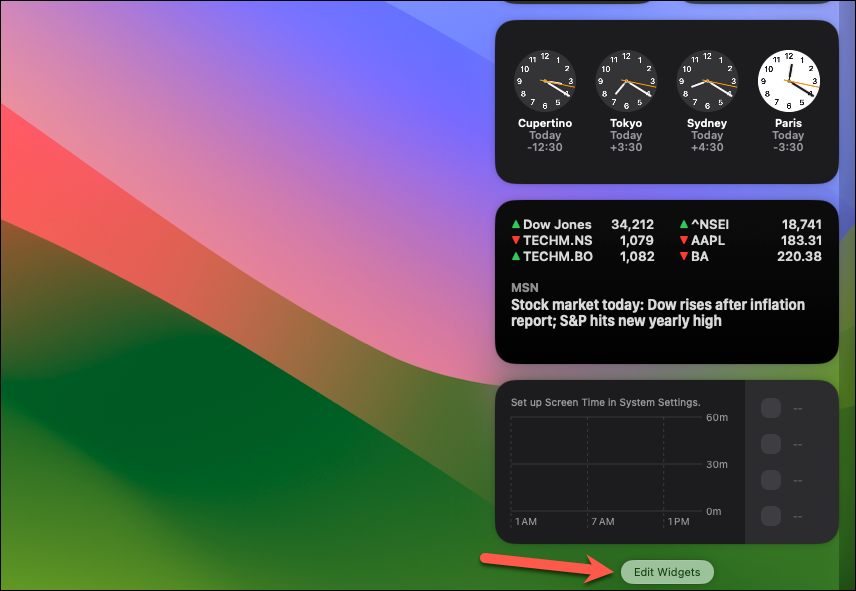
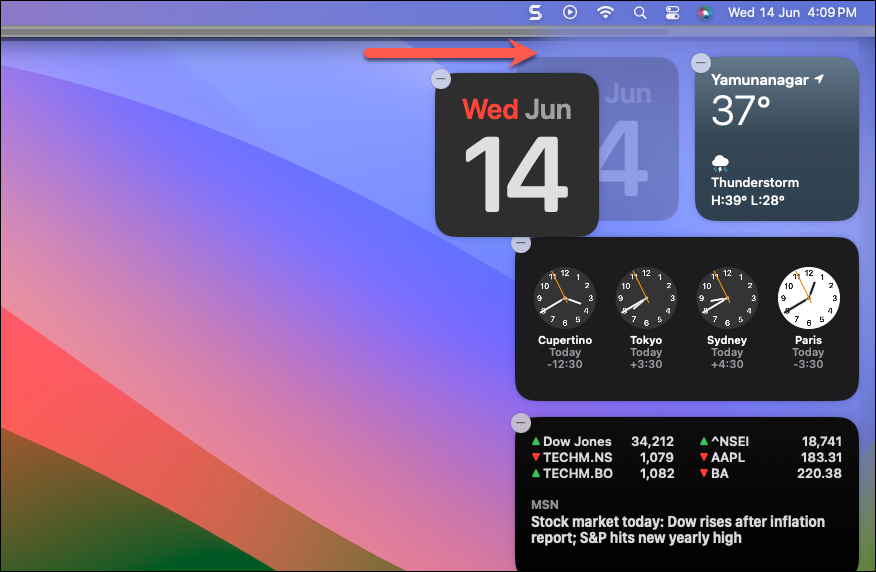
Removing Widgets from Your Desktop
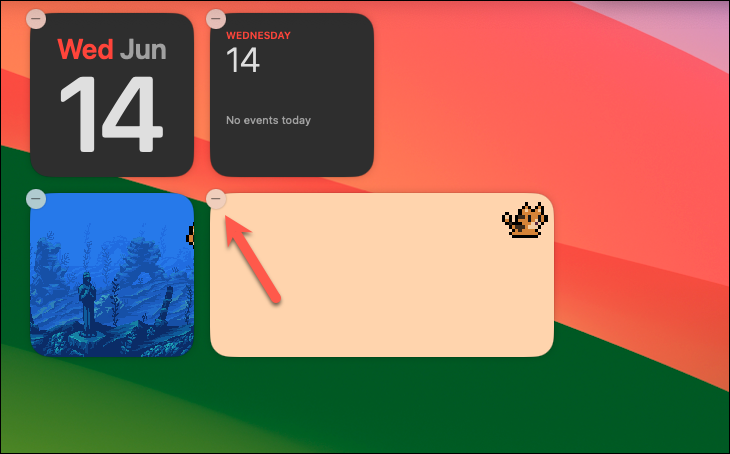
If you want to remove a widget from your desktop entirely, follow these steps:
By utilizing widgets on your Mac’s desktop, you can create a more efficient and personalized computing environment. Whether you’re keeping an eye on your schedule, controlling smart home devices, or staying updated with the latest news, widgets in macOS Sonoma make it all accessible at a glance.