

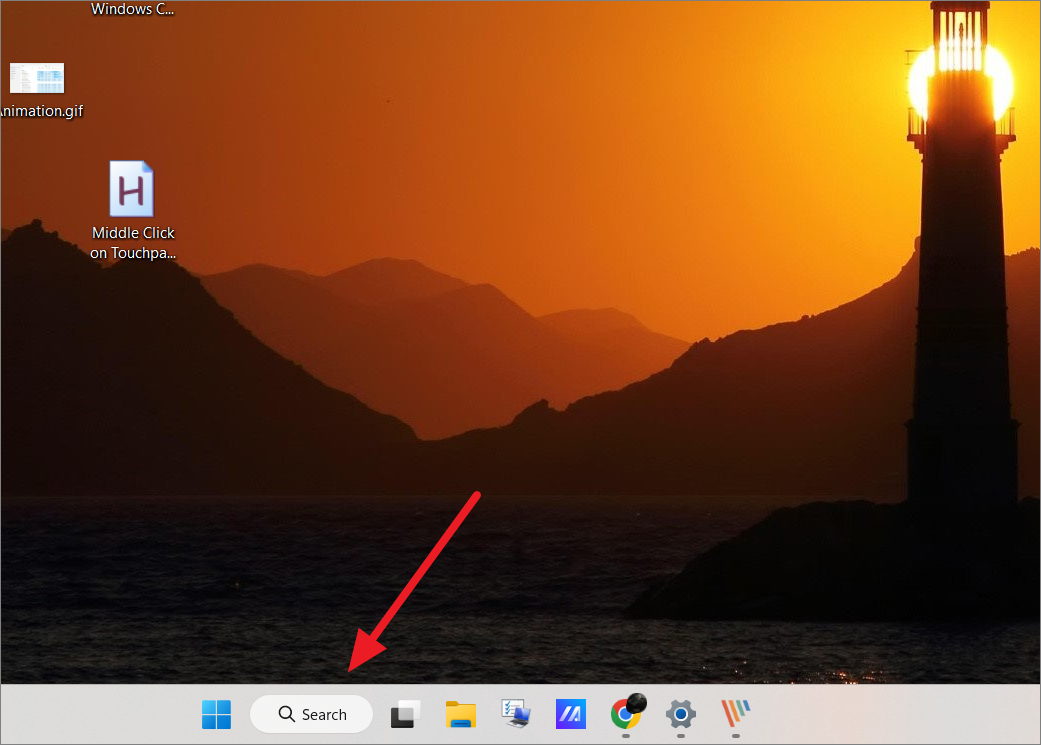
Windows 11 has reintroduced the large search bar on the taskbar, a feature that many users found unnecessary and space-consuming in Windows 10. If you’re looking to declutter your taskbar and remove the search bar, there are several methods to do so. In this guide, we’ll show you how to hide or disable the search bar from your taskbar, as well as customize other search features to suit your preferences.
Disable the search bar from the taskbar via Settings
The easiest way to remove the search bar from your taskbar is through the Windows Settings. This method allows you to quickly hide the search box, replace it with a search icon, or remove it entirely. Follow the steps below to customize your taskbar.
Settings from the menu.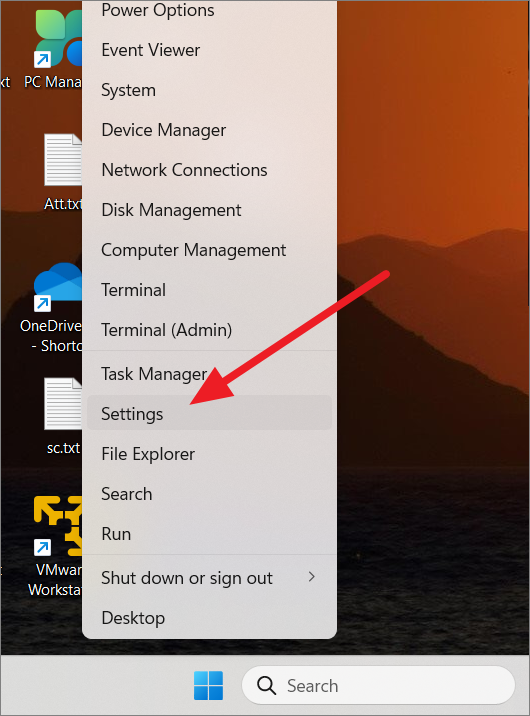
Personalization section on the left pane, and then click on Taskbar on the right.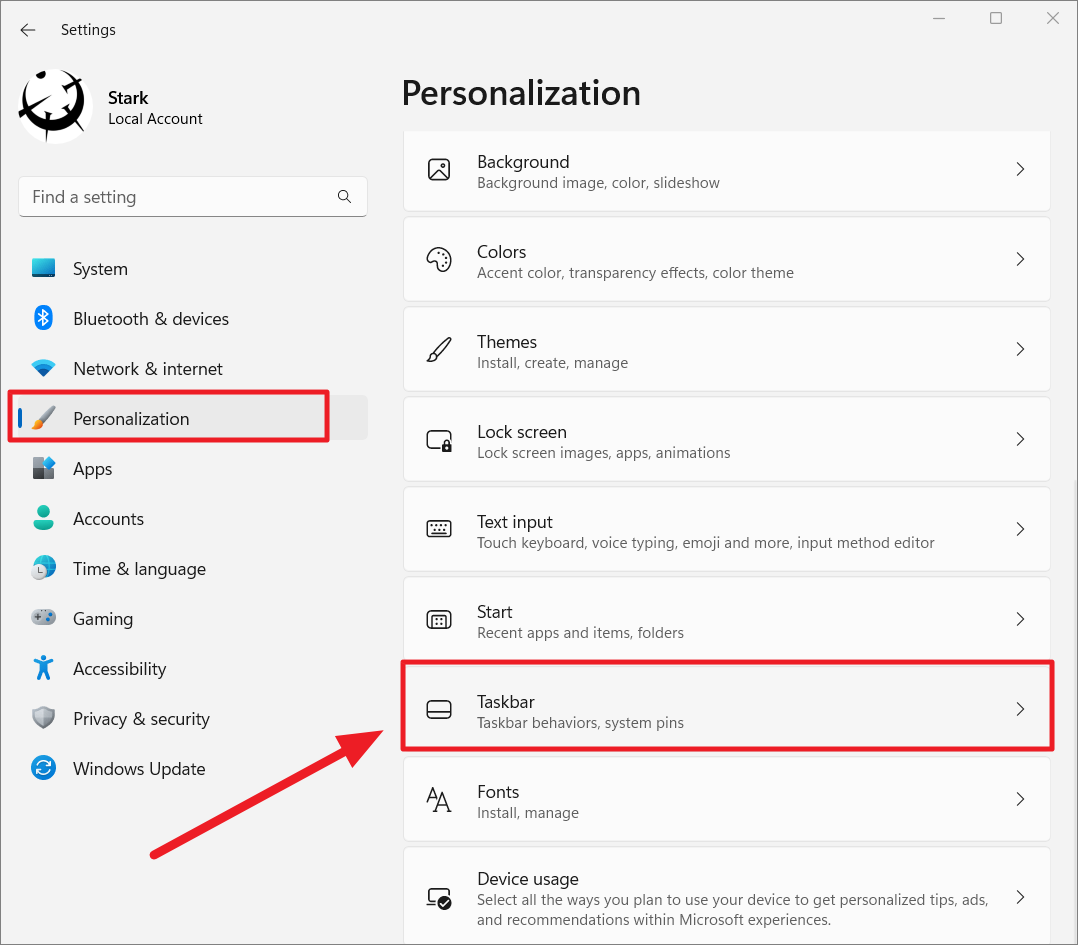
Taskbar items section, and find the option labeled Search. Click on the drop-down menu next to it.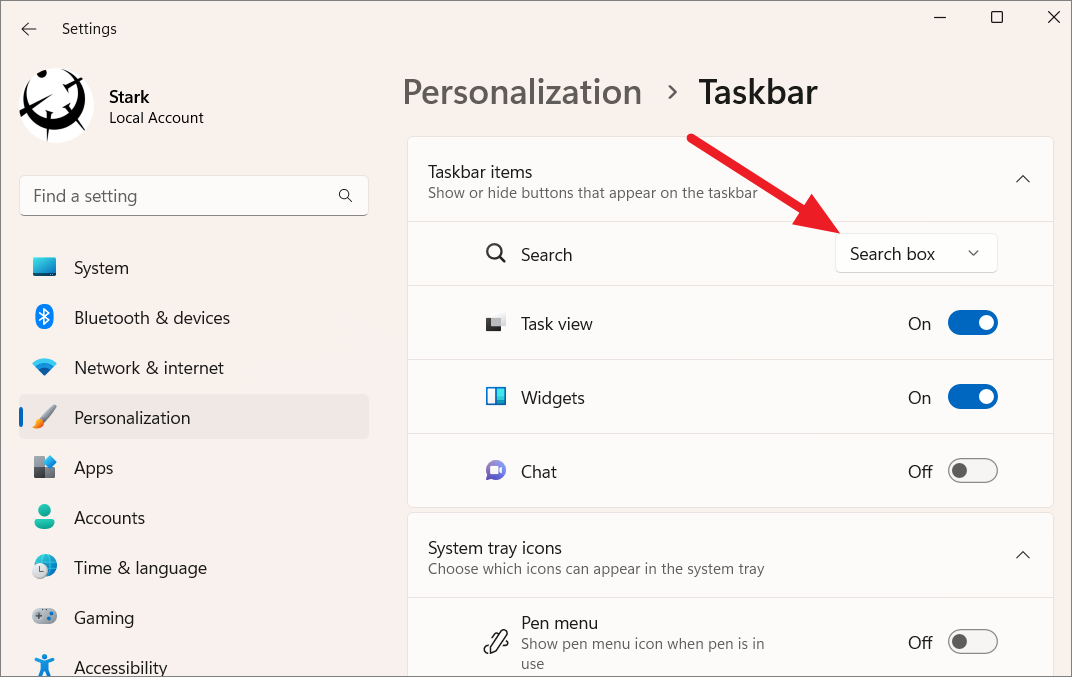
Hide to remove the search box from your taskbar. If you’re using an older build of Windows 11, you may need to turn off a toggle instead.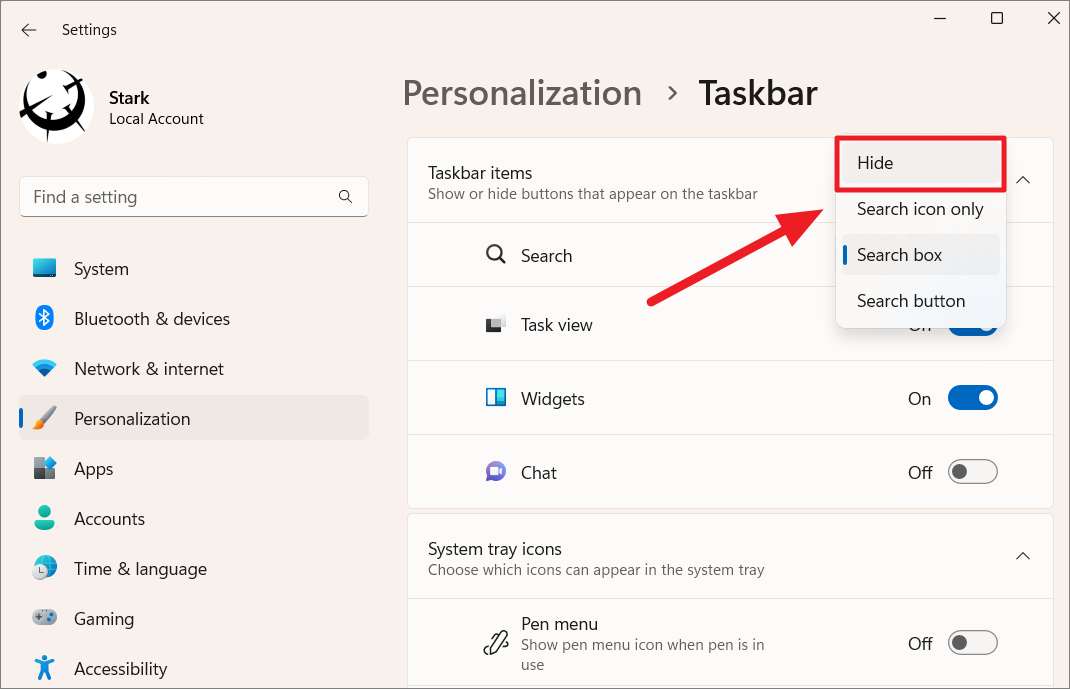
Once you select Hide, the search bar will disappear from your taskbar.
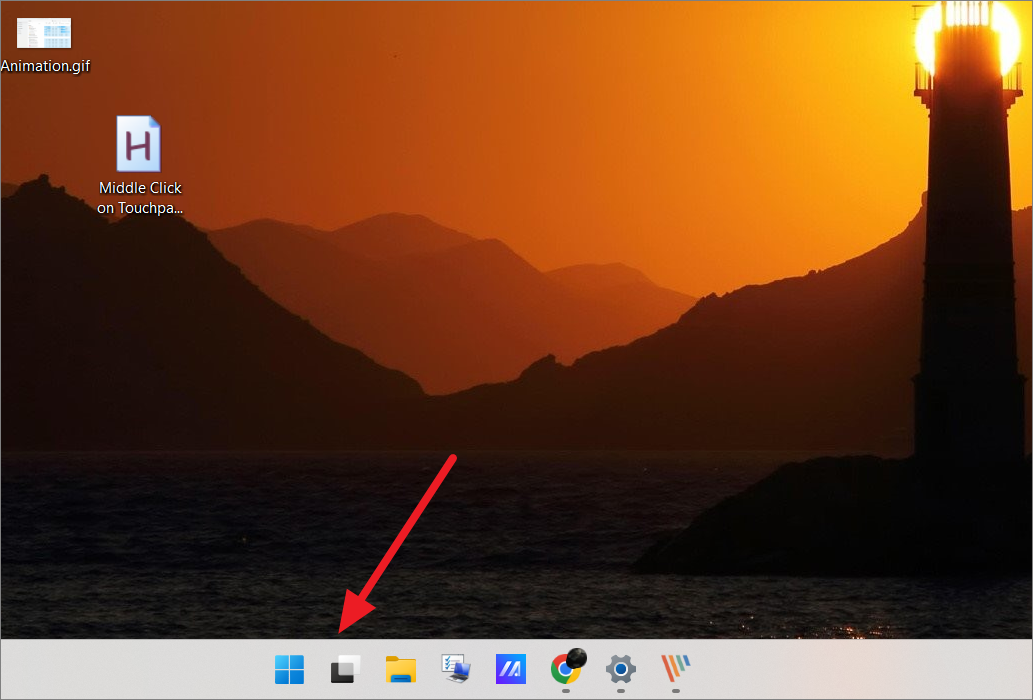
If you prefer to have a smaller search icon on the taskbar, select Search icon only from the drop-down menu.
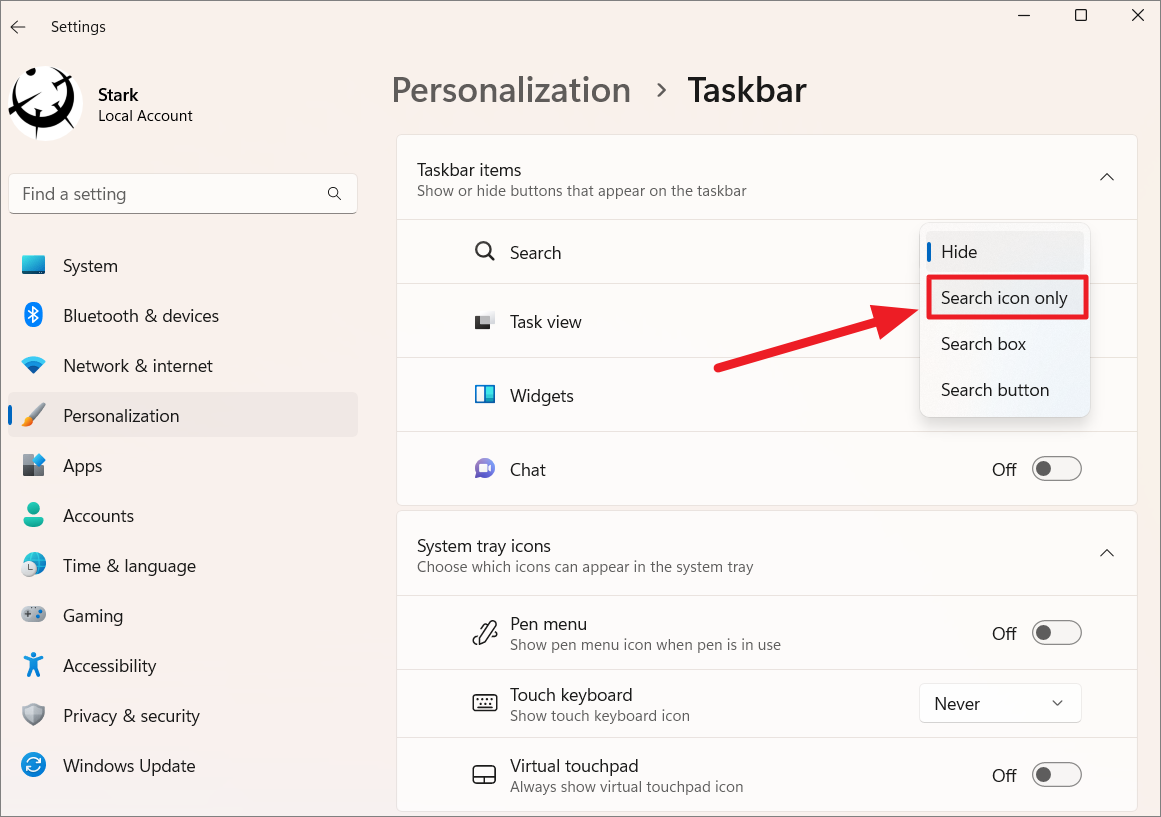
Result:
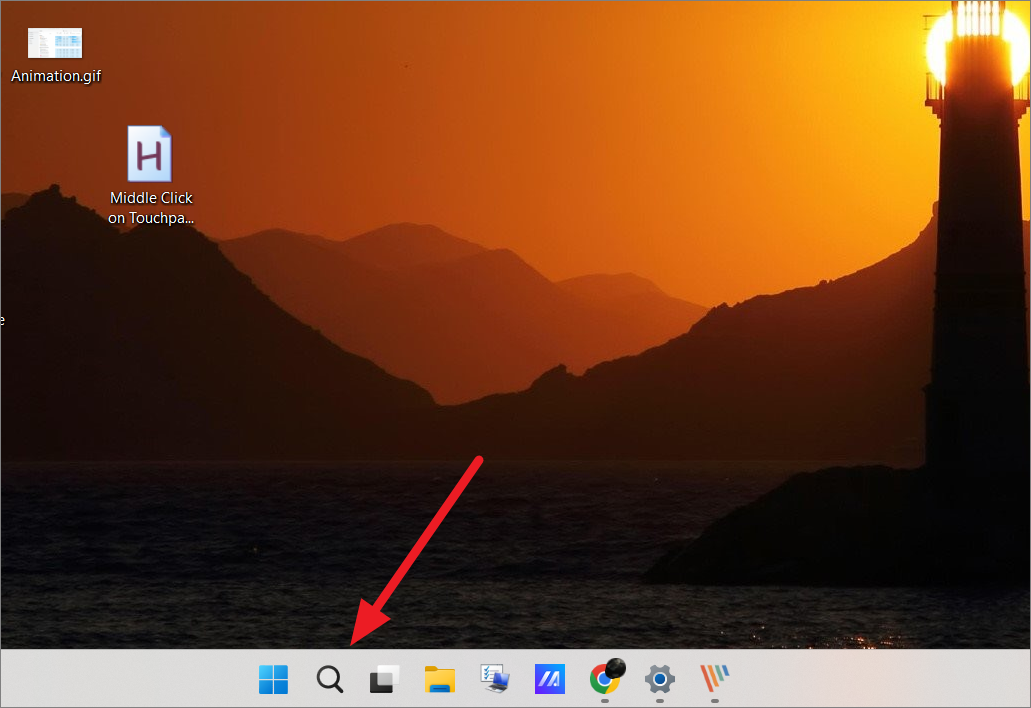
Alternatively, to display a small search button instead of the full search box, you can select the Search button option.
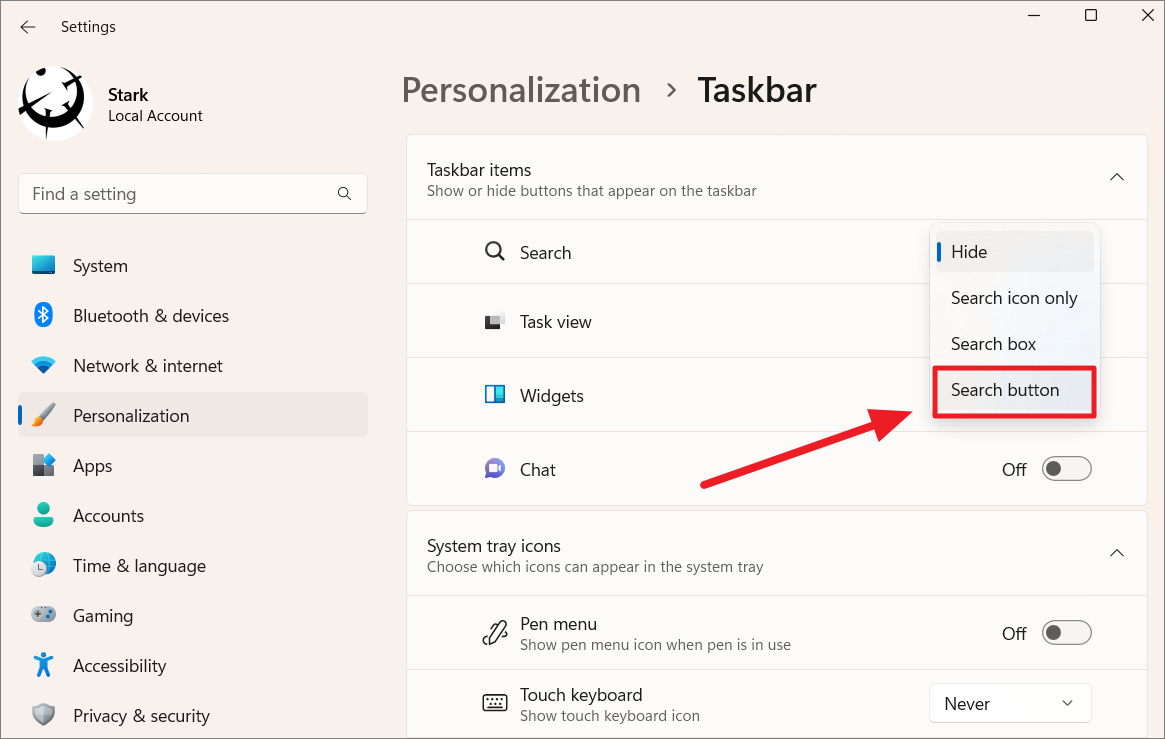
Result:
Hide or remove the search box from the taskbar via Registry Editor
If you’re comfortable modifying the Windows Registry, you can also remove the search bar by tweaking certain registry settings. Here’s how:
Windows + R to open the Run dialog box. Type regedit and click OK to open Registry Editor. If prompted by User Account Control, click Yes.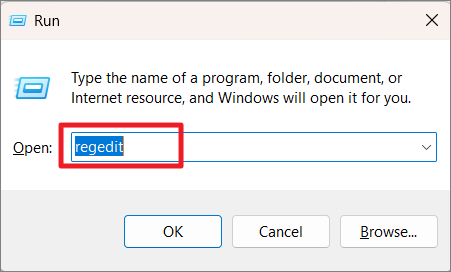
HKEY_CURRENT_USER\Software\Microsoft\Windows\CurrentVersion\Search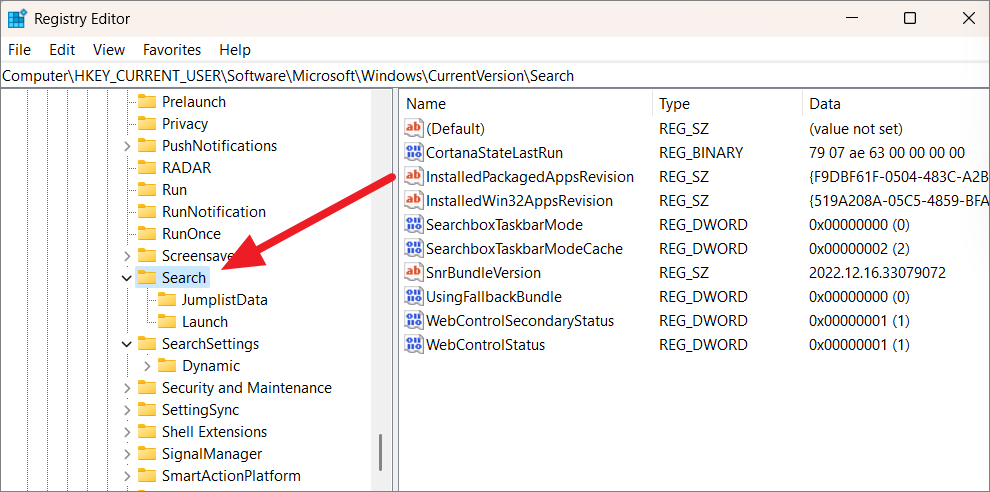
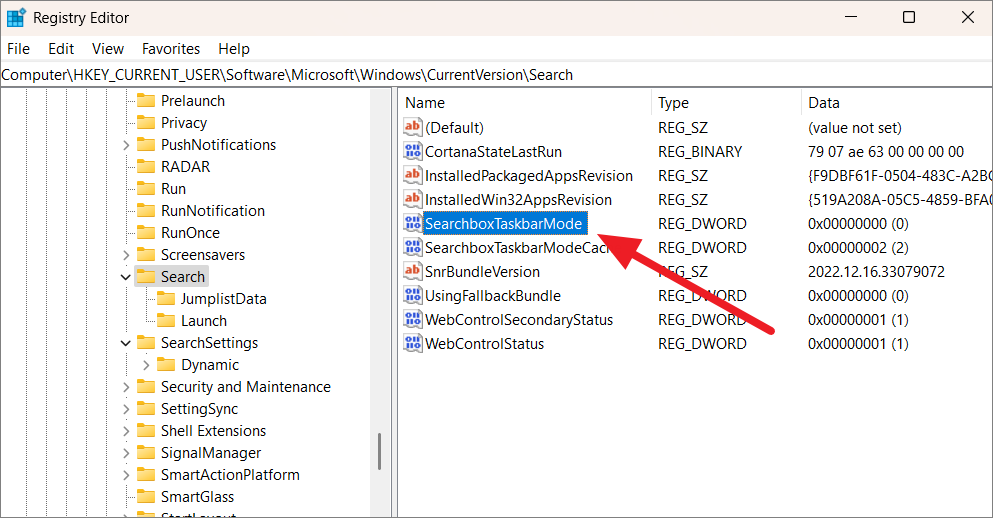
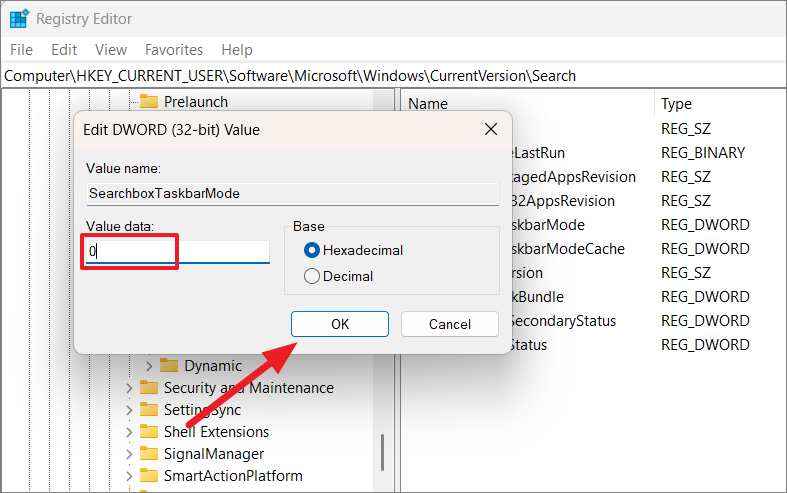
You can set the Value data to one of the following numbers to change the search box appearance:
0 – Hide the search box.
1 – Show the search icon only.
2 – Show the search box.
3 – Show the search button.
Disable illustrations or images in the Windows search box
The images displayed inside the search box are known as Search highlights. These illustrations showcase notable events or special moments each day. If you find these images distracting, you can disable them by adjusting your settings.
Windows + I to open Windows Settings. Click on Privacy & security from the left pane, then select Search permissions under the Windows permissions section.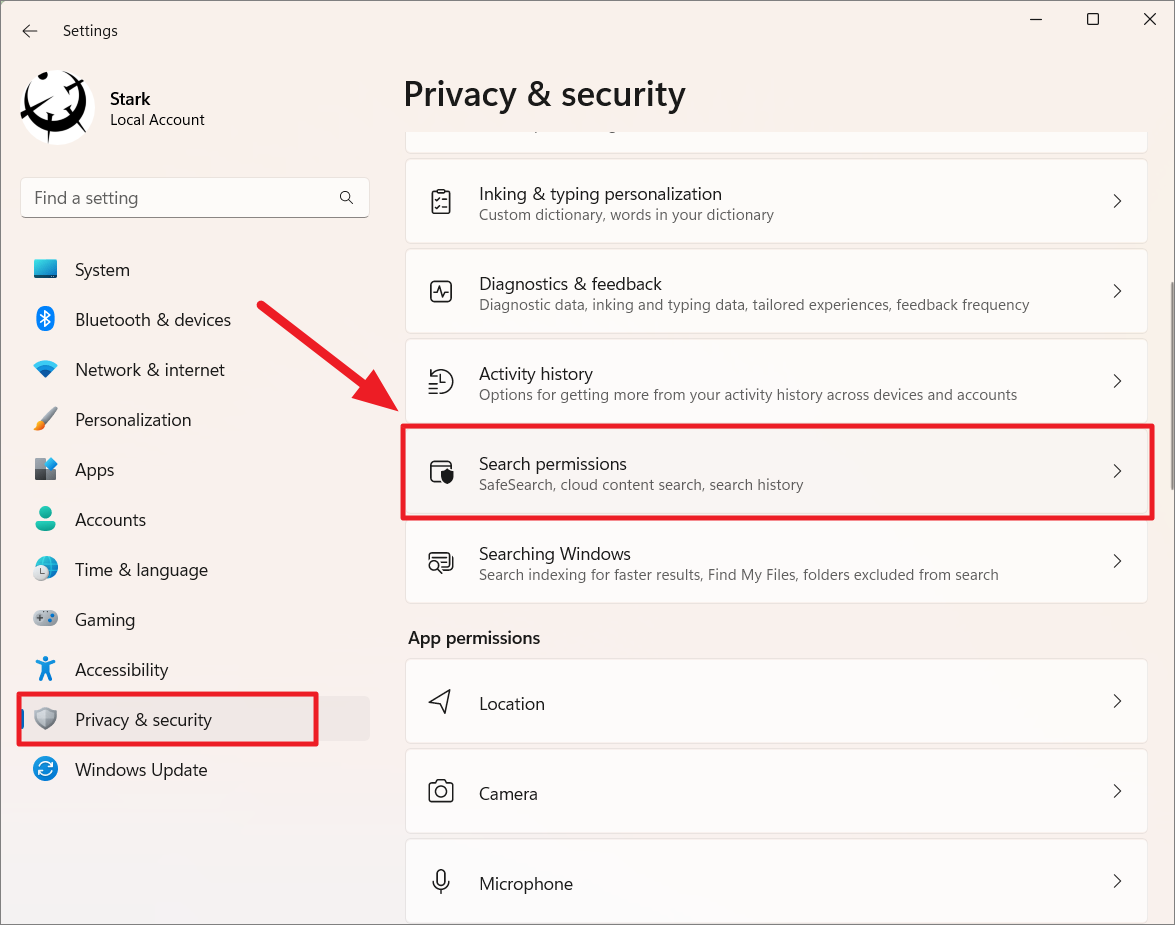
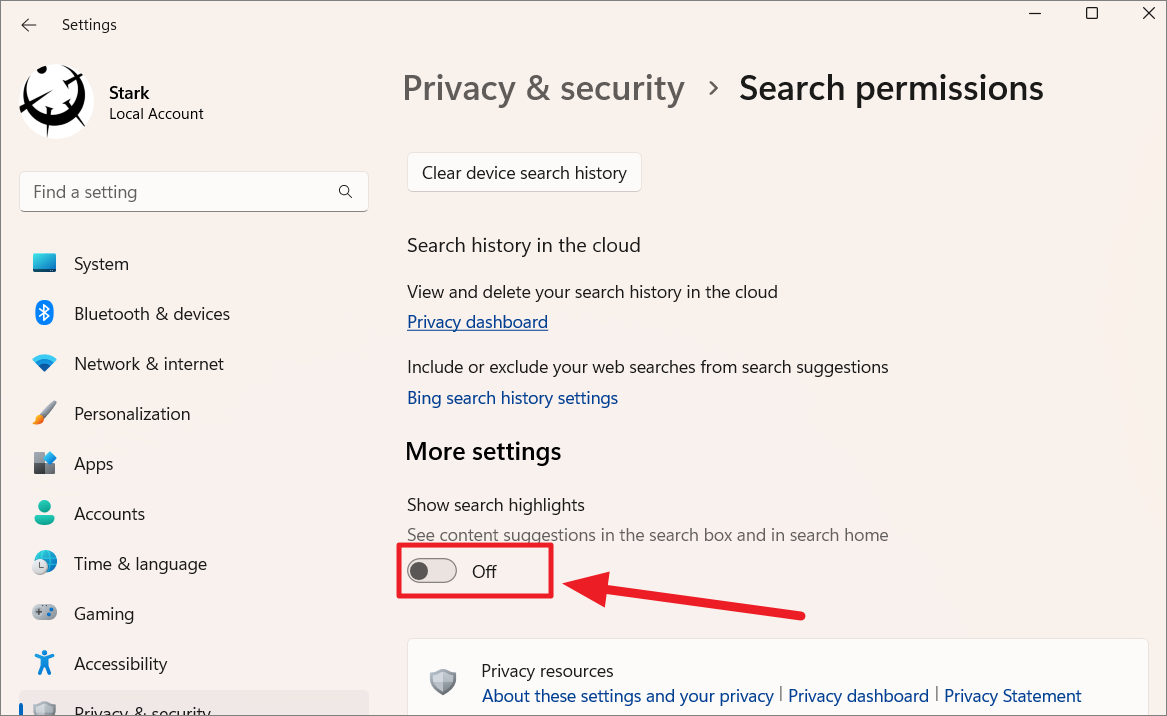
Once you disable this option, the illustrations will no longer appear in the search box.
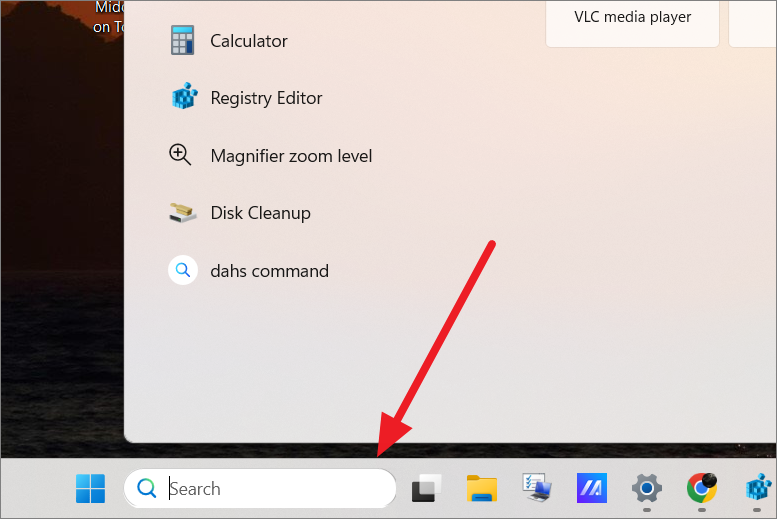
Disable web results in Windows Search
By default, when you search using Windows Search, if the item isn’t found on your computer, Windows will display web results from Bing. If you prefer not to see web suggestions in your search results, you can disable this feature through the Registry Editor.
Windows + R, typing regedit, and clicking OK. Approve any User Account Control prompts.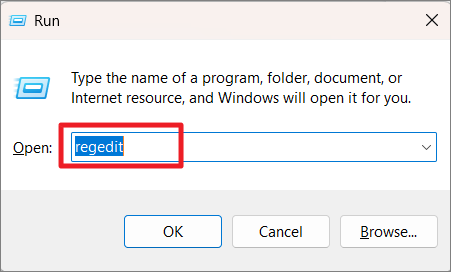
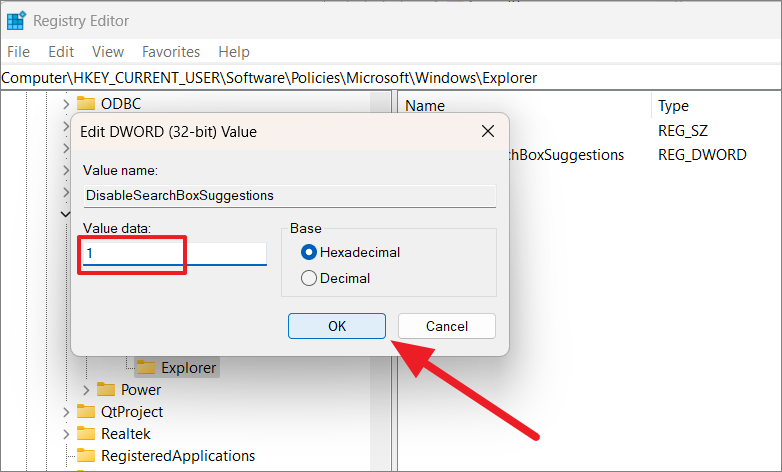
HKEY_CURRENT_USER\SOFTWARE\Policies\Microsoft\Windows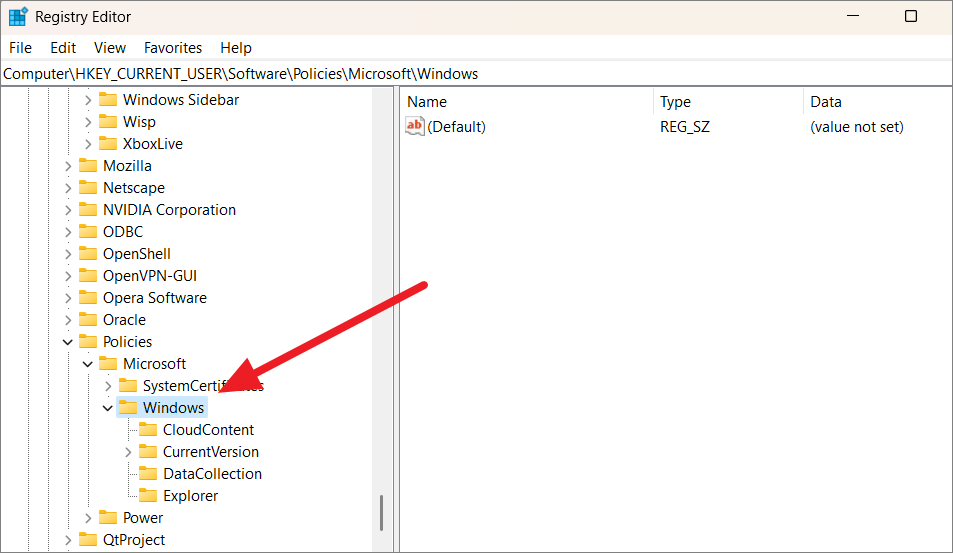
Explorer under the Windows key. If it doesn’t exist, right-click on the Windows key, select New > Key, and name the new key Explorer.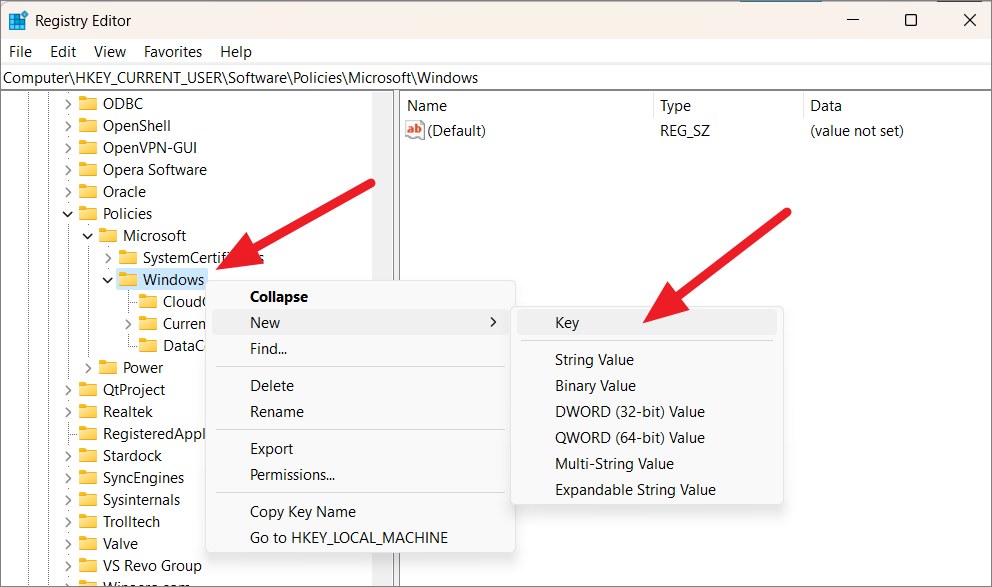
Explorer key selected, right-click in the right pane, select New > DWORD (32-bit) Value, and name it DisableSearchBoxSuggestions.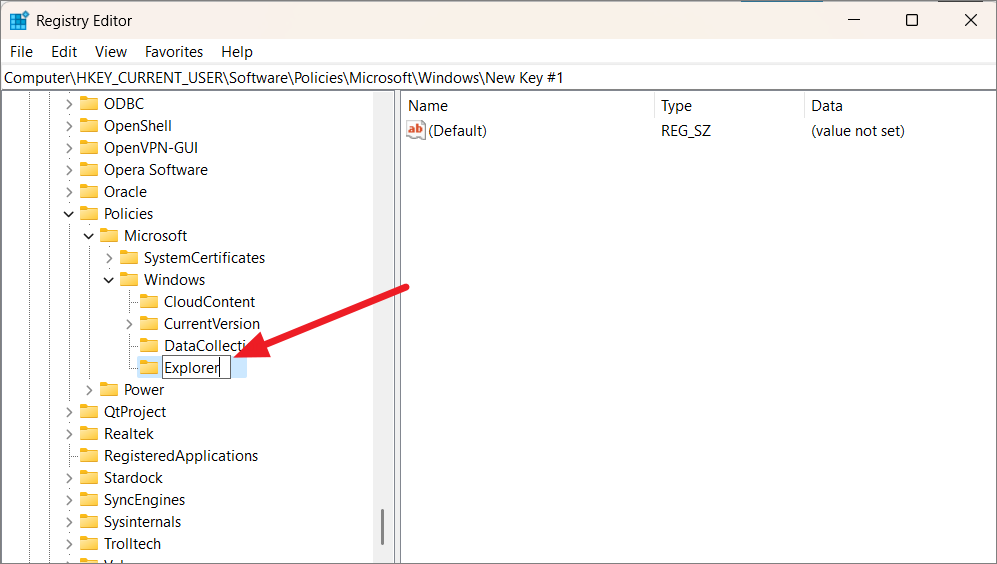
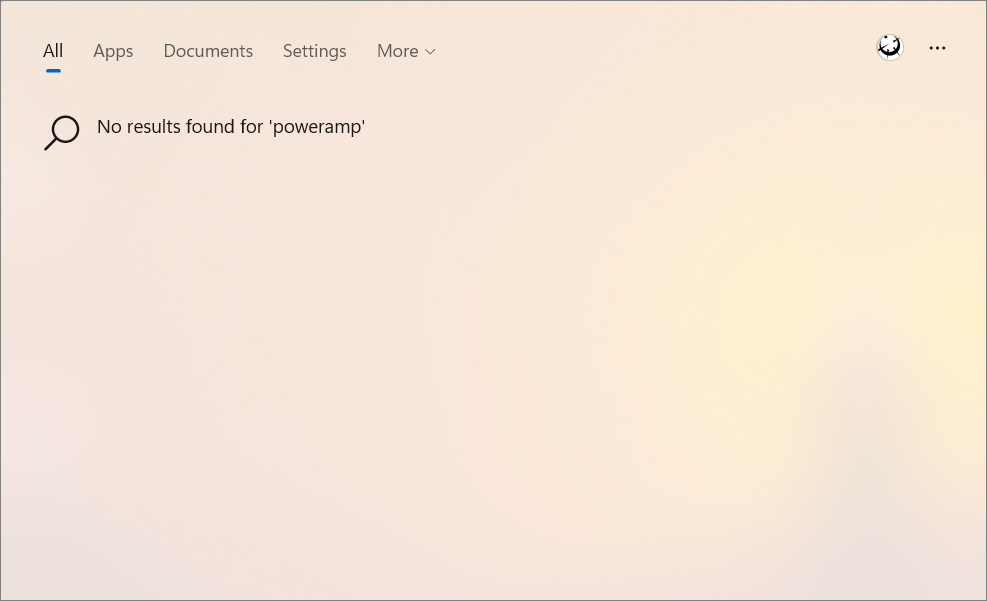
Now, when you search for something that’s not on your computer, Windows Search will display “No results found” instead of web suggestions.
By following these steps, you can customize your Windows 11 taskbar and search experience to suit your preferences, removing unwanted elements and keeping your workspace organized.



