

Windows 11 introduces features like ‘Suggested Actions’ to streamline tasks such as creating events or making calls when you copy dates, times, or phone numbers. While convenient for some, others might find these prompts unnecessary. If you’d prefer not to see these suggestions, you can disable the feature using the Settings app or the Registry Editor. Below are the steps for both methods.
Disable suggested actions from the Settings
Settings icon. Alternatively, press Windows+I on your keyboard.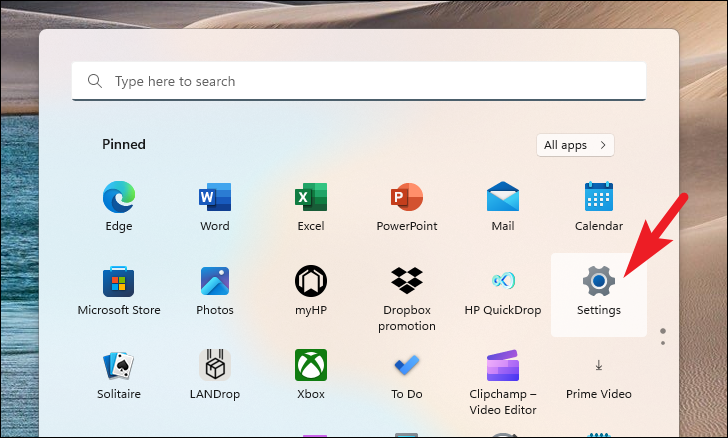
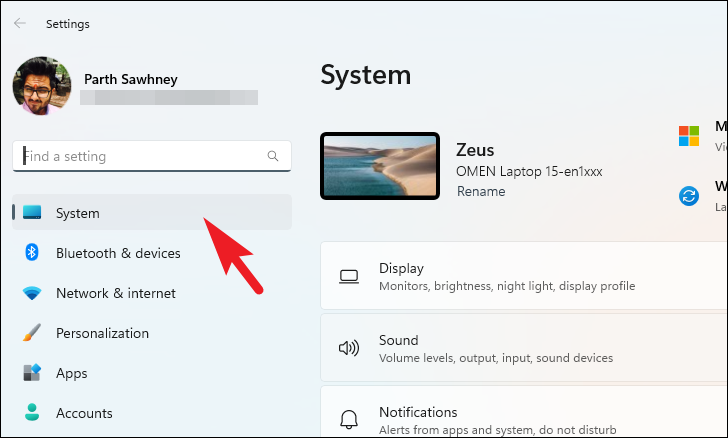
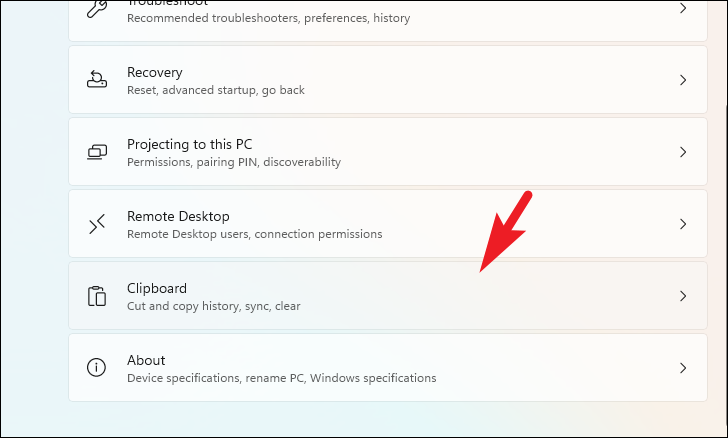
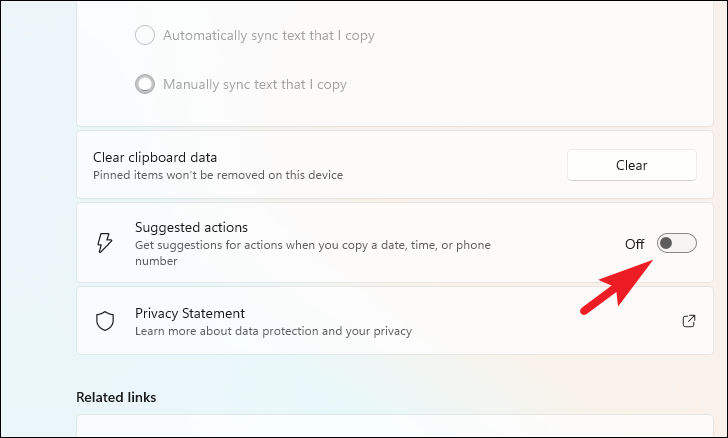
Once you’ve completed these steps, Windows will no longer display suggested actions when you copy dates, times, or phone numbers.
Disable suggested actions using the Registry Editor
If you’re unable to turn off suggested actions through the Settings app, you can disable the feature via the Registry Editor. Be cautious when making changes in the Registry Editor, as incorrect modifications can affect your system.
regedit in the search bar. Select the Registry Editor application from the search results.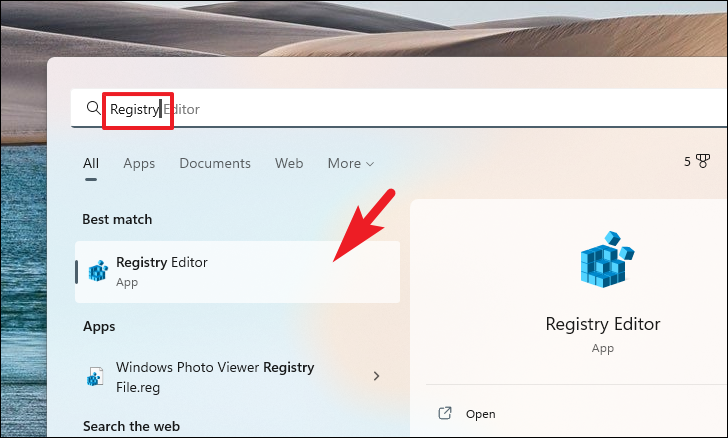
Enter:HKEY_CURRENT_USER\Software\Microsoft\Windows\CurrentVersion\SmartActionPlatform\SmartClipboard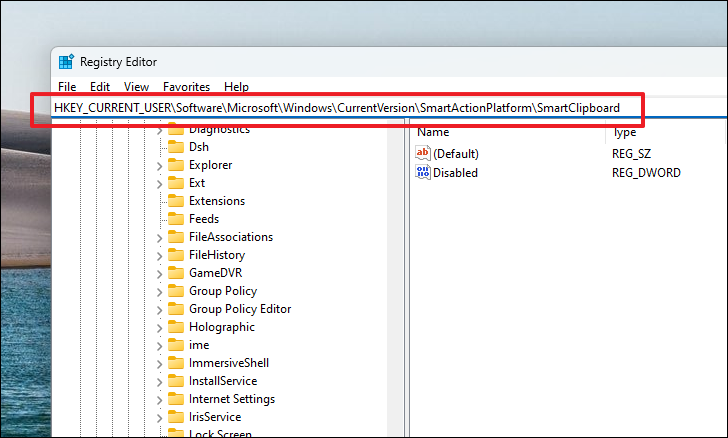
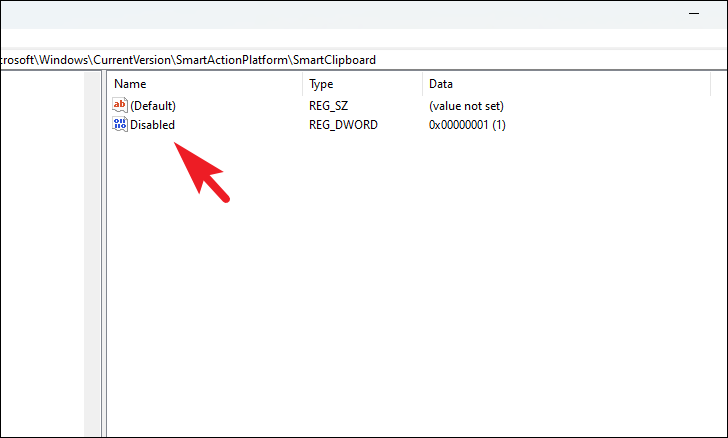
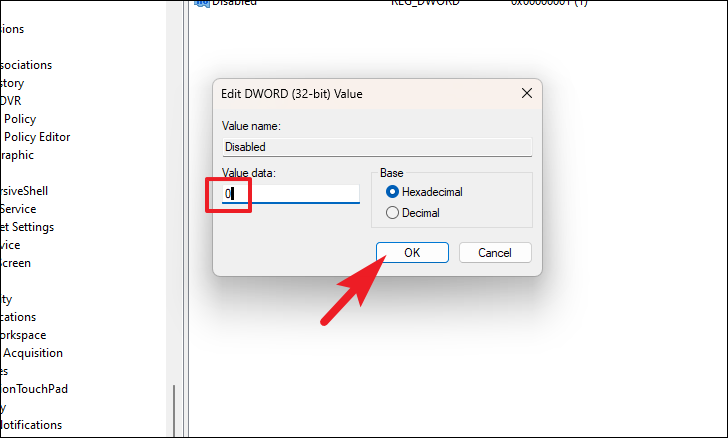
After restarting, the suggested actions feature should be disabled on your system.
By following these steps, you can easily turn off the Suggested Actions feature in Windows 11, tailoring your user experience to better suit your preferences.



