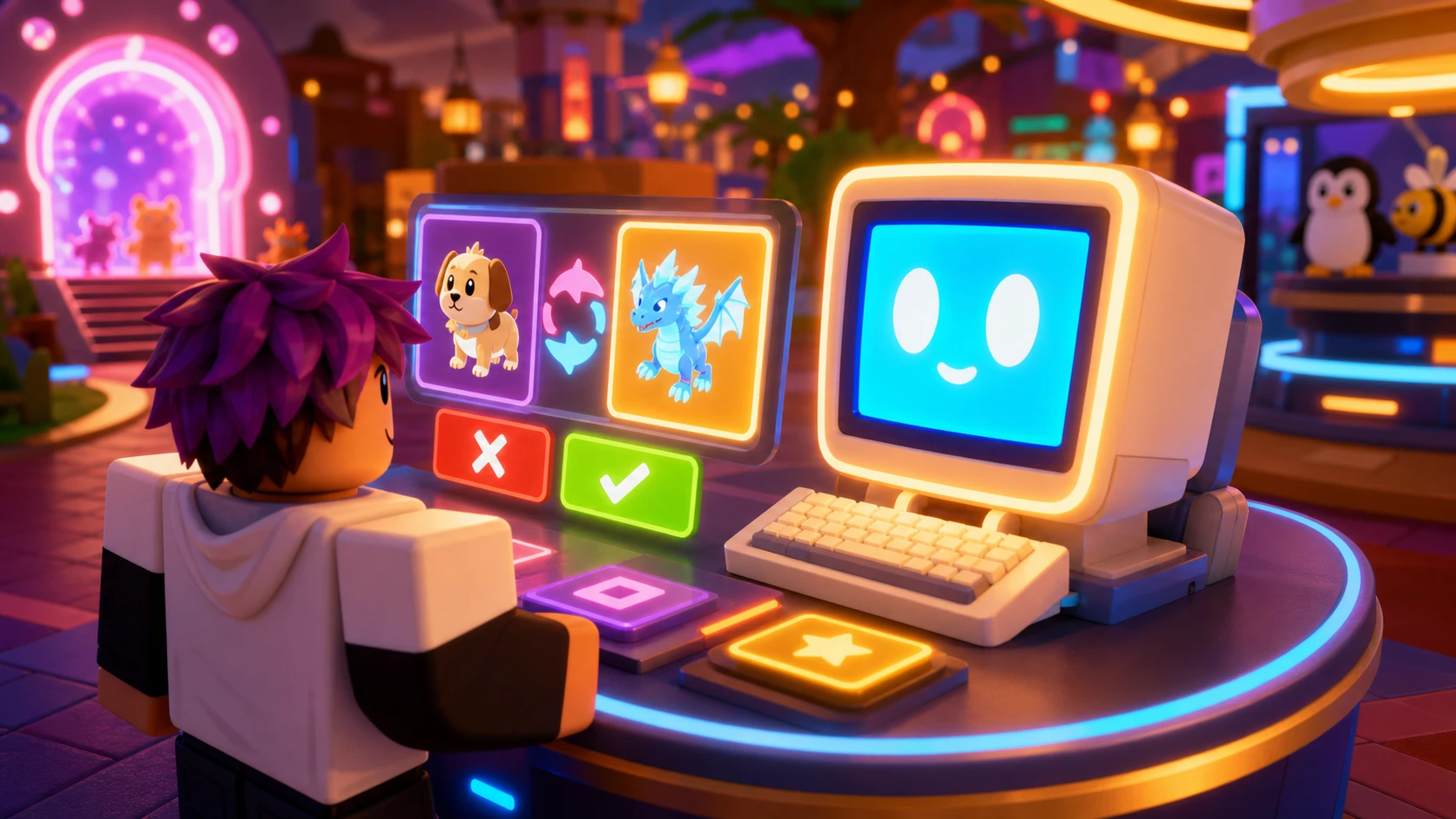
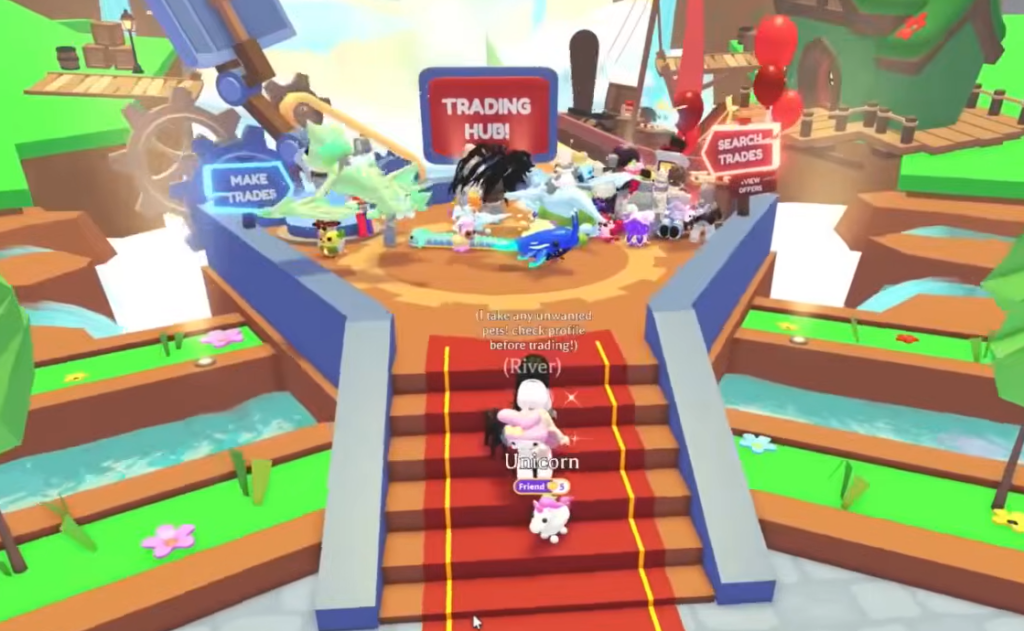
The Trading Hub is a cross-server trading space in Adopt Me! that went live on July 31, 2026. Instead of hopping between servers to find an offer, you summon a hot air balloon from a Trading Phone, fly to a shared hub, and post or search listings that other players can see no matter which server they are in.
Quick answer: Open your Backpack, go to the Toys tab, equip the Trading Hub Phone, click it to open the menu, choose “TRAVEL TO HUB”, then click “Yes” to board the hot air balloon and teleport.
Unlock the Trading Phone first
The Trading Phone is the key item that gets you to the hub. It is a common, untradable toy, and you earn it for free by meeting three conditions rather than buying it.
| Requirement | How to complete it |
|---|---|
| Free Trading Phone | Reach it in the Guide by playing for two hours |
| Trade License | Earn it in the Safety Hub |
| First Neon pet | Own at least one Neon pet |
How to travel to the Trading Hub
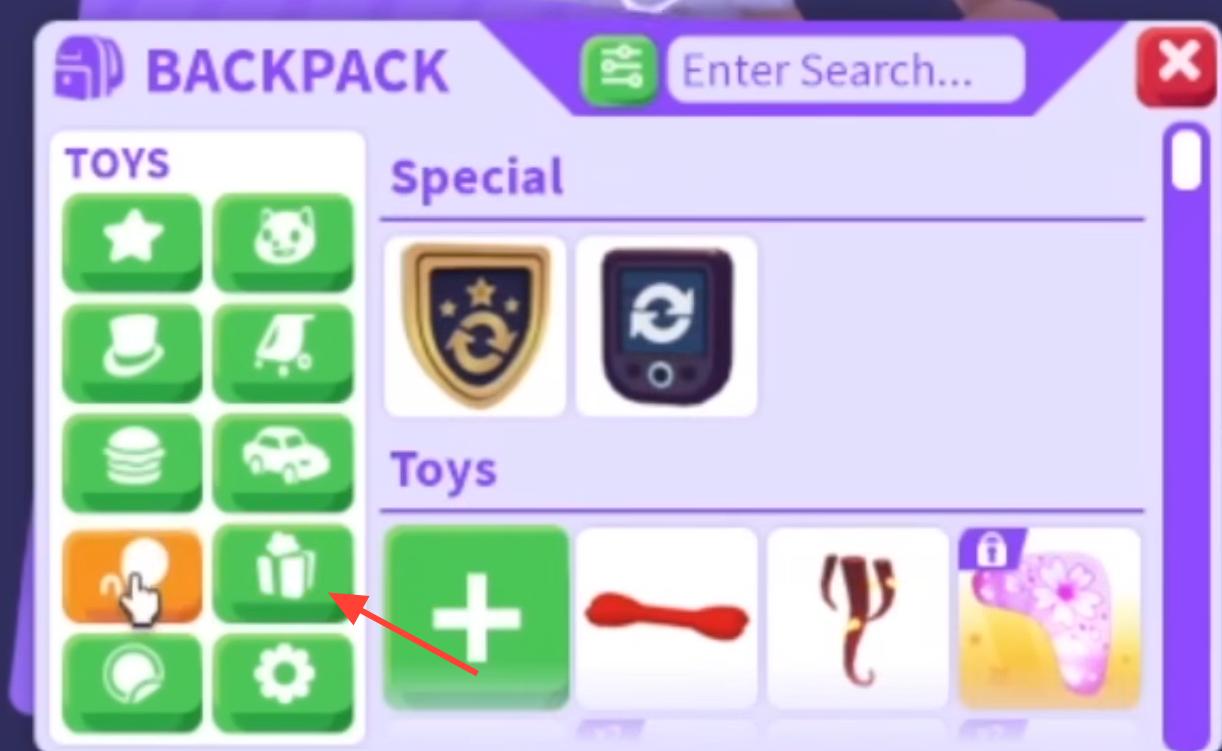
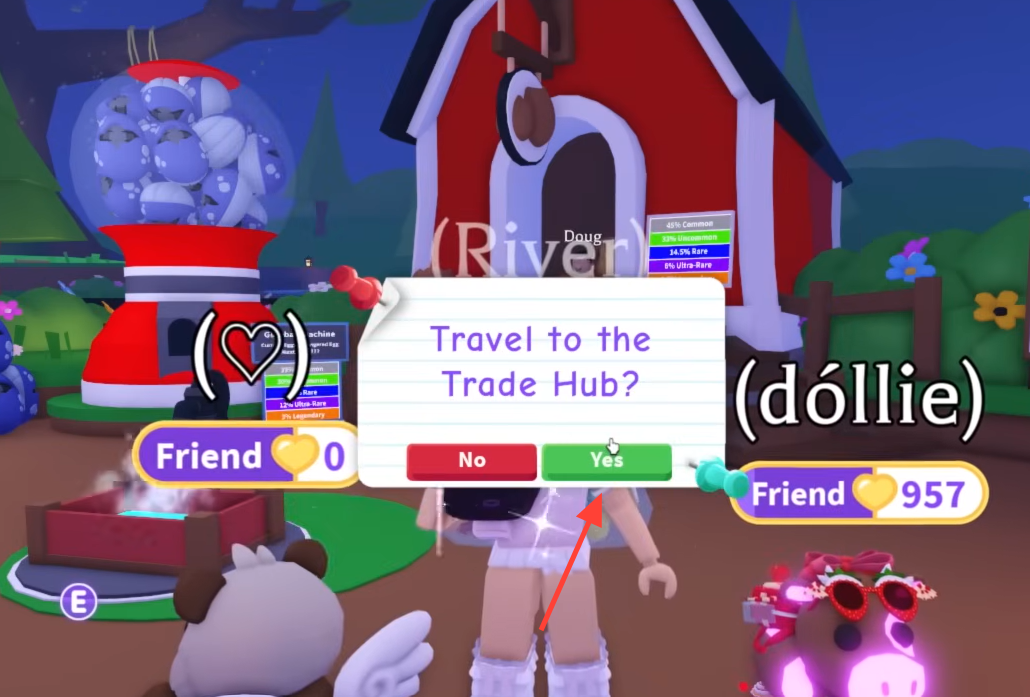
You know it worked once the loading screen finishes and you land at the hub. Walk up the stairs into the main circular area, where you will find the trade robots and other players.
Post a trade with Robo-Todd
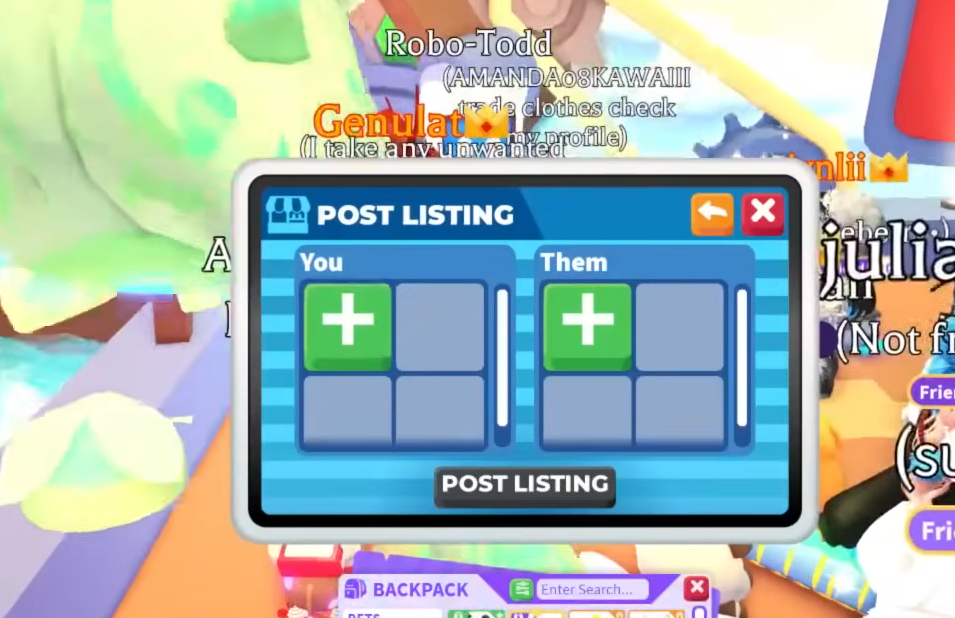
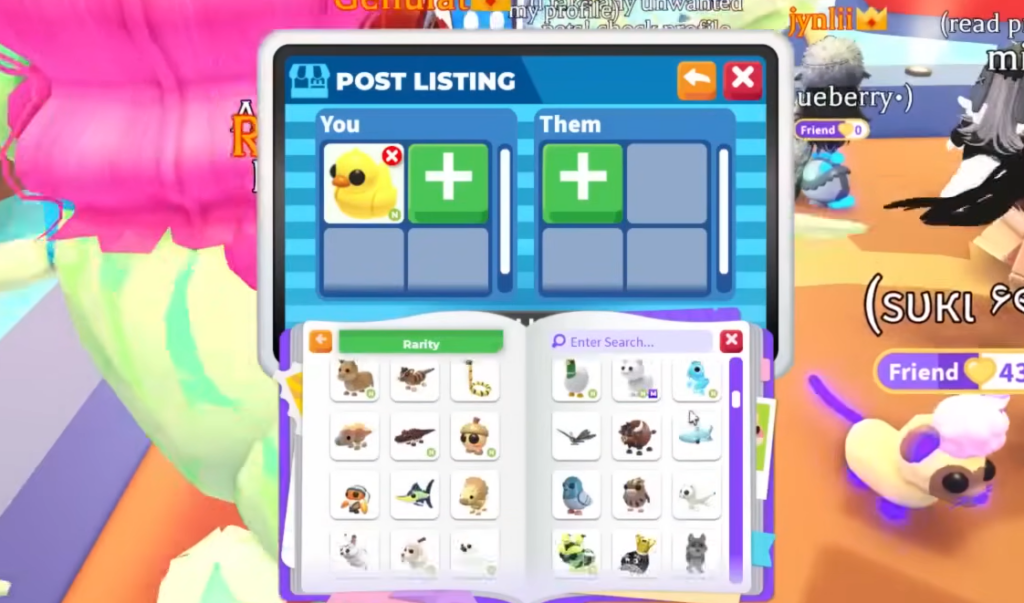
Robo-Todd handles the “MAKE TRADES” side of the hub. Interact with it to post a listing, pick what you are offering, and choose what you want in return. Your listing is then shown to players across every server.
The same robot lets you view offers other players have made on your listings and modify a listing if you are not getting the offers you want. You can hold up to two active listings at once, so it pays to make each one worthwhile.
Your listings only appear while you are in a server. If you go offline, they will not show up for anyone else.
Search listings with Robo-Rob
Robo-Rob is the “SEARCH TRADES” robot. Use it to look through listings other players have posted and send offers on them, or to check the active offers you have already sent.
When you search, you can pick items from your inventory to see what others are offering for them, or pick the items you want to find who is offering them. The most relevant listings appear first. If there is no exact match, or you scroll past all the matches, the search then shows listings for other items you own.
Costs, limits, and trade rules
| Rule | Detail |
|---|---|
| Cost to post a listing | 100 Bucks each time |
| Active listings allowed | 2 at once |
| Extra listing slot | A third slot for 49 Robux |
| Houses | Cannot be traded in the hub |
| Balance check | Very imbalanced listings and offers are blocked |
The balance guardrail is there to cut down on spam offers, not to set an official value system. It simply stops wildly one-sided trades, so you cannot list a sandwich for a Shadow Dragon.
How your pets are locked during a trade
When you list a pet or offer one on someone else’s listing, that pet is locked in your inventory. You cannot equip it, modify it, or use it in any other trade until the listing or offer is removed. This keeps every posted trade real and completable.
The item frees up again in three cases: you cancel the listing, you cancel the offer, or an offer containing that item goes through and completes.
Using the Trading Phone in a normal server
You do not have to be at the hub to keep an eye on your trades. In a regular Adopt Me server, the Trading Phone lets you check your trade listings, see incoming offers, and view your trade history from the same four-option menu.
The catch is that you cannot create a new listing or modify an existing one outside the hub. Every feature on the phone, including posting and editing, is fully available only while you are standing in the Trading Hub itself. The system is meant to sit alongside traditional trading and trade stands, cutting down on constant server hopping while you look for your dream pet.