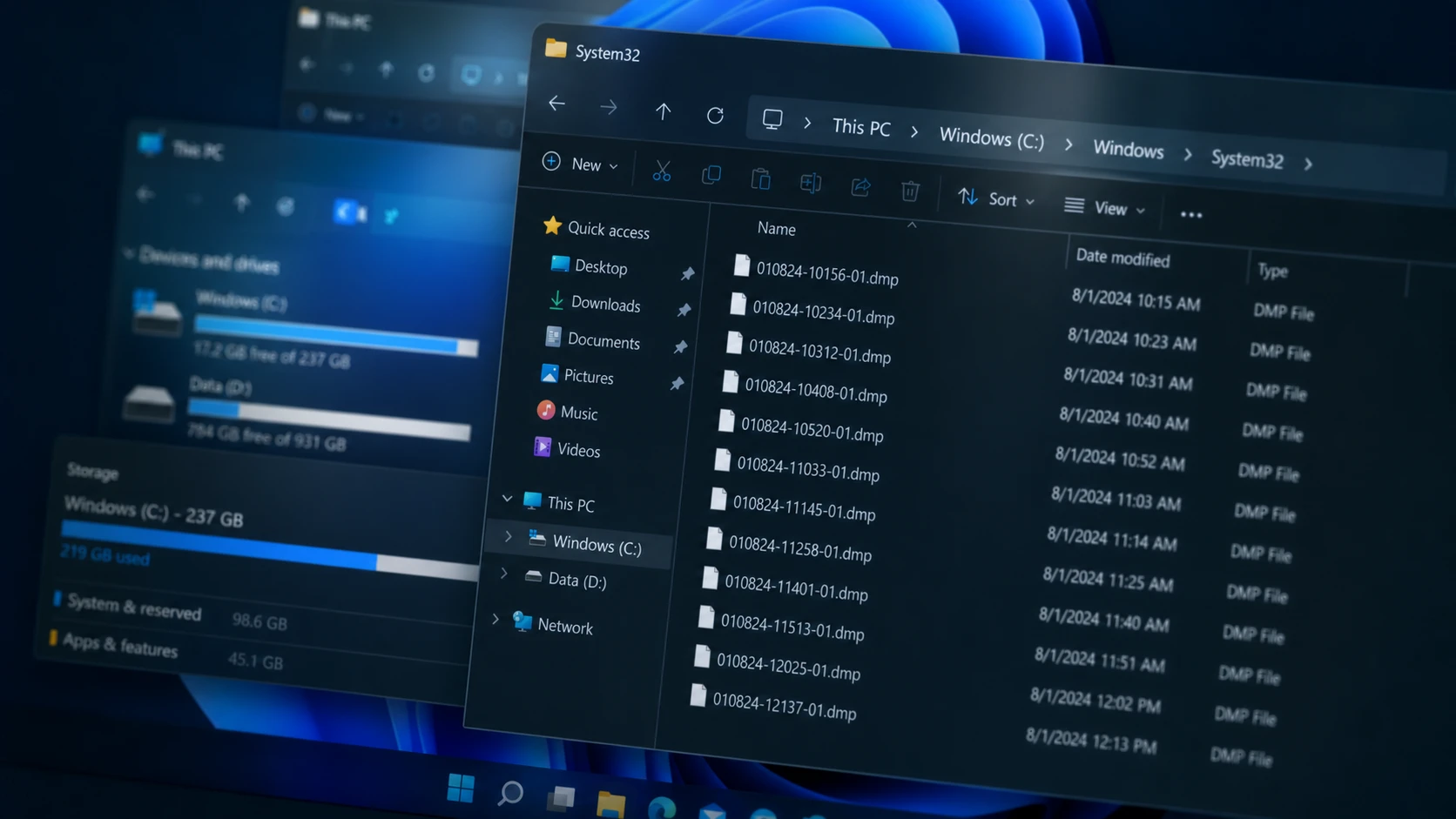
A System32 folder stuffed with .dmp files, sometimes tens of gigabytes of them, almost always points to a misdirected crash-dump setting or a component that keeps writing user-mode dumps into that folder. Windows normally keeps crash data elsewhere, so when these files land in System32 they just eat drive space without any benefit to you.
Quick answer: Open sysdm.cpl, go to Advanced > Startup and Recovery > Settings, and confirm the dump path points to %SystemRoot%\Minidump or %SystemRoot%\MEMORY.DMP (never %SystemRoot%\System32), then delete the leftover .dmp files from C:\Windows\System32.
Why the dumps end up in System32
Windows writes a dump file whenever the system hits a blue screen or a critical application crashes. Full kernel dumps go to C:\Windows\MEMORY.DMP, and smaller minidumps go to C:\Windows\Minidump. Neither location is System32 by default.
Two things push dumps into System32. The first is a startup and recovery setting whose dump path has been changed to %SystemRoot%\System32, so every bugcheck drops a large file straight into the folder. The second is a system service whose executable lives in System32, such as a driver host or an anti-malware engine. When one of those crashes, Windows Error Reporting can write its .hdmp or .dmp alongside it, and an unstable driver or a frequently crashing process makes that pile grow fast.
Are these .dmp files safe to delete?
Yes. Dump files are diagnostic logs created after a crash, and the operating system does not need them to run. Deleting them frees space immediately and causes no stability problems. The only thing you lose is the ability to analyze those specific crashes later, so if you are actively troubleshooting a recurring blue screen, copy the dumps somewhere safe before you clear them.
If a file refuses to delete, a running process is likely holding it open. Skip it rather than forcing it, since a small number of legitimate system files carry a .dmp extension. A reboot usually releases a locked dump and lets you remove it afterward.
Redirect kernel dumps back out of System32
If the dump path has been changed to System32, fixing it stops new files from appearing while still keeping crash data in the standard location. This is the right choice if you want to preserve dumps for future troubleshooting.
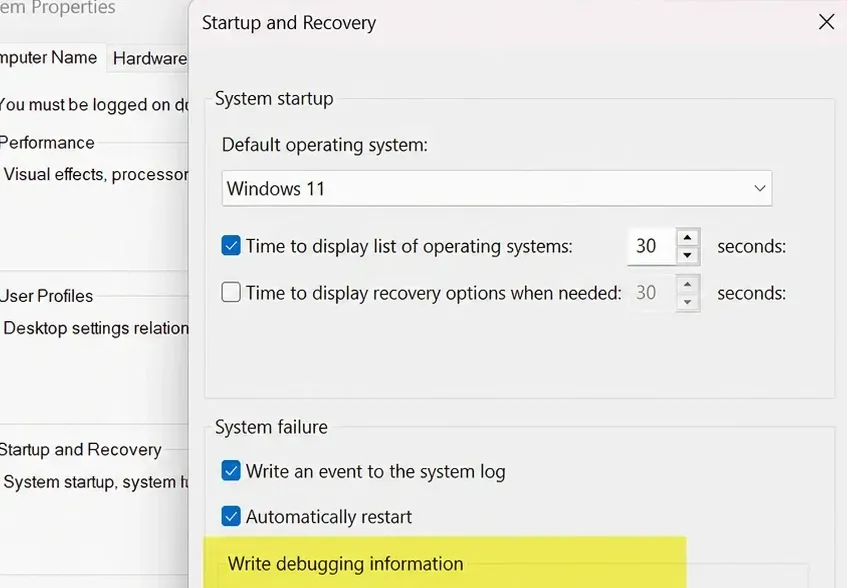
%SystemRoot%\Minidump for small dumps, or %SystemRoot%\MEMORY.DMP for kernel and full dumps. Click OK and restart the PC.C:\Windows\System32, sort by file type, select the .dmp files, and delete them.You will know it worked when a later crash writes its dump to C:\Windows\Minidump or C:\Windows\MEMORY.DMP instead of System32, and the System32 folder no longer collects new .dmp files.
Turn off memory dumps entirely
If you never analyze crashes yourself, there is no reason to keep large dump files at all. Disabling the feature stops Windows from writing any .dmp file, which cuts off the flood at its source.
Clear existing dumps with Disk Cleanup
Windows Error Reporting stores crash reports in hidden system folders, but a misconfiguration can drop them into System32. Disk Cleanup removes error dump files, including stray ones in the wrong folder, in a single pass.
You can also delete the dumps by hand: remove MEMORY.DMP from C:\Windows, everything inside C:\Windows\Minidump, and any stray dumps in C:\Windows\System32.
Fix the crashes that keep creating dumps
If a faulty component keeps crashing, new .dmp files will keep appearing no matter how often you delete them. The lasting fix is to find the culprit, which is usually a corrupt driver, a failing system service, or damaged system files.
nvlddmkm.sys.C:\Windows\System32.sfc /scannow
DISM /Online /Cleanup-Image /RestoreHealthKeep the folder clean going forward
Once the dump path is corrected and the underlying crashes are handled, Storage Sense can keep the clutter from returning. It automatically removes temporary files, including system error dumps, so you do not have to revisit System32 by hand.
The table below summarizes which fix fits which situation.
| Goal | What to do |
|---|---|
| Keep crash data but move it out of System32 | Reset the dump path to Minidump or MEMORY.DMP |
| Never keep dump files | Set Write debugging information to (none) |
| Clear existing dumps fast | Run Disk Cleanup as administrator |
| Stop dumps at the root | Update the faulty driver and repair system files |
| Prevent buildup automatically | Enable Storage Sense |
Correcting the dump path is the change that actually stops the folder from filling again, while Disk Cleanup and manual deletion recover the space you have already lost. If dumps keep returning after that, the crash itself is still active, and Event Viewer is where you trace it back to the driver or service that needs attention.