
Many Windows 11 users have experienced issues with the Spotify app not working properly, such as the app failing to launch or displaying a blank screen. Fortunately, there are several methods to resolve these problems, often involving straightforward software fixes.
Method 1: Reinstall Spotify App
Sometimes, corrupt installation files or conflicting software can cause the Spotify app to malfunction. Reinstalling the app can often resolve these issues.
Settings app by clicking on the Start Menu and selecting the Settings tile. Alternatively, you can press Windows+I on your keyboard.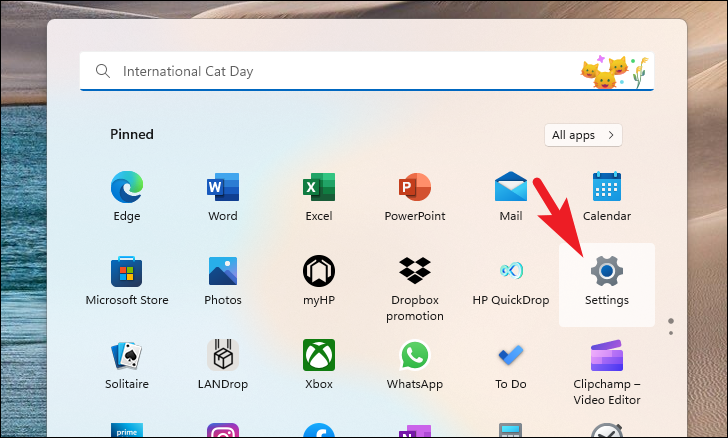
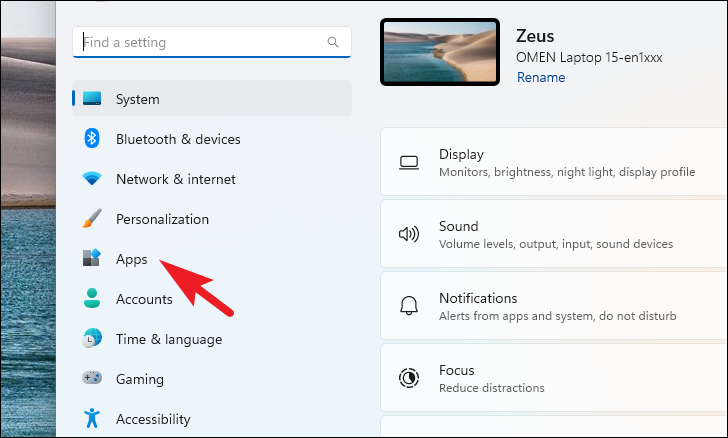
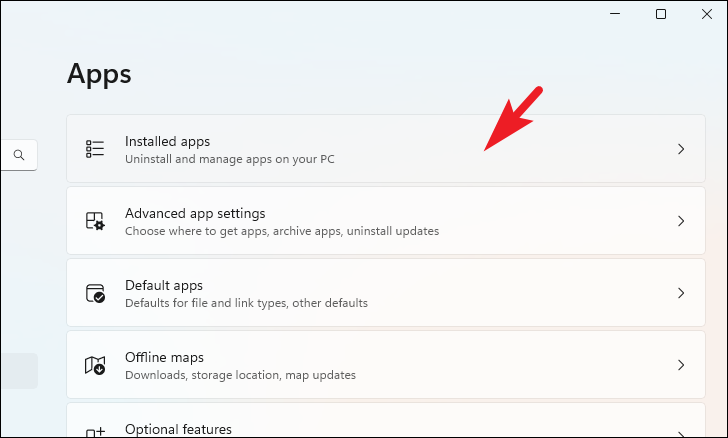
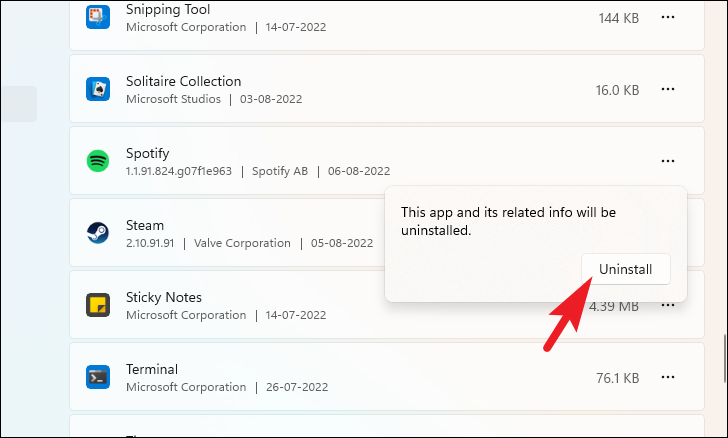
Uninstall.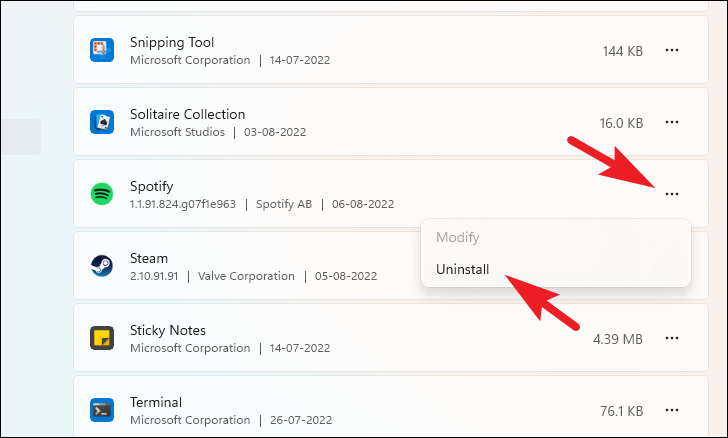
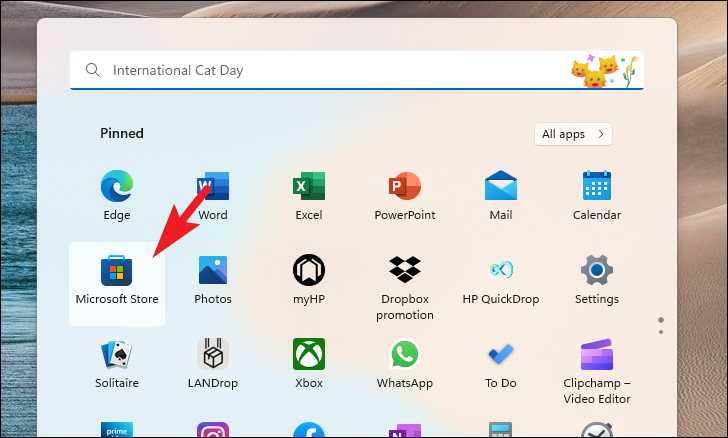
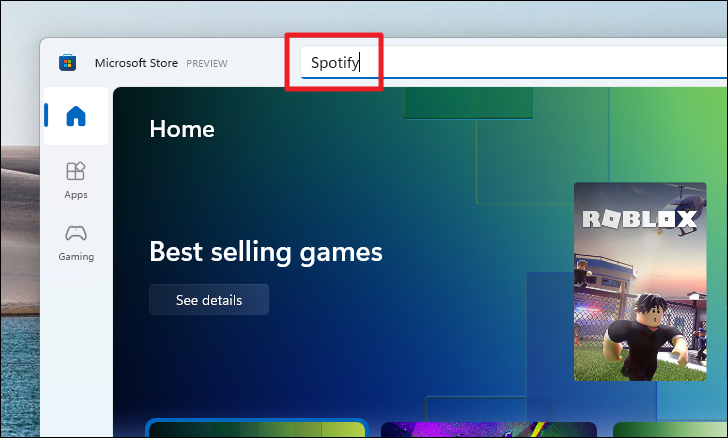
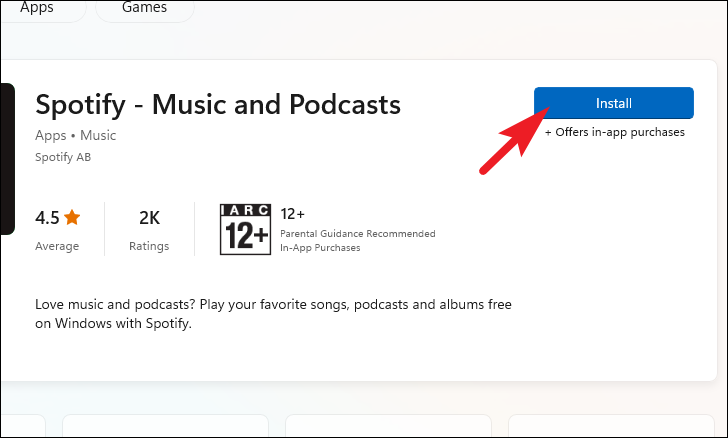
To install from the Microsoft Store:
To install from the official website:
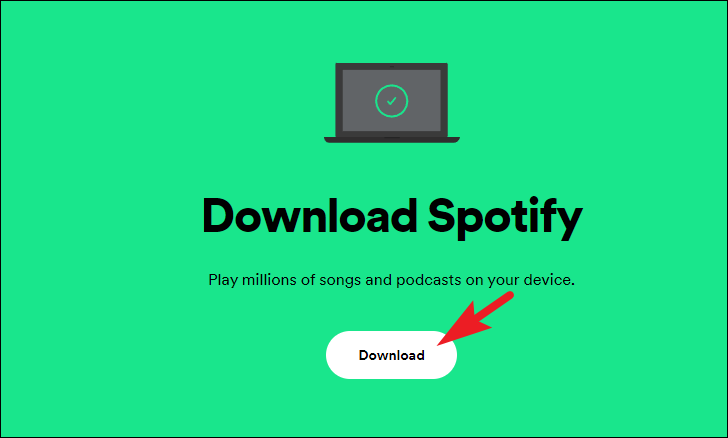
.exe file to install Spotify on your computer. The app should launch automatically once the installation is finished.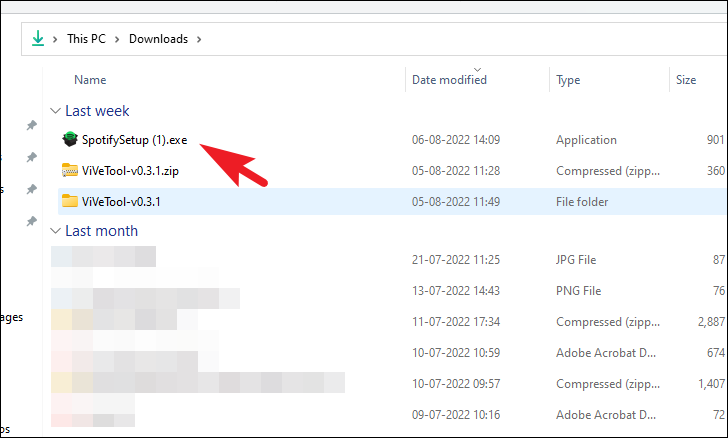
Method 2: Switch to the Spotify Standalone App Version
If you’re using the Spotify app downloaded from the Microsoft Store, switching to the standalone version from the Spotify website may resolve any issues you’re experiencing.
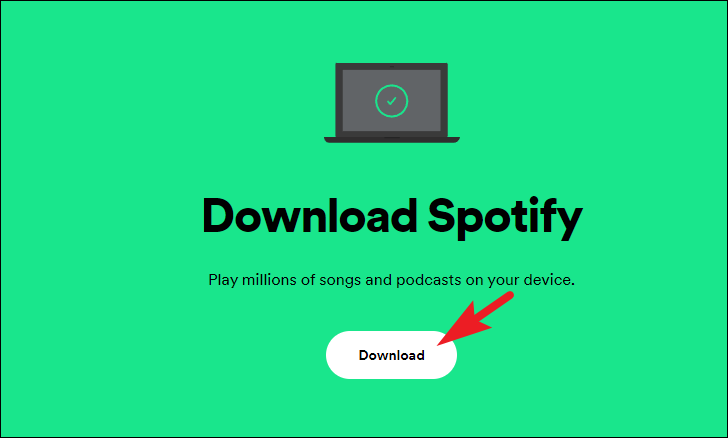
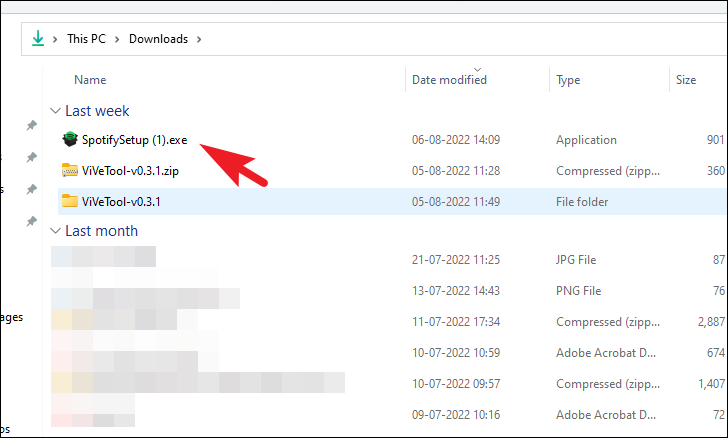
If you were already using the standalone version, you might try installing the app from the Microsoft Store instead to see if that fixes the problem.
Method 3: Add ‘Media Feature Pack’ Optional Feature
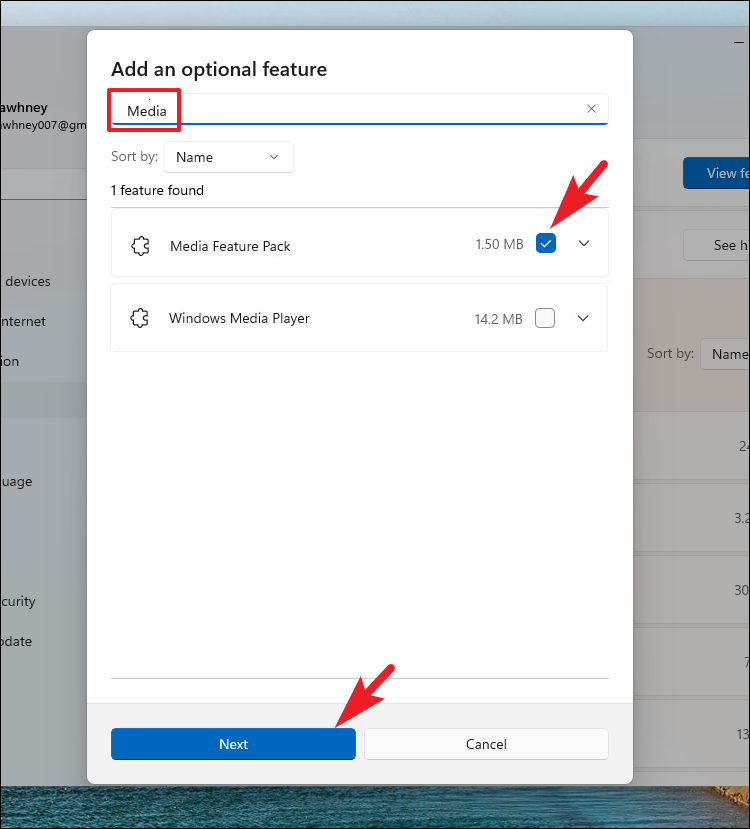
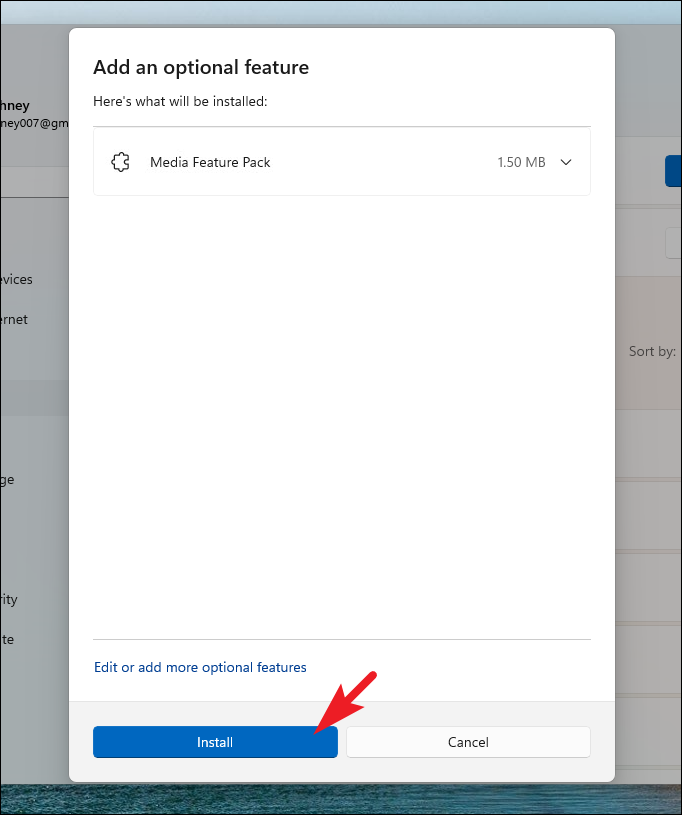
The ‘Media Feature Pack’ is essential for some multimedia applications to function correctly. If this feature is missing, it can cause issues with apps like Spotify, especially on systems using an education or organizational account.
Settings app by clicking on the Start Menu and selecting Settings, or by pressing Windows+I on your keyboard.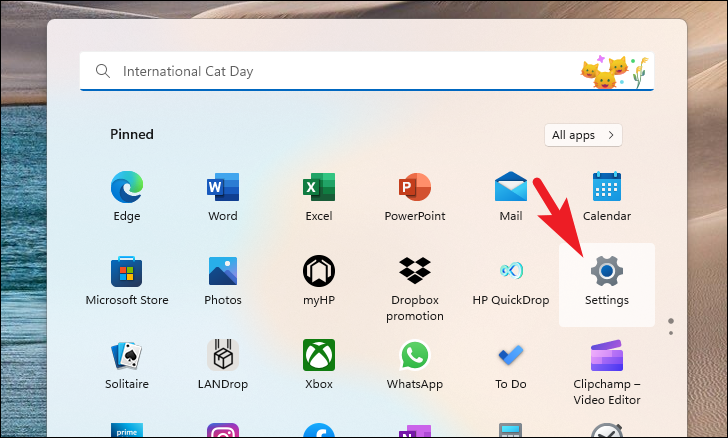
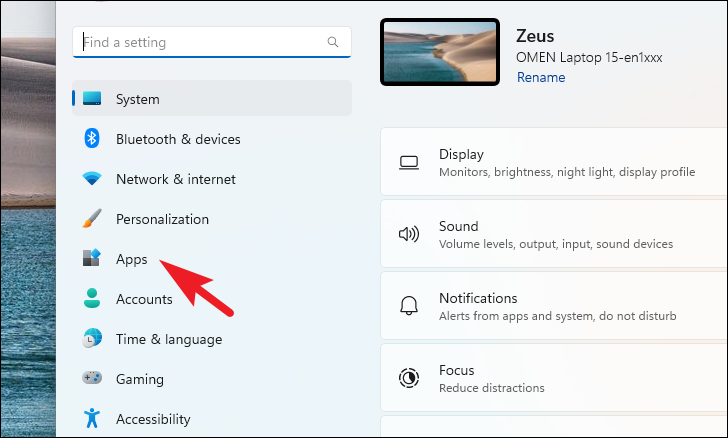
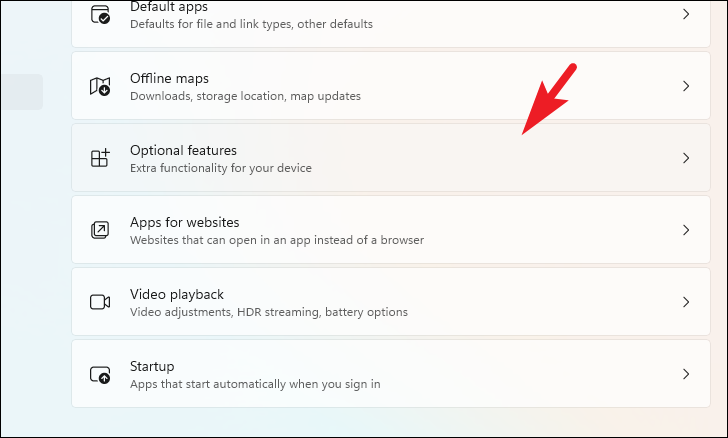
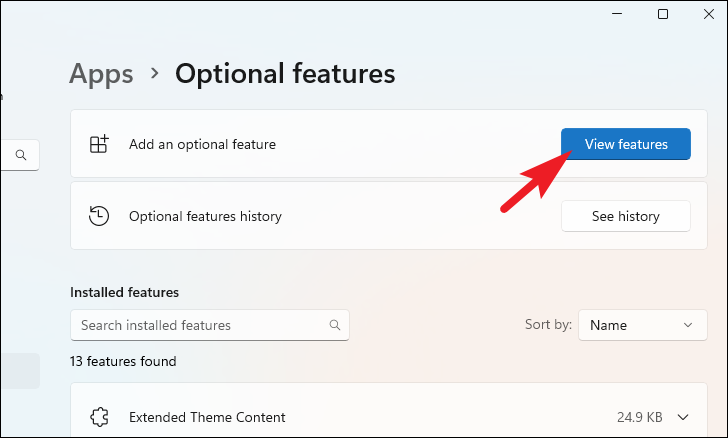
If you do not see ‘Media Feature Pack’ in the list, it is likely already installed on your system.
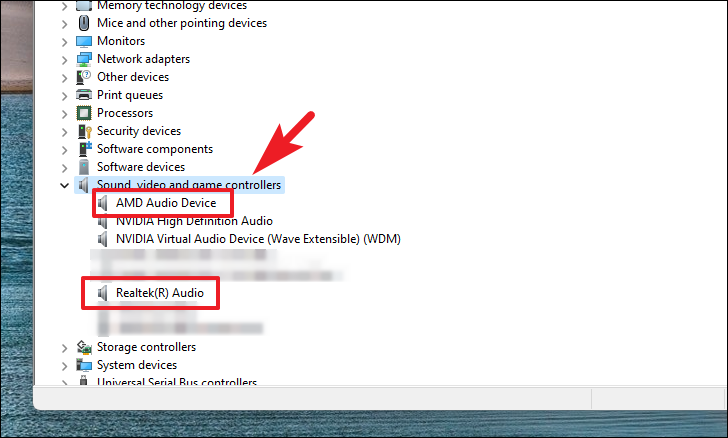
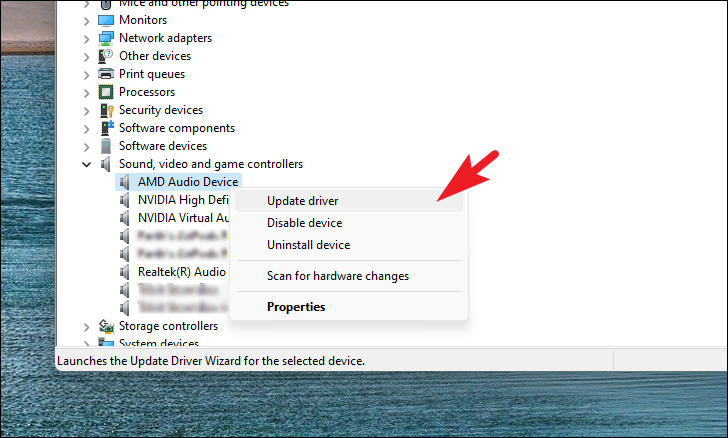
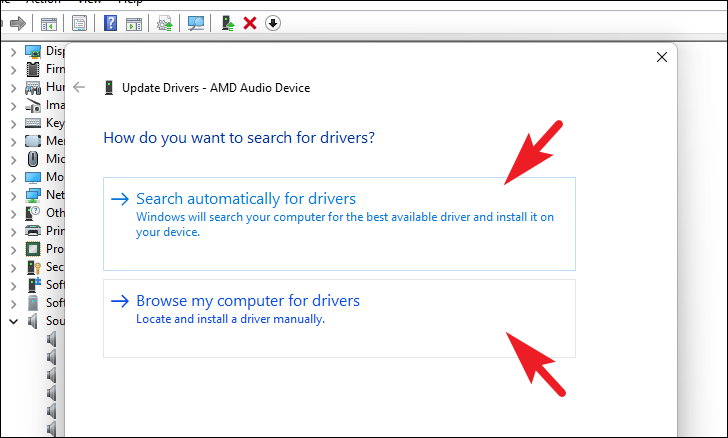
Method 4: Update Audio Drivers
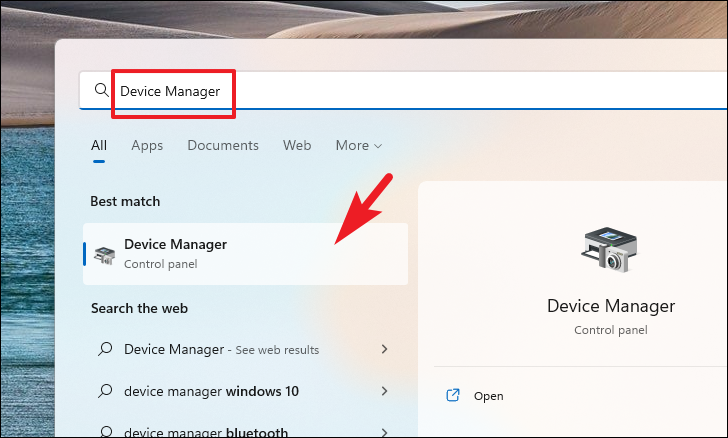
Outdated or corrupted audio drivers can sometimes interfere with applications like Spotify. Updating your audio drivers may help resolve the issue.
Method 5: Use the Web Player as an Alternative
If none of the above methods resolve the issue, you can use the Spotify web player as a temporary solution. While it doesn’t support offline playback, it allows you to stream your favorite music without the desktop app.
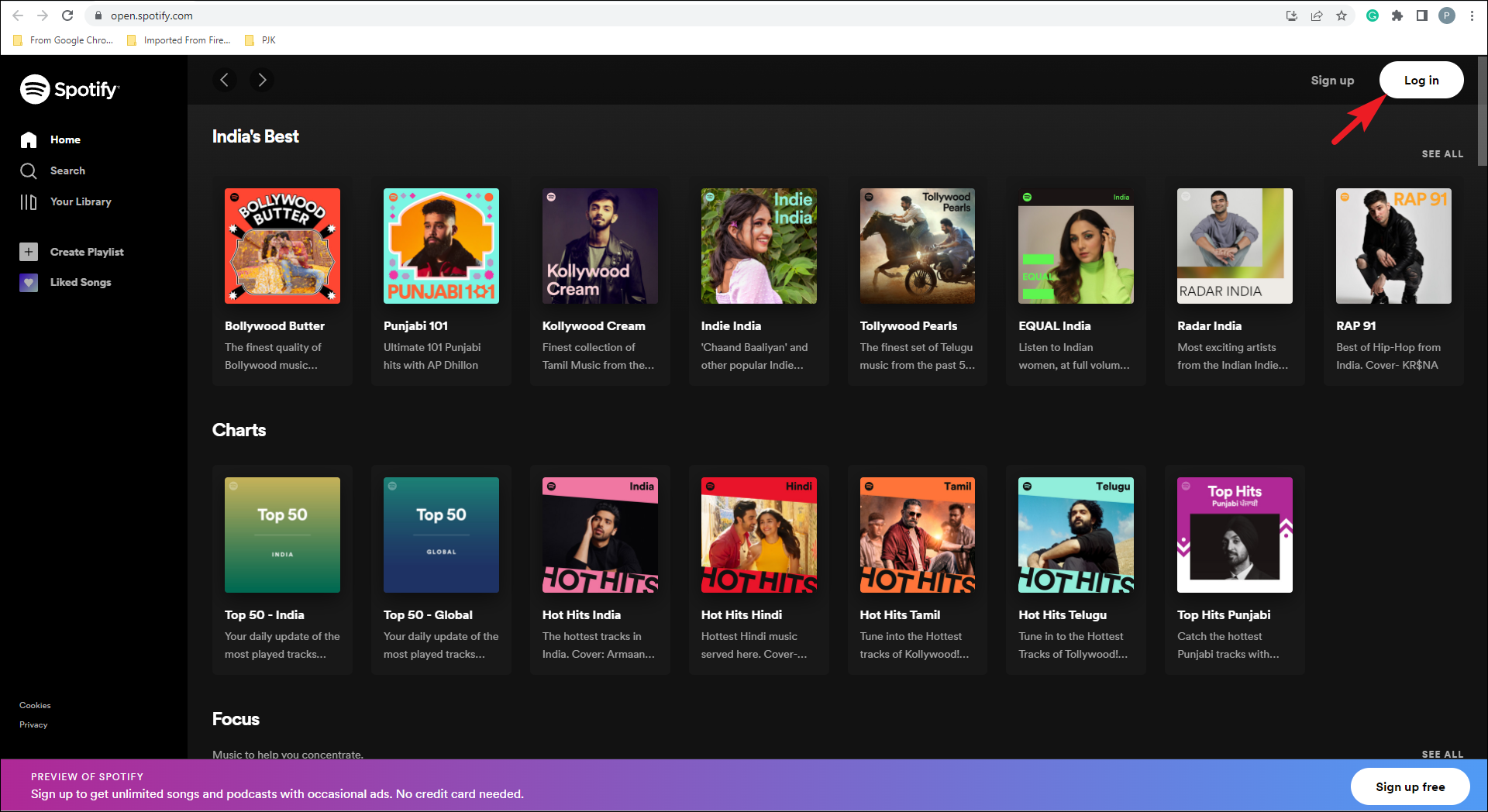
You can now listen to music using the web player until the issue with the desktop app is resolved.
By following these methods, you should be able to fix the Spotify app on your Windows 11 computer. If the problem persists, you may consider resetting your PC without losing your personal data to ensure all system issues are addressed.



