Beast of Reincarnation starts every new game with Japanese voice acting turned on, and it never tells you a full English dub is sitting right there too. The catch is where the toggle lives. You cannot flip it from the pause menu once you are loaded into a save, which is exactly where most players look first.
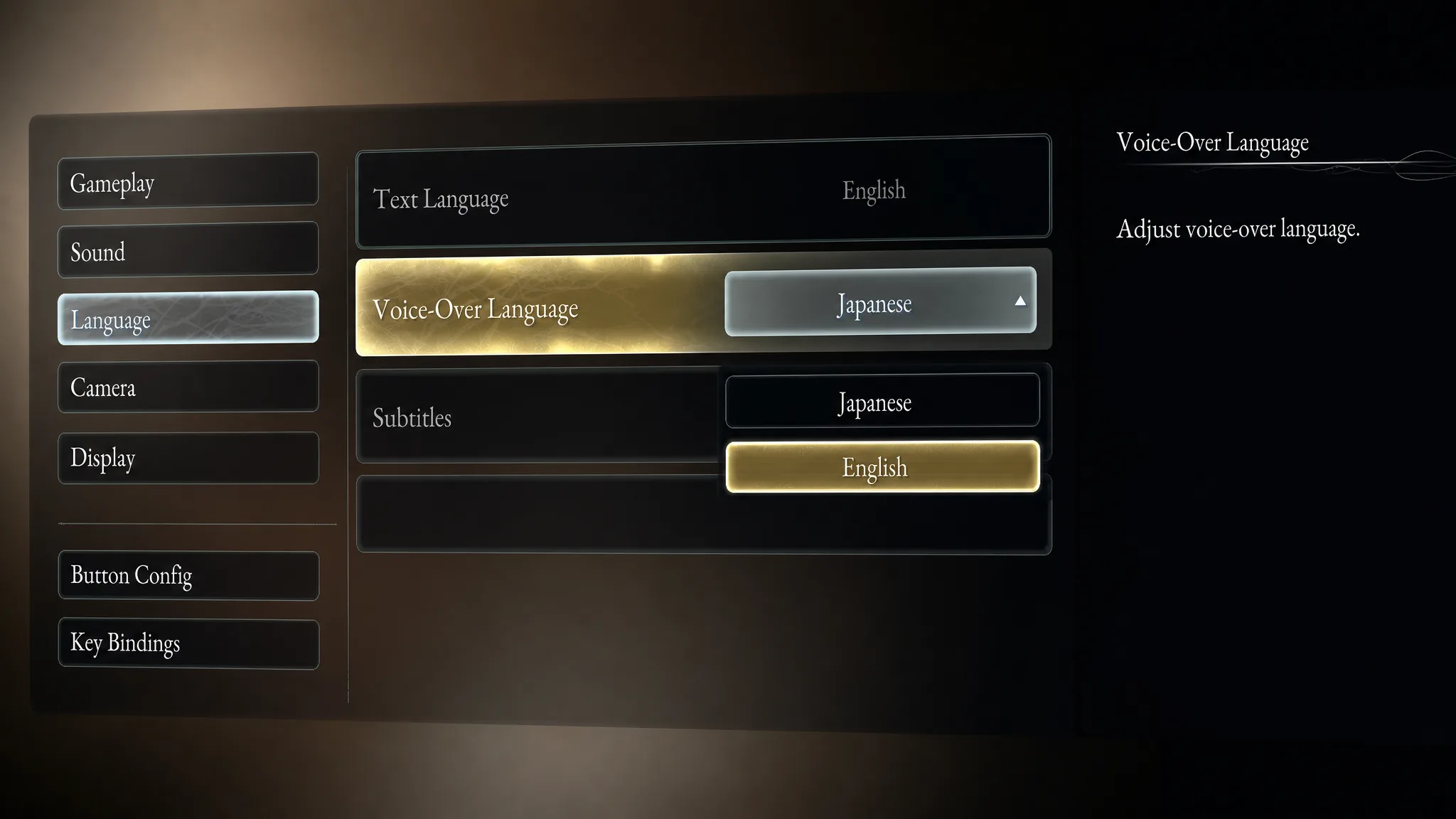
Quick answer: From the game’s title screen, open Settings > Language > Voice-Over Language and choose Japanese or English. If you are already in a save, go to Settings > Other > Return to Title first (save beforehand), then change it from the title menu.
Change the voice-over from the title screen
The voice-over setting is only available on the game’s title menu, before you load a save. This is the fastest path if you are just booting up.
Change it while you are already playing
The pause menu will let you adjust text and subtitles, but not the spoken audio. To swap voices mid-playthrough, you have to return to the title screen first.
You will know it worked when the next voiced line, whether Emma reacting to a clue or a full cutscene, plays in the language you chose.
What else lives in the Language menu
The same Language screen controls more than the spoken audio. It is worth a look even if you keep the default Japanese track.
| Setting | What it controls |
|---|---|
| Voice-Over Language | Spoken audio, Japanese or English only |
| Text Language | Menu and interface text |
| Subtitles | Turn dialogue subtitles on or off |
| Speaker Names | Show or hide who is talking |
Only two languages have full voice acting
Beast of Reincarnation ships with eleven supported languages, but spoken audio exists in just English and Japanese. Every other language gets interface text and subtitles only, so players in those regions hear one of the two voiced tracks while reading subtitles in their own language.
| Language | Interface | Voice audio | Subtitles |
|---|---|---|---|
| English | Yes | Yes | Yes |
| Japanese | Yes | Yes | Yes |
| French | Yes | No | Yes |
| German | Yes | No | Yes |
| Spanish (Spain) | Yes | No | Yes |
| Spanish (Latin America) | Yes | No | Yes |
| Italian | Yes | No | Yes |
| Korean | Yes | No | Yes |
| Portuguese (Brazil) | Yes | No | Yes |
| Simplified Chinese | Yes | No | Yes |
| Traditional Chinese | Yes | No | Yes |
Japanese or English: which to pick
This comes down to how you want to play. The game is set in a ruined version of Kanto, so the original Japanese performances tend to feel more natural, especially in the many cutscenes where pauses and repeated names fit the language. Emma is voiced in Japanese by Yui Ishikawa, alongside a supporting cast that includes Akio Otsuka and Sumire Morohoshi.
The practical trade-off shows up in combat. Emma talks about clues while you explore, and conversations with companions keep firing during fights. If you do not understand Japanese by ear, you will have to stop and read subtitles or risk missing what is said, which can cost you a parry or dodge during a boss battle. English lets you listen and play at the same time.
Pick a track early and stick with it. Switching languages roughly ten hours into a save can feel jarring, since a character’s English voice may not match the tone you have gotten used to in Japanese. There is also no way to preview both tracks mid-fight, since the toggle only exists on the title screen.