Streamline your Windows 11 system by removing clutter, disabling unwanted features, and optimizing settings for a more focused and efficient desktop environment.
Streamline your Windows 11 system by removing clutter, disabling unwanted features, and optimizing settings for a more focused and efficient desktop environment.
by Pallav Pathak
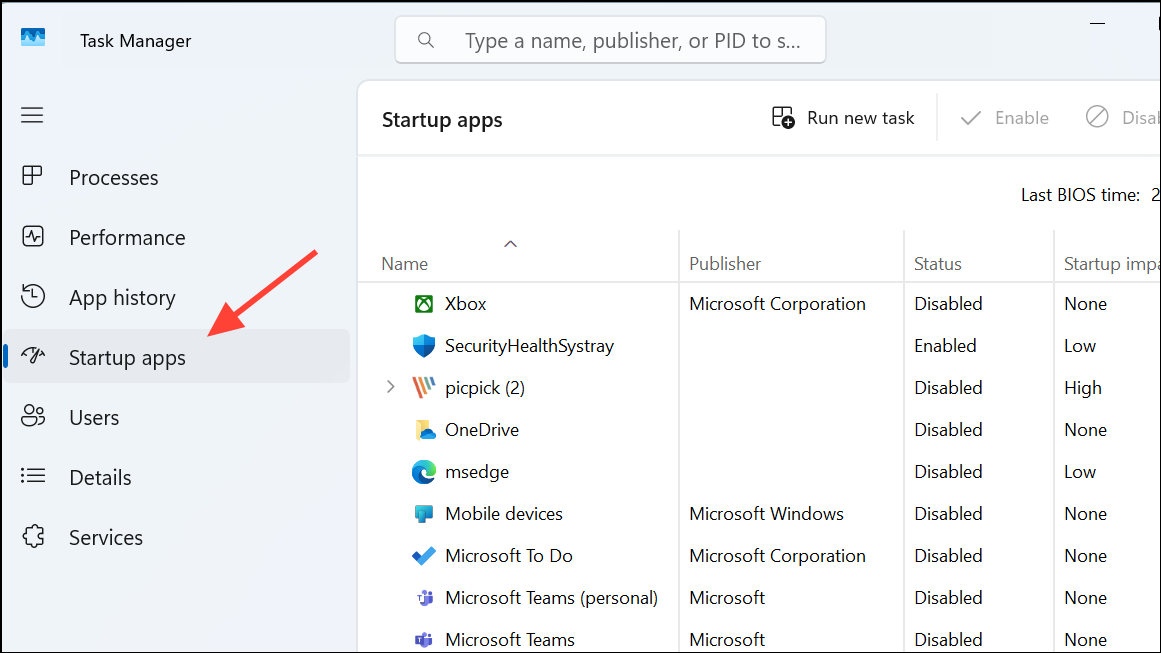
Disabling unnecessary startup programs immediately reduces system resource usage and shortens boot times. Many pre-installed applications and background processes launch automatically, slowing down performance and cluttering your workspace.
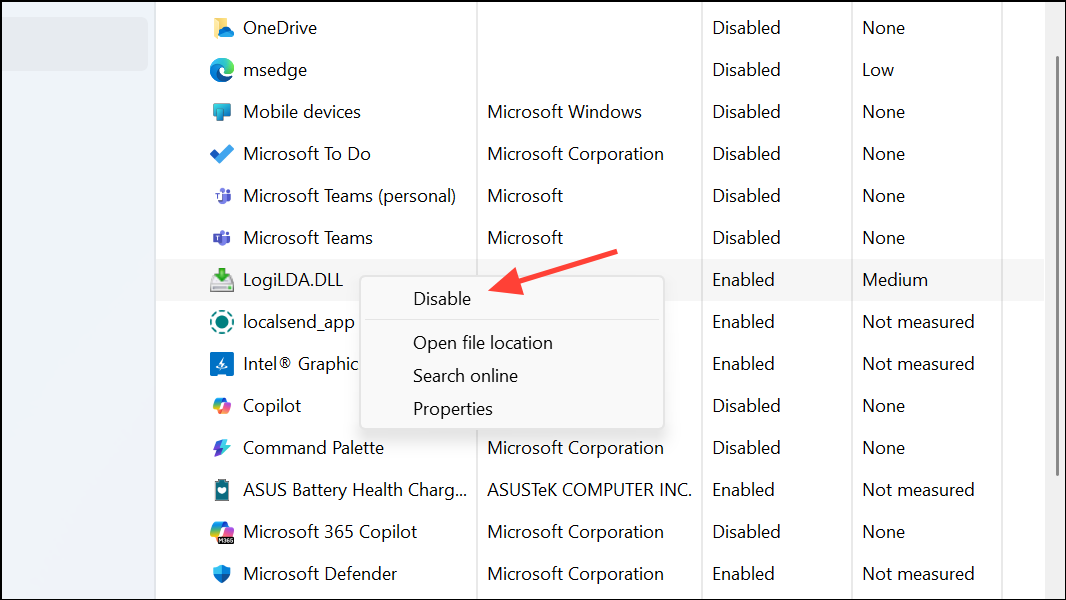
Review each entry and right-click and disable any non-essential applications. Disabling these programs prevents them from running in the background, freeing up memory and CPU resources.
Restart your computer to confirm that only critical programs launch at startup. This change speeds up boot times and creates a cleaner desktop environment.
Uninstall Pre-Installed and Unwanted Apps
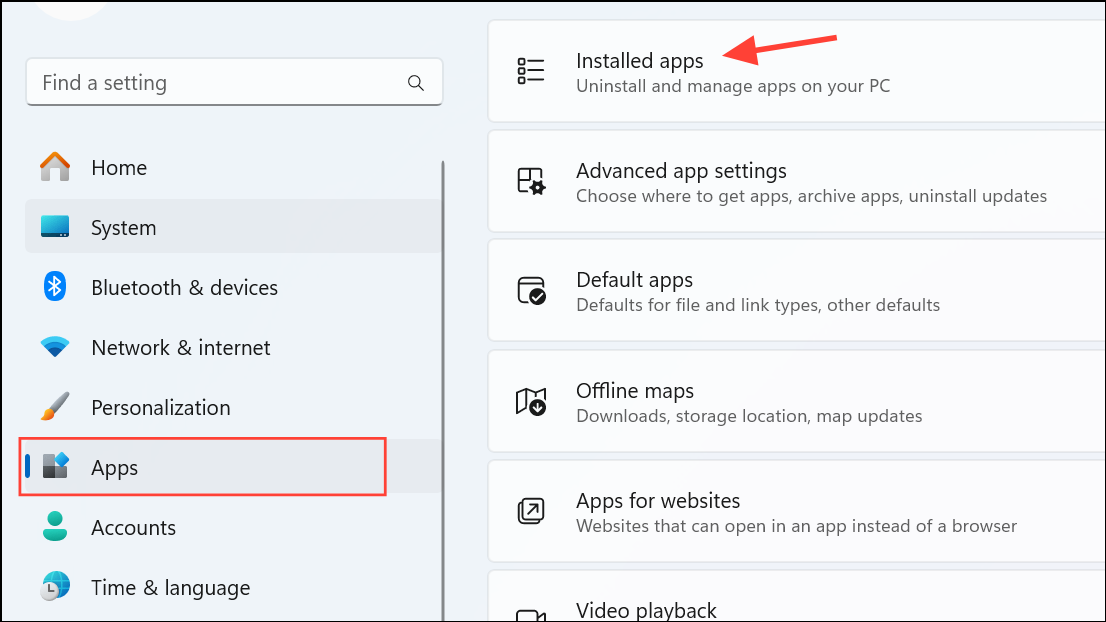
Windows 11 comes with bundled applications, often referred to as “bloatware,” which can take up storage and distract from your workflow. Removing these apps reclaims disk space and declutters the Start menu.
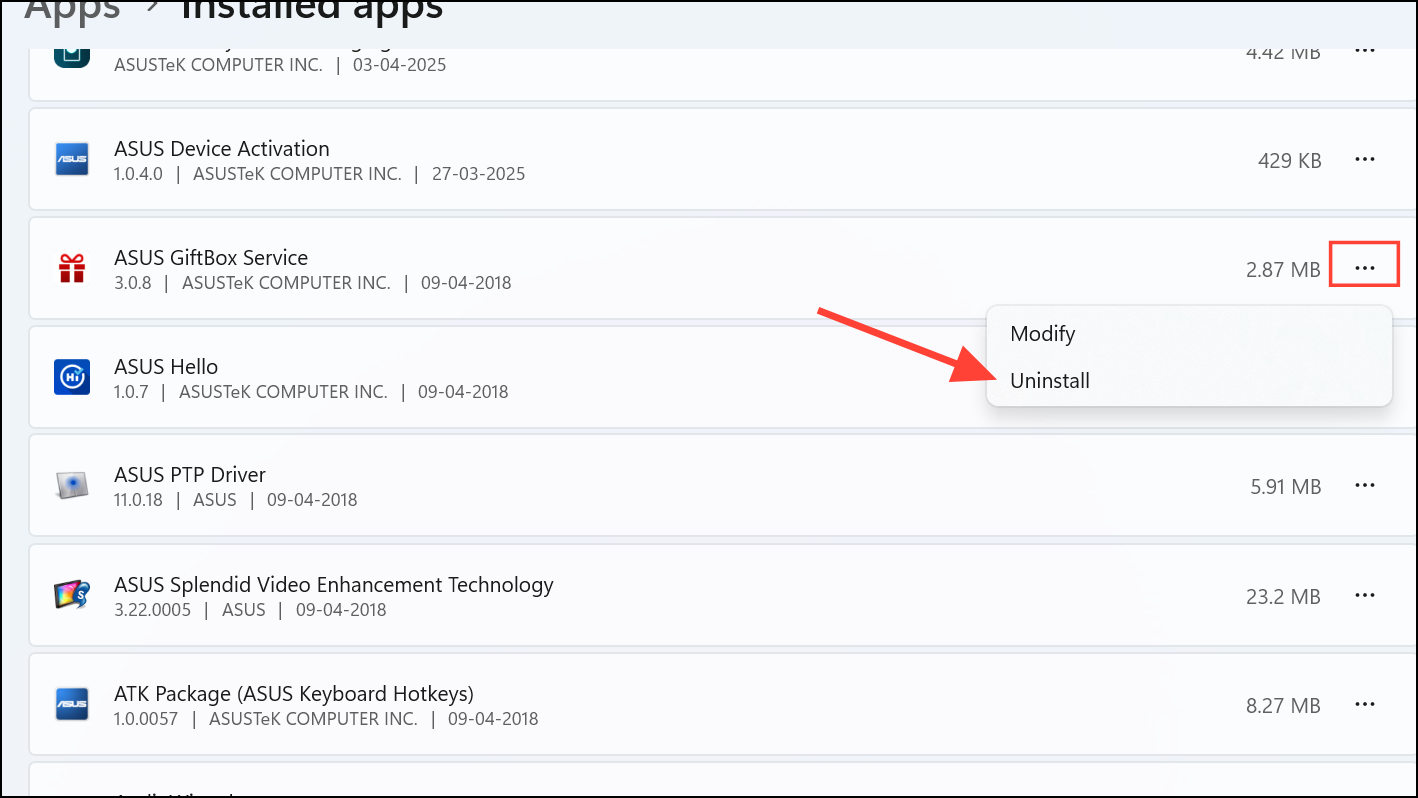
Scroll through the list and click the three-dot menu next to any unwanted application, then select Uninstall. Follow the prompts to complete its removal.
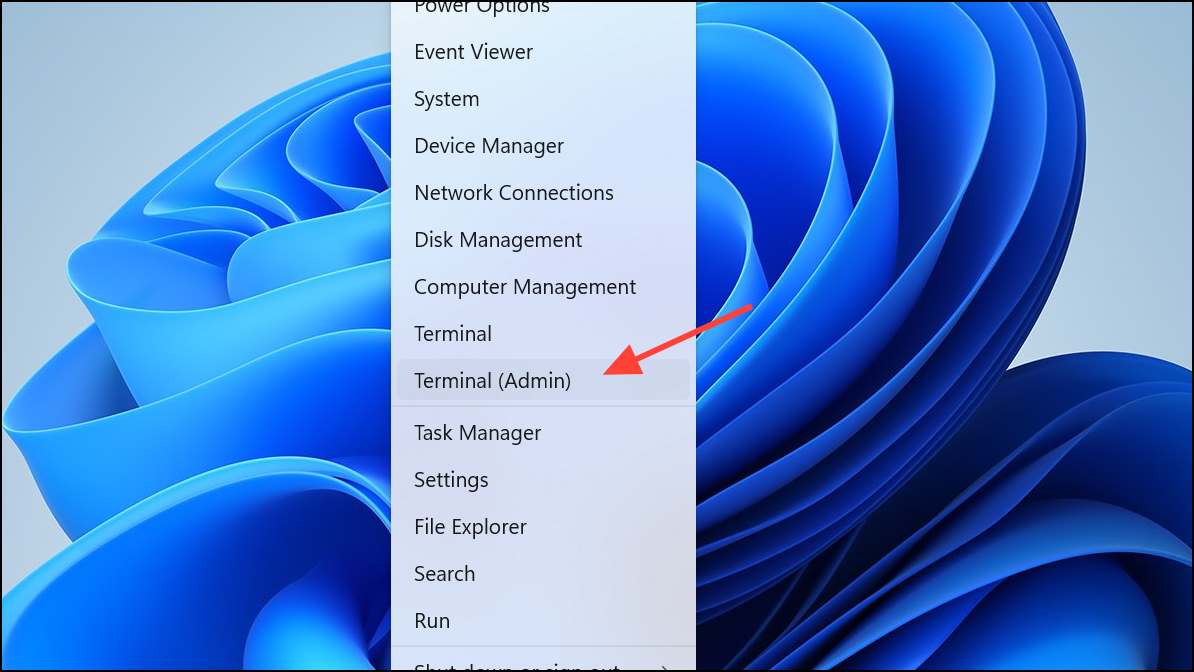
For stubborn or system apps that do not offer an uninstall option, use Windows PowerShell. Right-click the Start button and select Windows Terminal (Admin).
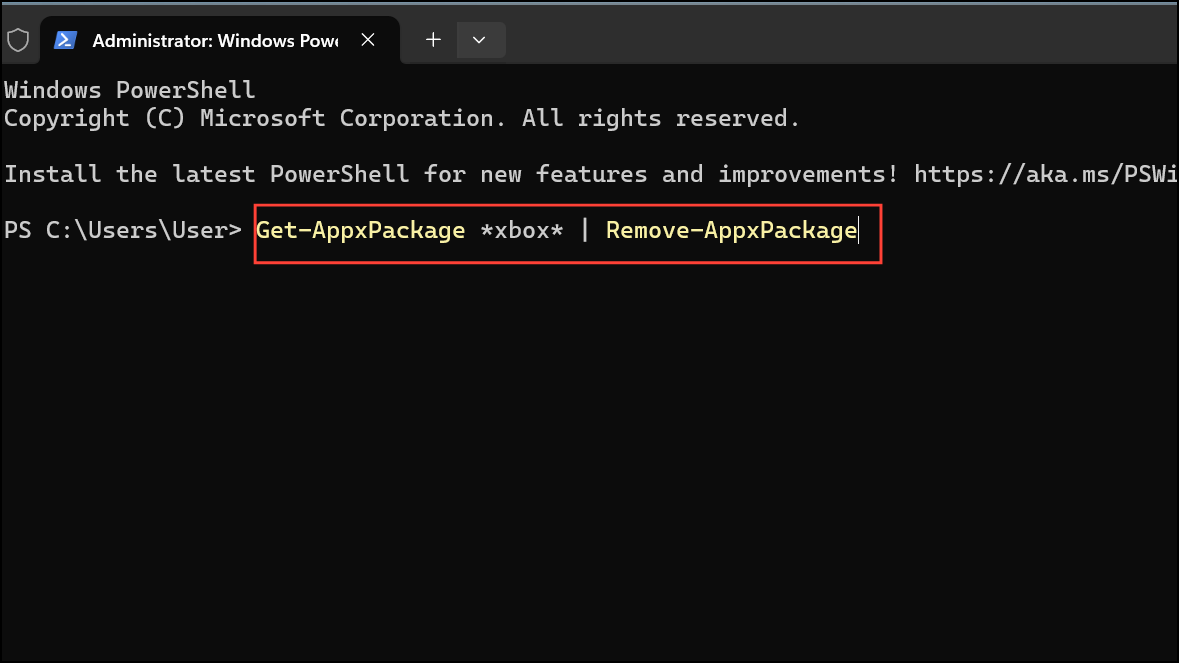
Then, enter the appropriate command to remove specific apps. For example, to remove Xbox, use:
Get-AppxPackage *xbox* | Remove-AppxPackage
Be cautious when removing system apps, as some may be required for core Windows features.
Customize the Start Menu and Taskbar
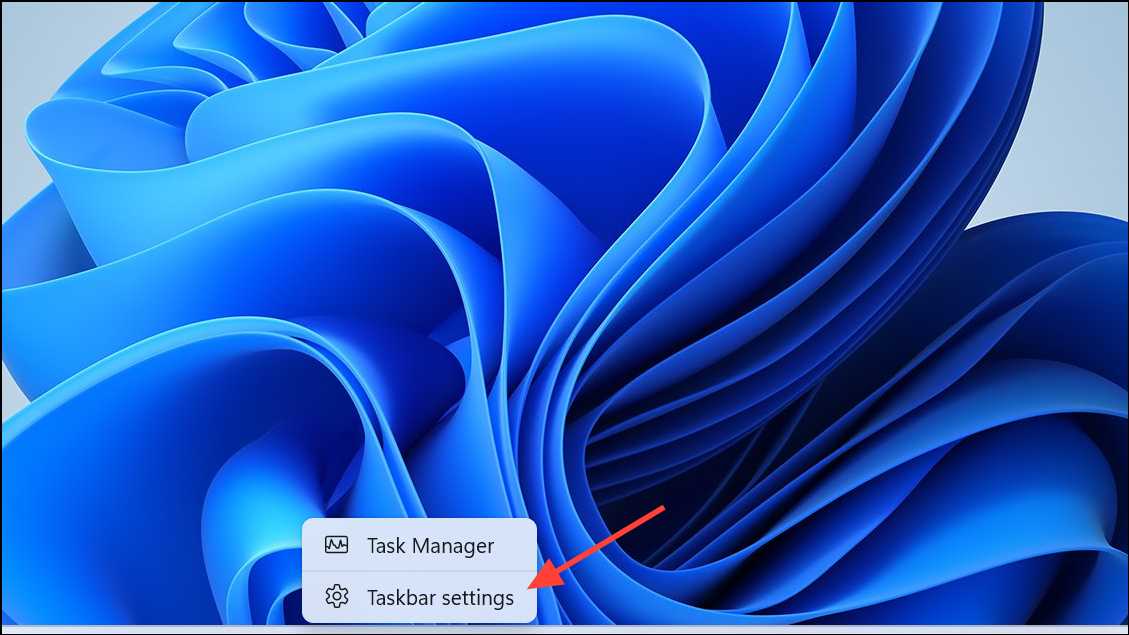
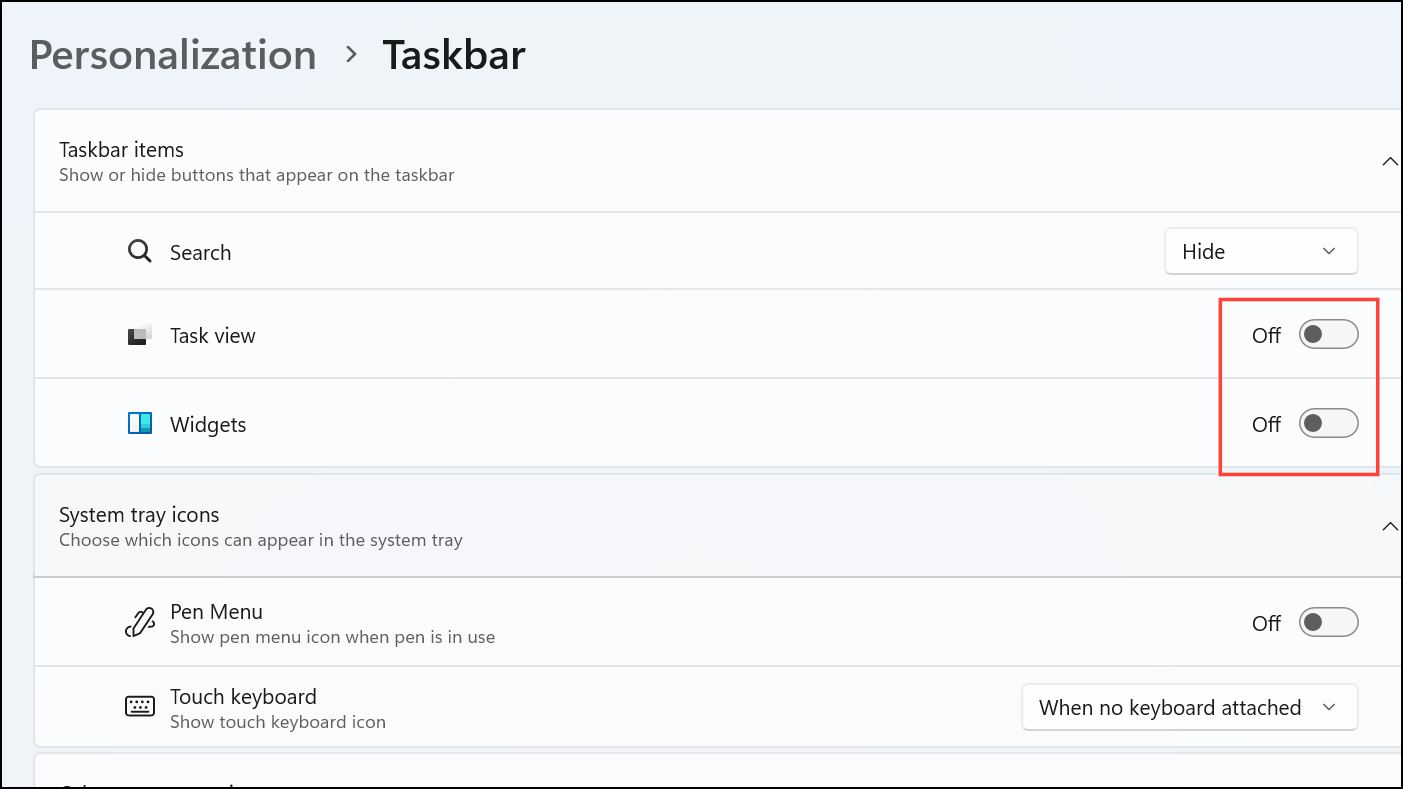
A cluttered Start menu and Taskbar can slow down navigation and make it harder to access frequently used programs. Customizing these elements tailors your workspace to your needs and reduces distractions.
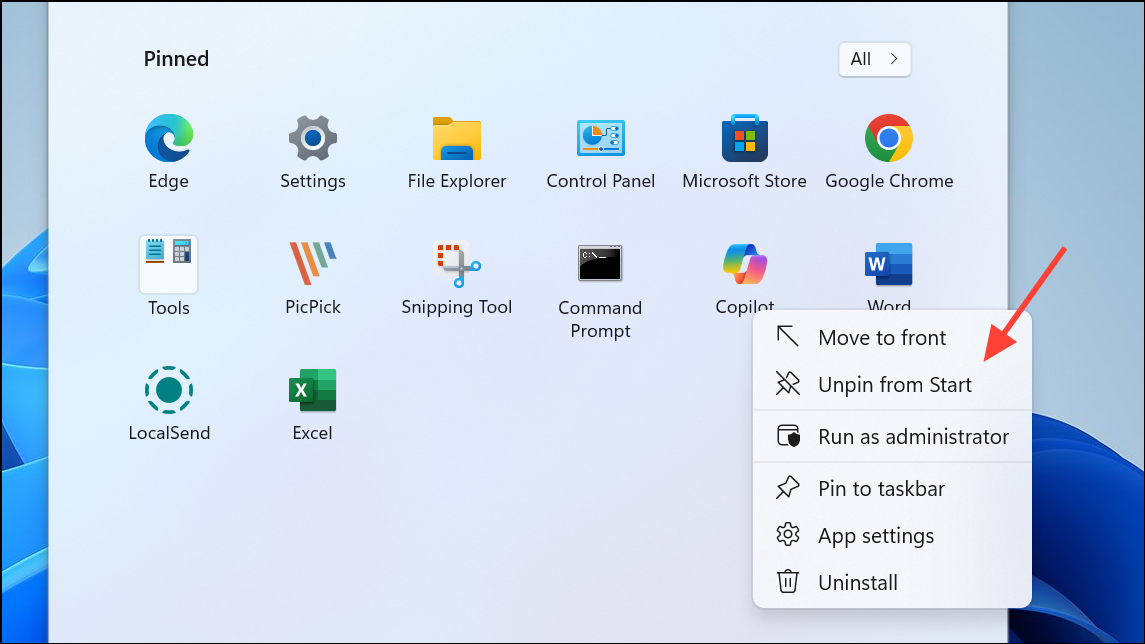
Open the Start menu, right-click any unwanted pinned apps, and select Unpin from Start. Pin your most-used apps for quicker access. This makes the Start menu less crowded and more relevant to your workflow.
Disable Unnecessary Visual Effects
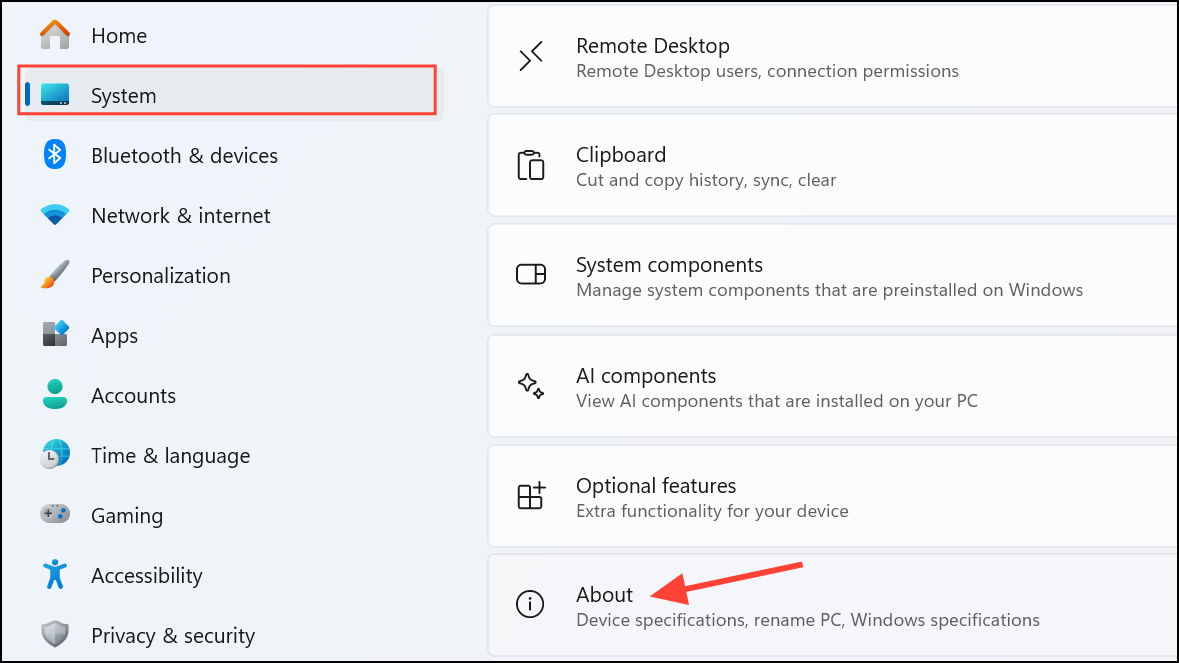
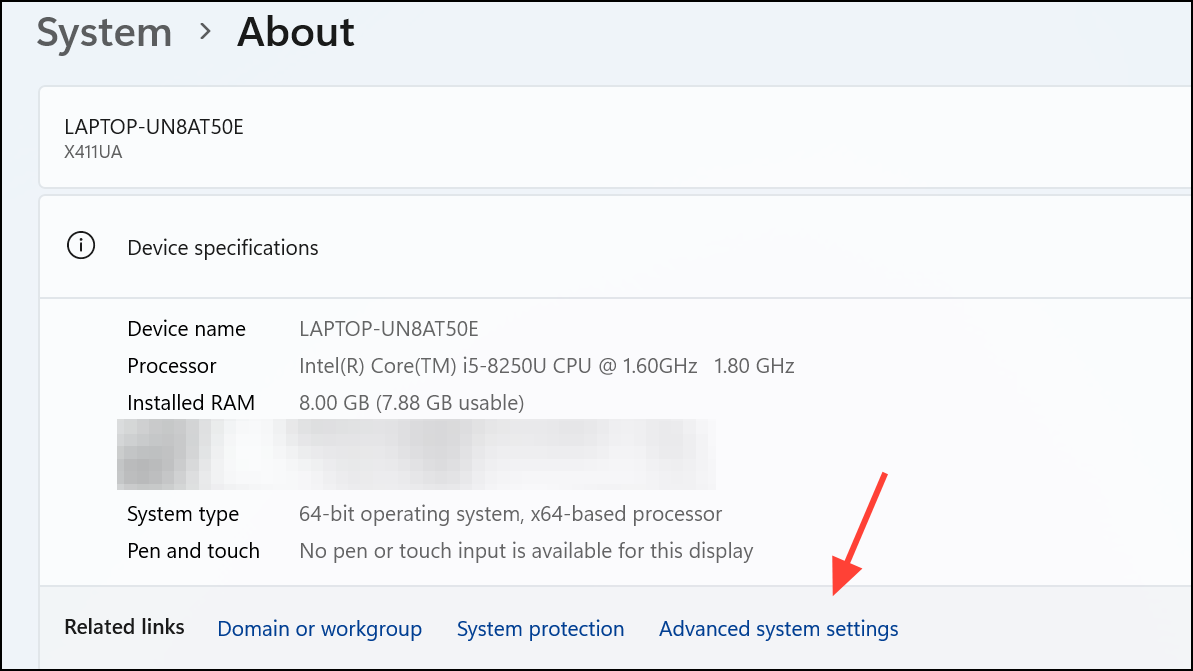
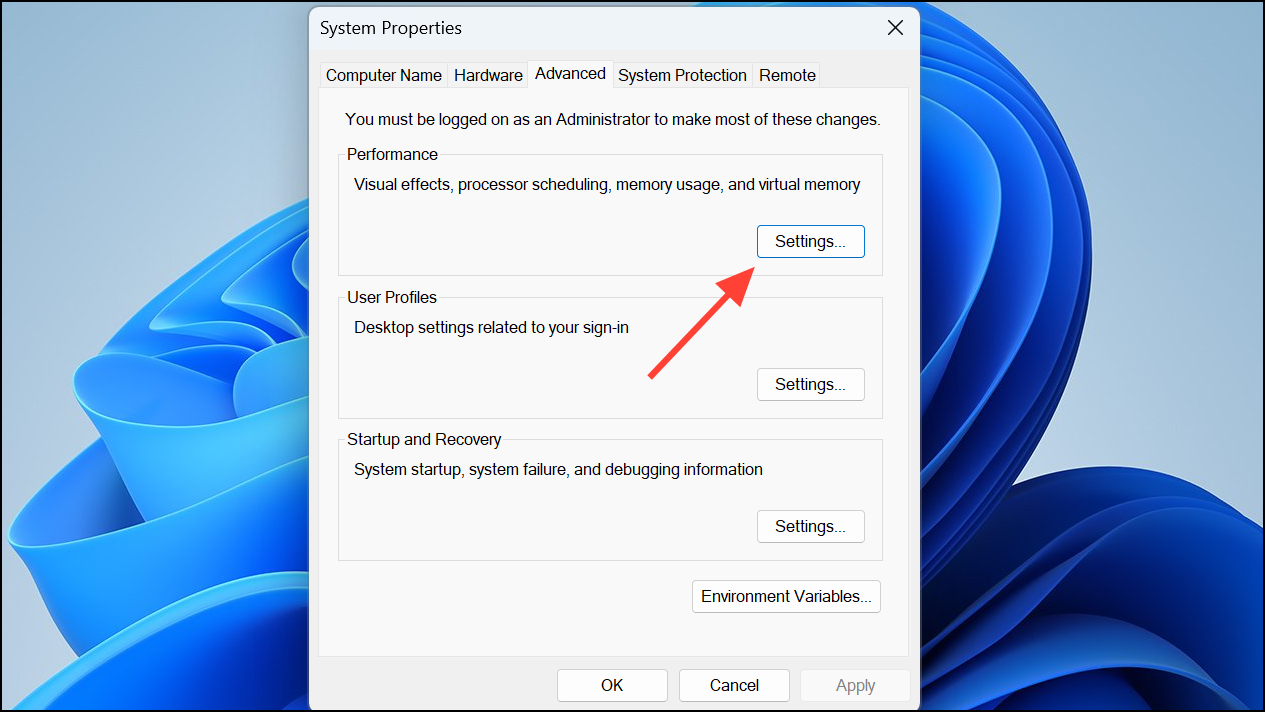
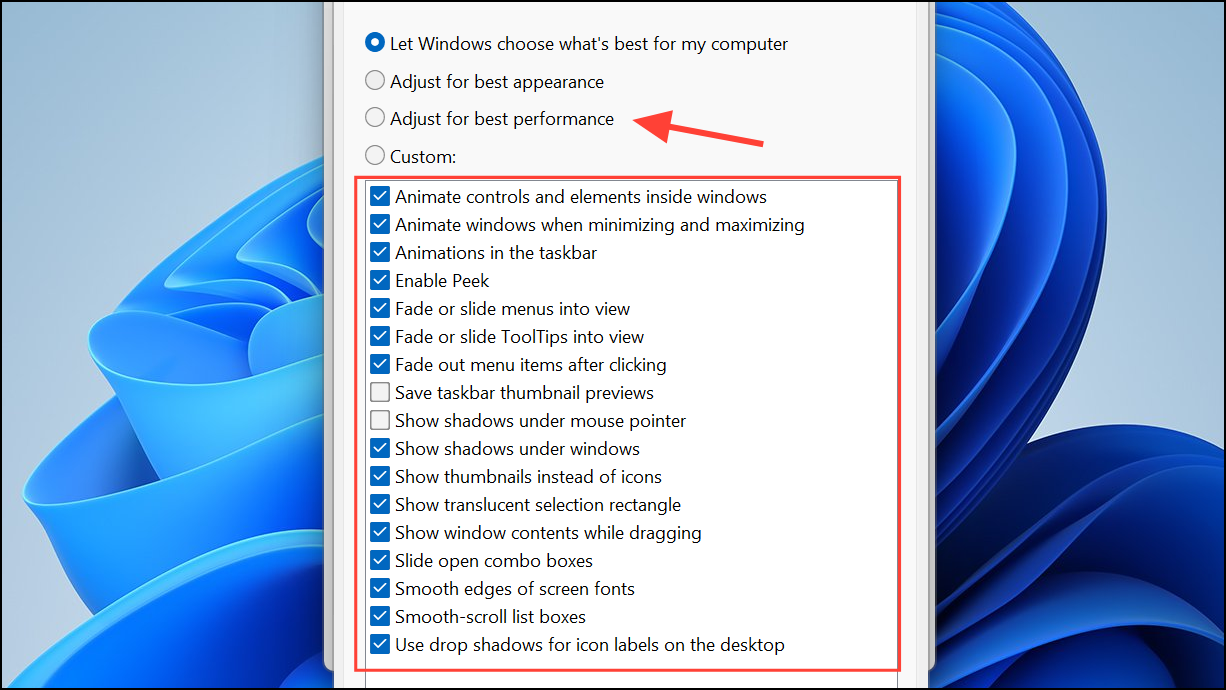
Windows 11 includes several visual effects that can make the interface feel sluggish, especially on older hardware. Disabling these effects improves responsiveness and reduces distractions.
Select Adjust for best performance or manually disable specific effects like animations and transparency. Click Apply to save changes. The desktop will feel snappier, and system resources will be freed up for other tasks.
Manage Notifications and Focus Assist
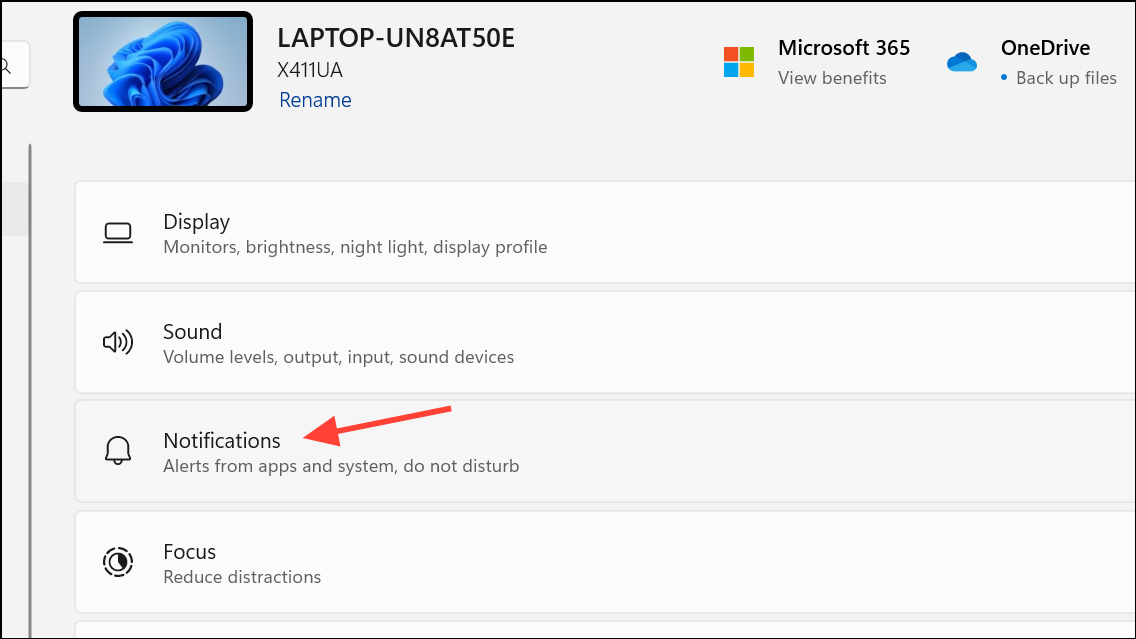
Frequent notifications can interrupt your workflow and clutter the Action Center. Adjusting notification settings and using Focus Assist reduces interruptions and creates a more streamlined experience.
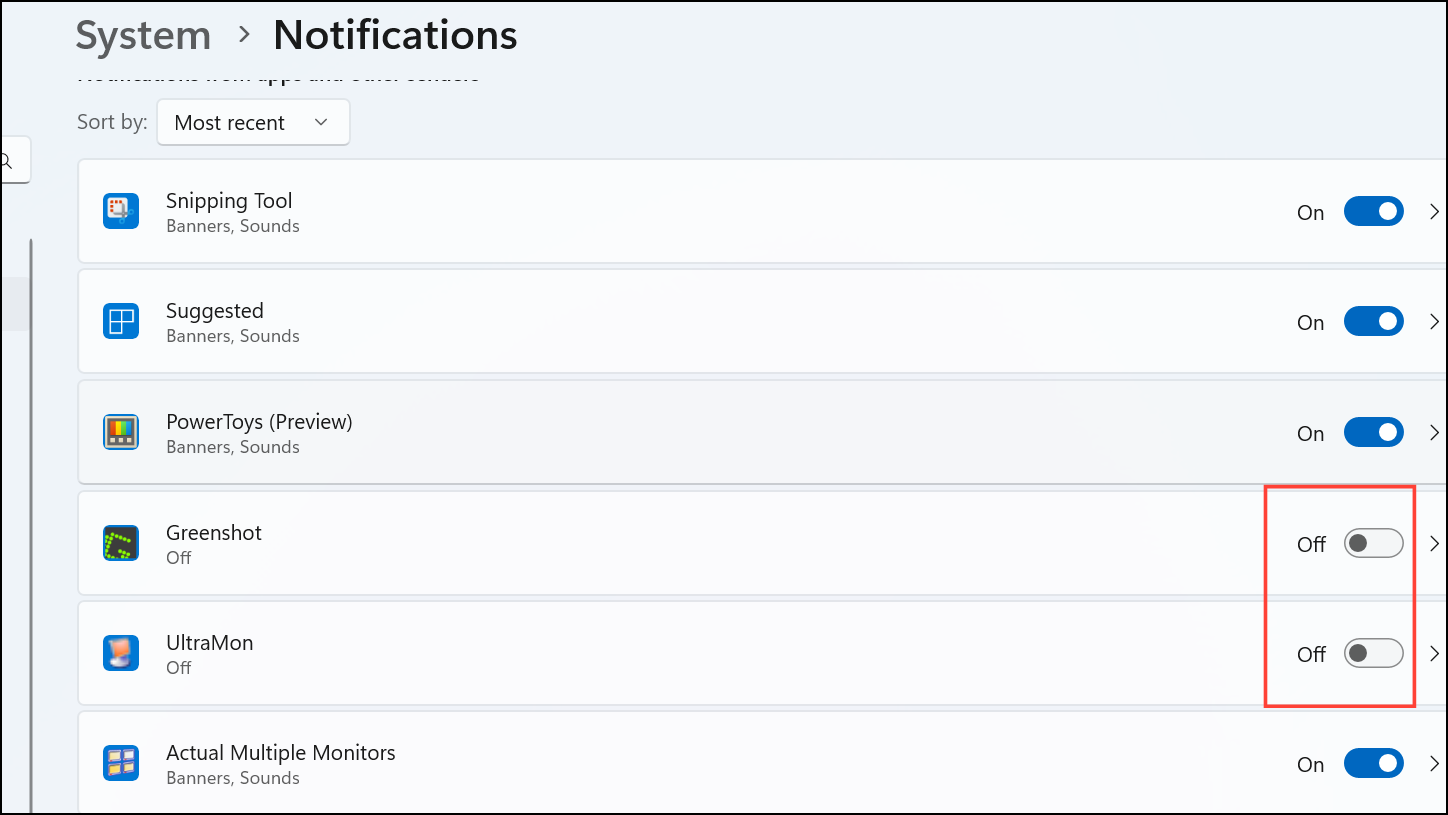
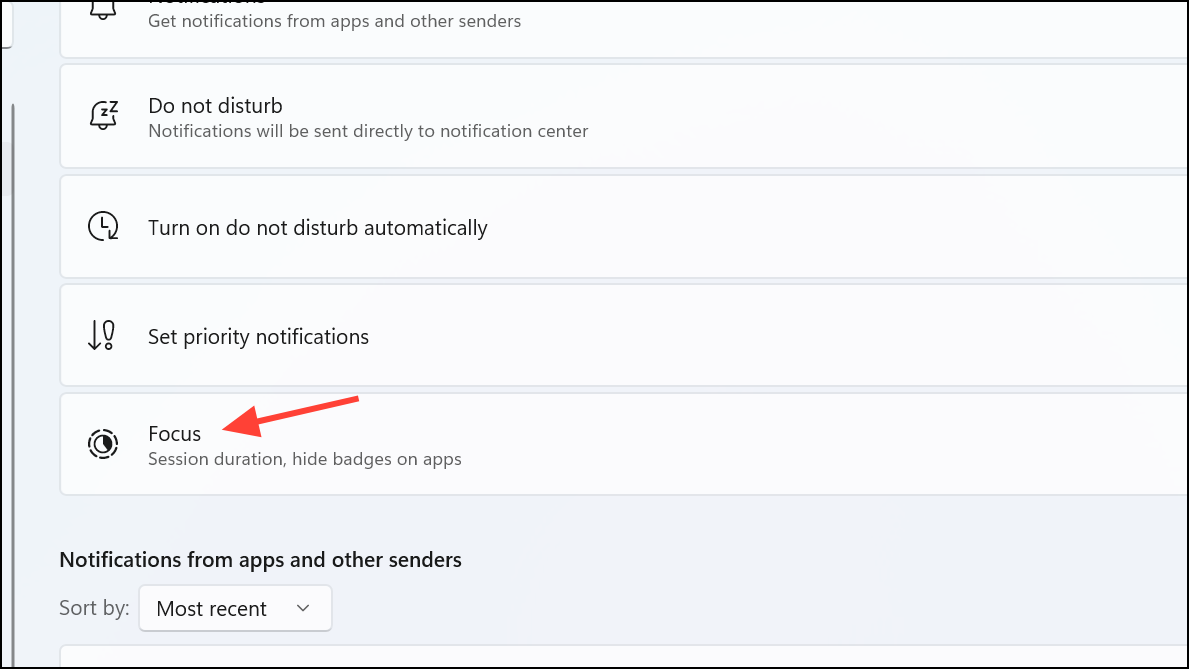
Scroll down to the Notifications from apps and other senders section and turn off notifications for non-essential apps by toggling their switches. This limits pop-ups and keeps your attention on important tasks.
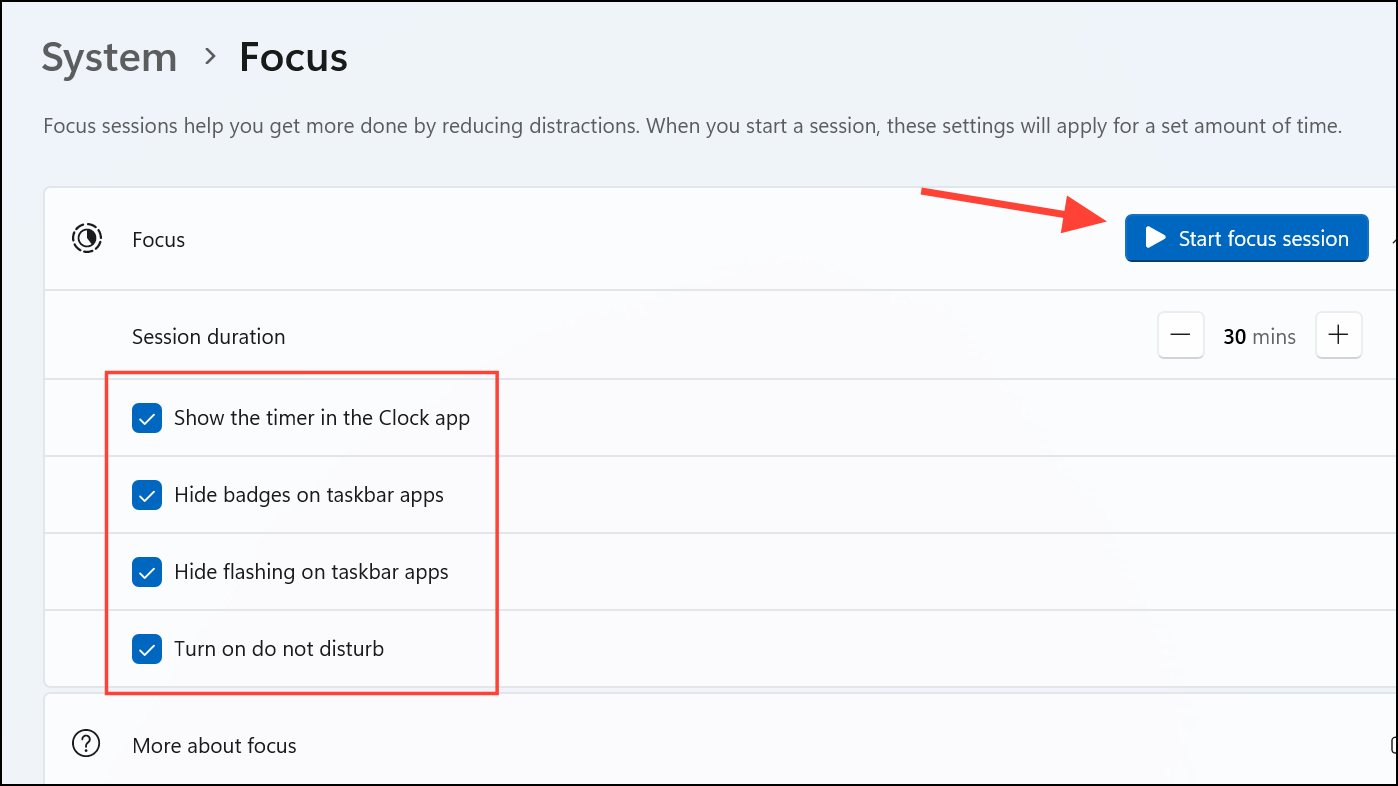
You can then set up and customize Focus sessions, which will block notifications and other interruptions, preventing you from getting disturbed. Focus mode also lets you turn on Do Not Disturb mode for specific periods, such as work hours or presentations, which suppresses unnecessary alerts. This feature ensures you remain focused and undisturbed.
Clean Up Storage and Temporary Files
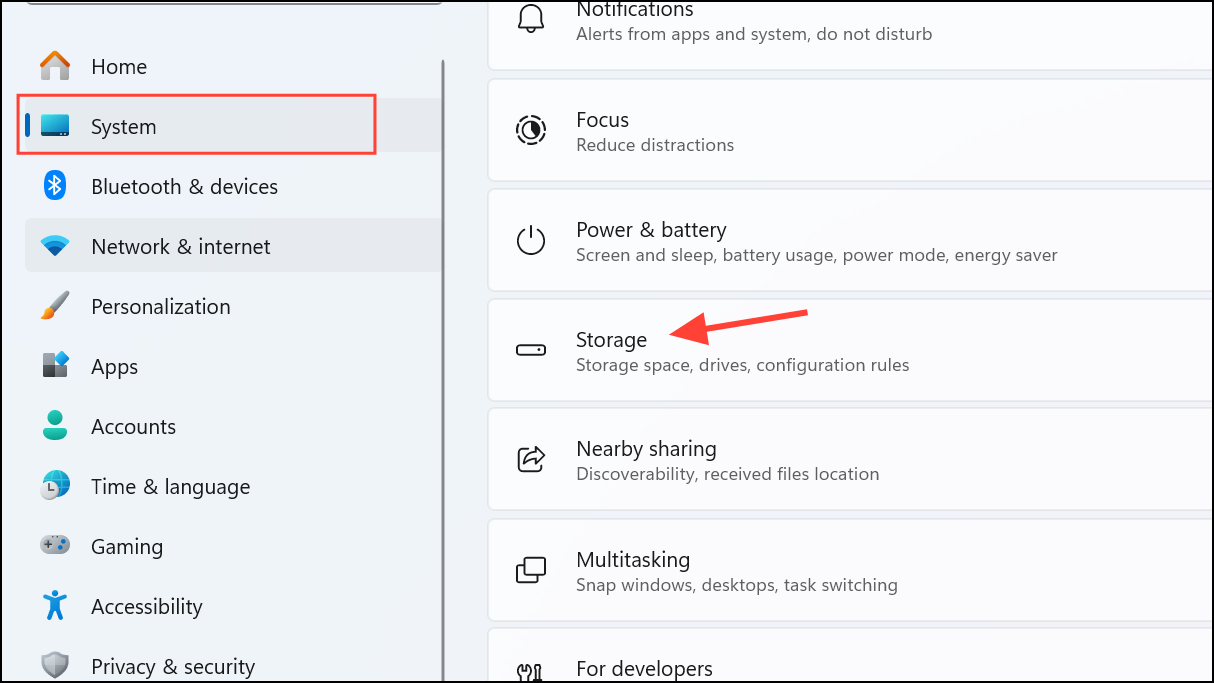
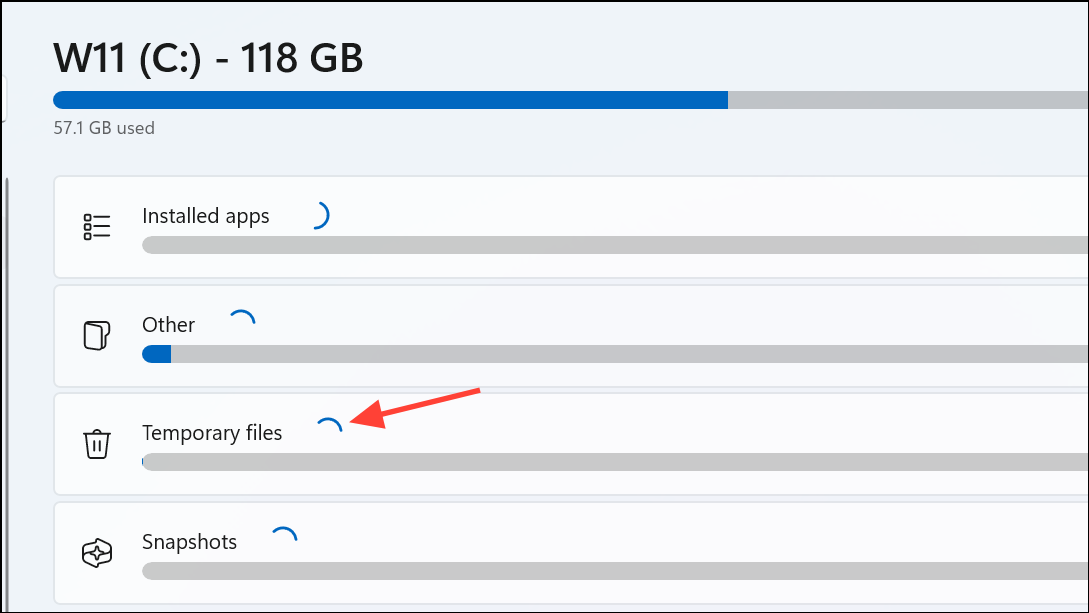
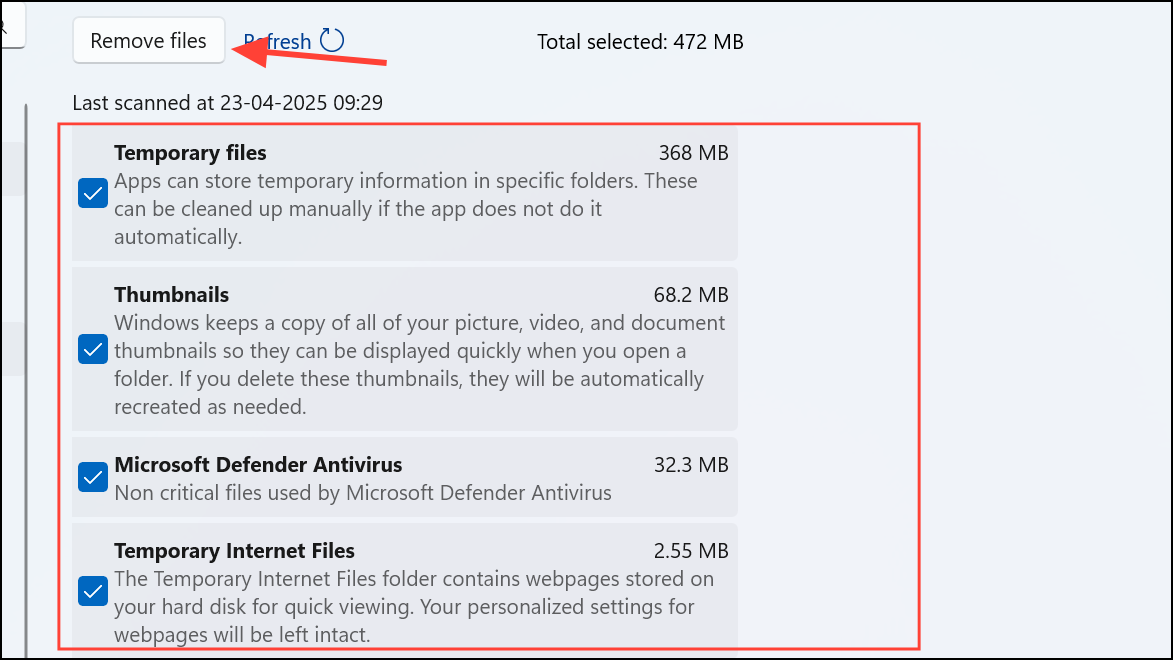
Over time, Windows 11 accumulates temporary files and unused data that can take up valuable disk space. Cleaning up these files improves system performance and prevents storage warnings.
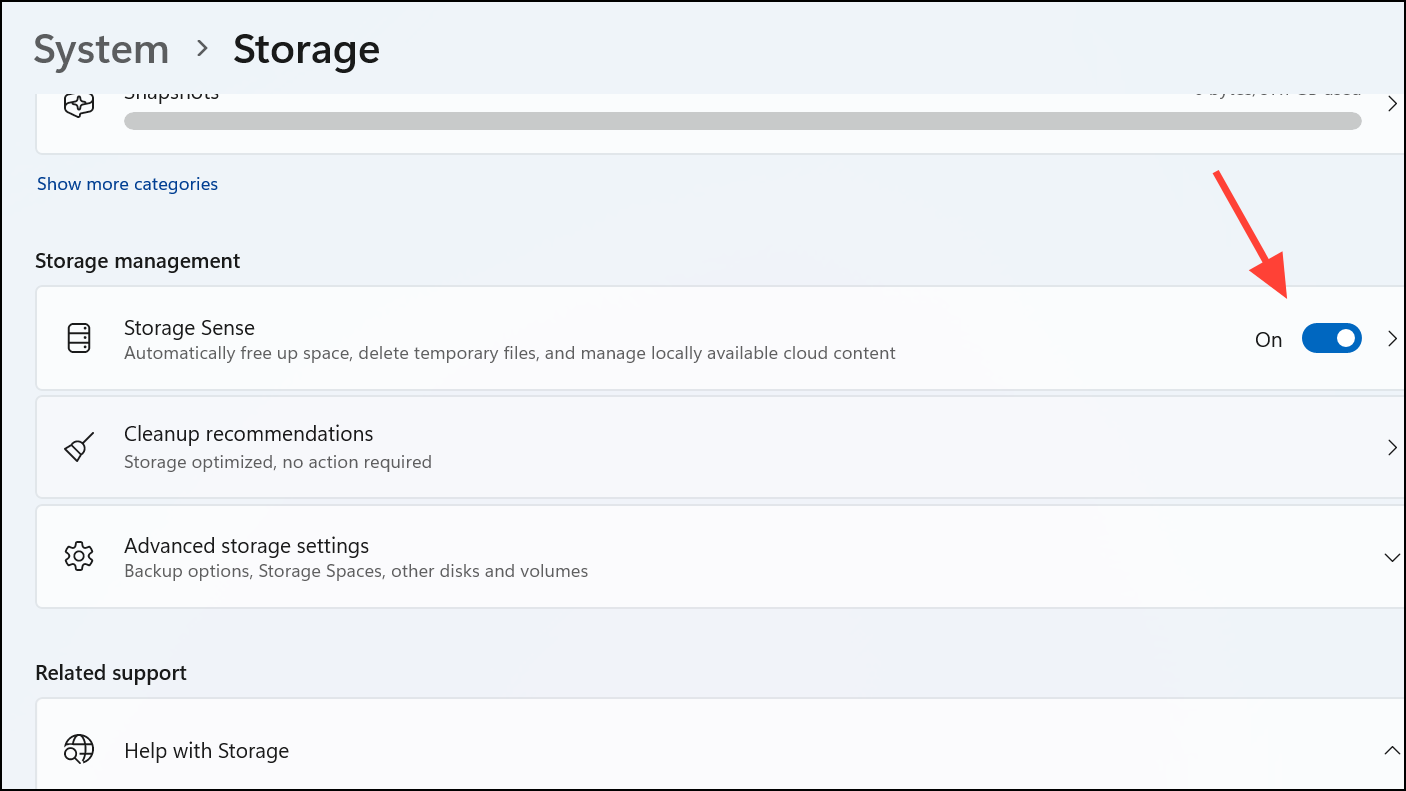
For ongoing maintenance, go back and turn on Storage Sense to automatically delete temporary files and manage space in the background.
Regularly revisiting these steps keeps your Windows 11 system running smoothly and your workspace free from distractions. A cleaner setup means faster performance and a more enjoyable computing experience.