
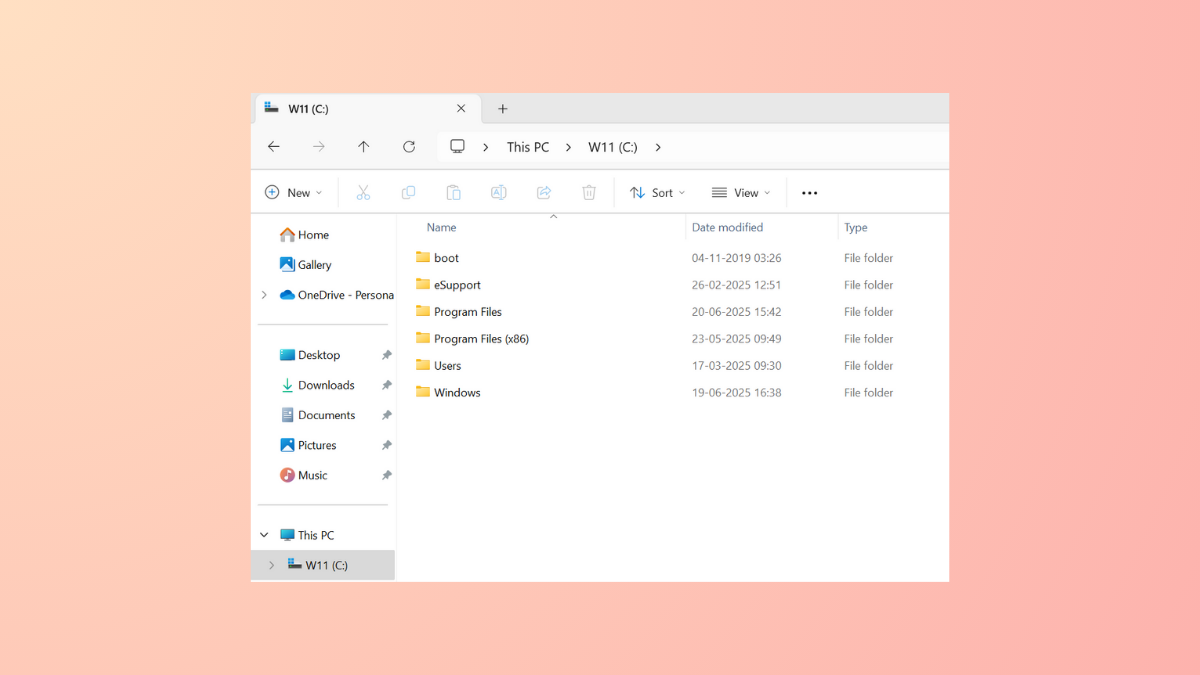
In Windows 11, File Explorer’s “Details” view provides information about your files in columns. You can change which columns are displayed for a single folder or apply your preferred layout to all folders of a particular type, such as “Pictures” or “Documents.” This customization is managed directly within File Explorer’s interface.
Customize Columns for a Specific Folder
This method allows you to adjust the columns for an individual folder without affecting others. This is ideal for project folders or directories that require unique information to be visible at a glance.
Win + E and navigate to the folder you wish to modify. In the command bar at the top, click View and ensure the layout is set to Details Pane. This is the only view that displays columns.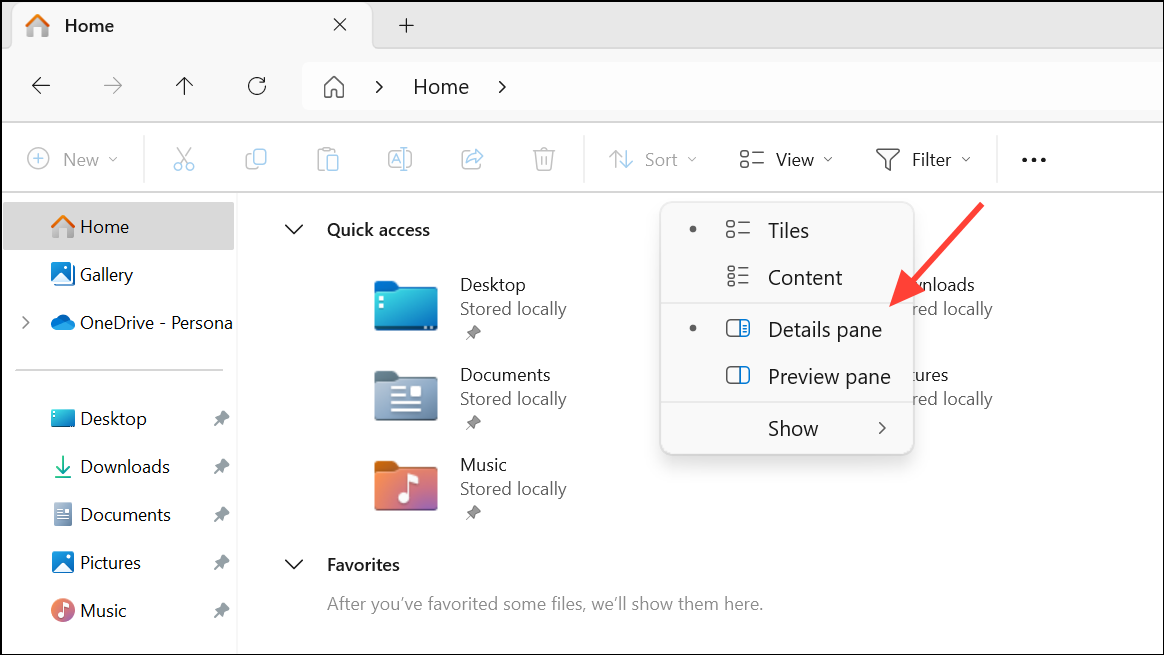
Name, Date modified, or Type, and right-click. This action will open a context menu with a list of common columns.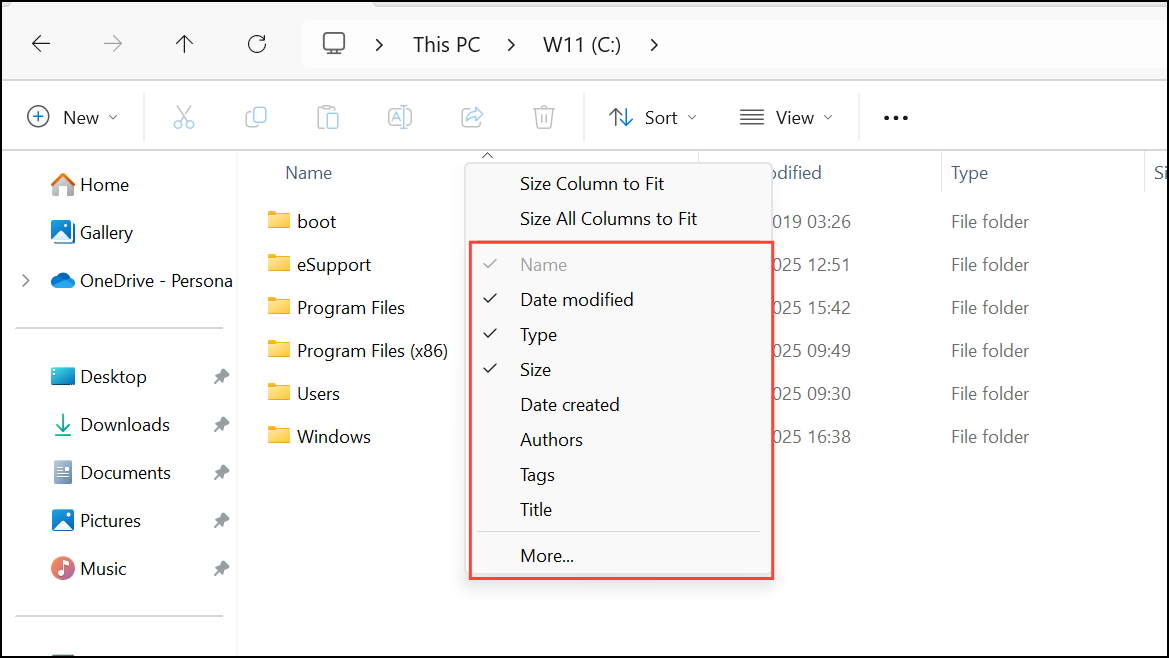
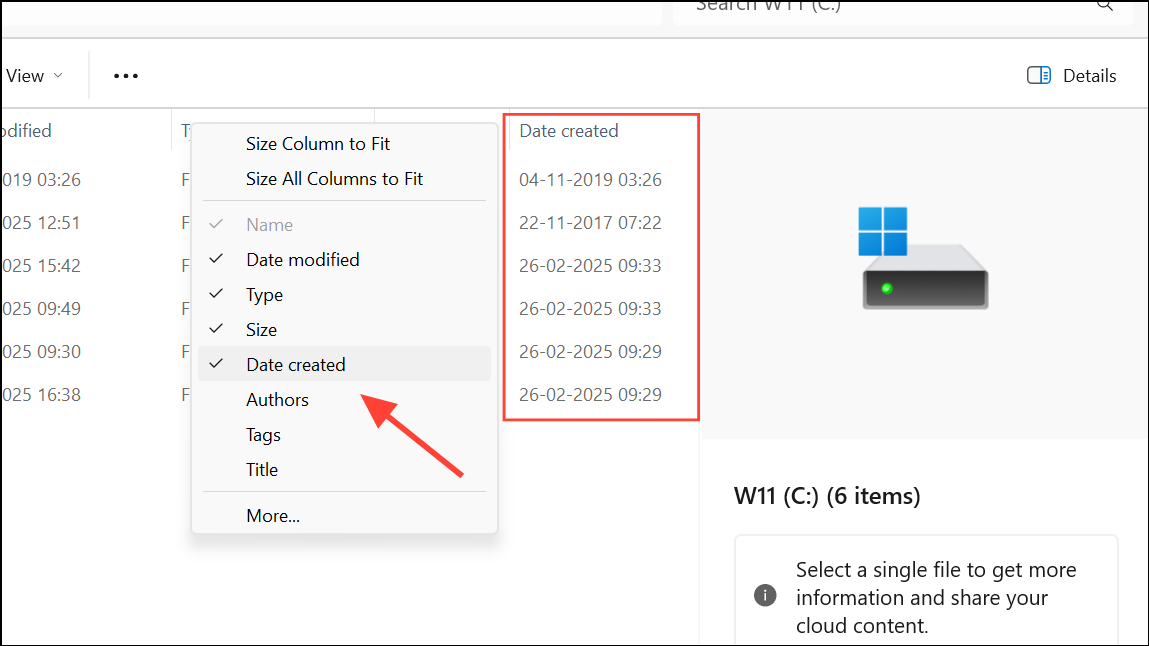
More... at the bottom of the context menu. This will open the “Choose Details” window.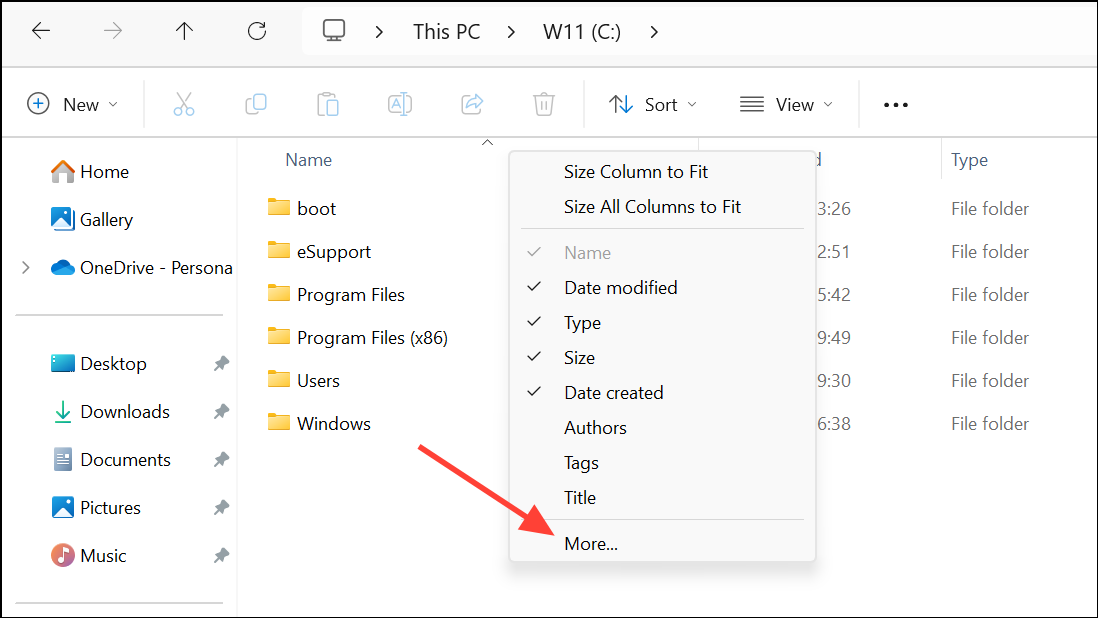
Move Up and Move Down buttons. Click OK to save your changes.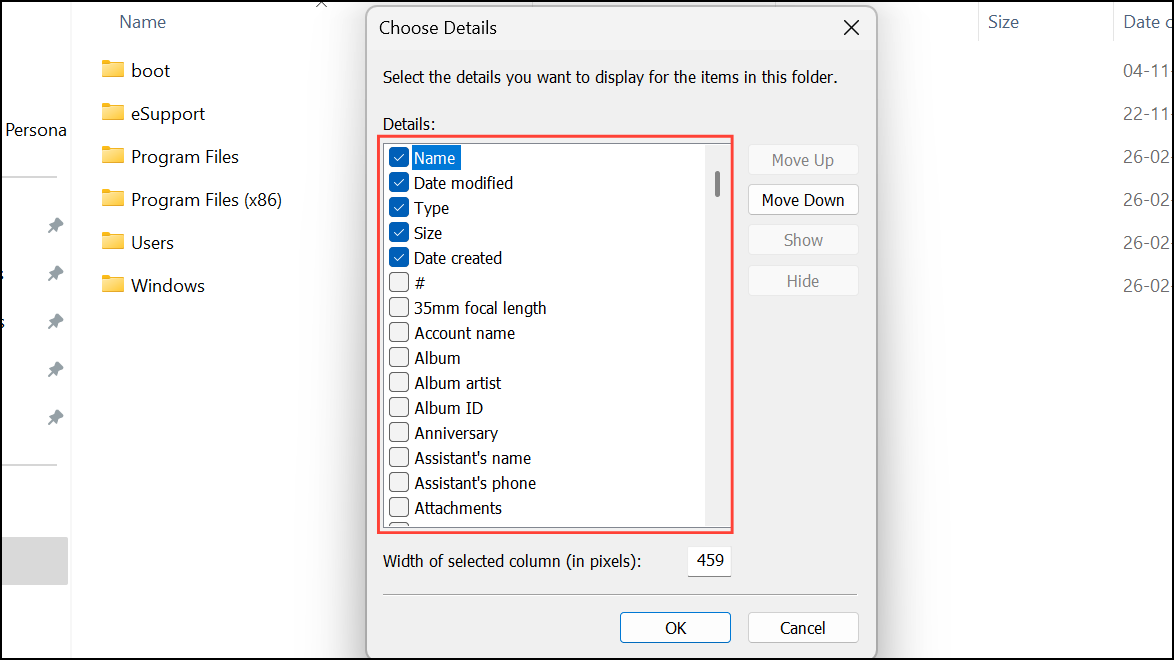
The available columns will vary depending on the folder’s optimization template. For instance, a folder optimized for “Pictures” will offer columns like “Date taken” and “Dimensions,” which are not relevant for a “Documents” folder.
Apply Column Settings to All Folders of the Same Type
If you want to set a new default column layout for all folders of a certain kind, you can apply your changes system-wide. Windows categorizes folders into five main types: General Items, Documents, Pictures, Music, and Videos. This process applies a view to all folders belonging to the same category as the one you are customizing.
...) in the File Explorer command bar and select Options from the dropdown menu.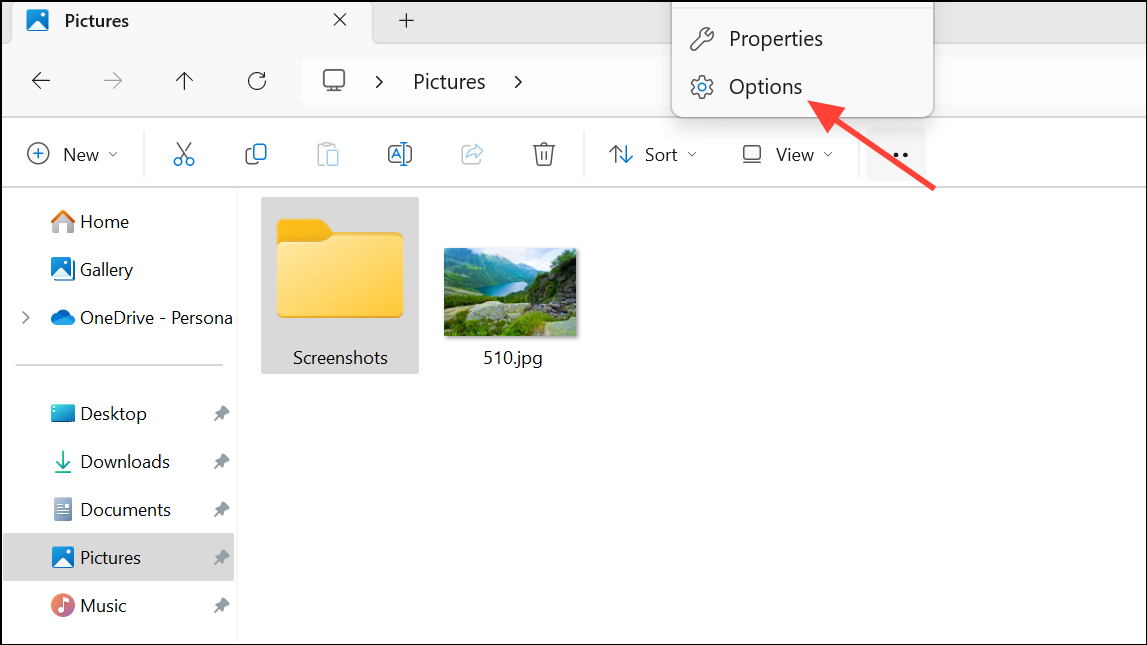
View tab. Here, you will find options related to how folders are displayed.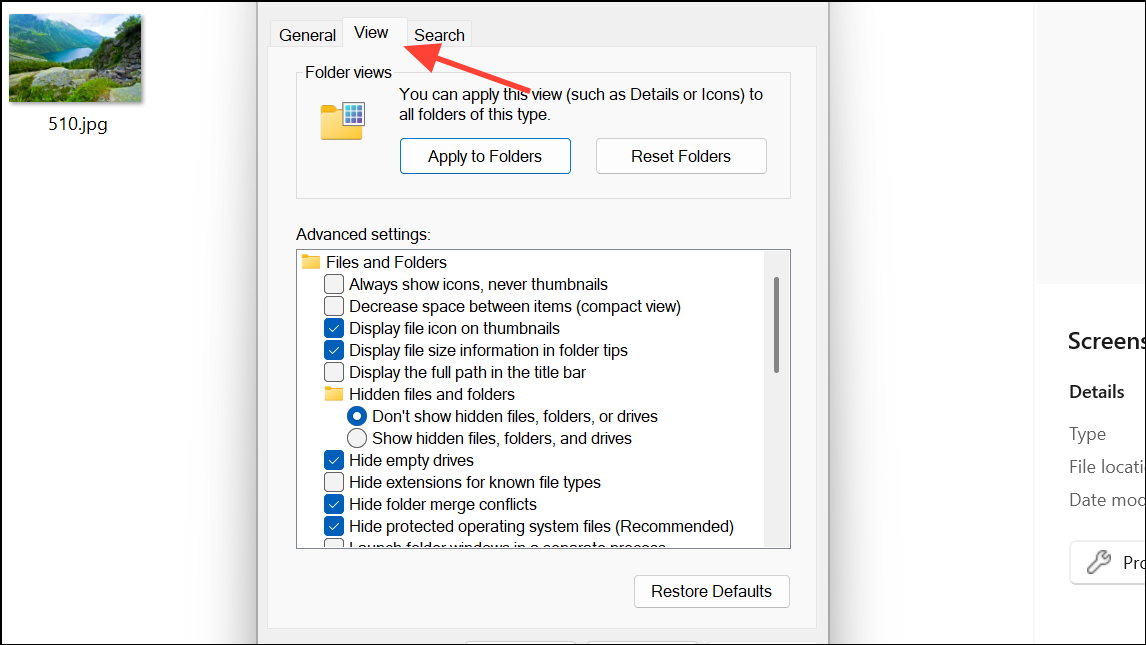
Apply to Folders button. A confirmation dialog will pop up, asking if you want to make all folders of that type match the current folder’s view settings. Click Yes to confirm.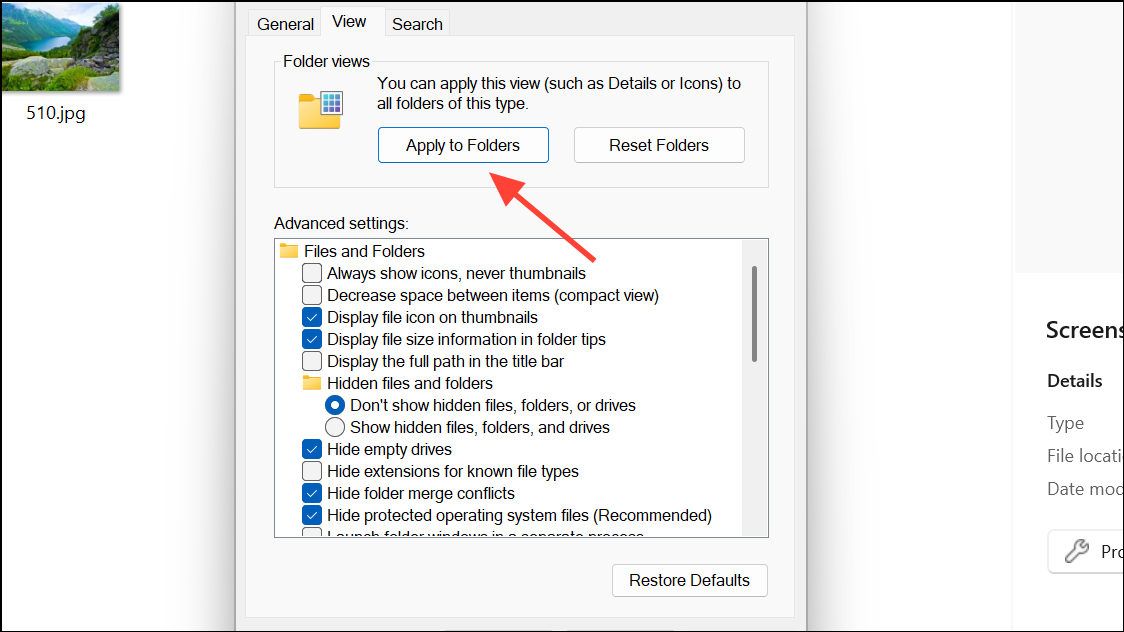
Apply to Folders again. Do the same for “Music,” “Videos,” and a “General Items” folder (like your C: drive) to cover all bases.These methods give you full control over the information displayed in File Explorer, streamlining file management for specific tasks or across your entire operating system.



