Aion 2 pools players from many regions into the same servers, which means your chat windows fill up with messages written in languages you may not read. The game has a built-in auto-translate option that converts incoming chat into the language your client is set to, and it is tucked away at the bottom of the chat settings where it is easy to miss.
Quick answer: Hold Alt (or tap /) to free your cursor, click the chat bubble at the bottom-left, open chat settings with the gear icon, scroll to the bottom, and toggle Auto Translate to ON.
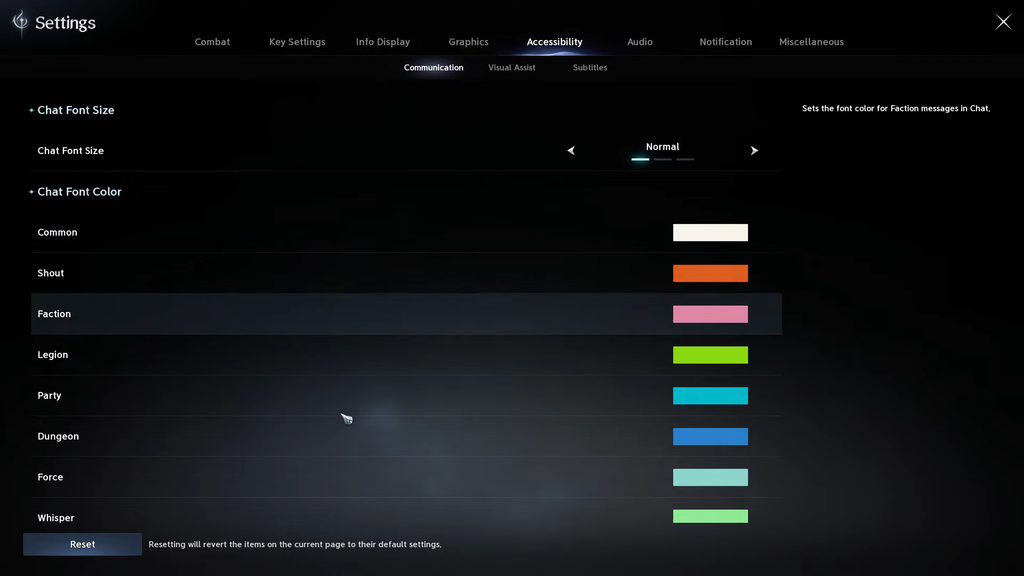
Turn on Auto Translate in Aion 2 chat
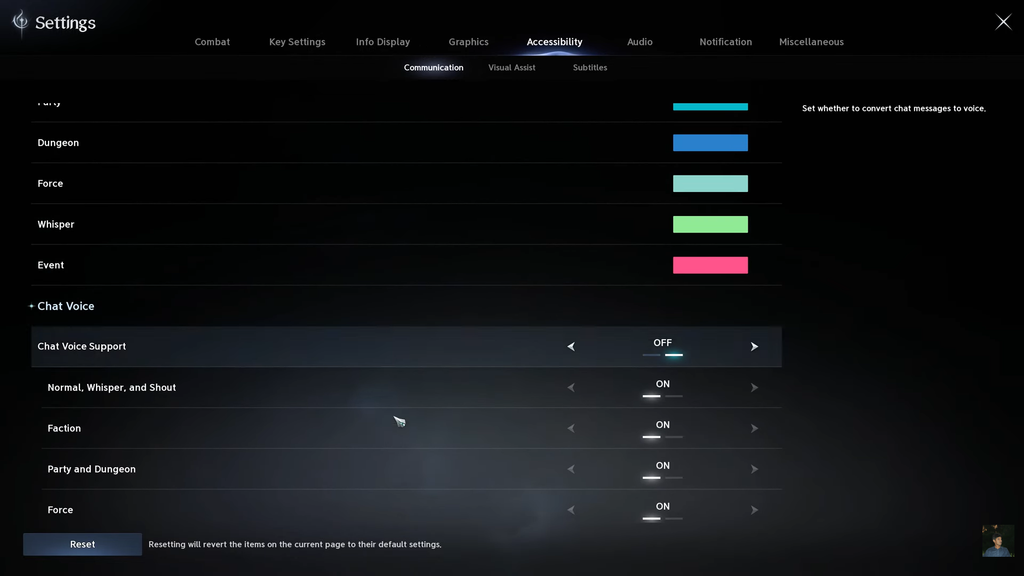
You know it worked when messages that previously appeared in another language start showing up in your client language as they arrive. There is no restart or reload required.
What the toggle changes across chat channels
After you enable the switch, translation works in every chat channel you can see. This includes faction (global), followed by common, party, force, and legion (guild) channels, all at once. You don’t need to enable it separately for each channel.
Translation runs in both directions. Anything you type is readable by other players who also have auto-translate switched on, even when they do not speak your language, because their client converts your message into theirs.
If you would rather keep certain messages in their original language, reopen the chat box and click the small world icon next to a message to switch translation off for that individual channel’s messages. The master toggle stays on while you do this.
Languages the translator can handle
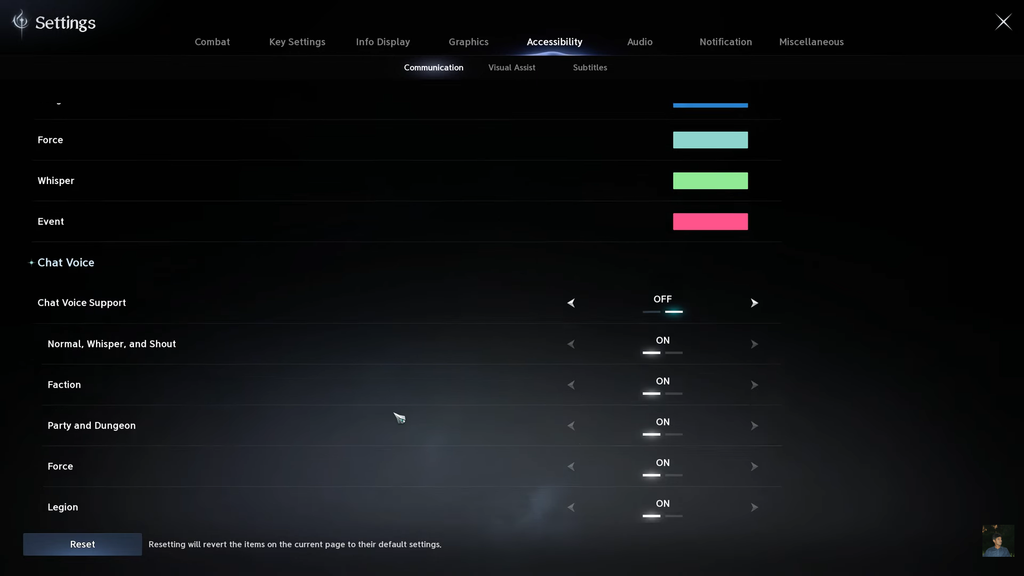
Only languages that Aion 2’s client officially supports can be translated. Messages in a language outside this set will not convert cleanly, and even supported languages can lose some meaning when the original text uses loose grammar or slang.
| Language | Interface | Subtitles | Full audio |
|---|---|---|---|
| English | Yes | Yes | Yes |
| Korean | Yes | Yes | Yes |
| Japanese | Yes | Yes | Yes |
| French | Yes | Yes | No |
| German | Yes | Yes | No |
| Spanish (Spain) | Yes | Yes | No |
| Portuguese (Brazil) | Yes | Yes | No |
| Russian | Yes | Yes | No |
Just above the Auto Translate switch sits a Display Time option that lets you show Local or Server time in chat. It pairs well with tracking Spacetime Rift openings if you already know the schedule.
With the toggle on and your client language set the way you want, cross-region chat becomes readable without any extra overlays or tools. The setting stays active for every channel until you turn it back off.