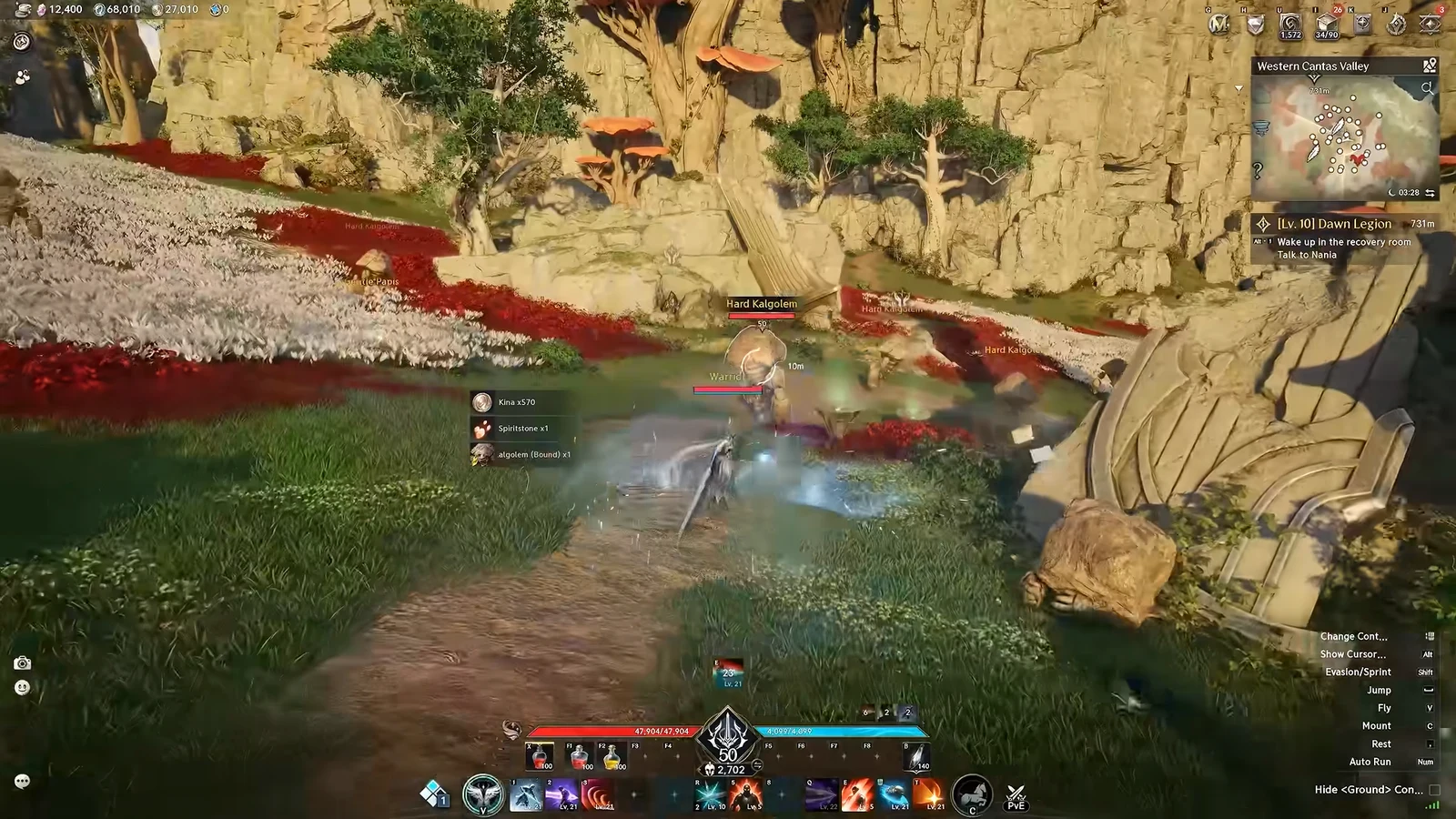
AION 2 ships with a built-in screenshot tool called Snapshot, which freezes your screen into a camera view and bakes your character’s full customization into the saved image file. You can hide the interface, swap camera angles, trigger emotes for a pose, and drop a watermark before you fire the shutter.
Quick answer: Press Esc, click the Snapshot camera icon, frame your shot, then press F (or the shoot button). The image saves automatically and a confirmation line appears on screen.
Open Snapshot and take a photo
Once you capture an image, AION 2 prints the message “The current screen has been saved to the relevant path.” That confirmation is how you know the shot was written to disk.
Snapshot settings: targets, nameplates, and watermark
The Default Settings panel controls which objects appear and how the image is labeled. For a clean portrait, untick everything except My Character so stray players, mobs, and interface elements drop out of frame.
- Change Target toggles: My Character, Other Characters, NPC, Monster, Pets.
- Display Nameplate hides or shows name tags over characters.
- Display Watermark places the AION 2 logo in a corner.
- Watermark corners: Top Left, Bottom Left, Top Right, Bottom Right.
- Include Customization Info embeds your look data into the file.
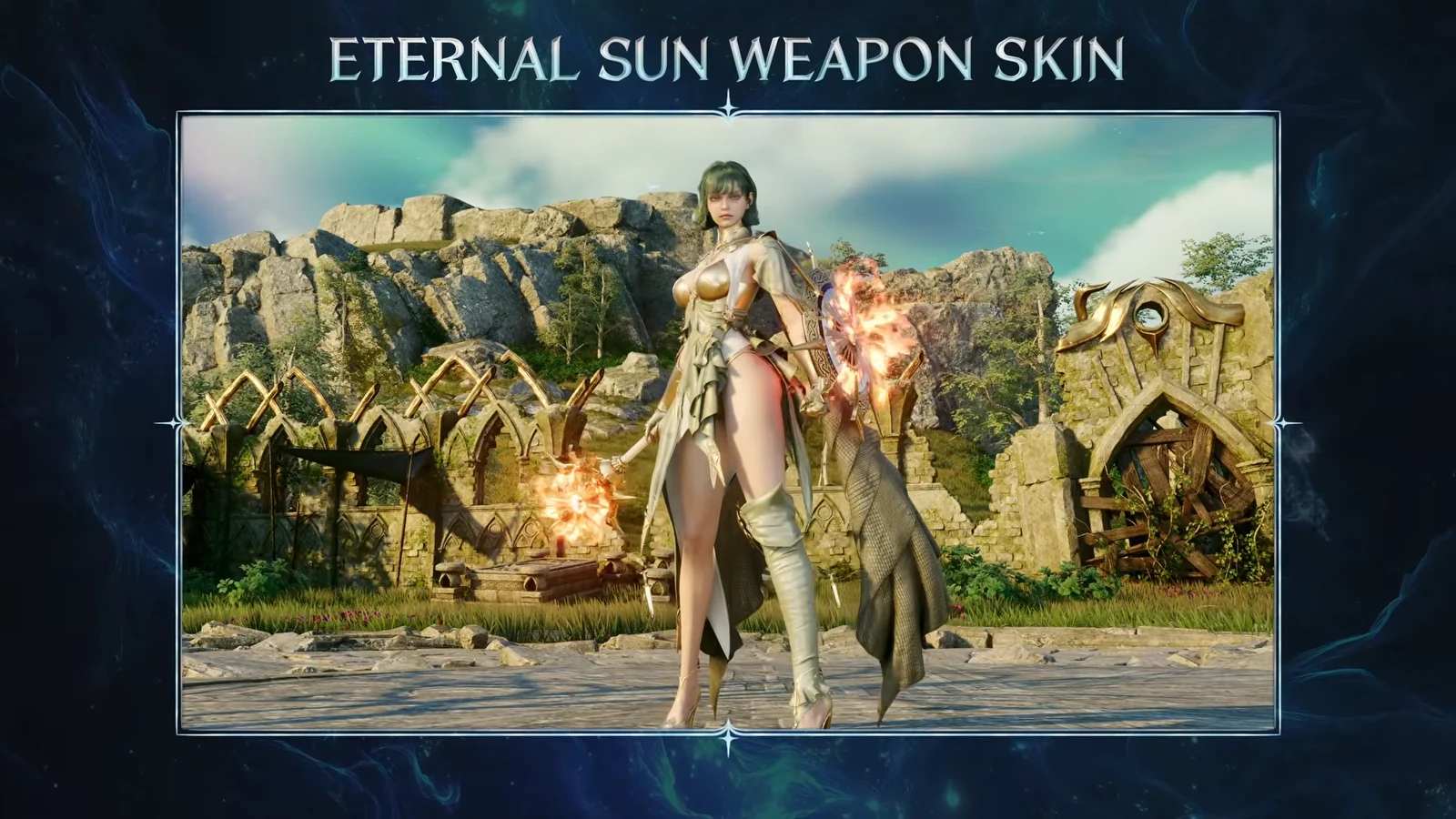
You can also prep your character before you ever open Snapshot. Use the Closet to adjust gear and cosmetics, and dye pieces to match the scene you have in mind.
Pose with emotes
Switch to the Emote tab inside Snapshot to make your character hold a pose. The list includes Rest, Lie Down, Greet, Yes, Thumbs Up, and Taunt, and you can filter it down to favorites only or acquired emotes only.
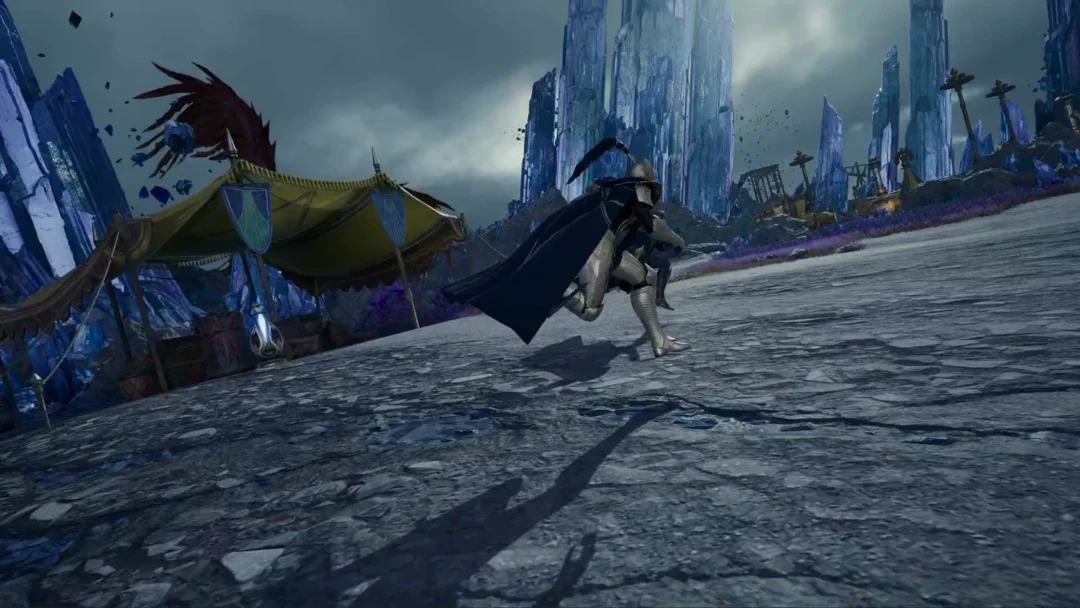
Time the shoot button during an emote’s animation to catch a candid, mid-motion frame rather than a static pose. Repeat the emote and reshoot until the timing lands.
Camera angles and cleaner shots
With only My Character visible, pick a background you like and start moving the camera. The Over-the-Shoulder view gives a more cinematic framing, and zooming in on your character softens the background behind them. Tilt the angle up or down to change the mood.
After you zoom in, a Face Camera button appears in the center of the screen. Toggle it to decide whether your character looks directly into the lens or keeps their head turned.
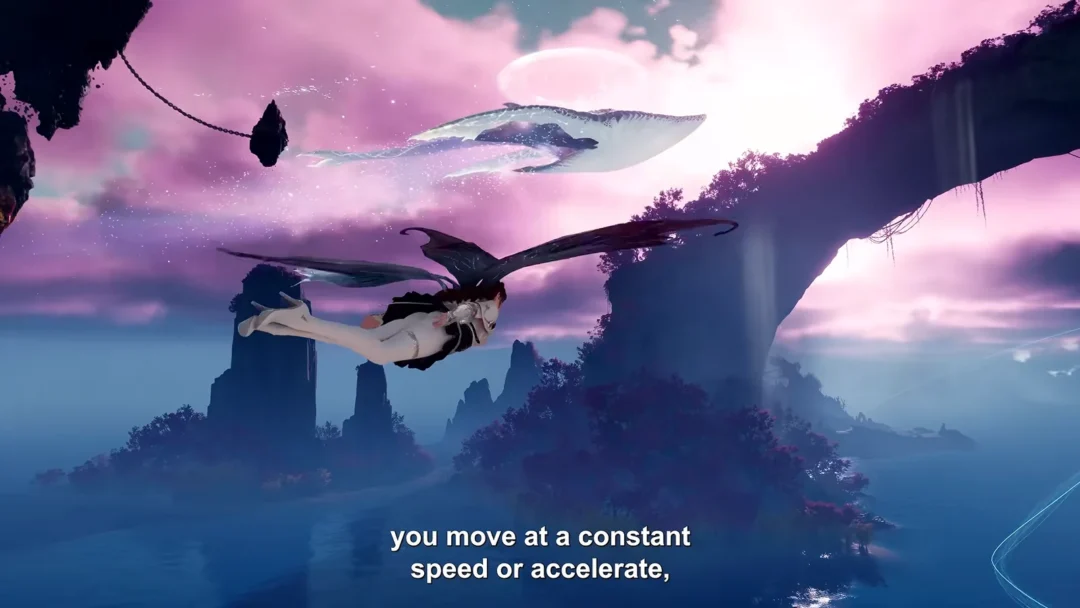
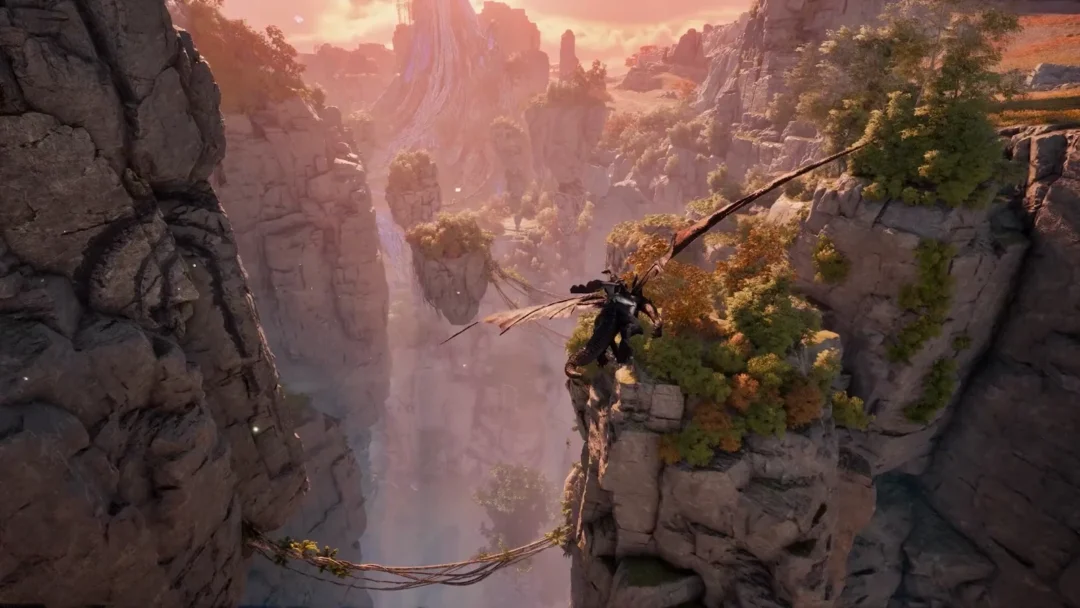
For motion and scenery work, turn off camera shake to keep action shots steady, and increase the view distance when you want distant terrain or flying scenes to stay sharp.
Where AION 2 saves your snapshots
Captures write to a local folder automatically, so there is no separate export step. On the Steam build, the path follows this pattern, with your Windows account name in place of the user segment.
C:/Users//AppData/Local/AION2/Saved_Steam/Screenshots/Windows/ Files land there with a name built from the Snapshot label, a timestamp, and your character tag, for example Snapshot_10-24-00-09-2026_techhub.jpg. Players on the Purple client will find their captures in that launcher’s own screenshot folder.
Sell presets through the Style Shop
A Snapshot saves your customization in an image, which you can post in the Style Shop while making your character presets available to fellow players. Each purchase earns you a share of Quna, the gemstone currency used by the Shugo Merchants. In the shop, you can view and buy presets made by other players.
You can manage listings directly through the official AION 2 Style Shop.