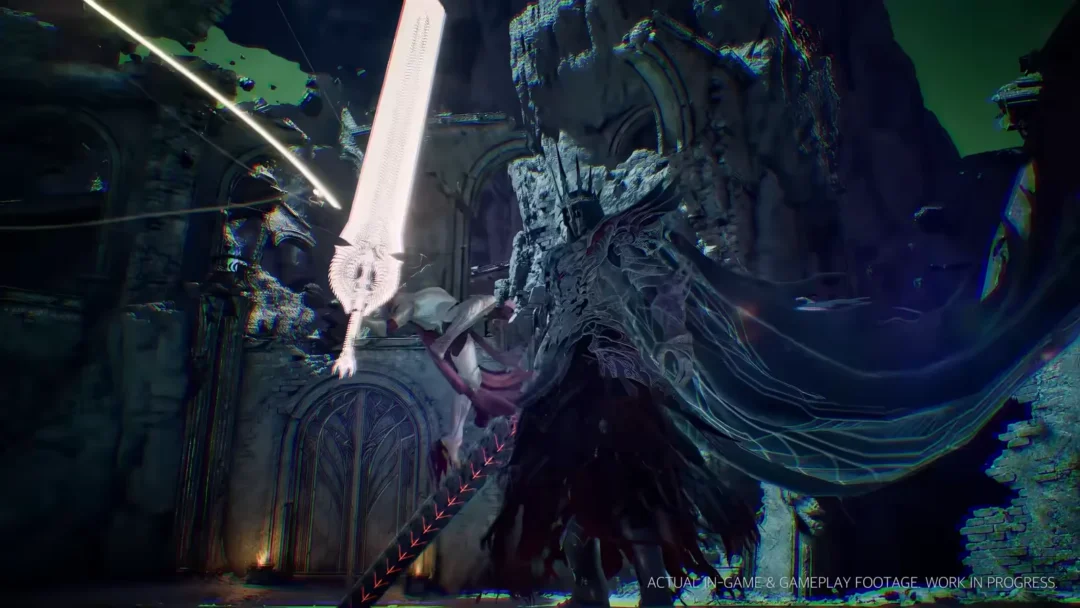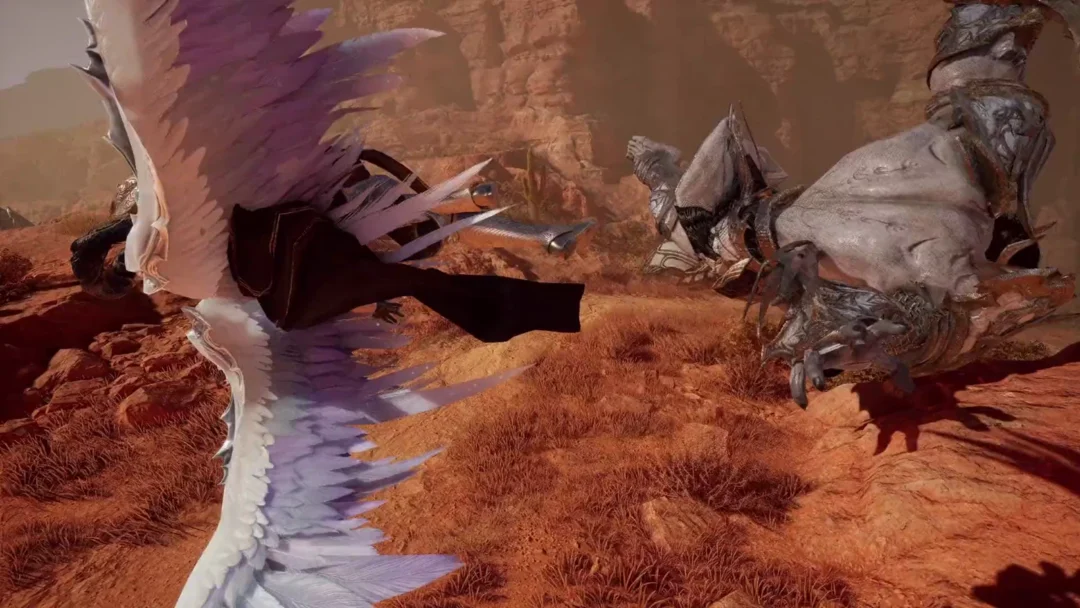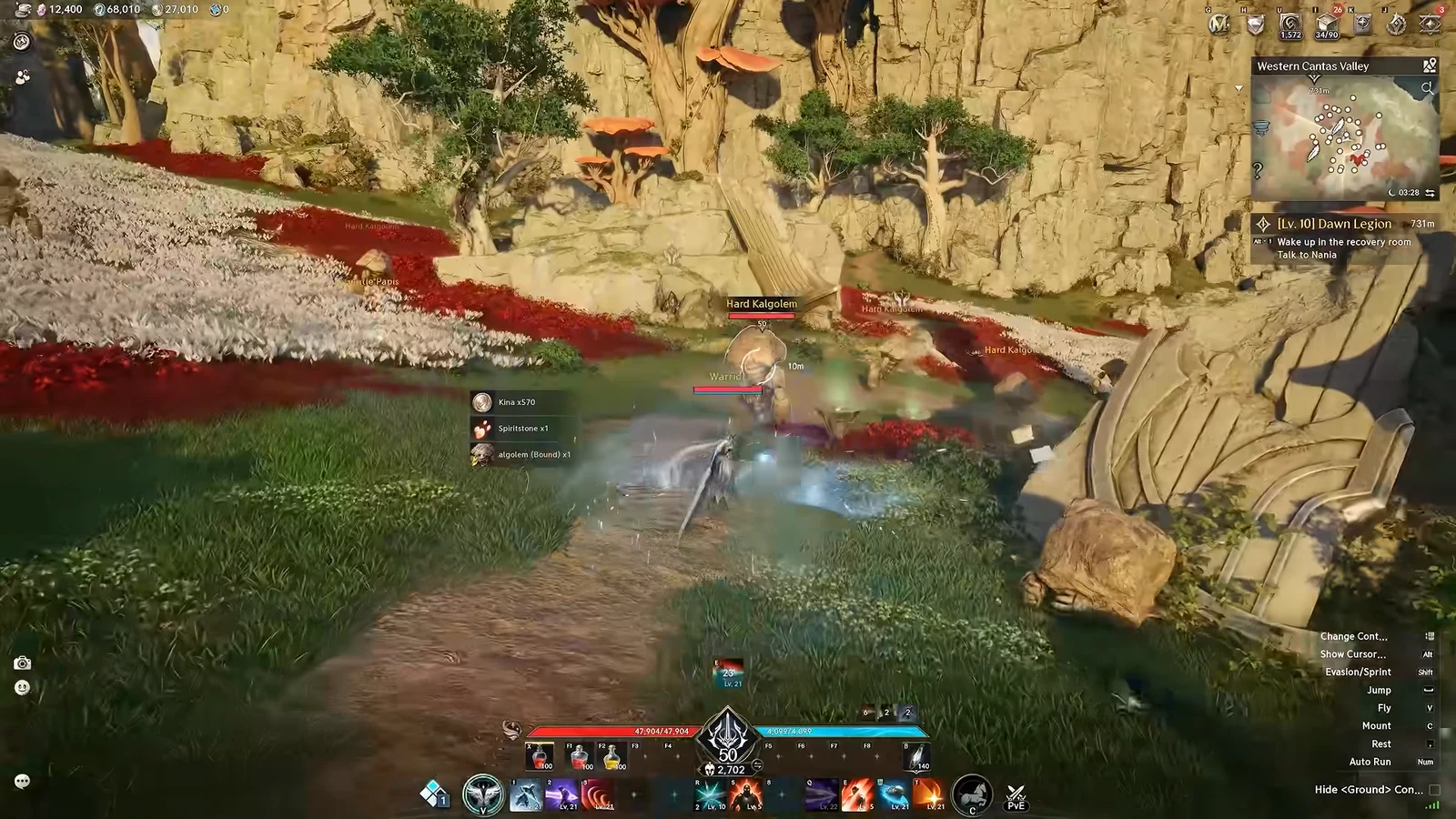
By default, AION 2 plants your character dead center on the screen. During a fight that is a problem, because your own avatar blocks the enemy you are trying to read. Switching to the over-the-shoulder framing pushes the character to the left and opens up the view, which makes it far easier to track attacks and position yourself.
Quick answer: Open Settings, go to Graphics > Camera / Direction, and change Camera Perspective from Default to Over-the-Shoulder View. The AION 2 versus AION 1 control scheme sits separately under Combat > Controls.
Switch the camera to Over-the-Shoulder View
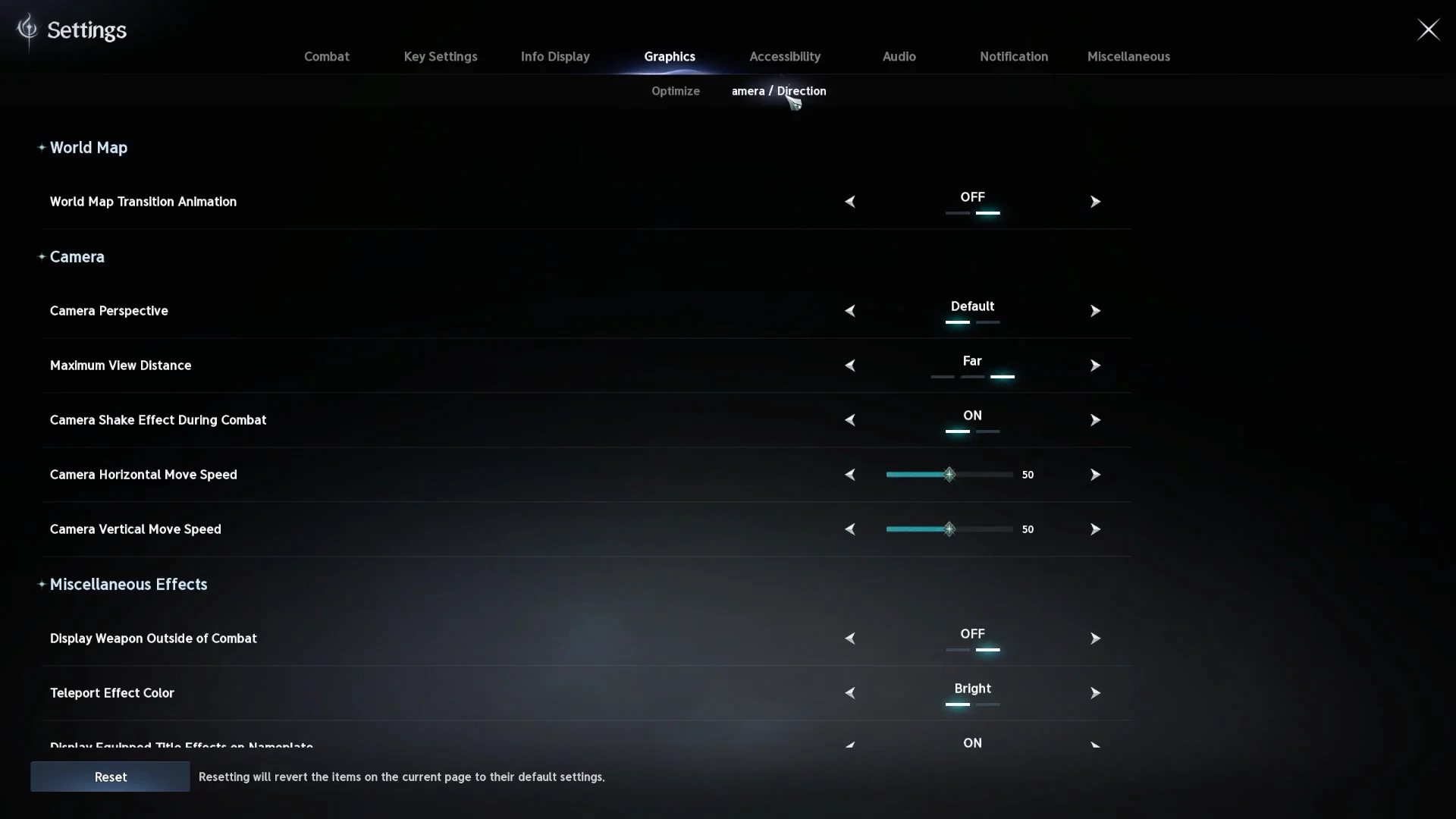
Camera framing lives in the Graphics tab, not in the quality options under Optimize. The change applies the moment you set it, so you do not need to confirm or restart.
Other camera options on the same page
Before entering combat, review the extra options on the Camera / Direction page. They each govern one behavior you can see.
| Setting | Default | What it does |
|---|---|---|
| Maximum View Distance | Far | Sets the camera’s viewing range. Choose Far when exploring or looking across the open world. |
| Camera Shake Effect during Combat | ON | Turn OFF to keep the screen steady through hits and skills. |
| Camera Horizontal Move Speed | 50 | Left-right pan speed. |
| Camera Vertical Move Speed | 50 | Up-down pan speed. |
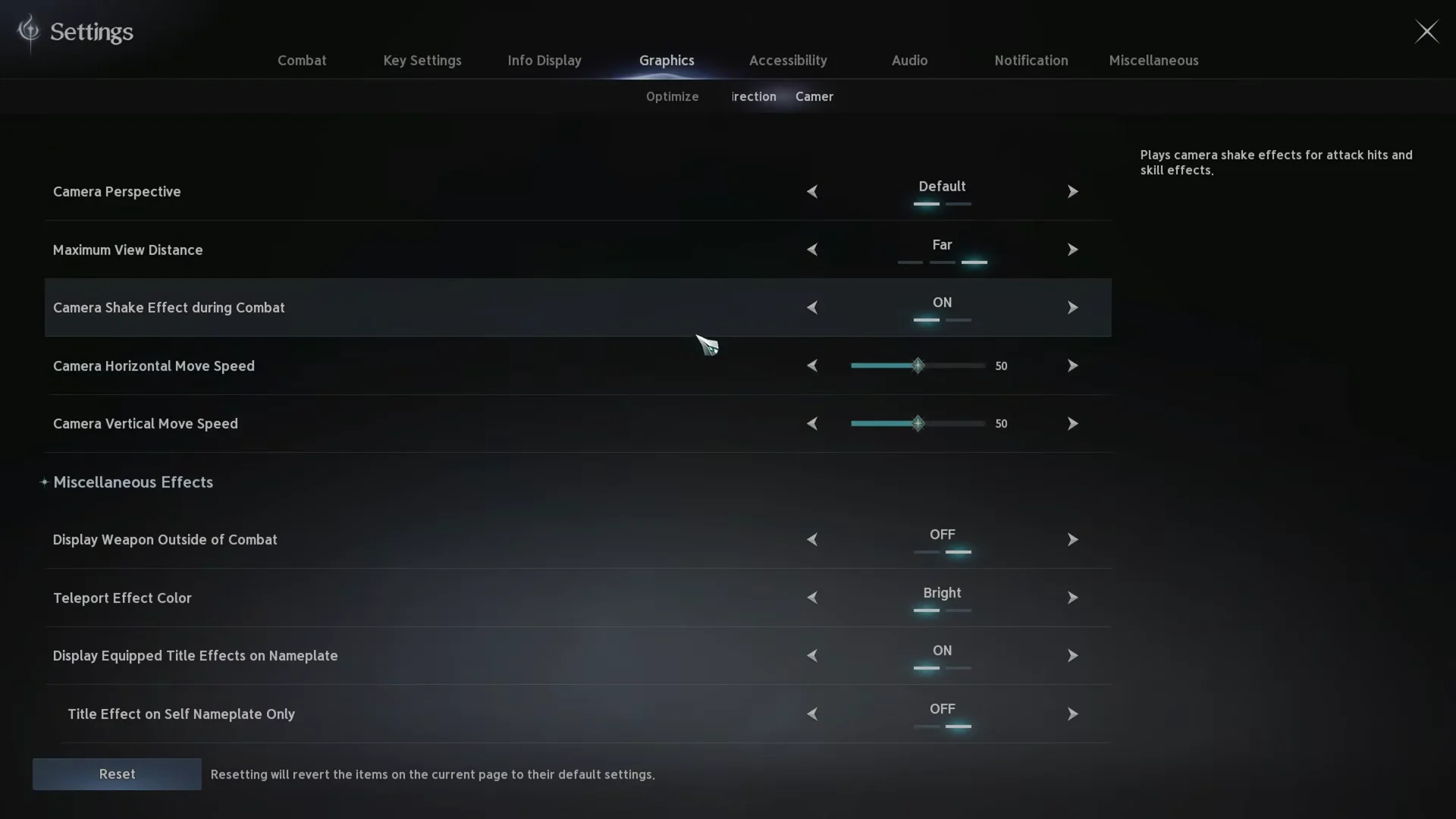
Disable combat camera shake to follow enemies and spot attack telegraphs more easily in crowded battles.
Zoom is not a slider. Scroll the mouse wheel forward to pull the camera in close to your character, near a first-person view, and scroll back to zoom out to the maximum view distance.
Pick a control mode under Combat > Controls
Camera framing and controls are separated into different tabs, so the targeting option can be easy to overlook. For changes to cursor, camera, and targeting behavior, go to the Combat tab, then select its Controls sub-tab. At the very top, [PC] Control Mode lets you switch between AION 2 and AION 1.
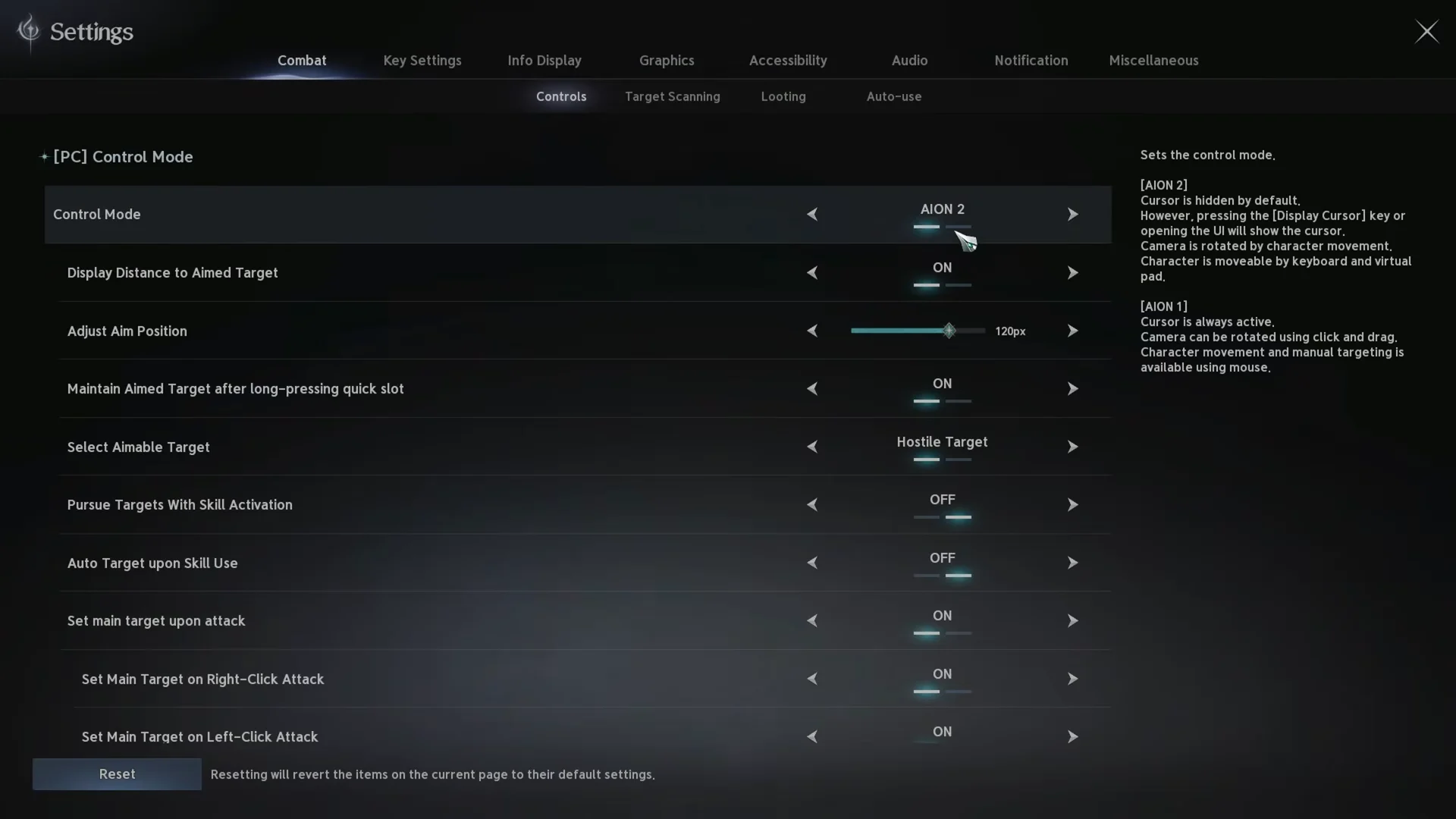
| Behavior | AION 2 | AION 1 |
|---|---|---|
| Cursor | Hidden by default | Always active |
| Camera | Rotated by character movement | Rotated by click and drag |
| Movement | Keyboard | Mouse |
| Targeting | Center reticle / virtual target | Manual mouse targeting |
With AION 2 selected, the cursor appears only when you press the Display Cursor key or bring up a UI panel. You acquire targets with a point at the screen’s center, while mouse movement turns the camera. This setup works well for third-person action combat, fast changes in direction, and PvP.
In AION 1 mode, an on-screen cursor gives you a classic tab-target MMO setup. Rotate the camera by holding either mouse button; holding both moves you forward. This option works for cursor-based targeting, healers selecting party members, and players with an MMO mouse.
Fine-tune aim and targeting
The Controls page also has detailed aim and targeting settings that work with either mode. For example, retain the AION 2 reticle and fine-tune its lock-on behavior.
- Display Distance to Aimed Target reports the range from you to the object beneath your reticle.
- Moves the aim point from its default position of 120px.
- Keeps your target locked while you hold a quick-slot skill.
- Limits reticle targeting to Hostile Target by default.
- Automatically moves you closer to enemies when you activate a skill; generally left disabled in PvP.
- Camera Lock-On to Target and Left-click Only to Rotate the Camera control how the camera follows and turns.
- Fix Mouse Cursor and Skill Queue keep the cursor fixed and let you queue skills in advance.
Click Ground to Move and Click on the target to attack or perform actions both default to Allow Both Sides, and there are separate toggles for setting your main target on left-click and right-click attacks.
Confirm the change took effect
Every option shows its current value right in the menu, so a setting registers the moment its label updates. Camera perspective and shake changes appear in gameplay right away, and a new control mode changes cursor and camera behavior the next time you move. If you want to start fresh, use the Reset button to revert the current page to its defaults, then Close to return to the game with your setup applied.