Enshrouded lets you load any world as a one-person game through its Session Mode screen. The option you want is the Offline card, the solo option with multiplayer settings shown as not applicable. Everything happens through the menus.
Quick answer: Open a save with Start…, then on the Session Mode screen select the Offline card and press Start. It sets Max. Player Amount to 1 for solo play.
Start a solo Enshrouded world
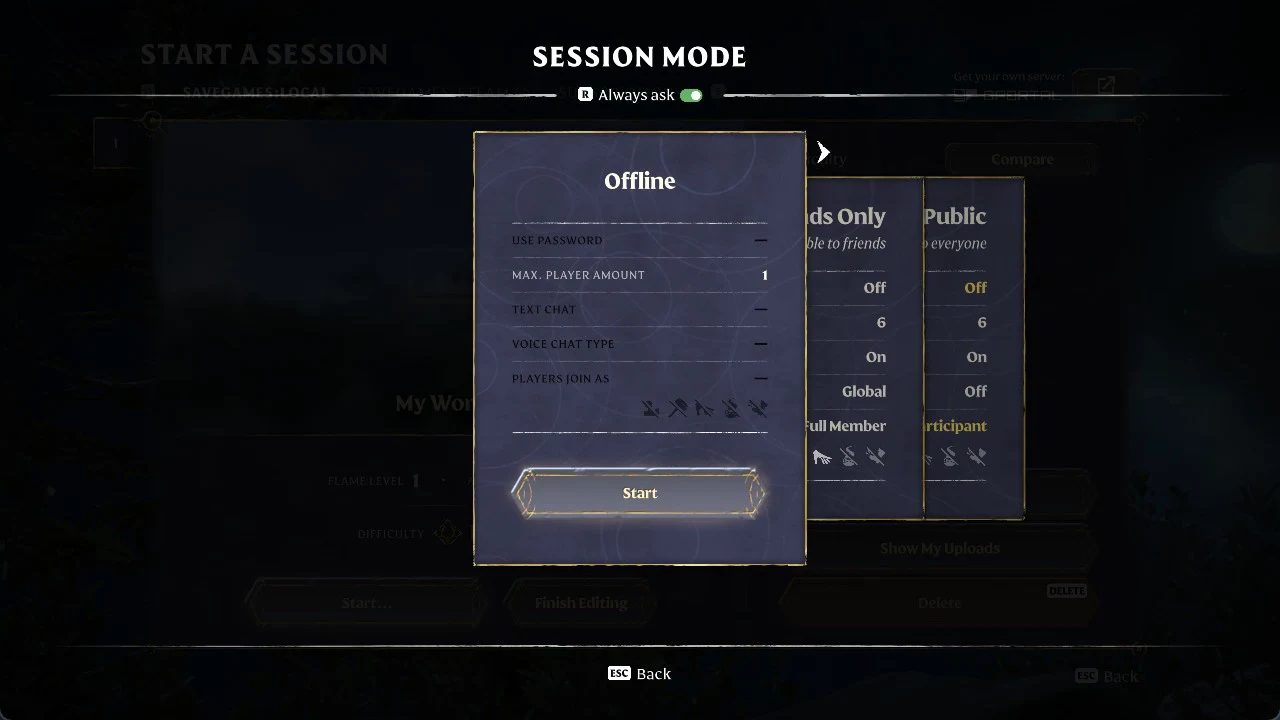
A toggle at the top of the screen, “Always ask” (R), controls whether Session Mode appears every time you open a world. Leave it on if you want to pick a mode on each launch.
Session Mode cards compared
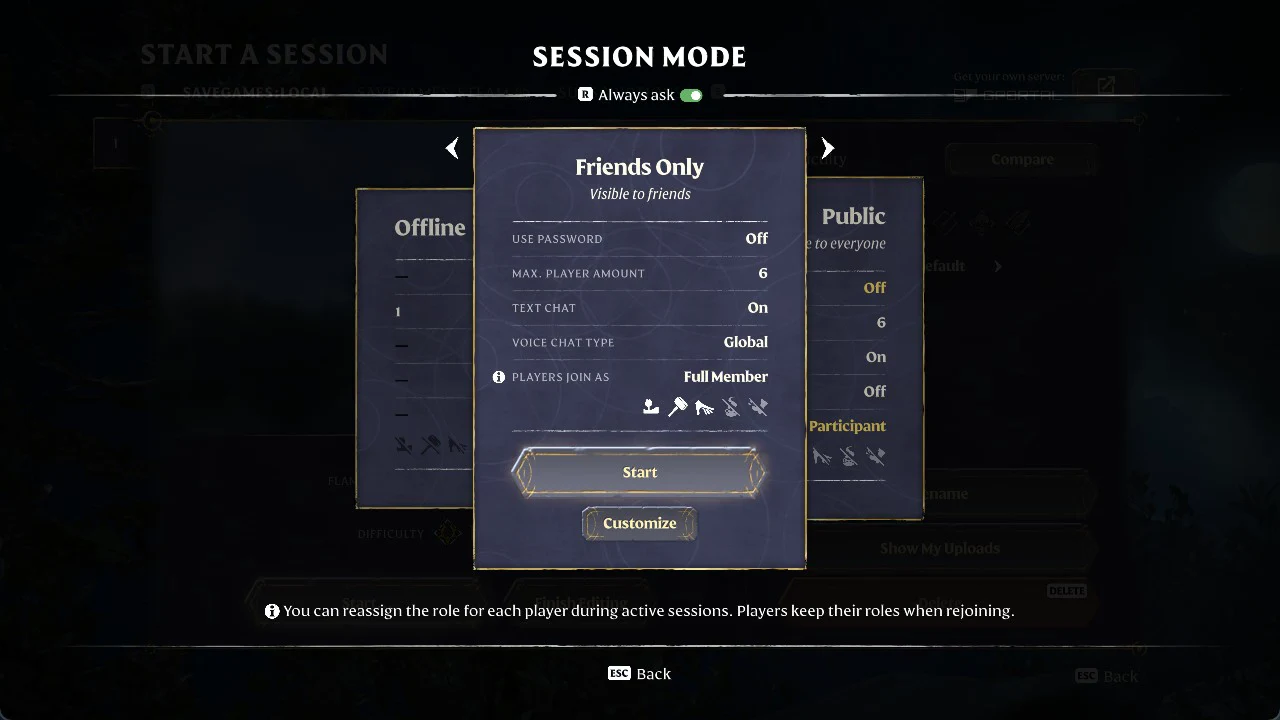
Three cards sit on the Session Mode screen. Offline is the solo option, where the dashes mean each multiplayer setting does not apply. Friends Only (“Visible to friends”) and Public (“Visible to everyone”) open the world to other players with six seats.
| Setting | Offline | Friends Only | Public |
|---|---|---|---|
| Use Password | – | Off | Off |
| Max. Player Amount | 1 | 6 | 6 |
| Text Chat | – | On | On |
| Voice Chat Type | – | Global | Off |
| Players Join As | – | Full Member | Participant |
Offline carries a single Start button. Friends Only adds a Customize button next to Start and lists role icons underneath. The footer on the screen reads, “You can reassign the role for each player during active sessions. Players keep their roles when rejoining.” Press Esc to go back.
Manage a world from the Edit screen
Pressing Edit (F) on a save opens its Edit screen. The Delete key removes the world.
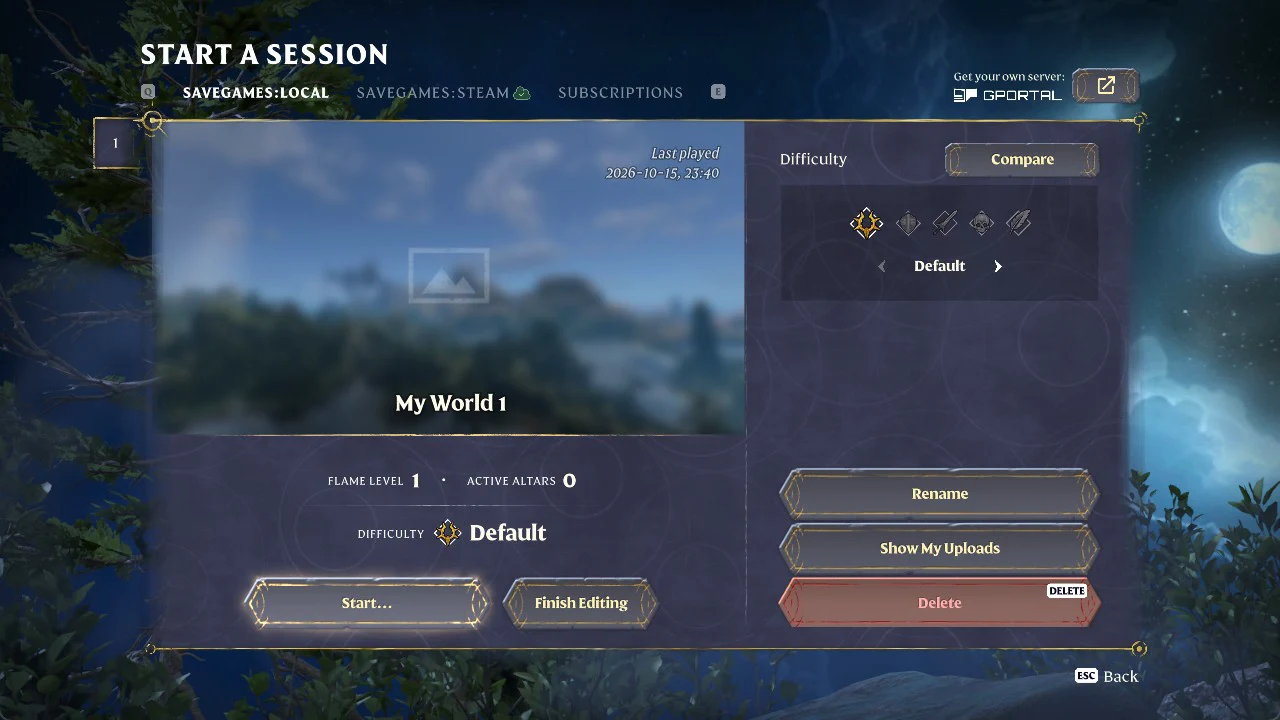
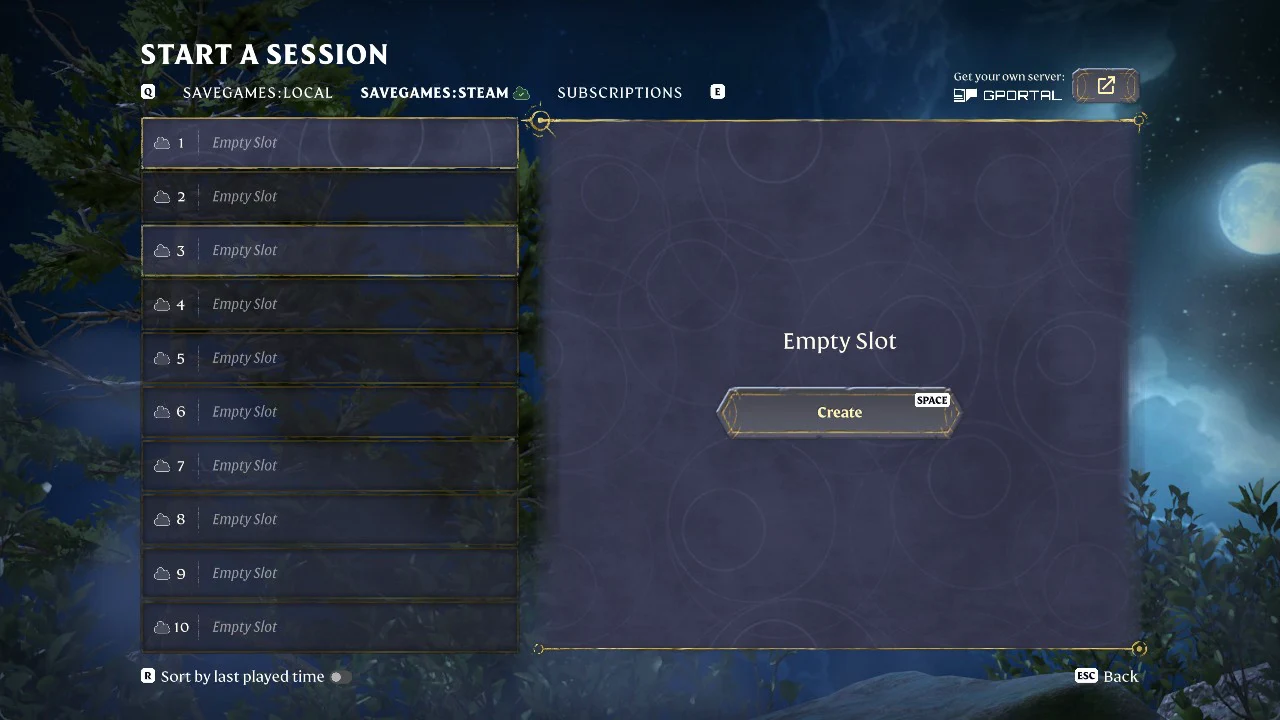
With the Offline card chosen, the session is limited to one player. The save slots on the Local and Steam tabs hold your worlds, and the Edit screen lets you rename or delete any of them.