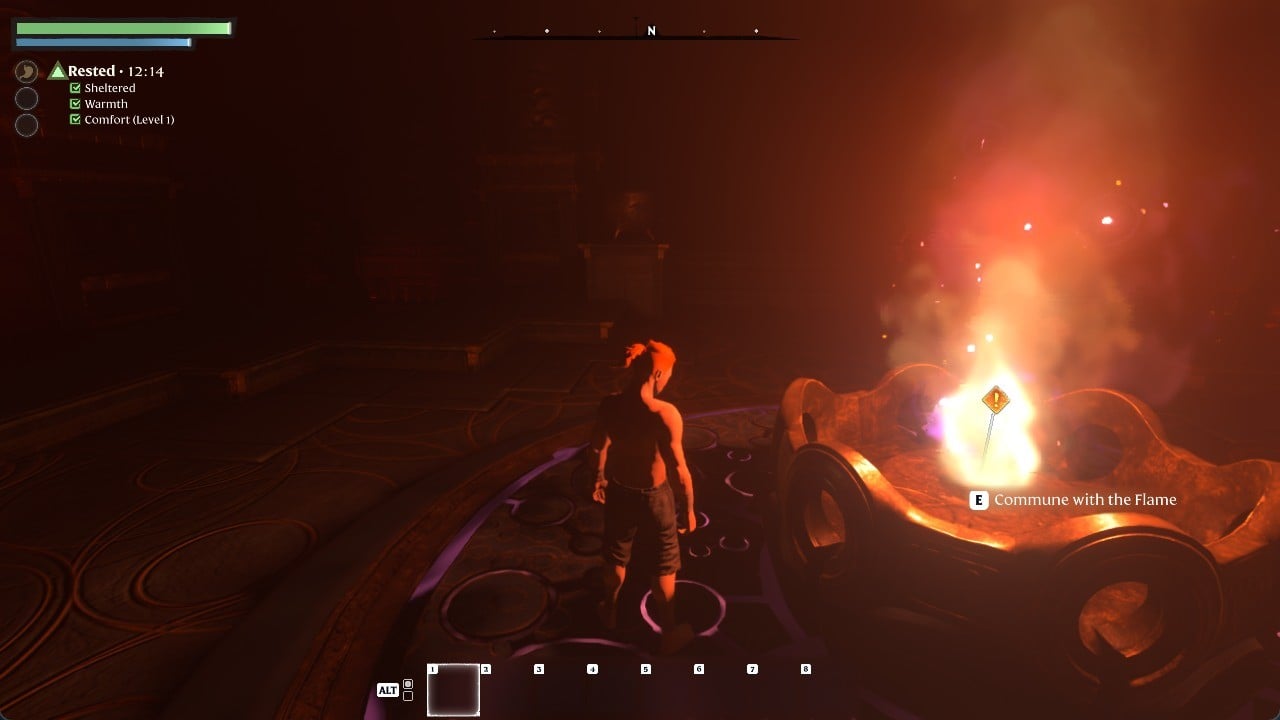
Enshrouded 1.0 ships with five difficulty options you set per world: Default, Relaxed, Hard, Survival, and Custom. Each one adjusts dozens of values across combat, player stats, survival rules, and resource rates, and the game’s own comparison table lays every number out side by side. Here is exactly what each preset changes from Default and which one fits how you want to play.
Quick answer: Pick Relaxed for easier combat and faster building, Hard for tougher fights at default stats, and Survival for hunger plus heavy penalties. Difficulty is set per world and can be changed later.
Where to change the difficulty in Enshrouded
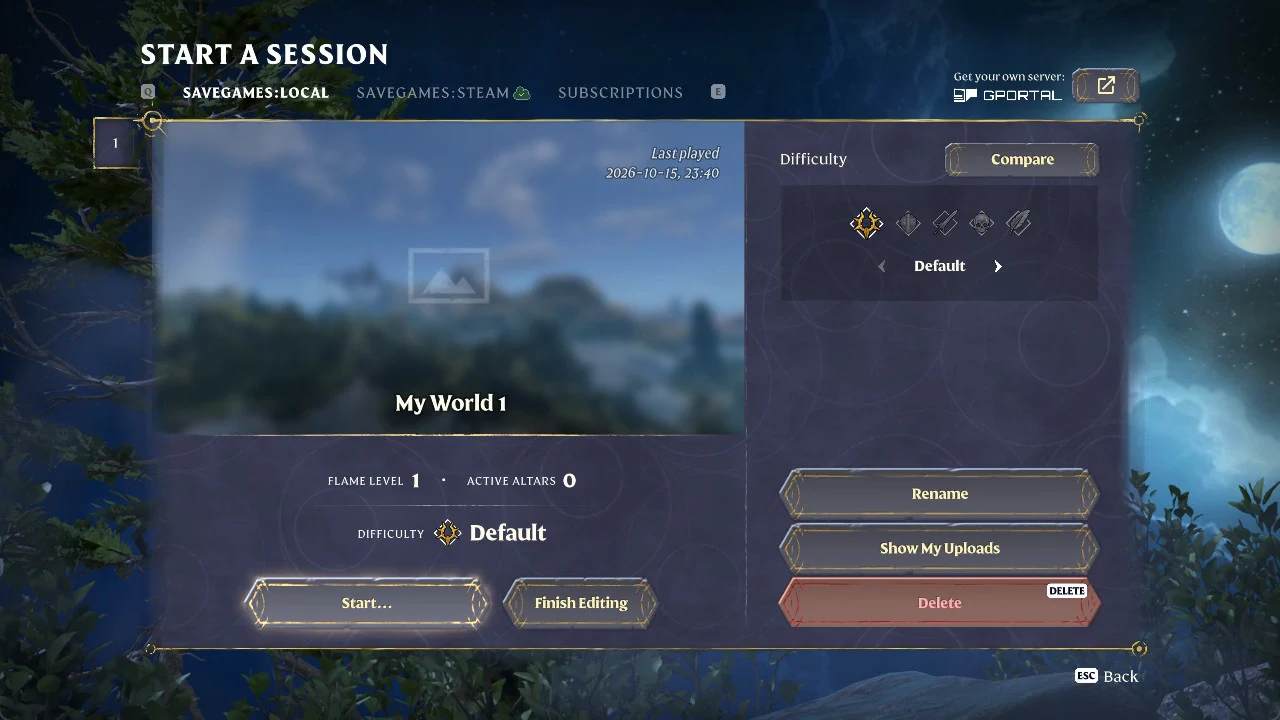
Difficulty lives on each world’s edit screen, not in a global options menu. That means every save can run its own settings, and a new world always begins on Default (Flame Level 1, Active Altars 0, Difficulty Default).
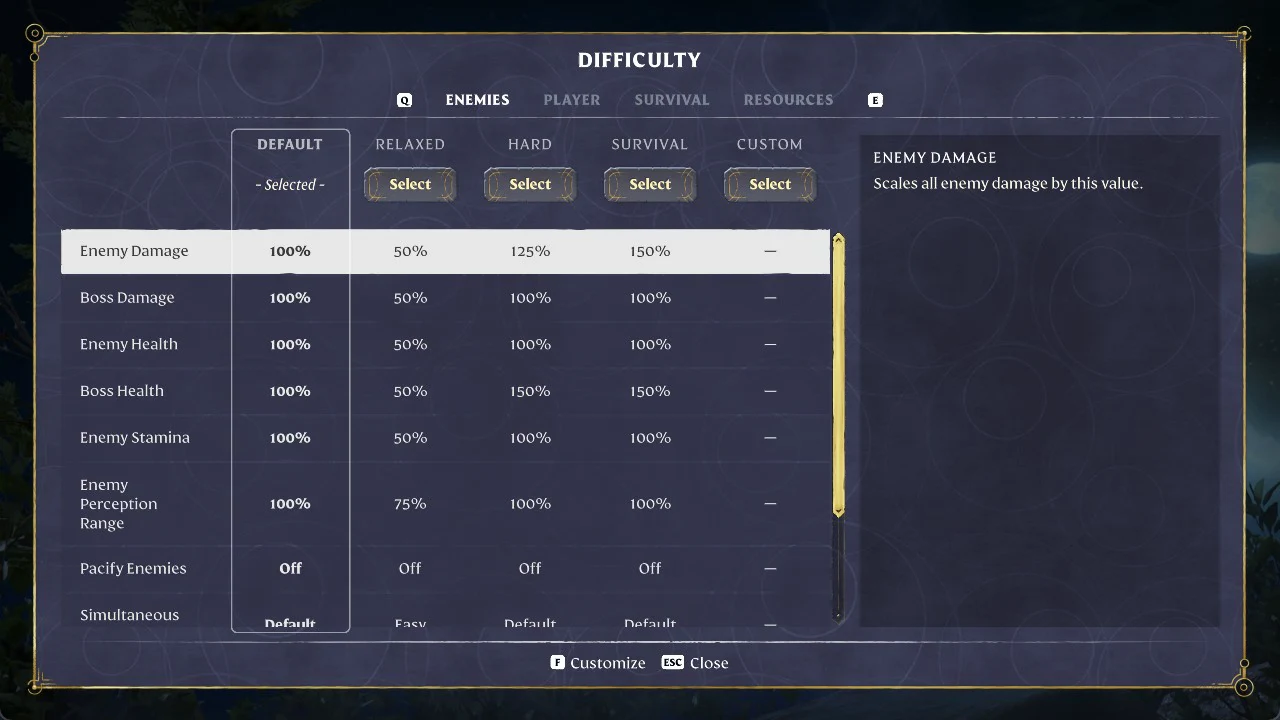
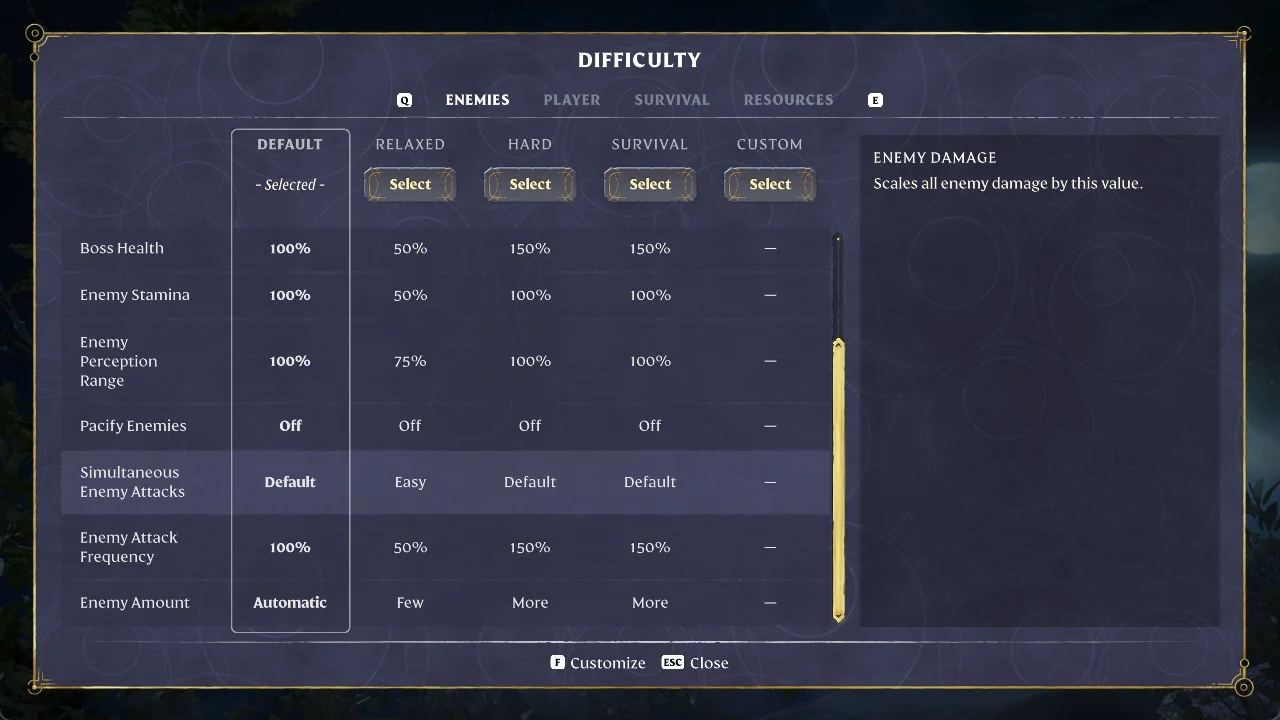
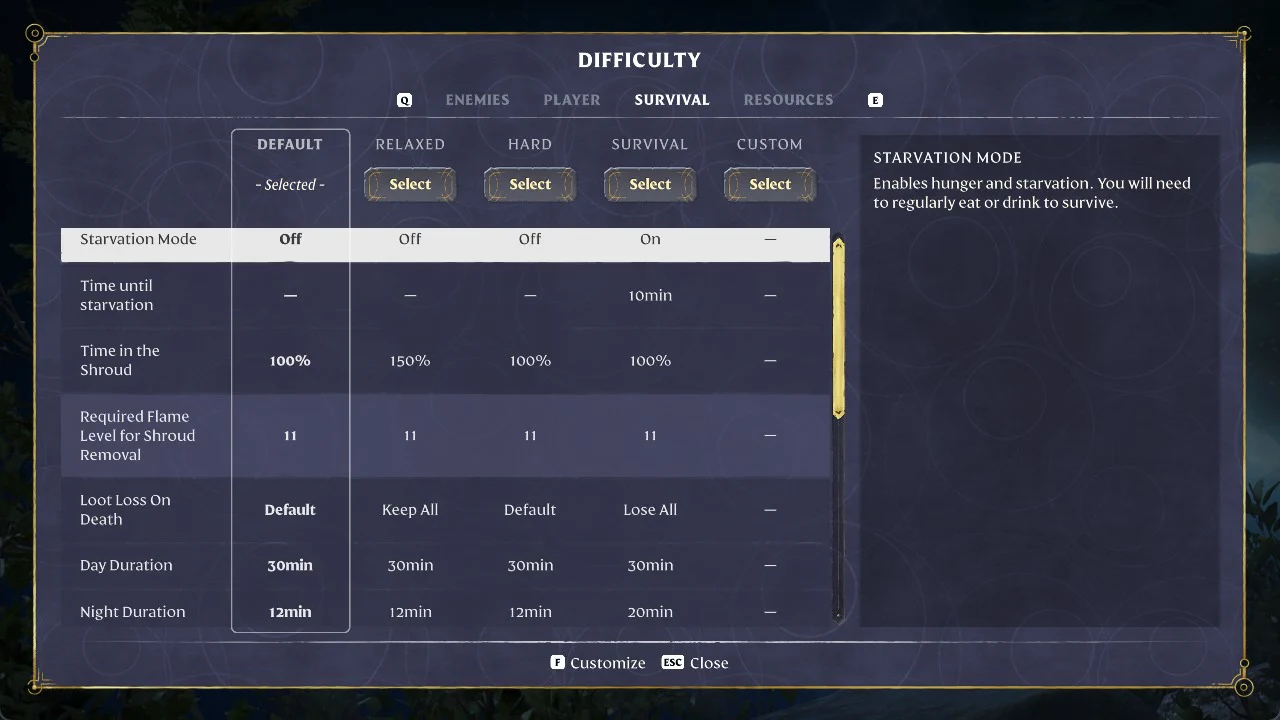
A few values never move between the four presets. Quest & Exploration XP stays at 100%, Day Duration stays at 30 minutes, and Required Flame Level for Shroud Removal stays at 11. Custom can change these.
Relaxed preset: easier combat and faster building
Relaxed is the preset for building-focused or story-first play. It halves enemy and boss damage and health, doubles your core stats, and strips out most of the survival friction. You keep all your loot when you die, weapon durability and glider turbulence are off, and curses are disabled entirely.
| Setting | Default | Relaxed |
|---|---|---|
| Enemy Damage | 100% | 50% |
| Boss Damage | 100% | 50% |
| Enemy Health | 100% | 50% |
| Boss Health | 100% | 50% |
| Enemy Stamina | 100% | 50% |
| Enemy Perception Range | 100% | 75% |
| Simultaneous Enemy Attacks | Default | Easy |
| Enemy Attack Frequency | 100% | 50% |
| Enemy Amount | Automatic | Few |
| Player Health | 100% | 200% |
| Player Mana | 100% | 200% |
| Player Stamina | 100% | 200% |
| Frost Resistance Duration | 100% | 200% |
| Diving Time | 100% | 150% |
| Mining XP | 100% | 125% |
| Combat XP | 100% | 150% |
| Time in the Shroud | 100% | 150% |
| Loot Loss On Death | Default | Keep All |
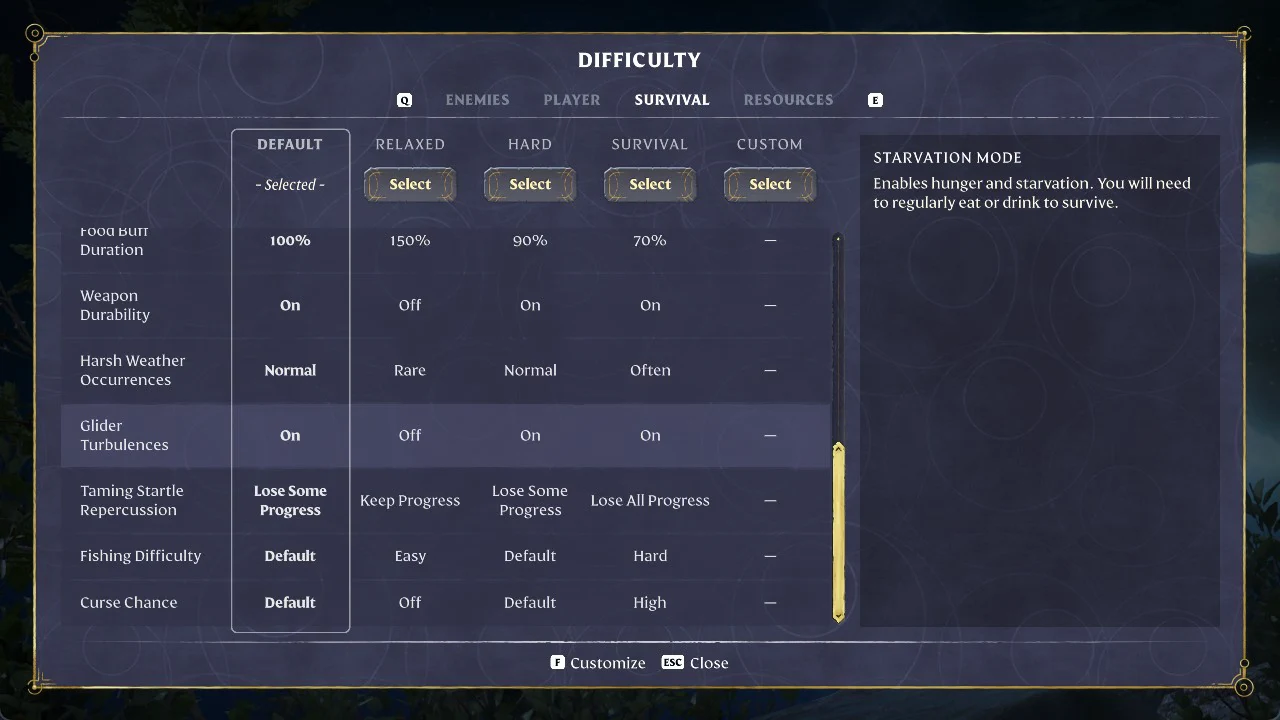
| Food Buff Duration | 100% | 150% |
| Weapon Durability | On | Off |
| Harsh Weather Occurrences | Normal | Rare |
| Glider Turbulences | On | Off |
| Taming Startle Repercussion | Lose Some Progress | Keep Progress |
| Fishing Difficulty | Default | Easy |
| Curse Chance | Default | Off |
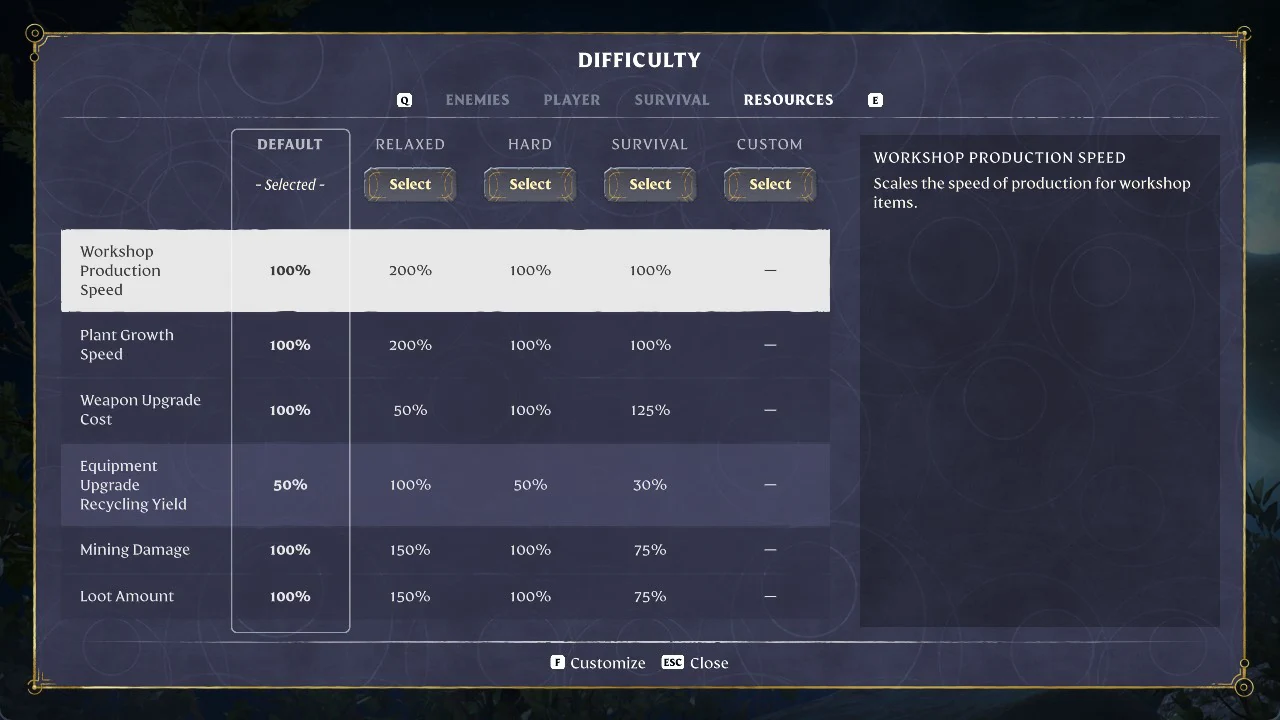
| Workshop Production Speed | 100% | 200% |
| Plant Growth Speed | 100% | 200% |
| Weapon Upgrade Cost | 100% | 50% |
| Equipment Upgrade Recycling Yield | 50% | 100% |
| Mining Damage | 100% | 150% |
| Loot Amount | 100% | 150% |
Player Health, Mana, and Stamina all run at 200%, so fights are forgiving and sprinting or casting rarely runs dry.
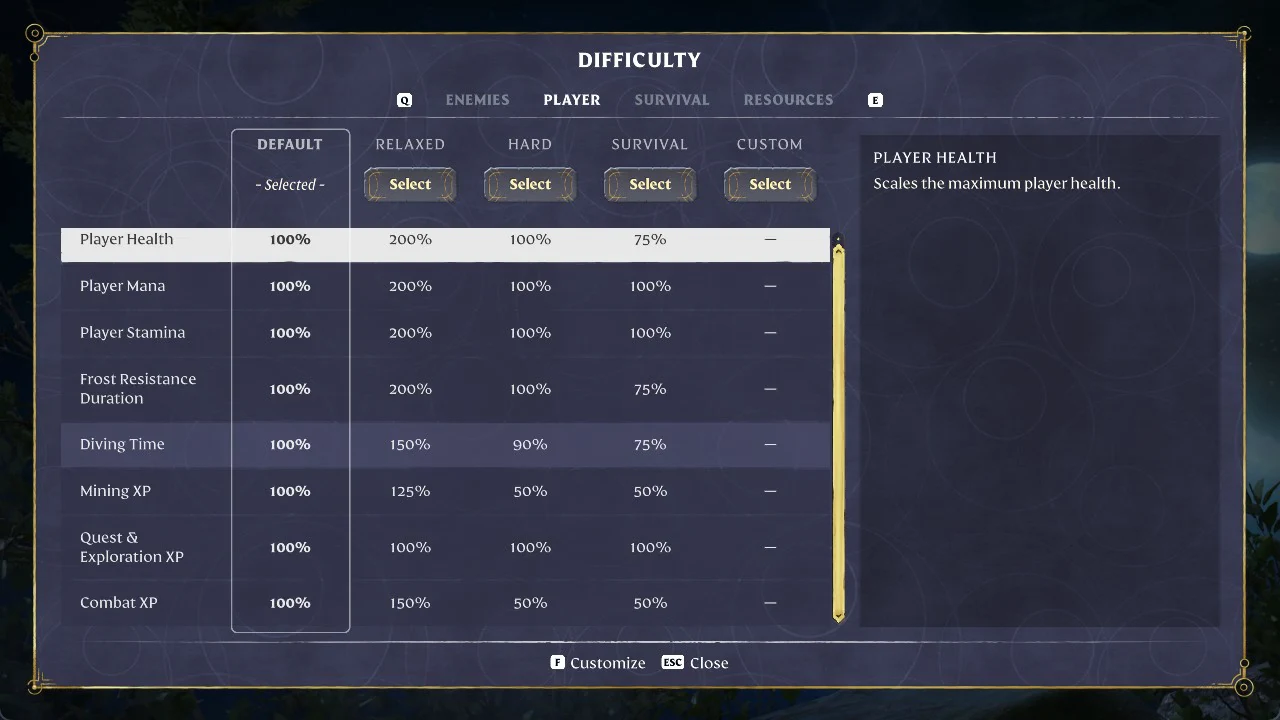
On the resource side, Relaxed doubles Workshop Production Speed and Plant Growth Speed, halves Weapon Upgrade Cost, and raises Loot Amount and Mining Damage to 150%, which speeds up gathering and construction considerably.
Hard preset: tougher enemies, slower leveling
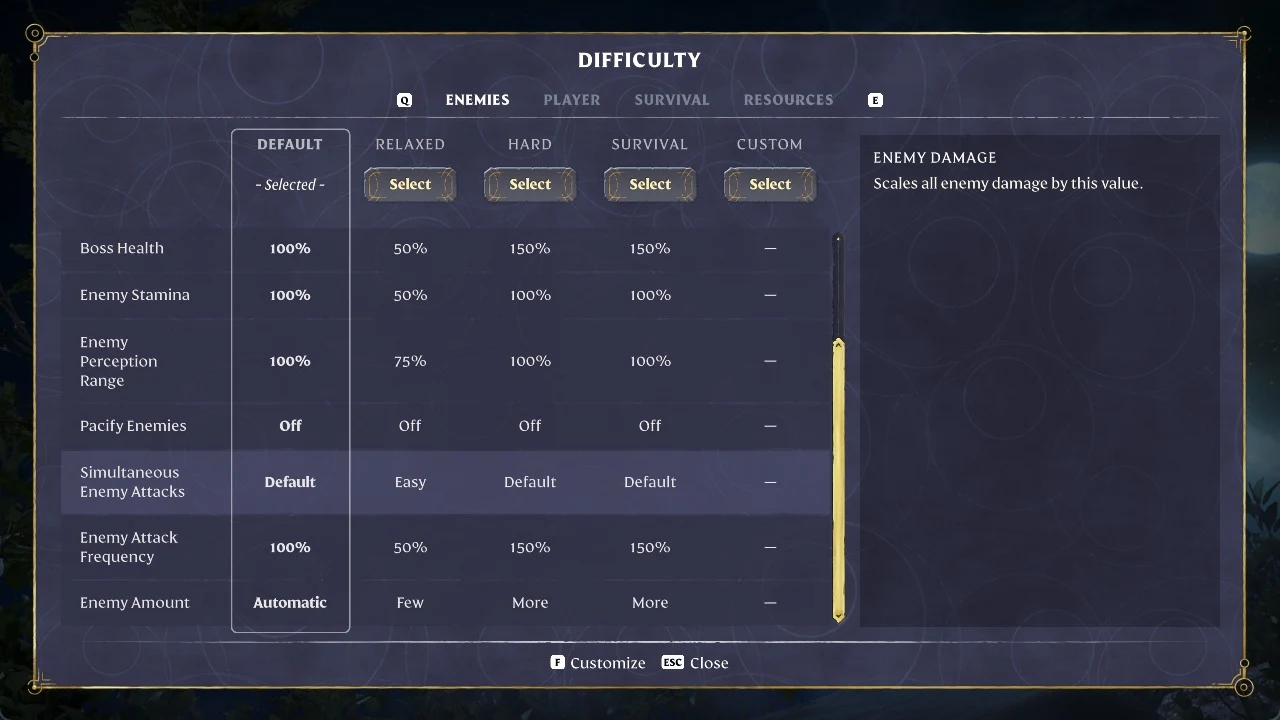
Hard leaves your health, mana, and stamina at Default and turns the pressure up on combat instead. Enemies hit harder and attack more often, bosses are tankier, and there are more foes to deal with. Mining and combat XP are both cut in half, so progression is slower too.
| Setting | Default | Hard |
|---|---|---|
| Enemy Damage | 100% | 125% |
| Boss Health | 100% | 150% |
| Enemy Attack Frequency | 100% | 150% |
| Enemy Amount | Automatic | More |
| Diving Time | 100% | 90% |
| Mining XP | 100% | 50% |
| Combat XP | 100% | 50% |
| Food Buff Duration | 100% | 90% |
Hard keeps Loot Amount and Workshop Production Speed at Default, but reduces Diving Time and Food Buff Duration to 90%.
Survival preset: hunger, harsh penalties, and lost loot
Survival takes the harder combat of Hard and stacks the full survival layer on top. Hunger is active, your health drops below Default, and dying costs you everything you are carrying. Nights run longer, weather is harsher, and curses are more likely.
| Setting | Default | Survival |
|---|---|---|
| Enemy Damage | 100% | 150% |
| Boss Health | 100% | 150% |
| Enemy Attack Frequency | 100% | 150% |
| Enemy Amount | Automatic | More |
| Player Health | 100% | 75% |
| Frost Resistance Duration | 100% | 75% |
| Diving Time | 100% | 75% |
| Mining XP | 100% | 50% |
| Combat XP | 100% | 50% |
| Starvation Mode | Off | On |
| Time until starvation | – | 10min |
| Loot Loss On Death | Default | Lose All |
| Night Duration | 12min | 20min |
| Food Buff Duration | 100% | 70% |
| Harsh Weather Occurrences | Normal | Often |
| Taming Startle Repercussion | Lose Some Progress | Lose All Progress |
| Fishing Difficulty | Default | Hard |
| Curse Chance | Default | High |
| Weapon Upgrade Cost | 100% | 125% |
| Equipment Upgrade Recycling Yield | 50% | 30% |
| Mining Damage | 100% | 75% |
| Loot Amount | 100% | 75% |
Starvation Mode is the defining switch here. It is described as “Enables hunger and starvation. You will need to regularly eat or drink to survive.”, with a 10min window as the Time until starvation.
Loot Loss On Death is set to “Lose All”, so recovering your gear after death matters a lot more than it does elsewhere. Reduced Loot Amount (75%) and Equipment Upgrade Recycling Yield (30%) also make materials scarcer.
Custom difficulty: set each value yourself
When none of the four presets suits you, choose Custom or press F (Customize) to configure the values individually. This lets you combine traits—for example, double Player Health while leaving Starvation Mode on, or make combat more difficult without loot penalties. Custom also allows changes to settings that remain fixed in the presets, including Quest & Exploration XP, Day Duration, and Required Flame Level for Shroud Removal.
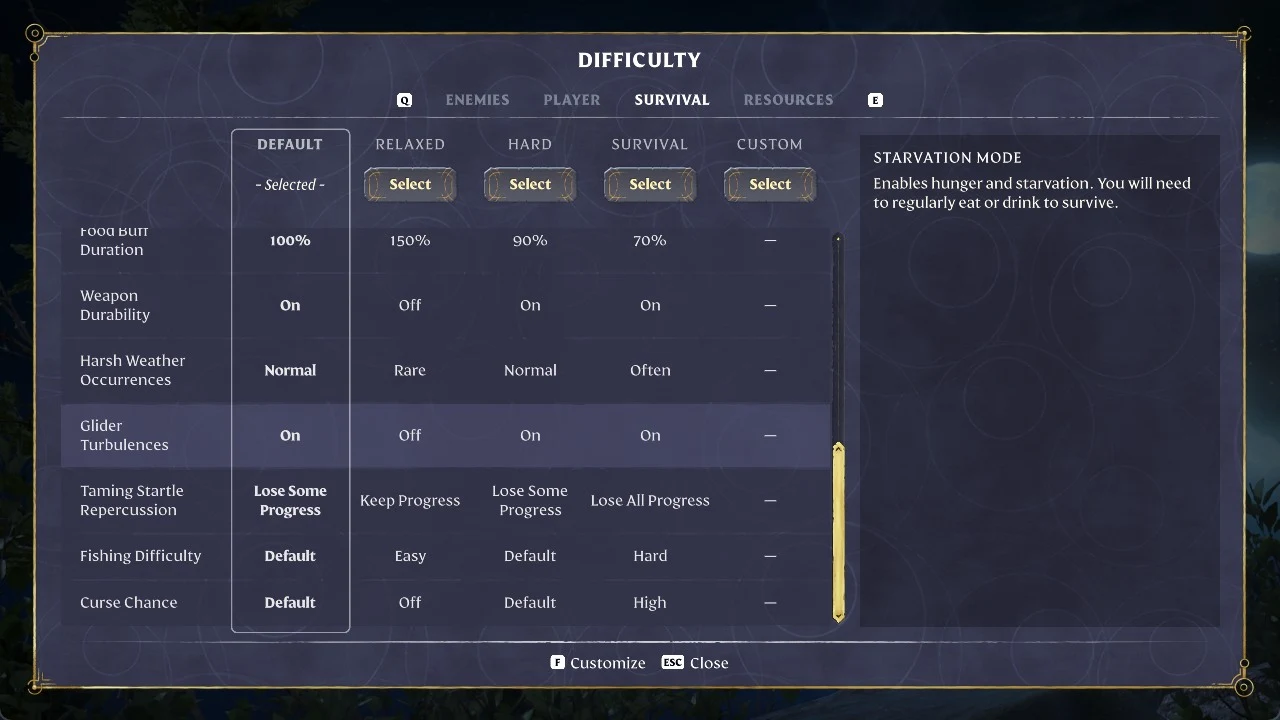
To confirm a choice took effect, check the preset column, which reads “- Selected -” for the active one, and the world card’s Difficulty line on the Edit screen. Because difficulty is stored per world, you can reopen this same Edit screen later and switch an existing save to a different preset at any time.