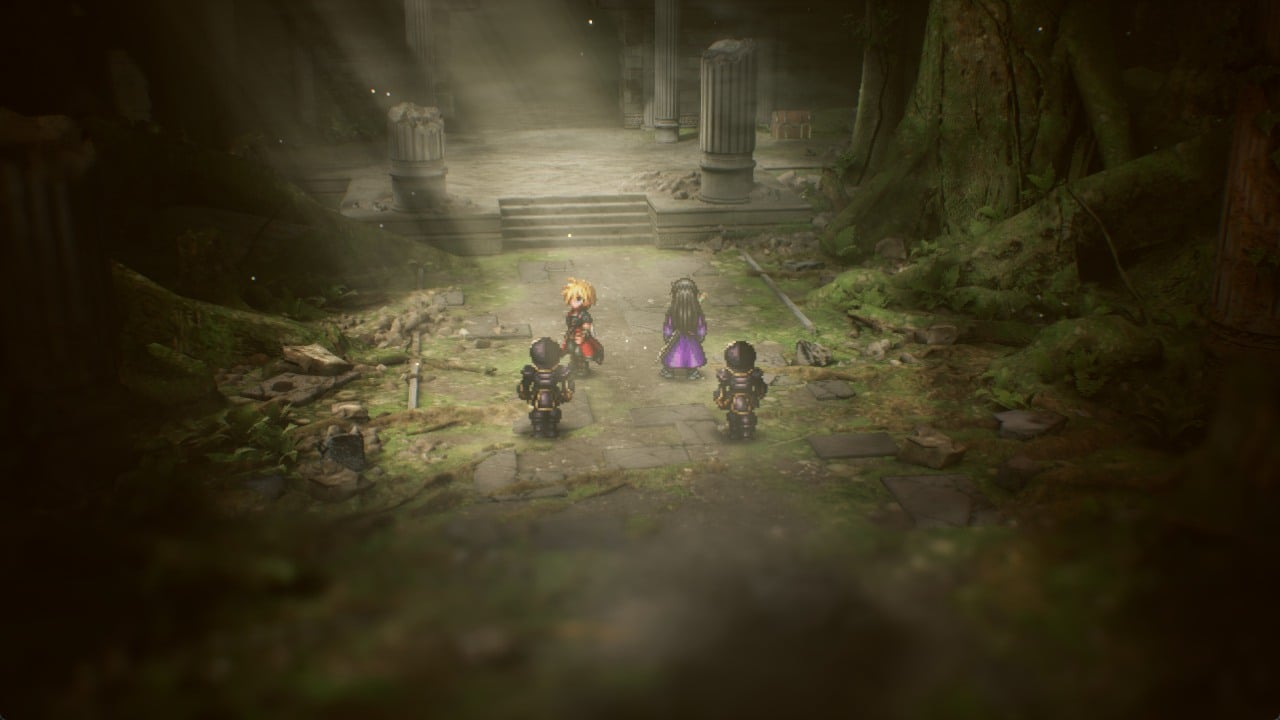
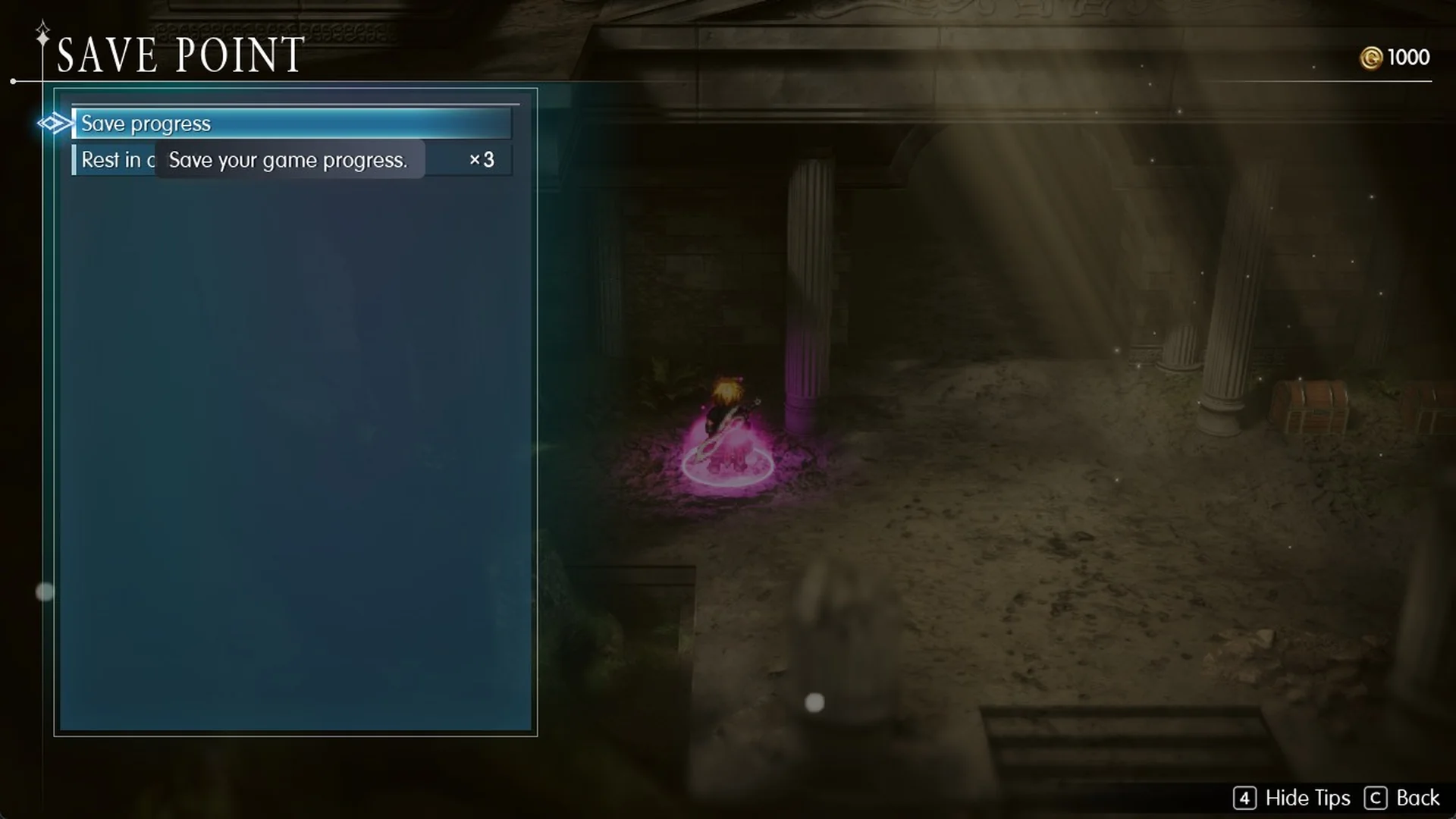
Final Fantasy Resonance saves at glowing pink circles on the floor, called save points, in towns and dungeons. It also autosaves by default, and the in-game tutorial says you can save at any time on the field map.
Quick answer: Step onto a pink save point, press F or Enter (A on a controller), choose “Save progress”, pick a slot, then move the cursor up to Yes and confirm.
How to save at a save point in Final Fantasy Resonance
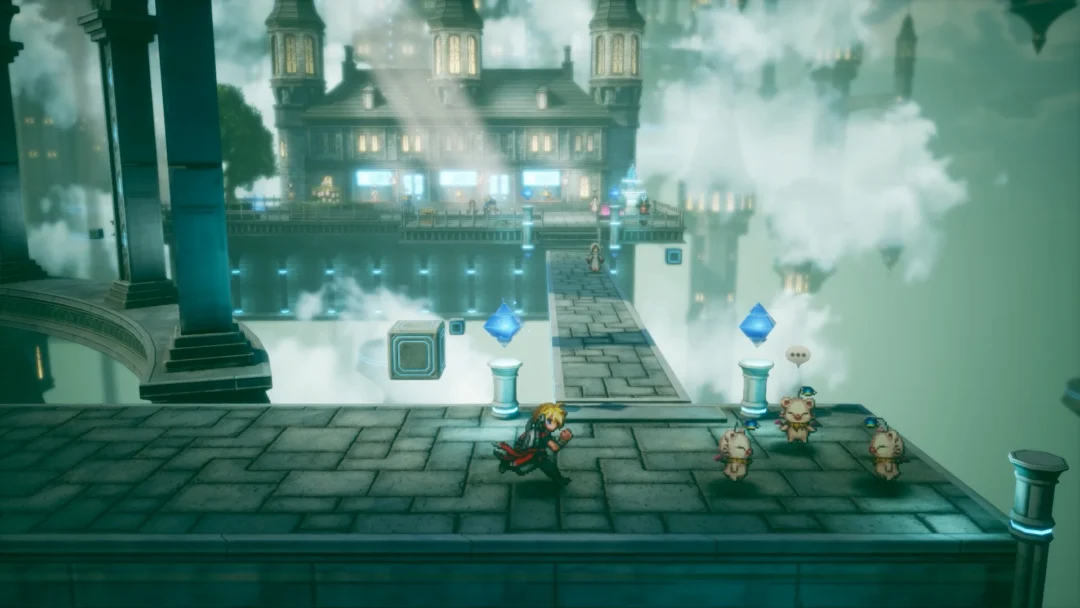
In Chapter 1, “Tailing the Truth,” you first encounter them on Grandshelt Castle’s upper landing, followed by one inside the Earth Shrine.
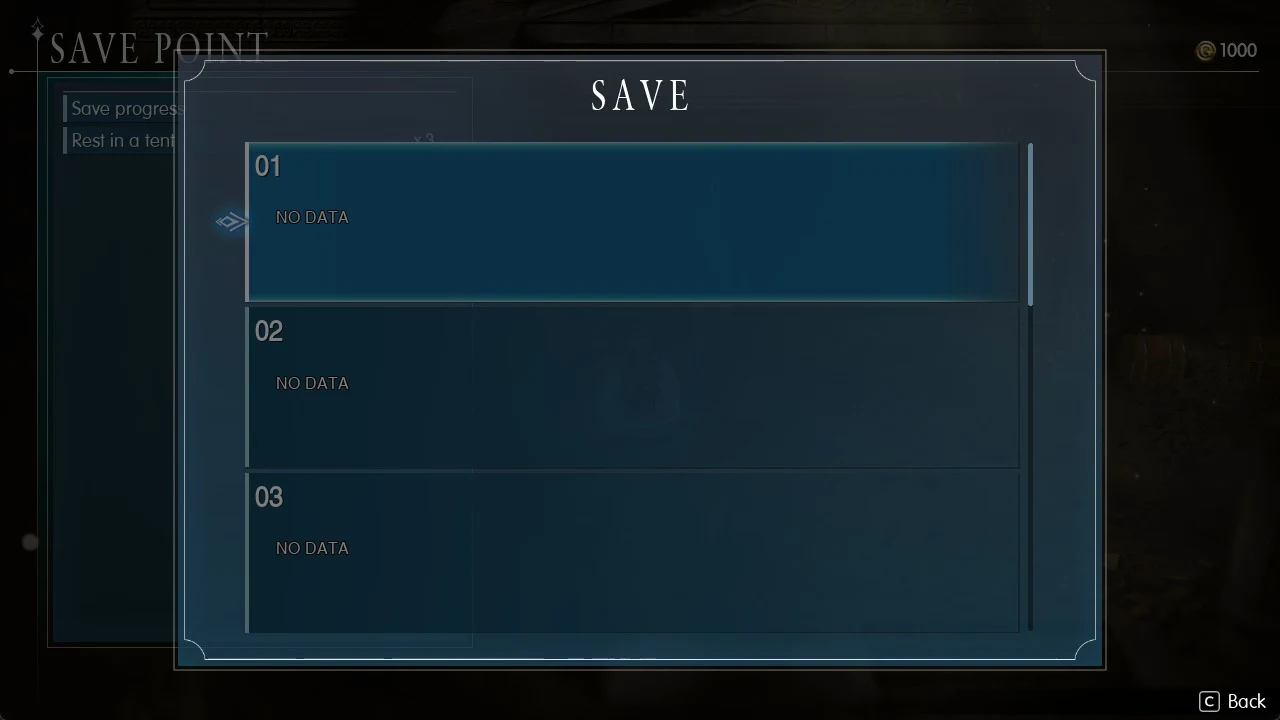
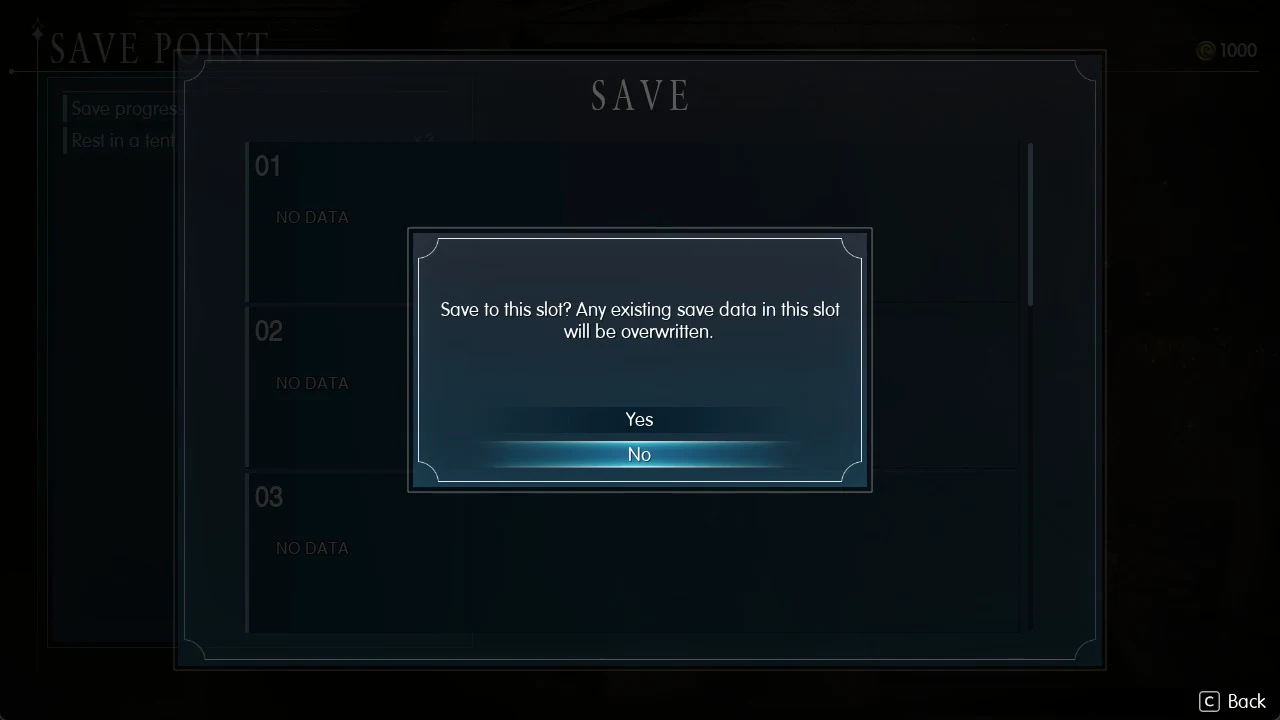
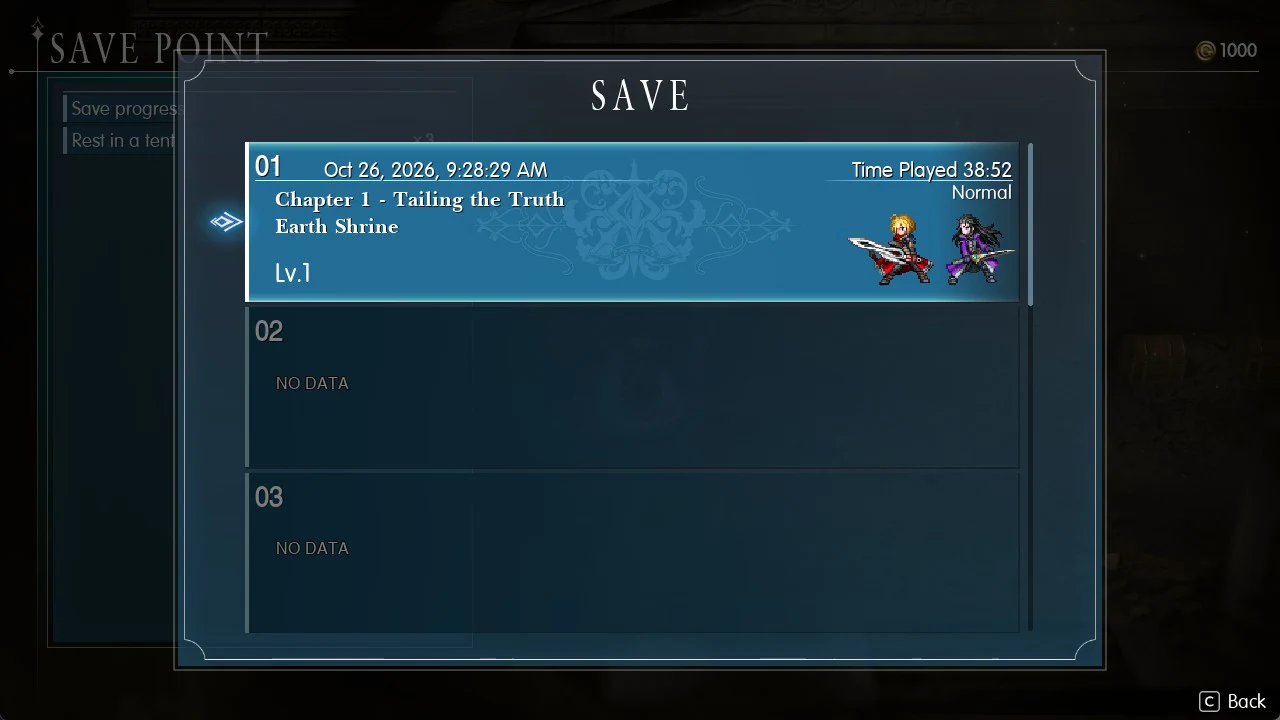
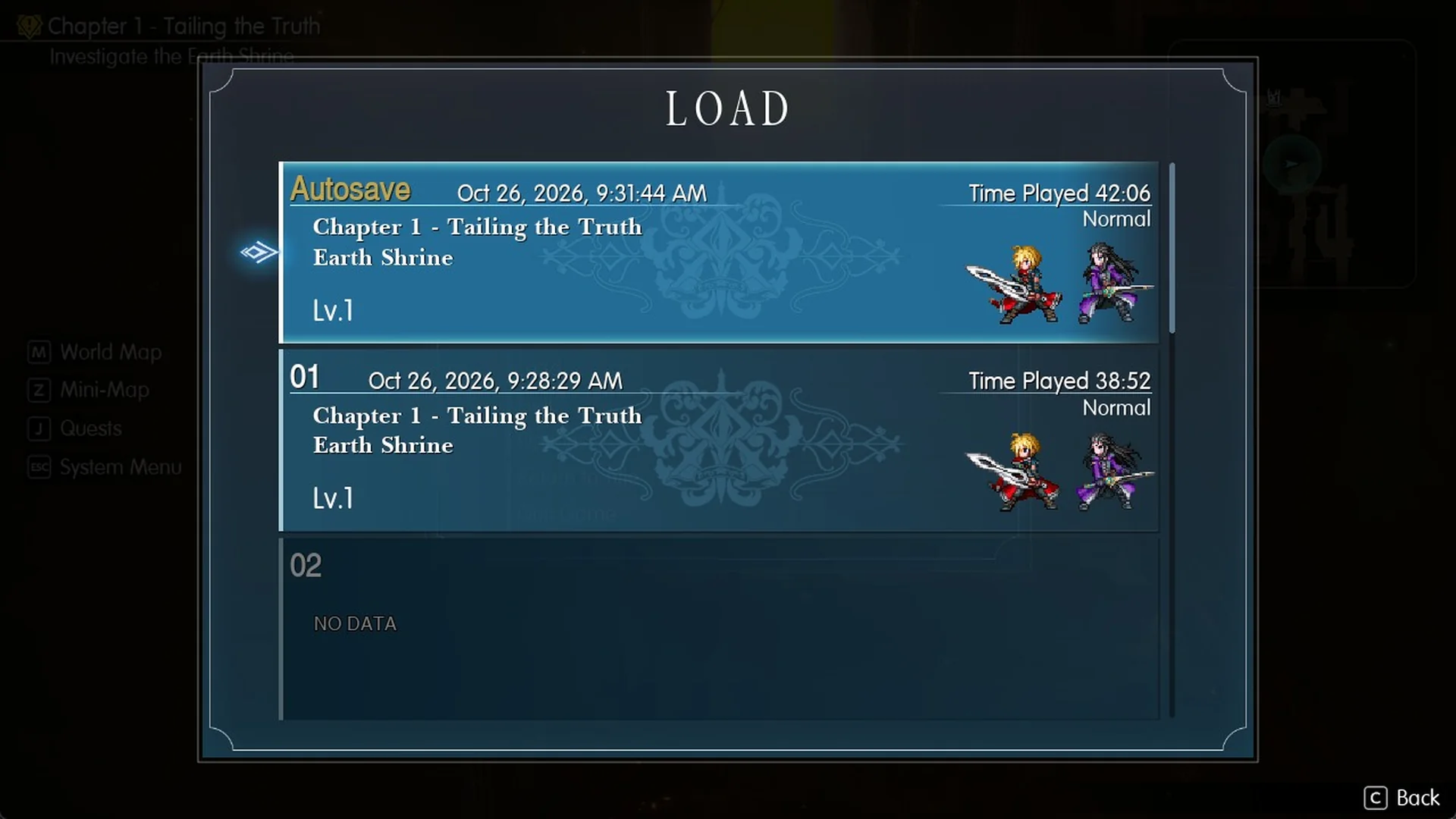
A completed slot displays the save’s date and time, “Time Played”, the chapter and area (such as “Chapter 1 – Tailing the Truth” and “Earth Shrine”), your party’s level, the difficulty, and sprites of your party members.
Saving from the Main Menu
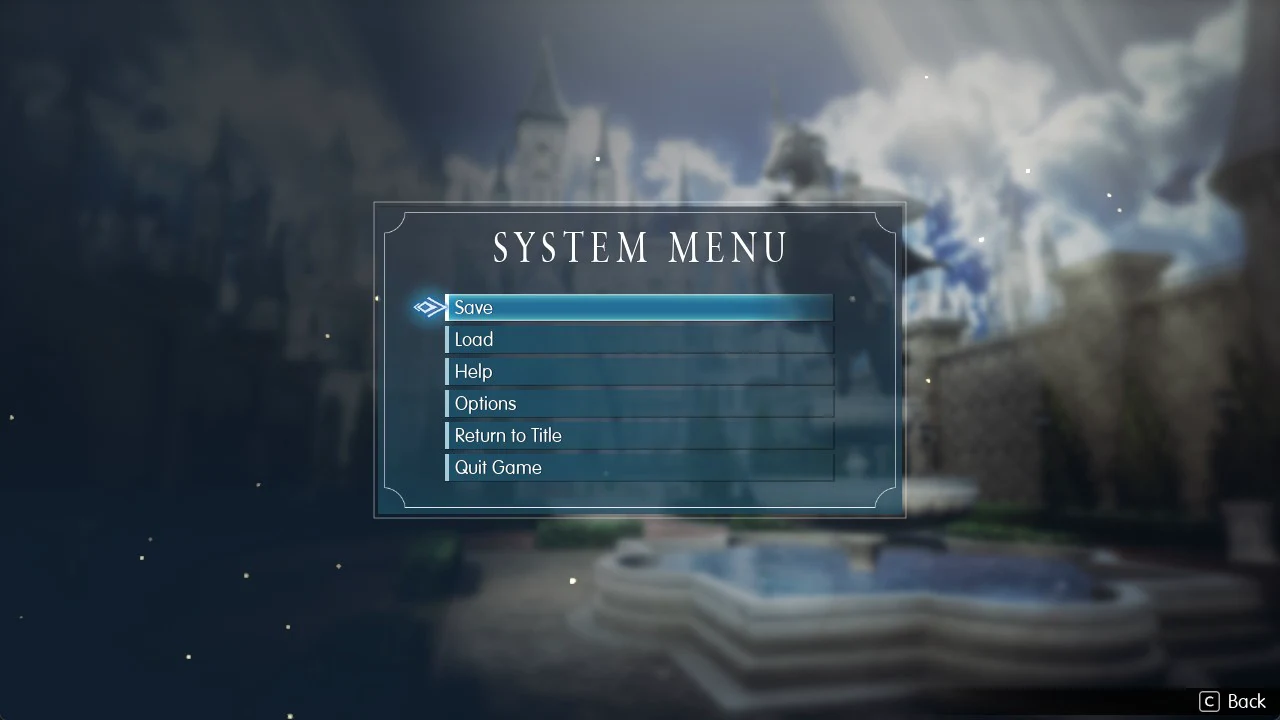
You can also reach the save slots through the menus. In the field, press Tab on a keyboard or Y on a controller to open the MAIN MENU, which lists Map, Quests, Items, Recovery, Equipment & Abilities, Party and System. Pick System to open the SYSTEM MENU. When you stand at a save point, such as the one inside the Earth Shrine in Chapter 1, that menu lists Save, Load, Help, Options, Return to Title and Quit Game, with Save at the top. Choosing Save there opens the same numbered slot list as the save point’s “Save progress” row.
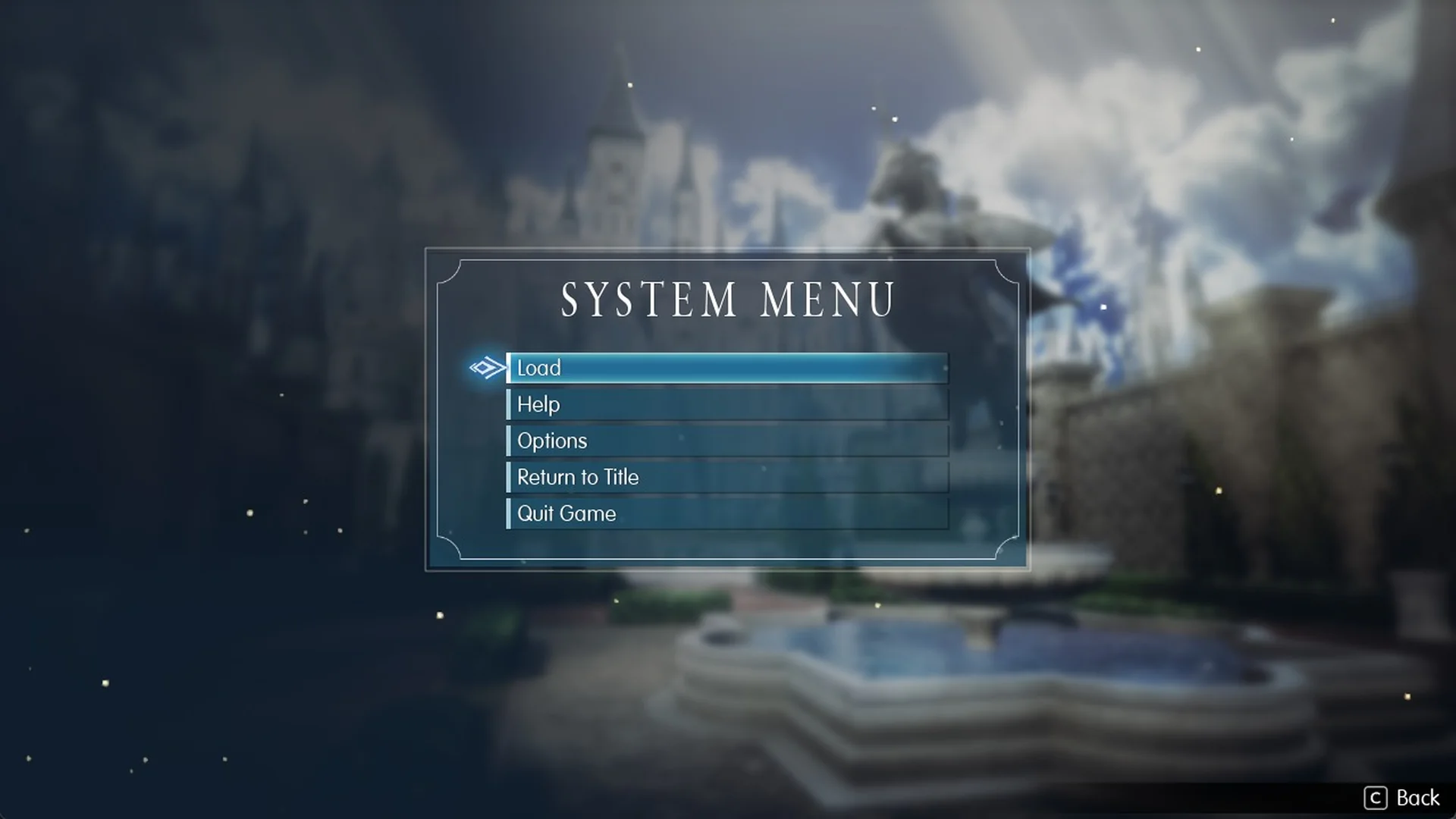
Away from a save point inside a dungeon, for example deeper in the Earth Shrine, and in the prologue’s “Battlefield”, the SYSTEM MENU (Esc, or Main Menu > System) has no Save row and lists only Load, Help, Options, Return to Title and Quit Game. In towns and dungeons, walk back to a save point when you want to save, and the game also autosaves along the way, as explained further down.
Saving on the field map
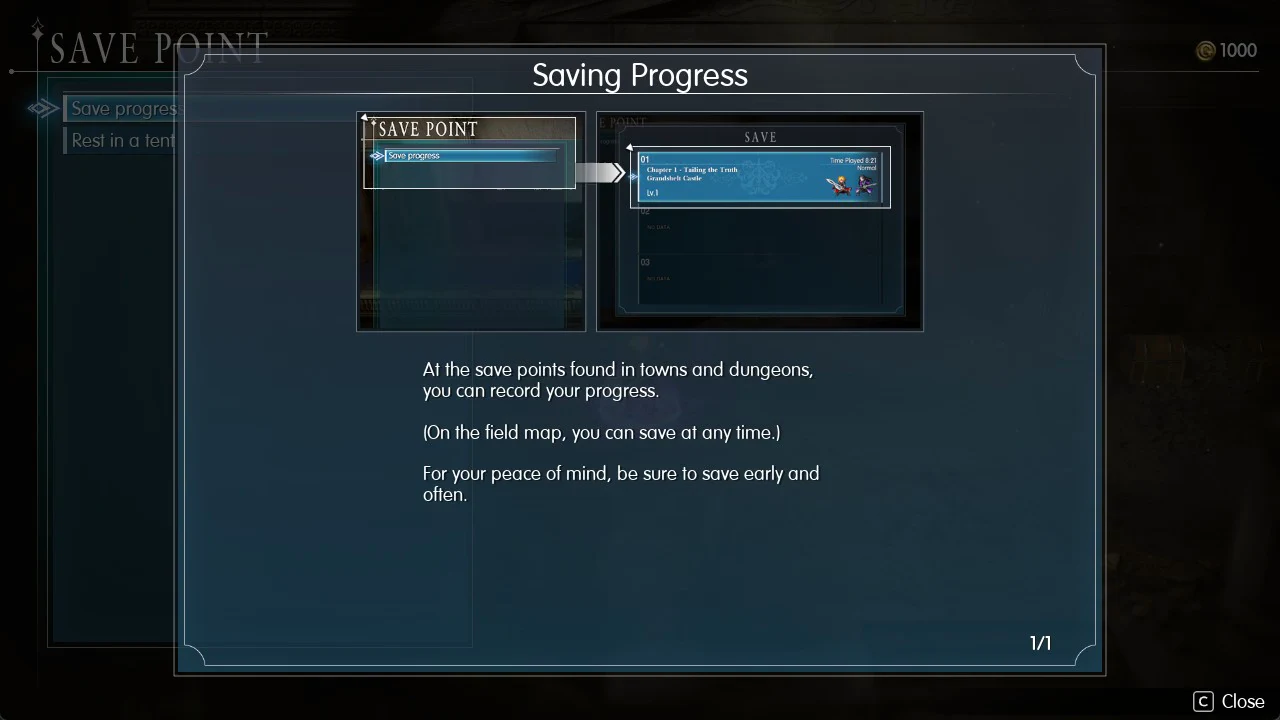
The field map is the map outside towns and dungeons, and the rules loosen there. The in-game “Saving Progress” tutorial spells it out.
At the save points found in towns and dungeons, you can record your progress.
(On the field map, you can save at any time.)
For your peace of mind, be sure to save early and often.
How autosave works in Final Fantasy Resonance
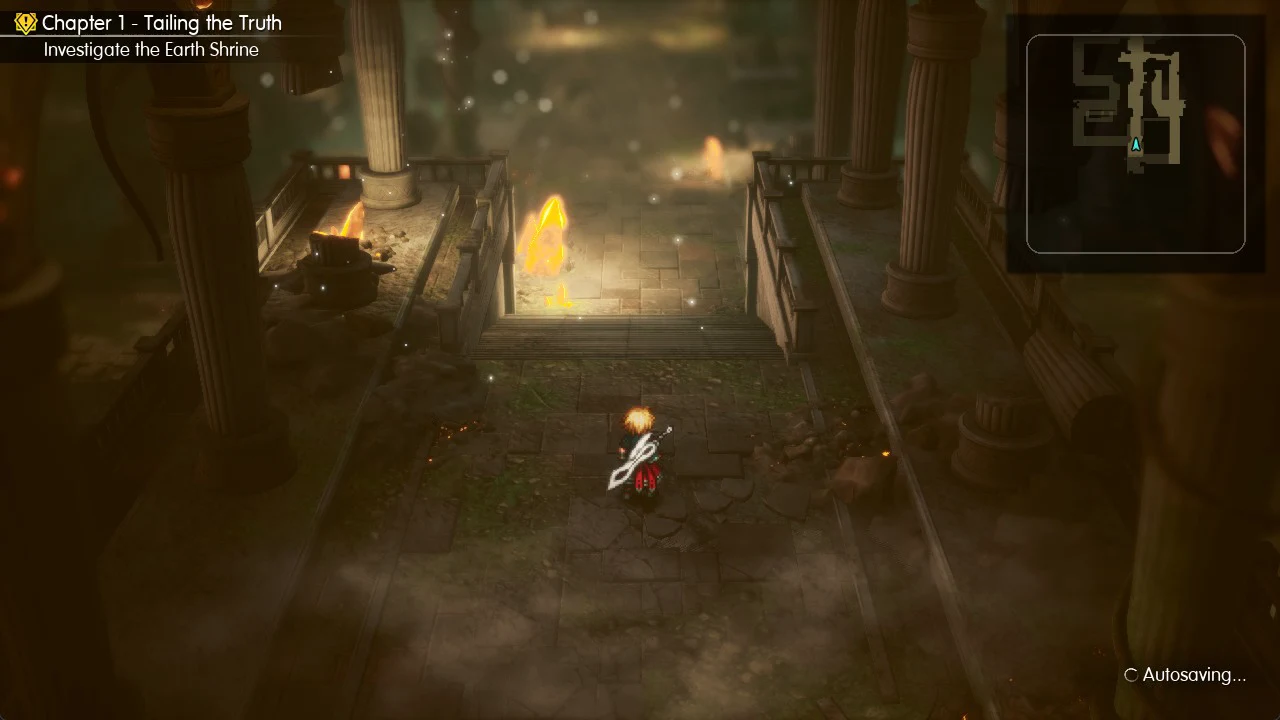
Yes, autosave is available. When the setting is enabled, the game saves automatically at events such as entering a new area. Enter the Earth Shrine and “Autosaving…” appears alongside a spinning icon in the screen’s bottom-right corner. An autosave also occurs after the prologue’s final battle; choose Continue on the title screen to resume from that point.
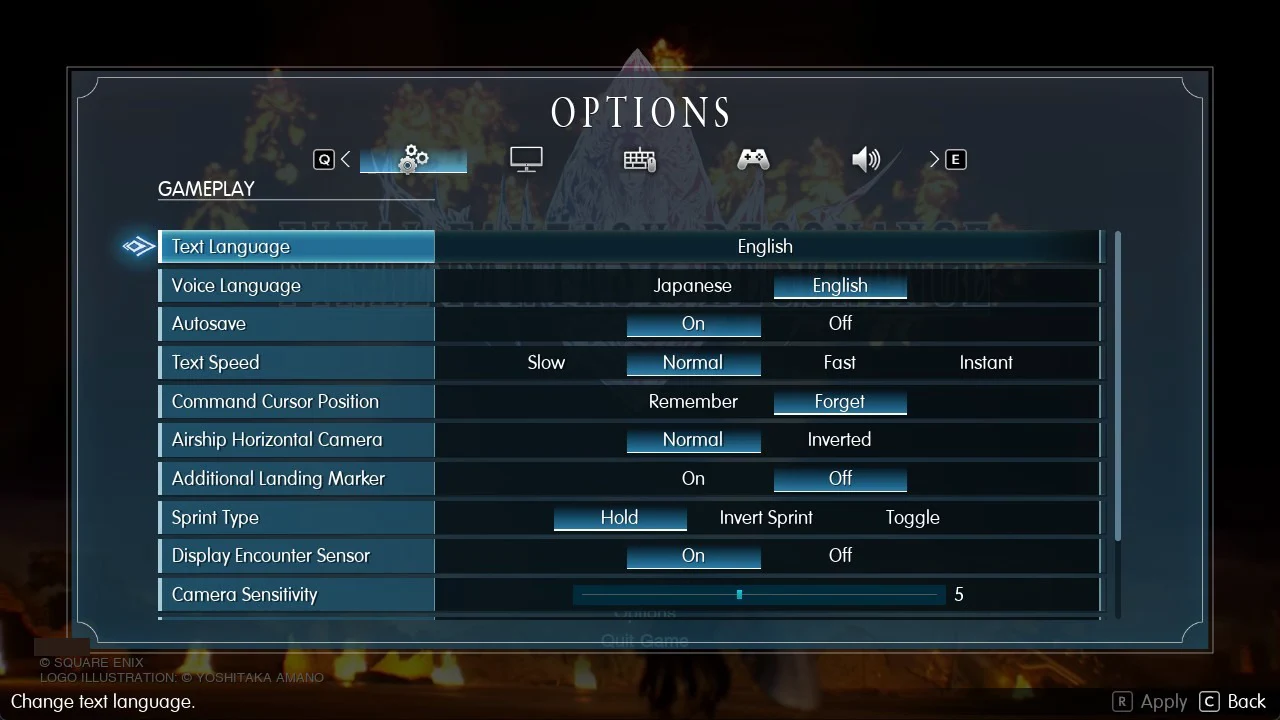
The toggle lives in Options under the Gameplay tab, on a row called “Autosave” with On and Off. It’s set to On by default.
The autosave is stored separately from your numbered slots, so keep making manual saves alongside it.
Resting in a tent at a save point
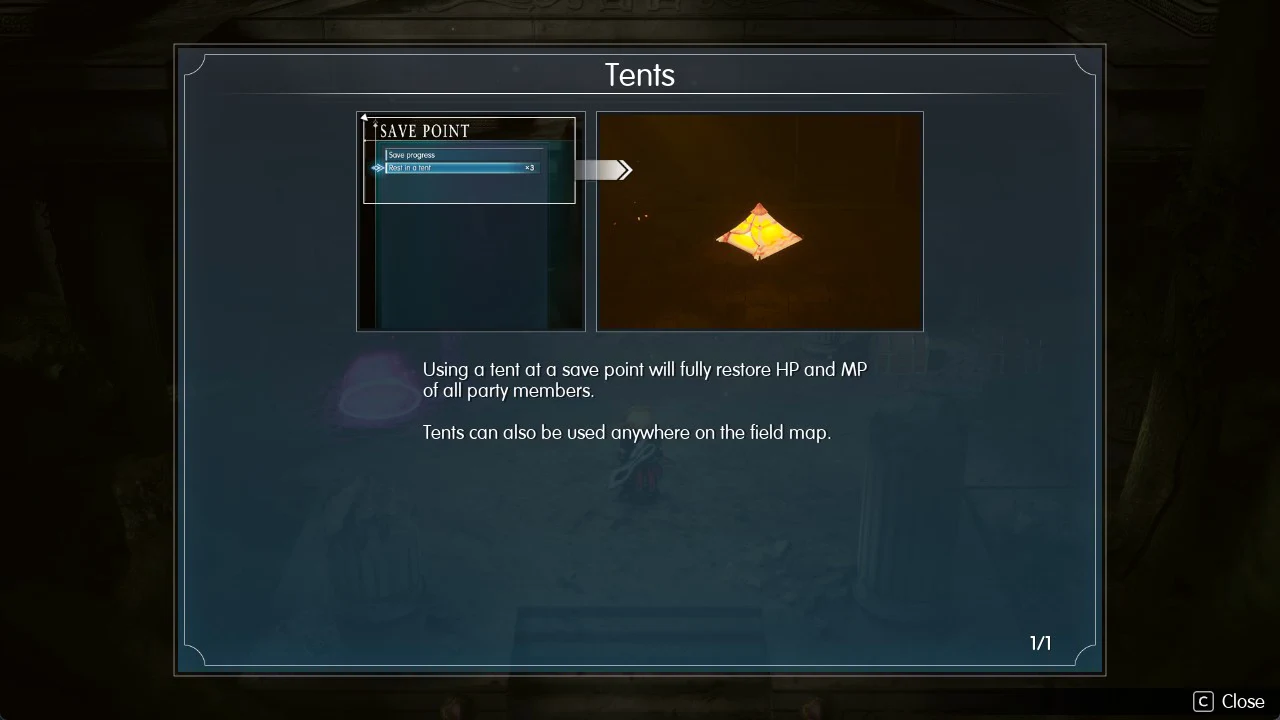
Choose the second row in the SAVE POINT menu, “Rest in a tent”, to heal your party. You have three tents at the Earth Shrine. The “Tents” tutorial covers how they work.
Using a tent at a save point will fully restore HP and MP of all party members.
Tents can also be used anywhere on the field map.
Loading a save
To load in-game, choose Load from the System Menu, either with Esc or through Main Menu > System. From the title screen, use Continue or Load.
Final Fantasy Resonance save file location on PC (Steam)
On Steam, your saves sit in a per-account folder inside your Windows user profile.
C:Users<your Windows user name>AppDataLocalFFRSSteam<your Steam ID number>For the quickest route, enter %LOCALAPPDATA%FFRSSteam in File Explorer’s address field, then open the directory labeled with your Steam ID number.
| File | What it holds |
|---|---|
GameSaveData0.sav | The autosave |
GameSaveData1.sav | Save slot 01 |
OptionSaveData.sav | Your Options settings |
EnhancedInputUserSettings.sav | Key bindings |
A save to slot 01 immediately updates GameSaveData1.sav. Steam Cloud is enabled for the game, and steam_autocloud.vdf is stored in the same folder; Steam syncs your saves between PCs.
Exit the game before backing up your progress, then copy the entire folder to a safe location.