On PC, Call of Duty: Modern Warfare 4 provides more visual controls than most players will need. Just a handful noticeably affect how the game plays. The others deal with power use, menu rendering, or cutscene effects. All settings are collected in one place, with a description panel explaining each option in the game’s own terms.
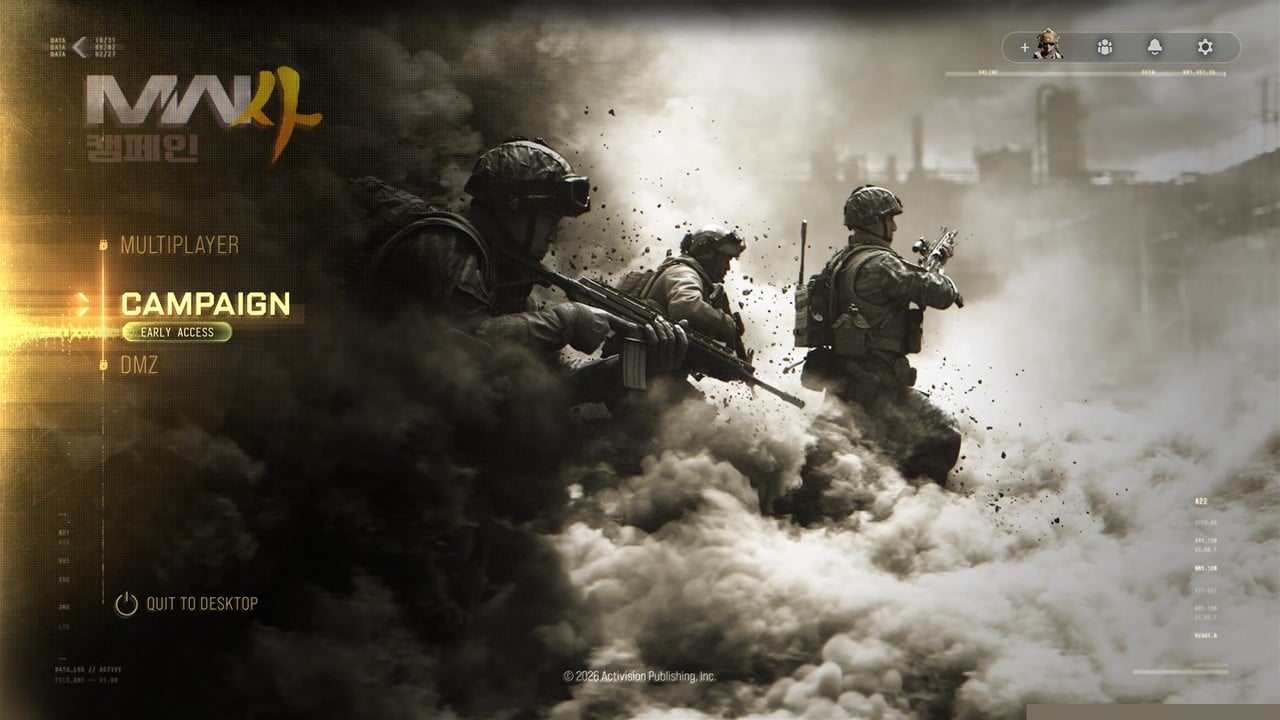
Quick answer: Go to Settings (the gear at the main menu’s upper right) > Graphics. Leave Reflex On, disable V-Sync (Gameplay) and choose a Custom Frame Rate Limit, use an upscaler without changing native resolution, and disable blur and grain.
Best Modern Warfare 4 graphics settings to change first
These picks are editorial choices. Each one follows the game’s own description of what the setting does.
- NVIDIA Reflex Low Latency: On, or On + Boost if GPU power draw doesn’t matter to you. The game says both modes reduce latency.
- V-Sync (Gameplay): Off. The game warns that V-Sync “induces some input lag”.
- Custom Frame Rate Limit: Choose Custom to set the cap here; the game notes that it “can help prevent instability”.
- Display Mode: Fullscreen Exclusive if you want to pick refresh rate and resolution yourself. Fullscreen Borderless if you alt-tab often.
- Resolution Scaling Technique: Stay at native resolution and select AMD FSR, NVIDIA DLSS (for NVIDIA cards), or Intel XeSS to gain frames. The game itself recommends keeping the native display resolution.
- Post processing: World Motion Blur and Weapon Motion Blur Off, World Depth of Field Cutscenes Only or Off, Film Grain 0 for a clearer picture.
- Shaders: Keep Background Shader Preloading enabled. After updating your GPU driver, run Restart Shader Preloading.
How to open the graphics settings in Modern Warfare 4
Looking for hardware-based presets instead? Our best Modern Warfare 4 PC settings by hardware tier covers low-end and high-end values, including the Advanced Quality page.
Press C on any row to add that setting to the Quick Settings tab, so you can reach it again without digging through Graphics.
Display tab settings explained
The Display tab covers the window, the monitor, latency, frame pacing and power saving. Defaults below are the values the game sets out of the box.
Display mode, resolution and shaders
| Setting | Default | What the game says |
|---|---|---|
| Display Mode | Fullscreen Borderless | “Choose the game display mode.” |
| Display Monitor | – | “Select on which monitor the game is displayed.” |
| Display Adapter | – | “Choose which display adapter to use. Display Adapter is also known as “Graphics Card” or “Video Card”.” |
| Screen Refresh Rate | Auto | “This setting only takes effect while playing in Fullscreen Exclusive.” |
| Display Resolution | Auto (native) | “Select the display resolution of the game. The HUD is affected by non-native display resolution and may become blurry.” |
| Aspect Ratio | Automatic | – |
| Background Shader Preloading | On | “Enables shader preloading as an out-of-game background task after game updates. It will prepare shaders before the next play session.” |
| Restart Shader Preloading | Button | “Deletes the shaders cache and preloads all shaders from the beginning. Shader Preloading prevents performance issues when playing on a map. This process only needs to be done once unless your display adapter’s drivers have changed.” |
| Display Gamma | 2.2 (sRGB) | “Choose between display gamma of 2.2 (sRGB) and 2.4 (BT1886).” |
| SDR Calibration | Button | “Calibrate your display for an optimal SDR viewing experience.” |
Display Mode has four options. Windowed is a “Resizable and movable window.” Fullscreen Exclusive means “The whole monitor space is used and the mouse cursor is constrained to this space.” Fullscreen Borderless means “The whole monitor space is used and the mouse cursor is free to leave this space.” Fullscreen Extended Window is for when “All the space on a multi-monitor setup is used.” Pressing ALT + ENTER switches between Windowed and Fullscreen at any time.
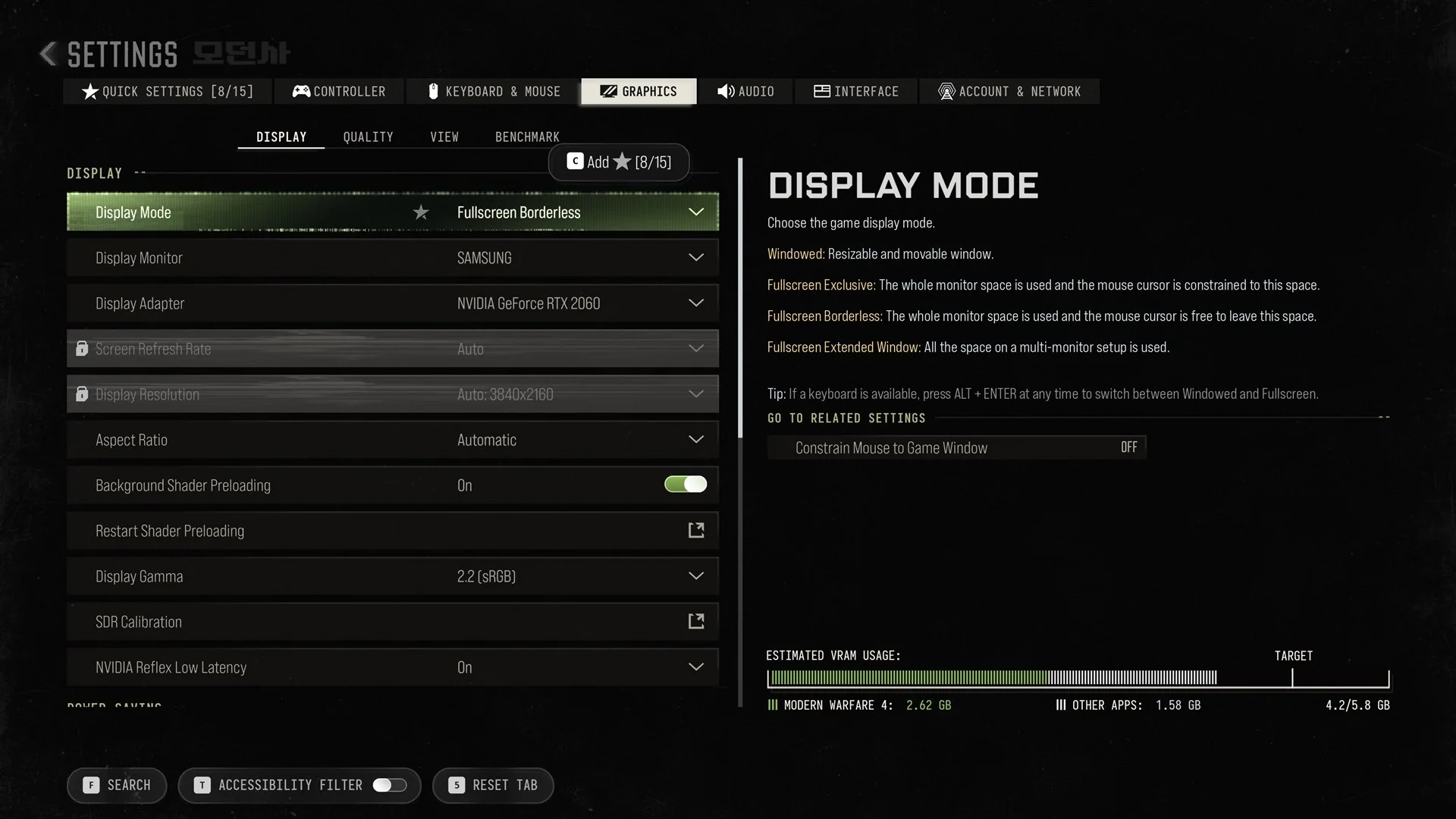
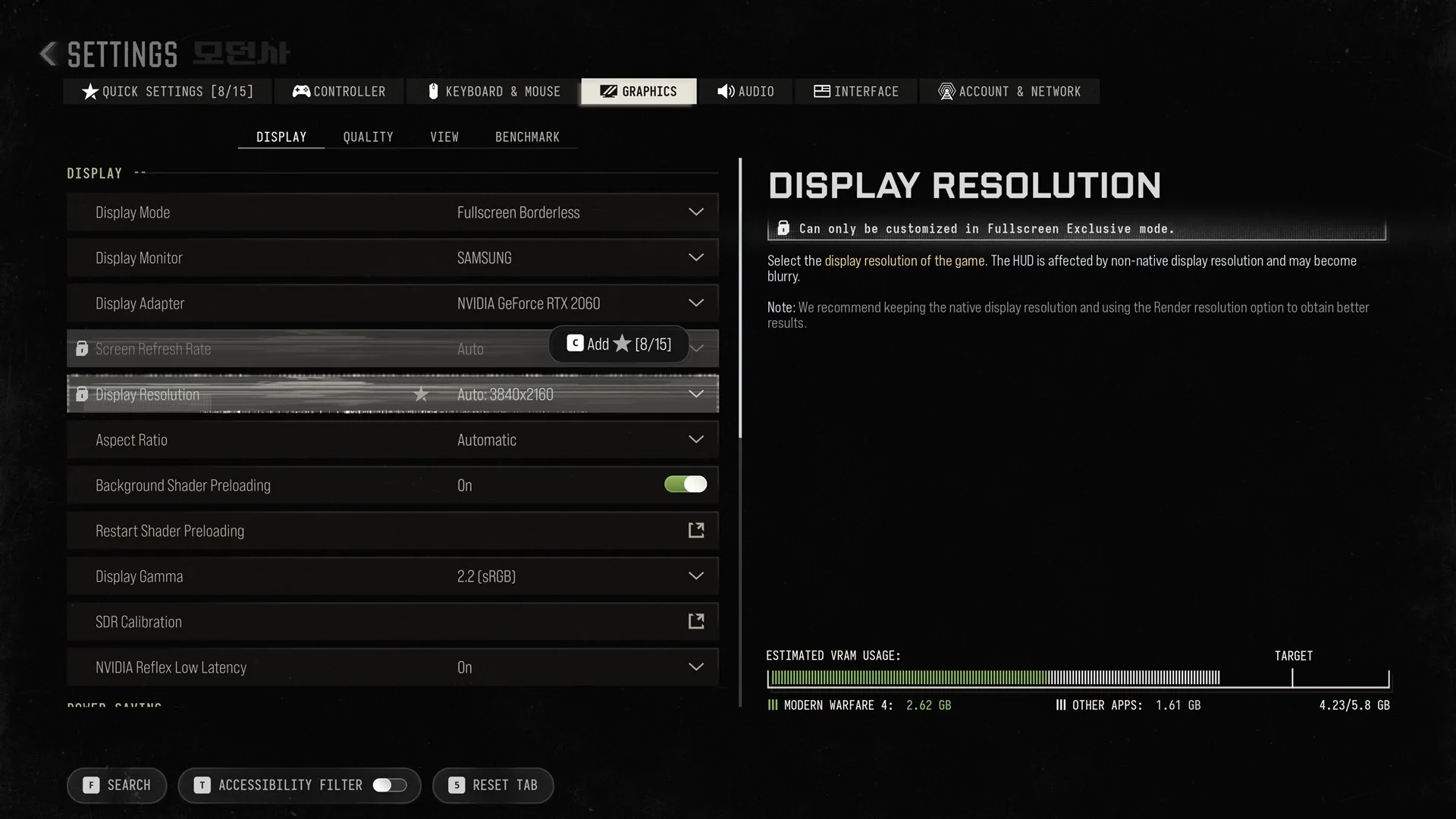
Mode choice decides what else you can change. In Borderless, Screen Refresh Rate is locked with the message “Display Mode is not set to Fullscreen Exclusive.” Display Resolution is locked too, reading “Can only be customized in Fullscreen Exclusive mode.” On a 4K monitor it shows Auto: 3840×2160. Even when it unlocks, the game advises: “We recommend keeping the native display resolution and using the Render resolution option to obtain better results.”
Changing Display Adapter needs a game restart. Restart Shader Preloading also needs a restart before the cache rebuild begins. If the background preload is canceled or you launch early, it picks up again inside the game. For Display Gamma, sRGB is usually the monitor choice and BT1886 the TV choice. The Aspect Ratio panel shows 32:9, 21:9, 16:9 and 16:10 frames.
Latency, V-Sync and frame rate
| Setting | Default | What the game says |
|---|---|---|
| NVIDIA Reflex Low Latency | On | “Low Latency mode is enabled and optimizing system latency.” |
| V-Sync (Gameplay) | Off | “Limits frame rate to match the refresh rate of the monitor while in gameplay.” |
| V-Sync (Menus) | 100% | Same description, applied “while in menus”. |
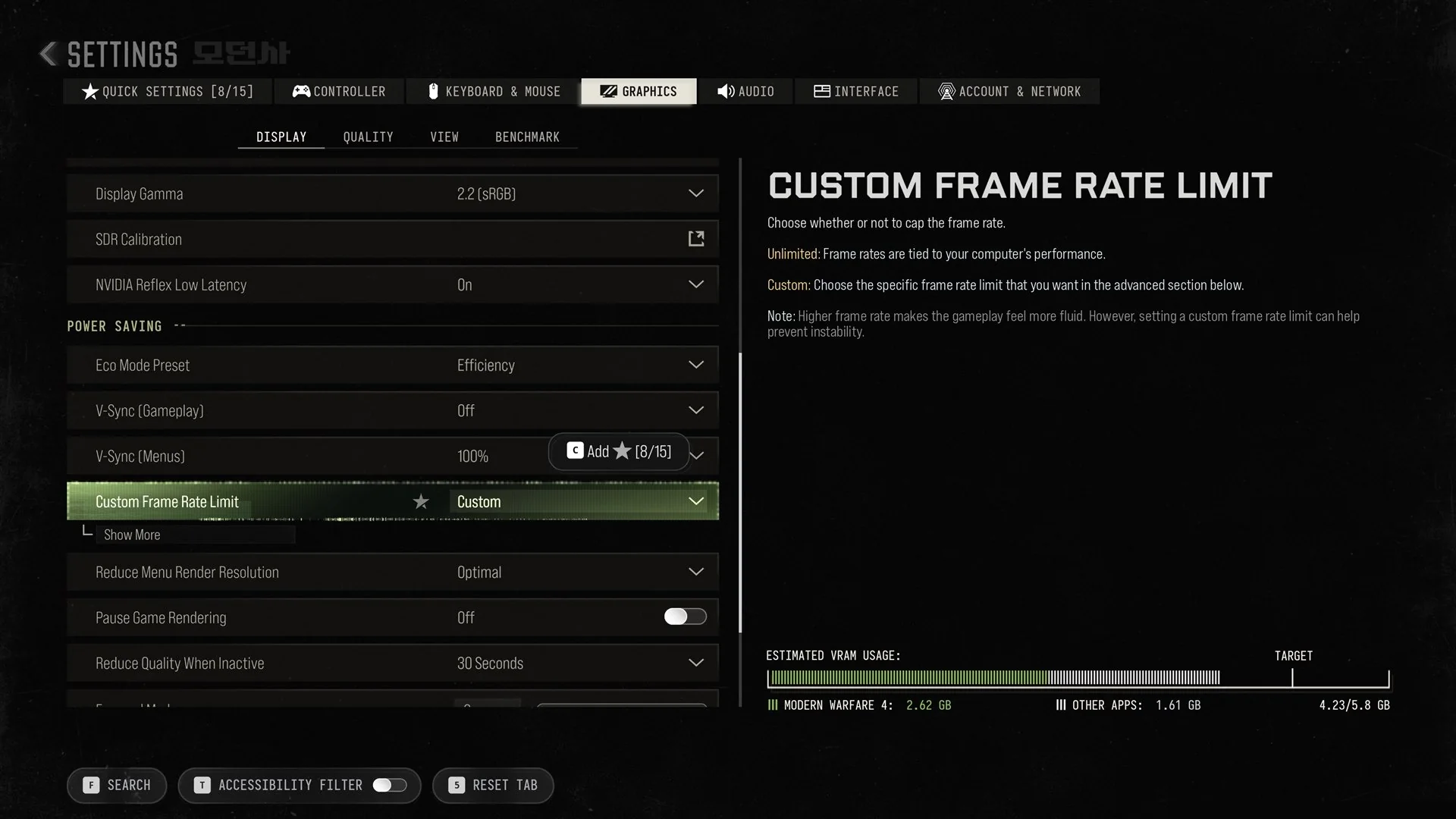
| Custom Frame Rate Limit | Custom | “Choose the specific frame rate limit that you want in the advanced section below.” |
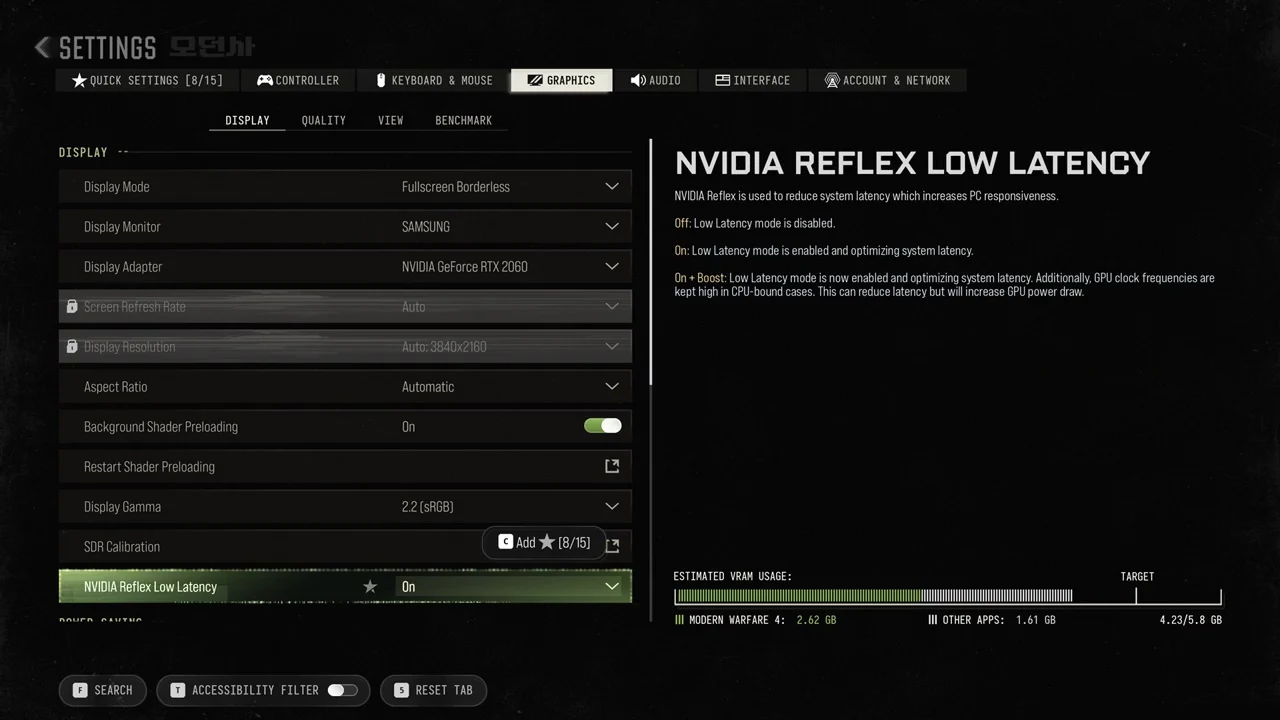
Reflex has three states. Off means “Low Latency mode is disabled.” On + Boost goes further: “Low Latency mode is now enabled and optimizing system latency. Additionally, GPU clock frequencies are kept high in CPU-bound cases. This can reduce latency but will increase GPU power draw.”
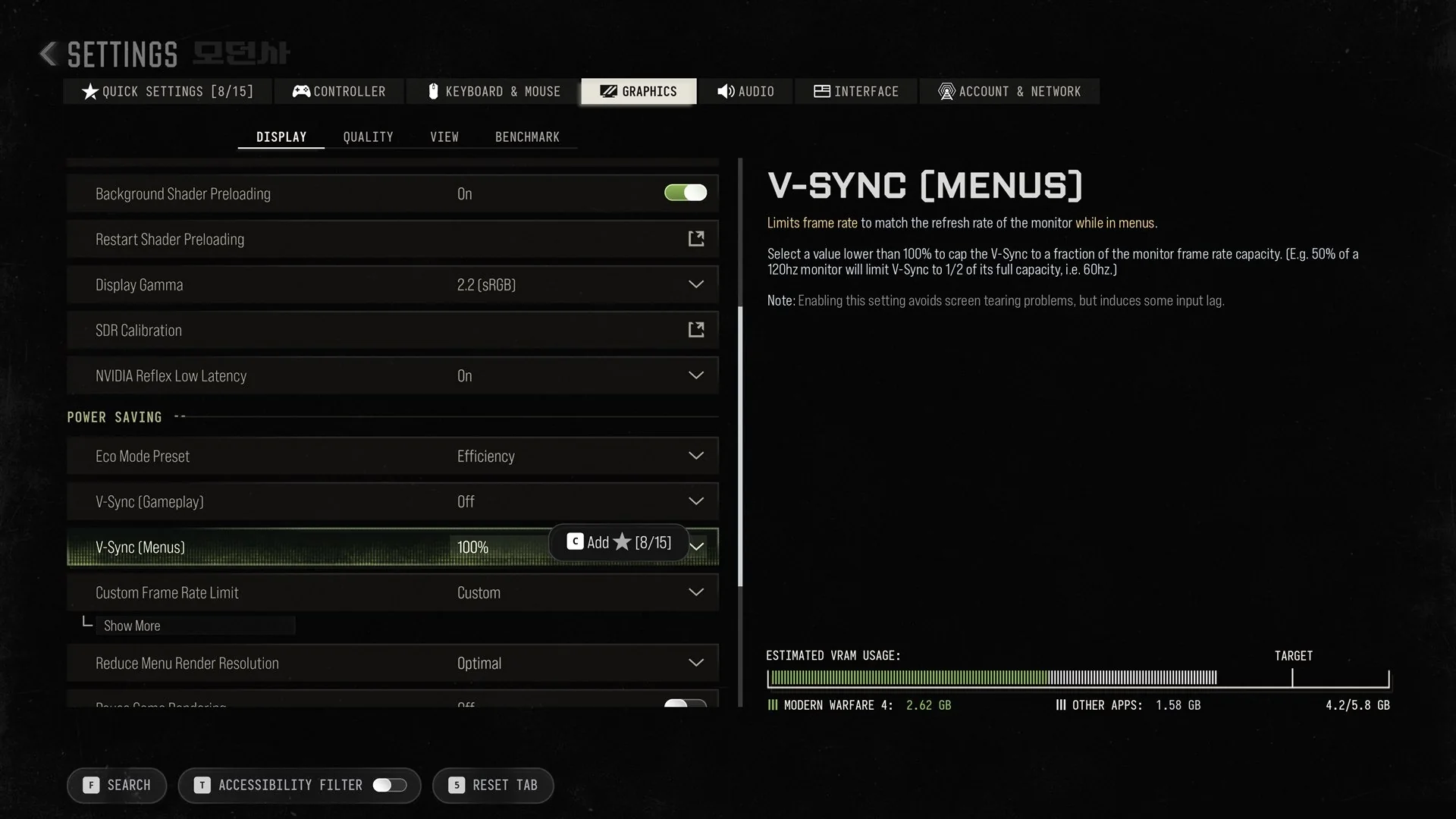
Both V-Sync rows take a percentage. “Select a value lower than 100% to cap the V-Sync to a fraction of the monitor frame rate capacity. (E.g. 50% of a 120hz monitor will limit V-Sync to 1/2 of its full capacity, i.e. 60hz.)” The trade-off is spelled out plainly: “Enabling this setting avoids screen tearing problems, but induces some input lag.” That lag is why V-Sync (Gameplay) is best left Off.
Custom Frame Rate Limit is the better way to cap frames. Unlimited means “Frame rates are tied to your computer’s performance.” Custom opens a cap value under Show More. The game’s note sums up both sides: “Higher frame rate makes the gameplay feel more fluid. However, setting a custom frame rate limit can help prevent instability.”
Power saving and HDR
| Setting | Default | What the game says |
|---|---|---|
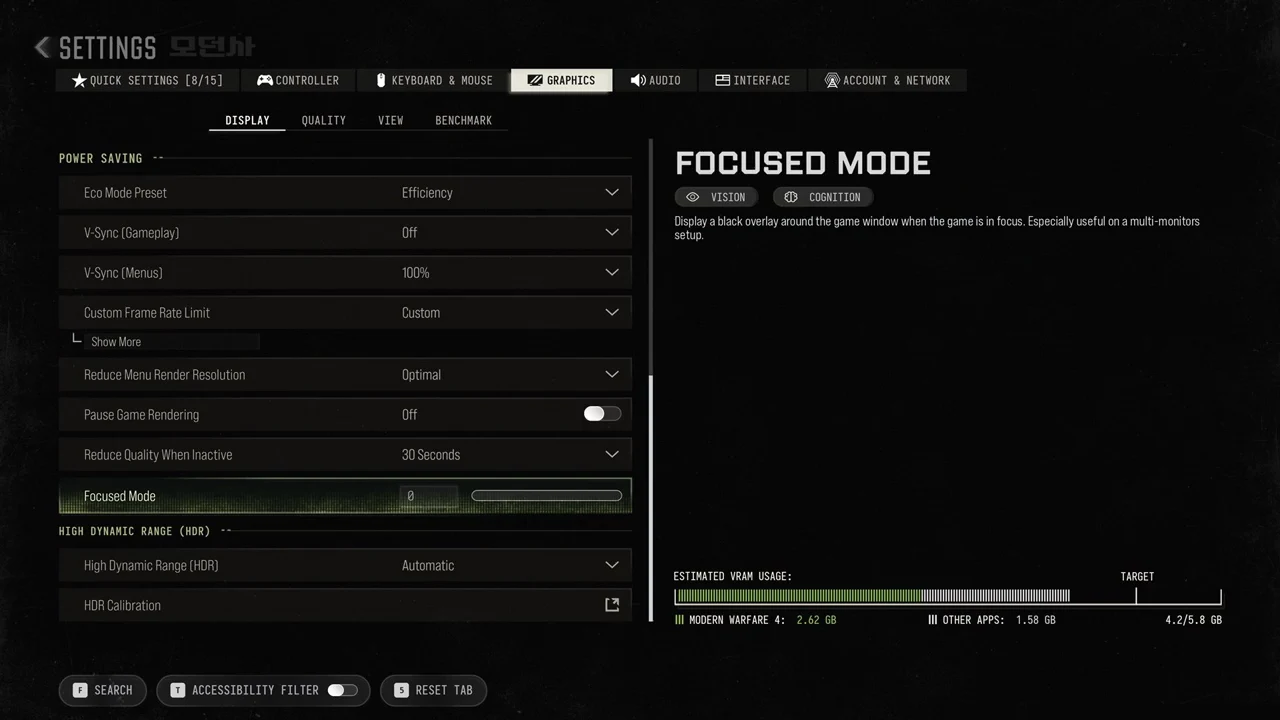
| Eco Mode Preset | Efficiency | “Enable power saving features that help decreasing your device’s energy consumption. Changing this setting will update V-Sync (Menus) and Focused Mode.” |
| Reduce Menu Render Resolution | Optimal | – |
| Pause Game Rendering | Off | “Stop rendering the 3D scene behind the pause menu to display a black background.” |
| Reduce Quality When Inactive | 30 Seconds | “Select an inactive period of time after which 3D scene resolution should be reduced and limit the frame rate.” |
| Focused Mode | 0 | “Display a black overlay around the game window when the game is in focus. Especially useful on a multi-monitors setup.” |
| High Dynamic Range (HDR) | Automatic | – |
| HDR Calibration | Button | – |
None of the power saving options affect play. Eco Mode and the menu-only settings carry the same note: “This has no impact on performance and visual quality while in gameplay.” Reduce Menu Render Resolution offers Native, Optimal and Maximal. Focused Mode is a slider.
Quality tab settings and upscalers
The Quality tab is where image detail and frame rate trade off. Its first row, Graphic Preset, rewrites most of the others.
| Setting | Default | What the game says |
|---|---|---|
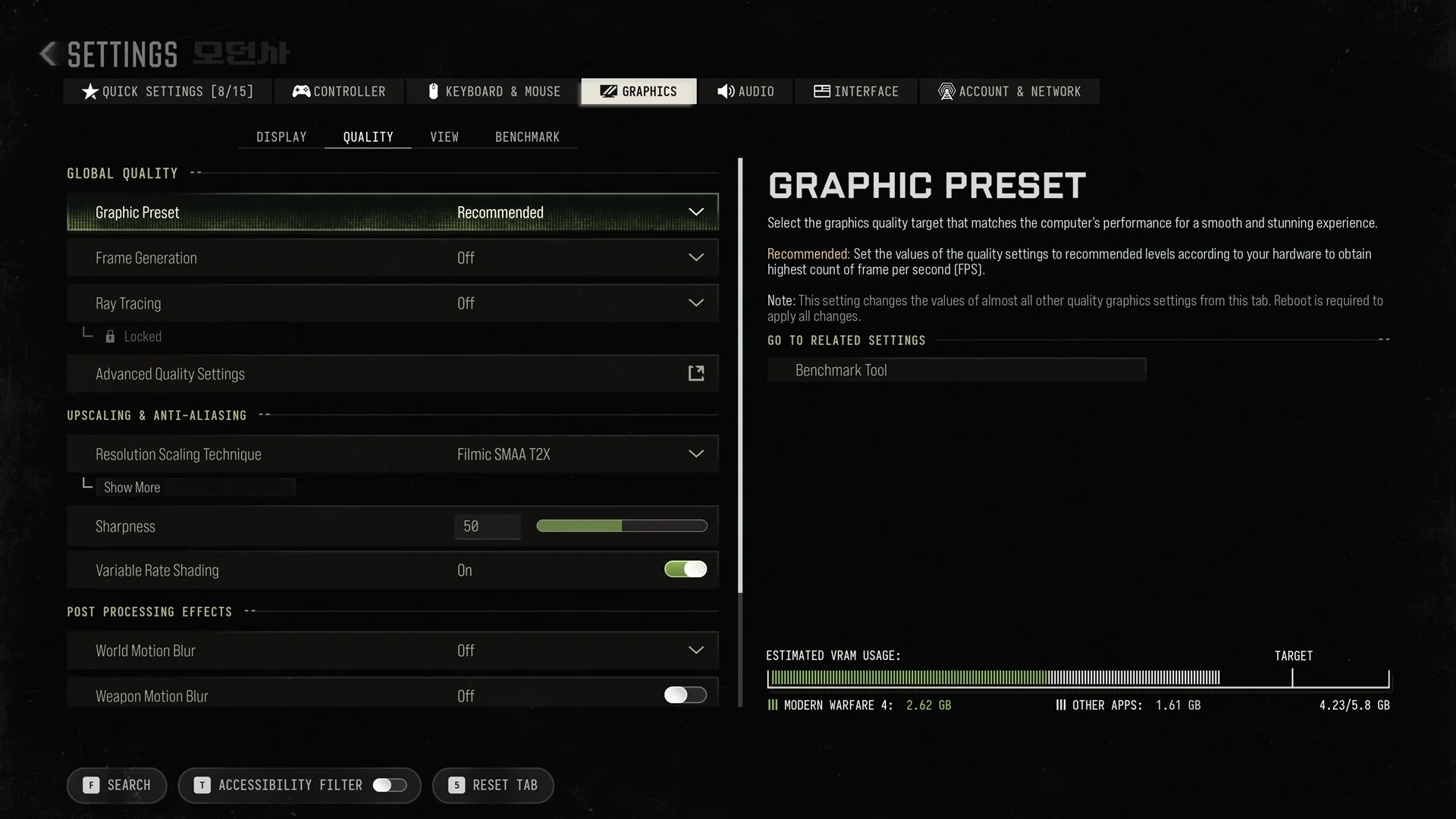
| Graphic Preset | Recommended | “Select the graphics quality target that matches the computer’s performance for a smooth and stunning experience.” |
| Frame Generation | Off | – |
| Ray Tracing | Off (can be locked) | – |
| Advanced Quality Settings | Button | – |
| Resolution Scaling Technique | Filmic SMAA T2X | “Select an upscaling solution to maximize performance.” |
| Sharpness | 50 | – |
| Variable Rate Shading | On | – |
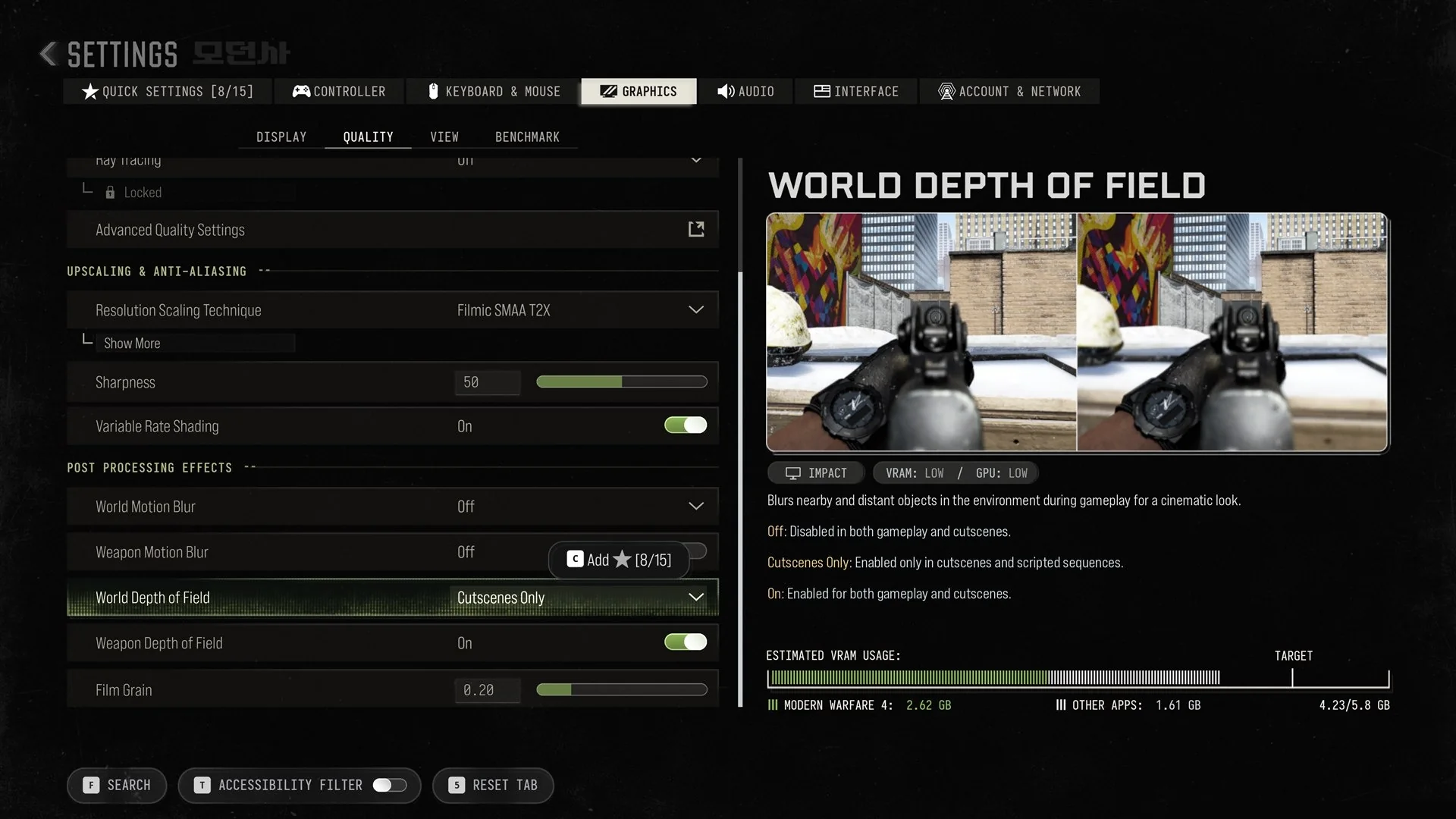
| World Motion Blur | Off | – |
| Weapon Motion Blur | Off | “Motion blur simulation is applied to the weapon while moving, aiming, and firing.” |
| World Depth of Field | Cutscenes Only | “Blurs nearby and distant objects in the environment during gameplay for a cinematic look.” |
| Weapon Depth of Field | On | – |
| Film Grain | 0.20 | – |
Recommended sets values “according to your hardware to obtain highest count of frame per second (FPS).” Switching presets has wide effects: “This setting changes the values of almost all other quality graphics settings from this tab. Reboot is required to apply all changes.” Pick a preset first, then adjust individual rows afterward.
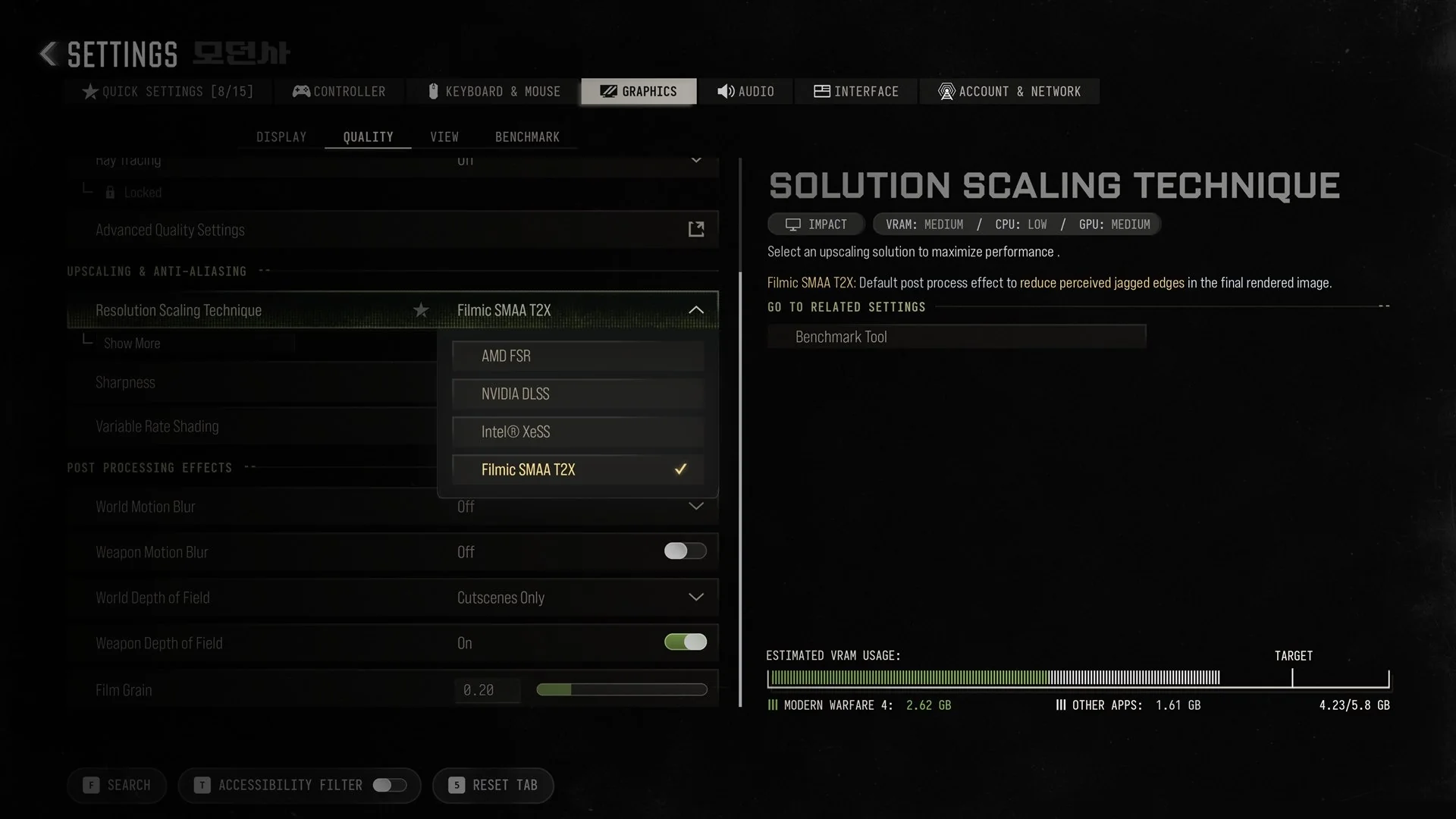
Resolution Scaling Technique lists four choices: AMD FSR, NVIDIA DLSS, Intel XeSS and Filmic SMAA T2X. Filmic SMAA T2X is the default and works as anti-aliasing, a “Default post process effect to reduce perceived jagged edges in the final rendered image.” Its impact tag reads VRAM Medium, CPU Low, GPU Medium. The game recommends keeping the native display resolution, so if you need more frames, switch this row to FSR, DLSS (NVIDIA cards) or XeSS rather than lowering Display Resolution.
World Depth of Field has three states. Off is “Disabled in both gameplay and cutscenes.” Cutscenes Only is “Enabled only in cutscenes and scripted sequences.” On is “Enabled for both gameplay and cutscenes.” For the clearest picture during play, leave it on Cutscenes Only or turn it Off, keep both motion blur rows Off, and drop Film Grain to 0. Weapon Motion Blur carries a GPU Low impact tag.
View tab: field of view and camera settings
| Setting | Default | What the game says |
|---|---|---|
| Field of View (FOV) | 95 | “Set the height and width of the in-game view. Selected value combined with the current aspect ratio creates the true field of view.” |
| Enhanced FOV | Off | – |
| ADS Field of View | Affected | – |
| 3rd Person Field of View | 90 | – |
| Vehicle Field of View | Default | – |
| 1st Person Camera Movement | Default (100%) | – |
| 3rd Person Camera Movement | Default (100%) | – |
| 3rd Person ADS Transition | 3rd Person ADS | – |
| Inverted Flashbang | Off | “Display a low-light black effect instead of the bright white flash effect of flash grenades.” |
The FOV panel also shows the true values your aspect ratio produces. At the default, it reads “True current values: Horizontal 95, Vertical 63.” The game caps the horizontal view at 135 and warns that “Values different from the default may cause a lower frame rate and some graphical artifacts.”
Benchmark tab: locked to Multiplayer Mode
| Setting | Default | What the game says |
|---|---|---|
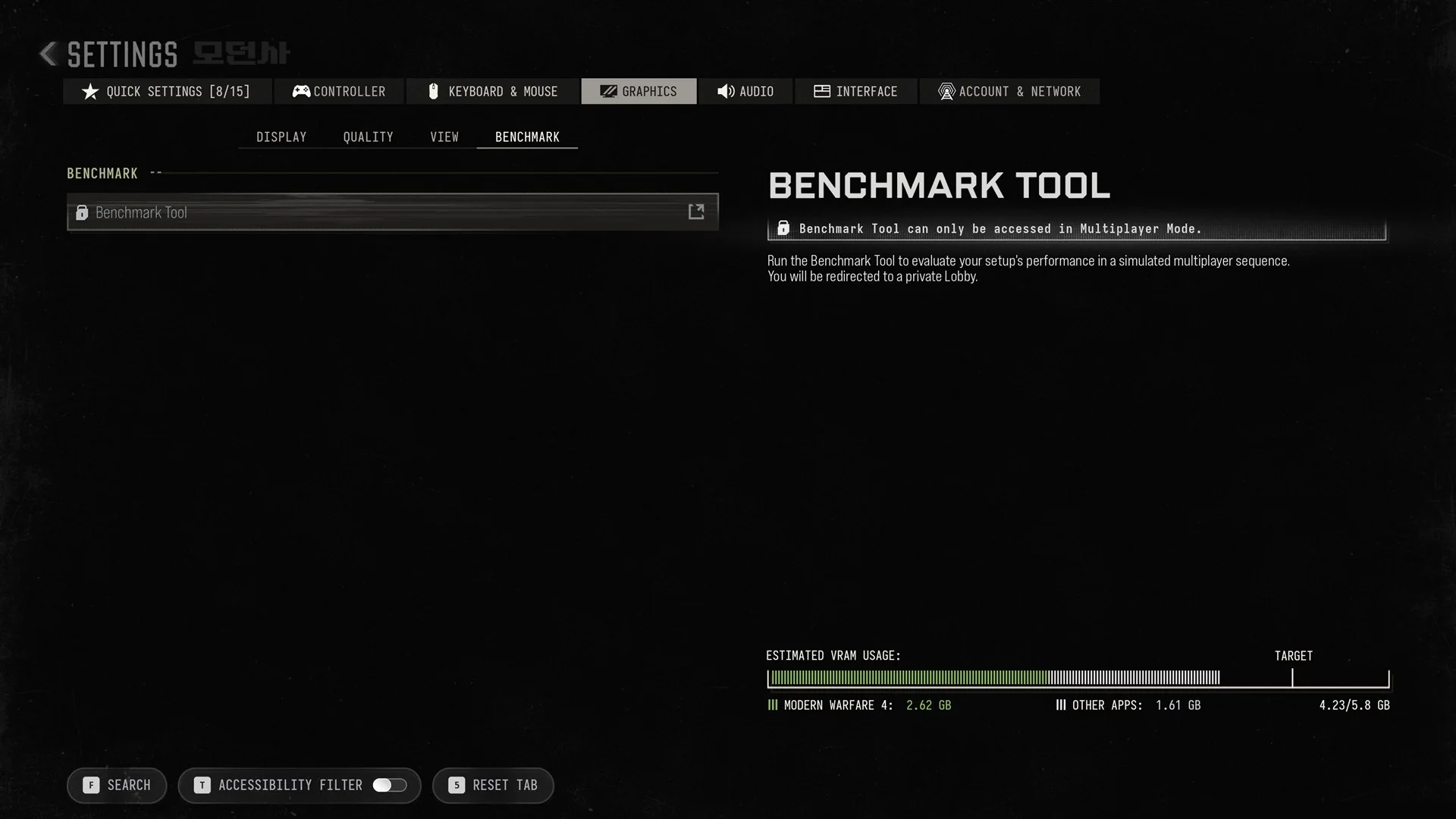
| Benchmark Tool | Locked | “Run the Benchmark Tool to evaluate your setup’s performance in a simulated multiplayer sequence. You will be redirected to a private Lobby.” |
When you’re outside Multiplayer, the row reads “Benchmark Tool can only be accessed in Multiplayer Mode.” Multiplayer is unavailable during Campaign Early Access, which means the tool cannot be run yet.
How to show FPS, ping and packet loss in Modern Warfare 4
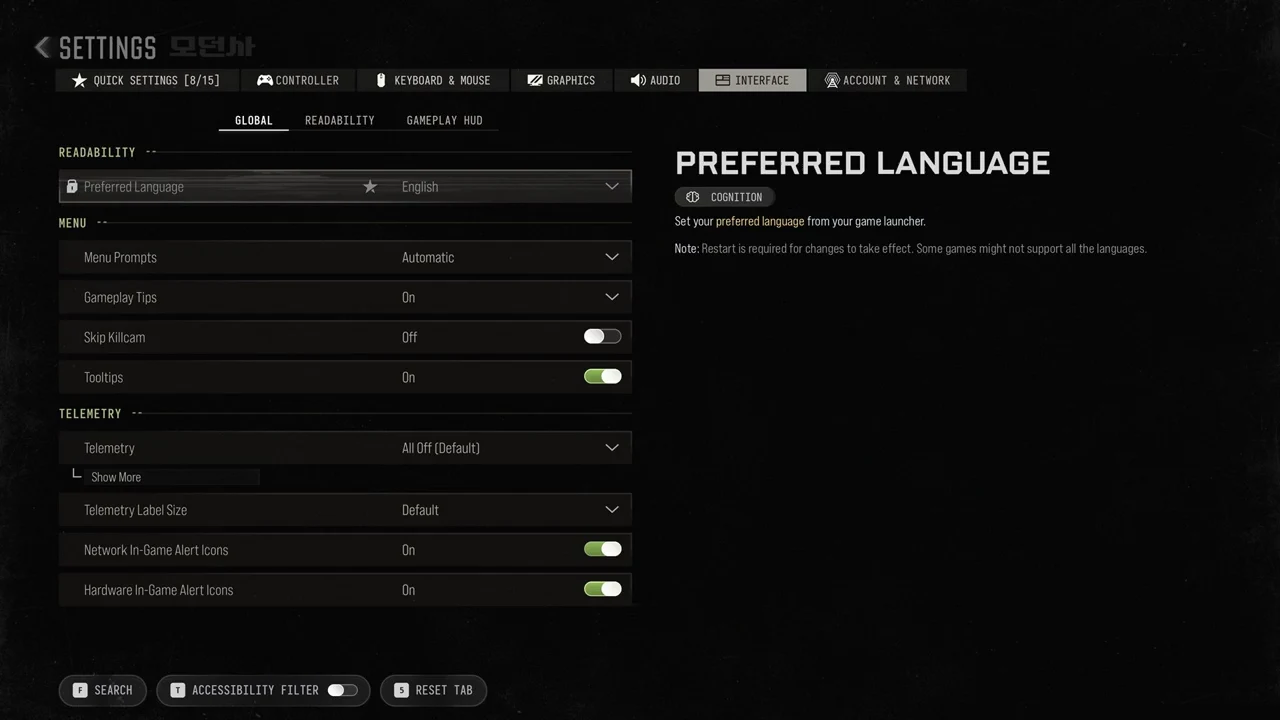
These options aren’t under Graphics. Go to the Interface tab and find the Telemetry section. Telemetry defaults to “All Off (Default)”, and its individual options sit under the dropdown and Show More. The same section has Telemetry Label Size (Default), Network In-Game Alert Icons (On) and Hardware In-Game Alert Icons (On).
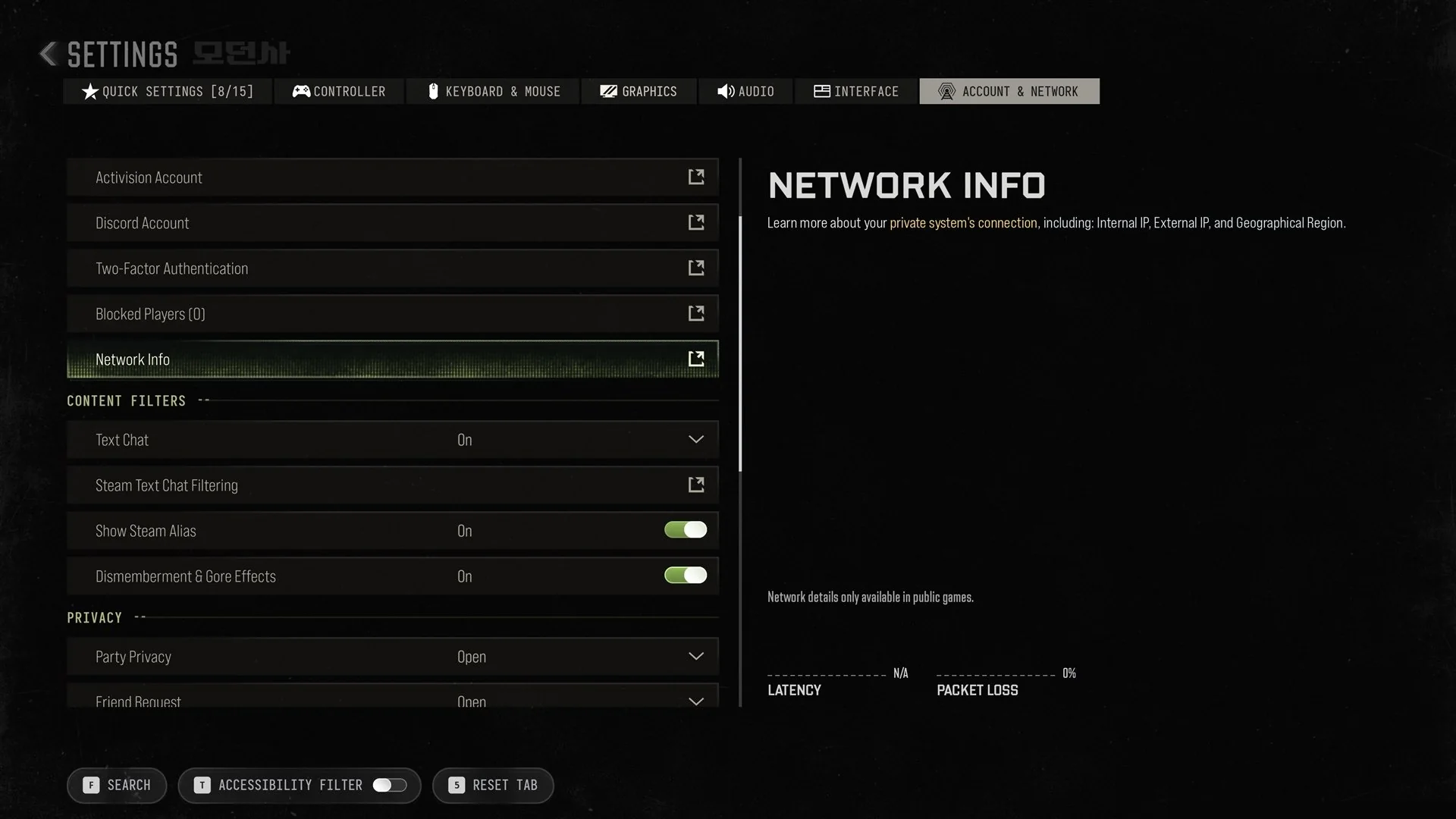
For connection stats, open Account & Network. The bottom of the side panel lists LATENCY and PACKET LOSS with the line “Network details only available in public games.” Outside a public match, they read N/A and 0%. Network Info lets you “Learn more about your private system’s connection, including: Internal IP, External IP, and Geographical Region.”