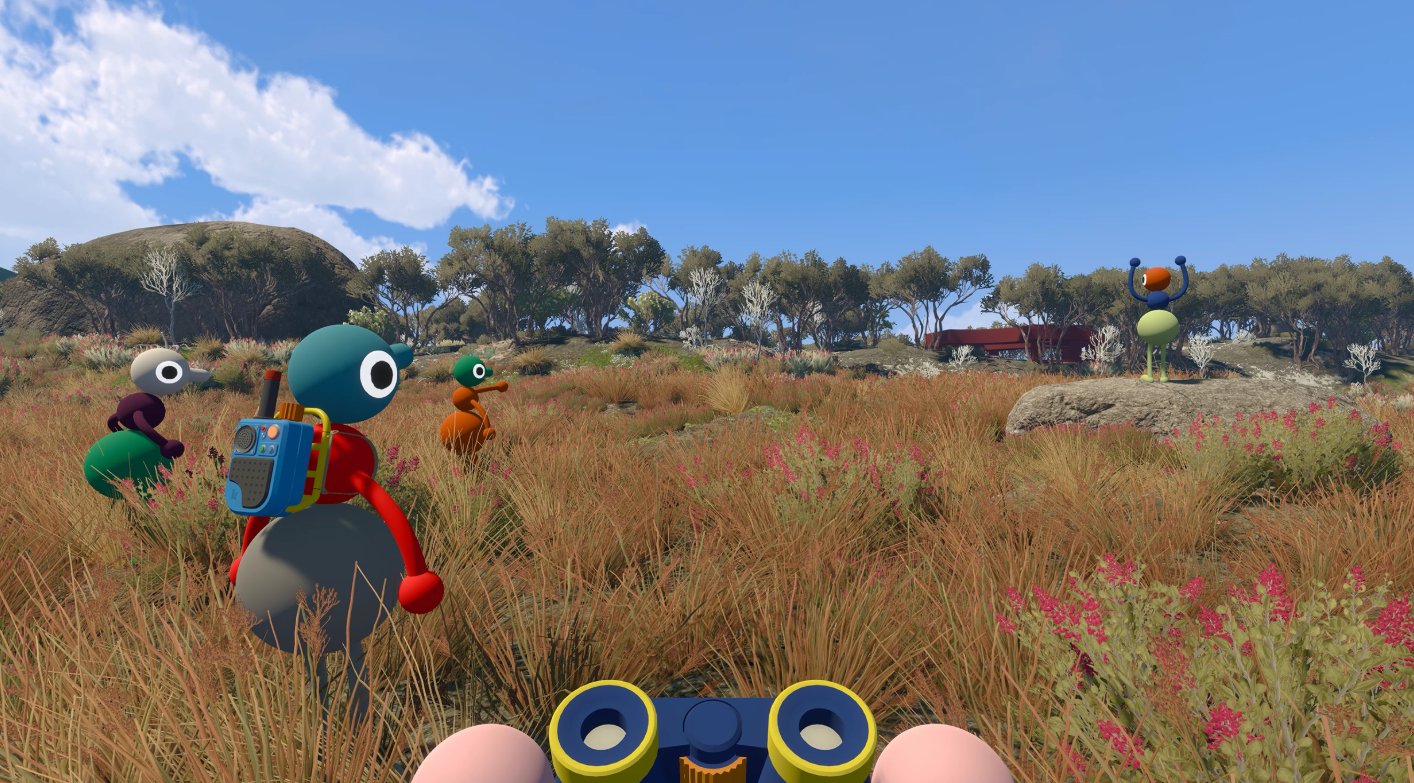
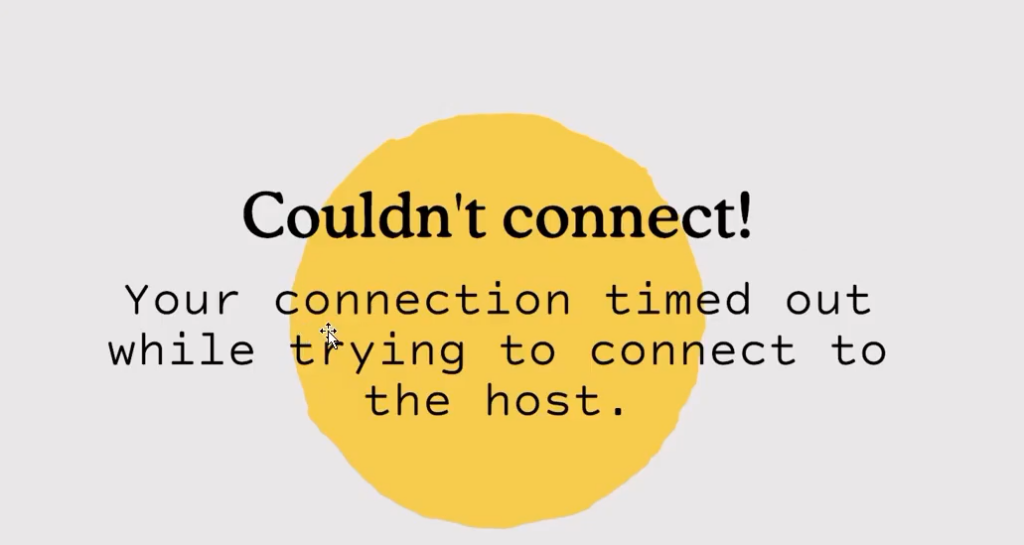
Big Walk lives or dies on getting two to twelve people into the same session, so a “connection to host timed out” message or a Session Unavailable banner effectively locks you out of the whole game. Most of these failures are not random. They trace back to who is hosting, whether everyone is on a compatible build, and whether the Join Code being used is still active. Work through the checks in order and change one thing at a time.
Quick answer: Have the host fully load the intended saved world first, confirm the first two version numbers match on every player’s main menu, then rejoin using a freshly generated Join Code. If one device can neither host nor join any session, sync its system clock and fully restart Big Walk.
How Big Walk sessions actually work
Big Walk has no public matchmaking. One person is the host, and that host holds the save file and all group progress. Nobody can enter until the host has started the session and is standing in the world. When the host closes the game or returns to the title screen, everyone else is disconnected and the save stays with that original host.
Every time the host starts a session, the game creates a new short Join Code. That means any older code becomes useless the moment the host restarts. Friends can also connect through their platform friends list on Steam, PlayStation, or Nintendo Switch Online, but the Mac App Store edition does not expose a friends list, so those players must use a Join Code instead.
Because the host owns progress, switching to a different host to test a connection also switches to a different save. Treat host swapping as a diagnostic step, not a fix, and don’t accidentally continue your main journey on the wrong world.
Match the symptom to the right check
Before touching your router or reinstalling anything, identify what you’re seeing on screen. Each symptom points to a specific first check.
| What you see | Check this first |
|---|---|
| Friend’s session is missing from the list | Friend status, then the host’s current Join Code |
| “Session unavailable” | Host is loaded and both first two version numbers match |
| Join attempt times out | Fresh session, fresh code, one retry after a restart |
| Host menu stuck on “connecting” | Fully restart the game and the platform network session |
| Everyone jitters or voices drop | The host’s network and frame rate |
| Everyone disconnects at once | Whether the host ended or lost the session |
| Cannot host or join any session | The device’s system clock |
Run a clean connection test in order
1.4.5 and 1.4.7 are compatible, while 1.4.7 and 1.5.0 are not.You’ll know it worked when the joining player loads into the same world and can move and communicate with the group. If only one person keeps failing while everyone else connects, the problem is tied to that single player’s device or network rather than the host.
Version mismatches and crossplay
Crossplay is supported across Windows and Mac, PlayStation 5, and Nintendo Switch 2, so a platform difference by itself does not block a group. What does block a group is a hotfix arriving on one platform before another, which pushes the first two version numbers out of alignment.
| Versions | Can they play together? |
|---|---|
1.4.5 and 1.4.7 | Yes — first two segments (1.4) match |
1.4.7 and 1.5.0 | No — 1.4 and 1.5 differ |
Do not diagnose a mismatch from the third number alone. A different final segment is normal and expected. If the first two segments still differ after everyone checks for updates, there is no safe local workaround. Wait for the remaining platform update rather than downgrading or editing game files.
Sync the system clock when nothing connects
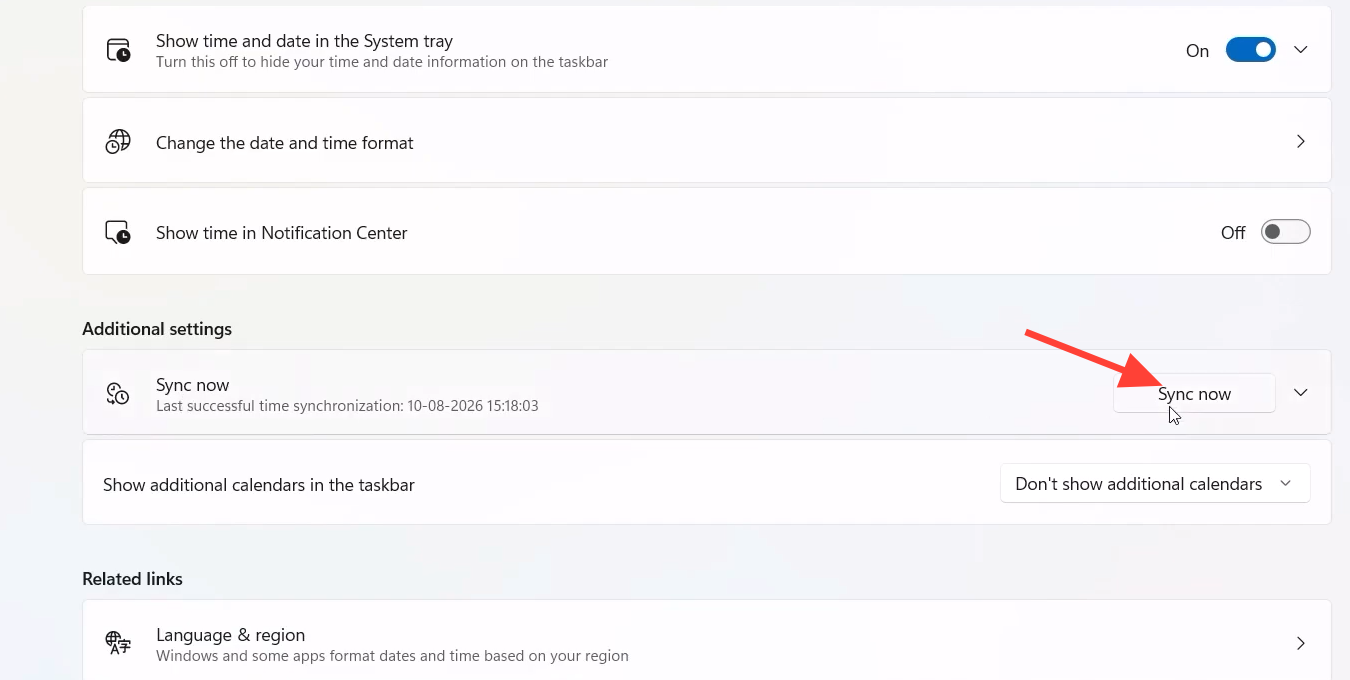
If one device cannot create a usable host session and also cannot join anyone else, the culprit is often an inaccurate system clock. A time that drifts too far from the correct online time can block both hosting and joining.
On Windows, open Settings > Time & language > Date & time, turn on automatic date and time, confirm the correct time zone, and use the sync control. Restart Big Walk fully afterward. Only reach for this fix when both hosting and joining fail on the same machine; if other sessions work, stay with the host, version, code, and restart checks.
Jitter, disconnects, and unstable networks
If a session connects but players rubber-band or voices keep cutting out, work on the connection quality. Close network-heavy programs and pause large downloads or cloud backups, move closer to your router, or switch to a wired Ethernet connection where possible.
The host’s performance matters for the whole group. If everyone jitters together, check the host’s frame rate and network before blaming individual players. The host can lower Quality and Render Scale under Settings > Graphics if the entire group is affected. If only one player is unstable, focus on that single connection instead.
After an isolated disconnect, the host stays in the world and keeps progress automatically. The disconnected player restarts only their own game, then rejoins with the current code from Session Details or through the friends list.
Voice chat that is silent or too quiet
Big Walk relies on in-game proximity voice and text chat, and both are built to fade with distance or cut off through soundproof glass by design. If a teammate sounds faint, that may simply be the range mechanic rather than a fault. For a genuinely dead mic, check the selected input device, mute settings, input volume, and Microphone Activity under Settings > Audio.
Text chat carries the same features and the same intentional limitations as voice, so you can play the entire game without a microphone and still work with items like walkie talkies.
What not to change first
Skip the drastic fixes at the start. Port forwarding, deleting firewall rules, changing DNS, adding a VPN, or reinstalling the game do not appear in the official connection checklist for these launch symptoms, and some of them create new problems. There is not enough verified evidence to recommend them for a timeout or unavailable-session error.
Above all, do not delete the host’s saved data to try to fix a connection. The host owns the entire group’s world, so touching that save costs far more than restarting a session ever would.
What to record before contacting support
If the clean test still fails across multiple players and networks, gather a precise report instead of a vague “it doesn’t work.” Note every platform and store edition, the game version on each system, which platform hosted, the exact on-screen error text, and your local date, time, and time zone. Add whether the room appeared in the friends list, whether a fresh Join Code failed, whether a same-platform player could join, and whether the fault hit one player or the whole group.
Redact any active Join Code or password from public posts, since they grant access while the session is live. Send the details to [email protected]. With most launch-week timeouts, though, the fix comes down to the same short loop: host loads first, versions align, code is fresh, and the clock is correct.