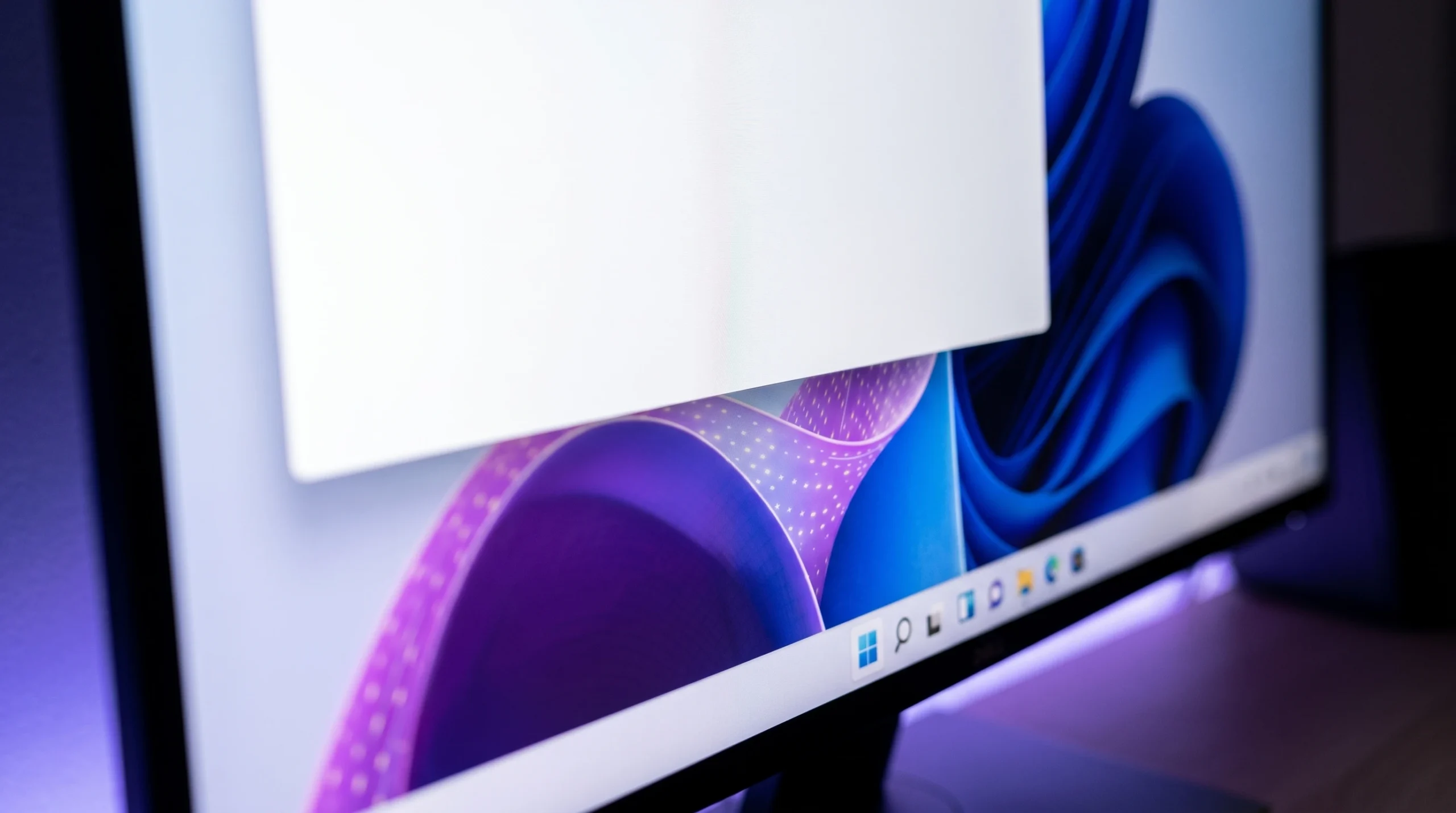
A blank white window that appears in the top-left of the screen right after you start or unlock a PC is tied to a Google Chrome background task, not malware or a broken Windows install. It shows up on both Windows 11 and Windows 10, sits on top of the desktop for a few seconds, cannot be clicked, and then vanishes on its own. The same box reappears each time you enter your PIN to sign back in.
Quick answer: Open Task Scheduler, expand the GoogleUserPEH folder, right-click RunPlatformExperienceHelperOnUnlock, and choose Disable. The window stops appearing on the next boot and after unlocking.
What causes the blank white window
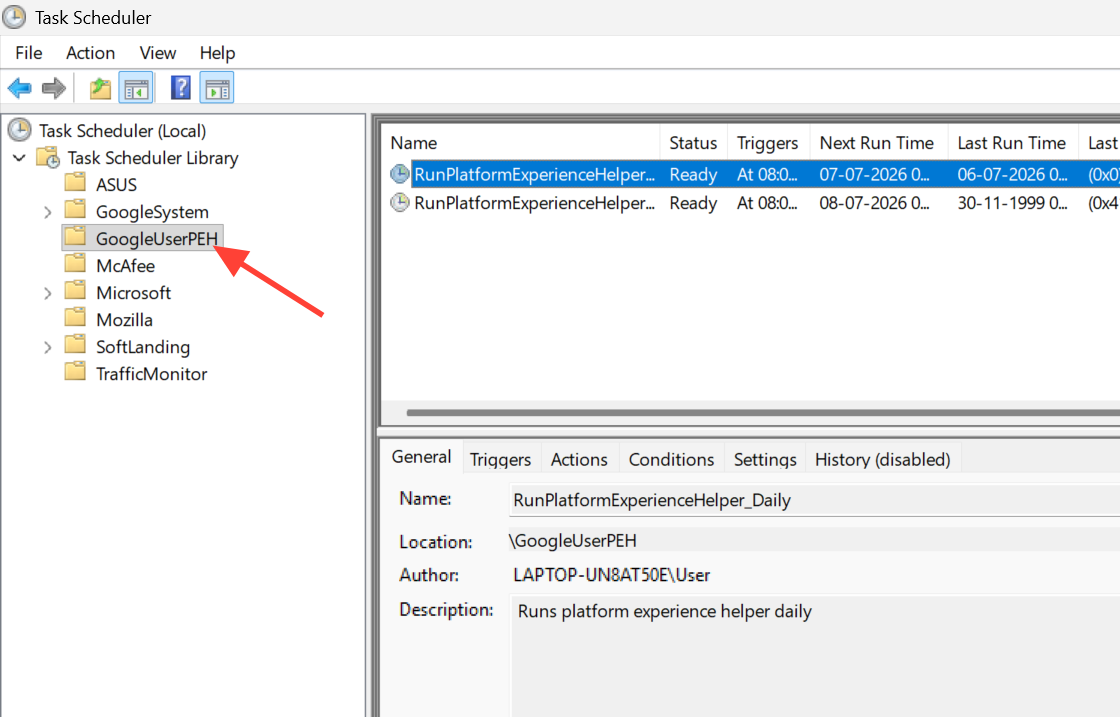
The trigger is a scheduled task that Chrome registers under a folder named GoogleUserPEH in Windows Task Scheduler. The task is called RunPlatformExperienceHelperOnUnlock, and it runs when you unlock or sign in to Windows. Running that task manually produces the exact same empty window every time, which confirms it as the source.
Because the behavior comes from a browser component rather than hardware, it is not limited to one type of machine. Affected setups include both Intel and AMD systems, desktops and laptops, and different graphics cards. Full malware scans with Windows Security (Defender) and Malwarebytes come back clean, and running the System File Checker (SFC) finds nothing wrong. The window is a graphical side effect, not a sign of infection.
The task does not exist on every PC that has Chrome installed. Some machines with the same GoogleUserPEH folder do not have the RunPlatformExperienceHelperOnUnlock entry inside it, so they never show the window.
Disable the RunPlatformExperienceHelperOnUnlock task
Task Scheduler, and open it. This is the built-in tool that manages tasks set to run automatically.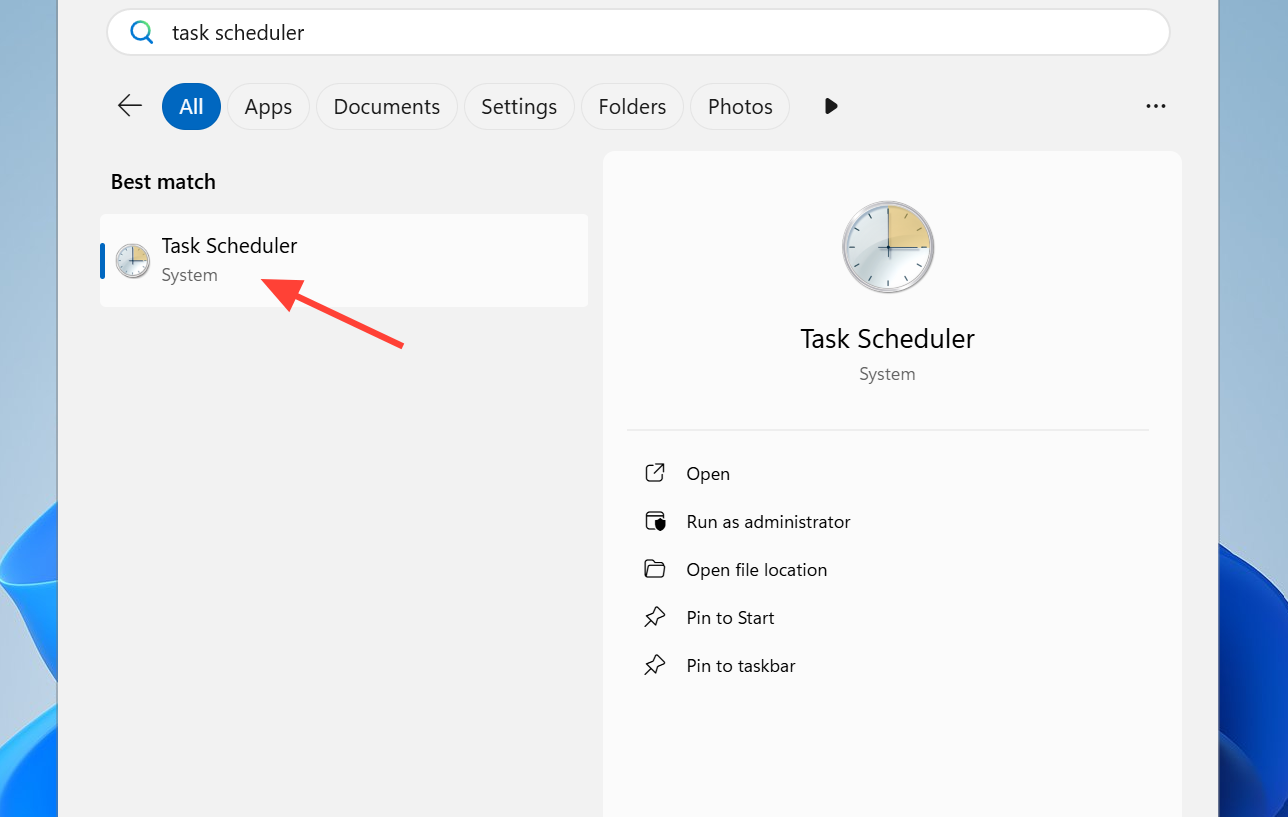
GoogleUserPEH folder. The tasks stored inside it appear in the center list.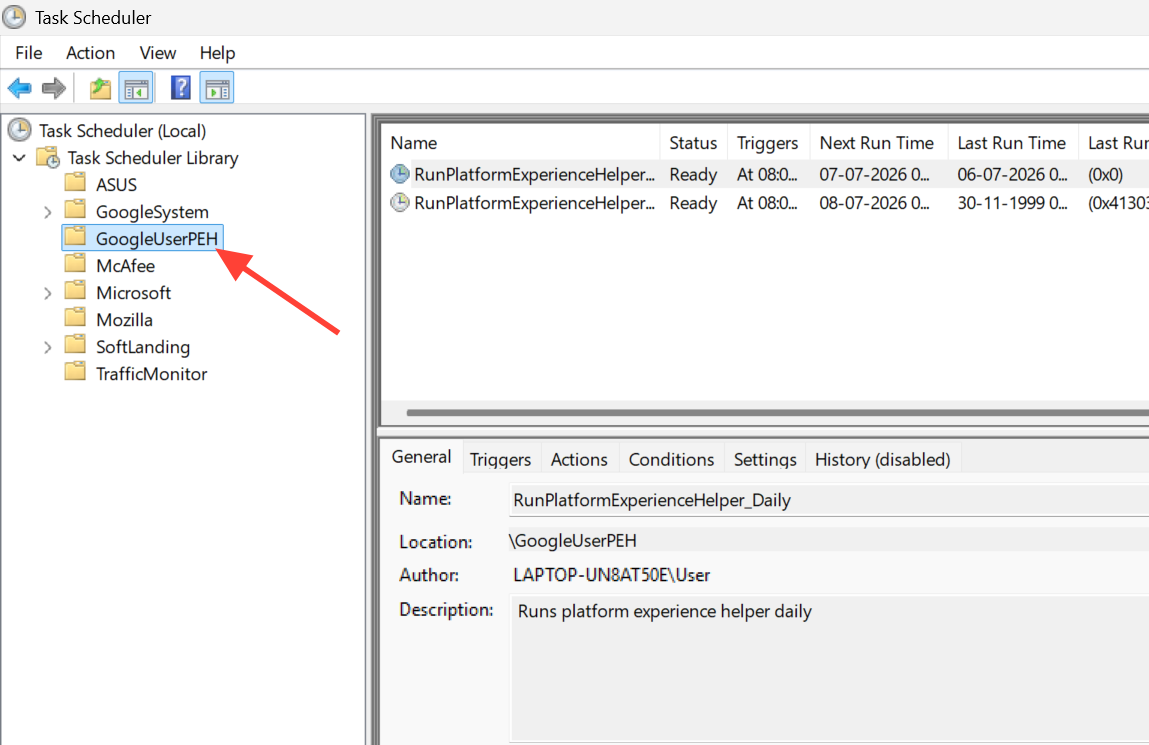
RunPlatformExperienceHelperOnUnlock and choose Disable. The status column changes from Ready to Disabled, which confirms the task will no longer run.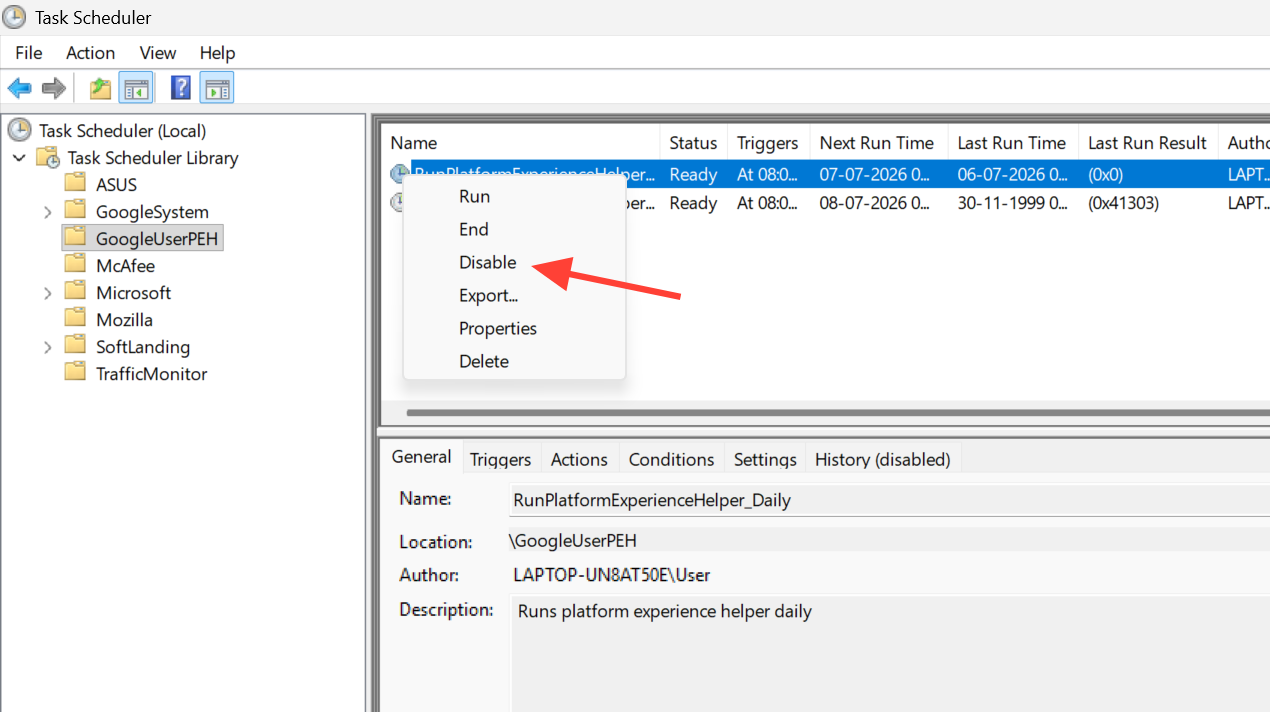
If the window comes back after a Chrome update
Disabling the task is not always permanent. A Chrome update can re-enable RunPlatformExperienceHelperOnUnlock, and the window then starts flashing again. If that happens, reopen Task Scheduler, go back to the GoogleUserPEH folder, and check whether the task shows Ready again. Disable it once more.
For a cleaner outcome, some users remove Chrome entirely if it is only a secondary browser. Uninstalling Chrome takes out the task and folder that produce the window, so there is nothing left to be re-enabled. You can uninstall it from Settings under Apps, the same way you remove any other program.
If you keep Chrome installed, plan to recheck the task after major browser updates until Google addresses the behavior. Turning the task off again is quick once you know where it lives.
How to confirm you have the same issue
Not every brief pop-up on startup is this Chrome task. A quick way to tell them apart is to check the symptoms and the task itself before changing anything.
| Sign | What you should see |
|---|---|
| Appearance | Empty white box in the top-left corner, no icon on the taskbar |
| Timing | Shows on startup and again after entering your PIN, then disappears in about 10 seconds |
| Interaction | Cannot be clicked or focused; it just sits on top of the desktop |
| Task Scheduler | RunPlatformExperienceHelperOnUnlock exists inside the GoogleUserPEH folder |
| Manual test | Right-clicking the task and choosing Run reproduces the same window |
| Scans | Windows Security and Malwarebytes report no threats |
If your pop-up looks like a Command Prompt window that flashes and closes, or if it only appears once at boot, it is more likely a different startup item. In those cases, disabling non-Microsoft startup apps one at a time in Task Manager and restarting after each change helps pin down the responsible program.
Turning off RunPlatformExperienceHelperOnUnlock is a safe, reversible change, and it is the most direct way to stop the window today. Google has not officially confirmed the task as the cause, so treat the fix as a workaround and expect to reapply it if a future Chrome update switches the task back on.