
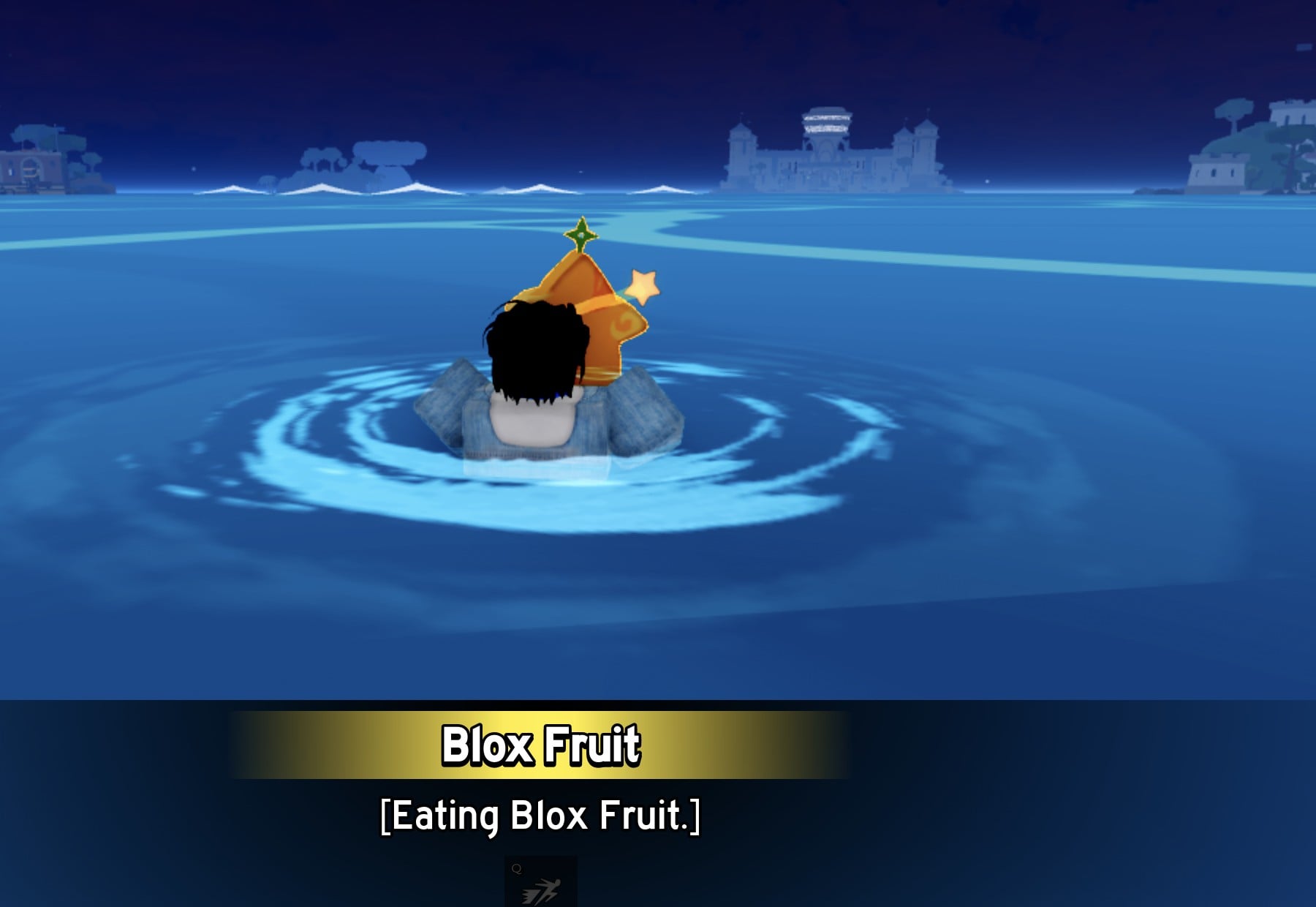
When you pick up a fruit in Blox Fruits, you don’t have to eat it right away. A single click on the fruit in your hand opens a small panel that lets you eat it, drop it, or put it in storage. Storing it moves the fruit into your inventory, and you can come back and eat it later. The example below uses Light, picked up on a Middle Town street in the First Sea.
Quick answer: Hold the fruit, left-click, and choose Store. To eat it later, open Menu > Items > Treasure, click the fruit card, press Equip, hold the fruit, click, and choose Eat.
Picking up a Blox Fruit and opening the fruit menu
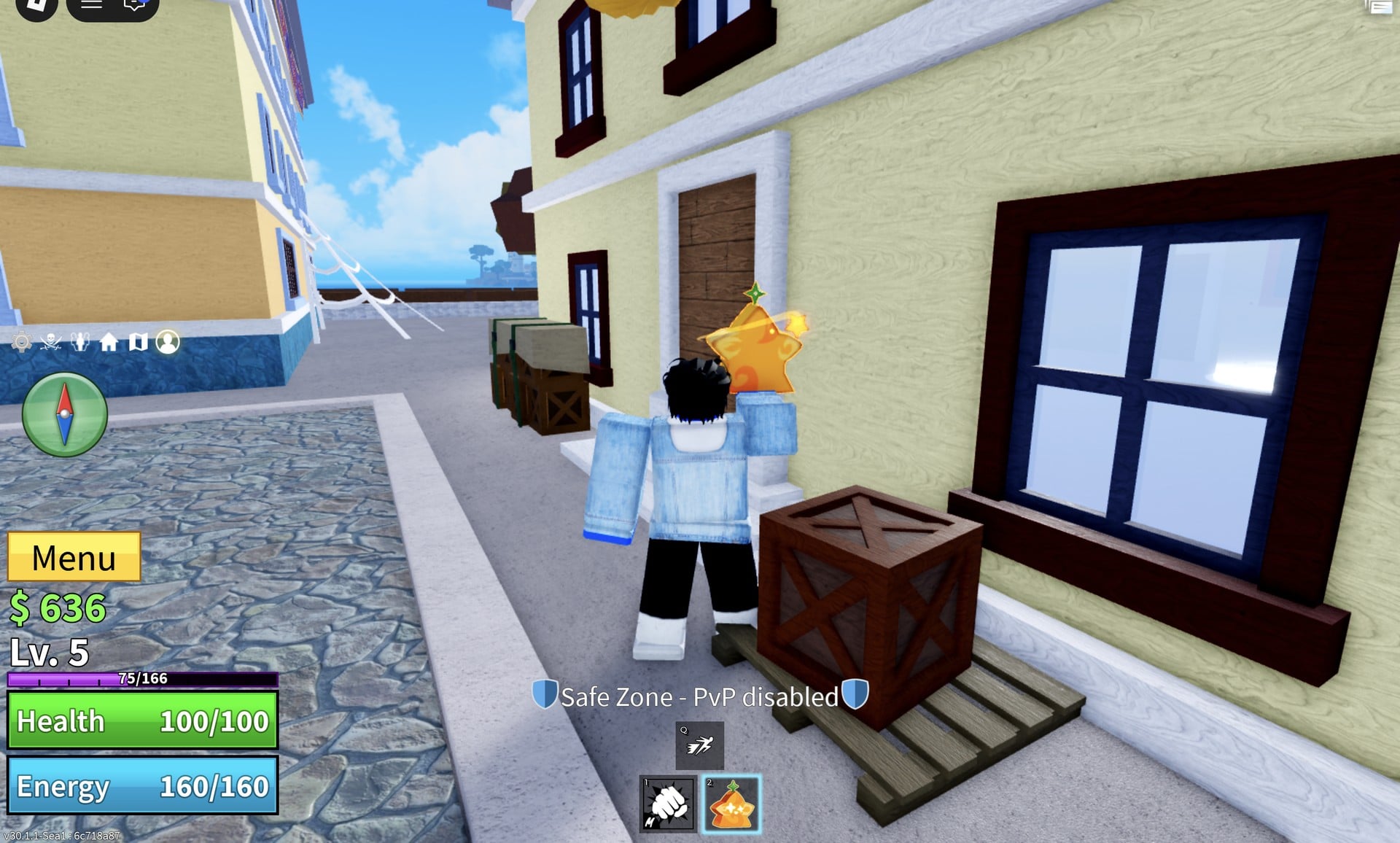
Fruits don’t need a button press to collect. Walk into one and your character grabs it. The fruit lands in hotbar slot 2 as an orange star-shaped icon, and your character holds it straight away. The game doesn’t show the fruit’s name when you pick it up, so you won’t know what you have yet.
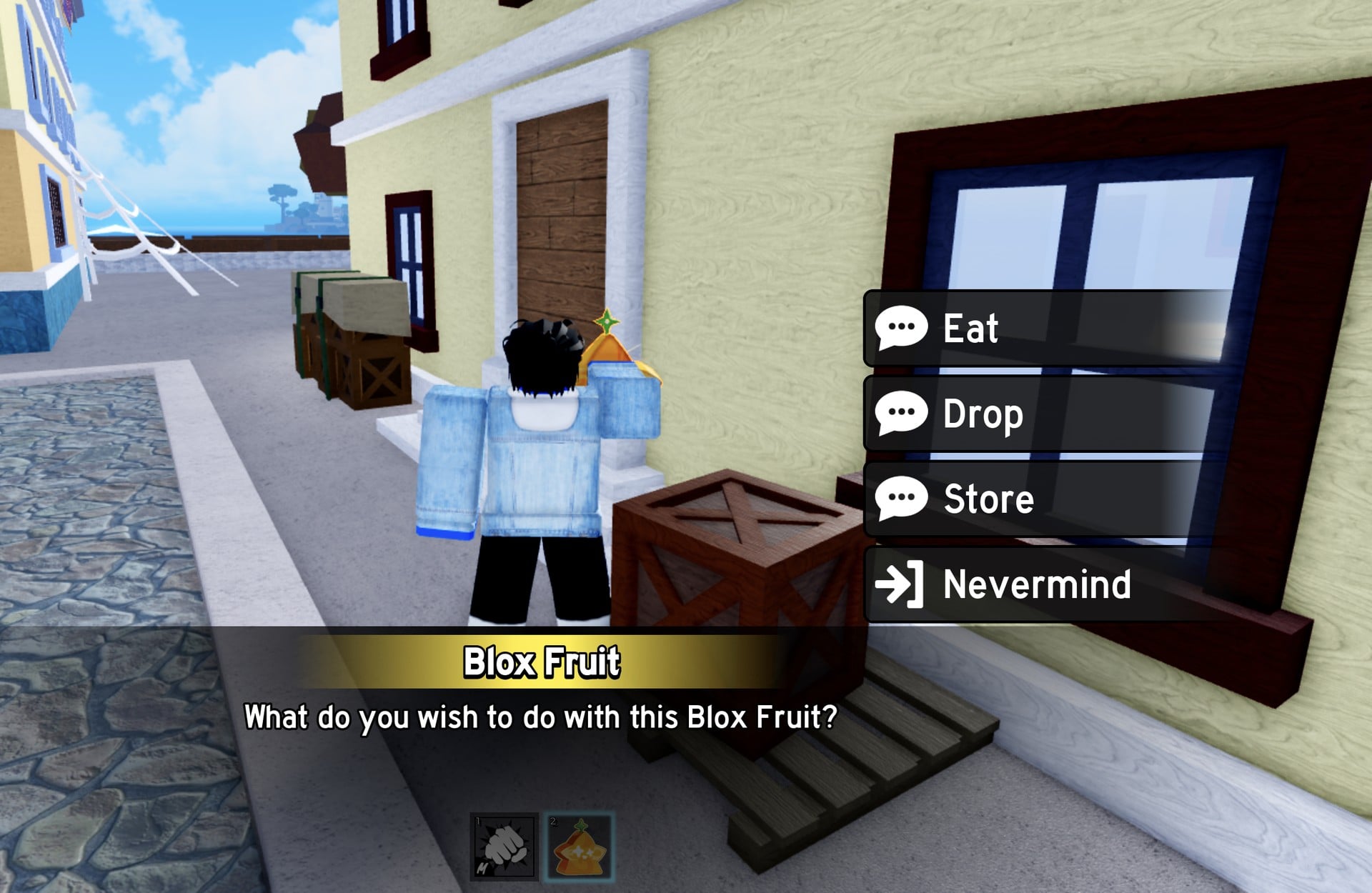
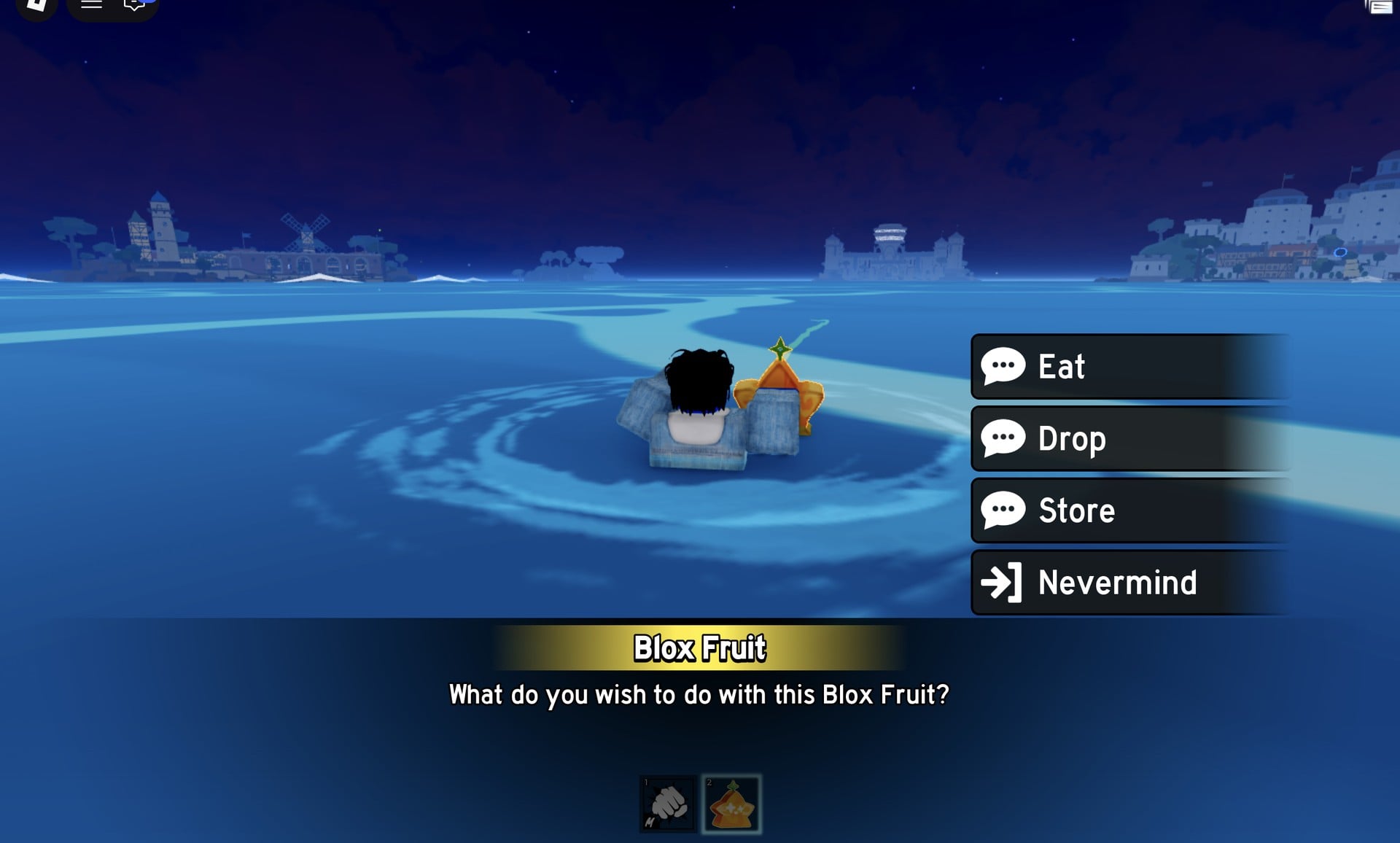
While you’re holding the fruit, left-click. A panel headed “Blox Fruit” opens and asks “What do you wish to do with this Blox Fruit?” It offers four choices:
- Eat gives your character the fruit’s powers.
- Drop (we did not test it).
- Store moves the fruit into your inventory.
- Nevermind (we did not use it).
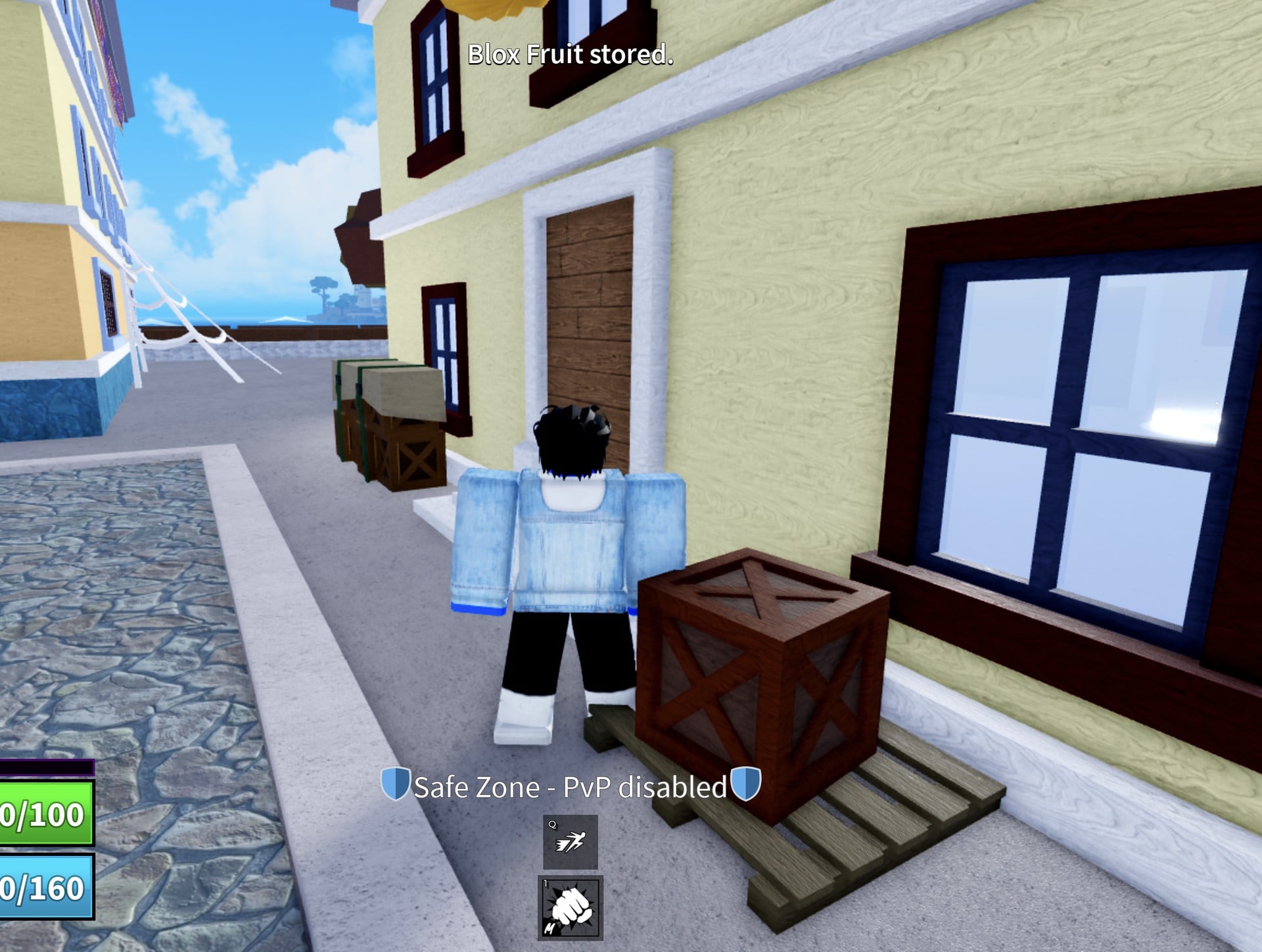
How to store a Blox Fruit
Store a fruit as soon as you pick it up. An earlier fruit our character held in slot 2 without storing it was gone after a respawn, and it was in neither the Stash nor the Backpack. That is one case we saw, not a tested rule, but storing costs two clicks.
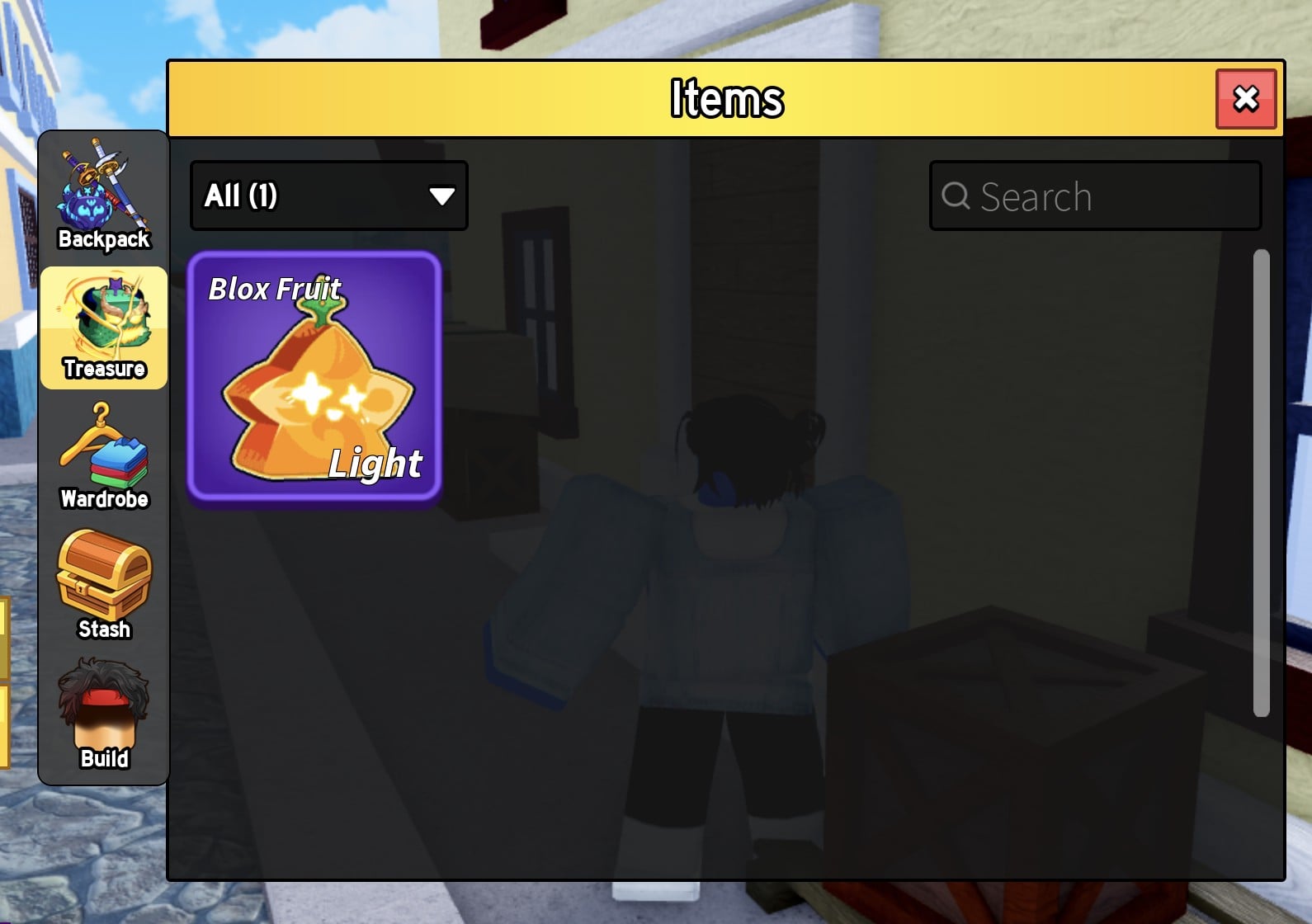
Stored fruits go to Treasure, not the Backpack. The Backpack tab can still read “No Items Found” while the fruit is safely in storage.
How to eat a stored Blox Fruit
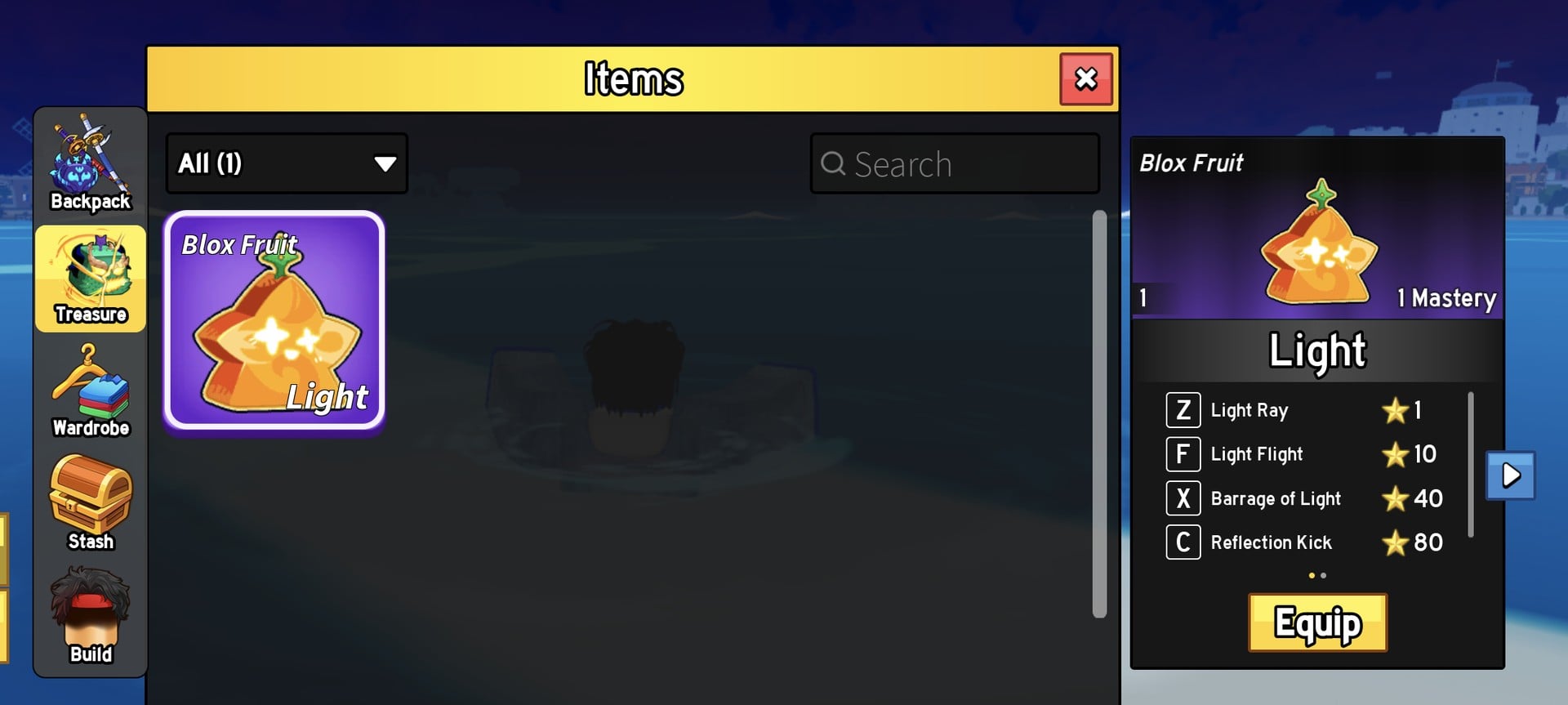
The Treasure card has an Equip button, not an Eat button. Equip puts the fruit back in your hotbar, and you eat it from your hand the same way as a fruit you just picked up.
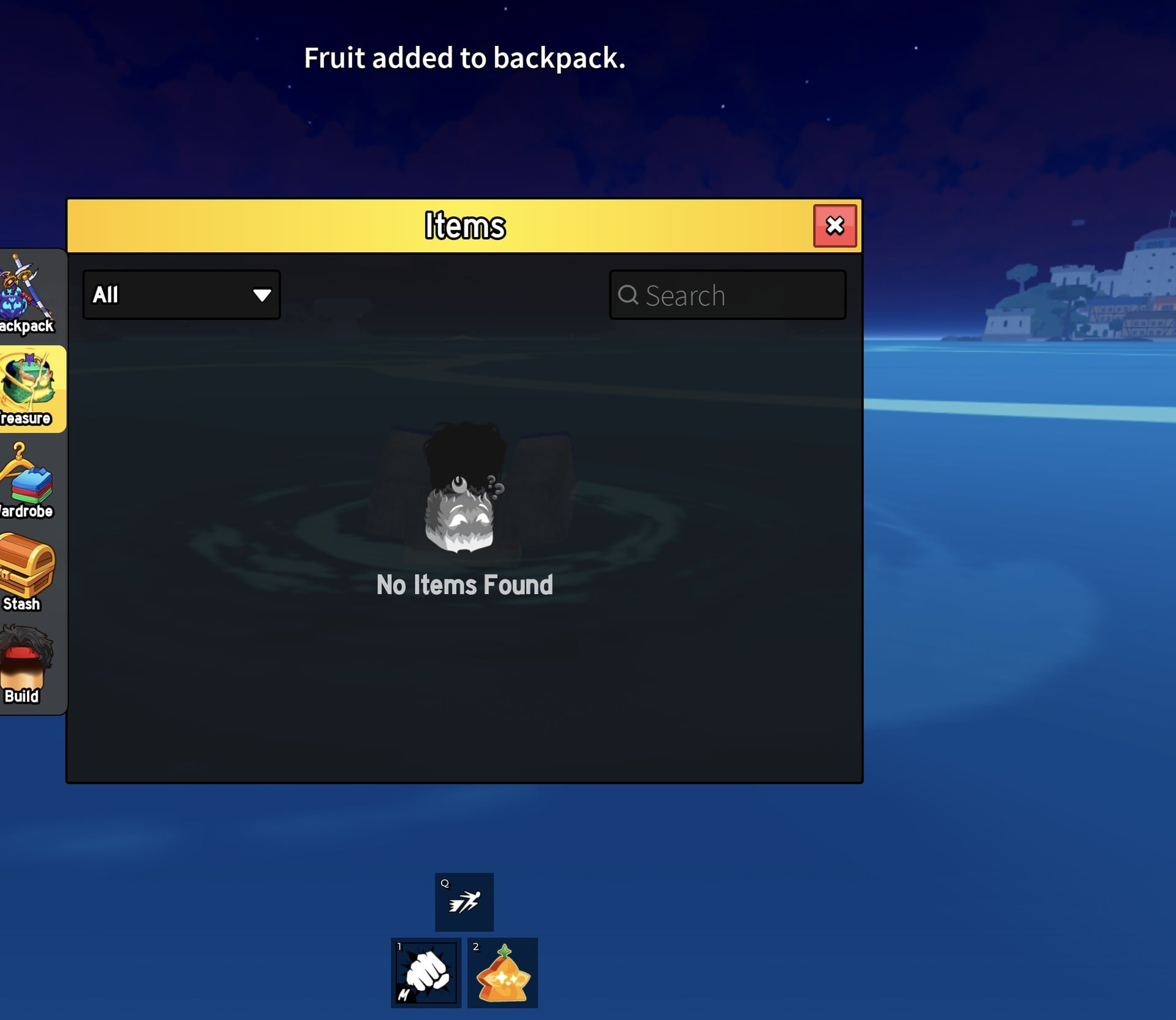
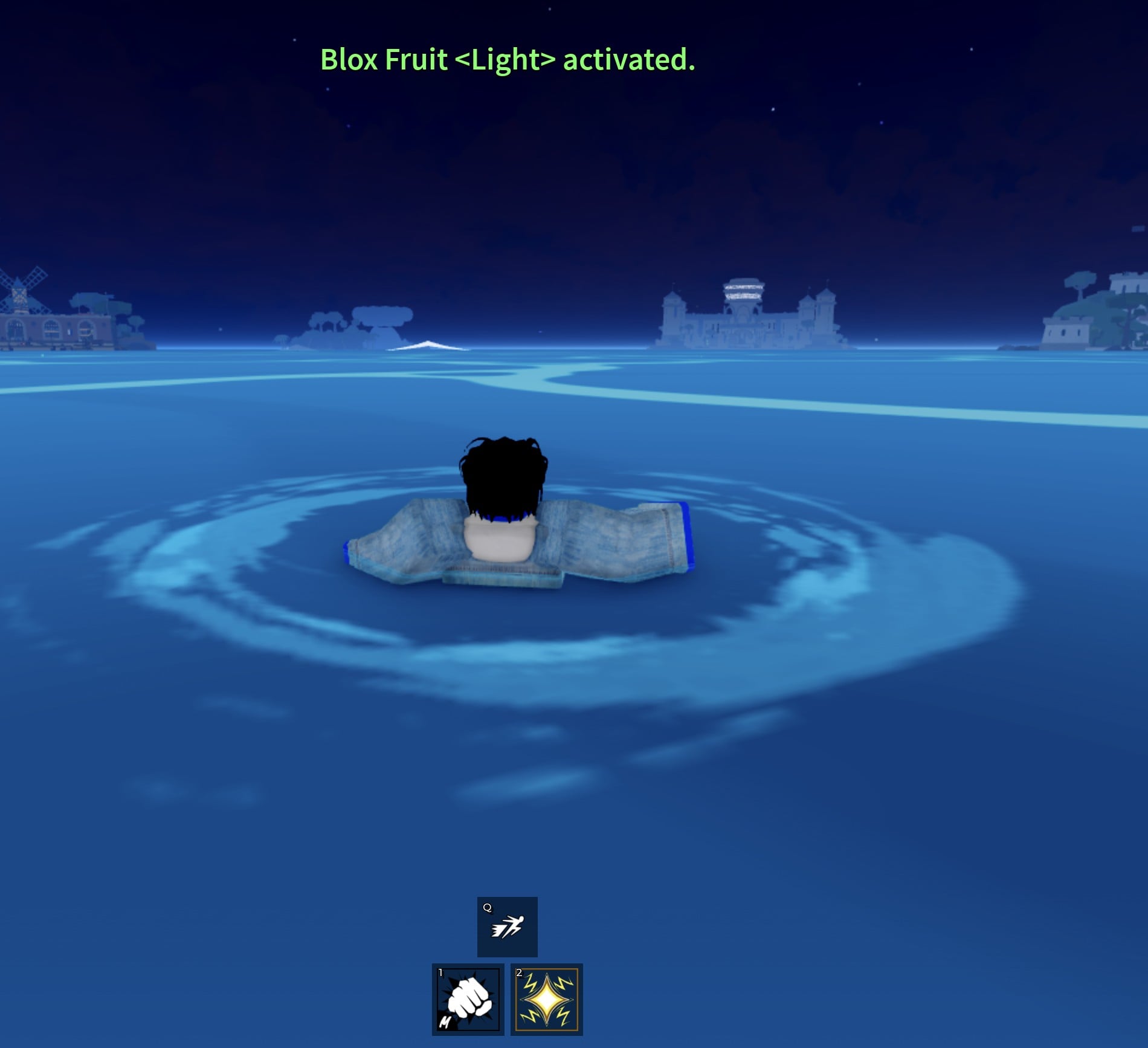
We ate our Light while floating in the sea. Since then we eat fruits on land, and we suggest you do the same.
How to check that the Blox Fruit was eaten
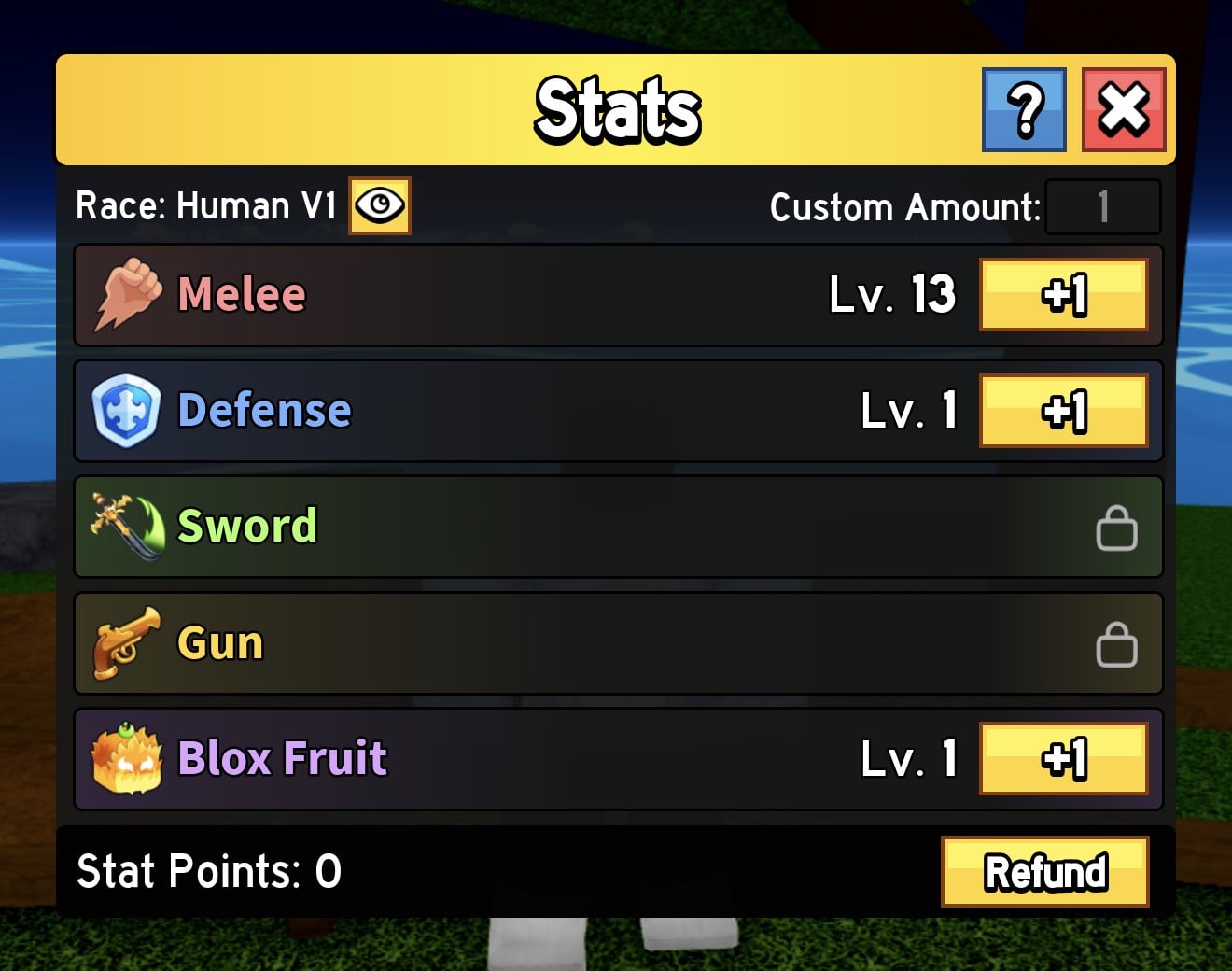
Besides the green banner, the game shows two lasting changes. In the Stats panel, the Blox Fruit row loses its padlock and shows “Lv. 1” with a “+1” button. The Sword and Gun rows stay locked. If you press 2 to hold the eaten fruit, a panel on the right side shows “Mastery 1”, “0/70”, “LIGHT”, and the moves along with the mastery each one needs.
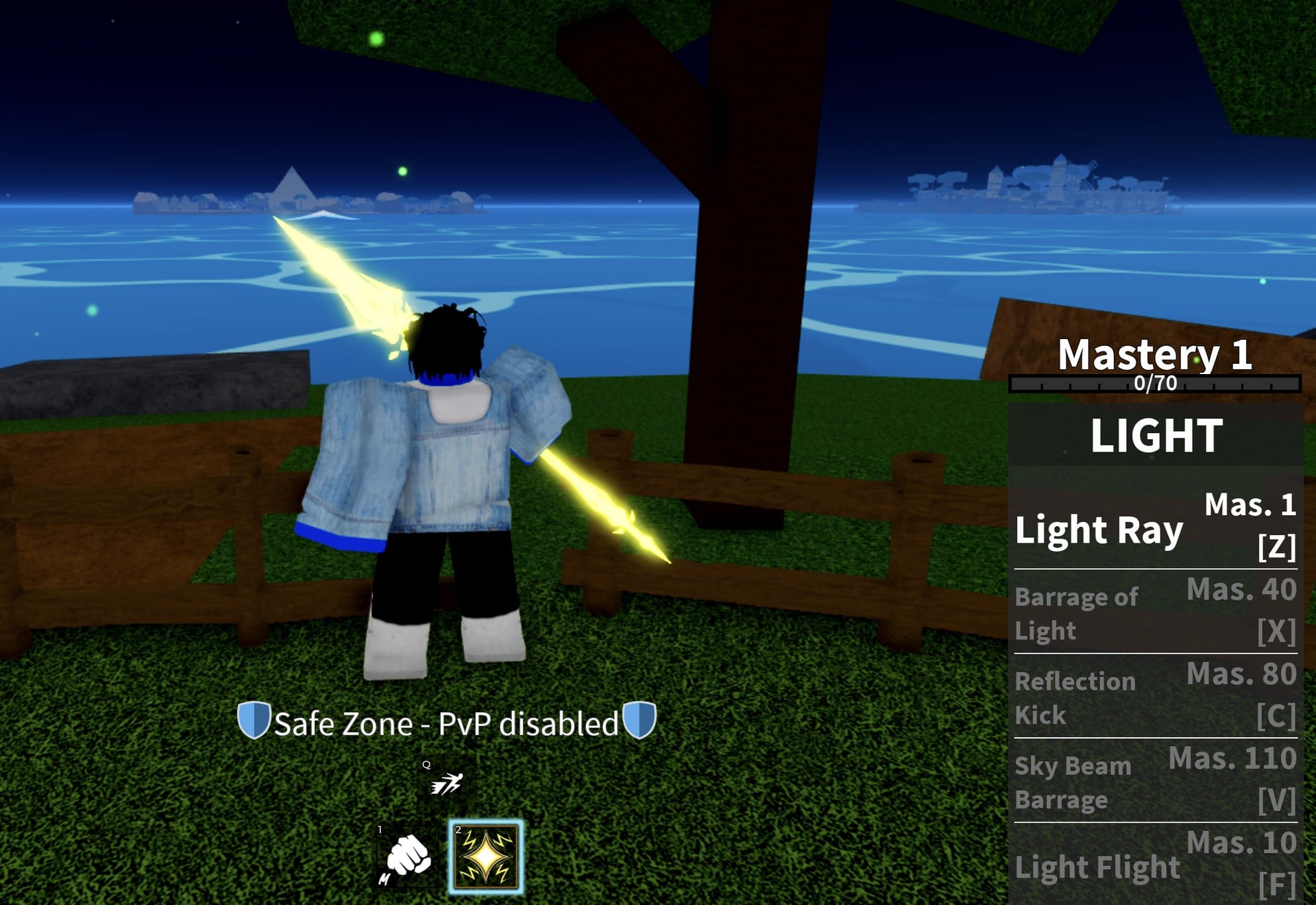
Moves unlock as your fruit mastery rises. The Treasure card lists all of Light’s moves, including V at the bottom, which you need to scroll to see:
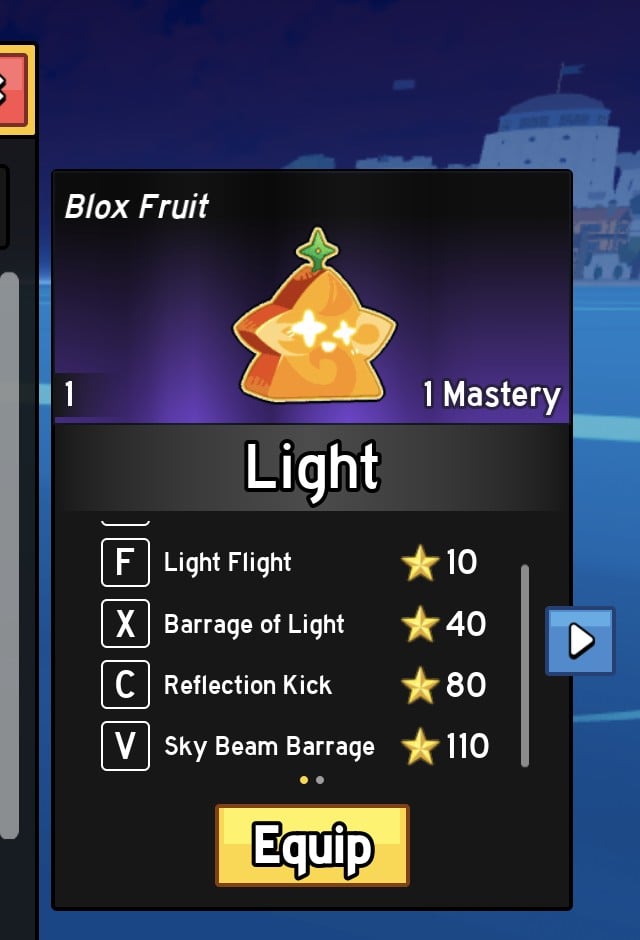
| Key | Move | Mastery needed |
|---|---|---|
| Z | Light Ray | 1 |
| F | Light Flight | 10 |
| X | Barrage of Light | 40 |
| C | Reflection Kick | 80 |
| V | Sky Beam Barrage | 110 |
At Mastery 1, Light Ray is the only move open. The held-fruit panel lists the others at Mas. 10 to Mas. 110. Our Light fruit moves and mastery guide shows what a locked move says and how two Bandit kills took Light to Mastery 2.
The Blox Fruit stat row that opened here takes stat points like Melee and Defense do. How the Stats panel works, and where our first 12 points went, is in our Blox Fruits beginner guide.
What we did not test
- What Drop does. We never chose it.
- Eating a second fruit while one is already eaten.
- Removing an eaten fruit.
- Whether a stored fruit survives a respawn. We did not respawn with one in Treasure.
- Using any of Light’s moves in a fight.
Blox Fruit storing and eating FAQ
Can I keep a Blox Fruit without eating it?
Yes. Hold it, left-click and choose Store. It waits in Menu > Items > Treasure until you equip it again.
Where do stored fruits go?
To the Treasure tab of the Items menu, not the Backpack. Ours showed as a “Blox Fruit” card named “Light” with the filter at “All (1)”.
How do I eat a fruit I stored?
Treasure tab, click the card, press Equip (“Fruit added to backpack.”), close the menu, press 2 to hold it, left-click and choose Eat.
What happens after I eat a fruit?
A green “Blox Fruit <Light> activated.” banner shows, the hotbar icon changes, and the Blox Fruit row in Stats unlocks at Lv. 1. The fruit starts at Mastery 1 with 0/70 toward the next level.
Where can I get a Blox Fruit?
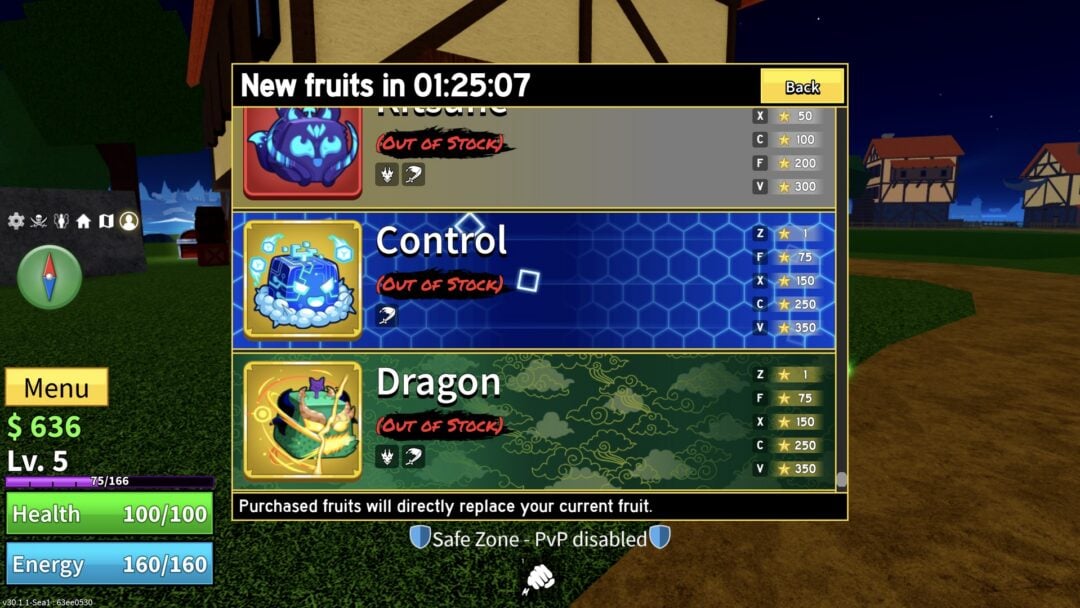
Ours was lying on a Middle Town street and was picked up by walking into it. The Blox Fruit Dealer on Pirate Starter also sells fruits for Beli; its stock and prices are in our Blox Fruit Dealer stock guide. The dealer says a fruit you buy replaces your current one.