

Default folder layouts in Windows 11 File Explorer often don’t match user preferences, especially when managing a variety of files and folders. Switching the default view from the preset layout to one that fits your workflow—like Details for documents or Large icons for images—streamlines navigation and reduces wasted time adjusting settings for each folder individually.
Set a Custom Default View for All Folders of the Same Type
Windows + E keyboard shortcut or by clicking the File Explorer icon on your taskbar. This launches the window where you can adjust folder display settings.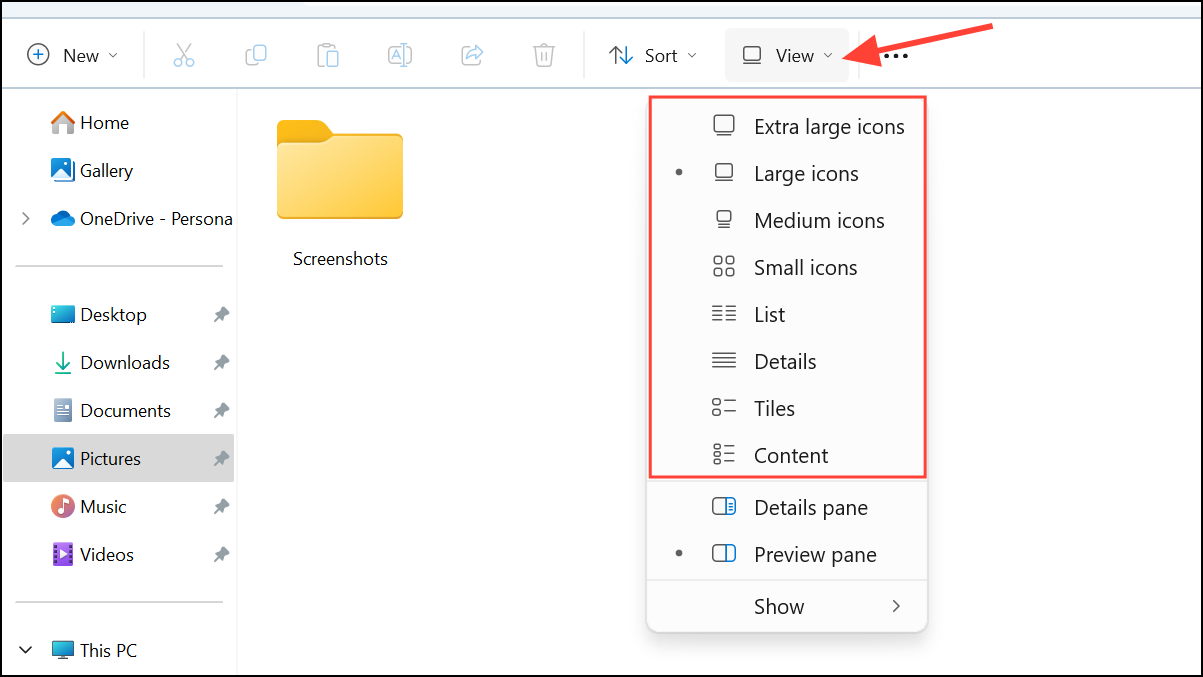
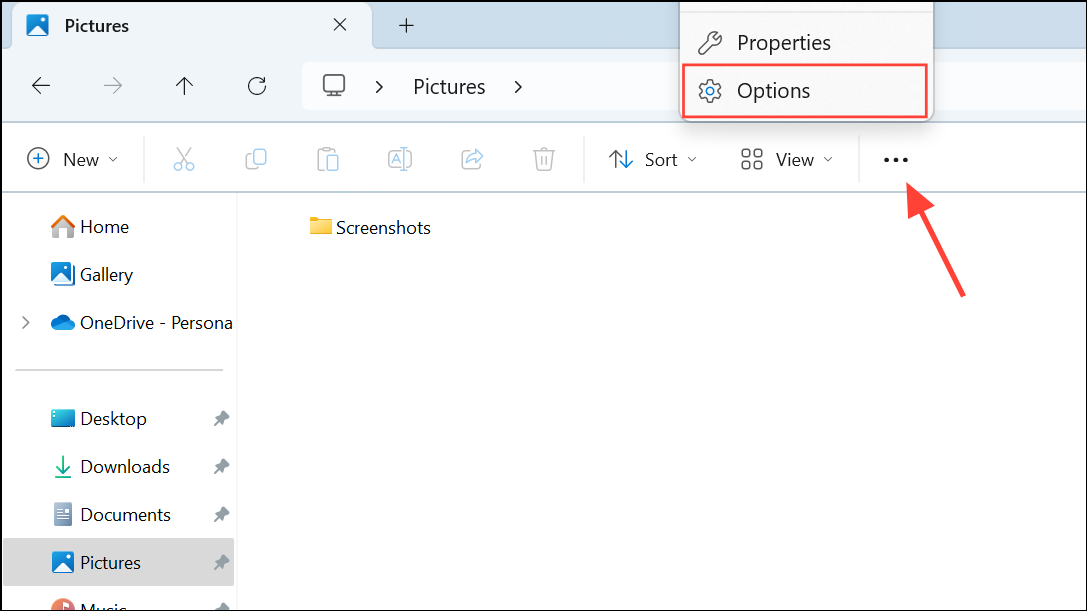
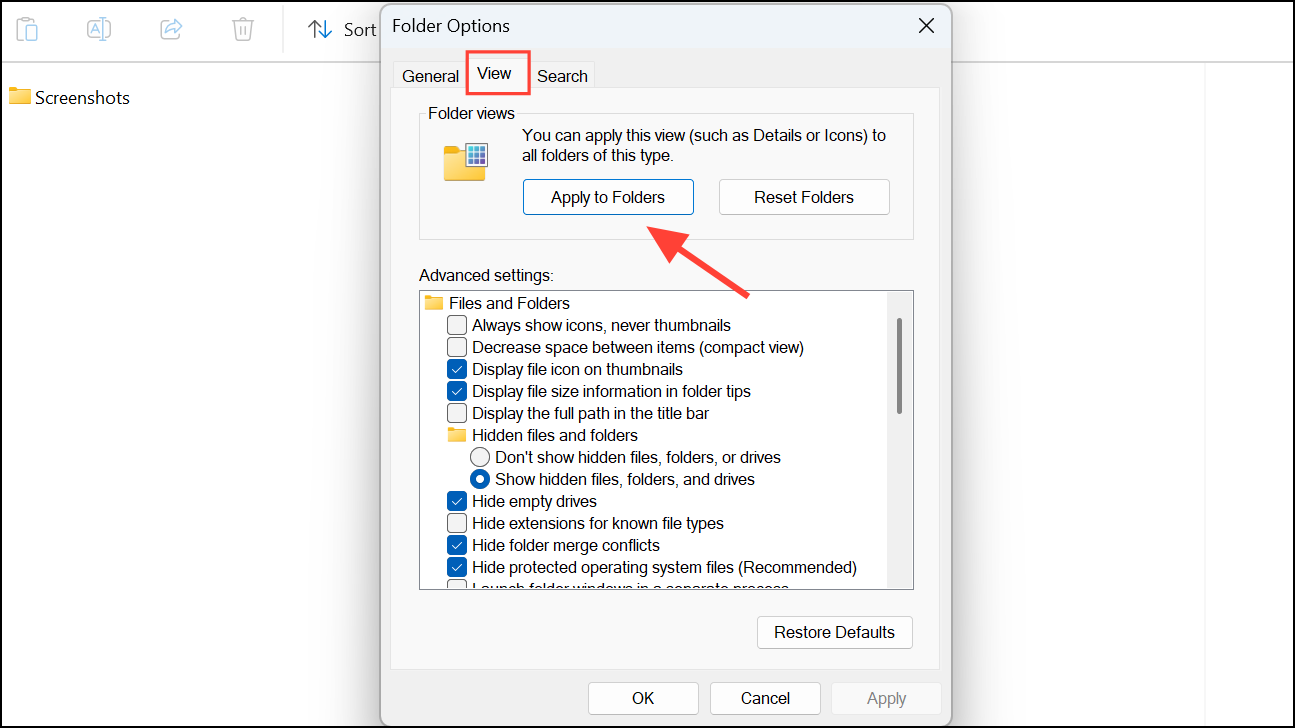
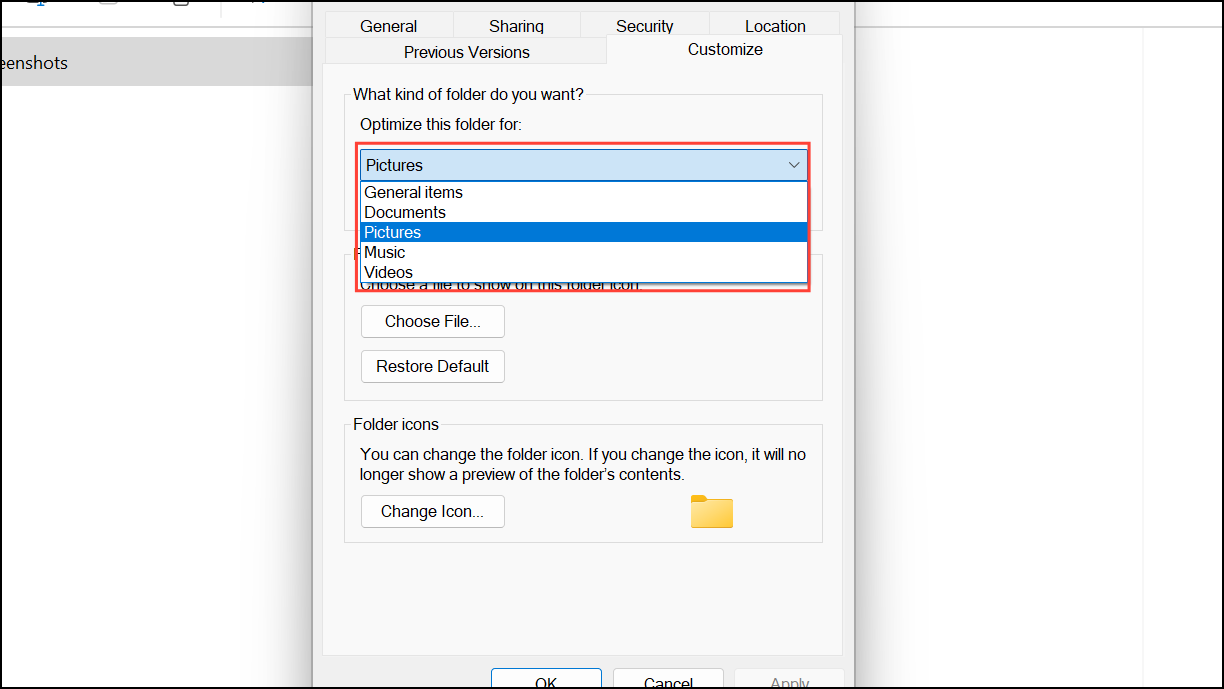
Customize Folder Templates and Apply to Subfolders
Windows 11 uses folder templates to optimize how content is displayed based on file types. Sometimes, you may want to change the template (for example, from “Pictures” to “General items”) or apply the same template and view to all subfolders.
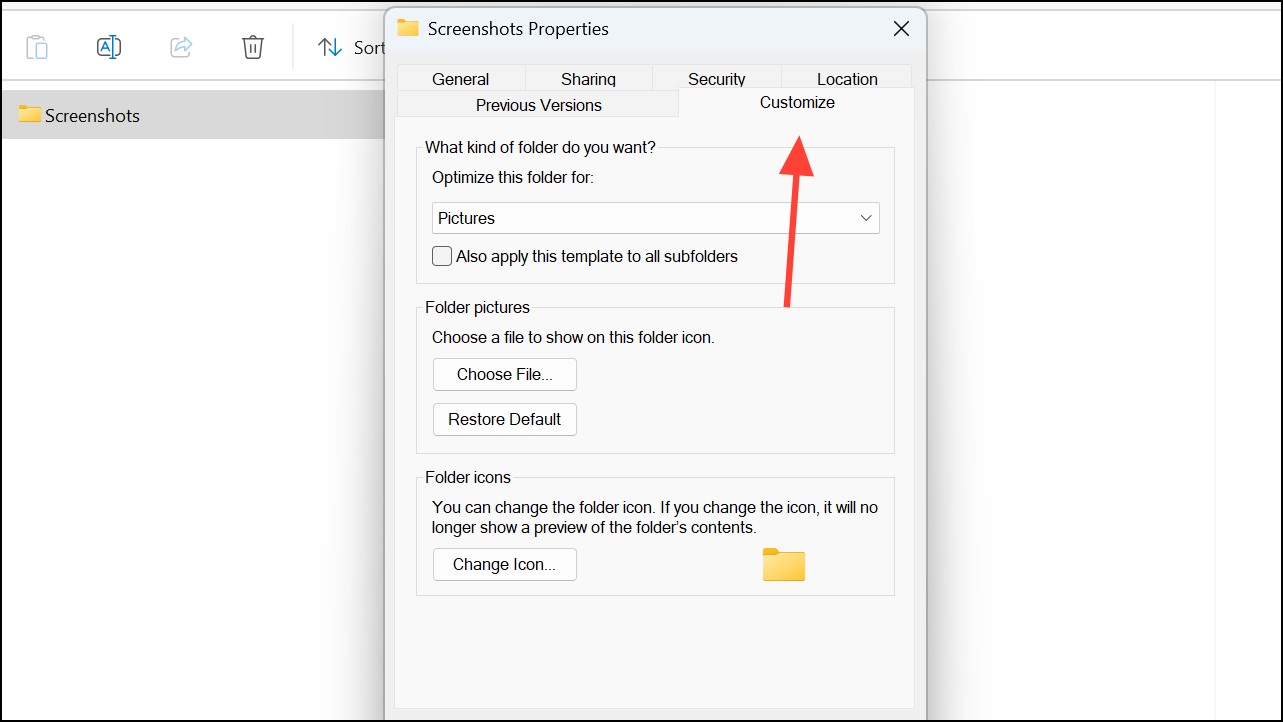
Refine Folder Views With Additional Customization
Once you’ve set a default view, you can further refine how folders appear to fit your workflow:
- Adjust columns in Details view: Right-click any column header to add or remove fields like Type, Size, or Date Modified. Drag headers to reorder columns or resize them by dragging their edges.
- Group and sort files: Use the “Group by” and “Sort by” options in the View menu or by right-clicking in the folder background. Grouping files by date, type, or size can make large folders easier to manage.
- Show hidden files or file extensions: In the View menu, select “Show” and enable “Hidden items” or “File name extensions” for access to system files or to distinguish file types more easily.
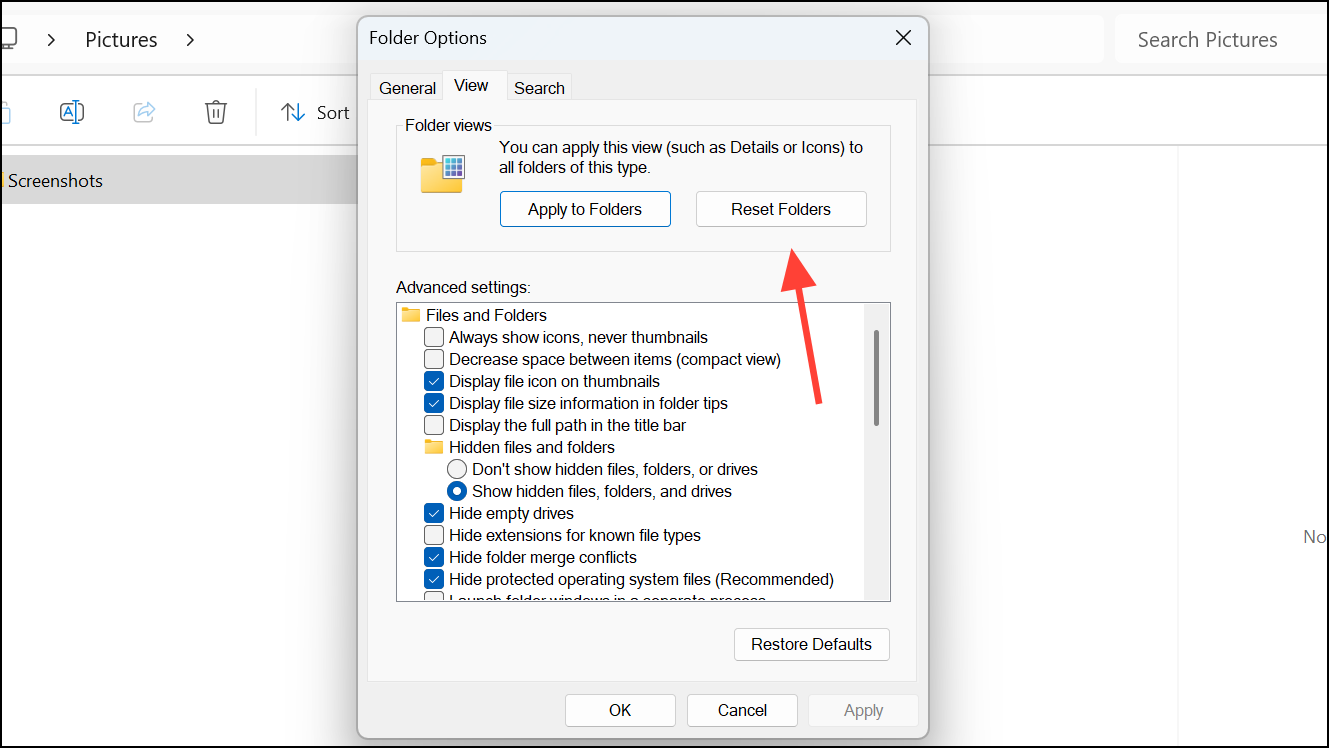
Reset Folder Views to Default
If your custom views don’t give the results you want or you want to revert to Windows defaults, you can reset folder views:
Alternative Methods and Tips
For advanced users, Windows Registry tweaks can set default views at a deeper level, but caution is advised as incorrect changes can cause system instability. Specialized tools like WinSetView can apply folder view settings globally, including for file dialogs and libraries, but these are third-party solutions and should be used with care.
Some system folders (such as Downloads or certain Libraries) may not always follow the global settings due to how Windows manages shell folders. In those cases, you may need to adjust views manually or use folder template customization as described above.
Setting a consistent default folder view in Windows 11 File Explorer cuts down on repetitive clicks and creates a more predictable, organized workspace. Adjusting templates and using customization options helps you quickly locate files and work more efficiently across your system.



