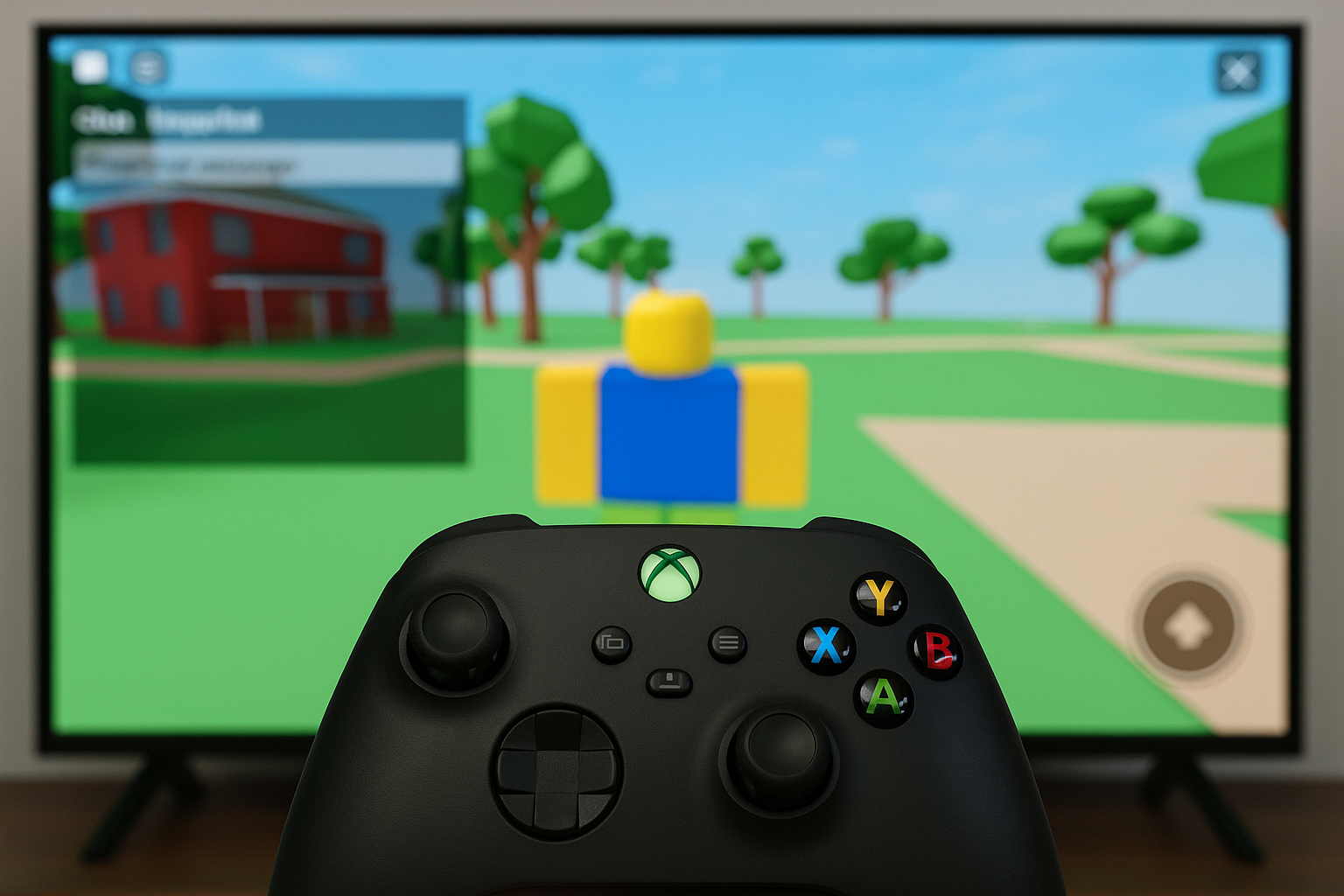
Press the in‑game menu button and RB to hide the Roblox chat box on Xbox. If you prefer to stop text chat altogether, you can also disable Experience chat in your account settings.
Hide the chat box quickly on Xbox (in‑experience toggle)
This method removes the on‑screen chat panel so it no longer blocks UI elements (inventory, settings, respawn, etc.). You can turn it back on the same way.
Start (the three‑lines “menu” button) to open Roblox’s in‑game overlay.RB to toggle Hide Chat. Look for the on‑screen prompt in the lower‑right corner that confirms the action.Notes:
- On PlayStation, the equivalent toggle uses
R1while the in‑game menu is open. - If you are using a keyboard and mouse on console, you still need a controller to send the chat toggle.
- In some experiences, moving focus to the Chat tile in the overlay before pressing the toggle helps the button appear.
Disable Experience chat via account settings (stops text chat)
This option stops people from messaging you in experiences and removes your ability to send messages. It’s account‑level and applies across platforms.
Troubleshooting the RB toggle
If the chat box won’t hide or the prompt isn’t visible, use these checks.
Start, then scan the lower‑right corner. If the hint for Hide Chat isn’t there, nudge focus to the Chat tile and check again.Start (three lines) and RB, not the Xbox Guide button or LT/RT.Use the RB toggle when you just need the chat panel out of the way; use account settings when you want to stop text chat entirely. You can switch approaches anytime based on how you play.