Disable Grok AI’s New Memory Feature for Privacy and Control
Steps to turn off Grok AI’s memory feature and manage your conversation data effectively.
Steps to turn off Grok AI’s memory feature and manage your conversation data effectively.
by Pallav Pathak
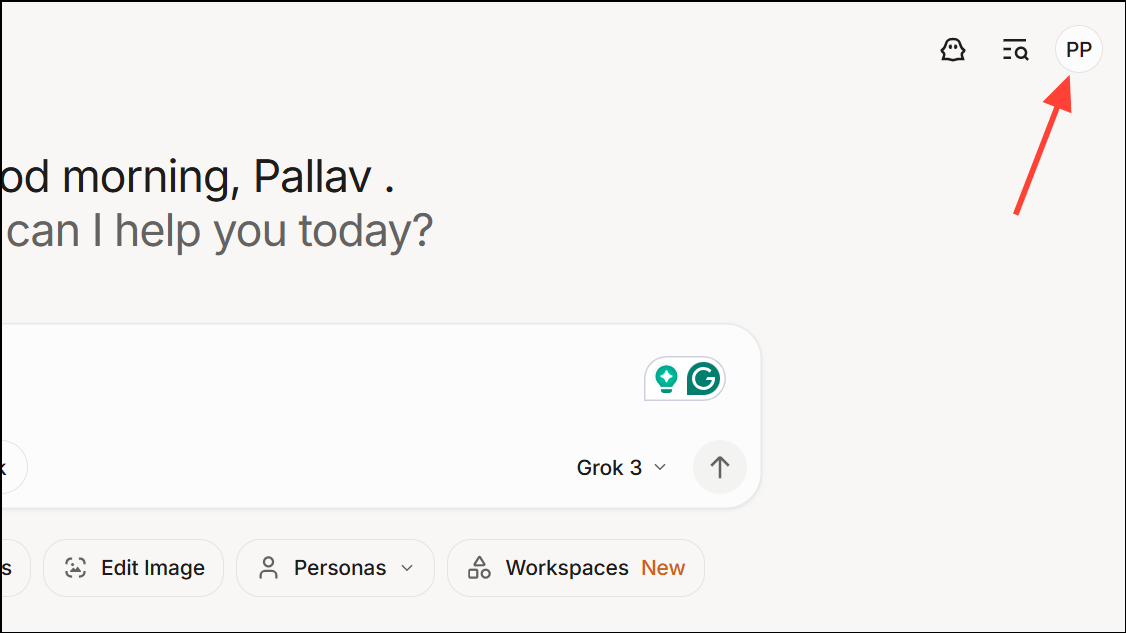
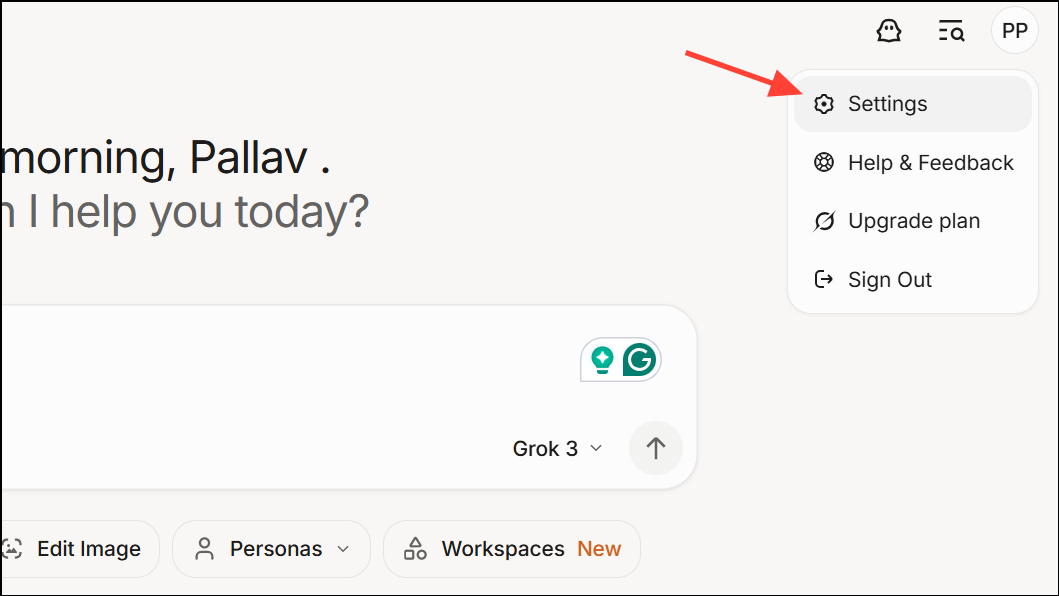
Grok AI, developed by Elon Musk’s xAI, now includes a memory feature that allows the chatbot to recall details from your past conversations to provide personalized responses. While this capability can improve interaction relevance, some users may prefer to disable it for privacy or to prevent Grok from retaining their chat history. Disabling this feature is straightforward and can be done through the app or web settings.
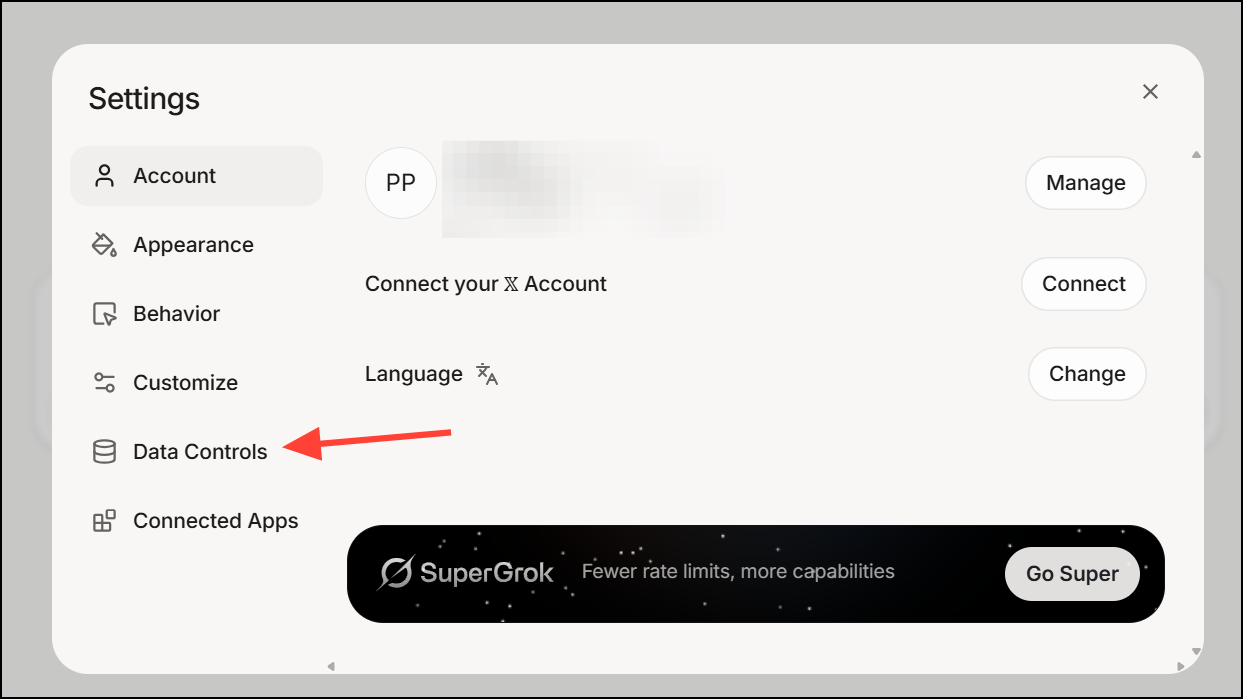
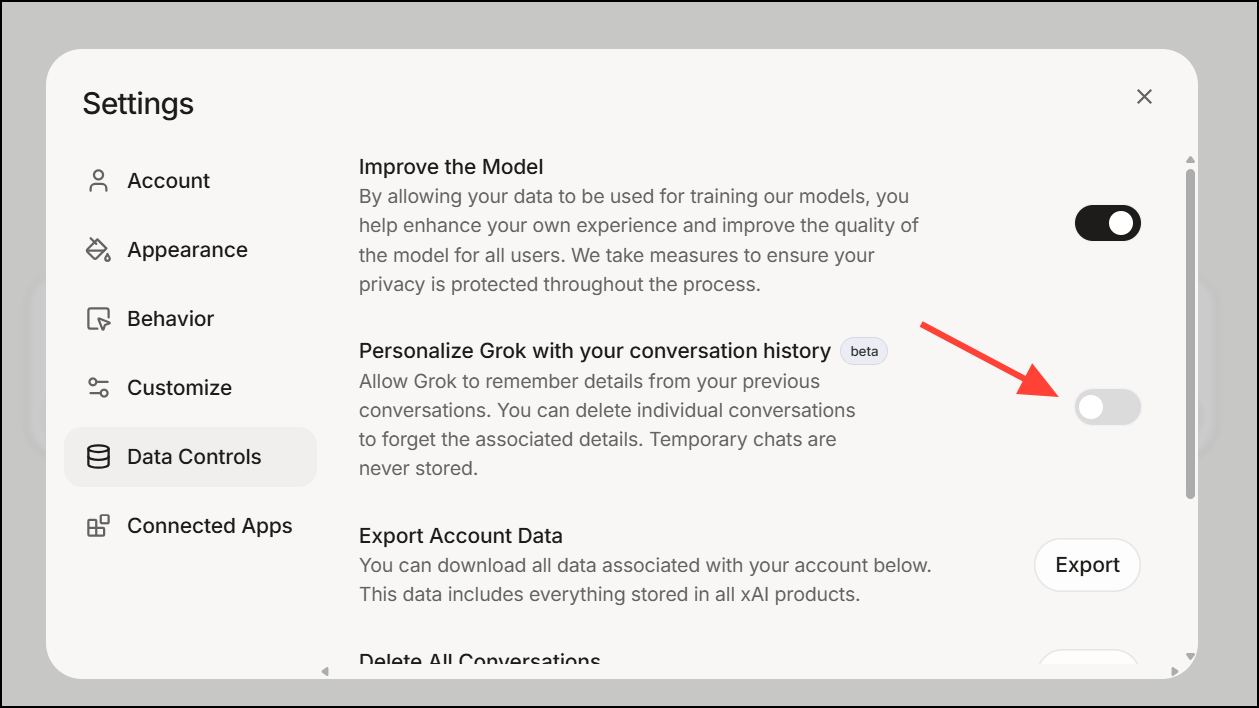
Locate the option labeled Personalize Grok with your conversation history (or a similarly worded setting). Toggle this option off to disable the memory feature, preventing Grok from storing and using your past conversations to personalize responses.
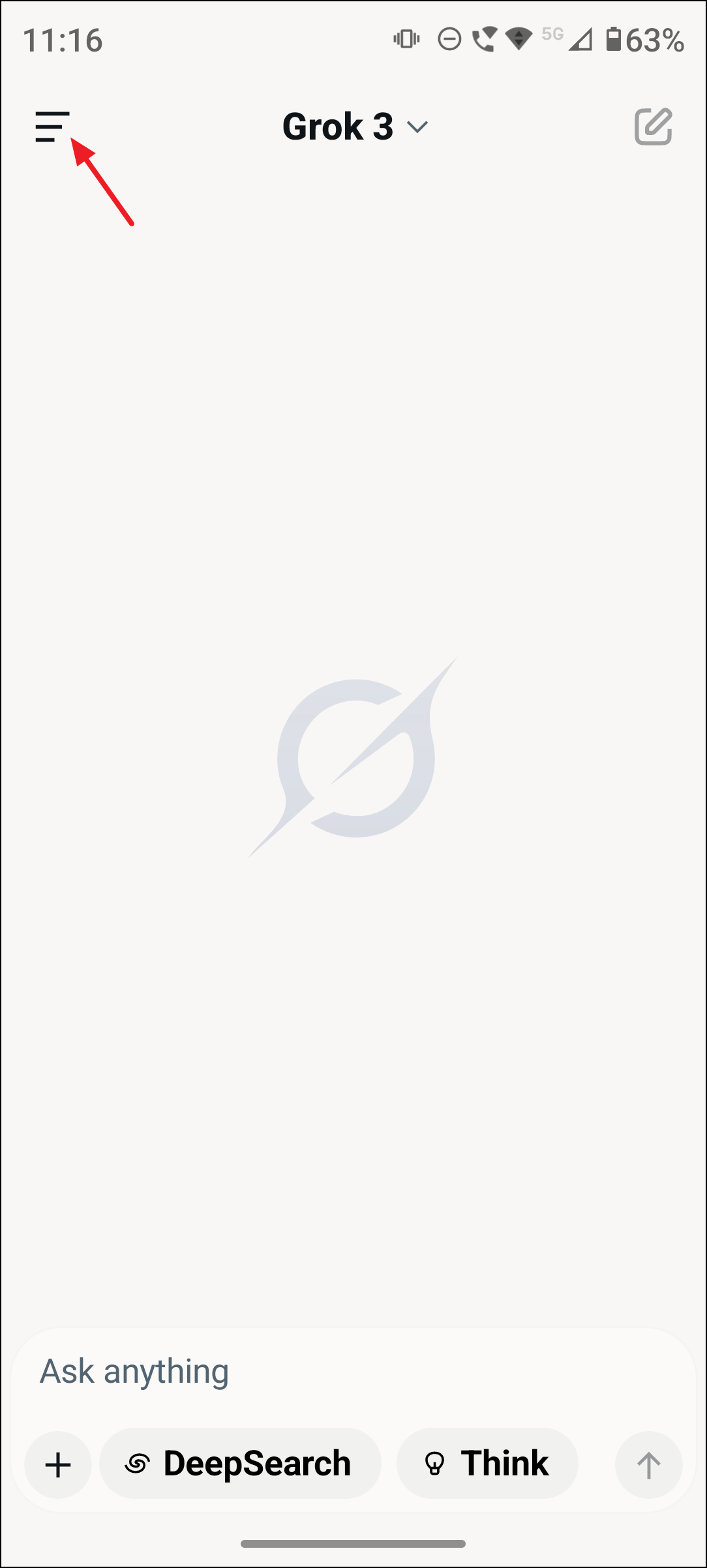
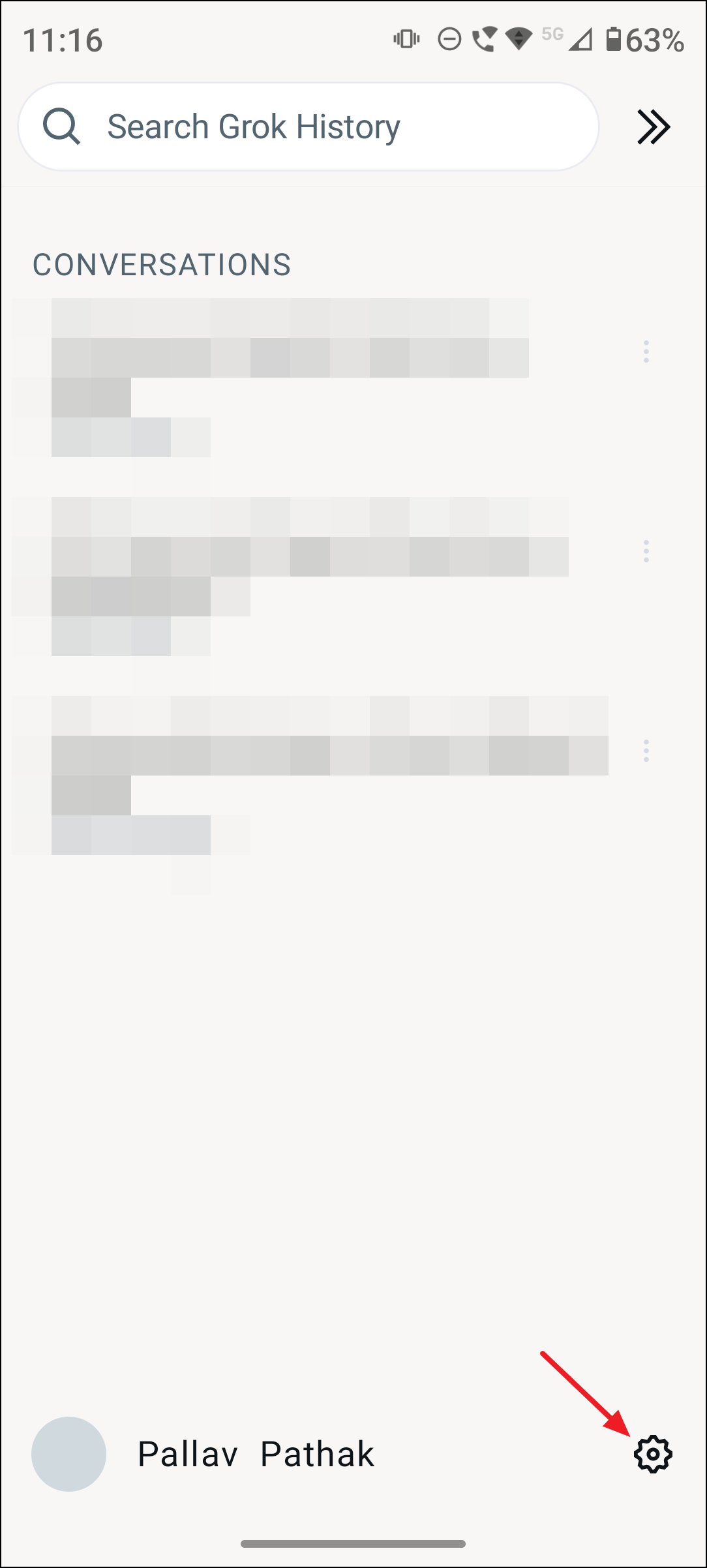
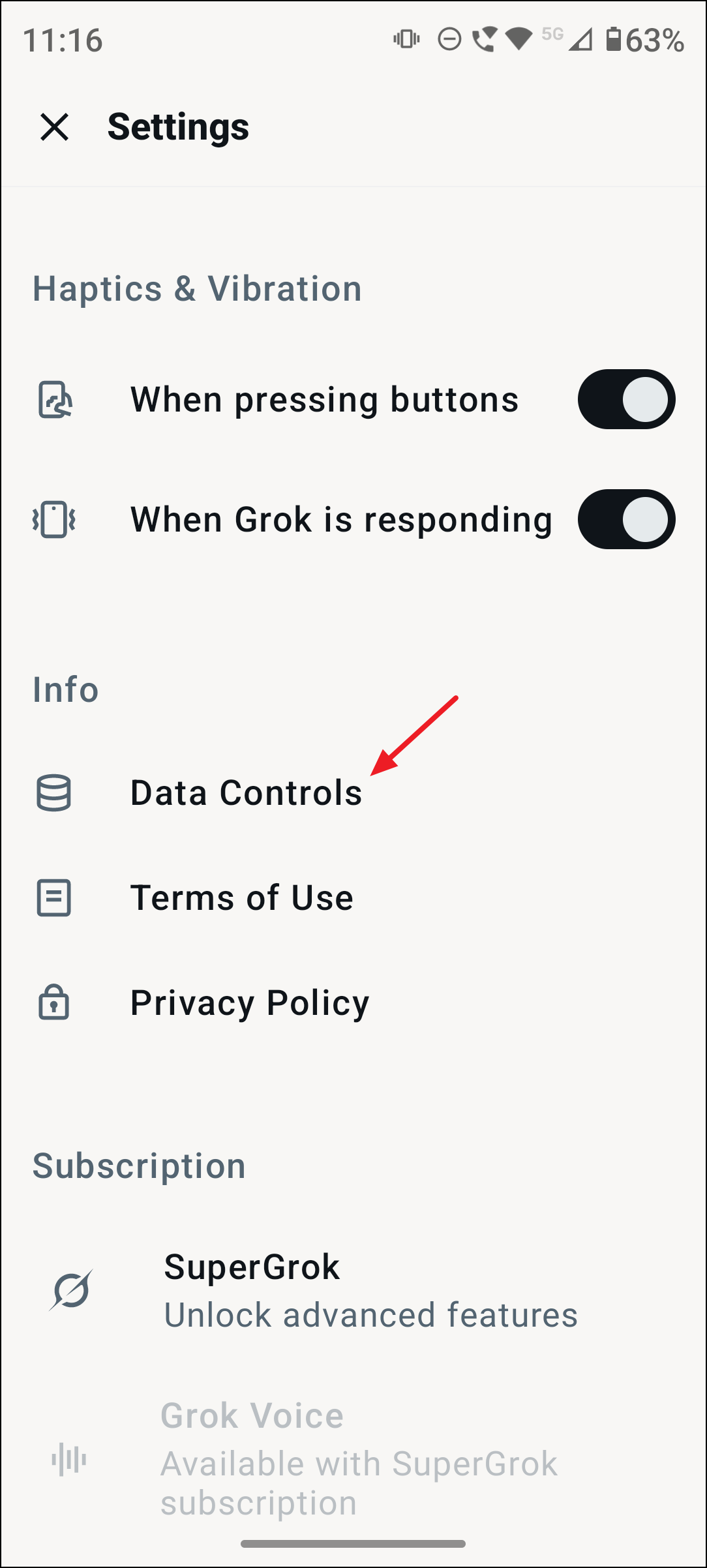
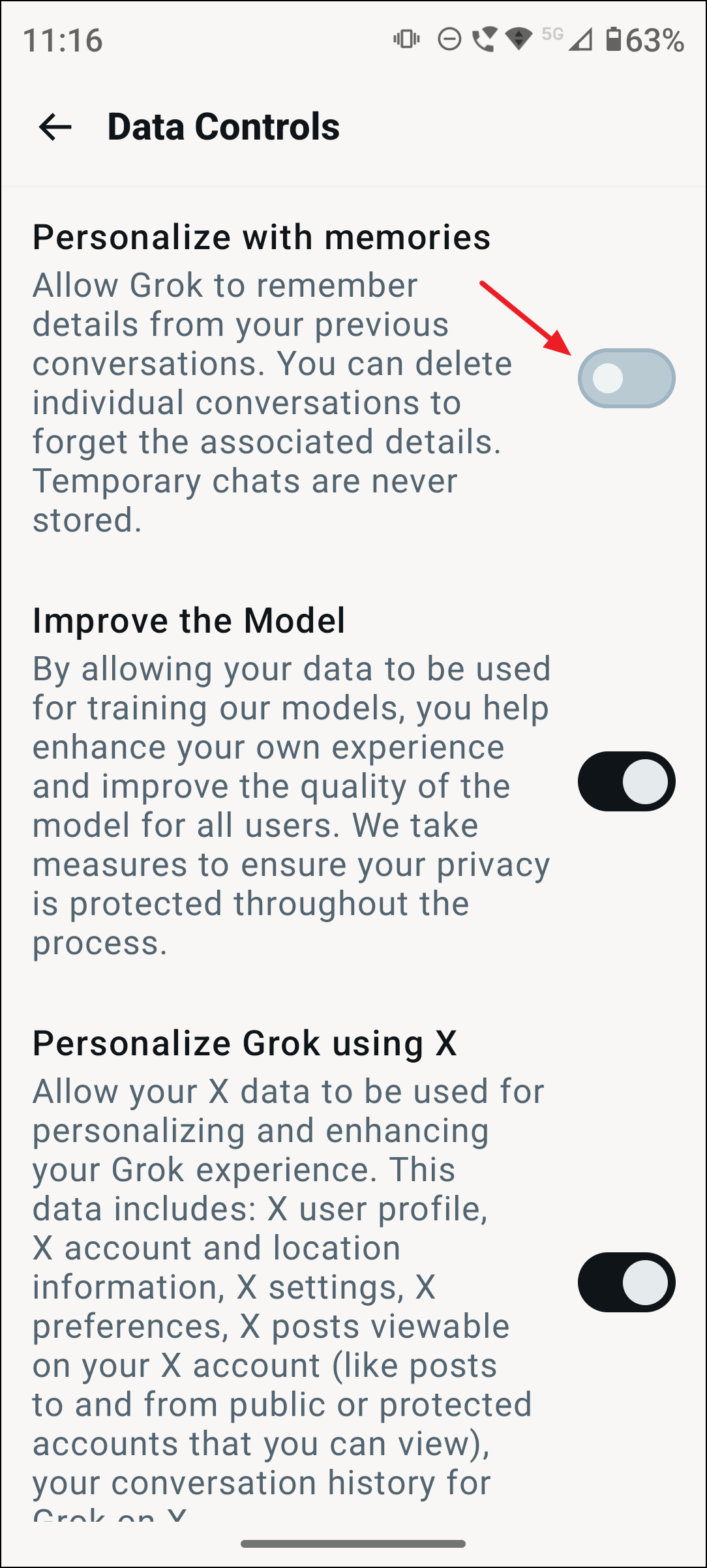
Turn Off Memory Feature in Grok Mobile Apps (iOS and Android)
Find the toggle for Personalize with memories and switch it off. This action disables Grok’s ability to remember and use your conversation history for personalization.
Use Private Chat Mode to Prevent Memory Storage
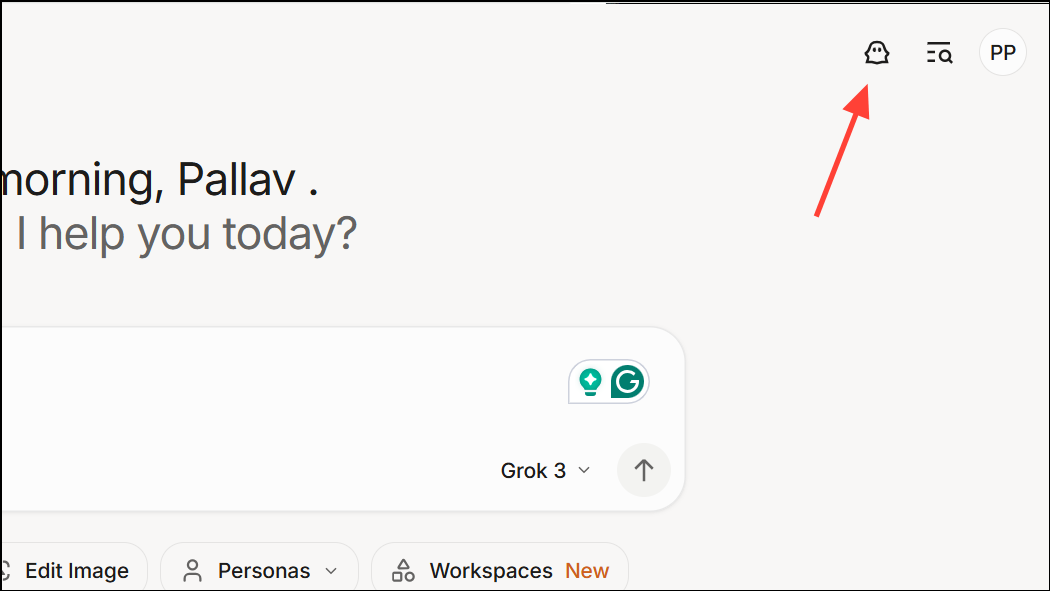
Both on the web and in the mobile apps, Grok offers a Private Chat mode that stops the chatbot from saving any details of your conversation. This mode is useful if you want to have a temporary interaction without any data being retained.
Tap or click this icon to activate Private Chat mode. When enabled, Grok will not store your chat content or use it to personalize future interactions.
Manage and Delete Stored Memories
Grok provides transparency by allowing you to view what it remembers and selectively delete specific memories.
When Grok references past conversations in its responses, a book-like icon will appear below the reply. Click or tap this icon to open a sidebar showing excerpts from previous chats that Grok used.
If you wish to remove a particular memory, select the Forget option associated with that memory. This action deletes that memory from Grok’s storage, preventing it from influencing future responses.
Note: The ability to delete memories is currently available on the web version of Grok and is expected to roll out to Android soon.
Additional Privacy Controls
Within the Data Controls settings, you may also find options to prevent Grok from accessing your history on X (formerly Twitter) during conversations. Disabling this can further limit the data Grok uses to personalize responses.
Disabling the memory feature or using Private Chat mode helps maintain your privacy and control over what information Grok retains and uses.
Turning off Grok AI’s memory feature is a simple process that puts you in control of your conversation data. Whether through settings on Grok.com, the mobile apps, or by using Private Chat mode, you can easily prevent the chatbot from storing your past interactions and keep your chats private.