
Mobile hotspot functionality in Windows 11 allows a device to share its internet connection with others over WiFi, but automatic activation or persistent operation can create unwanted network access, drain resources, or pose security risks. Stopping the hotspot from turning on or running continuously requires a few targeted changes to your system’s configuration.
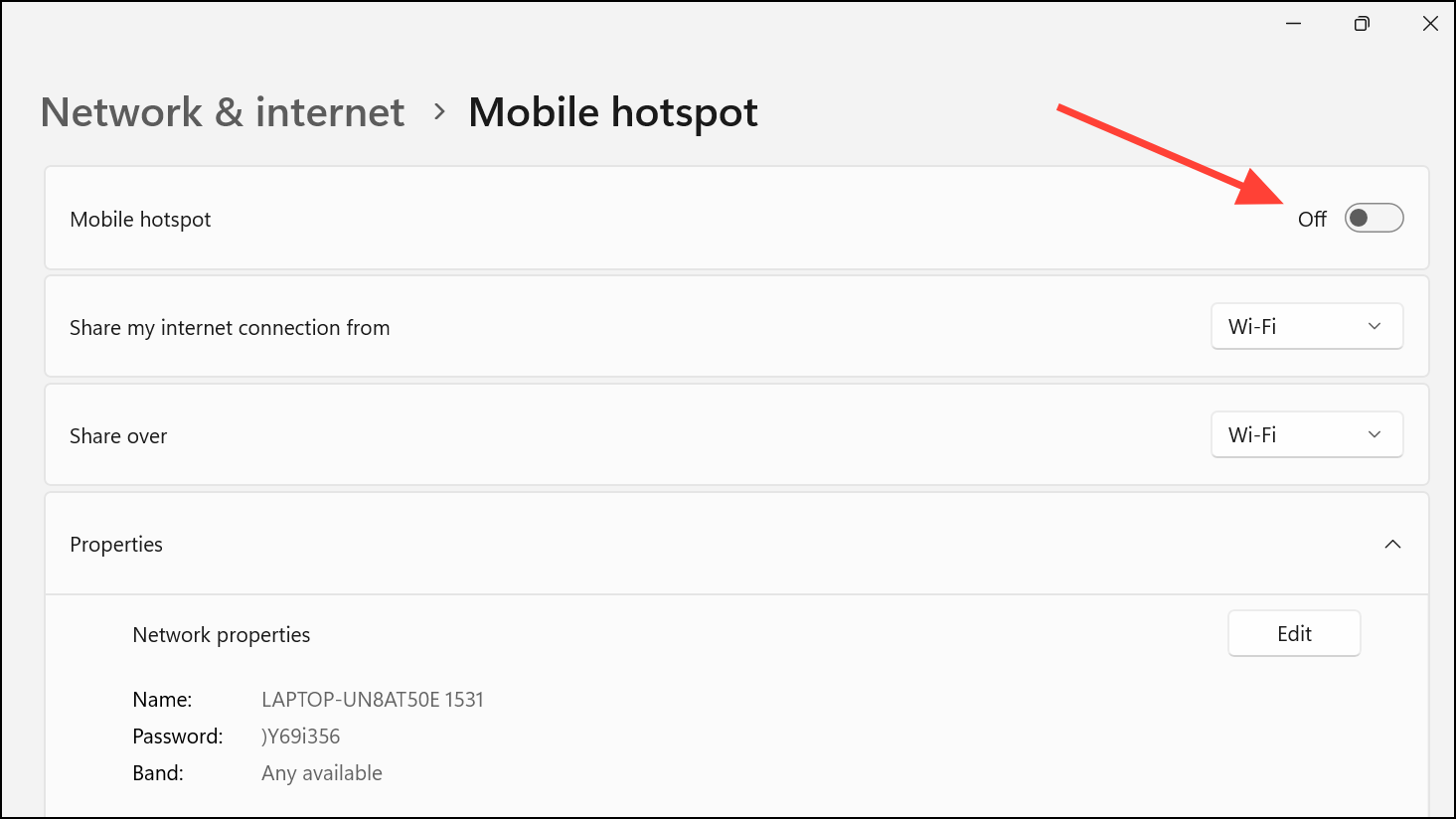
Disable WiFi Hotspot Using Windows Settings
Win + I on your keyboard. This shortcut brings up the main Windows 11 settings panel.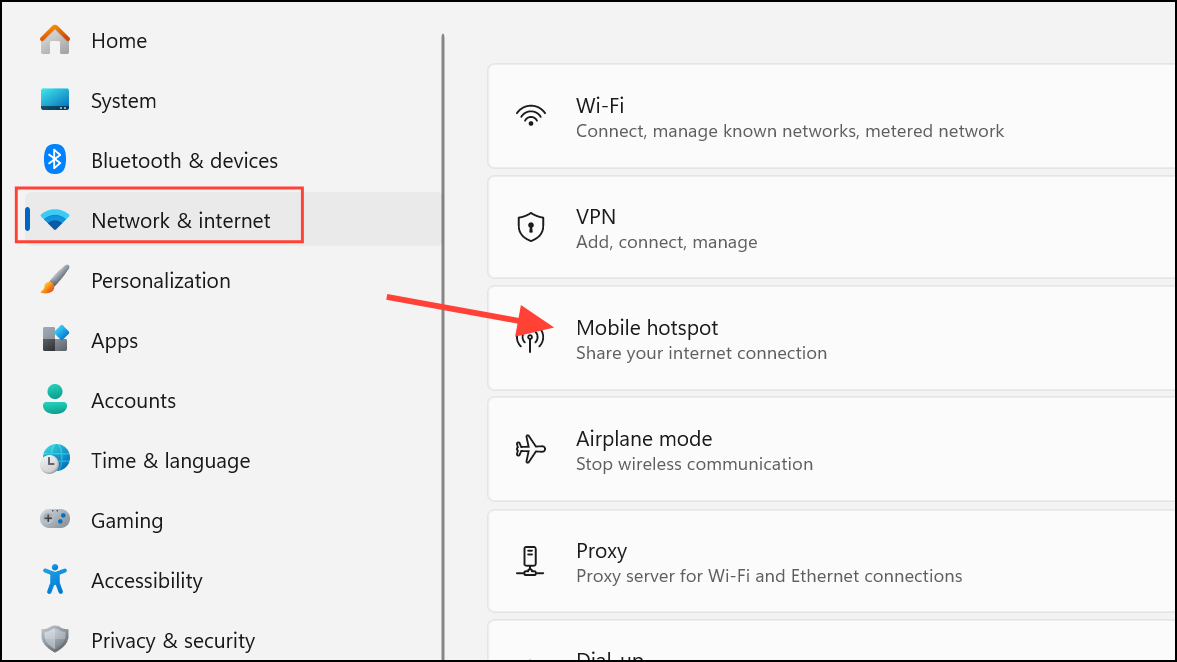
Stop Hotspot Activation Using Registry Editor
Altering the Windows Registry can block or limit hotspot features at a system level. Always back up your registry before making changes, as incorrect edits can cause stability problems.
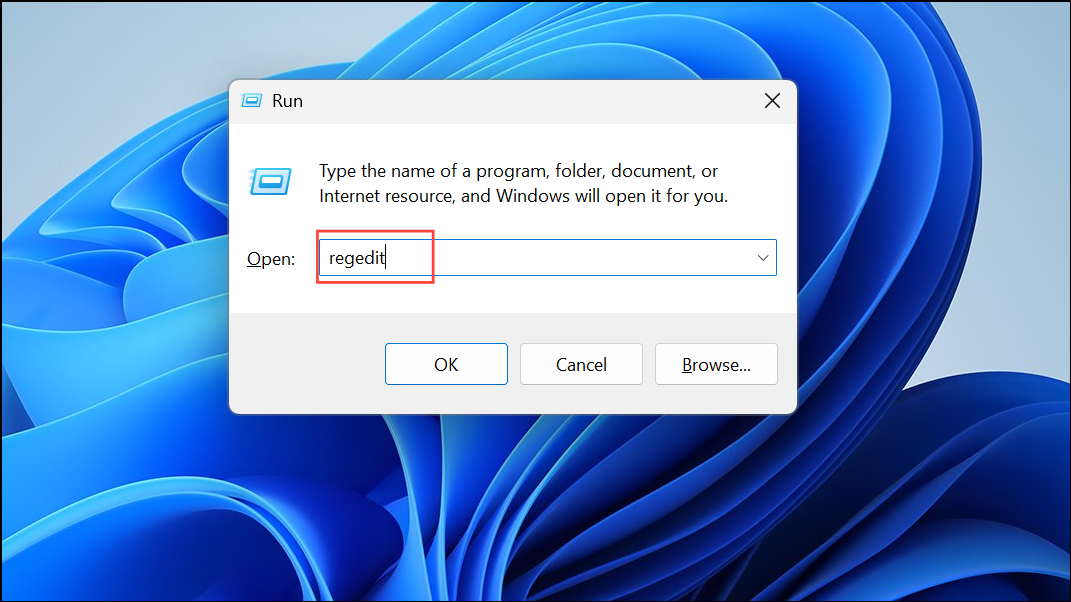
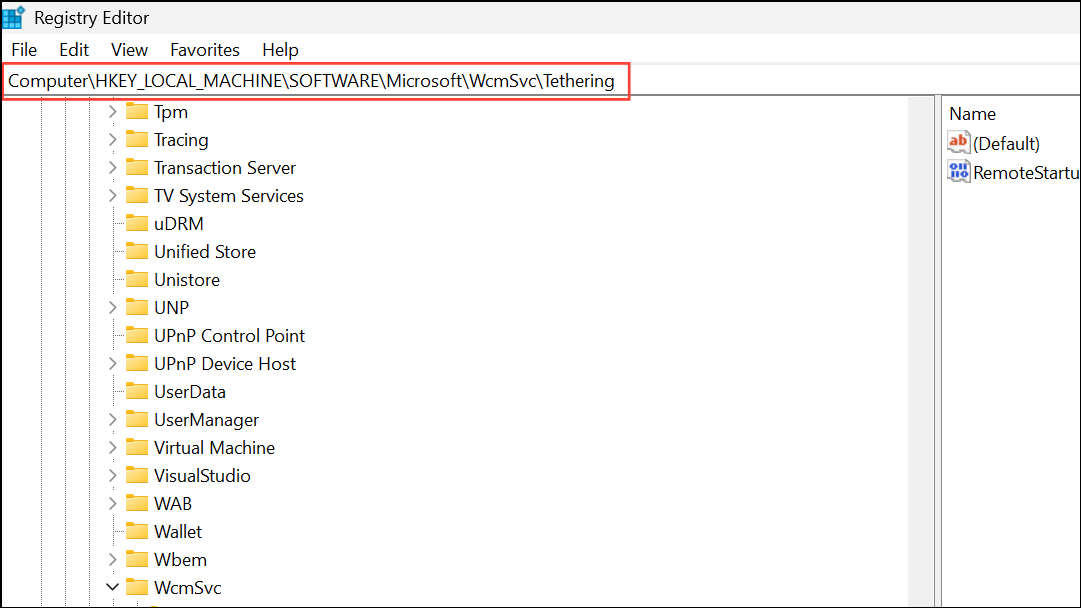
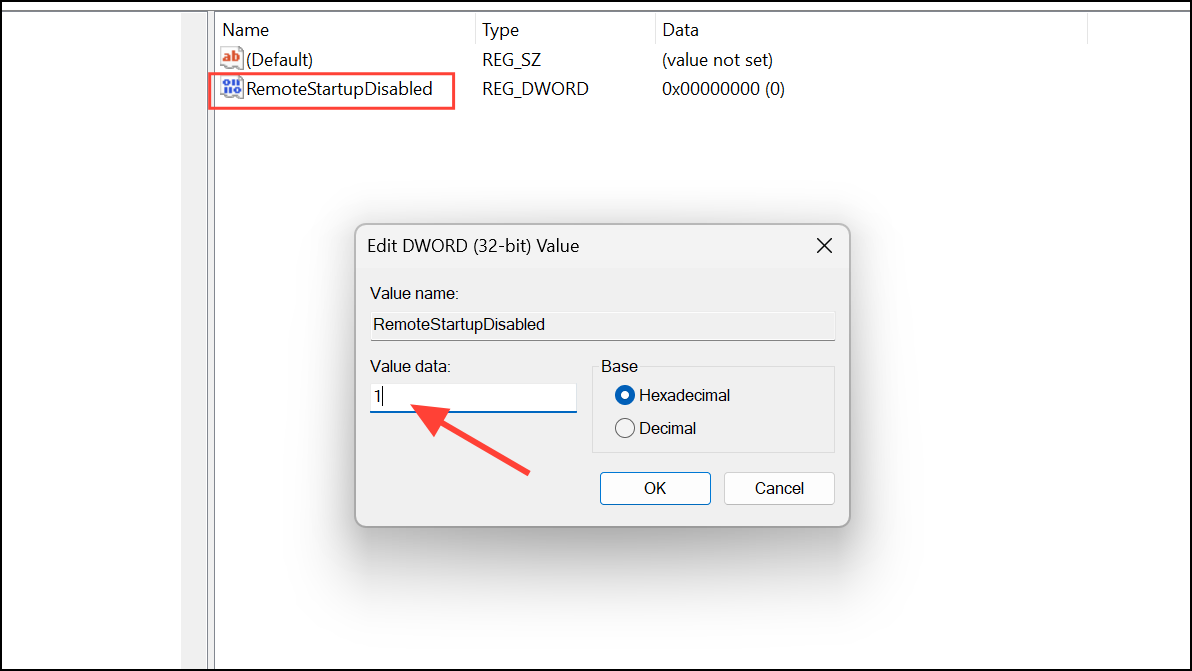
HKEY_LOCAL_MACHINE\SOFTWARE\Microsoft\WcmSvc\Tethering
Block Hotspot via Local Group Policy Editor
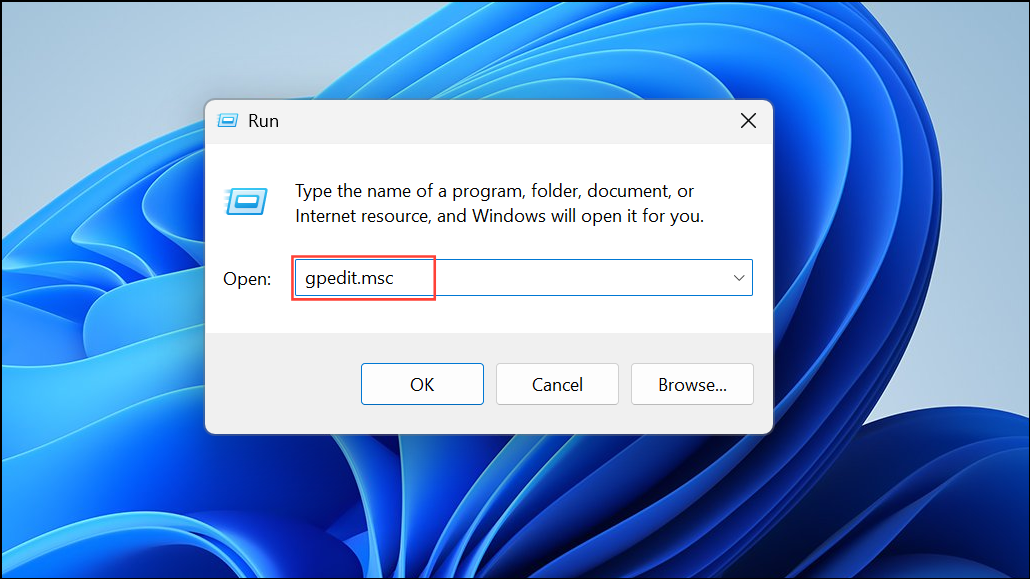
Group Policy is available only on Windows 11 Pro, Enterprise, and Education editions. It allows administrators to enforce network restrictions.
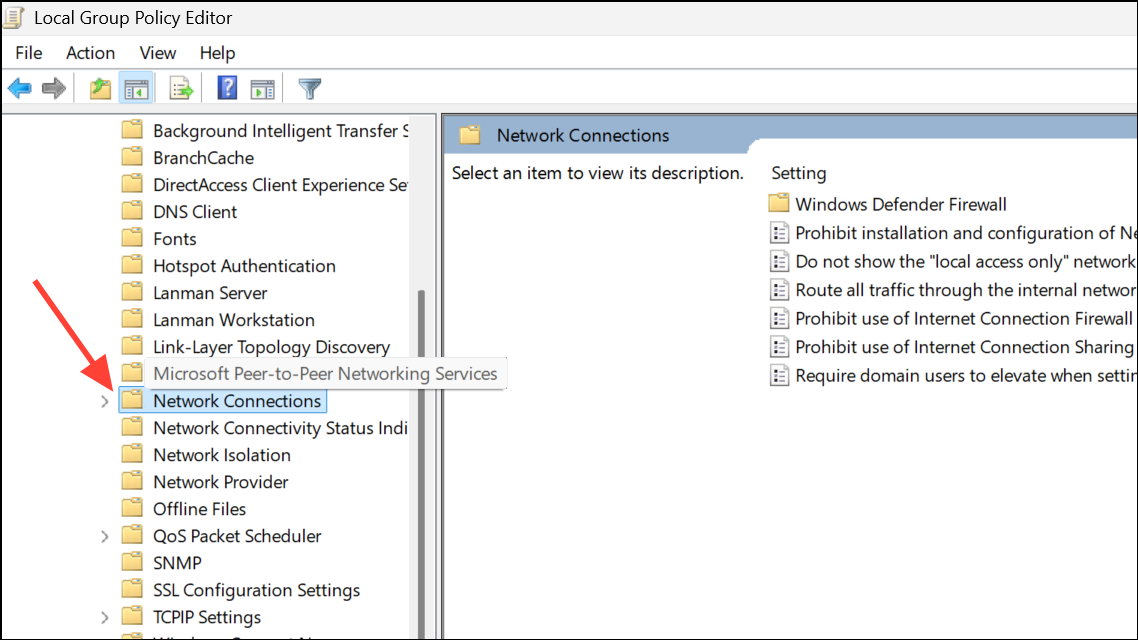
Computer Configuration > Administrative Templates > Network > Network Connections
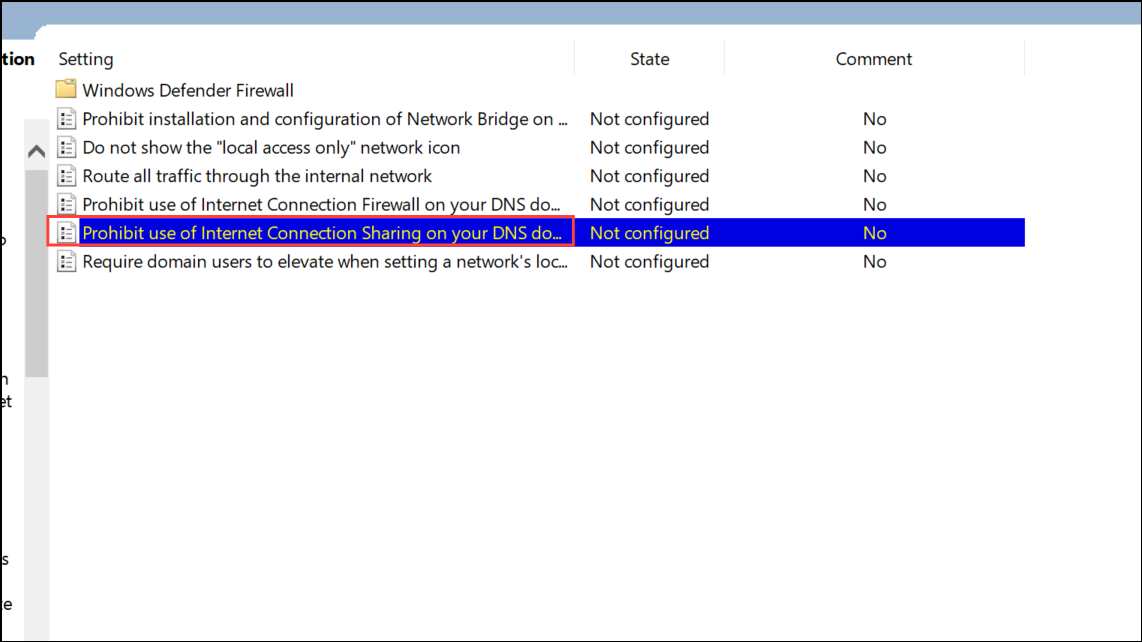
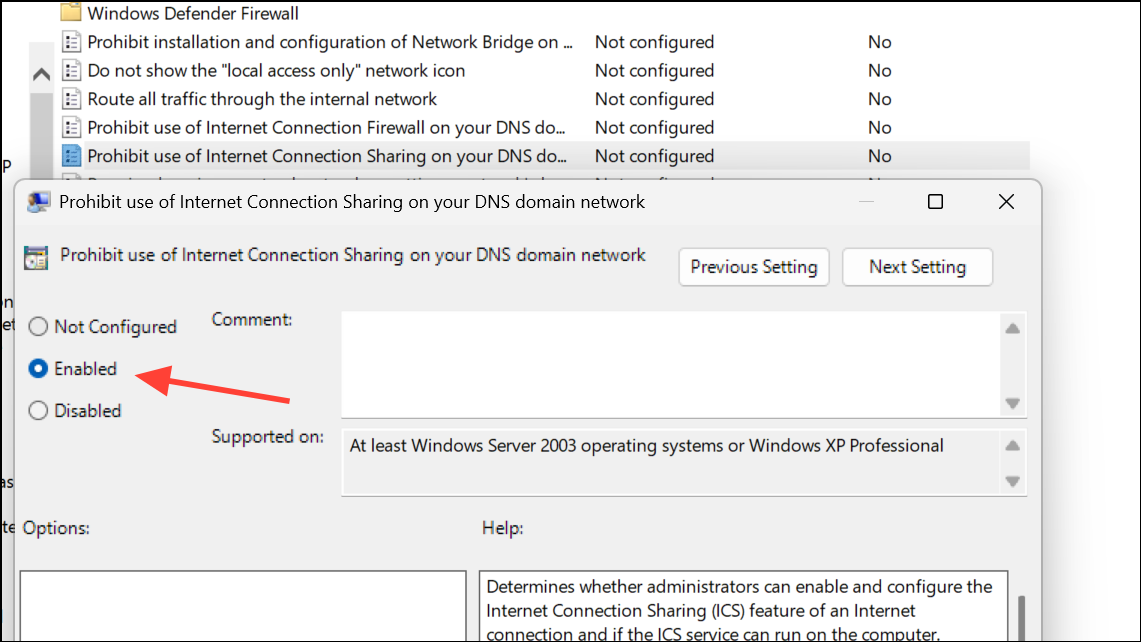
Disable Hotspot Using Task Scheduler and Scripts
Some users find that the hotspot turns on automatically due to scheduled scripts or third-party utilities. To prevent this, check and remove any scheduled tasks that activate the hotspot.
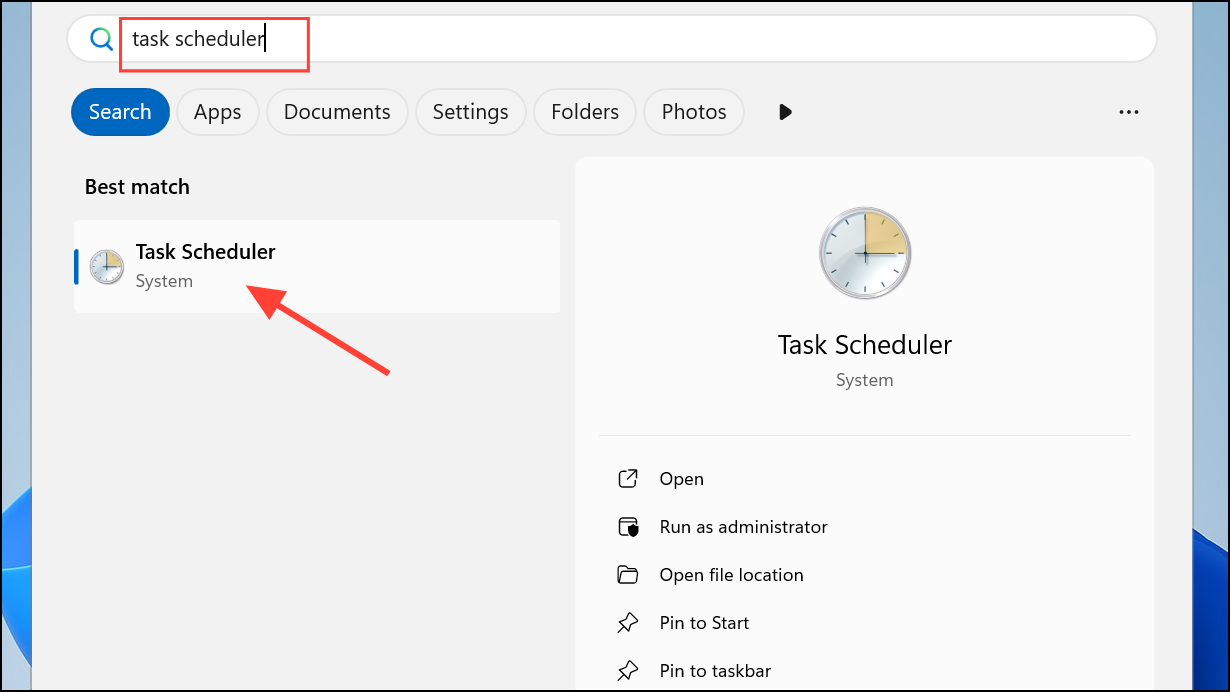
powershell -ExecutionPolicy Bypass "$connectionProfile = [Windows.Networking.Connectivity.NetworkInformation,Windows.Networking.Connectivity,ContentType=WindowsRuntime]::GetInternetConnectionProfile(); $tetheringManager = [Windows.Networking.NetworkOperators.NetworkOperatorTetheringManager,Windows.Networking.NetworkOperators,ContentType=WindowsRuntime]::CreateFromConnectionProfile($connectionProfile); $tetheringManager.StartTetheringAsync();"
Additional Tips for Managing Hotspot Disconnection
Windows 11 includes a power-saving feature that stops the hotspot when no devices are connected. However, some users report that devices are disconnected after a few minutes of inactivity even with power saving disabled. Currently, there is no built-in setting to prevent this automatic disconnection. For persistent hotspot needs, consider using a dedicated router or third-party software that offers more control over connection timeouts.
Blocking or limiting the automatic activation of WiFi hotspot on Windows 11 can be accomplished using system settings, registry edits, or group policy changes. These steps help you control network sharing, conserve battery, and reduce security risks associated with unwanted hotspot usage.



