

Developer Mode in Windows 11 allows software creators and testers to install, debug, and sideload apps from sources outside the Microsoft Store. This setting is essential for development environments but can introduce security risks if left enabled on everyday-use systems. Activating or deactivating Developer Mode requires administrator access and, in some cases, may be limited by organizational policies.
Enable or Disable Developer Mode Using Windows Settings
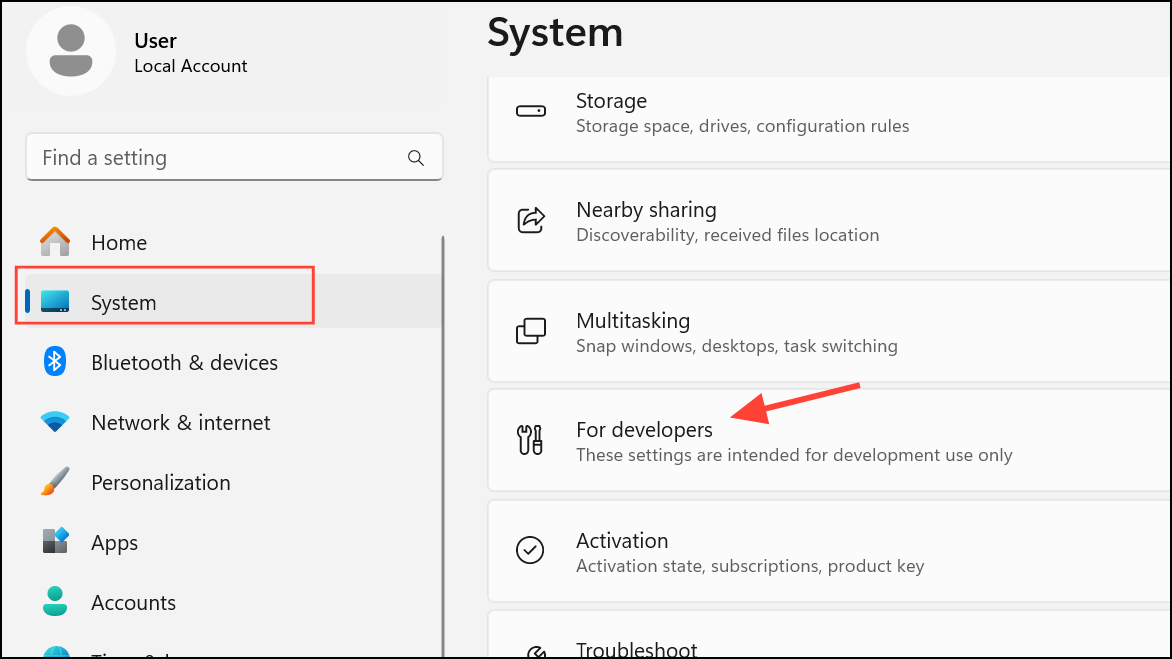
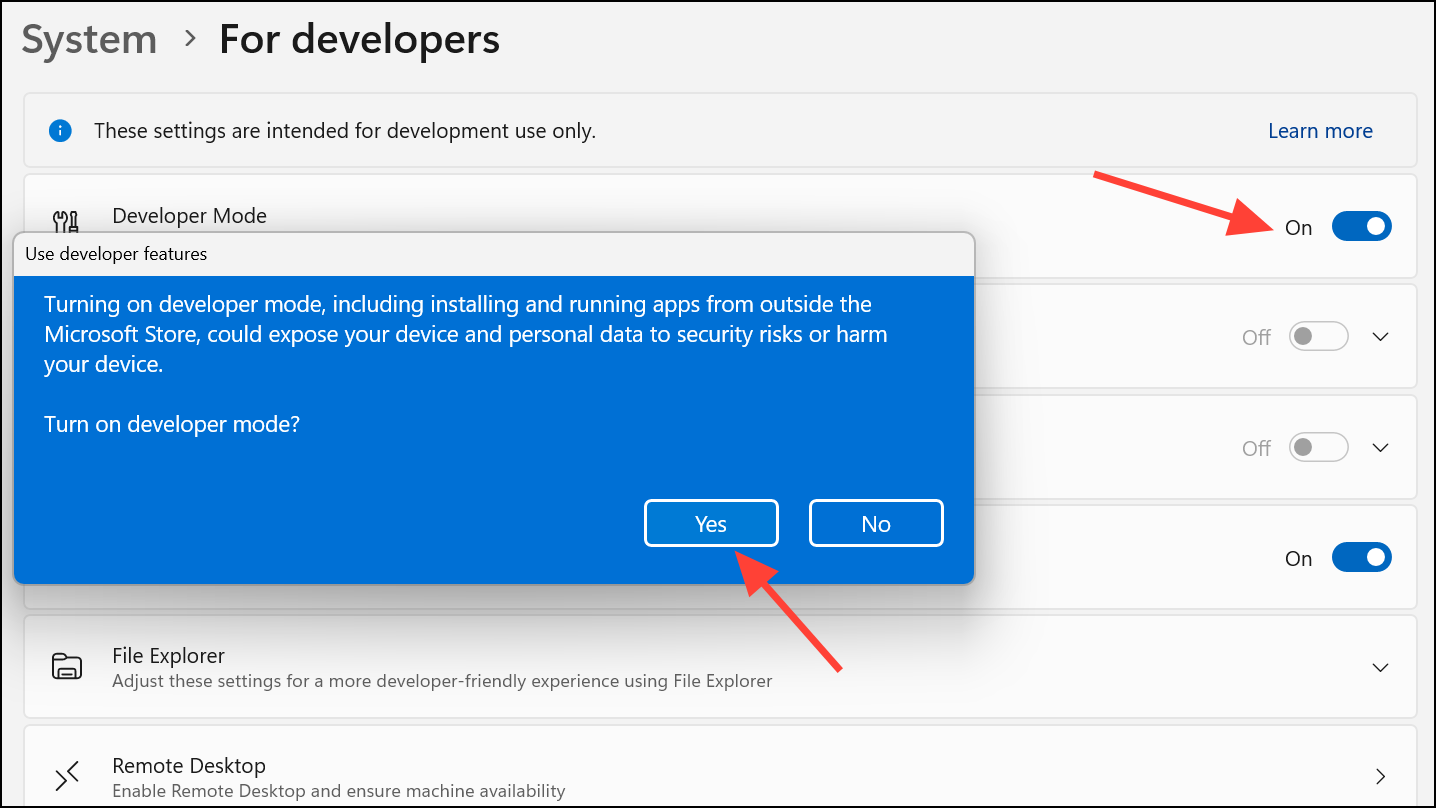
Enable or Disable Developer Mode via Windows Registry
Advanced users or administrators may prefer to control Developer Mode through the Windows Registry, which is especially useful for automating the process or troubleshooting when the Settings UI is inaccessible.
Win+R to open the Run dialog, then type regedit.exe and press Enter. Approve any User Account Control prompts to launch the Registry Editor.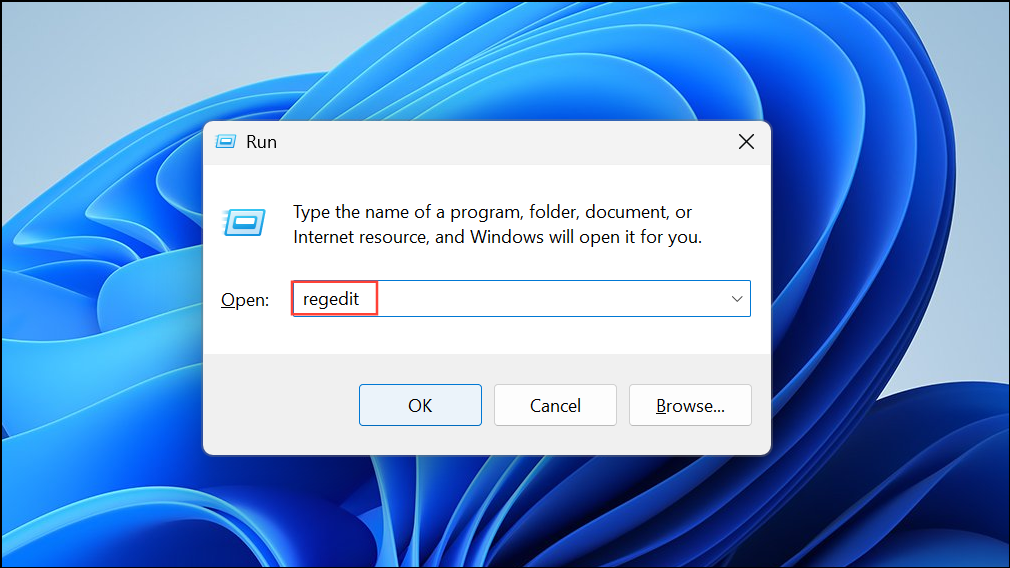
HKEY_LOCAL_MACHINE\SOFTWARE\Microsoft\Windows\CurrentVersion\AppModelUnlock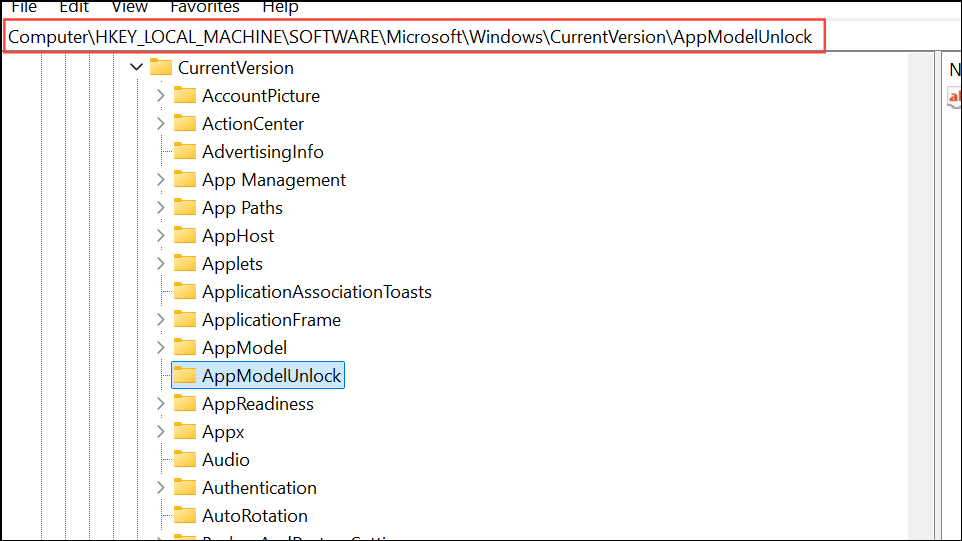
AllowDevelopmentWithoutDevLicense DWORD value. To enable Developer Mode, set its value to 1. To disable Developer Mode, set the value to 0.Control Developer Mode Using Local Group Policy Editor
For organizations or advanced users running Windows 11 Pro, Enterprise, or Education, the Local Group Policy Editor provides centralized control over Developer Mode, including the ability to enforce or restrict its use system-wide.
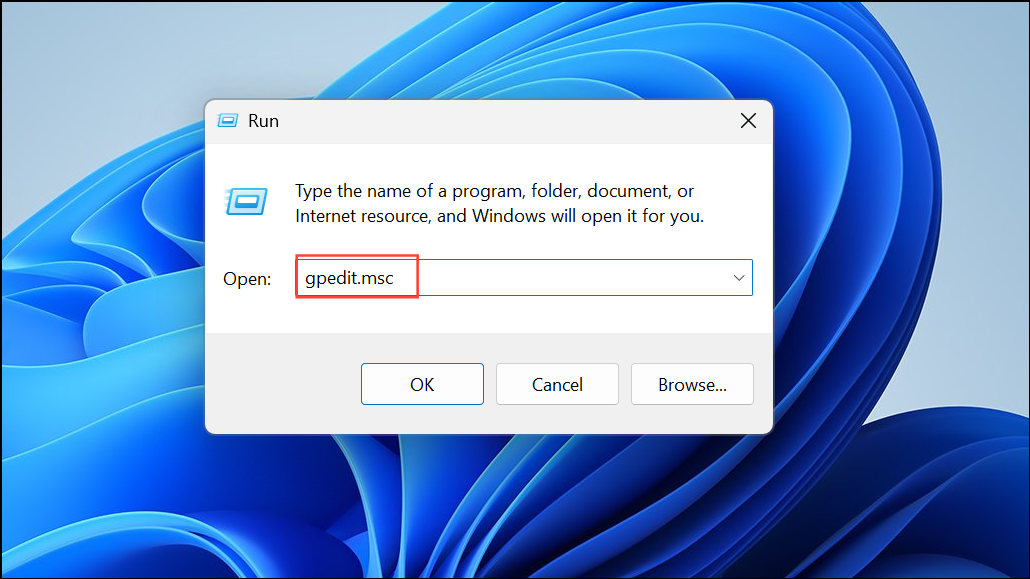
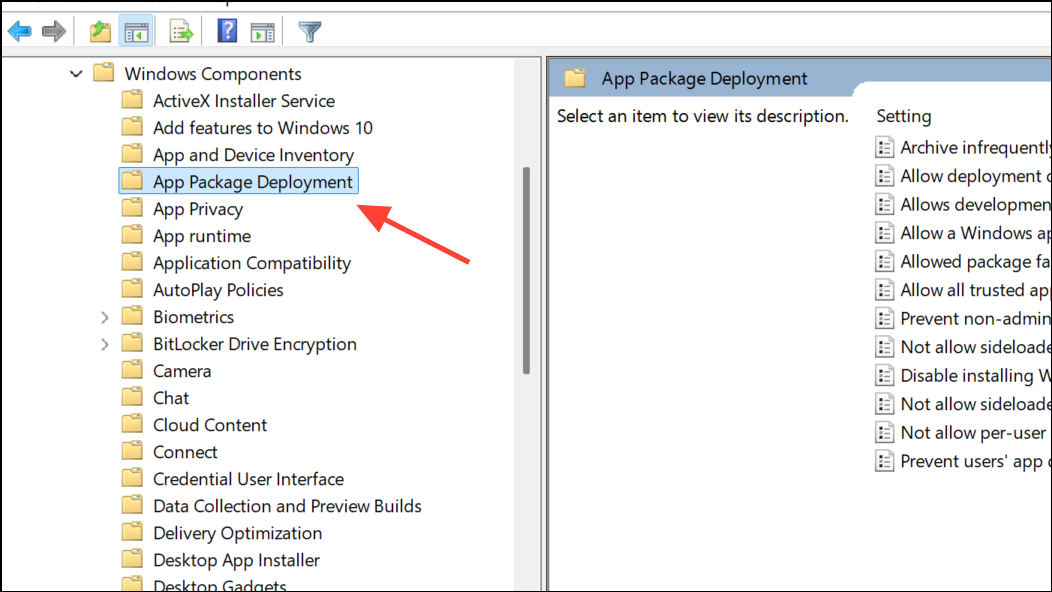
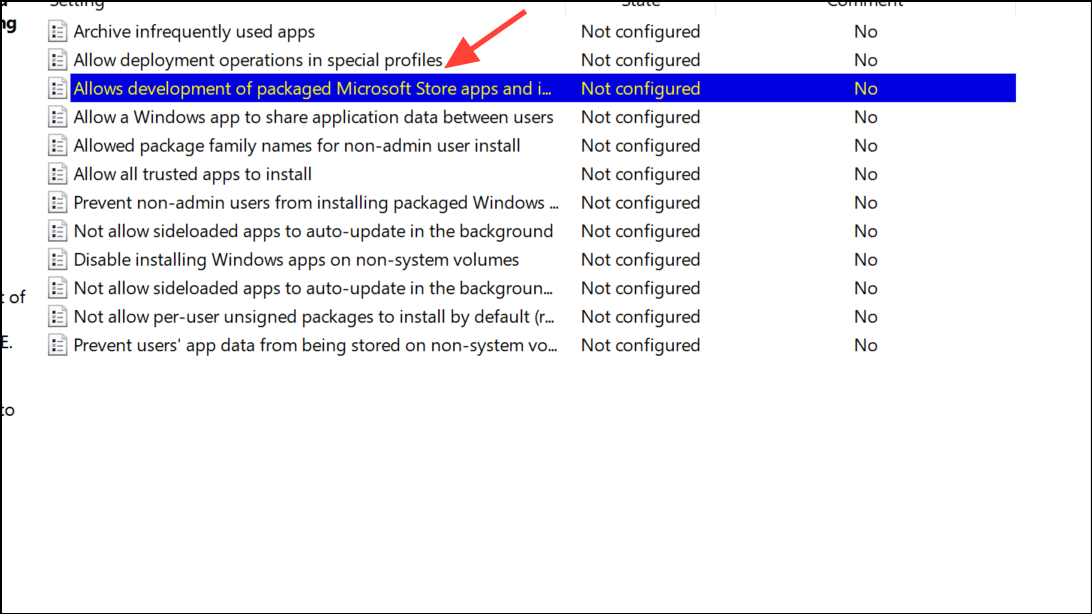
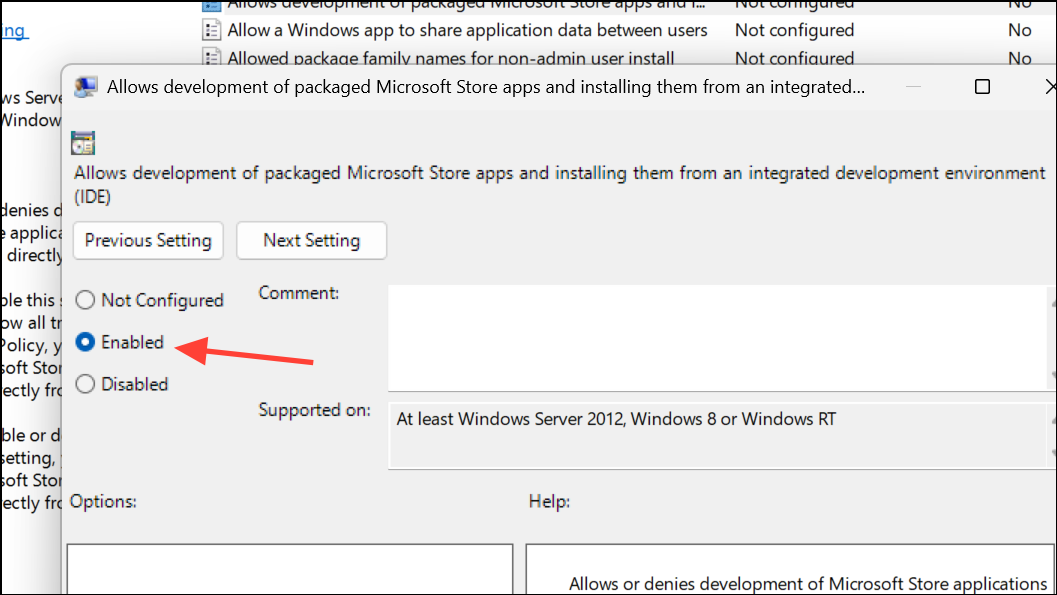
Troubleshooting: Developer Mode Option Not Visible or Greyed Out
Occasionally, the Developer Mode toggle may be missing or inaccessible. This usually happens for one of two reasons:
- You are not signed in with an administrator account. Only admins can change Developer Mode settings.
- Your device is managed by an organization, and policies restrict access to Developer Mode. In this case, contact your IT administrator for assistance.
Maximizing the Settings window can reveal hidden options if the UI is condensed. Alternatively, use the search bar in Settings and type developer or for developers to locate the feature directly.
Security Considerations
Enabling Developer Mode allows the installation and debugging of apps from any source, which can expose your system to additional security risks. It is recommended to use Developer Mode only on dedicated development machines. Avoid downloading and running software from untrusted sources, and disable Developer Mode when not actively developing or testing apps to restore optimal security.
Switching Developer Mode on or off in Windows 11 is straightforward using Settings, Registry, or Group Policy. Always use administrator privileges and review your organization’s policies before making changes.



