

Microsoft Defender SmartScreen protects Windows 11 systems by checking apps, files, and websites against a cloud-based threat database. This security feature blocks suspicious downloads and warns about potentially harmful content, but it can also flag trusted files or interfere with certain workflows. Adjusting SmartScreen settings gives you more control over how Windows 11 manages these security checks.
Enable or Disable SmartScreen Using Windows Security
Windows + I to launch Settings. Navigate to Privacy & security, then select Windows Security.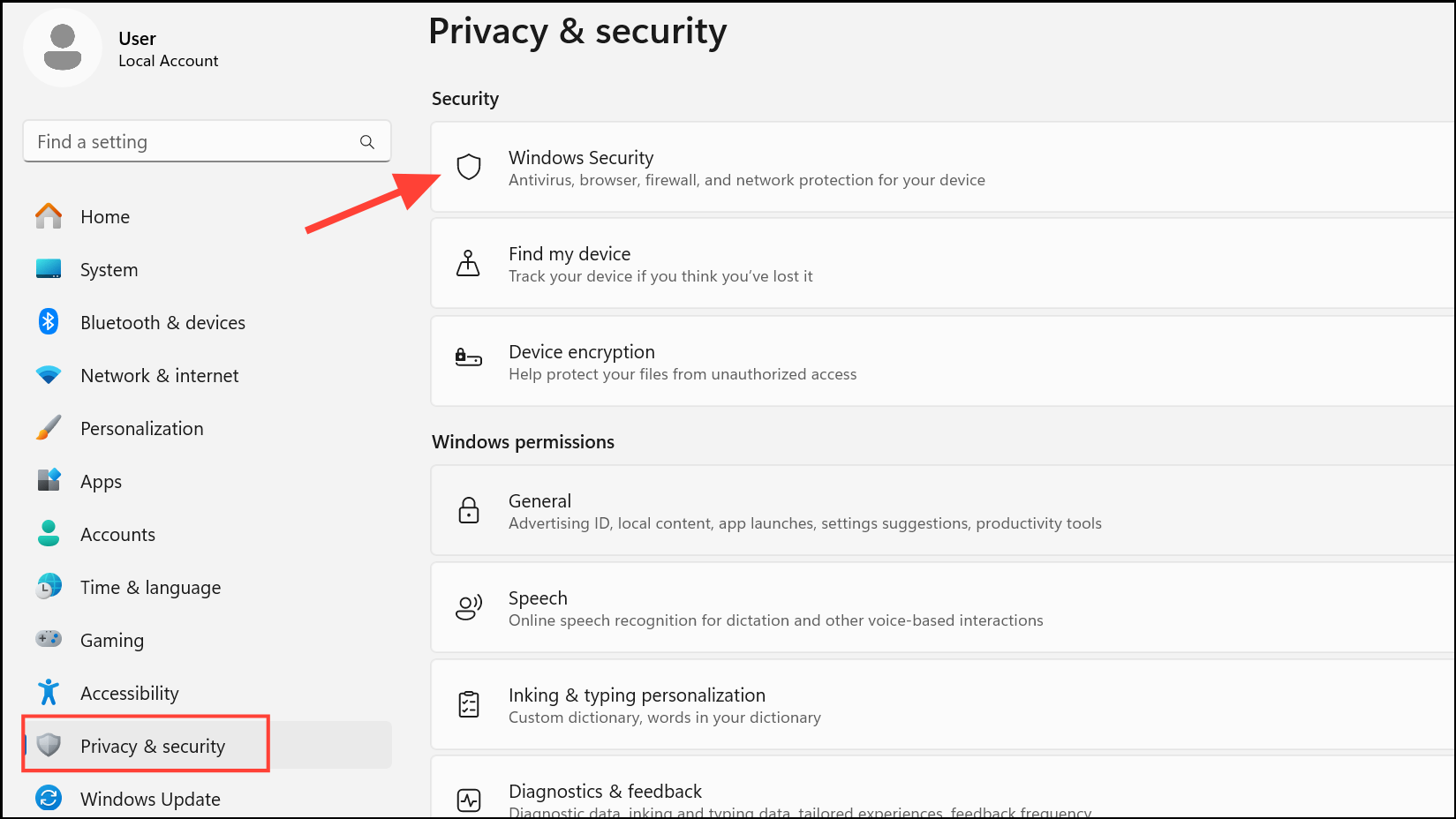
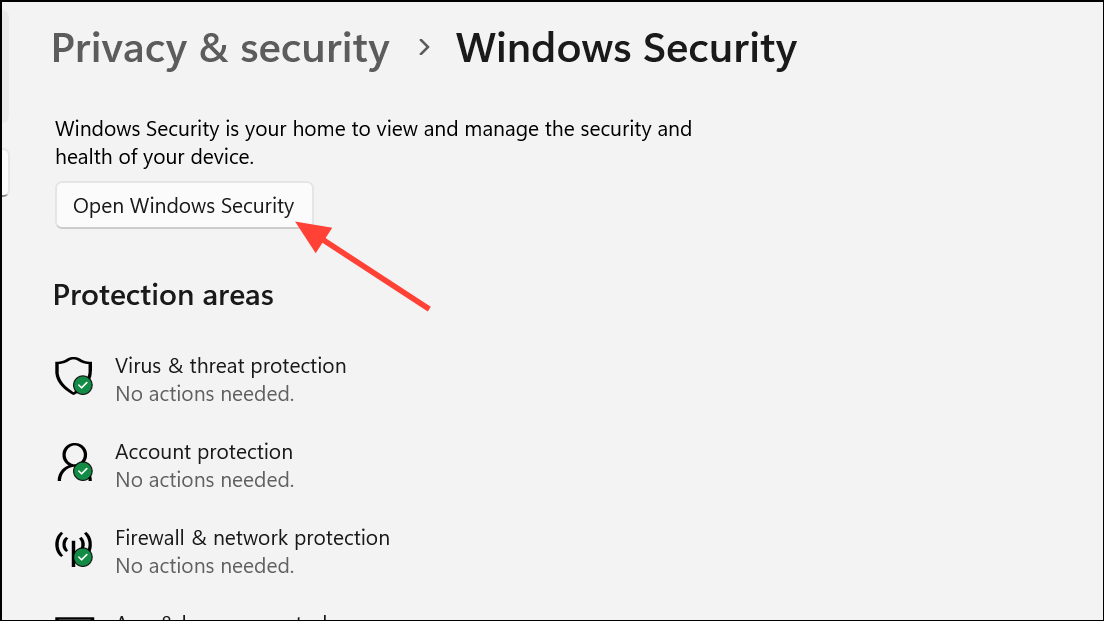
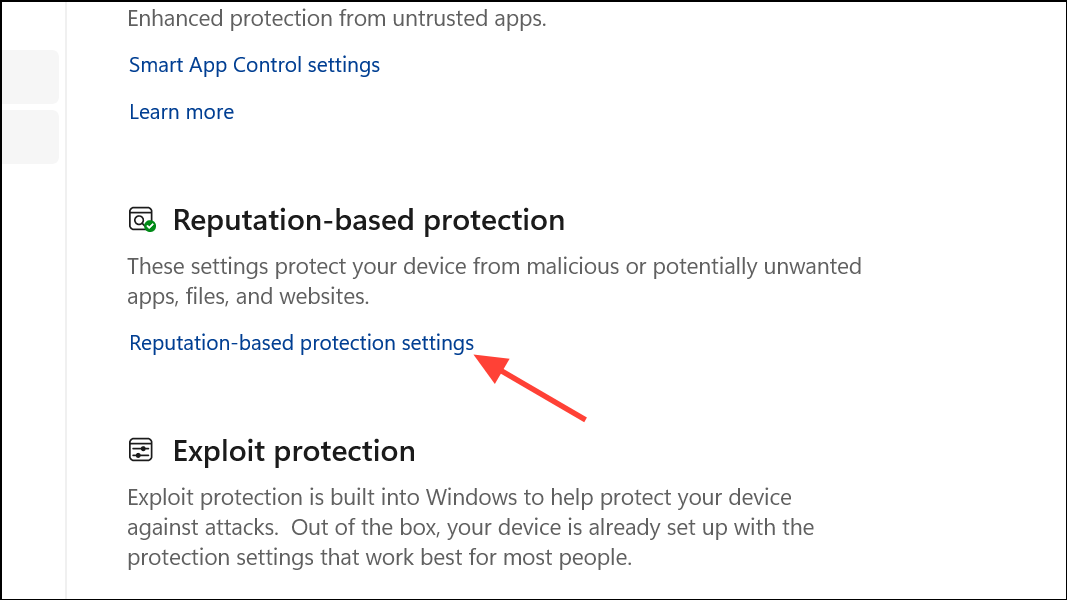
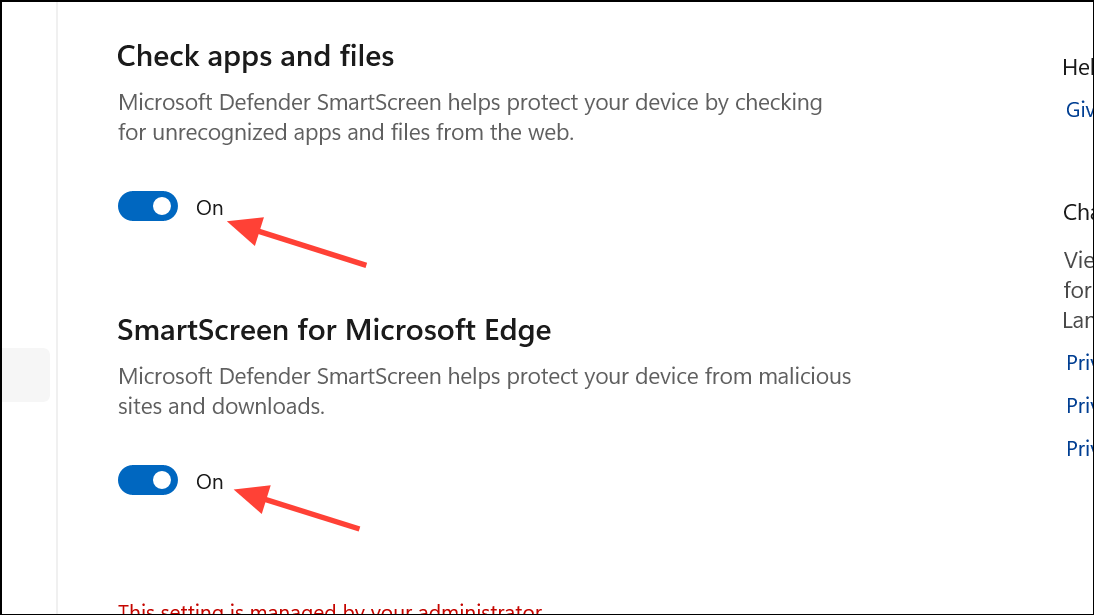
- Check apps and files: Screens files and apps downloaded from the web or external sources.
- SmartScreen for Microsoft Edge: Monitors websites and downloads within the Edge browser.
- Potentially unwanted app blocking: Blocks software known to cause unwanted behavior.
- SmartScreen for Microsoft Store apps: Checks apps downloaded from the Microsoft Store.
Toggle each filter on or off according to your preference. Disabling these settings removes the corresponding checks, which can speed up downloads or installations but reduces protection against threats.
Enable or Disable SmartScreen Using Group Policy Editor
Group Policy Editor allows advanced users or system administrators to centrally manage SmartScreen settings, which is especially useful for multiple devices or organizational environments. This tool is available only on Windows 11 Pro, Enterprise, and Education editions.
Windows + R to open the Run dialog, then type gpedit.msc and press Enter to launch the Group Policy Editor.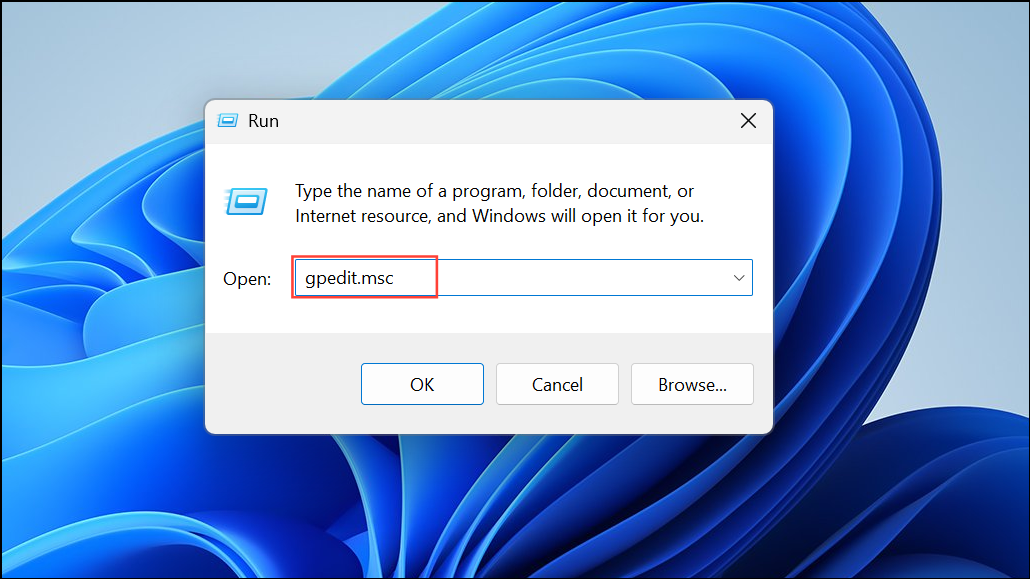
Computer Configuration > Administrative Templates > Windows Components > File Explorer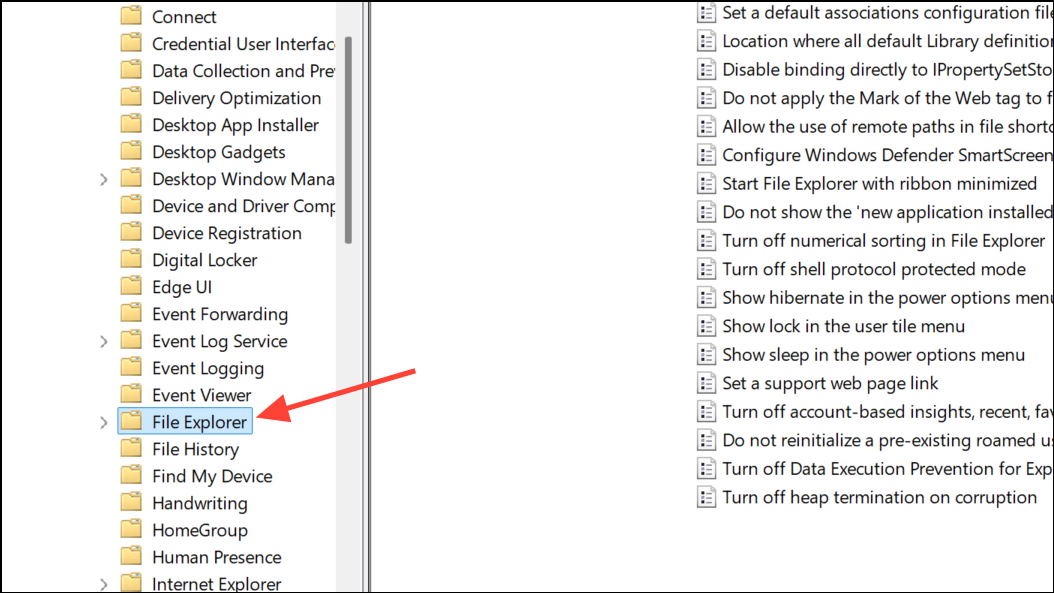
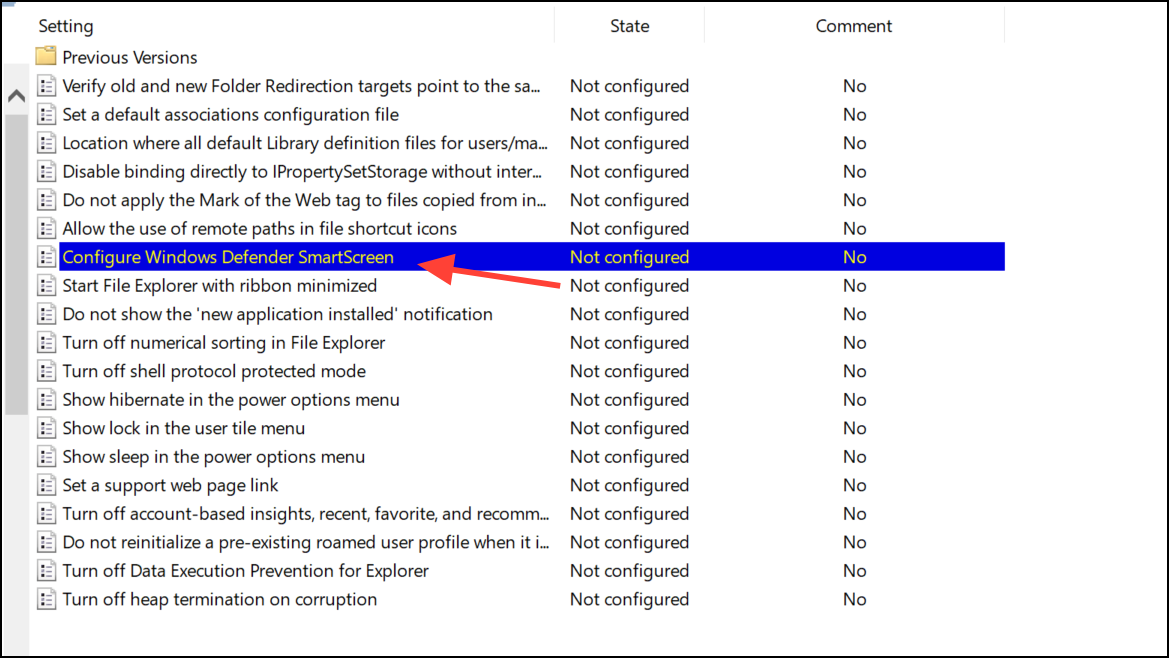

For organizations, this approach standardizes security settings across all managed PCs and prevents users from changing them individually.
Enable or Disable SmartScreen Using Registry Editor
Registry Editor offers granular control over SmartScreen settings, especially when other tools are unavailable. Modifying the registry can impact system stability, so create a restore point and back up your registry before making changes.
Windows + R, type regedit, and press Enter. Approve the User Account Control prompt to open Registry Editor.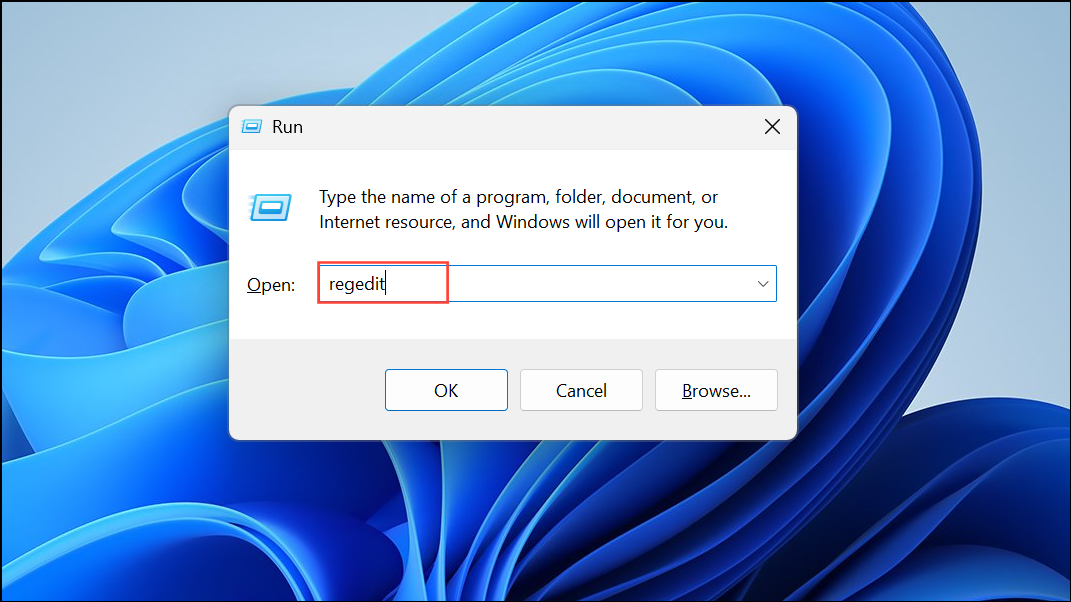
HKEY_LOCAL_MACHINE\SOFTWARE\Policies\Microsoft\Windows\System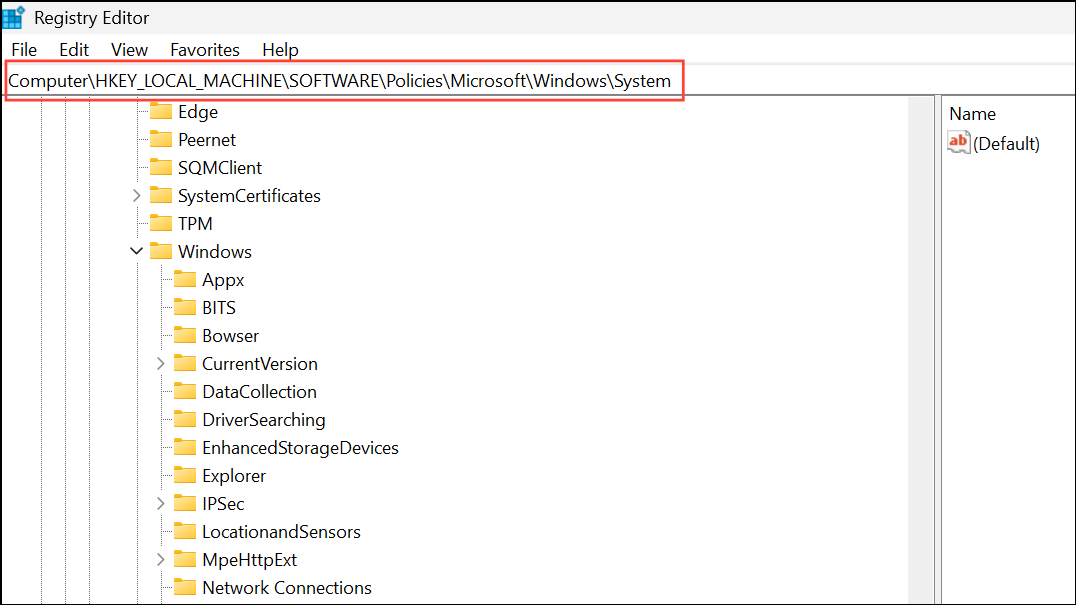
EnableSmartScreen.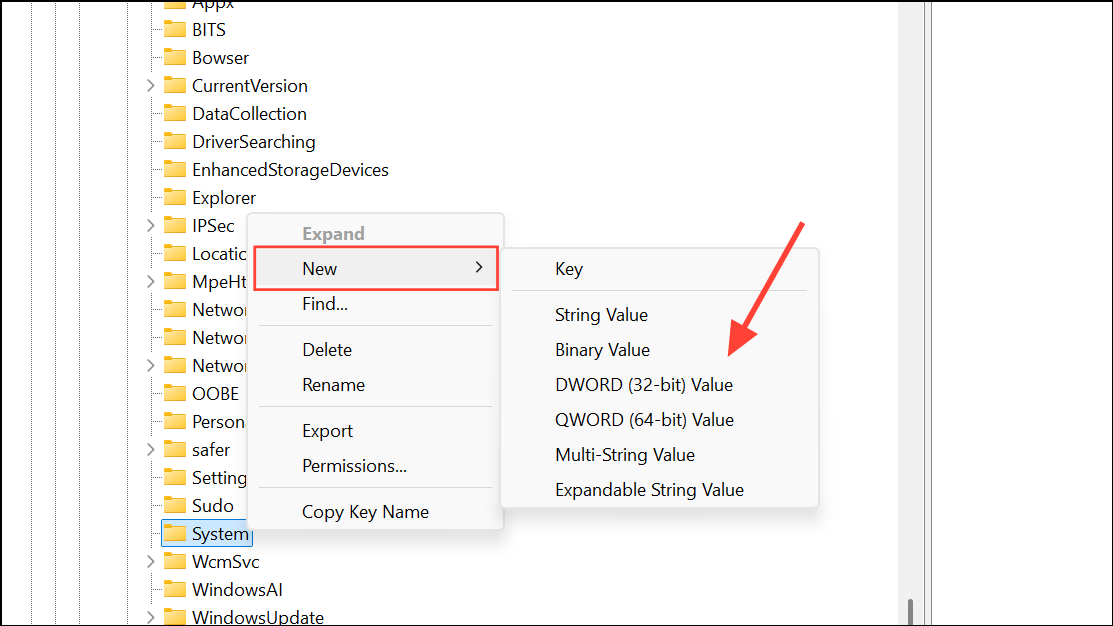
EnableSmartScreen. Set the value data to 1 to enable SmartScreen or 0 to disable it. Click OK to save.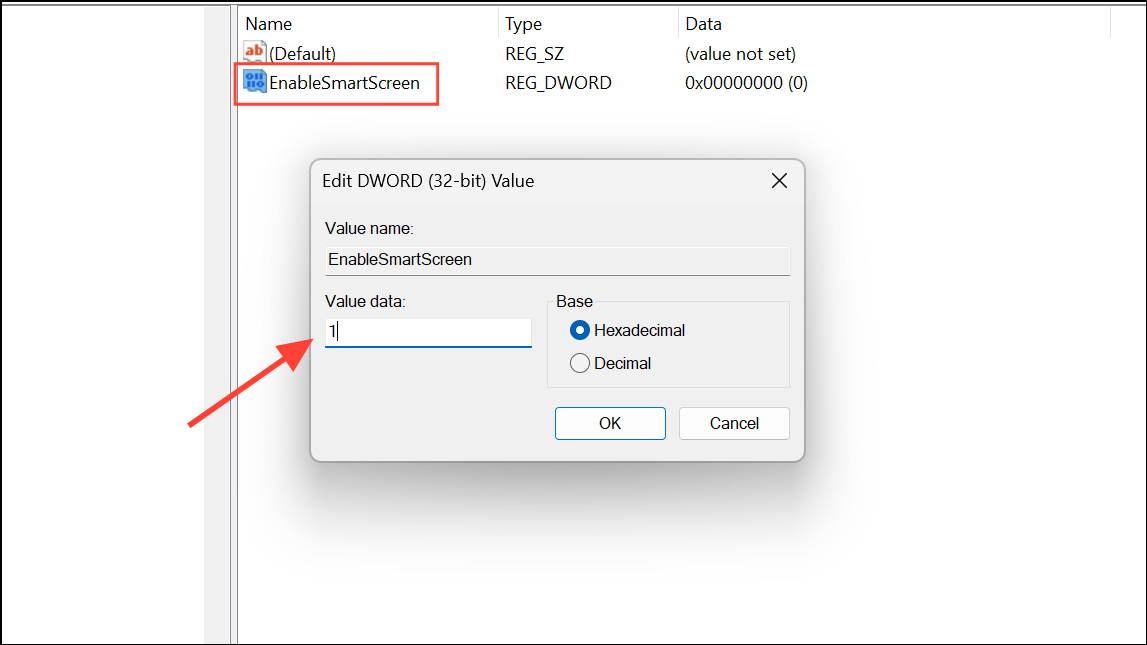
To revert or remove this setting, delete the EnableSmartScreen value from the same registry location and restart your PC.
Adjusting SmartScreen in Microsoft Edge
SmartScreen is also integrated with Microsoft Edge. To change its settings specifically for Edge:
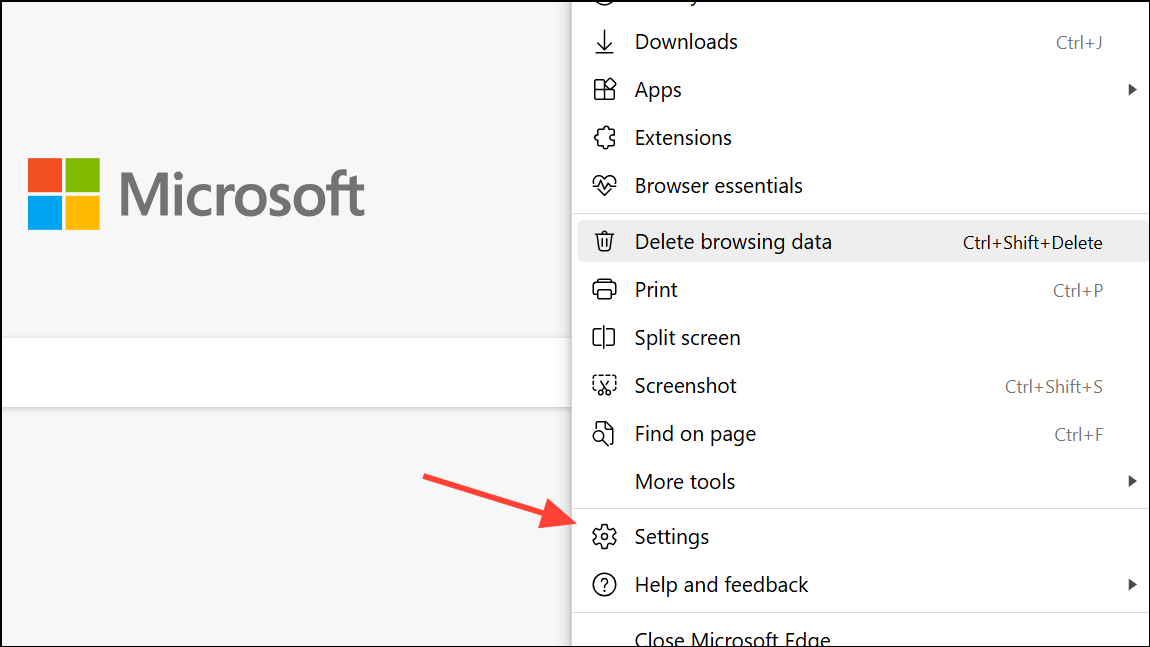
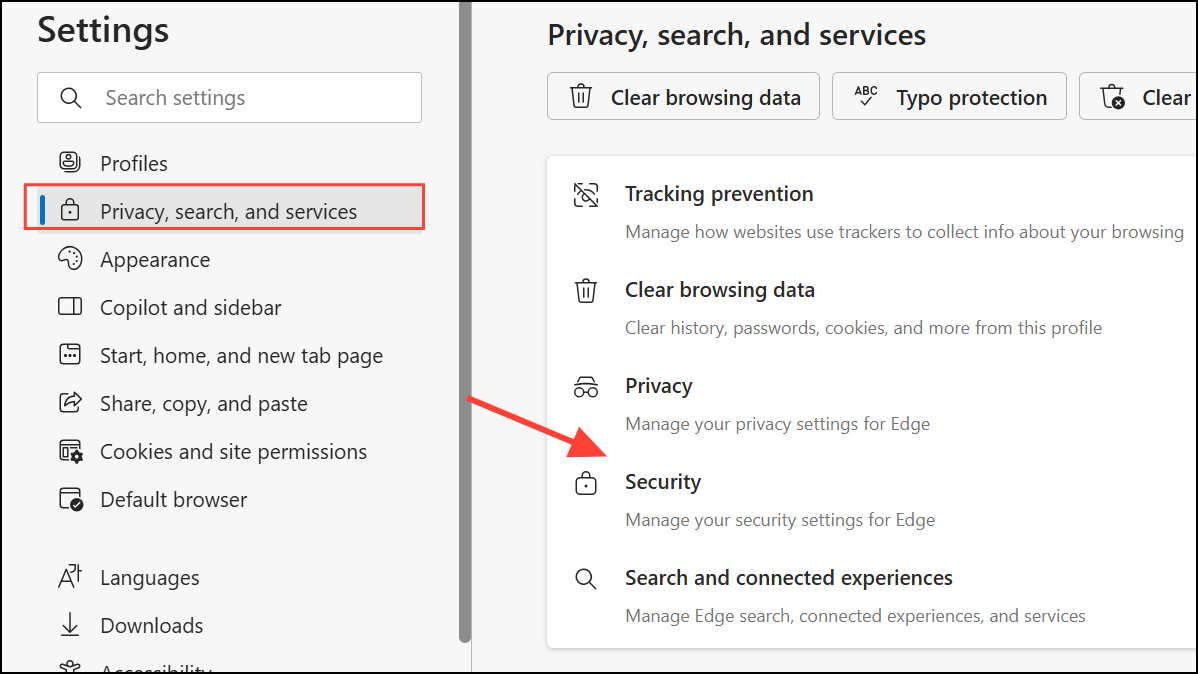
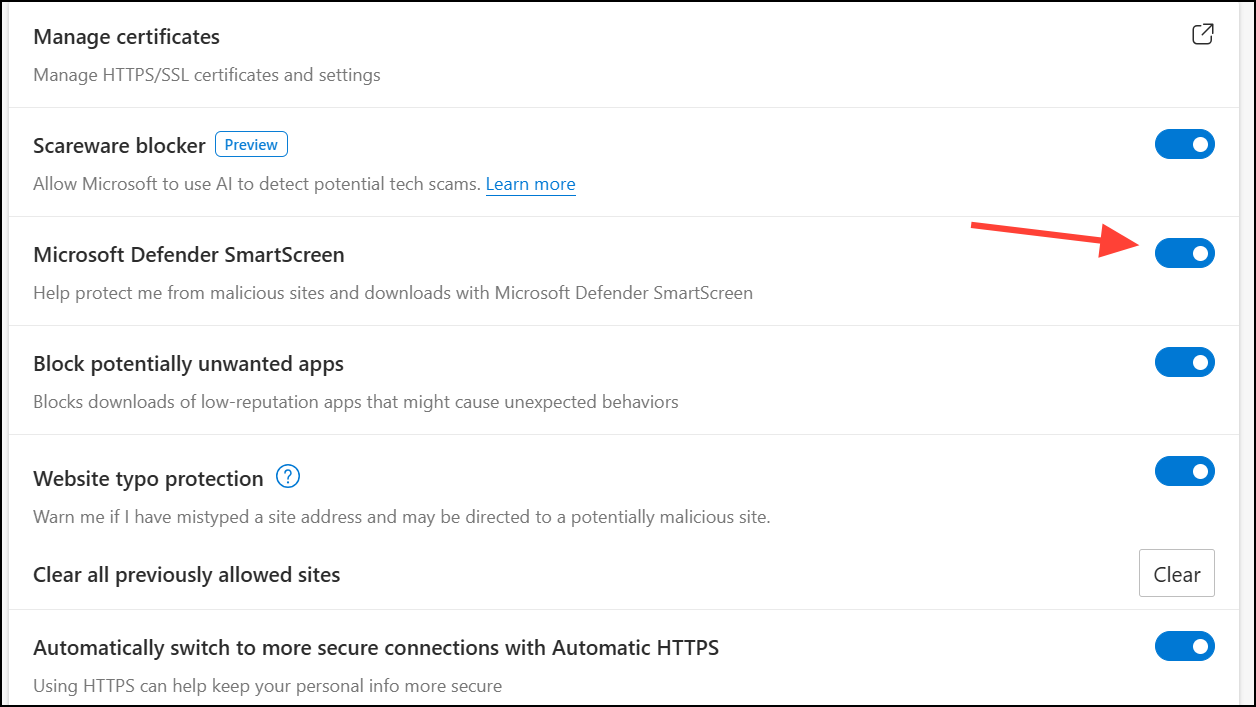
Turning SmartScreen off can speed up installations or resolve issues with trusted files being blocked, but it also increases exposure to malware and phishing attacks. Always re-enable SmartScreen after completing sensitive tasks, and keep your system updated for maximum security.



