Enshrouded: How to Get Rough Wood and Stone Blocks and Use the Construction Hammer
Craft the hammer and your first blocks at the Workbench, then enter Building mode to clear two Building Shelter steps.
Craft the hammer and your first blocks at the Workbench, then enter Building mode to clear two Building Shelter steps.
by AllThingsHow Staff
In Enshrouded 1.0, the Building Shelter quest (it starts once Oswald the Blacksmith is rescued and at your base) has two objectives after you build the Workbench: “Craft Or Obtain Rough Stone/Wood Blocks”, followed by “Use The Construction Hammer”. Make both at the Workbench beside the first Flame Altar on the Plains. The same menu lets you craft the blocks and hammer; use the hammer to place the blocks as a structure.
Quick answer: At the Workbench, craft the Construction Hammer (Stone 1), then a Rough Stone Block (Stone 2) or Rough Wood Block (Wood Logs 2) for x100 blocks. Hold the hammer, press TAB, and left-click to build.
What you need before crafting
Everything here runs off two basic materials and the Workbench you already placed for this quest. Gather these first so the recipes are ready to craft.
Stone, collected from pickups in the world.
Chop a tree with the Axe to collect Wood Logs, around 12 per tree.
The Workbench, placed inside the Flame protected area.
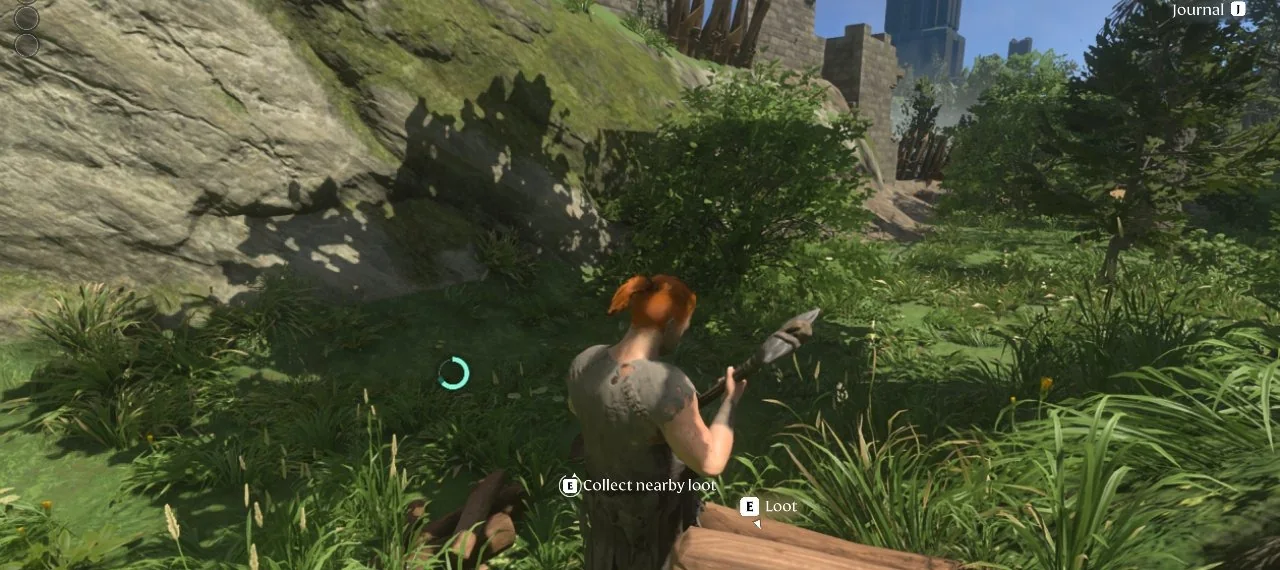
With the Axe in hand, hit a tree until it falls. The felled trunk lies at your feet, so hold E at the “Collect nearby loot” prompt to pick up the Wood Logs.
Holding the Axe beside a felled tree trunk, with the “Collect nearby loot” and “E Loot” prompts showing.
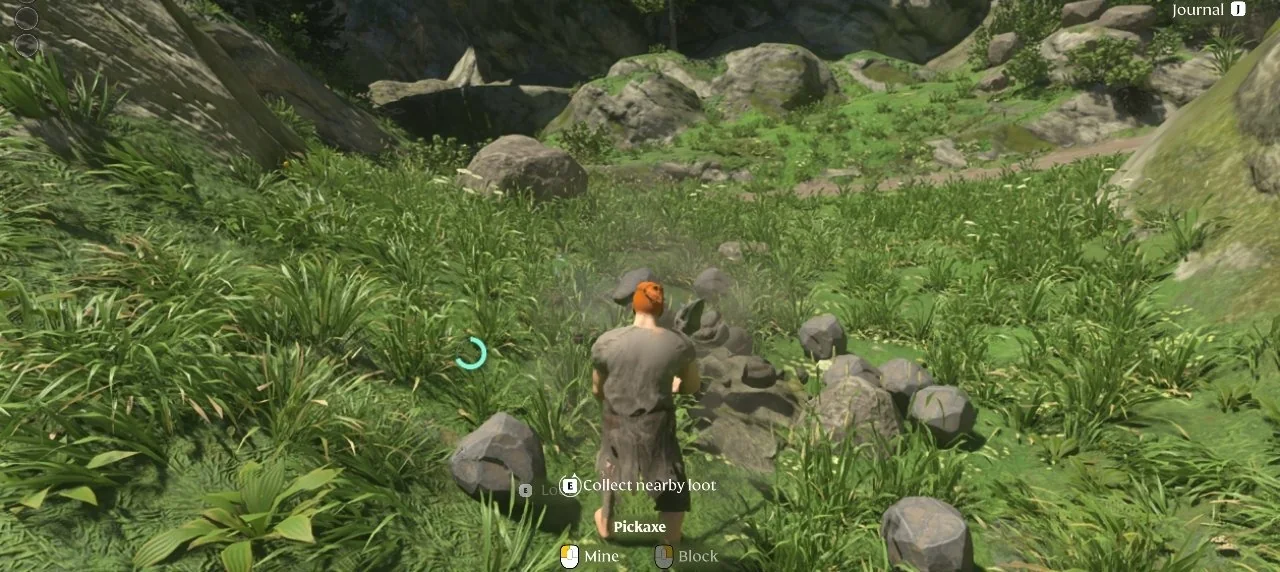
You can also mine Stone by swinging the Pickaxe at a grey boulder until it breaks into pieces. Then hold E at the “Collect nearby loot” prompt to pick up the Stone.
A grey boulder breaks apart around you after mining it with the Pickaxe, showing the “Collect nearby loot” prompt.
Craft the Construction Hammer and blocks at the Workbench
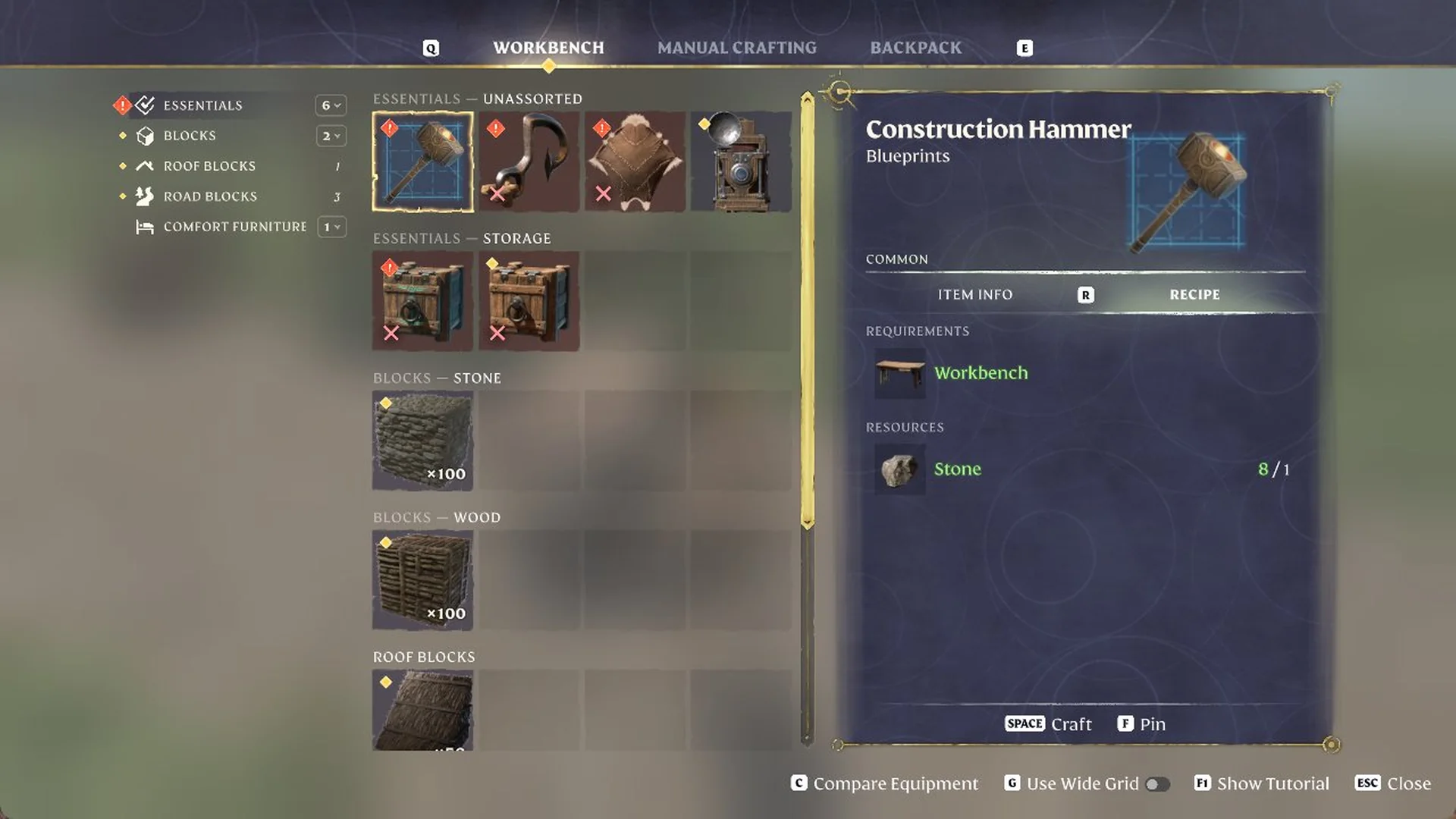
In the Essentials section, select the Construction Hammer, a Common Blueprints item. Its requirement is the Workbench and Stone 1. Press SPACE to craft it.
The Construction Hammer recipe in the Workbench’s Essentials section costs 1 Stone.
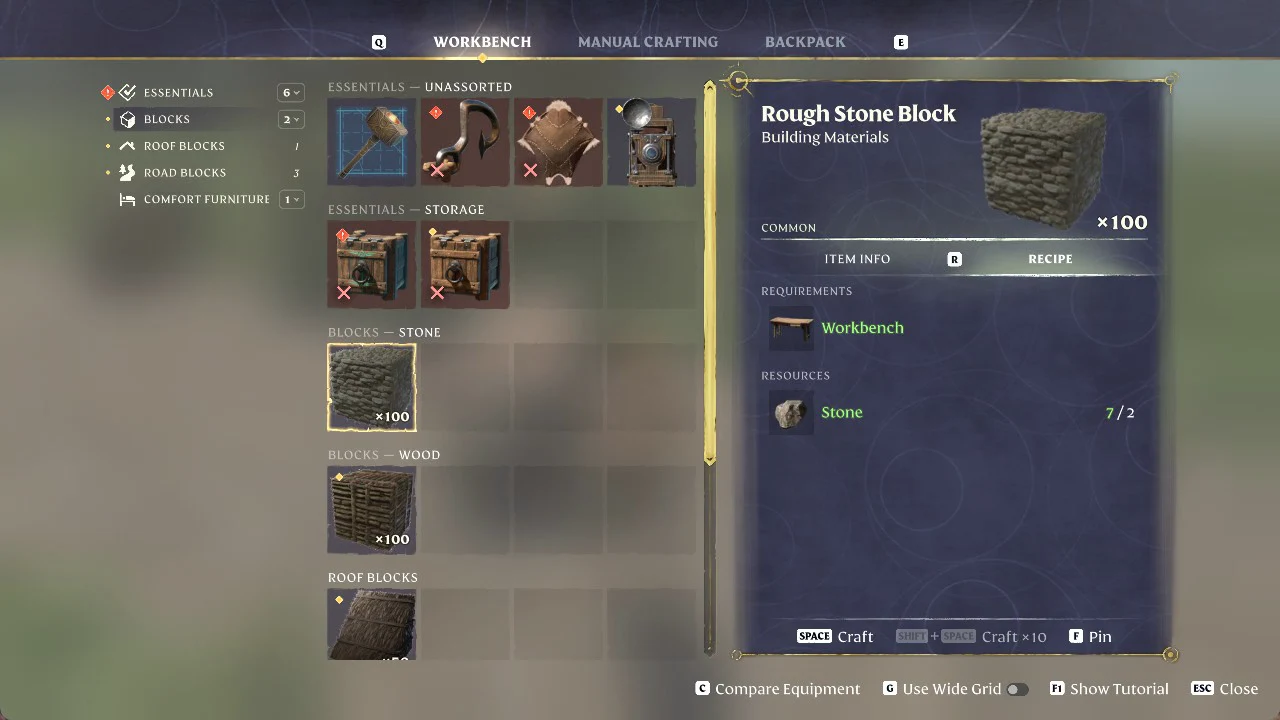
Open the BLOCKS – STONE section for the Rough Stone Block, a Building Materials item that makes x100 and needs Stone 2. Press SPACE to craft once, or SHIFT + SPACE to craft x10.
The Rough Stone Block recipe open on the Workbench, set to make x100 blocks from Stone.
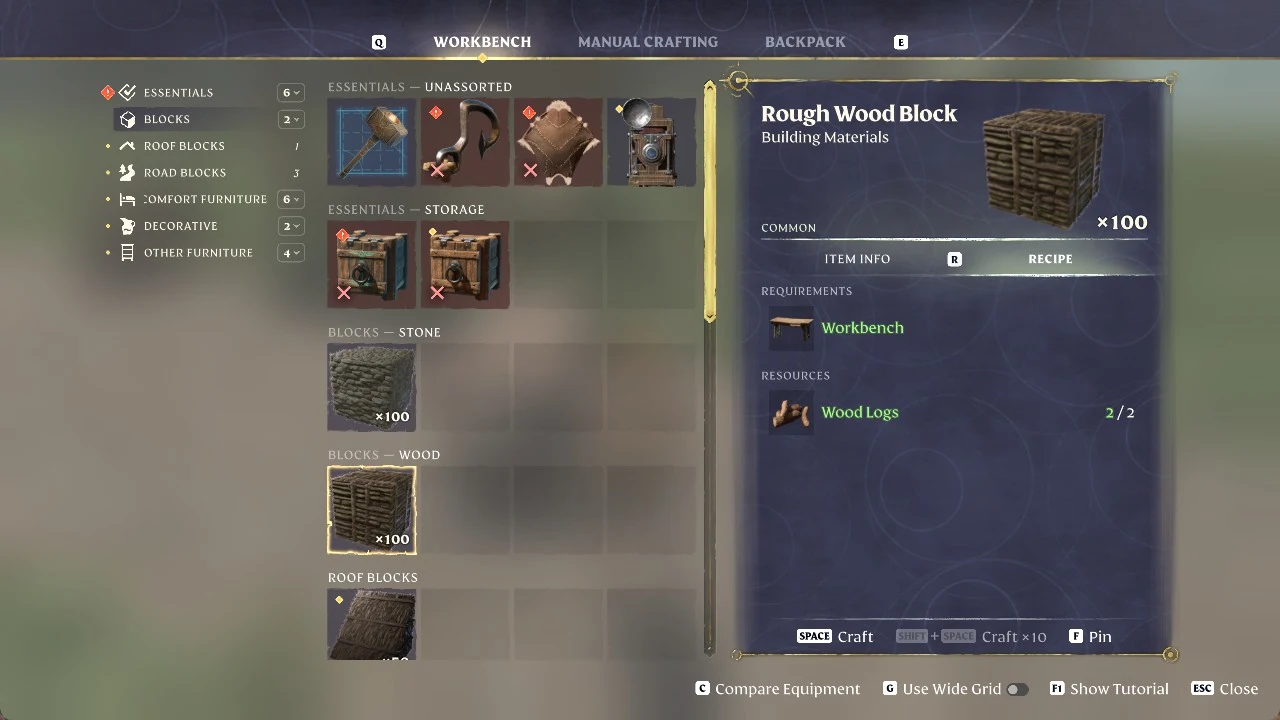
For wood instead, open BLOCKS – WOOD and pick the Rough Wood Block, which also makes x100 and needs Wood Logs 2. One tree cut down with the Axe gives about 12 Wood Logs.
The Workbench menu shows the Rough Wood Block (×100) recipe, which needs a Workbench and Wood Logs.
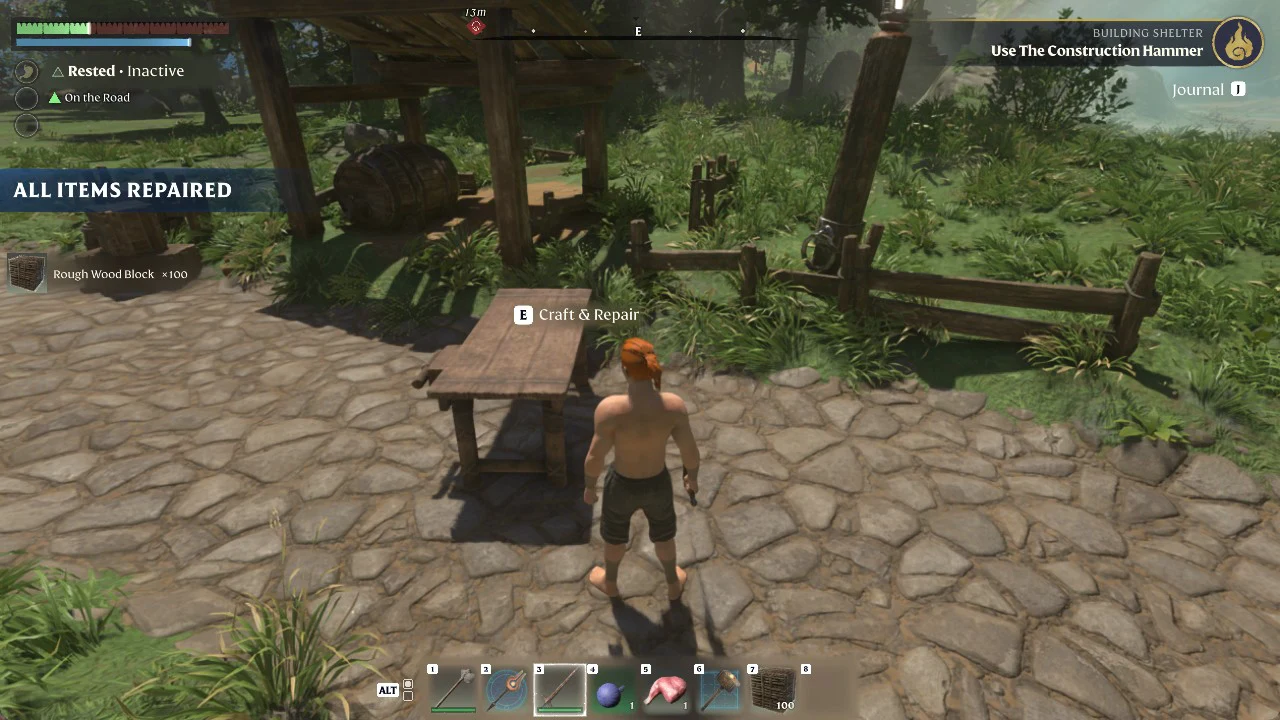
Exit the Workbench. A toast displays “Rough Wood Block x100” and “ALL ITEMS REPAIRED”; at the same time, the tracker replaces “Craft Or Obtain Rough Stone/Wood Blocks” with “BUILDING SHELTER – Use The Construction Hammer”.
After closing the Workbench, the Building Shelter step changes to Use The Construction Hammer.
Use the Construction Hammer in Building mode
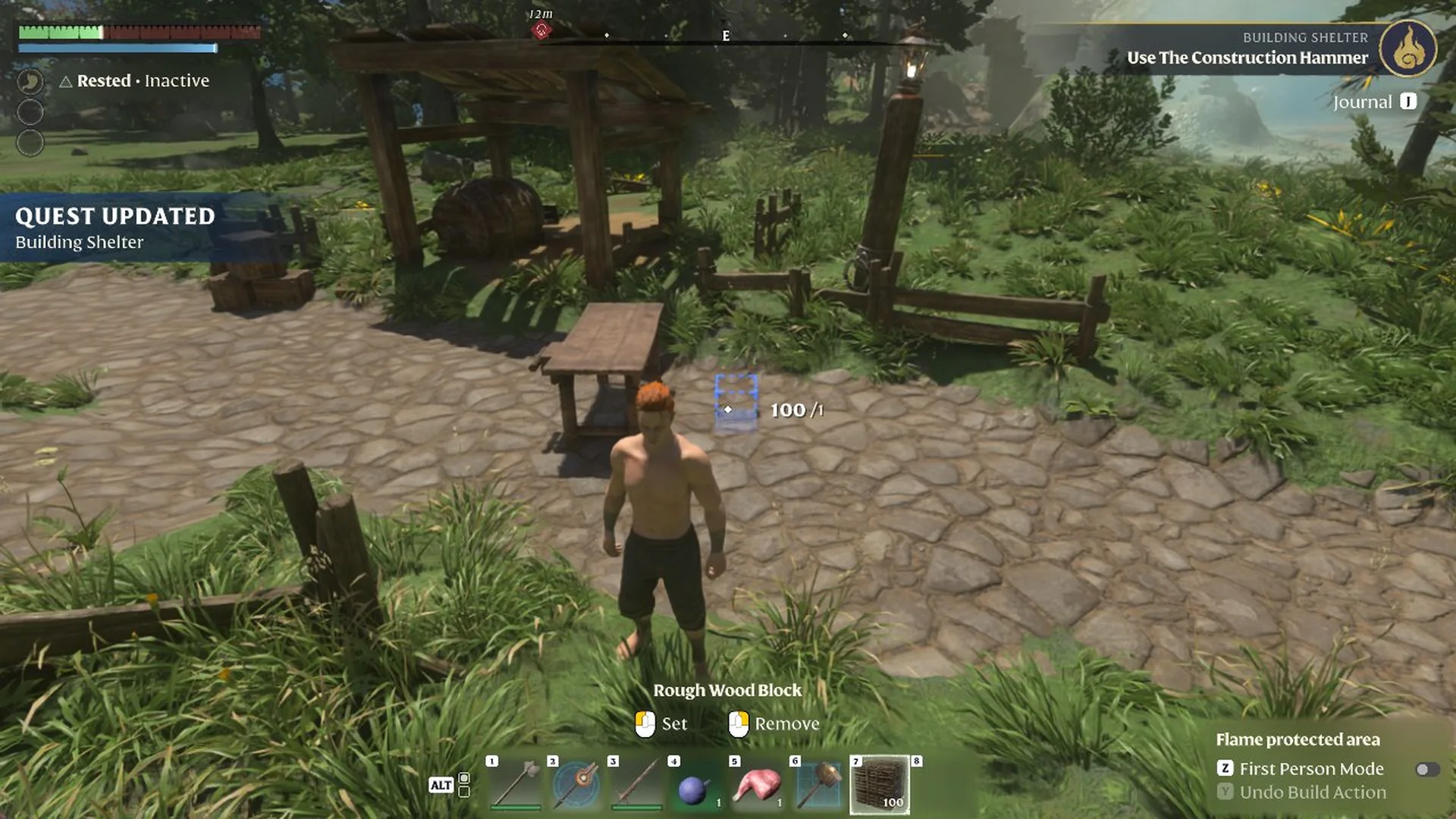
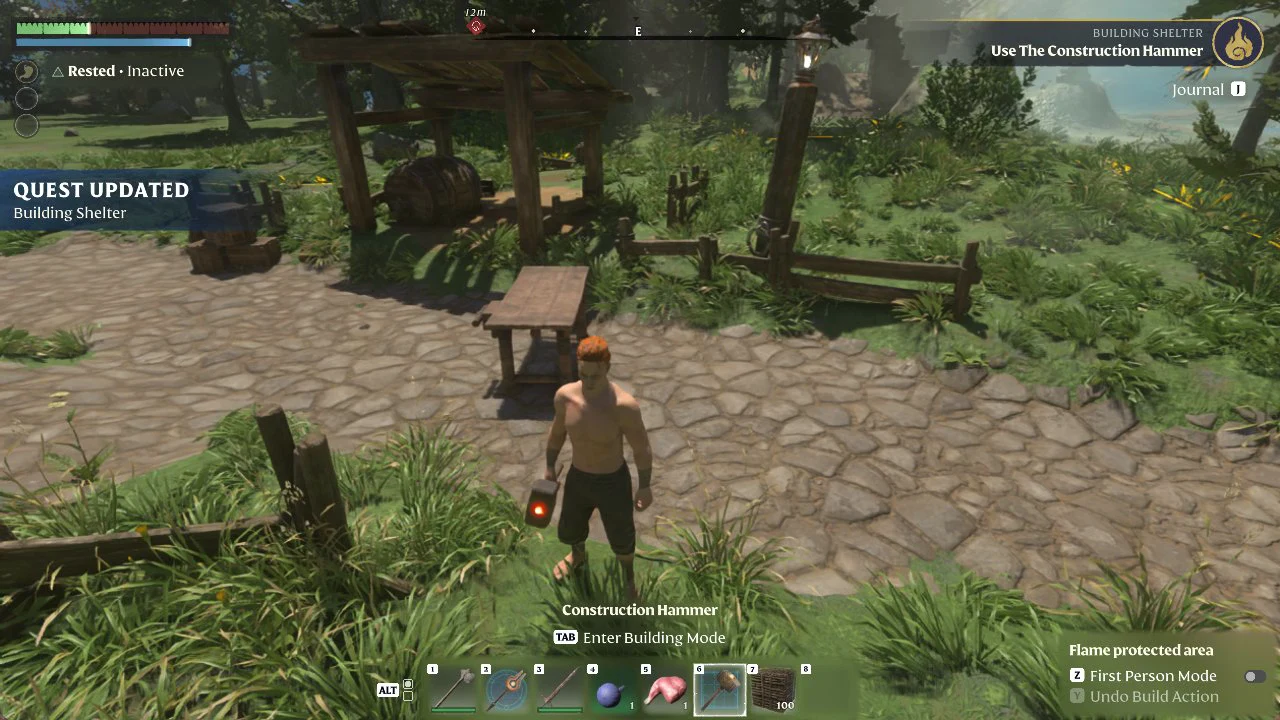
Selecting the blocks on their own only shows “Set / Remove”, and a “QUEST UPDATED – Building Shelter” banner appears at that point. To actually place the blocks, you need the hammer.
Selecting the blocks by themselves only gives Set / Remove; building needs the Construction Hammer.
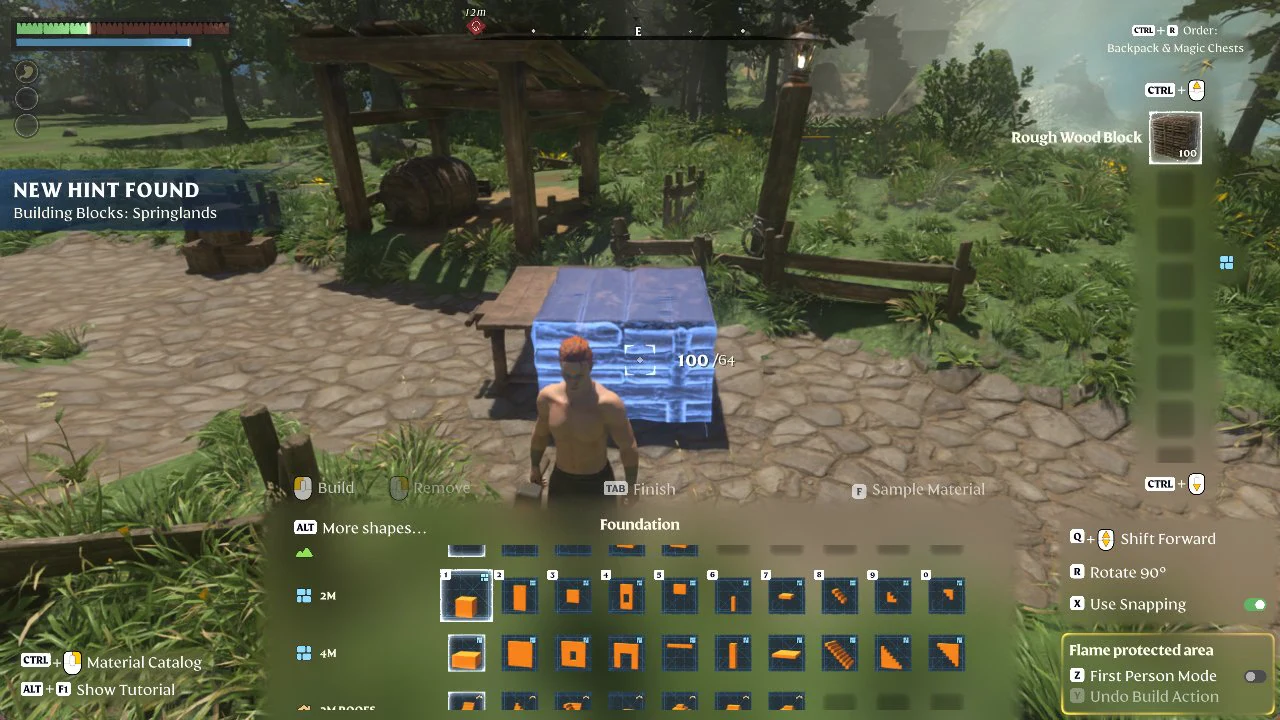
Press TAB to switch into Building mode. Along the bottom, the shape bar offers 2M and 4M shapes as well as 2M roof shapes; Rough Wood Block (100) is displayed as the selected material on the right. A banner announces “NEW HINT FOUND – Building Blocks: Springlands”.
Building mode open on the Foundation 2M shape, with the blue placement preview positioned on the ground.
These are the on-screen controls for Building mode.
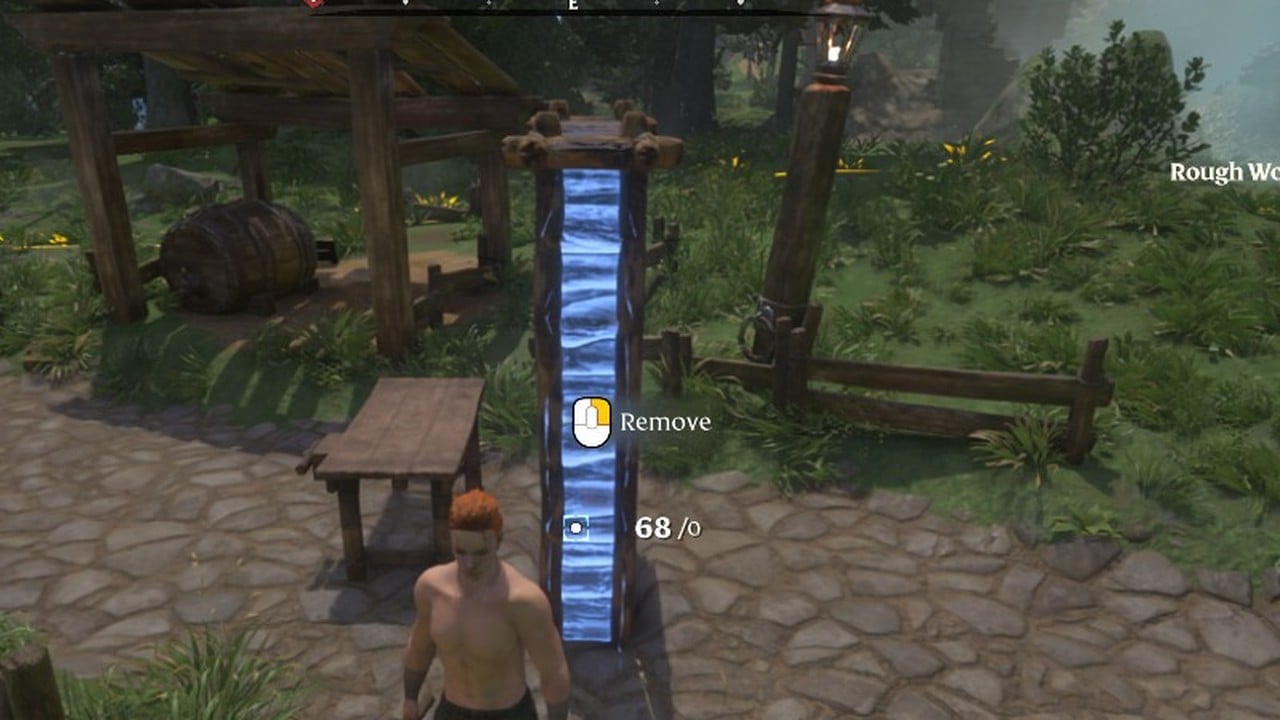
Pick a shape and press the left mouse button to place it. The Foundation 2M shape costs 64 blocks, shown as a “100 /64” preview, while the Narrow Wall 2M shape (shape 2) costs 32 blocks, shown as “100 /32”. Placing the Narrow Wall drops the block counter to 68 and shows “QUEST UPDATED – Building Shelter”.
Place a shape, then exit Building mode, and Building Shelter advances to “Craft or Obtain A Fireplace”. That new objective confirms you have finished both the block and hammer tasks.