Gaming Guide

Enshrouded: How to Split Stacks and Sort Your Inventory

Partial Move splits any backpack stack with CTRL and the mouse wheel, and G merges split stacks back together.

Partial Move splits any backpack stack with CTRL and the mouse wheel, and G merges split stacks back together.

In Enshrouded, split stacks from the BACKPACK tab. Press B to open it, hover over a stack, then keep CTRL held as you rotate the mouse wheel. The footer names the command “Partial Move”. The first notch divides the stack in half; scrolling down selects a larger amount, while scrolling up selects less. Release CTRL, then click an unoccupied slot to place the separated portion. Pressing G (“Sort Inventory”) rearranges the backpack and combines the split stacks again.

Quick answer: In the BACKPACK tab, hover a stack, hold CTRL and scroll to pick up part of it, then release CTRL and click an empty slot. Press G to sort and re-merge.


Hovering a stack in the BACKPACK tab brings up a row of prompts along the bottom of the screen. These are the inputs that matter for splitting and sorting:

InputFooter label
Left mouse button“Move”
CTRL + mouse wheel“CTRL + Partial Move”
Right mouse button“Actions”
DELETE“DELETE Delete”
CTRL + click“CTRL + Move: Action Bar <-> Backpack”
G“G Sort Inventory”

Partial Move is not a click: hold CTRL and scroll the mouse wheel. The keys for everything else are in our full controls list, and a bigger backpack gives you more free slots to split stacks into.

CTRL + click a stack in the BACKPACK tab to move it to a free slot on your current action bar; in the world, ALT switches between your two action bars.


How to split a stack and merge it back in Enshrouded

We used a stack of Plant Fiber.
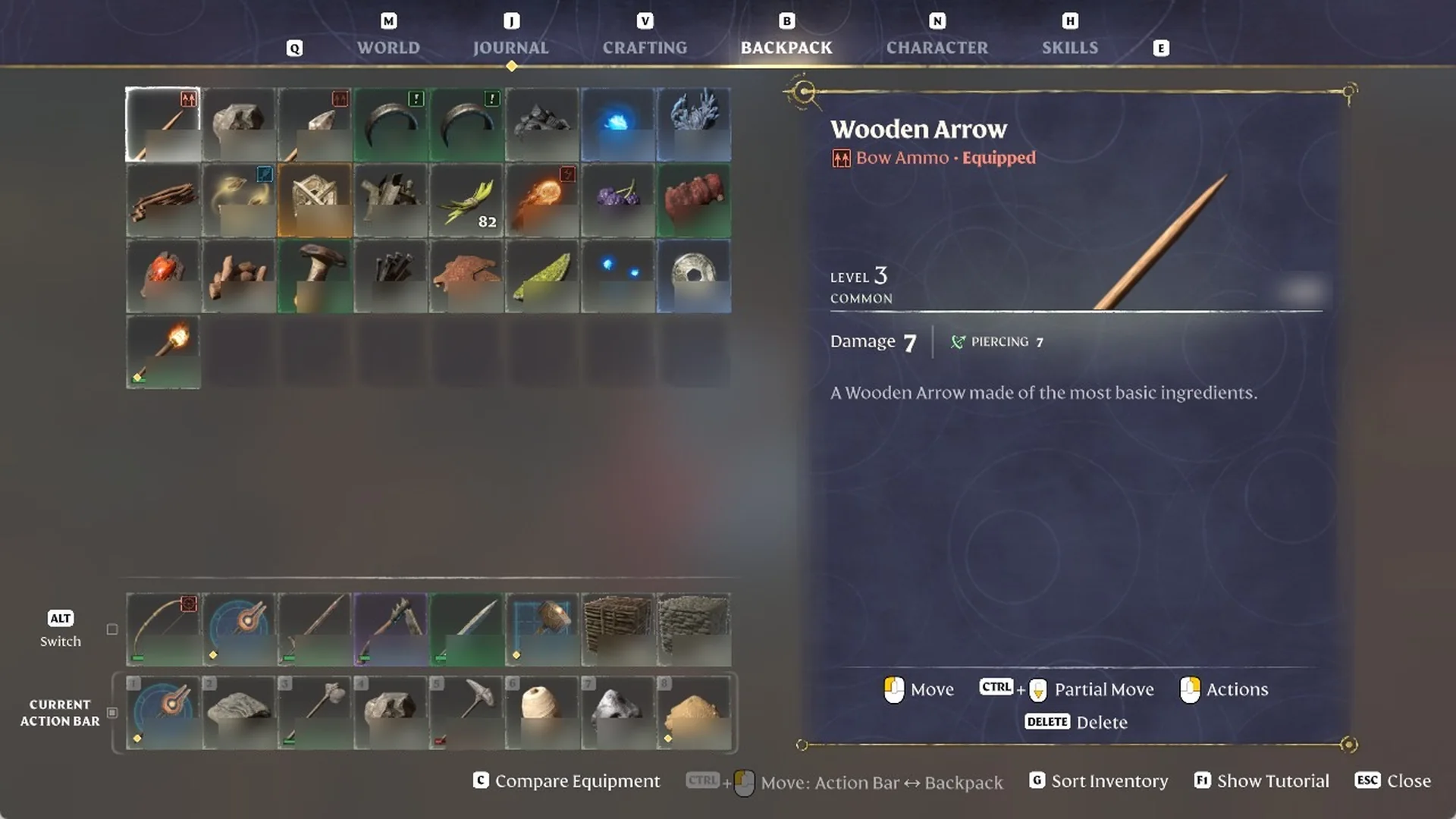
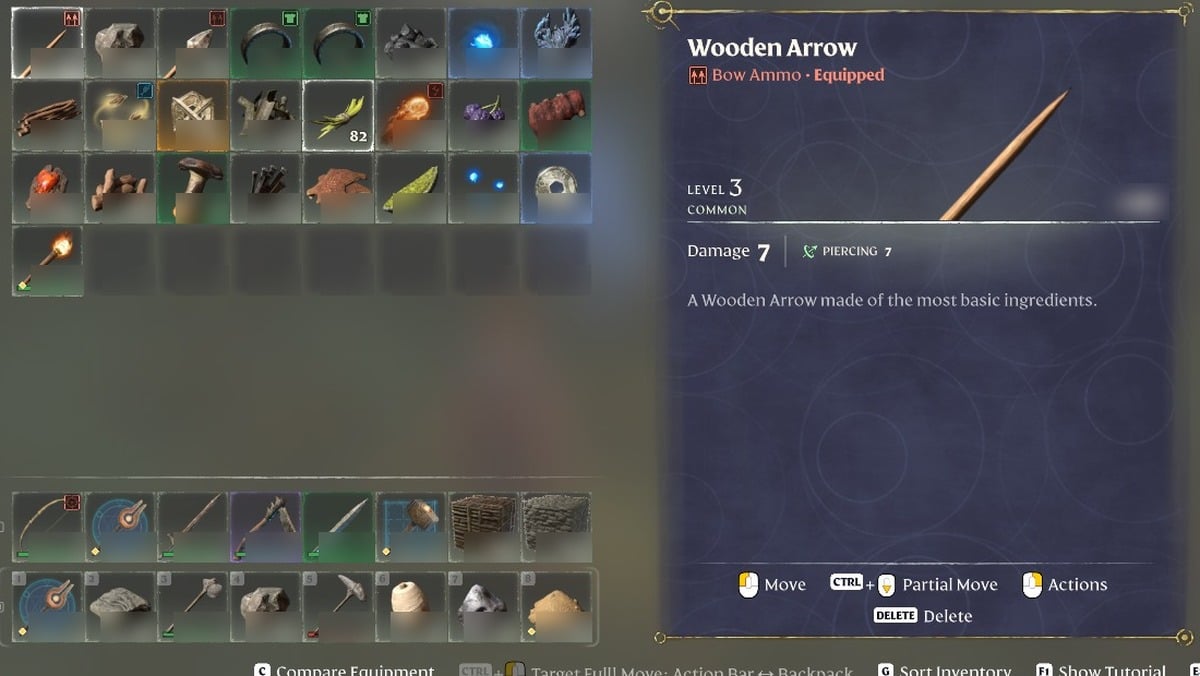
Press B to open the BACKPACK tab, then hover over the stack you want to divide. The footer shows Move and Actions alongside CTRL + Partial Move; DELETE is labeled Delete, and G is labeled Sort Inventory.
Enshrouded BACKPACK tab with a hovered stack and footer prompts including 'CTRL + Partial Move'
The footer lists ‘Move’, ‘CTRL + Partial Move’, ‘Actions’, ‘DELETE Delete’ and ‘G Sort Inventory’.
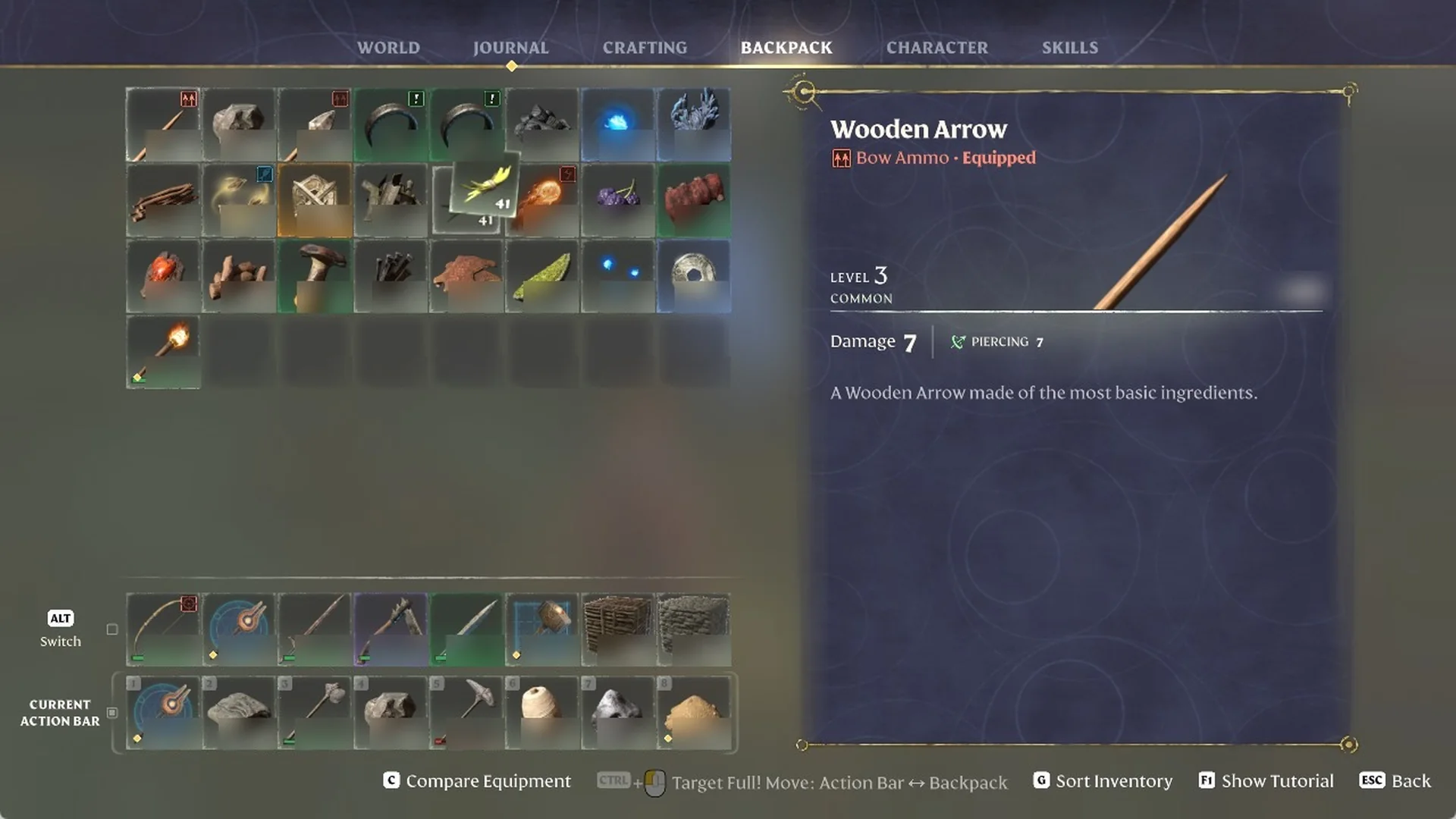
Keep CTRL held and rotate the mouse wheel downward by one notch. Half the stack transfers to your cursor, leaving the other half in its starting slot.
Enshrouded backpack with half a Plant Fiber stack on the cursor and half in the slot
Holding CTRL and turning the mouse wheel down once splits the stack in half.
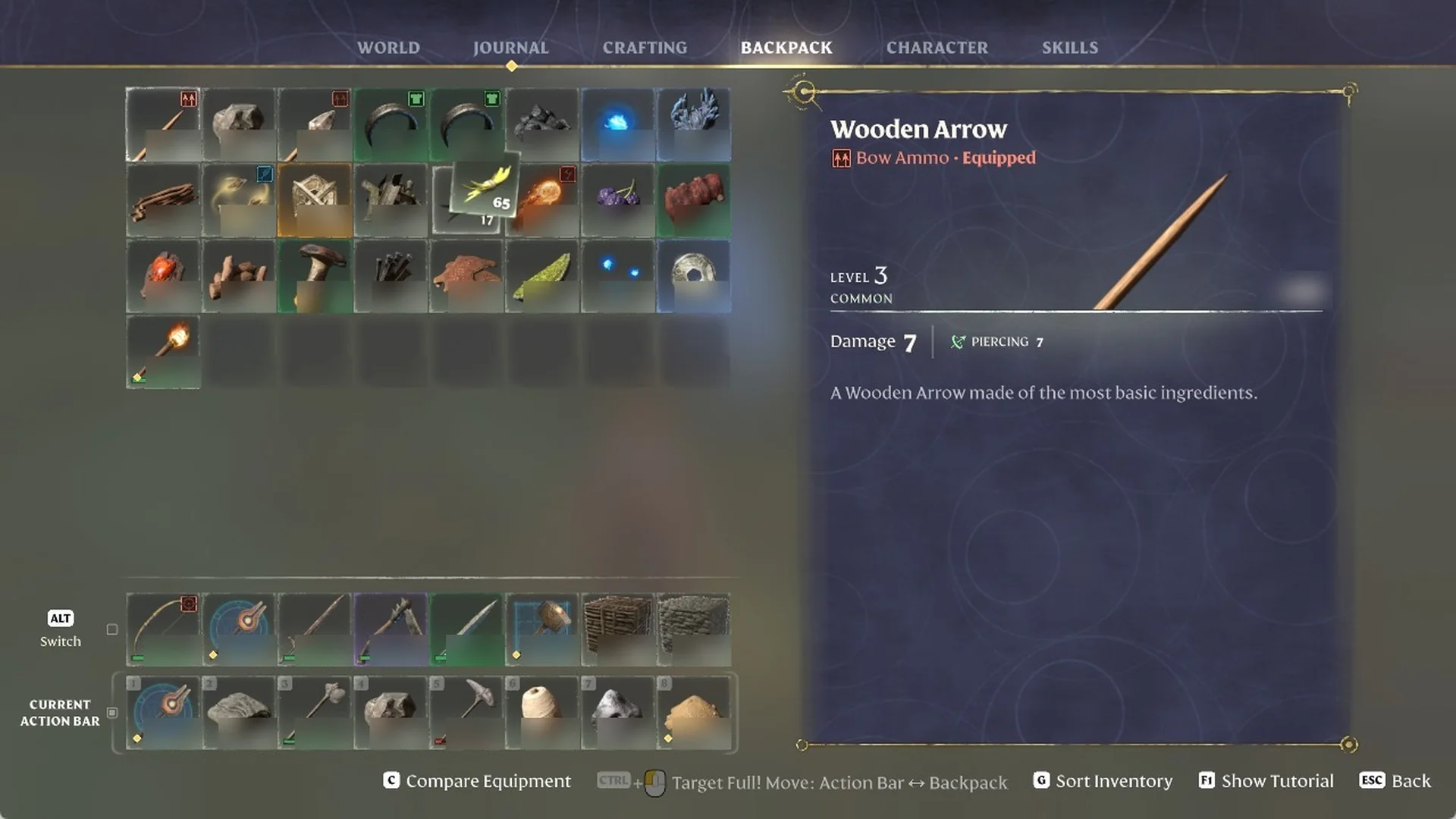
Keep holding CTRL and turn the wheel down again to take more. Each extra turn shifts more of the stack from the slot onto the cursor.
Enshrouded backpack with a bigger part of the Plant Fiber stack on the cursor
More wheel-down turns move more of the Plant Fiber onto the cursor.
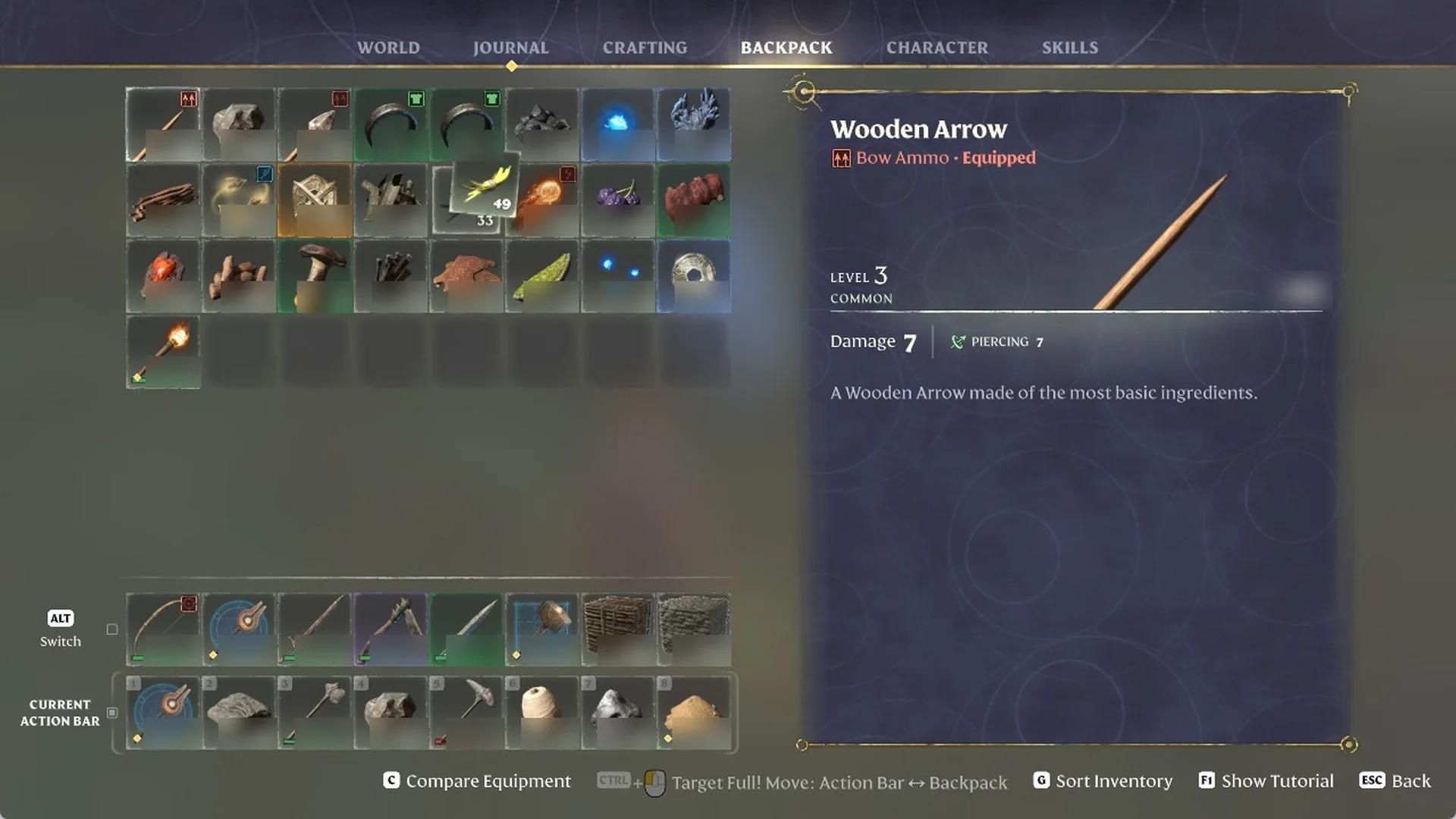
Still holding CTRL, turn the wheel up if you took too many. The stack on the cursor shrinks and the stack in the slot grows by the same amount.
Enshrouded backpack with a smaller Plant Fiber stack on the cursor and more in the slot
Turning the wheel up puts more Plant Fiber back into the slot.
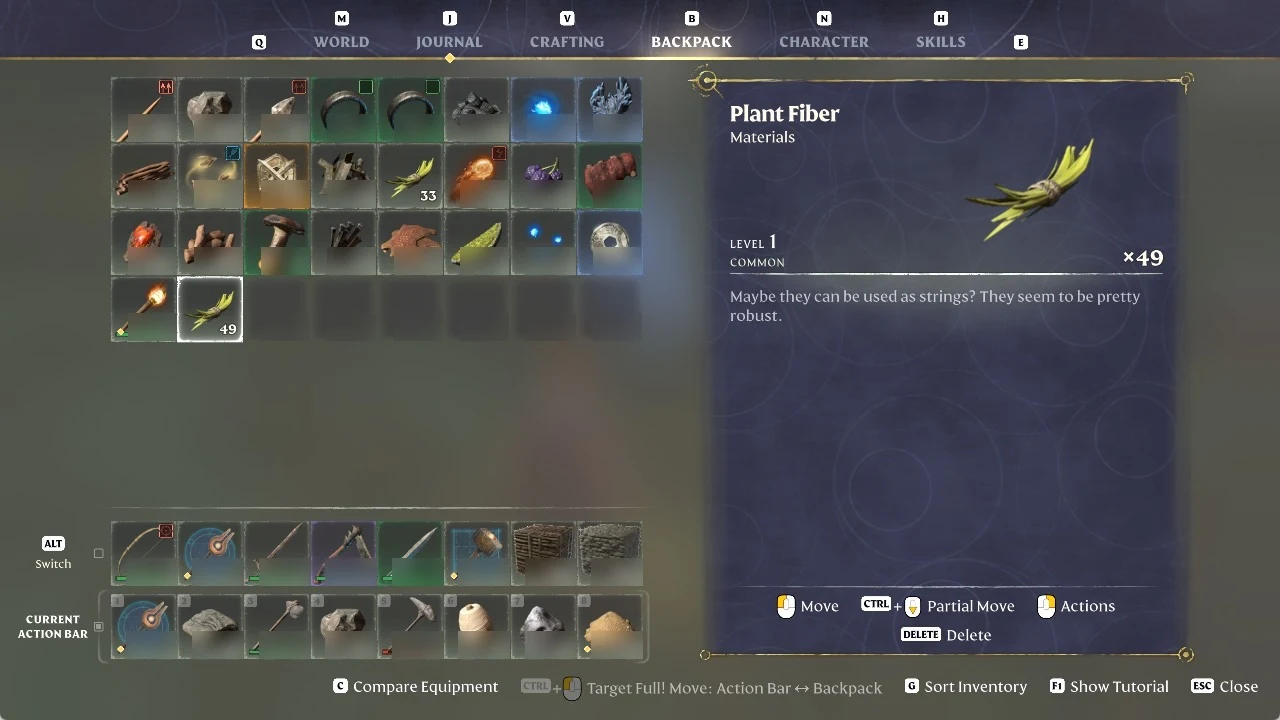
Once CTRL is no longer held, click a vacant slot to place the separated portion there; the remainder stays in its original position.
Enshrouded backpack with the split Plant Fiber placed in an empty slot as its own stack
The Backpack shows a split stack of Plant Fiber.
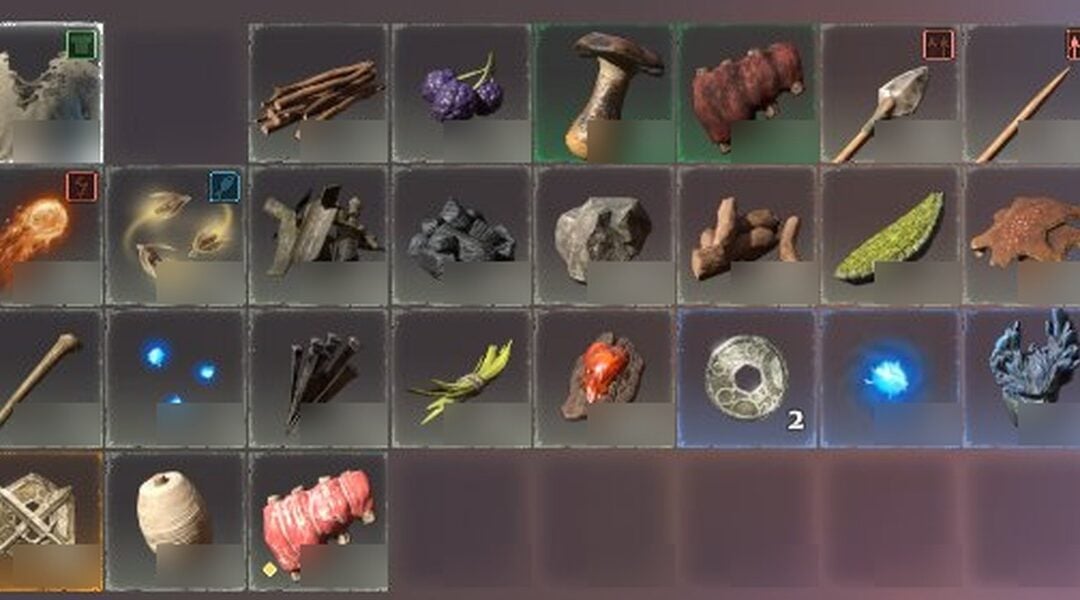
Press G to run Sort Inventory. The backpack gets reordered, and stacks of the same item are combined again. Our two Plant Fiber stacks became one.
Enshrouded backpack reordered after 'G Sort Inventory', with the Plant Fiber stacks merged again
Pressing ‘G Sort Inventory’ reorders the backpack and merges the split Plant Fiber stacks.

How to delete an item in Enshrouded

To delete an item, press B to open the BACKPACK tab and right-click the item; the menu on our spare Ragged Shirt read “Equip”, “Equip (Cosmetic)” and “Delete”. The footer also lists “DELETE Delete” for a selected item.
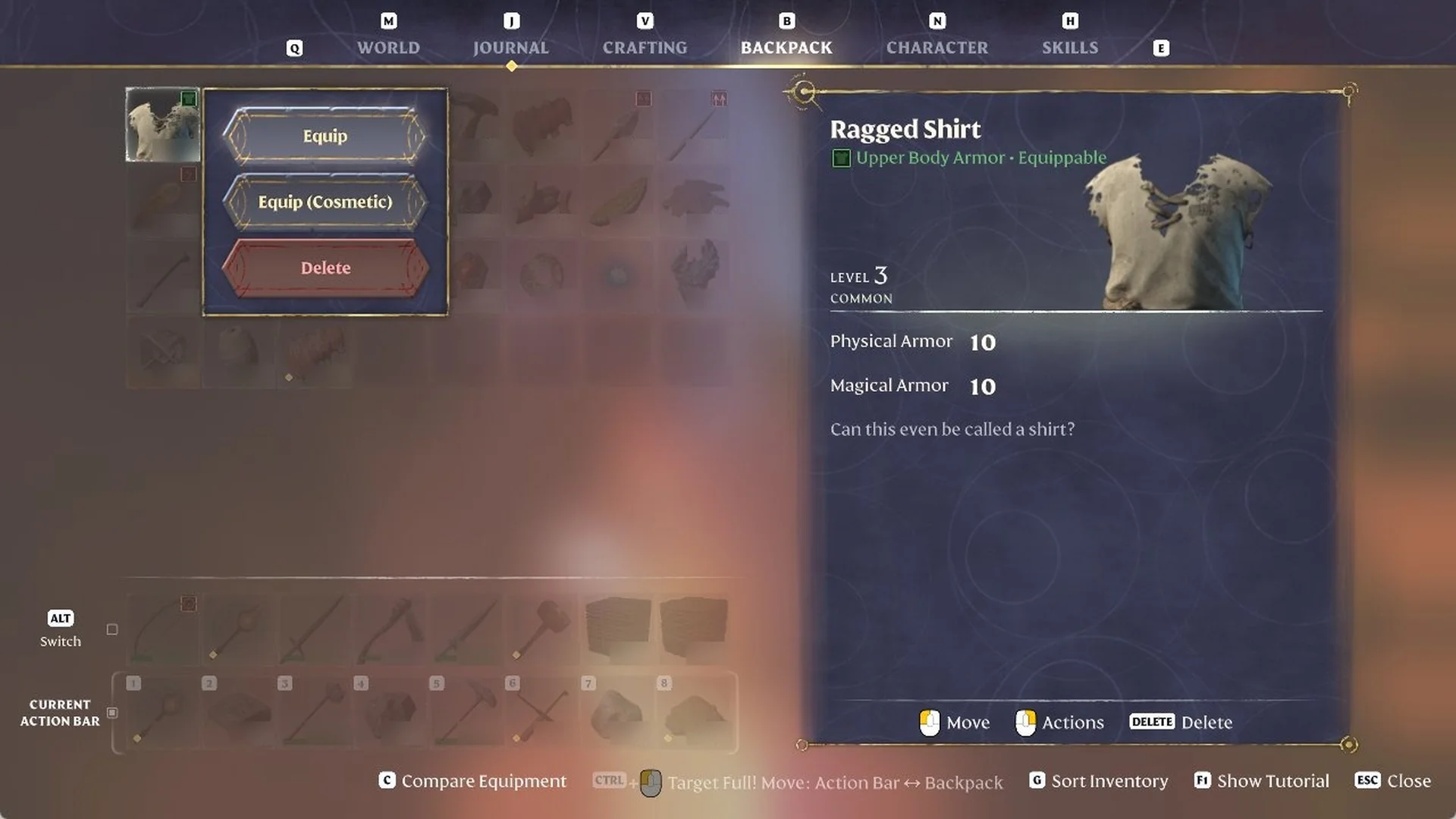
The Enshrouded BACKPACK tab showing the right-click menu on a Ragged Shirt with Equip, Equip (Cosmetic) and Delete, plus its item card
Right-clicking the Ragged Shirt in your BACKPACK shows Equip, Equip (Cosmetic) and Delete.

We chose “Delete” and the shirt was gone from the backpack at once. No confirm dialog appeared.
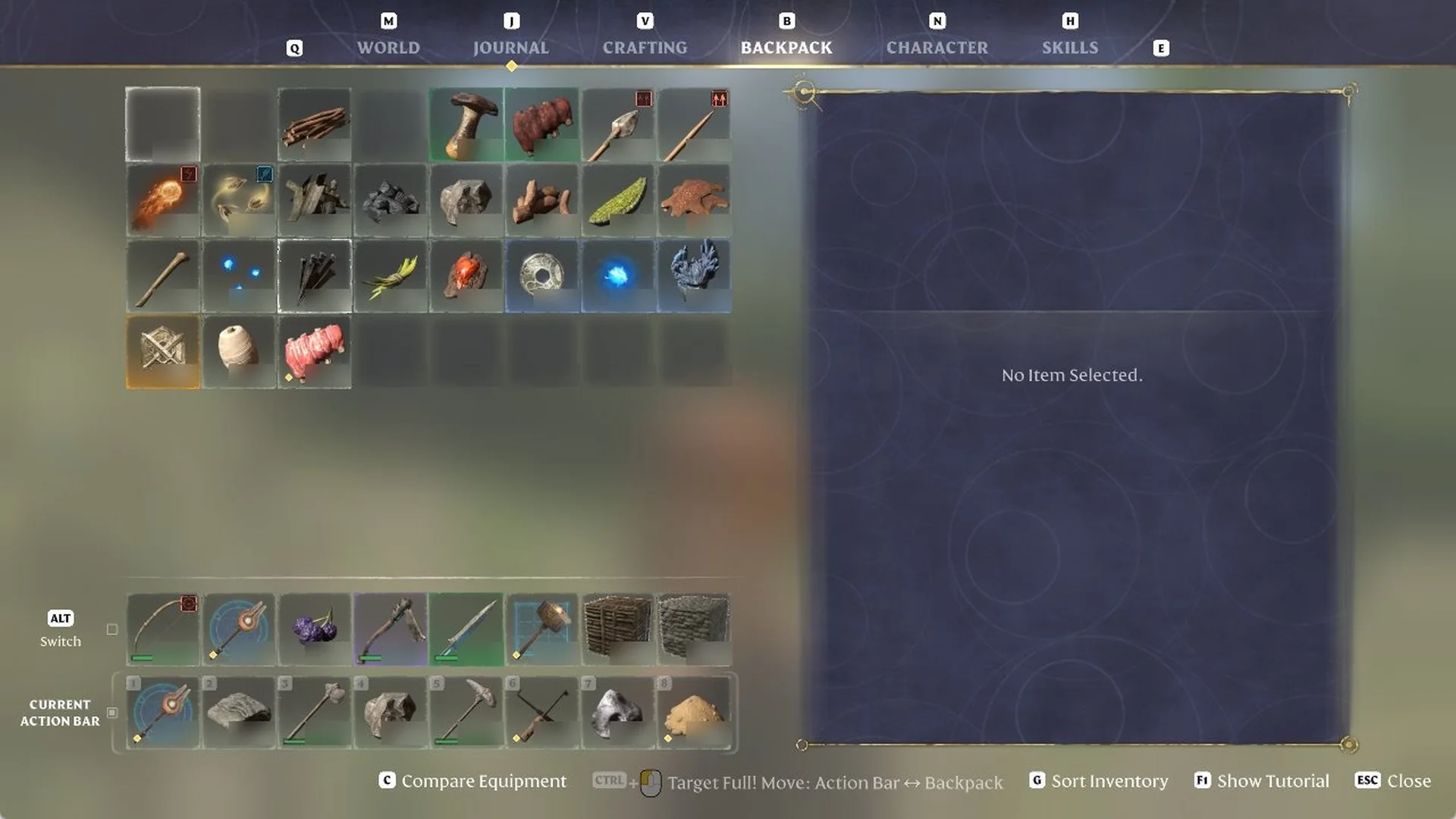
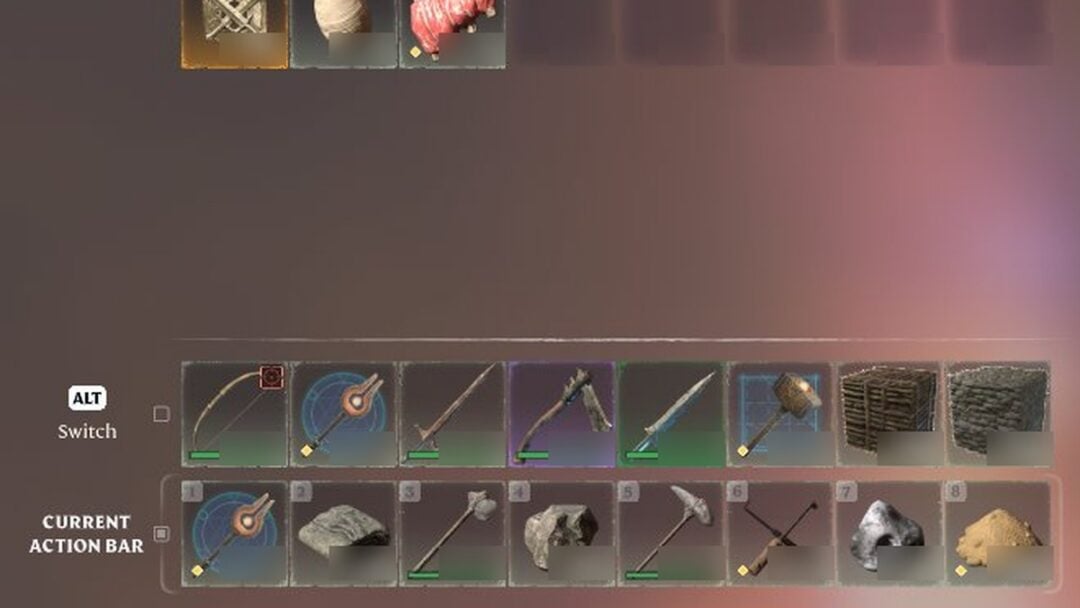
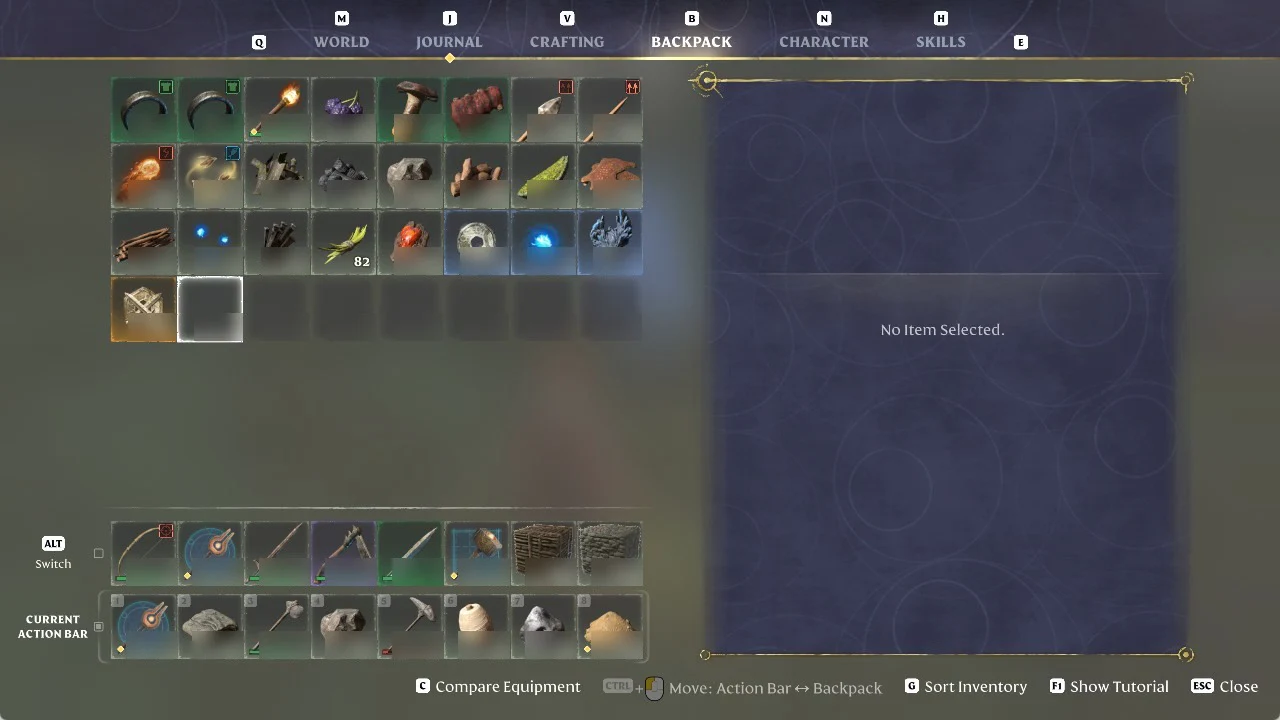
Enshrouded BACKPACK tab after choosing Delete, with the Ragged Shirt's top left slot empty and the right panel reading No Item Selected
Choosing Delete empties the Ragged Shirt’s slot with no confirm dialog on screen.