Experiencing the dreaded “An unexpected error has occurred and Roblox needs to quit” message is pretty frustrating, especially when you’re eager to jump into your favorite game. Fortunately, there are several solutions to this problem. In this article, we’ll explore effective methods to resolve this error so you can get back to enjoying Roblox.
Method 1: Reinstall Roblox
Sometimes, corrupted files within the Roblox installation can cause unexpected errors. Reinstalling Roblox ensures that all files are intact and up to date.
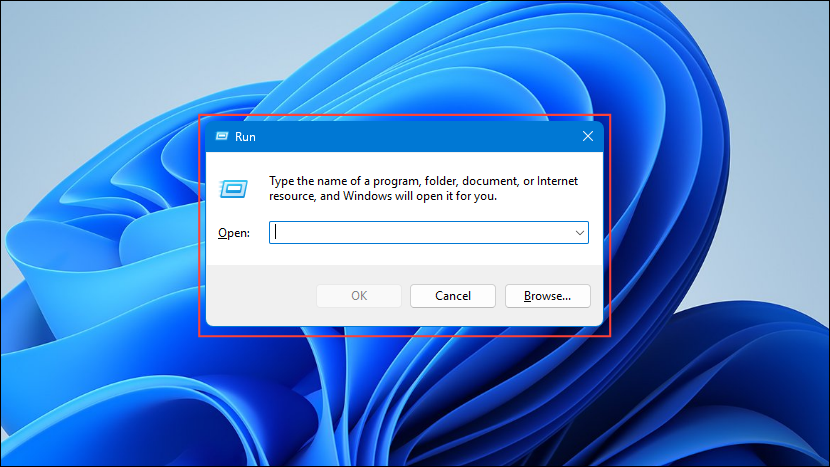
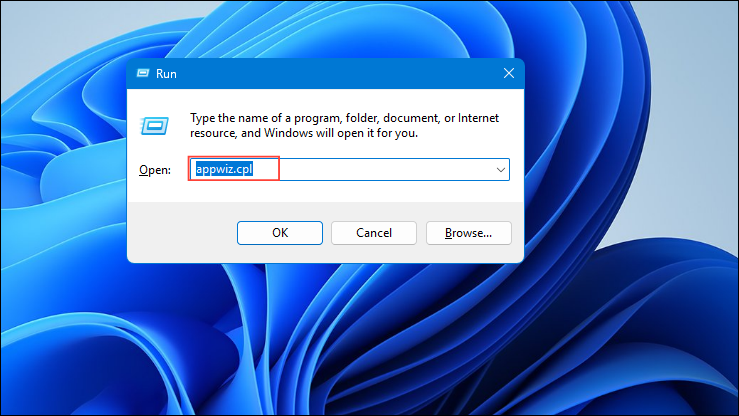
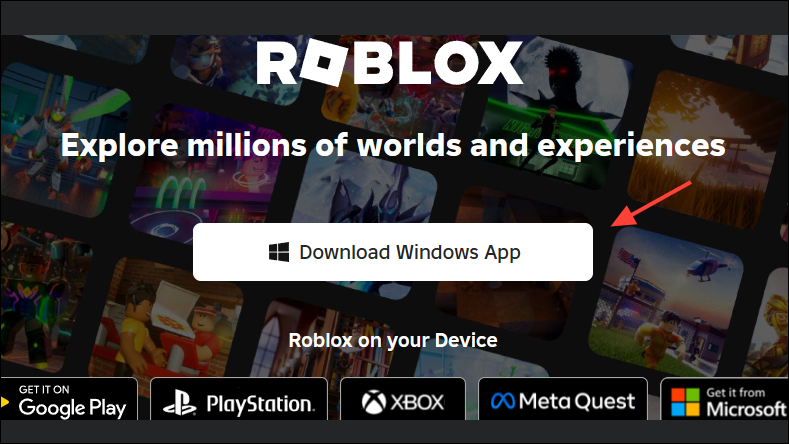
Once reinstalled, launch Roblox to see if the error persists.
Method 2: Update Your Graphics Drivers
Outdated or corrupted graphics drivers can lead to compatibility issues with Roblox. Updating your drivers can resolve these problems.
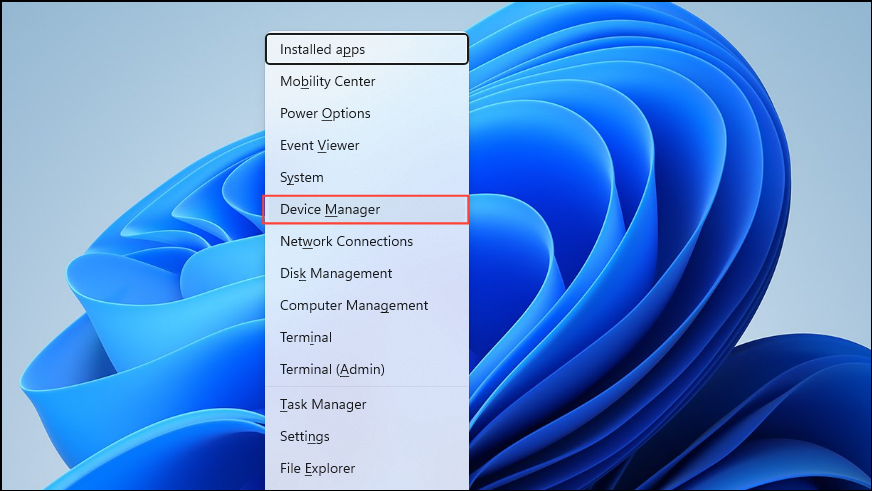
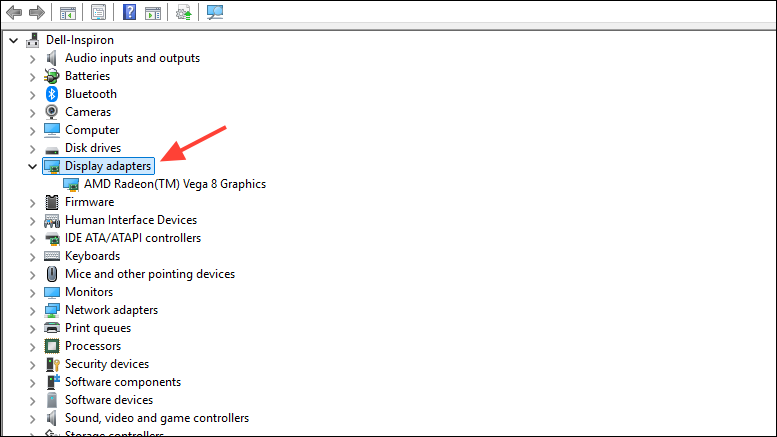
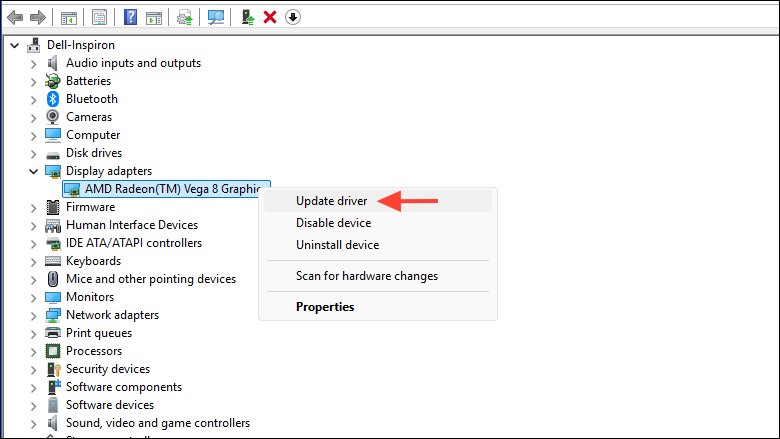
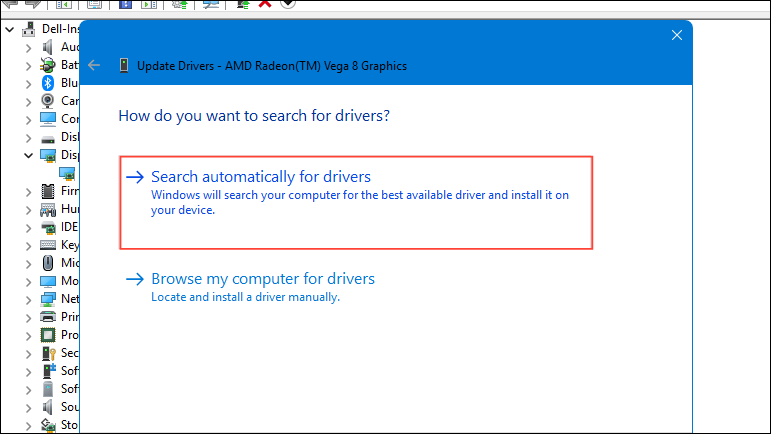
After rebooting, try running Roblox again to check if the error is resolved.
Method 3: Disable Antivirus or Firewall Temporarily
Sometimes, antivirus programs or firewalls may block Roblox, causing unexpected errors. Temporarily disabling them can help identify if they’re the cause.
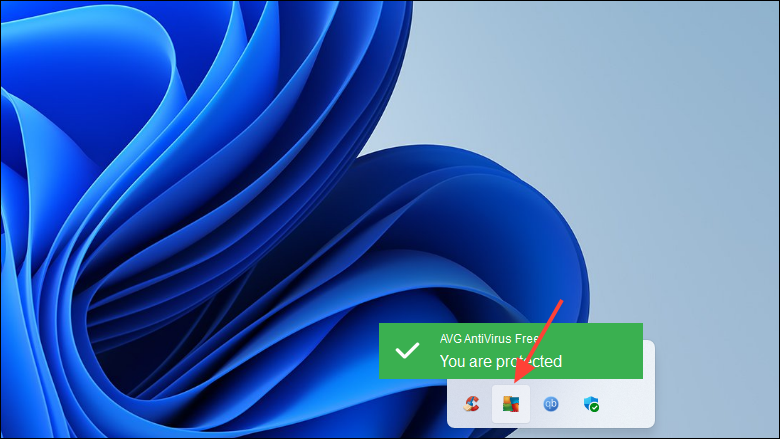
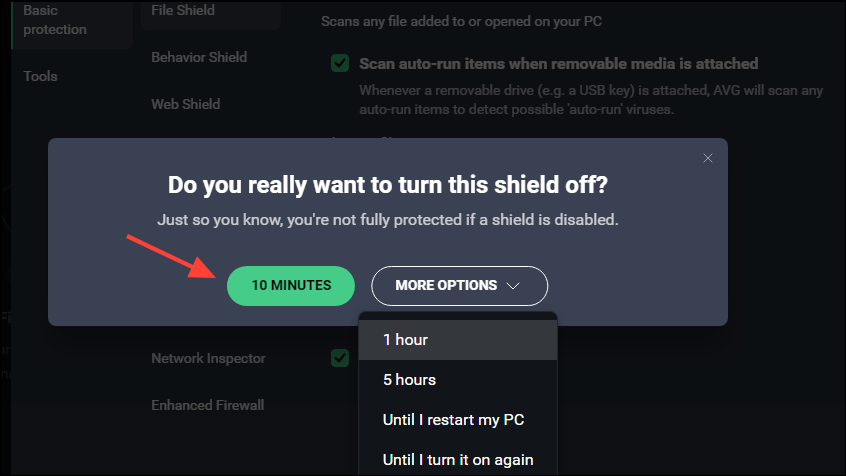
Windows + R, typefirewall.cpl, and press Enter to open Firewall settings.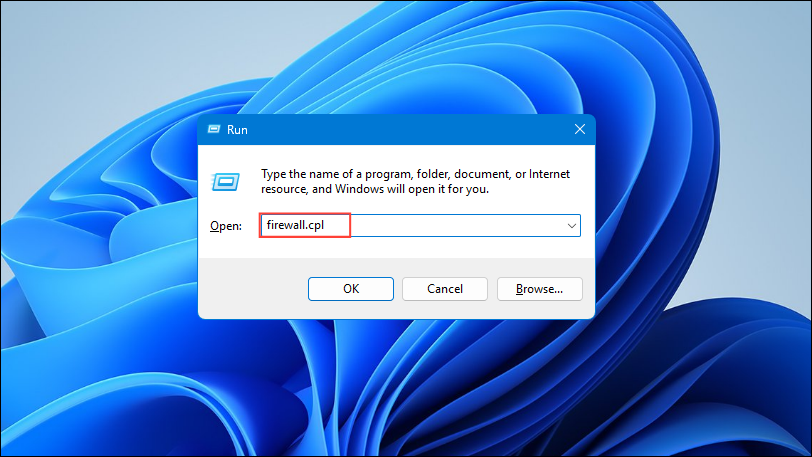
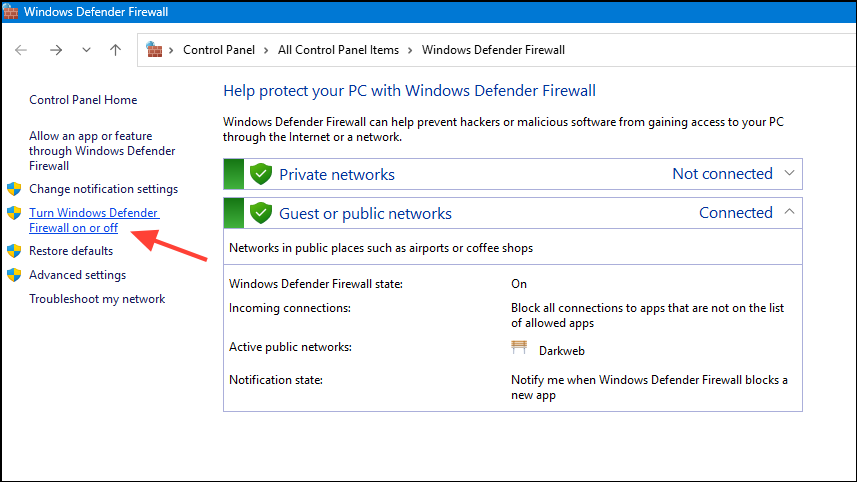
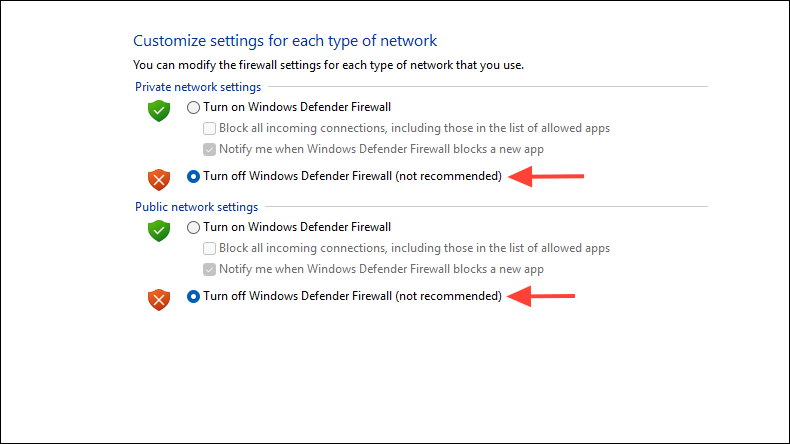
With the antivirus and firewall disabled, try launching Roblox to see if the error has been resolved. Remember to re-enable your antivirus and firewall after testing.
Method 4: Reset Internet Options
Incorrect internet settings can interfere with Roblox’s ability to connect properly. Resetting these settings to default may help.
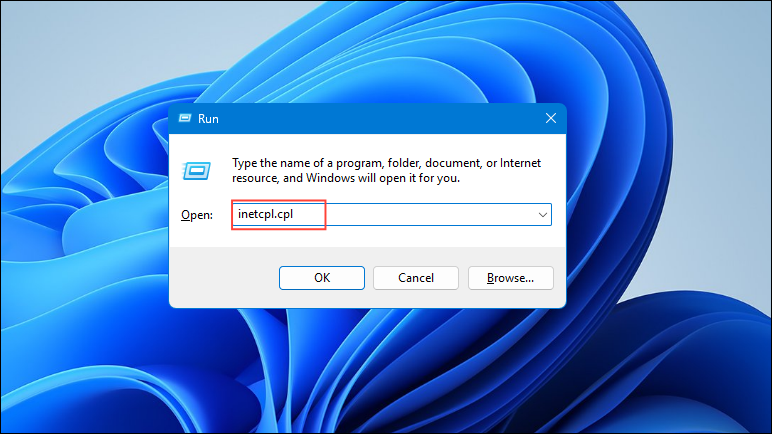
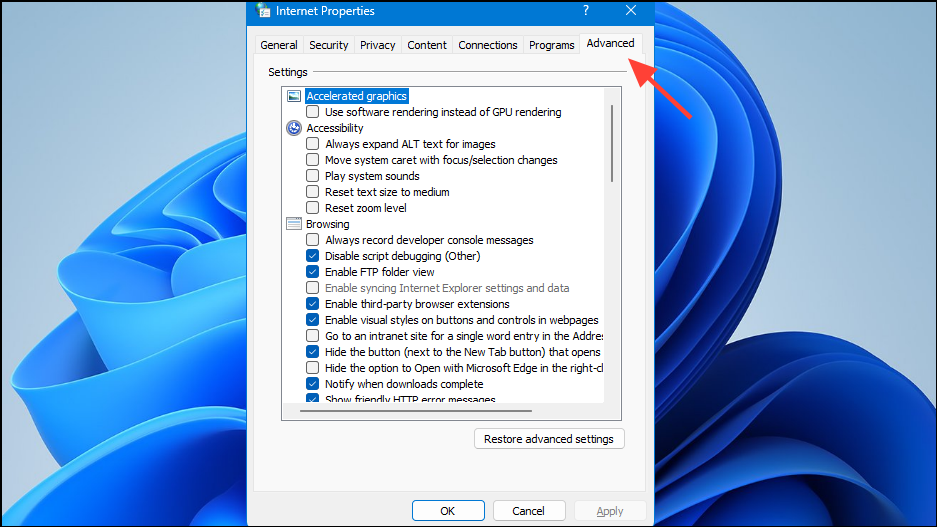
After restarting, launch Roblox to determine if the error persists.
Method 5: Clear Temporary Files
Accumulated temporary files can sometimes cause conflicts with applications like Roblox.
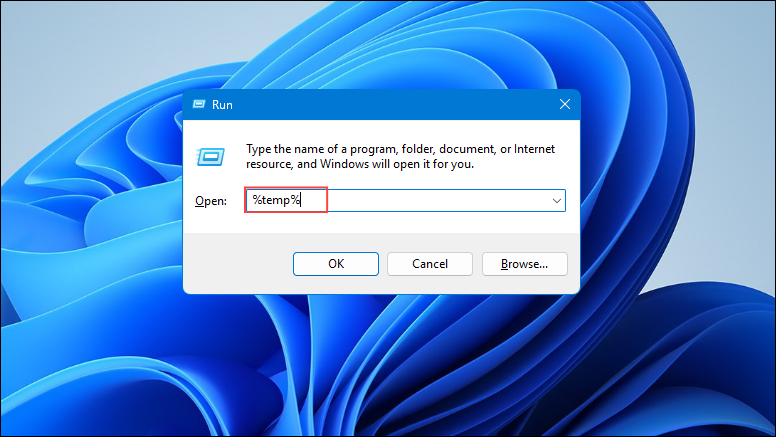
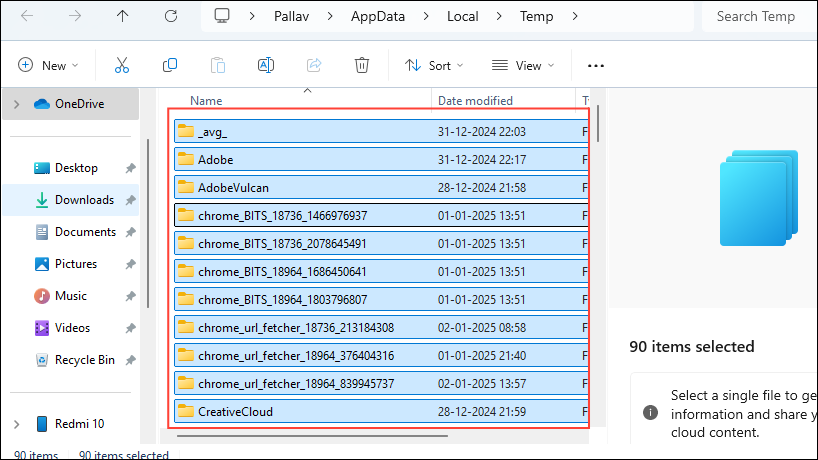
Delete key to remove these temporary files. If prompted for administrator permission, click Yes.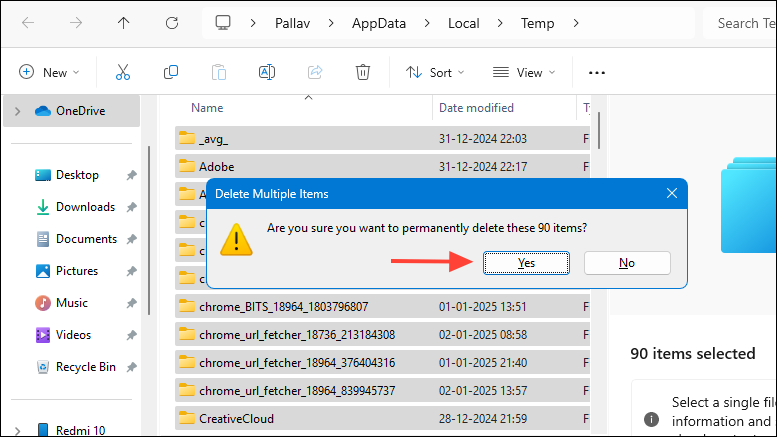
Once you’ve cleared the temporary files, open Roblox and check if the issue has been resolved.
Method 6: Check for Windows Updates
Keeping your operating system updated ensures compatibility with applications like Roblox.
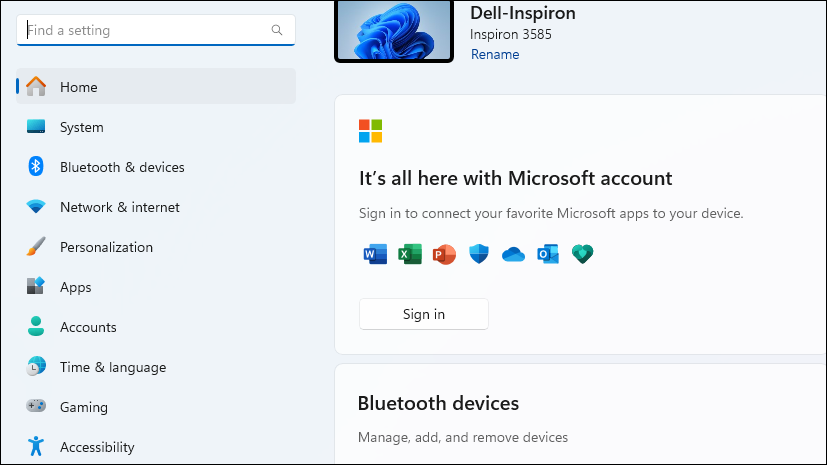
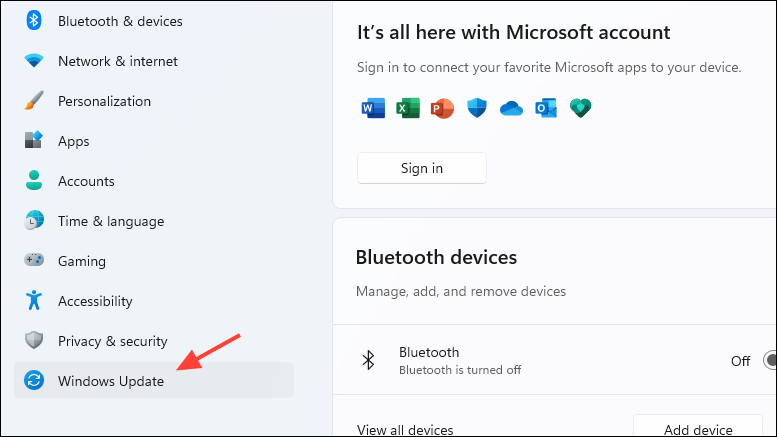
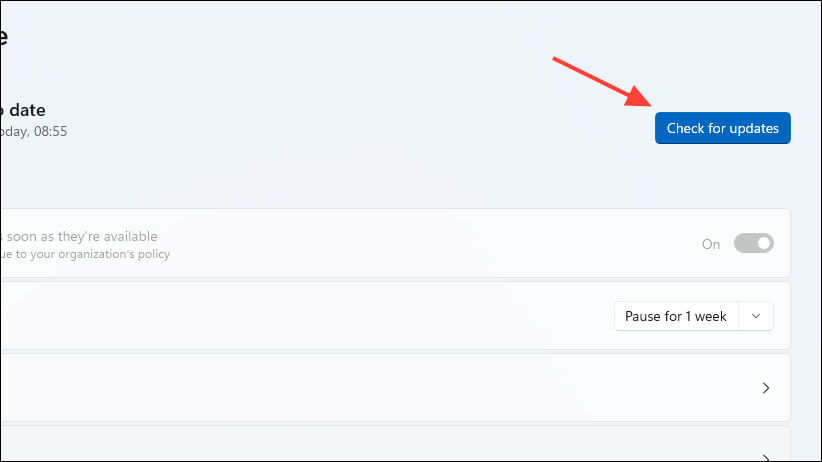
Try running Roblox again to see if the error message still appears.
By following these methods, you should be able to fix the “An unexpected error has occurred and Roblox needs to quit” message and get back to your gaming adventures. If the problem persists, consider reaching out to Roblox support for further assistance.