
Windows Update error 0x80243004 disrupts the installation of critical updates, leaving your system vulnerable and blocking feature or security patches. This error often signals a problem with update components, notification icon settings, or system file integrity. Addressing the root causes restores update capability and prevents future failures.
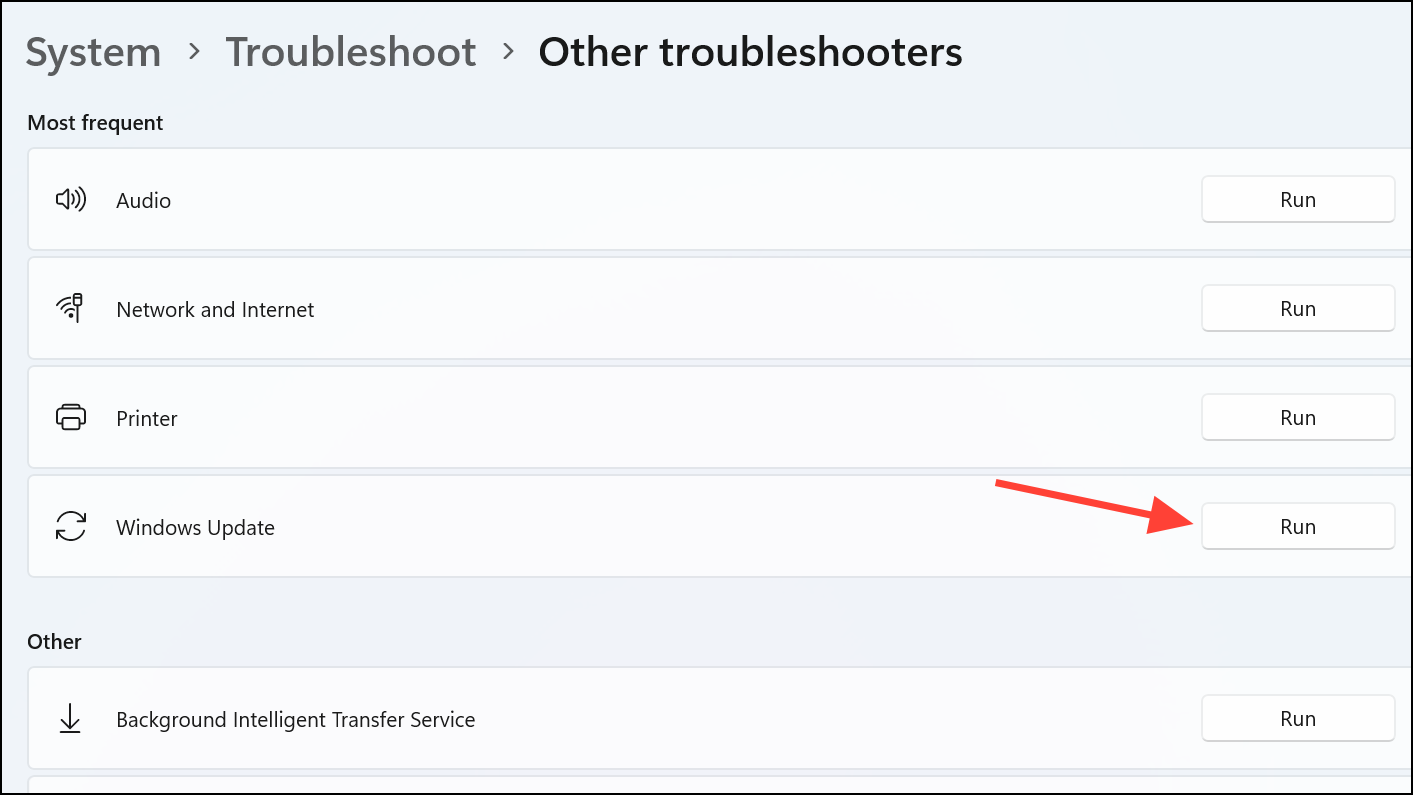
Run the Windows Update Troubleshooter
Win + I. Navigate to System, then select Troubleshoot and choose Other troubleshooters.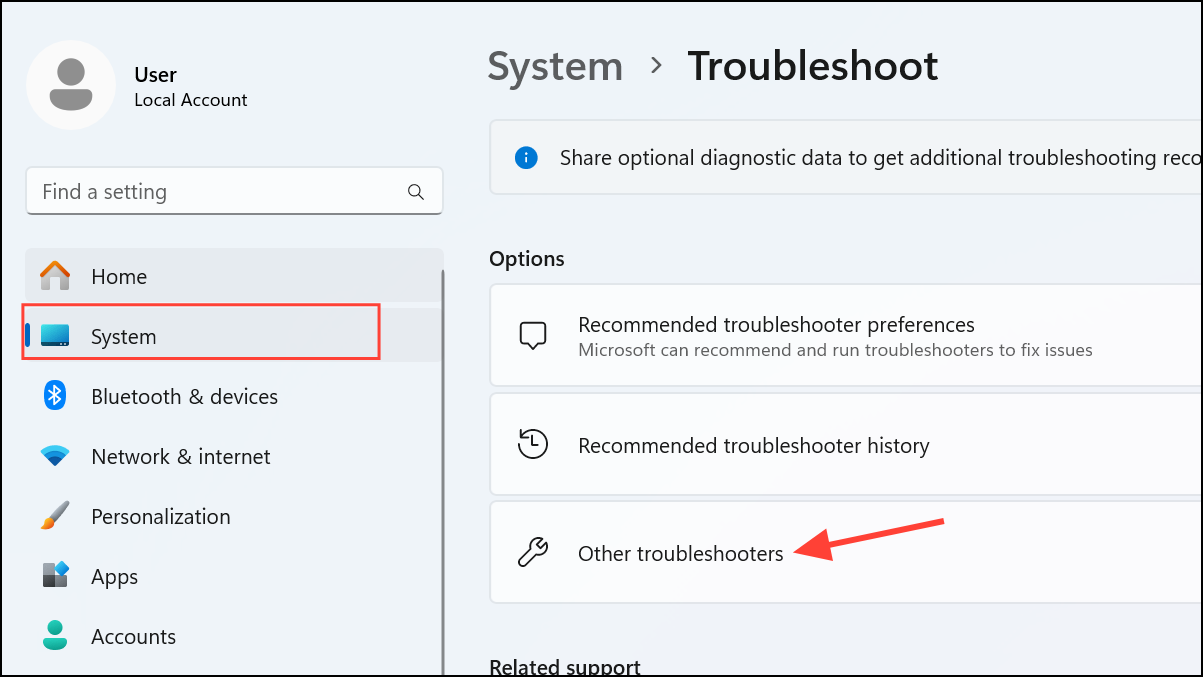
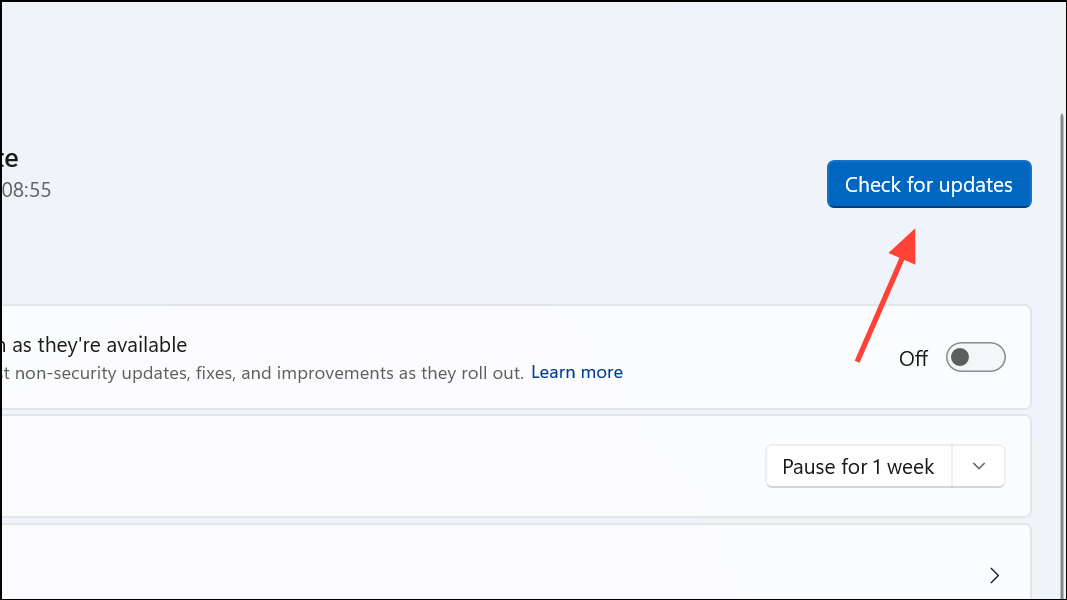
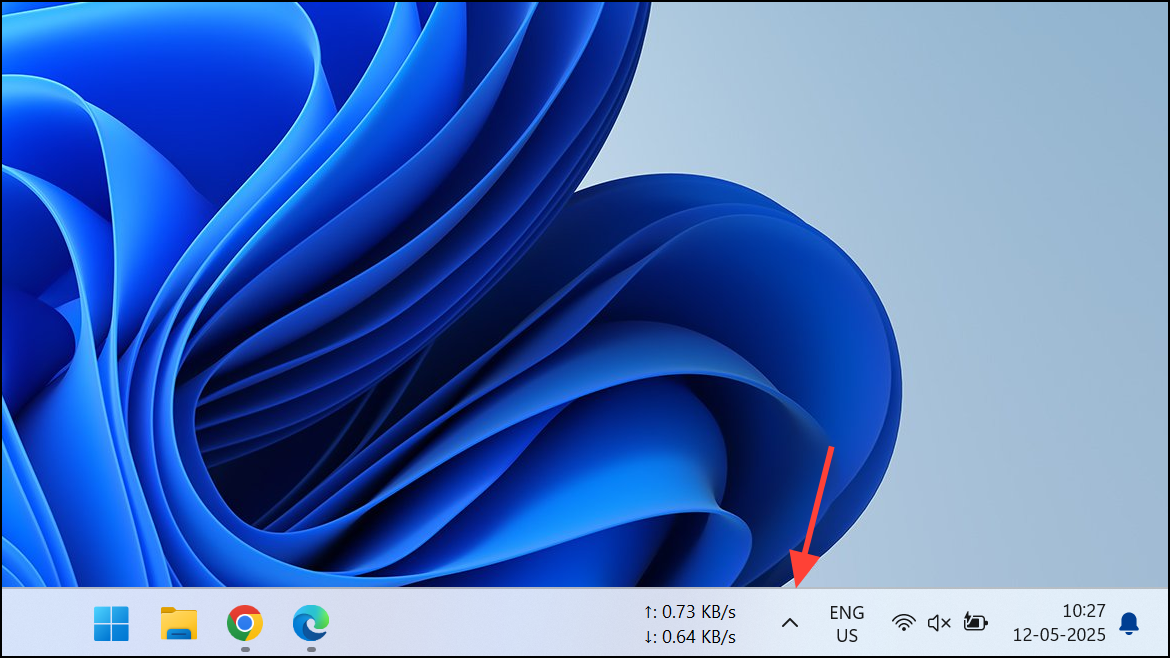
Adjust Notification Area Settings
On some Windows systems, the update process requires the Windows Update notification icon to be visible in the system tray. If this icon is hidden, updates may fail with error 0x80243004.
Reset Windows Update Components
Corrupted update files or stuck services can prevent updates from installing. Resetting update components refreshes the update process and clears problematic cached data.
Win + S, type cmd, right-click Command Prompt, and select Run as administrator.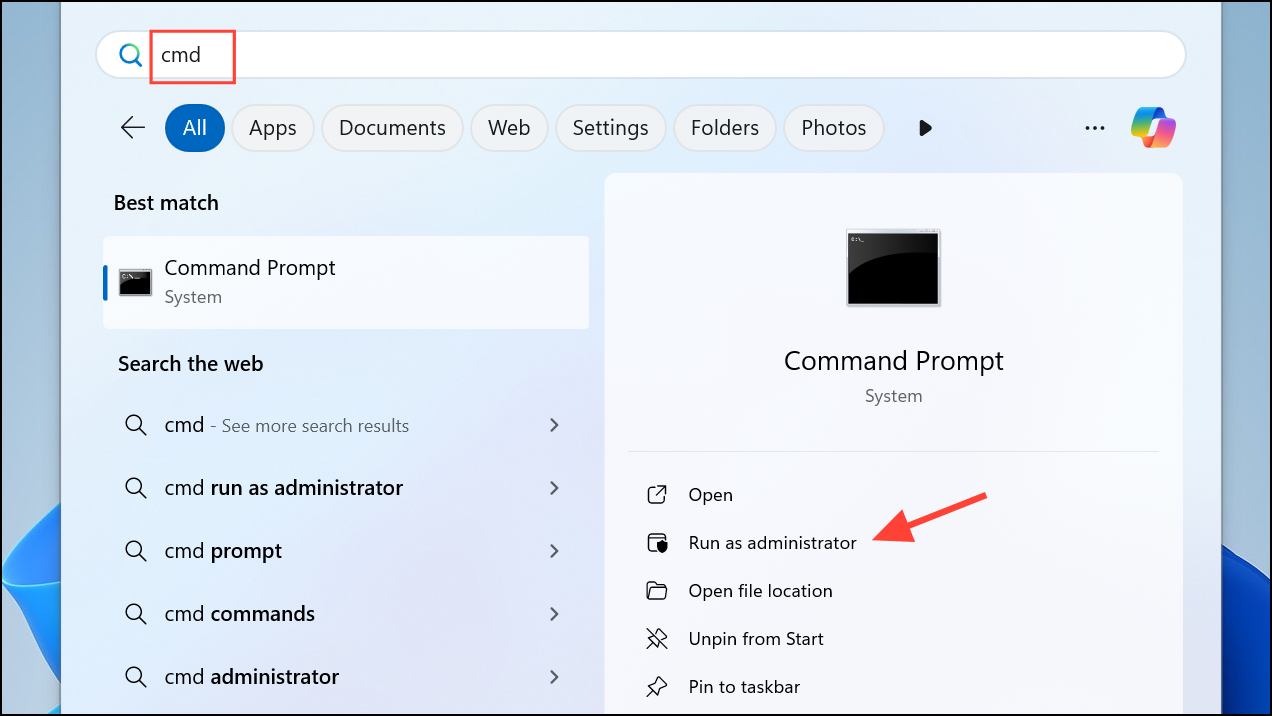
net stop wuauserv
net stop cryptSvc
net stop bits
net stop msiserver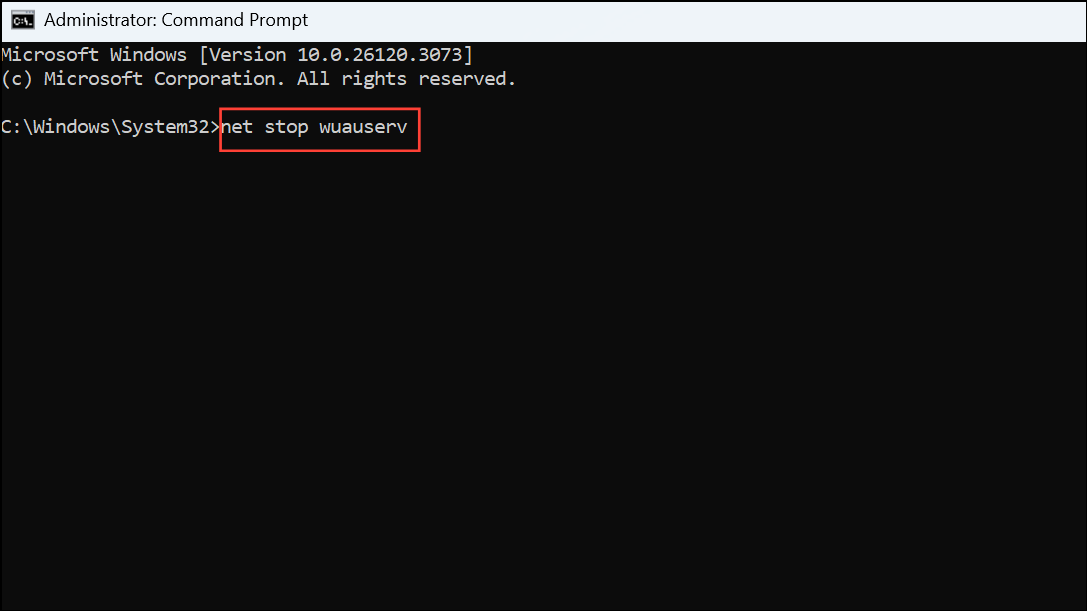
ren C:\Windows\SoftwareDistribution SoftwareDistribution.old
ren C:\Windows\System32\catroot2 catroot2.oldnet start wuauserv
net start cryptSvc
net start bits
net start msiserver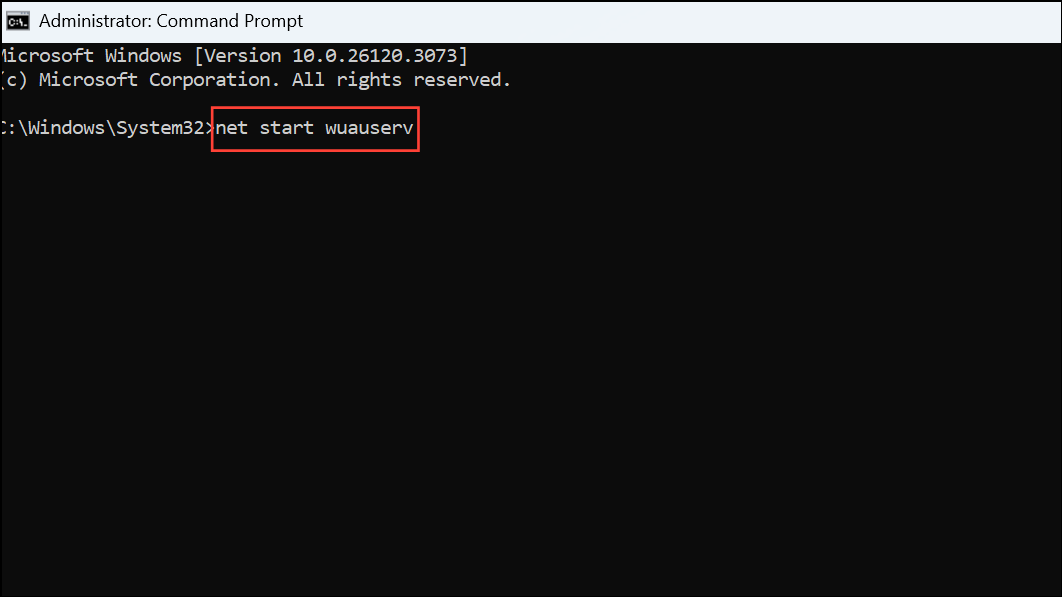
Check System File Integrity with SFC and DISM
Corrupted or missing system files can interfere with the update process. Running built-in repair tools restores system integrity and supports successful updates.
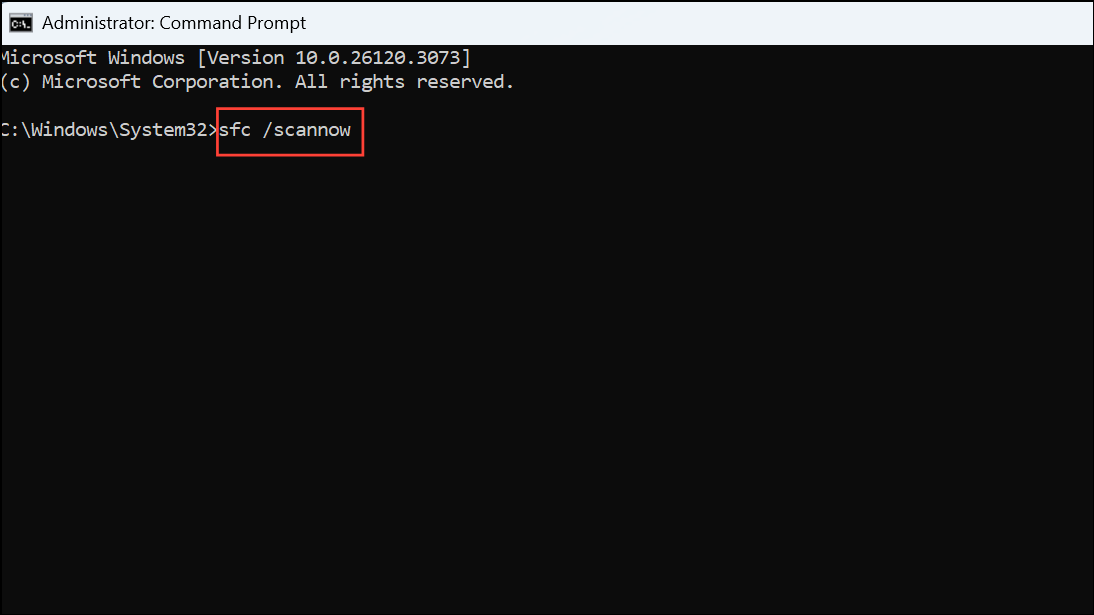
sfc /scannowThis command scans for and repairs corrupted system files. Wait for the scan to reach 100% and follow any repair prompts.
DISM.exe /Online /Cleanup-image /Restorehealth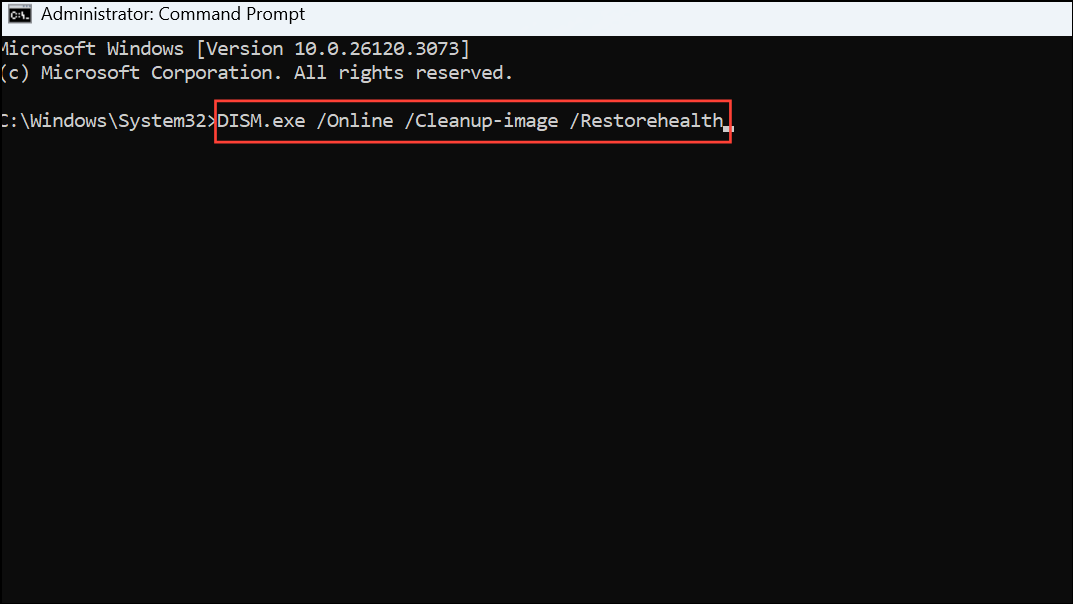
Allow DISM to complete its scan and repair process. Once finished, restart your computer and try updating again.
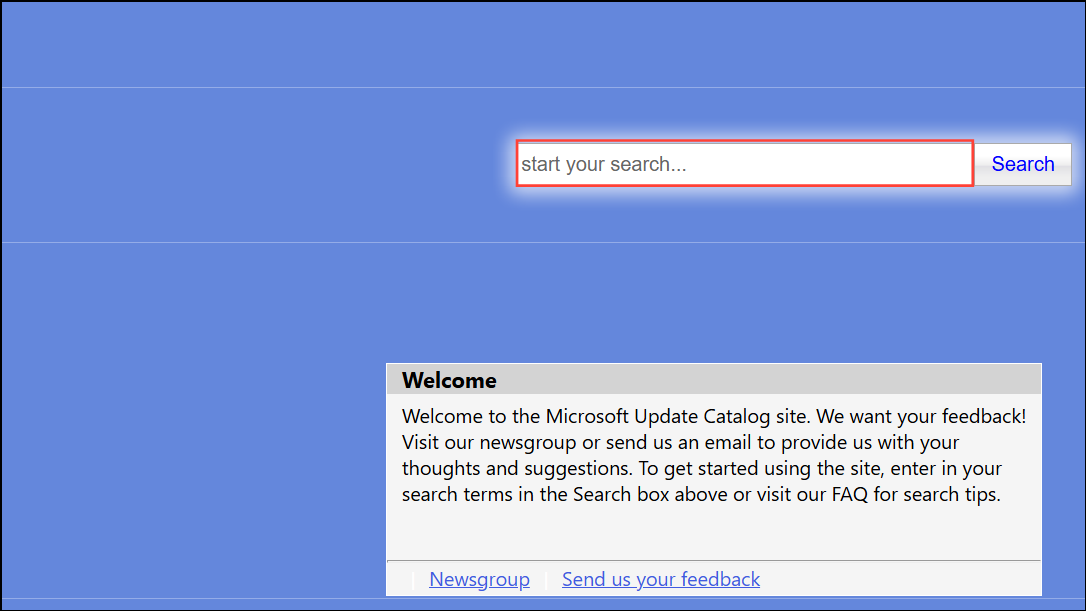
Manually Download and Install the Update
If automatic updates continue to fail, manually downloading the update bypasses some issues with the Windows Update service.
Additional Steps for Persistent Issues
- Ensure your device has a stable internet connection and sufficient free disk space (at least 20 GB for 64-bit Windows 11).
- Temporarily disable third-party antivirus or firewall software, as these can block update processes.
- Verify that your account has administrator privileges, as some updates require elevated permissions.
- If all else fails, consider updating Windows using an official ISO file or performing a clean installation, ensuring you back up important files first.
Addressing error 0x80243004 in Windows 11 restores update functionality, secures your device, and keeps your system current with the latest features and fixes.



