Fix Failed to Format Selected Partition Error on Windows 11
Resolve the “Failed to format the selected partition. Error: 0x8004242d” message during Windows 11 installation or partition management by addressing disk configuration problems, partition table corruption, and UEFI/BIOS conflicts.
Resolve the “Failed to format the selected partition. Error: 0x8004242d” message during Windows 11 installation or partition management by addressing disk configuration problems, partition table corruption, and UEFI/BIOS conflicts.
by Pallav Pathak
“Failed to format the selected partition. Error: 0x8004242d” interrupts Windows 11 installations when disk partition structures are corrupted, dynamic disks are present, or UEFI/BIOS settings are incompatible. This error blocks progress, leaving the system unable to create or format the required partitions for Windows setup. Addressing this issue involves directly fixing disk configuration, partition tables, or firmware settings to ensure Windows can access and modify the target drive.
Delete All Partitions and Recreate Them
Corrupted partition tables or leftover system data from previous installations can prevent Windows 11 from formatting the disk. Removing all partitions and starting with unallocated space often resolves the error by giving Windows a clean environment for installation. Be aware: this method erases all data on the target disk, so back up important files before proceeding.
Boot your PC from a Windows 11 installation USB or DVD. Restart the computer and use the boot menu key—typically F2, F12, Esc, or Del—to select the installation media as your boot device.
When you reach the “Where do you want to install Windows?” screen, all existing partitions will be listed. Select each partition and click Delete. Confirm each deletion until only “Unallocated Space” remains.
Proceed with the Windows 11 installation as usual. The error should no longer appear if the partition table was the root cause.
Convert Dynamic Disk to Basic Disk
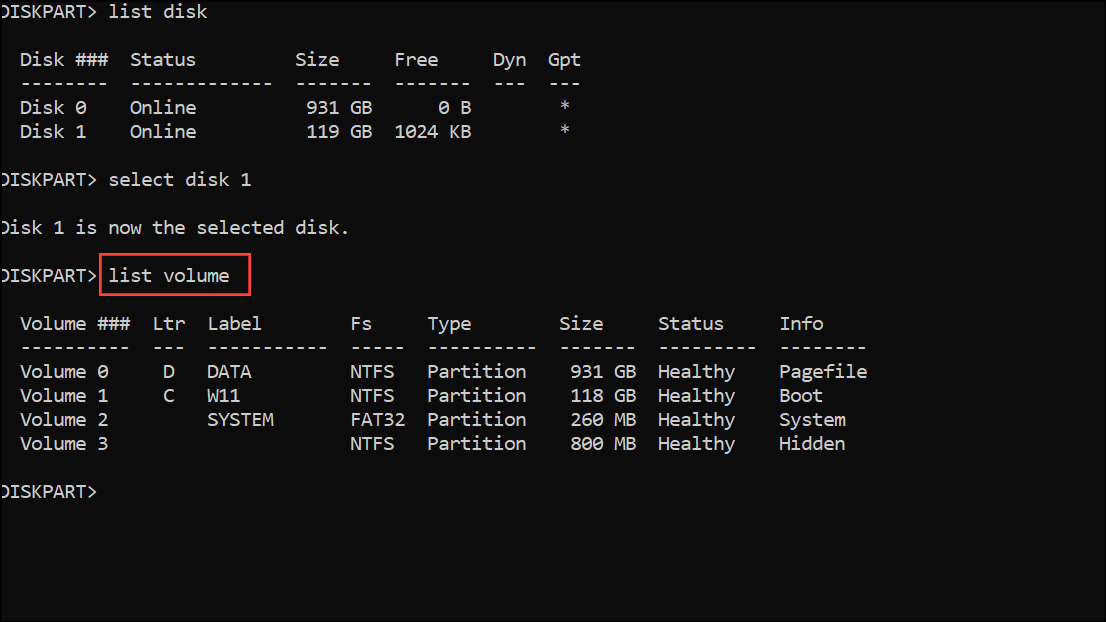
Windows 11 cannot be installed on dynamic disks. If the disk is dynamic, converting it to a basic disk is required. This process deletes all volumes and data on the disk, so ensure that backups are completed first.
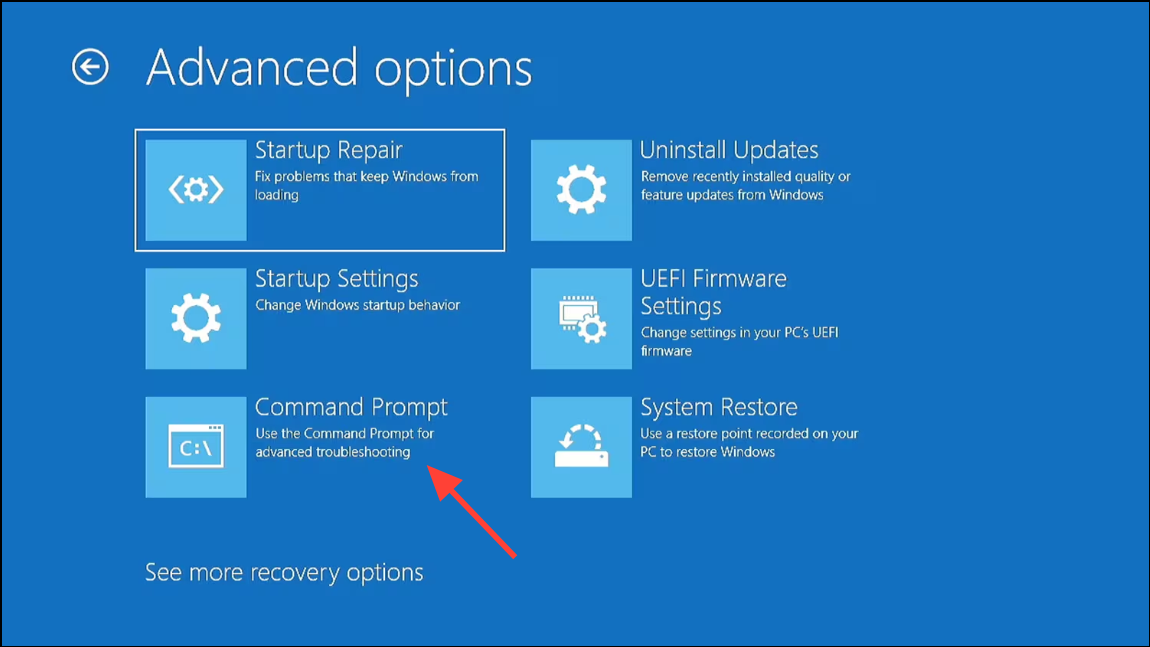
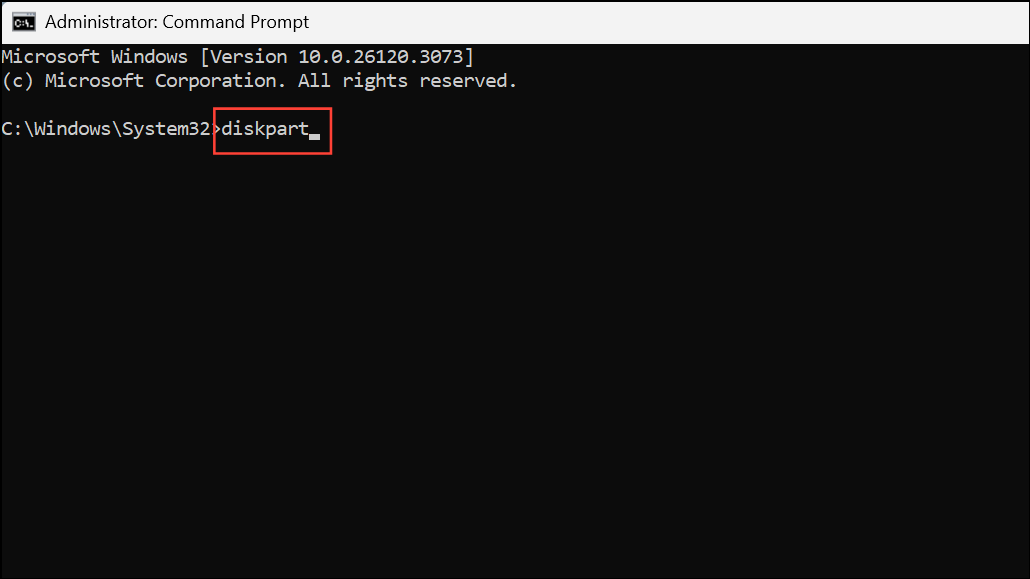
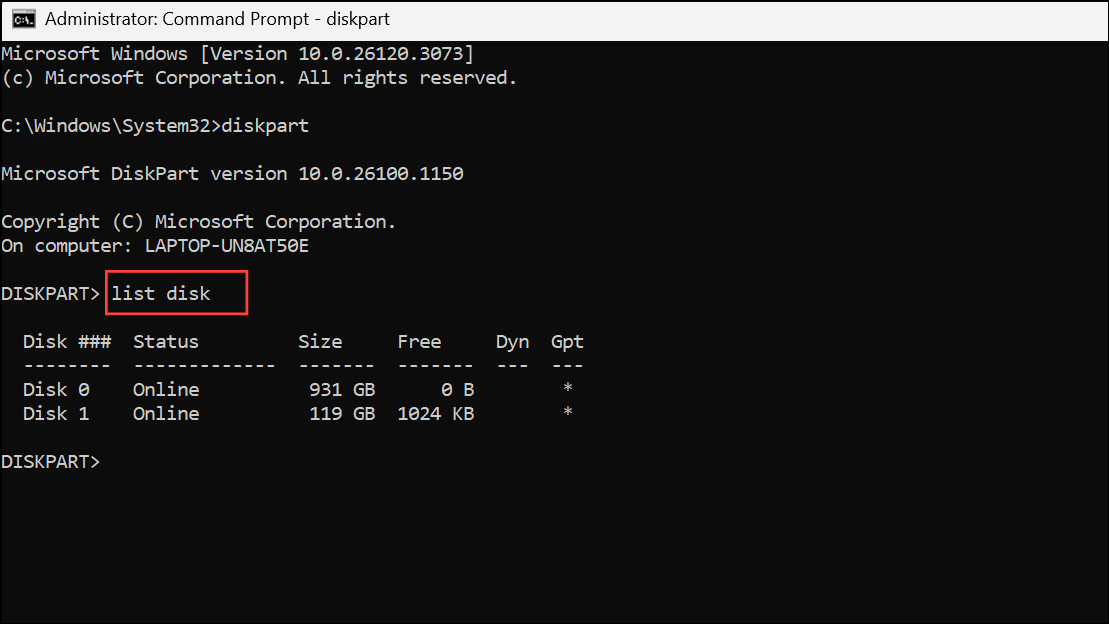
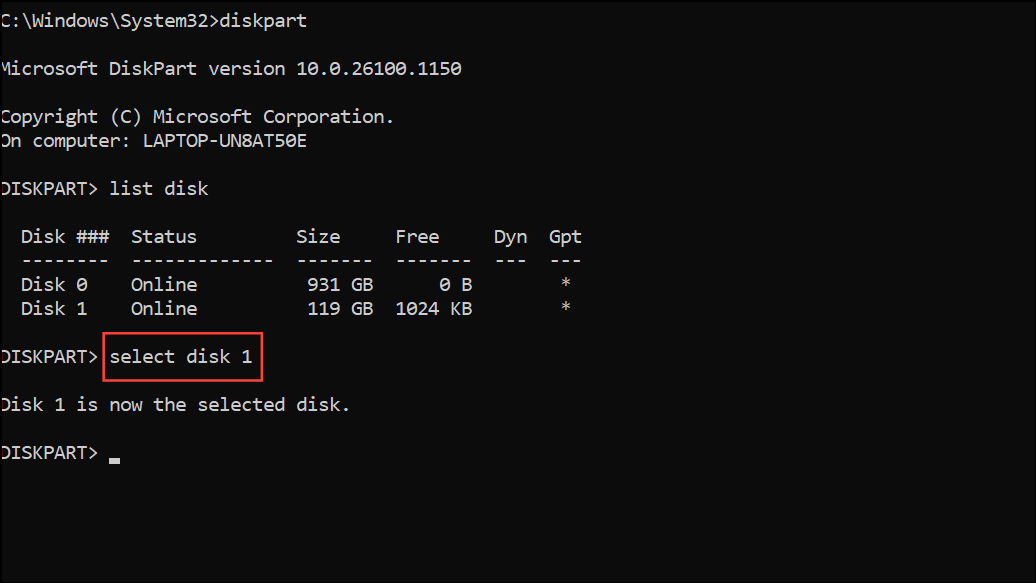
Boot from the Windows 11 installation media. On the setup screen, select Repair your computer, then go to Troubleshoot > Advanced options > Command Prompt.
Exit Diskpart and Command Prompt. Restart the installation process and create a new partition as described previously. Windows 11 should now recognize the disk as suitable for installation.
Clean the Disk Using Diskpart
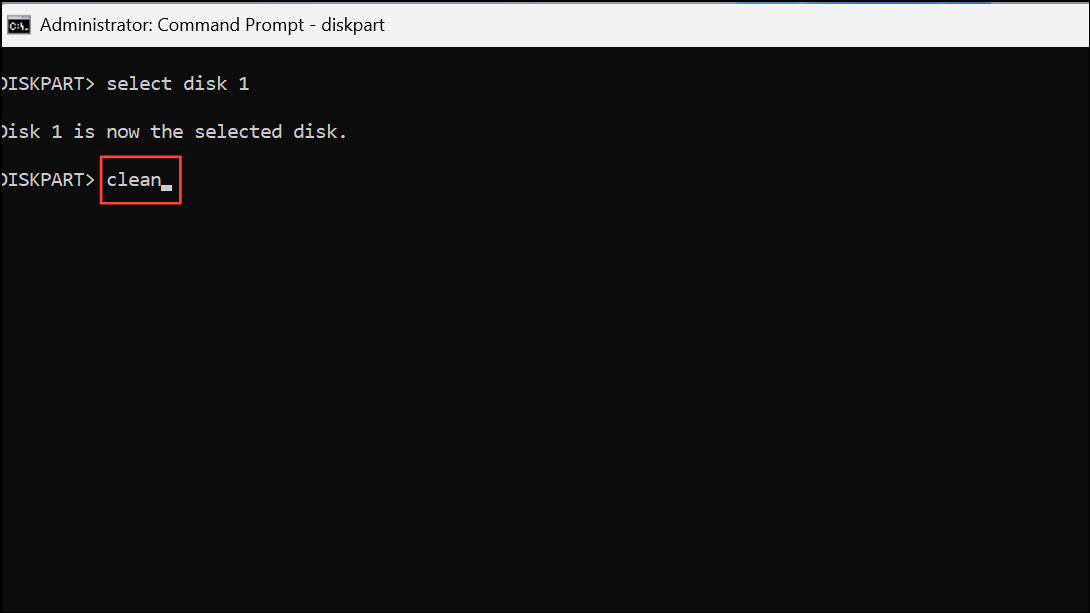
If deleting partitions through the setup fails or the disk structure remains corrupted, the Diskpart clean command removes all partition and formatting information, resetting the disk to an unallocated state. This method is especially effective when dealing with persistent partition table errors.
Exit Diskpart and Command Prompt. Return to the Windows setup, where the disk should now appear as unallocated space. Create new partitions and continue installation.
Repair Disk Errors with CHKDSK
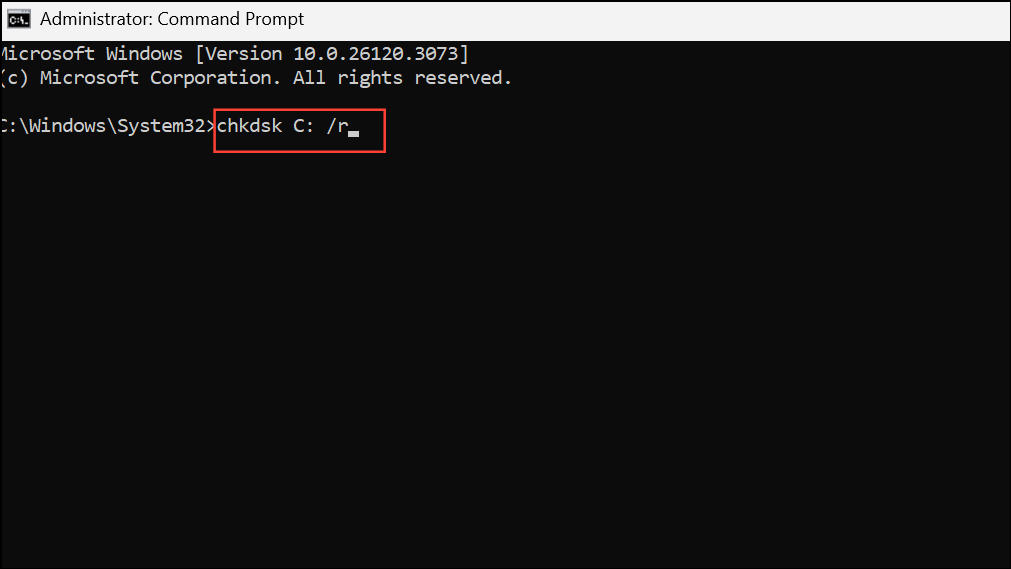
Physical or logical disk errors can prevent formatting. Running the chkdsk utility scans for and repairs bad sectors and file system errors, which can restore the disk’s functionality for Windows 11 installation.
Allow the scan to complete. CHKDSK will attempt to repair any detected errors. This process may take considerable time depending on disk size and error severity.
After the scan, close Command Prompt and retry the installation or partition formatting process.
Disable UEFI Boot Support in BIOS/UEFI Settings
Conflicts between UEFI (Unified Extensible Firmware Interface) and legacy BIOS boot modes can block disk formatting or installation. Adjusting firmware settings to disable UEFI boot support or enable legacy boot mode can resolve these compatibility issues.
Save changes and exit BIOS/UEFI. Reboot and restart the Windows 11 installation or partition formatting process.
Fixing the “Failed to format the selected partition. Error: 0x8004242d” issue in Windows 11 requires addressing disk structure, partition type, or firmware settings directly. Once the underlying problem is resolved, Windows 11 setup can proceed without further partition errors.