
Outlook startup failures and connection errors disrupt email access, delay workflow, and can prevent calendar synchronization across devices. Windows 11 introduces a streamlined approach to diagnosing and resolving these issues through the integrated Get Help app, eliminating the need for manual registry edits or third-party utilities.
Use the Get Help App to Diagnose and Fix Outlook Problems
Get Help in the search bar, and selecting the app from the results. For best results, right-click the app and choose Run as administrator to ensure full system access for troubleshooting.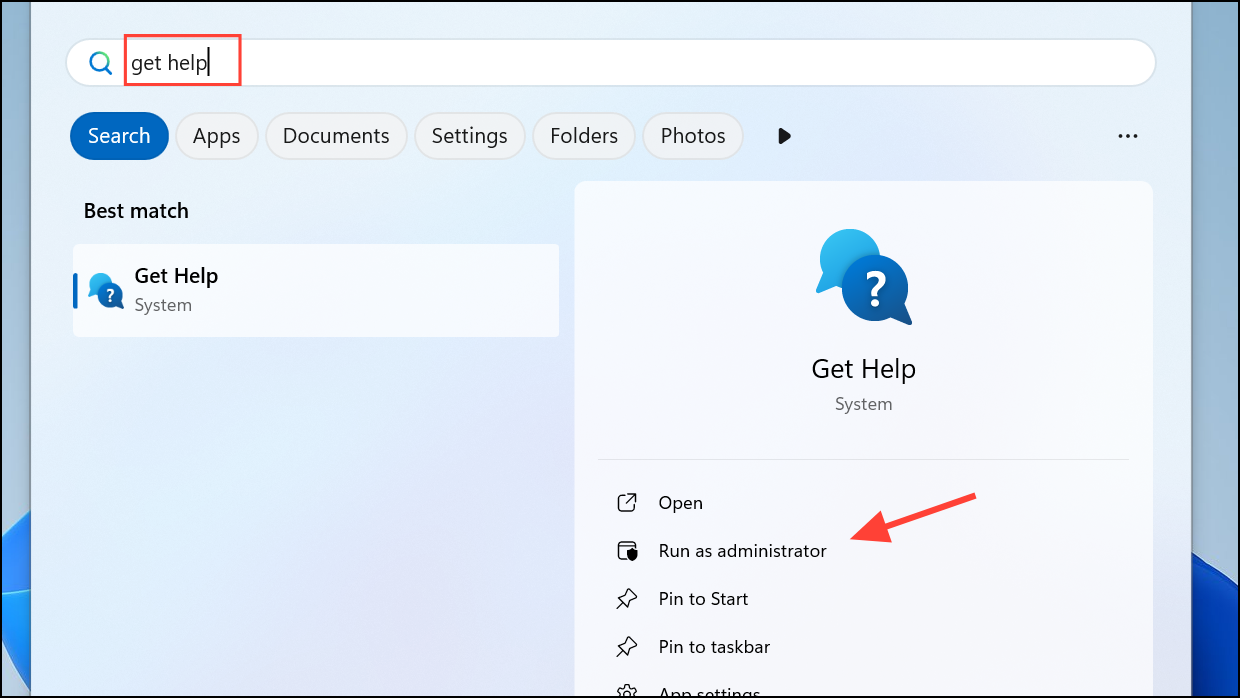
Microsoft Outlook won’t start or Microsoft Outlook connect problem. Press Enter to initiate the relevant troubleshooter.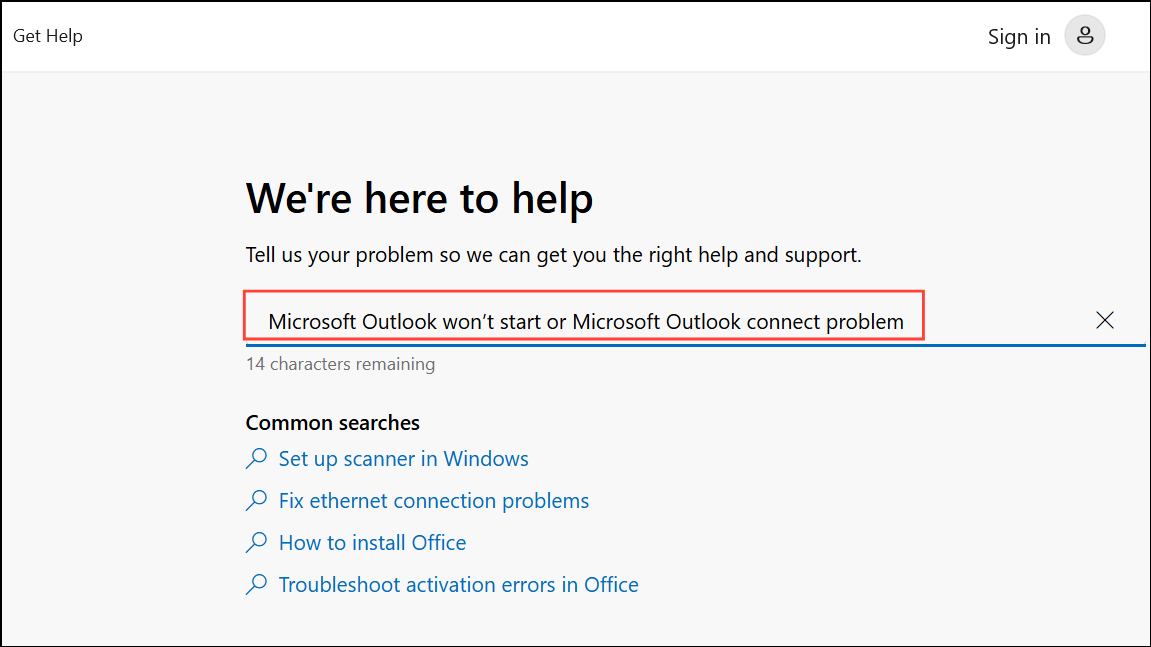
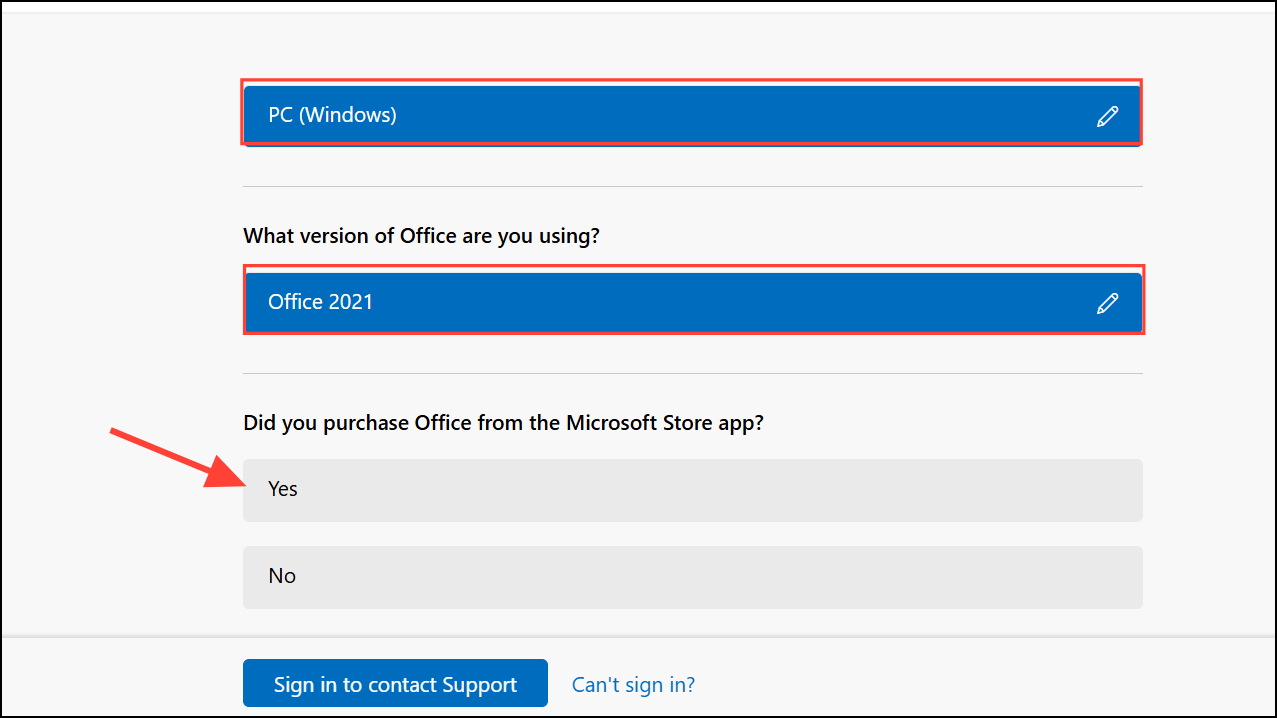
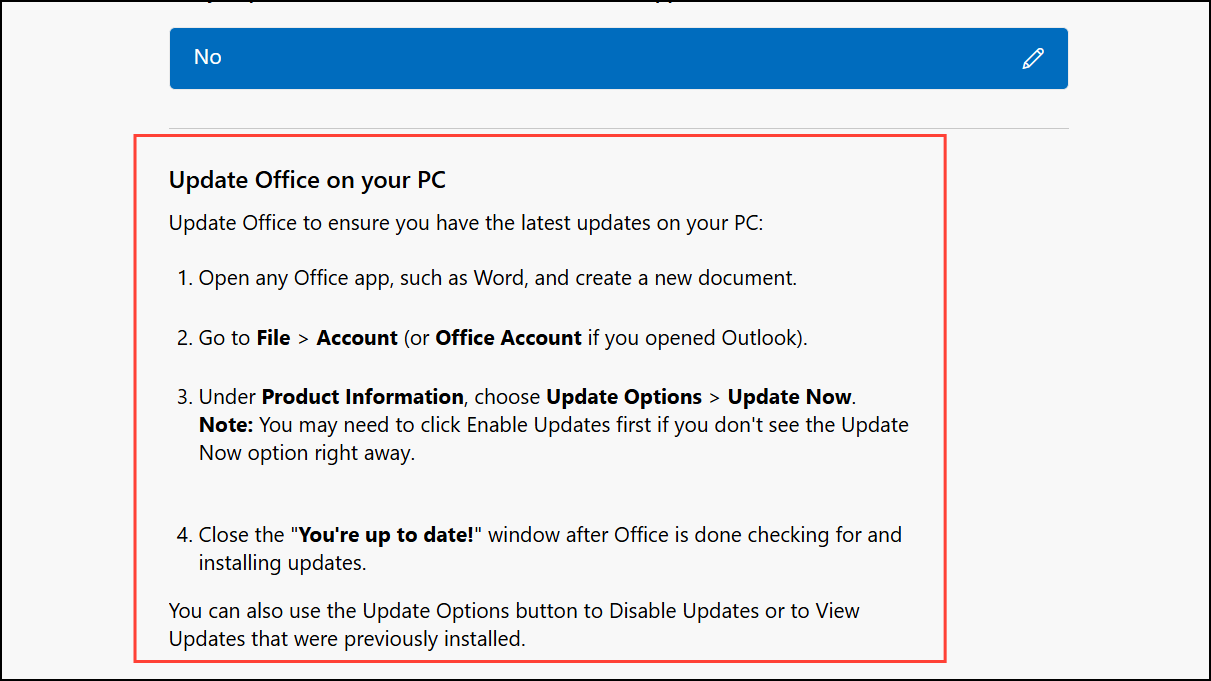
All diagnostic results and logs generated by the Get Help app are saved to %LocalAppData%\GetHelp. If support escalation is needed, these files can be shared with IT professionals for deeper troubleshooting.
Run Advanced Outlook Diagnostics for Detailed Reporting
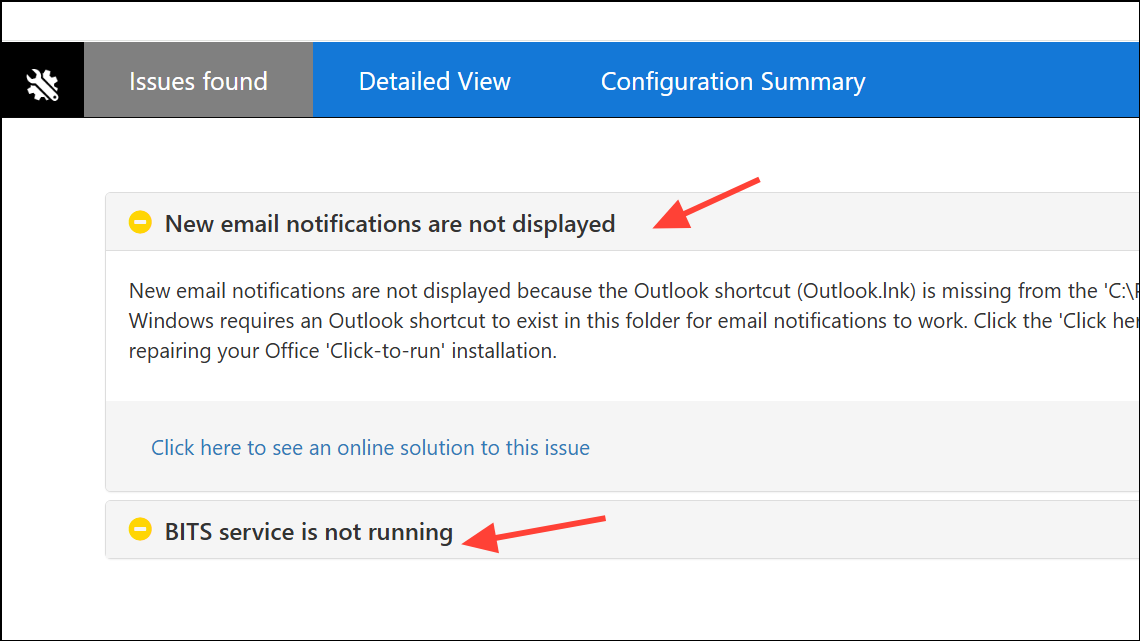
For persistent or complex issues, the Get Help app offers an advanced diagnostics option that thoroughly scans your Outlook configuration and generates a comprehensive report. This report includes account setup, profile health, add-in conflicts, and connectivity logs.
Create detailed Outlook diagnostic report and select the prompt to begin the advanced scan.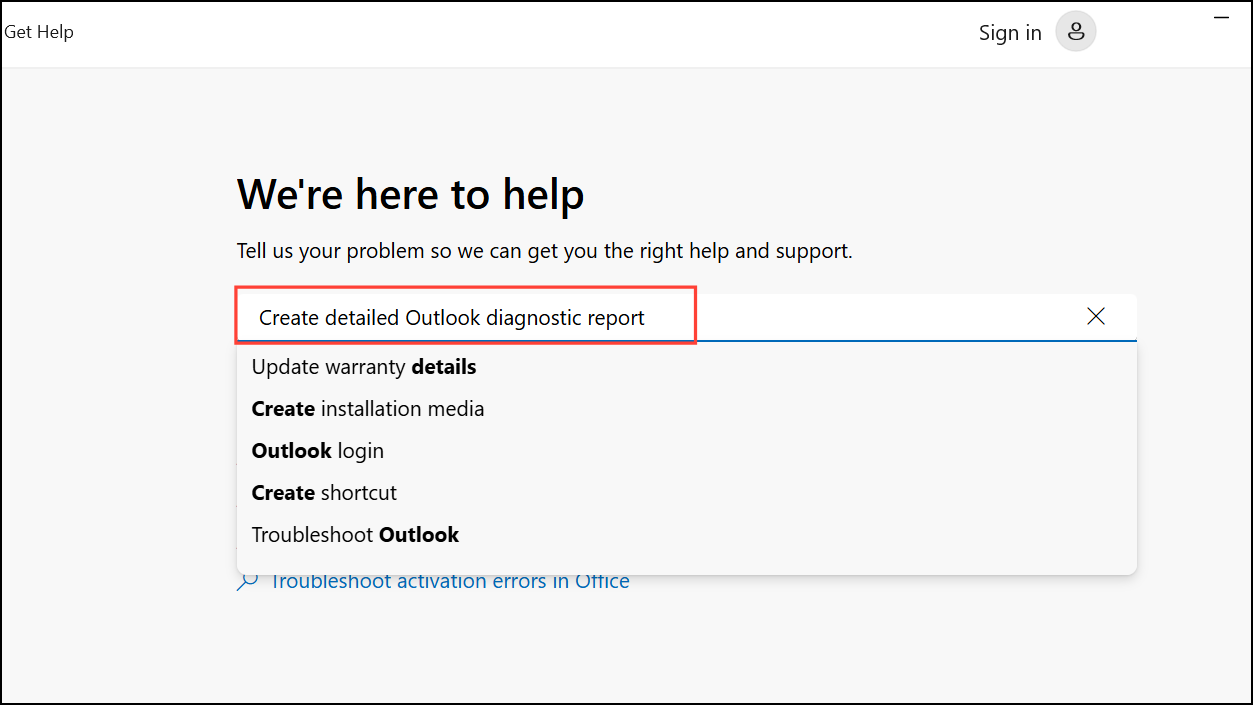
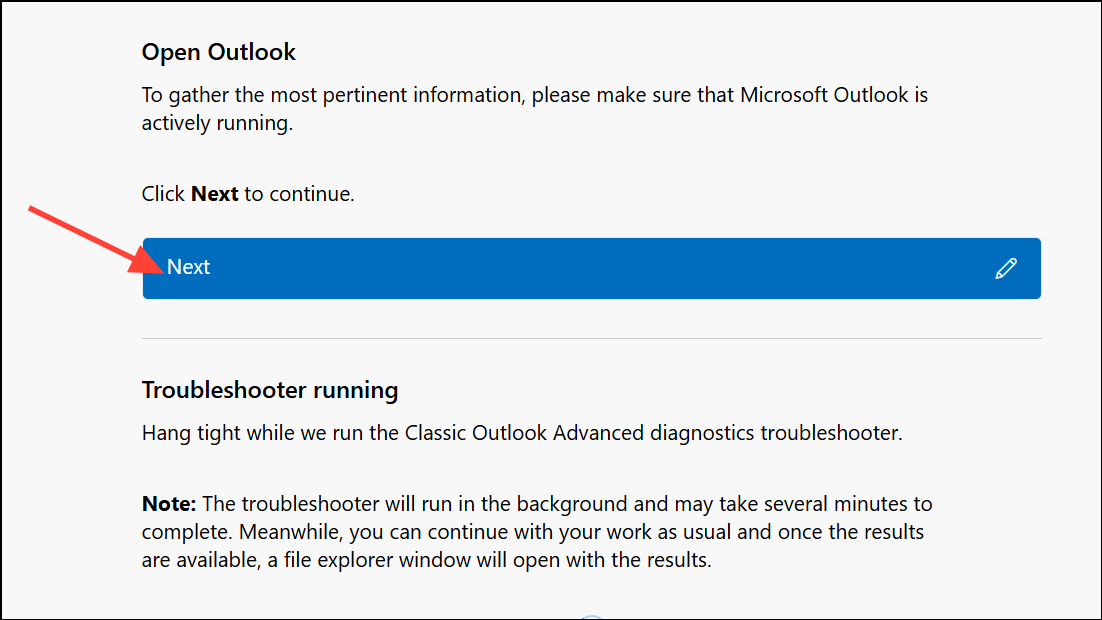
C:\Users\[YourUsername]\AppData\Local\GetHelp to locate the HTML report. This file offers a structured overview of detected issues, configuration summaries, and actionable recommendations.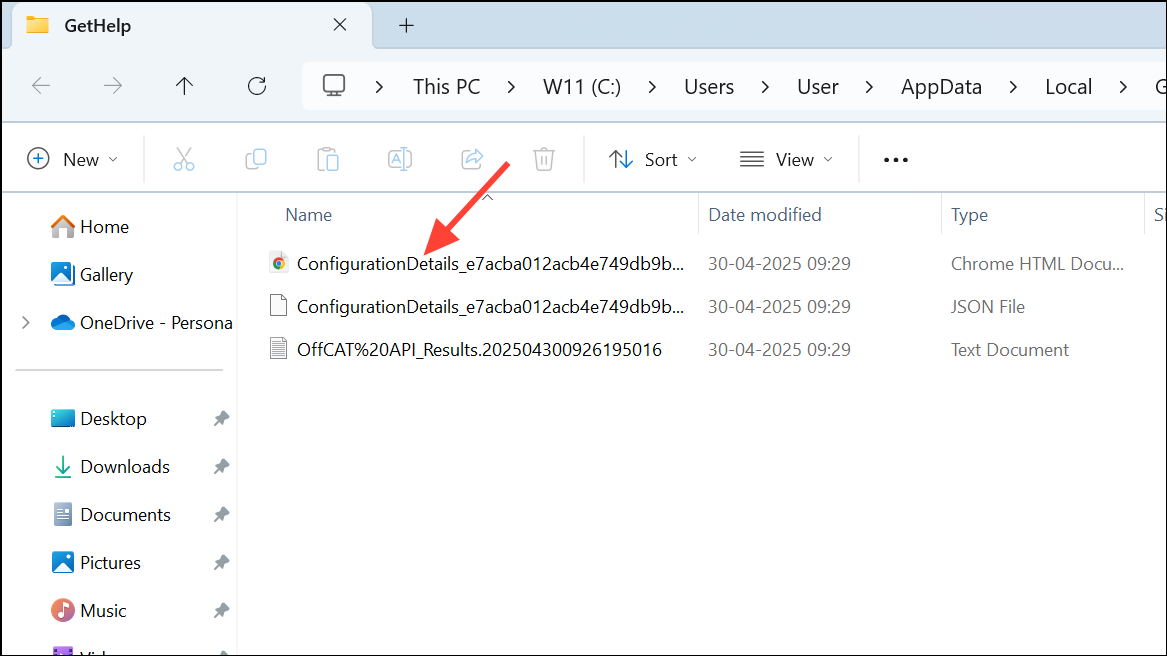
Use the Outlook Startup Troubleshooter for Launch Failures
When Outlook refuses to open or crashes on startup, the Outlook Startup Troubleshooter within Get Help targets launch-specific issues, including navigation pane corruption and outdated Office components.
Microsoft Outlook won’t start in the search field. The app will identify and launch the Outlook Startup Troubleshooter.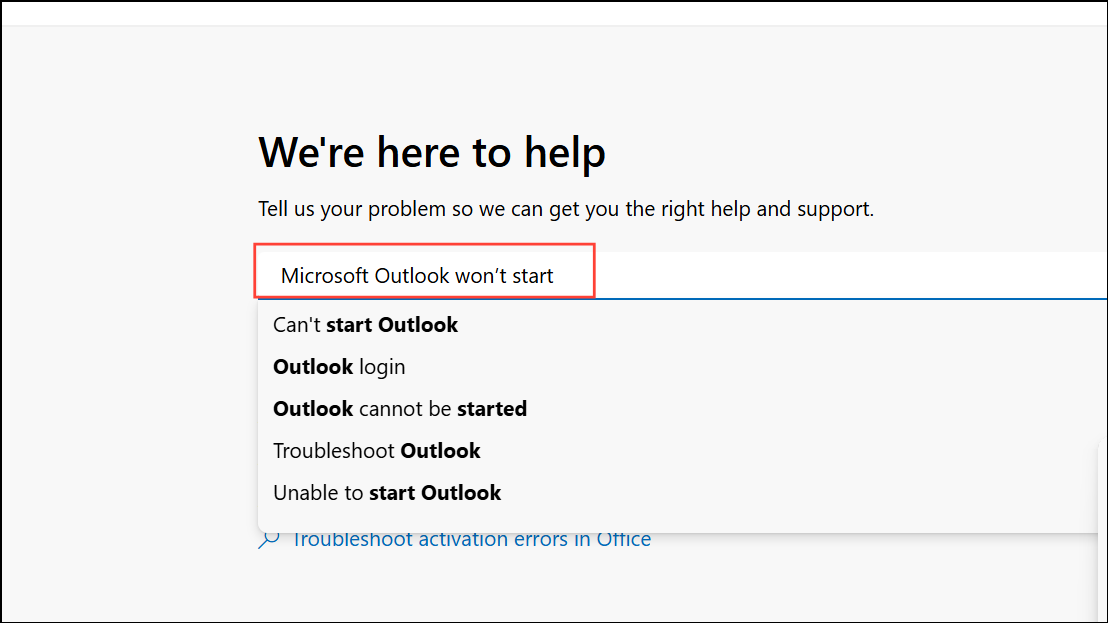
Alternative Solutions: Command-Line Diagnostics and Manual Repairs
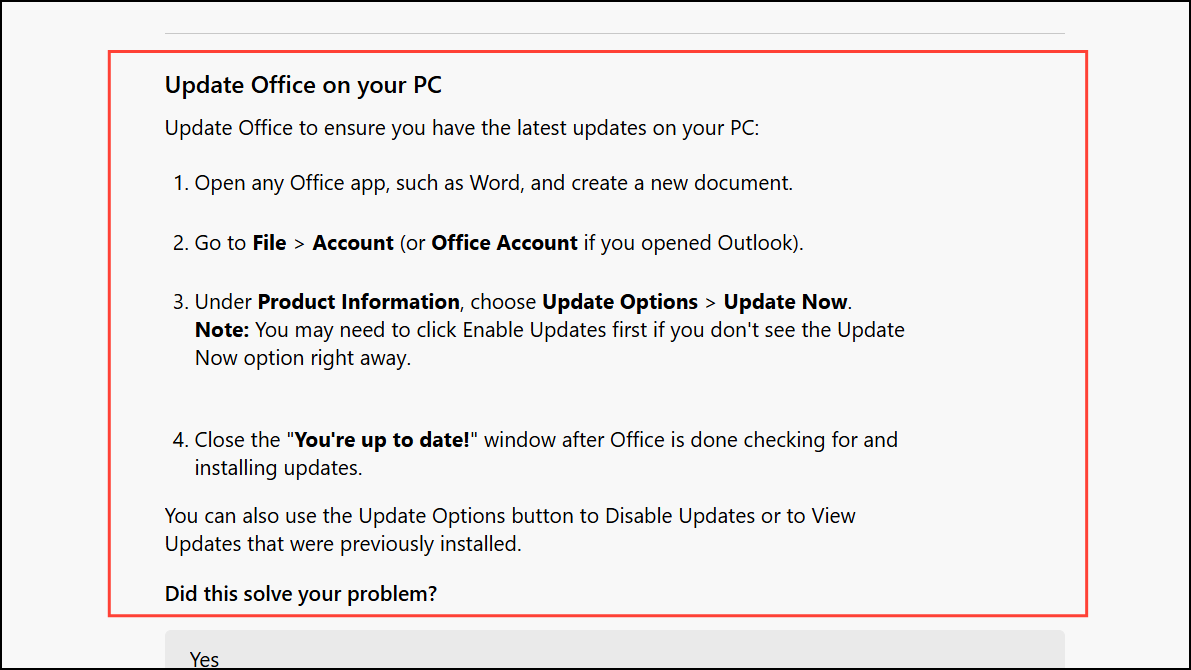
In scenarios where organizational restrictions or virtual desktop environments prevent the Get Help app from functioning, Microsoft provides a command-line version of the Outlook Support and Recovery Assistant (SaRA). This tool offers advanced diagnostics and log collection capabilities outside of the Get Help interface. It is now only available for Enterprise users, with the Home user version having been replaced by the Get Help tool.
C:\Users\USERNAME\Desktop\SaRA CMD.cd command.SaRAcmd.exe -S ExpertExperienceAdminTask -AcceptEula%localappdata%\saralogs\UploadLogs. Share this file with IT support if further analysis is required.Manual repair options, such as creating a new Outlook profile or repairing your .pst file, remain viable for cases where automated tools do not resolve the problem. These options can be accessed through the Control Panel or via Microsoft’s official repair tools.
Leveraging the Get Help app and its built-in Outlook troubleshooters on Windows 11 streamlines problem resolution, reduces downtime, and minimizes the need for external support. For recurring or advanced issues, exporting diagnostic reports or using command-line tools ensures that technical staff have the information needed to resolve even the most complex Outlook problems.





