

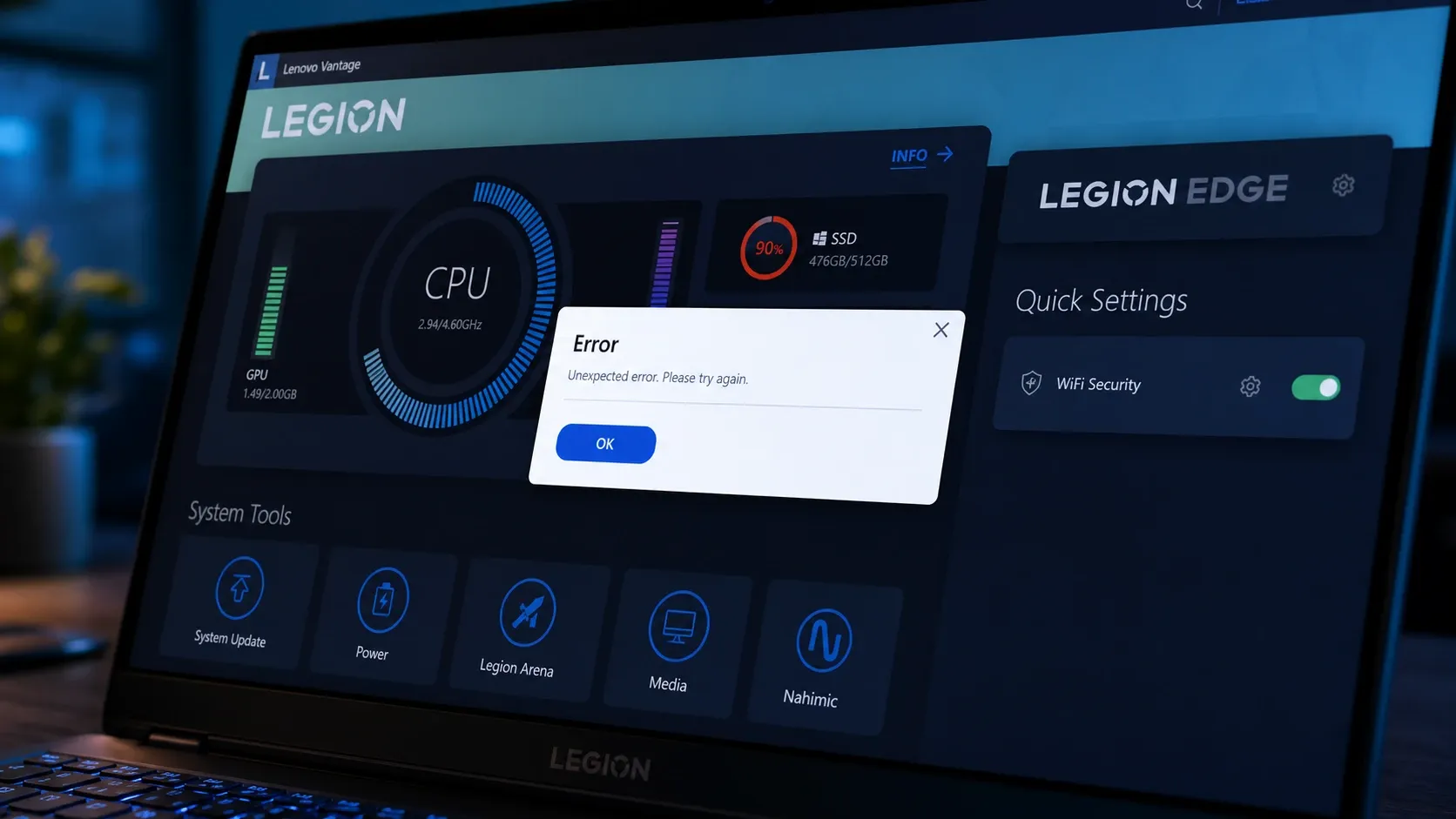
Lenovo Vantage is the built-in hub for managing drivers, system updates, battery behavior, audio and display tweaks, and hardware health on Lenovo PCs. When it stops opening on Windows 11, it usually hangs on the startup splash screen, throws a service error, or launches with blank sections and missing battery controls. The cause is almost always software-related, so you can fix it without reinstalling Windows or touching hardware.
Why Lenovo Vantage stops working on Windows 11
Vantage is more than the window you see. It depends on a background service, the Lenovo System Interface Foundation component, specific .NET Framework libraries, valid certificates, and Lenovo drivers. If any of those pieces is disabled, missing, or broken, the app can refuse to launch or open with parts of the interface gone.
The most common triggers fall into a short list. Use it to decide which fix to try first.
| Cause | Typical symptom |
|---|---|
| Missing or disabled .NET Framework 3.5 | App fails to launch, error 0xc0000135 |
| Lenovo Vantage Service stopped or disabled | Stuck on splash screen, won’t open |
| Corrupted or incomplete app install | Blank pages, crashes, missing sections |
| Missing Lenovo System Interface Foundation | Battery, update, and hardware controls disappear |
| Recent Windows 11 cumulative update | Feature worked before, then broke after updating |
| Driver or BIOS problem | Battery threshold or special key controls missing |
| Feature never supported on that model | Setting was never present, not actually broken |
Before deeper repairs, restart the PC once. A clean reboot reloads Lenovo’s background services and Microsoft Store components that may not have restarted correctly after a failed update.
Enable .NET Framework 3.5 to fix error 0xc0000135
A missing .NET Framework 3.5 pack is the single most common reason Vantage won’t start, and it is closely tied to error 0xc0000135. Turning the feature back on restores the libraries the app needs to launch.
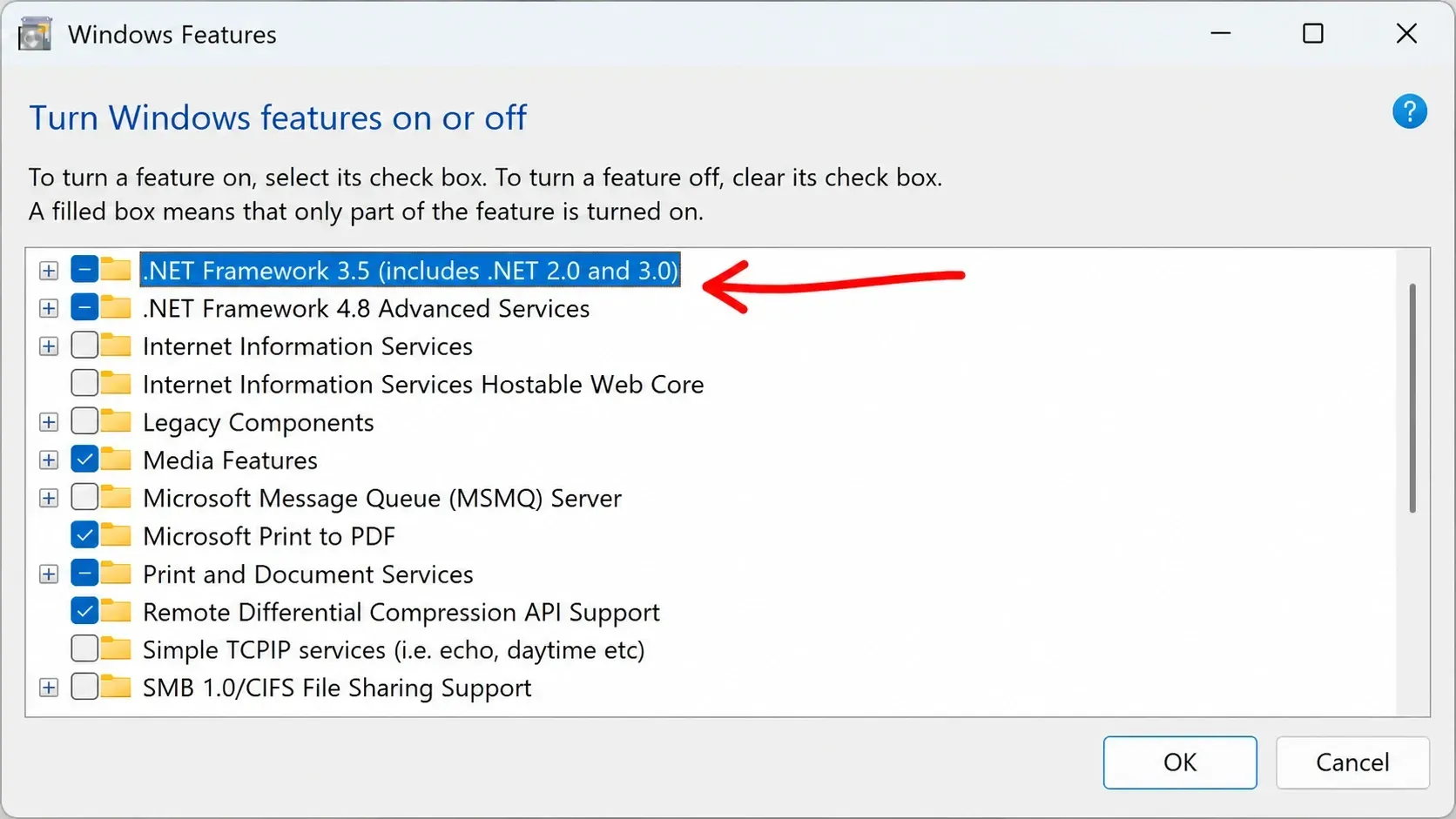
dism /online /enable-feature /featurename:netfx3 /all
dism /online /enable-feature /featurename:WCF-HTTP-Activation
dism /online /enable-feature /featurename:WCF-NonHTTP-Activation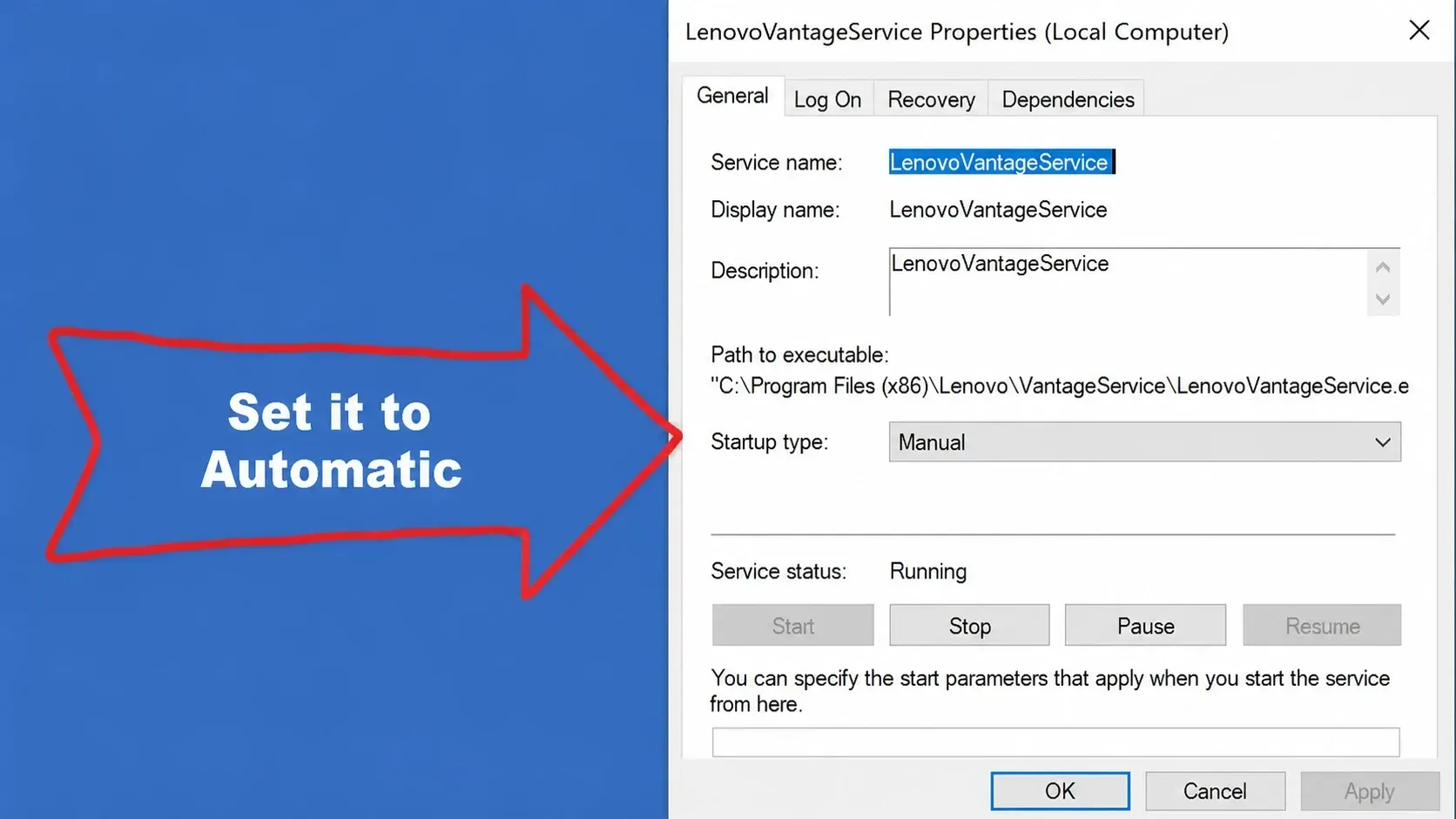
Open Vantage after the restart. If it launches normally, you’re done. If it still hangs, move on.
Start the Lenovo Vantage Service
If the background service is stopped or set to manual, the window can sit forever on the splash screen. Setting it to start automatically lets the app reach the resources it needs at launch.
Repair or reset Lenovo Vantage
Minor glitches, damaged files, and stale cache cause blank panels, unresponsive menus, and stuck loading. Windows 11 can clear those without a full reinstall. Repair keeps your settings, while reset wipes the app’s data and starts it fresh.
Reinstall Vantage and Lenovo System Interface Foundation
When repair and reset don’t help, a clean reinstall removes corrupted files and software conflicts. Vantage also relies on the Lenovo System Interface Foundation component, so reinstall both. Skipping the Interface Foundation is why some people end up with an app that opens but shows no battery or update controls.
Get-AppxPackage -AllUsers *SystemInterfaceFoundation* | Remove-AppxPackageUninstall a recent Windows 11 update
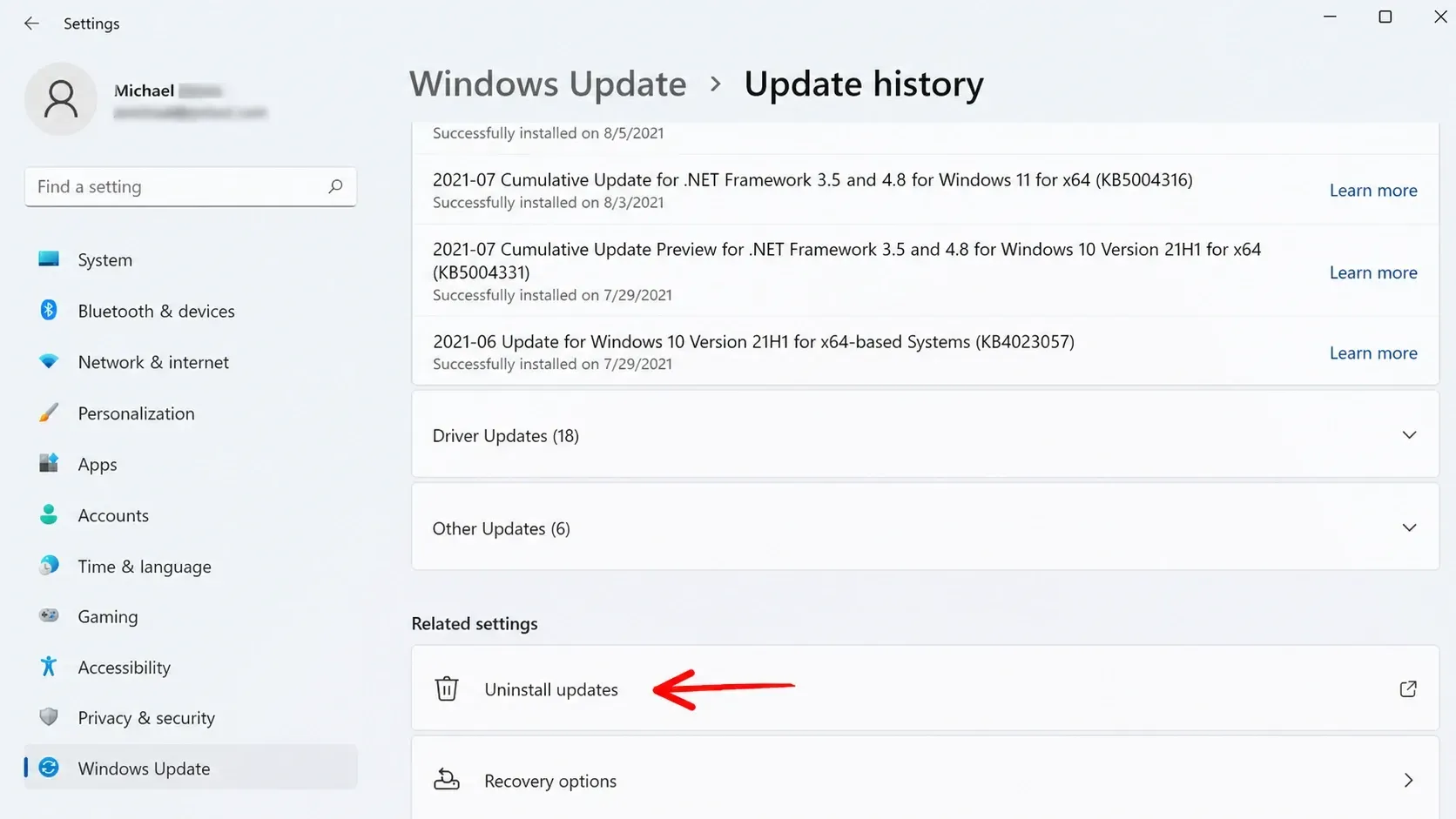
If Vantage broke right after a Windows update such as KB5013628 or KB5013943, that update likely changed a dependency the app needs. Removing the most recent update can restore it.
When Vantage opens but features are missing
An app that launches yet hides battery threshold, Conservation Mode, or update sections is a different problem from one that won’t open at all. The cause is usually one of three things. The feature isn’t supported on your exact model, a required Lenovo driver or component is missing, or the app isn’t communicating with its background services.
Ask one question first. Did the feature work before and then vanish, or was it never there? If it used to work, suspect drivers, services, or a recent update. If it was never present, the setting may simply not exist on your laptop, and reinstalling won’t add it.
For missing hardware controls, open Device Manager and look for battery, ACPI, power, and system-device entries with a yellow warning mark. Right-click each one, choose Update driver, and select the automatic search. Confirming that your BIOS and Lenovo support drivers are current also restores behavior that breaks after major Windows upgrades.
How to confirm the fix and when to contact Lenovo
You’ll know the fix worked when Vantage launches past the splash screen into the full dashboard, the battery and update sections appear, and settings such as Conservation Mode or Rapid Charge save and persist after a reboot. If a hardware scan and update check both complete without errors, the app is healthy again.
If the app still fails after enabling .NET Framework, restarting the service, repairing, resetting, reinstalling both components, and removing recent updates, the issue may be specific to your device model. Reach out through Lenovo’s support community or contact Lenovo Support directly with your serial number so they can check logs tailored to your exact machine.
Vantage remains worth keeping for anyone who relies on Lenovo-specific battery controls, diagnostics, and driver updates. Removing it permanently only makes sense if you never use those features, prefer manual maintenance, or your device is managed by company IT.



