
SD card readers in Windows 11 may fail to detect cards due to connection issues, outdated drivers, missing drive letters, or corrupted file systems. This disrupts file transfers and device compatibility, making it crucial to identify the root cause and restore full SD card functionality.
Check Physical Connections and Card Condition
Disable Write Protection on the SD Card
Update or Reinstall SD Card Drivers
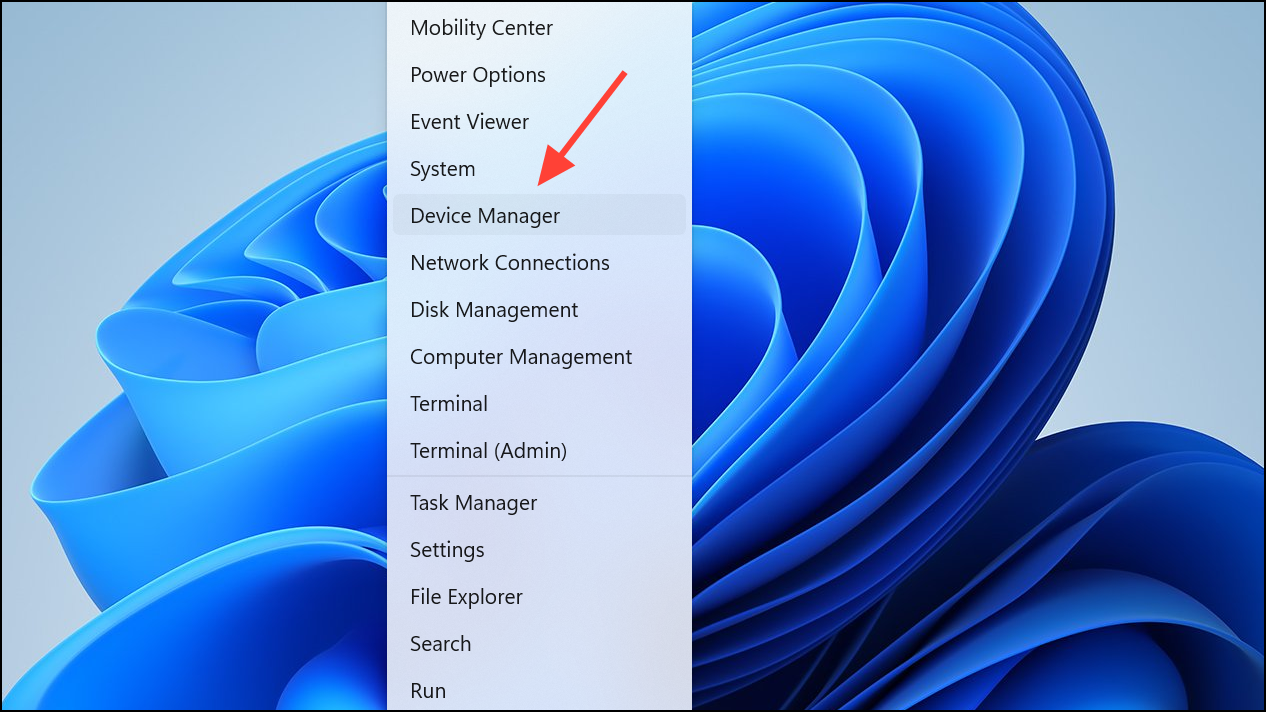
Disk drives section and look for your SD card. If it is listed with a yellow exclamation mark or as an unknown device, right-click and choose Update driver.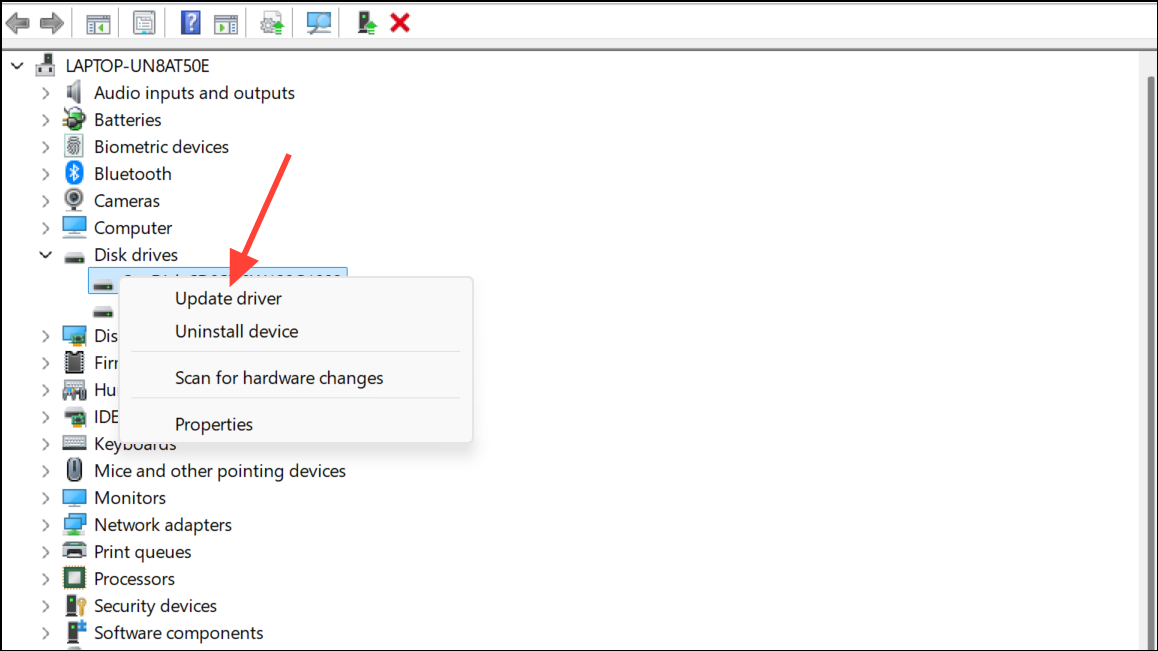
Search automatically for drivers. Windows will look for the latest compatible driver and install it if available.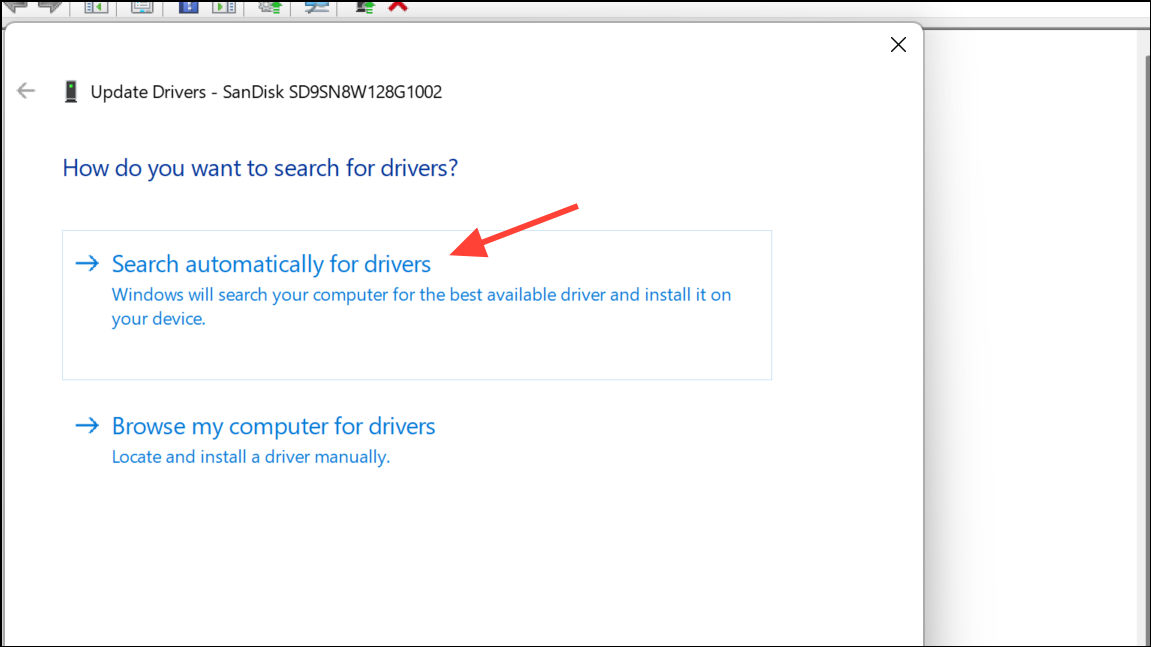
Uninstall device. After uninstalling, disconnect the SD card, restart your computer, and reconnect the card. Windows will attempt to reinstall the necessary drivers automatically.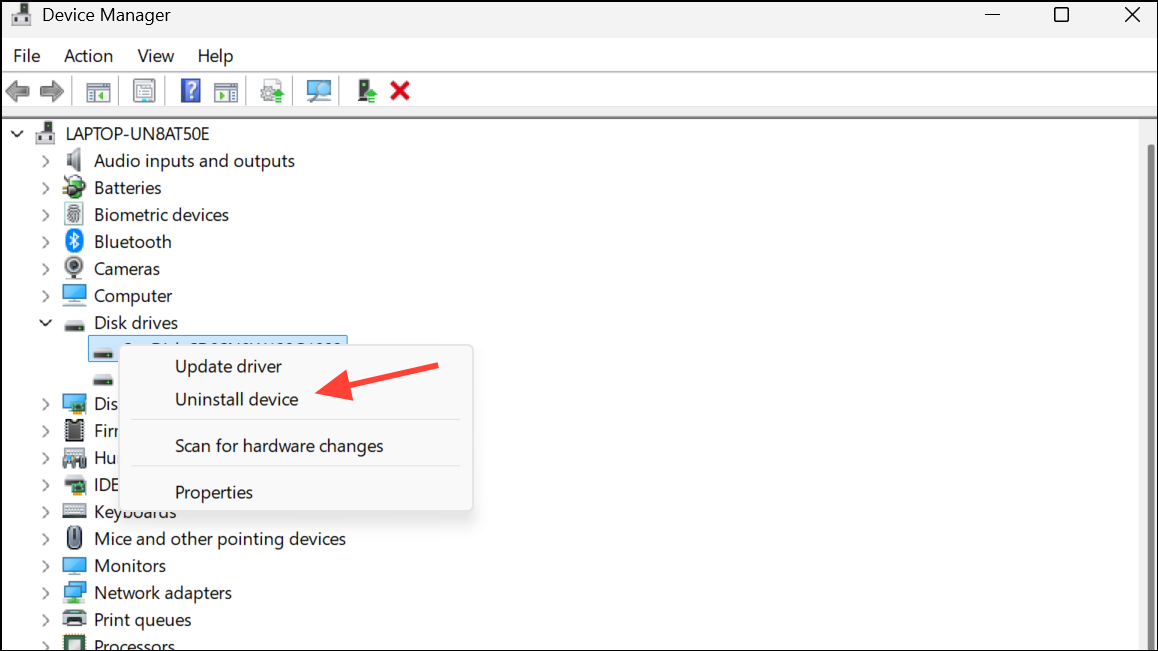
Assign or Change the SD Card Drive Letter
Windows key + R to open the Run dialog. Type diskmgmt.msc and press Enter to launch Disk Management.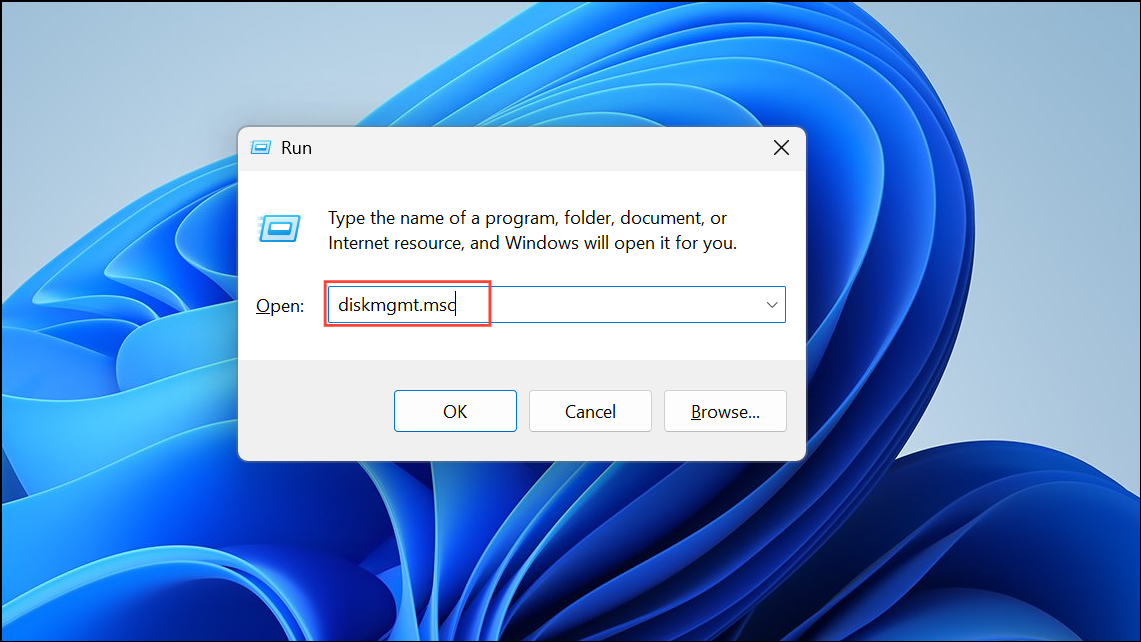
Change Drive Letter and Paths. Click Add (or Change if a letter is already assigned), select an available letter from the dropdown, and click OK.Run CHKDSK to Repair File System Errors
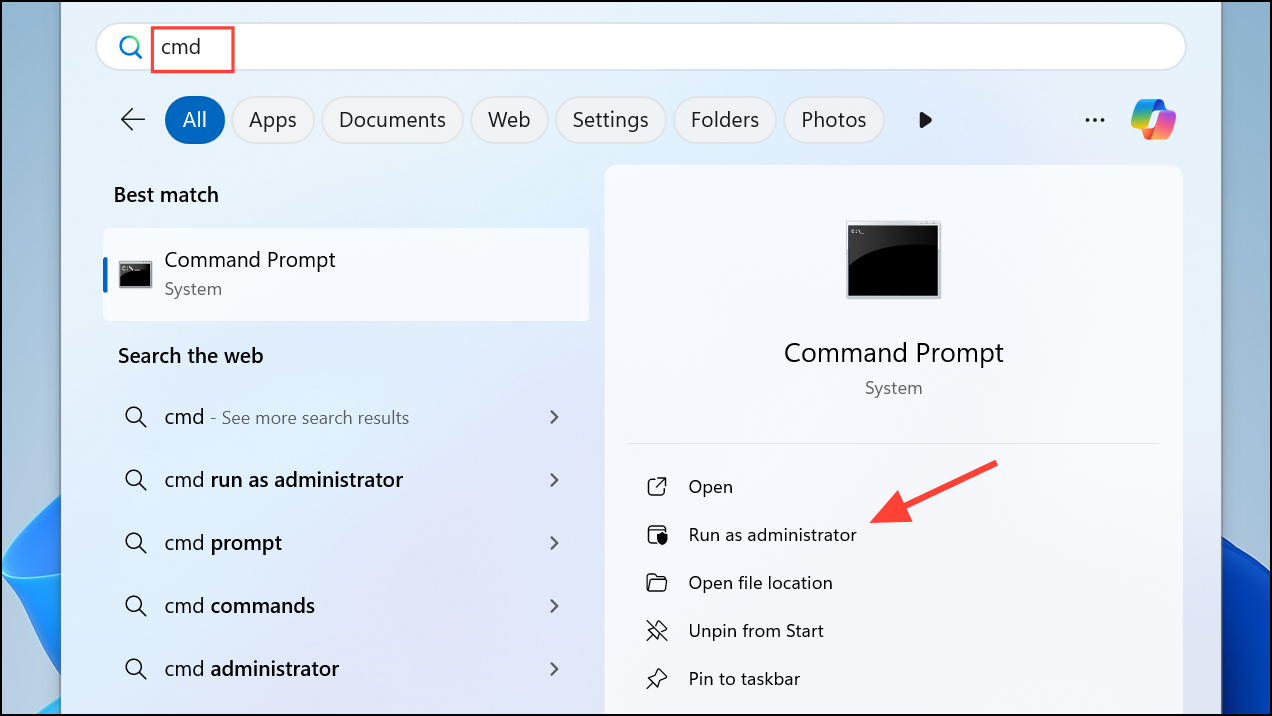
[drive letter] with the letter assigned to your SD card:chkdsk [drive letter]: /f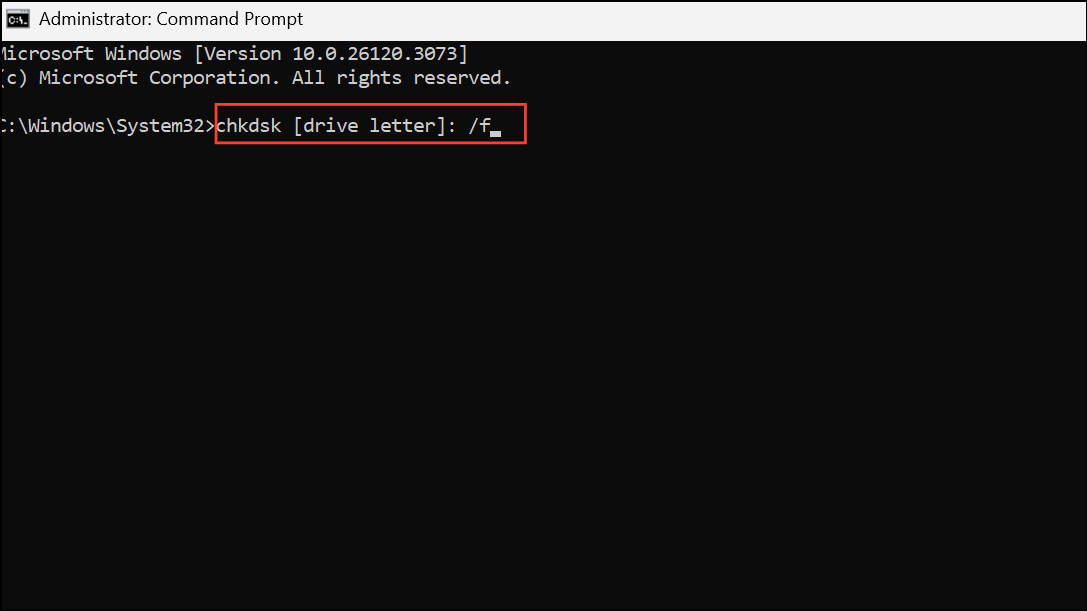
This command checks for and repairs file system errors on the SD card. Wait for the process to complete, then close Command Prompt and check if the card is accessible in File Explorer.
Format the SD Card (Last Resort)
If the SD card is recognized in Disk Management but not accessible or still missing in File Explorer after previous steps, formatting may resolve persistent corruption.
Format. Choose a file system supported by your devices, such as FAT32 or exFAT, and assign a volume label if desired. Make sure Quick Format is checked for faster formatting.OK to confirm and wait for the process to finish. Once complete, check if the SD card is now accessible in File Explorer.Additional Troubleshooting Tips
- Ensure your SD card reader supports the card type and capacity (SD, SDHC, SDXC).
- Install the latest Windows 11 updates, as patches may address detection bugs.
- If the SD card is new and uninitialized, use Disk Management to initialize and create a new volume before use.
- If the SD card is not detected in Device Manager, physical damage is likely and replacement may be necessary.
Restoring SD card functionality in Windows 11 often comes down to checking physical connections, updating drivers, assigning a drive letter, or repairing file system errors. When these steps are followed, most detection problems can be resolved without replacing hardware.



