

Slack desktop applications can fail to open, freeze, or lose connectivity on Windows 11 due to corrupt cache files, server outages, network restrictions, or outdated software. When the app stalls on launch or displays errors like “Slack cannot connect,” targeted troubleshooting restores normal function and prevents workflow disruptions.
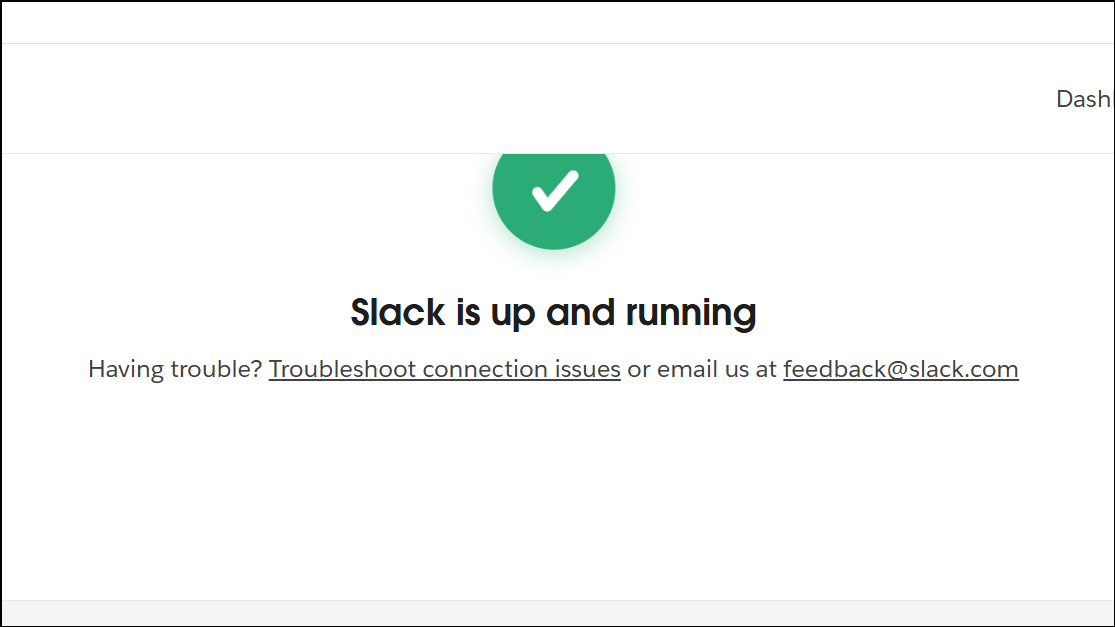
Check Slack Server Status and Connection
Slack outages or server-side issues prevent the app from loading, logging in, or syncing messages, regardless of local device settings. Verifying Slack’s service status clarifies whether the problem is widespread or isolated to your device.

Clear Slack Cache and Restart the App
Corrupt or outdated cache files frequently prevent Slack from starting or cause missing messages and stuck notifications. Clearing the cache forces Slack to rebuild these files and can resolve persistent errors.
☰ menu in the top left, select Help, then Troubleshooting, and choose Clear Cache and Restart. Slack will close and relaunch with a fresh cache.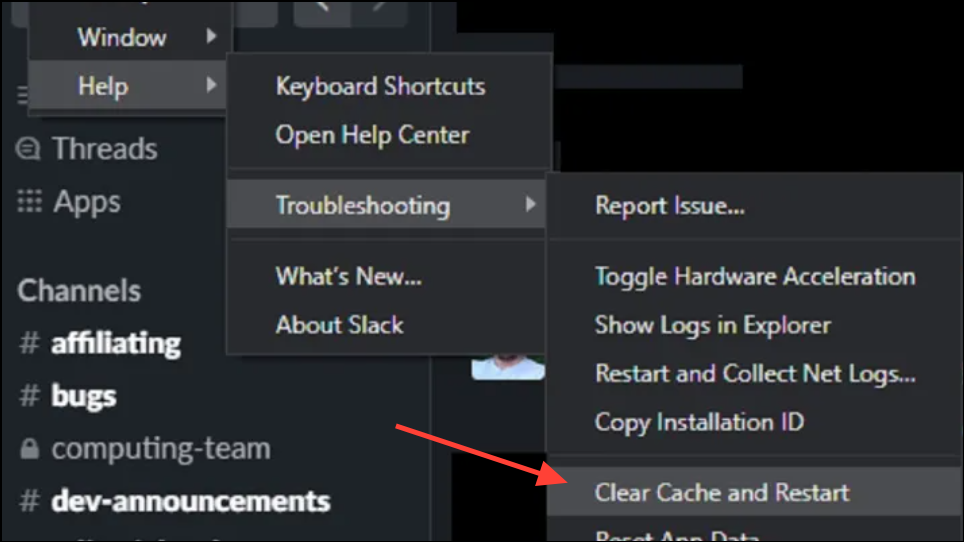
Windows + R to open the Run dialog, enter %AppData%\Slack\Cache, and press Enter. Delete all files in this folder. Repeat for %AppData%\Slack\Cache_Data. Relaunch Slack to see if it loads correctly.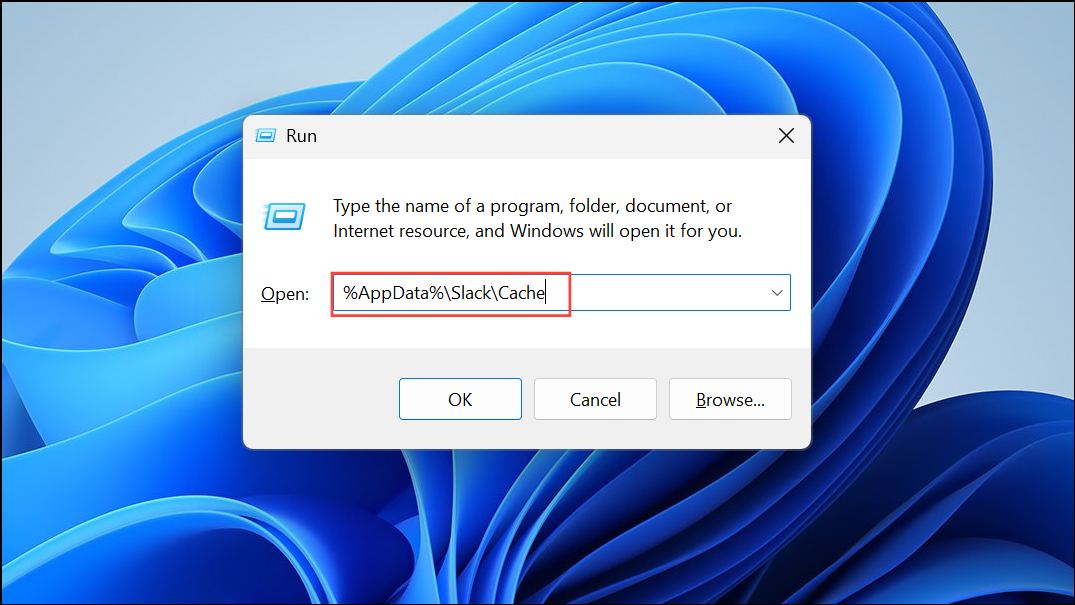
Run Slack as Administrator
Insufficient permissions can block Slack from accessing system resources or updating files, leading to launch failures or blank windows. Running Slack with administrator rights bypasses these restrictions.
Check and Reset Network and Firewall Settings
Corporate firewalls, antivirus software, or misconfigured VPNs can block Slack’s communication with its servers. This leads to connection errors, slow message delivery, or the app failing to load entirely.
wss-primary.slack.com) are not being blocked.Update Slack and Windows 11
Running outdated versions of Slack or Windows can cause compatibility problems, missing features, or unresolved bugs that prevent the app from launching or connecting.
☰ menu, go to Help, and select Check for Updates. Install any available updates and restart the app.Windows + I to open Settings, choose Windows Update, and click Check for updates. Install all pending updates and restart your computer.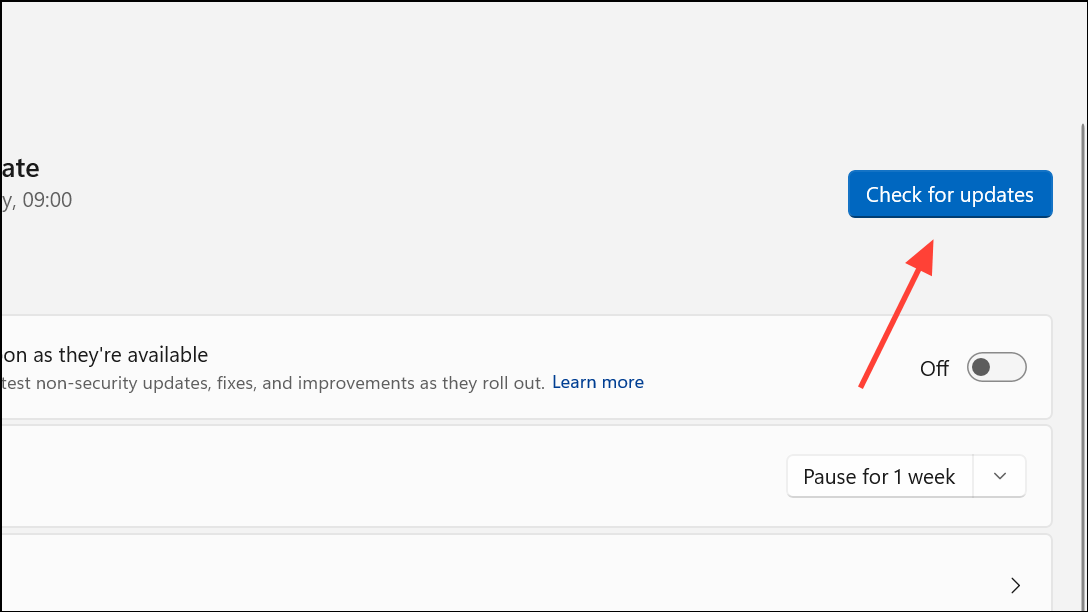
Run Slack in Compatibility Mode
Some Windows 11 systems may experience issues running Slack due to compatibility quirks with newer OS builds. Using compatibility mode can help the app start by emulating an older Windows environment.
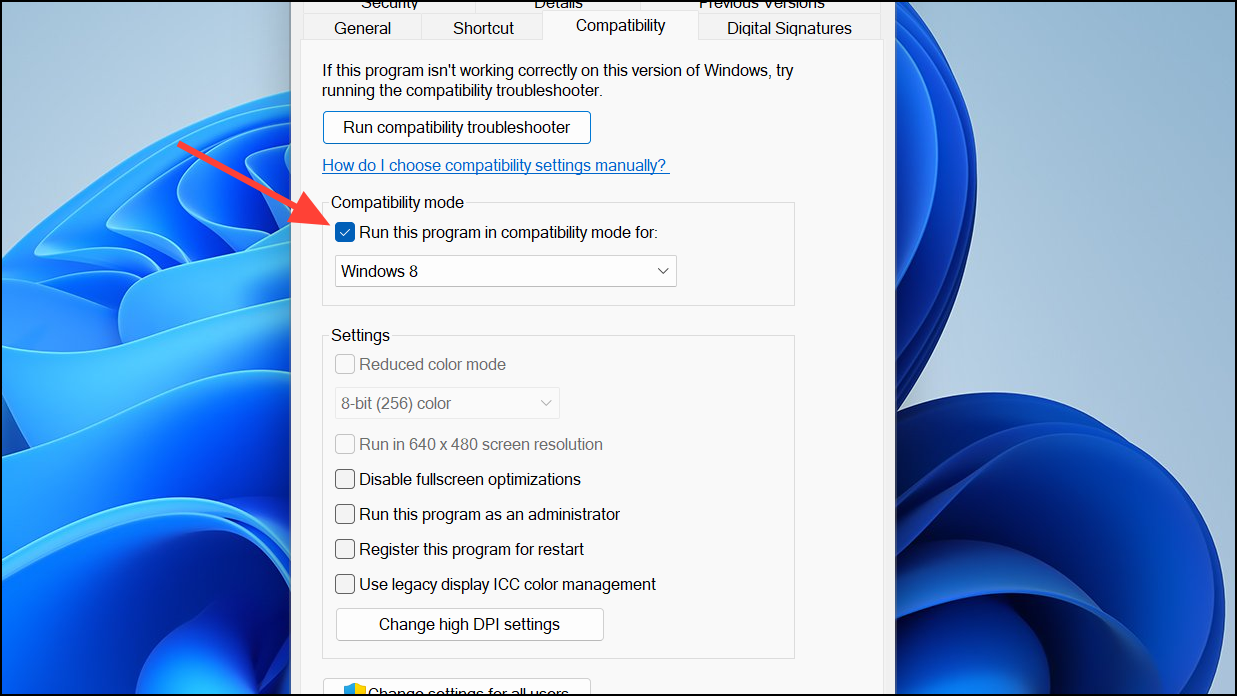
End Slack Background Processes and Restart
Slack may fail to start if previous sessions or background processes have not closed properly. Manually ending these processes ensures a fresh launch.
Ctrl + Shift + Esc to open Task Manager. Under the Processes tab, locate any Slack.exe entries.Reset or Reinstall Slack
If Slack continues to fail after cache clearing and updates, resetting or reinstalling the app removes corrupted data and restores default settings.
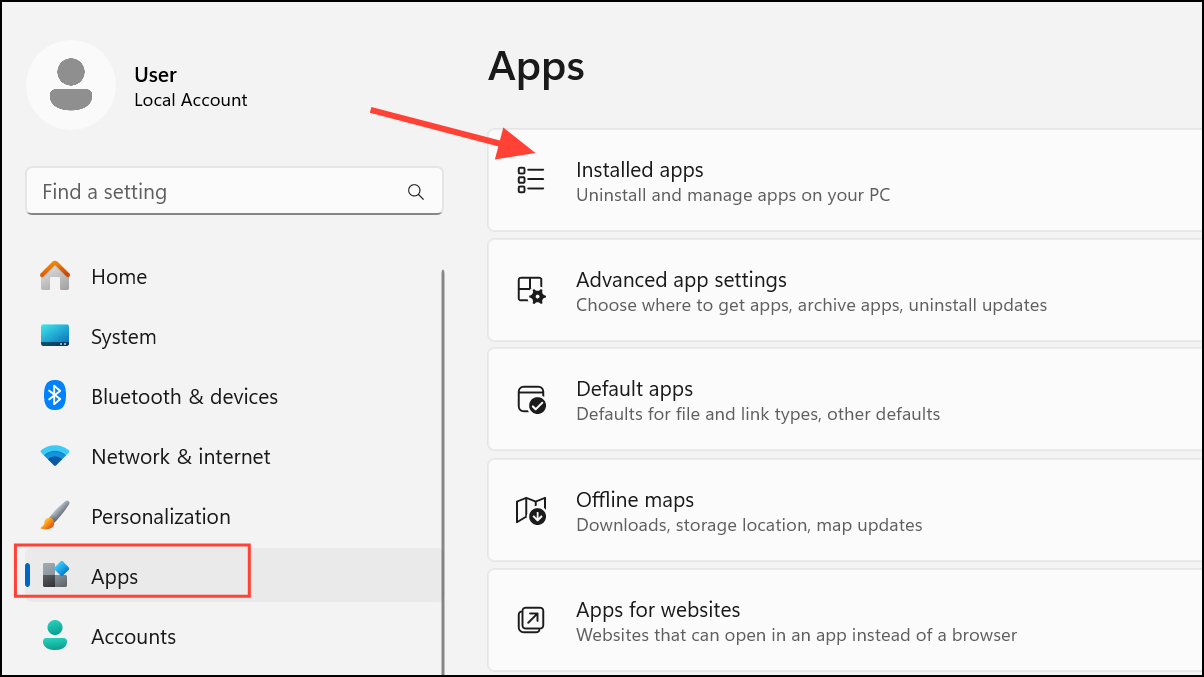
%AppData%\Slack folder to remove leftover files.Fix Slack Notification Issues on Windows 11
Slack notifications may stop working if Windows Focus Assist is on, notifications are paused in Slack, or notification permissions are misconfigured.
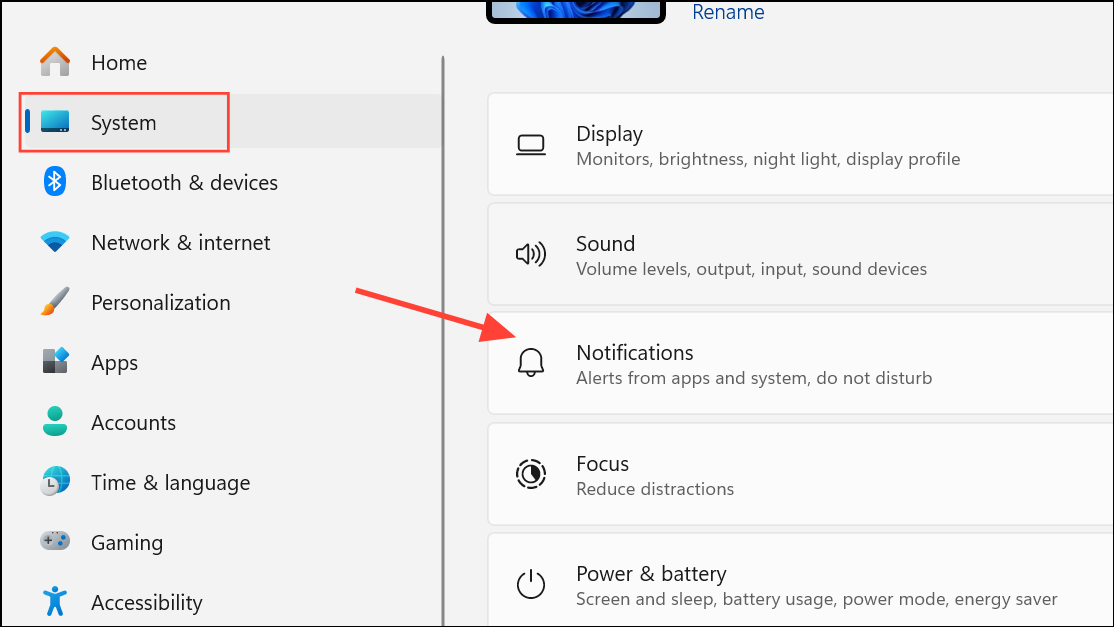
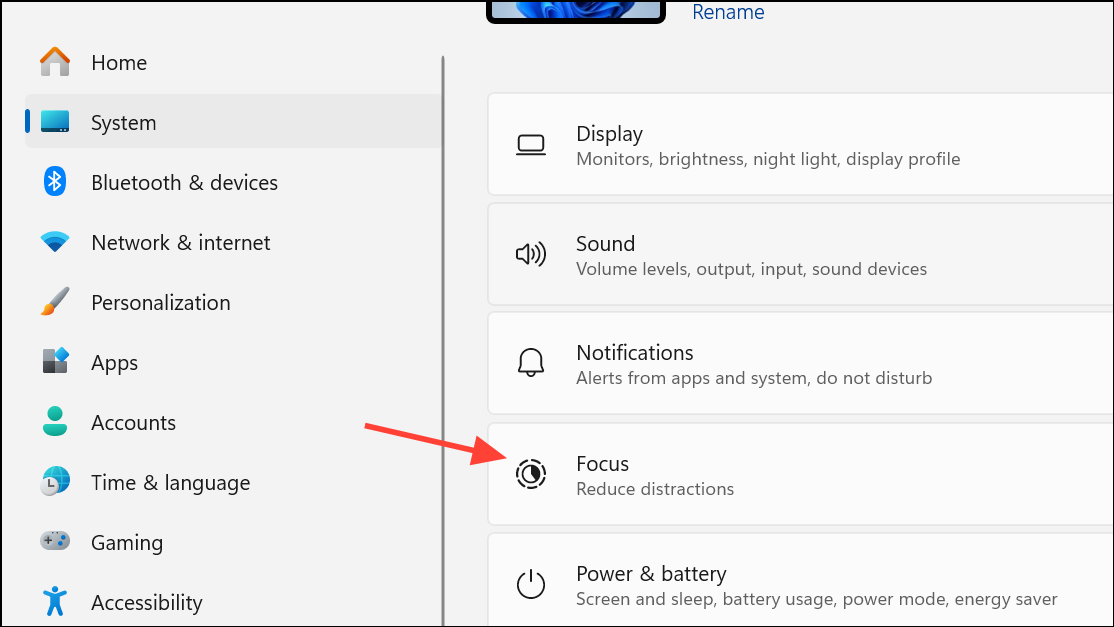
Following these steps addresses the most common causes of Slack app failures and notification problems on Windows 11, getting your workspace communication running reliably again.



