
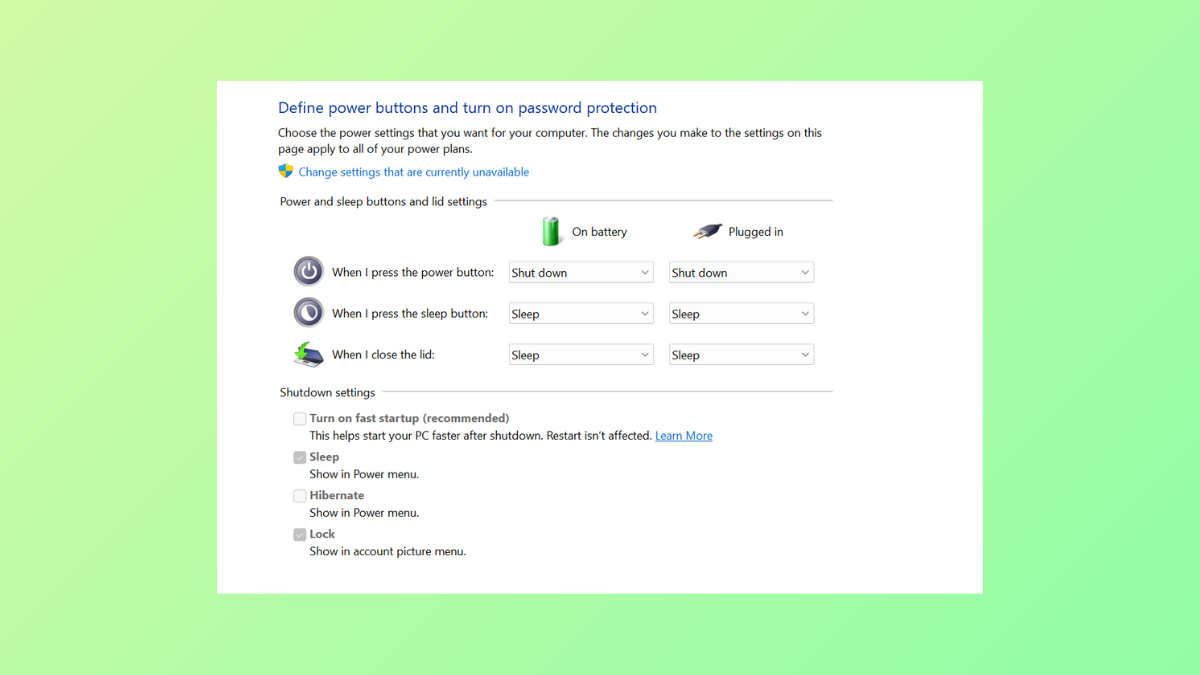
The Fast Startup feature in Windows 11 reduces boot time by combining elements of a full shutdown with hibernation. When the “Turn on fast startup” option is missing from Power Options, Windows starts up more slowly after shutdown, affecting overall system responsiveness. This issue typically occurs when hibernation is disabled, as Fast Startup depends on the hibernation capability to function. Restoring this option requires re-enabling hibernation and verifying related settings.
Restore Fast Startup by Enabling Hibernation
Windows key, type cmd, then right-click Command Prompt in the search results and select Run as administrator. This ensures you have the necessary privileges to modify system power settings.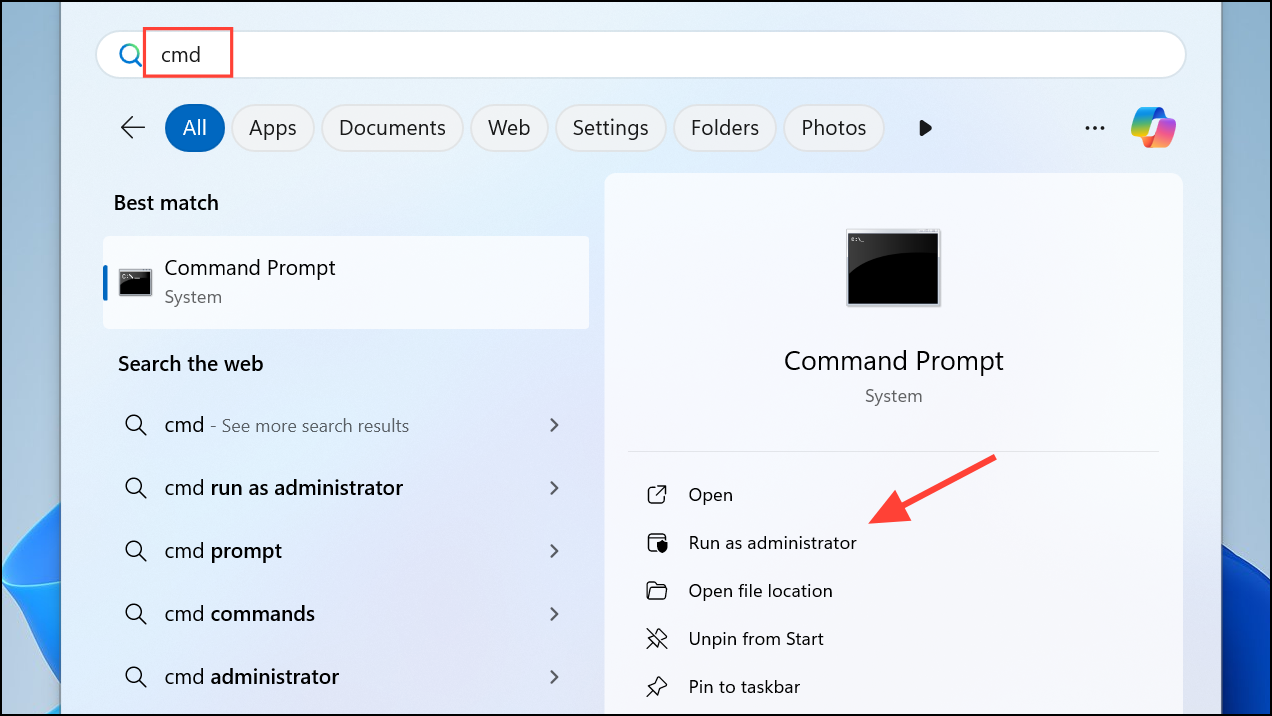
powercfg /hibernate on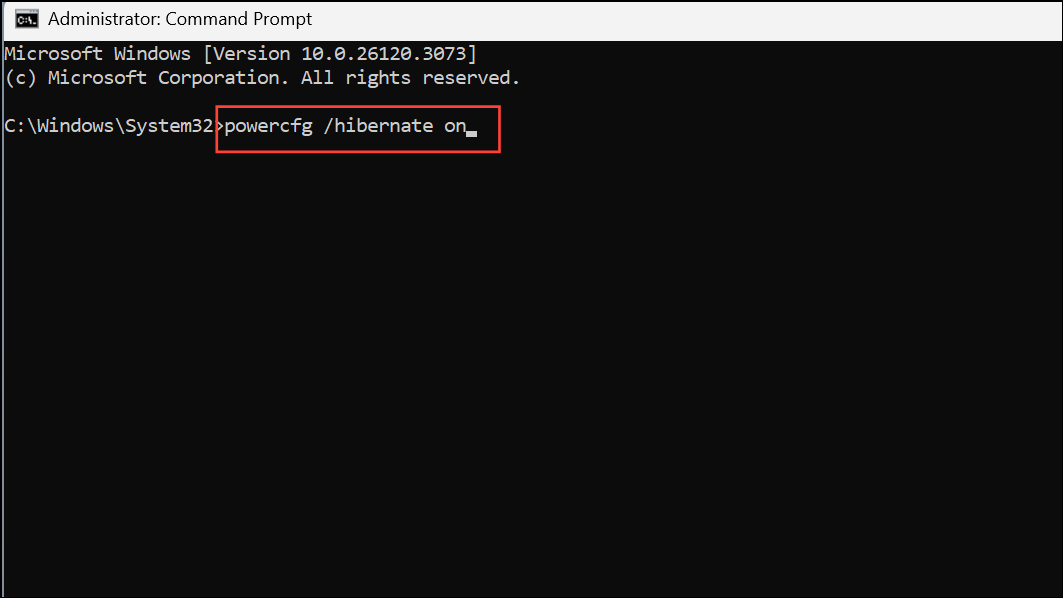
This command enables the hibernation feature, which is a requirement for Fast Startup. If hibernation is disabled, the Fast Startup option will not appear in your system’s Power Options.
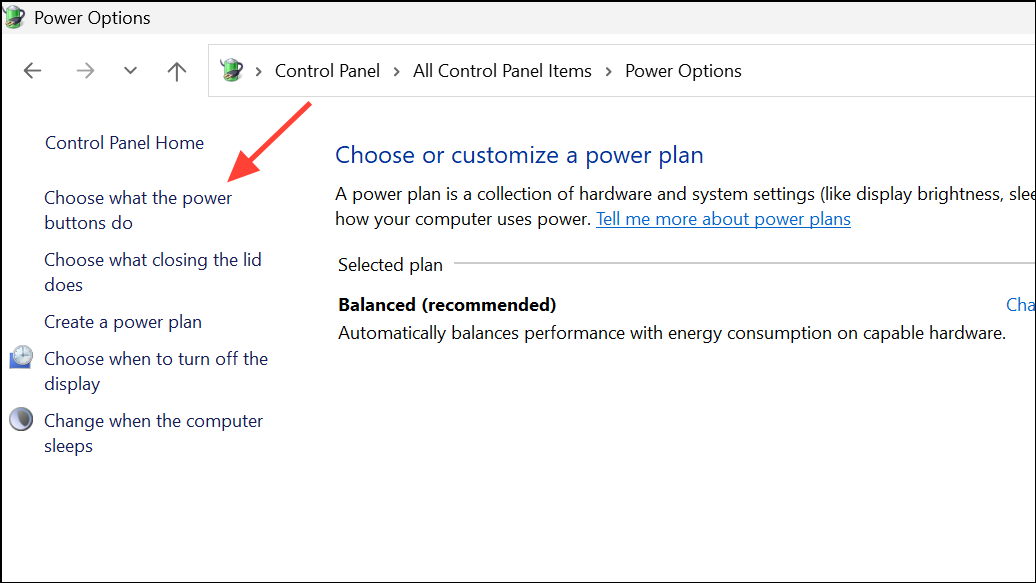
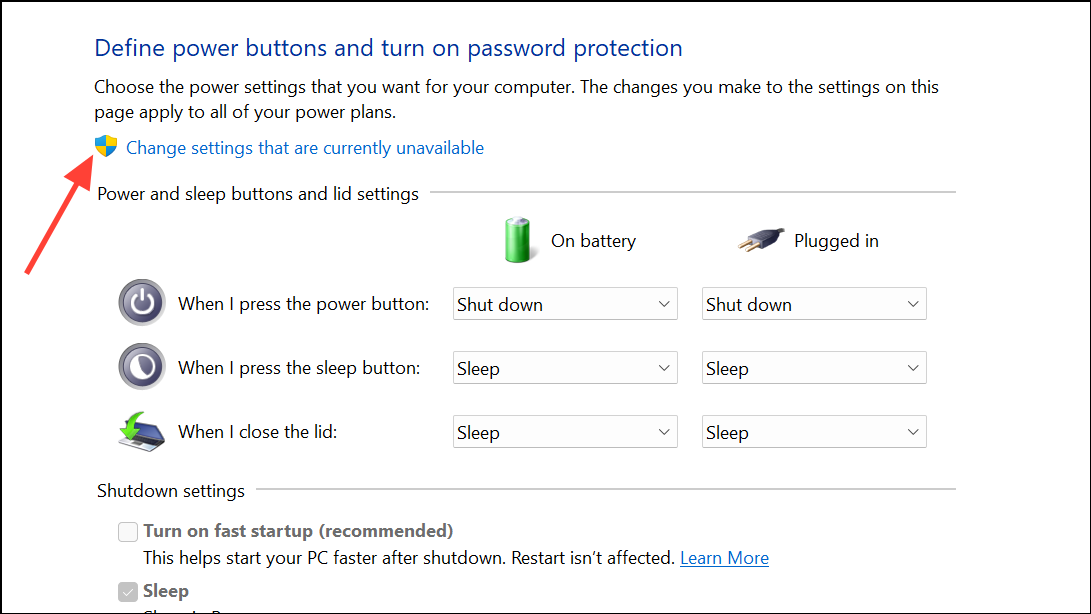
Windows key, typing Control Panel, and pressing Enter.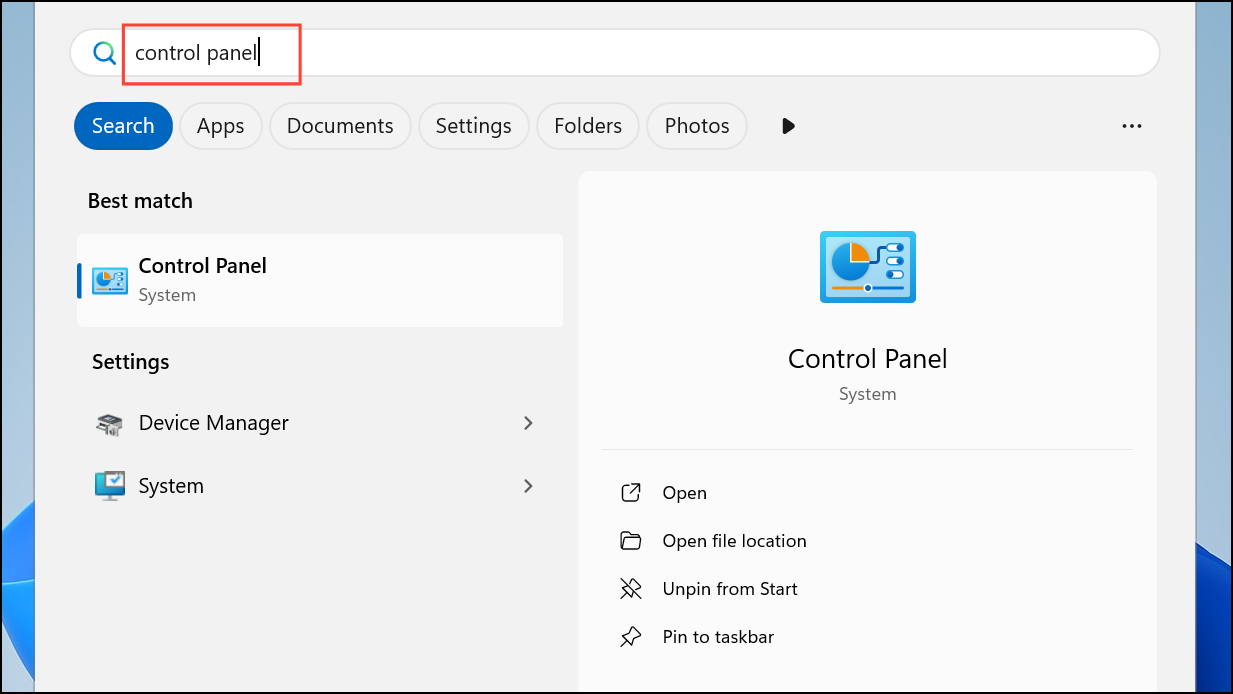
Reduce Hibernation File Size While Keeping Fast Startup
Some users prefer to disable full hibernation to save disk space but still want Fast Startup active. Windows allows you to reduce the size of the hibernation file to support Fast Startup only, disabling full hibernation and hybrid sleep.
powercfg /h /type reduced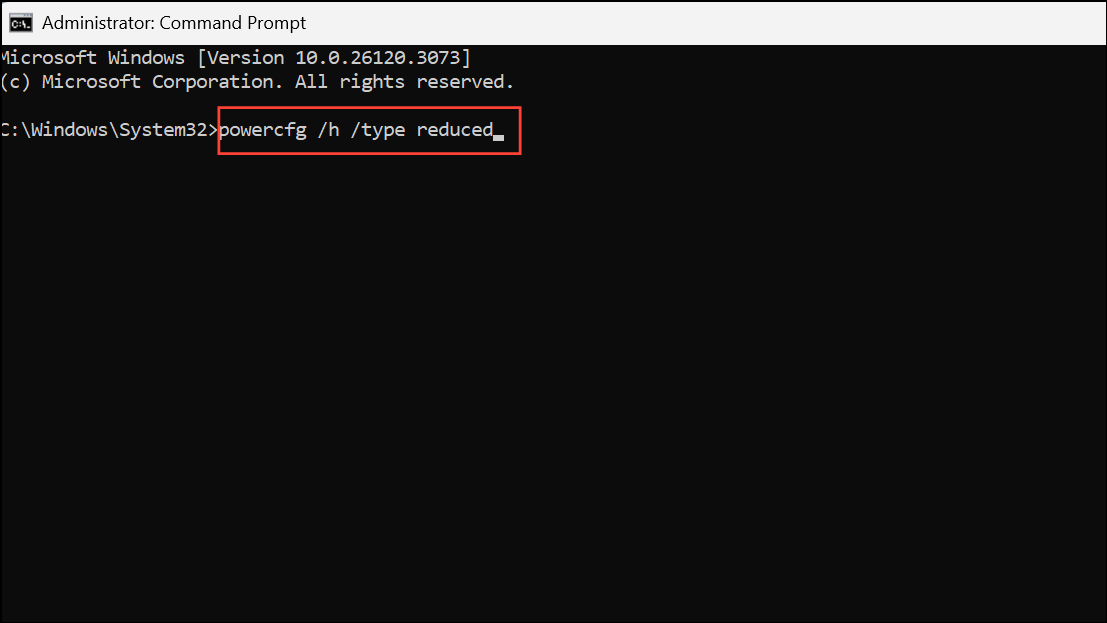
This command configures Windows to use a smaller hibernation file, supporting Fast Startup but not full hibernation. The “Turn on fast startup” option remains available in Power Options, while the Hibernate option is removed from the shutdown menu.
Troubleshooting Missing Fast Startup Option
If enabling hibernation does not restore the Fast Startup option, check for outdated or generic device drivers—especially for graphics and chipset components. Incompatible drivers can prevent hibernation from working, which in turn removes Fast Startup from the available options. Update these drivers through Windows Update or by visiting your device manufacturer’s website.
Additionally, verify sleep states by running the following command in Command Prompt:
powercfg /availablesleepstates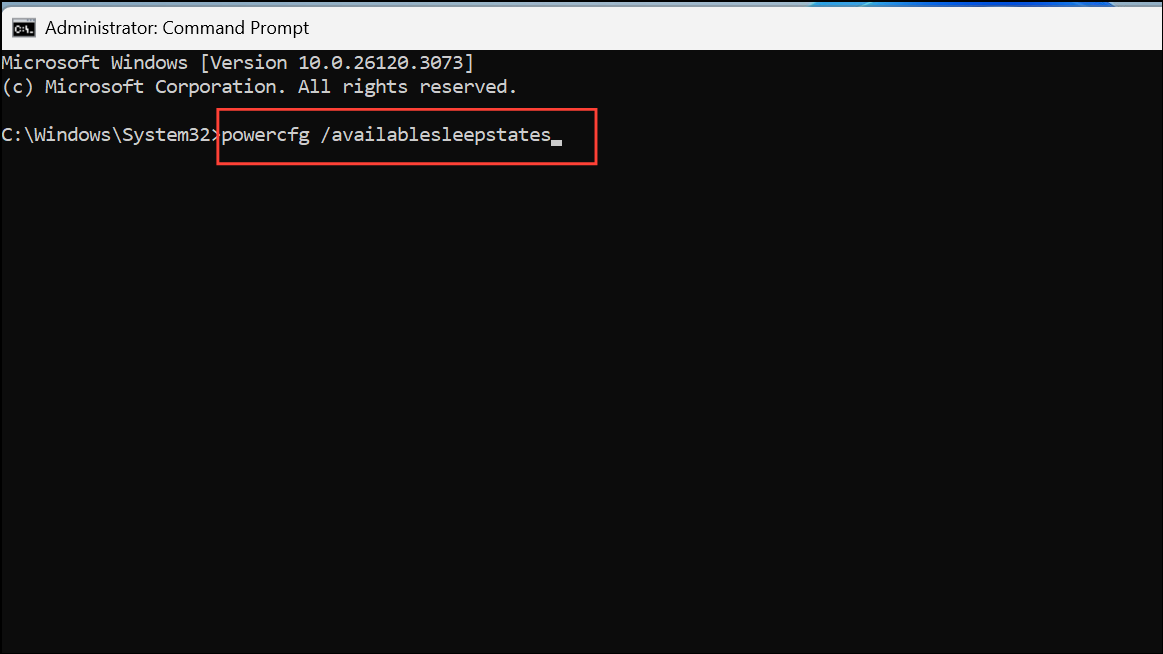
This command lists the supported power states on your device and can help identify if system configuration or hardware limitations are affecting Fast Startup availability.
Restoring the “Turn on fast startup” option in Windows 11 is straightforward once hibernation is enabled and drivers are up to date. Keeping Fast Startup active helps your PC boot more quickly after shutdown, improving everyday performance.



