
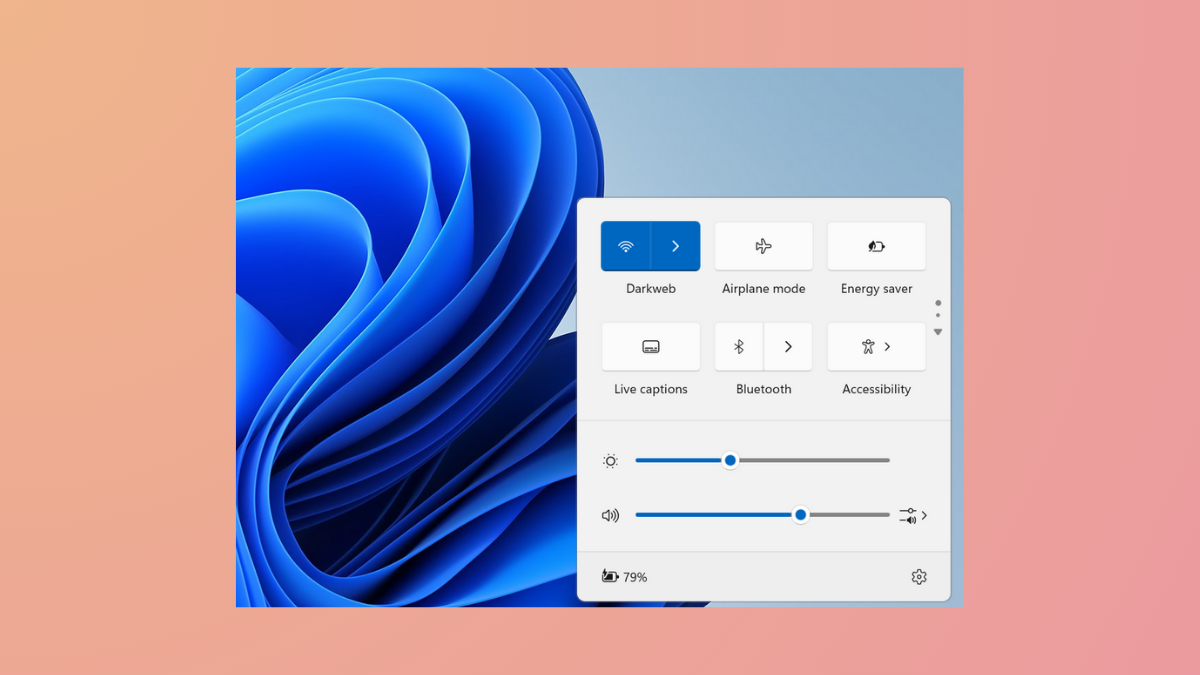
Unexpected Action Center pop-ups in Windows 11 can disrupt your workflow by displaying notifications or quick settings panels without being prompted. This issue often stems from touchpad gesture settings, notification configurations, or background processes. Resolving it requires targeted adjustments to system settings, with several effective approaches available.
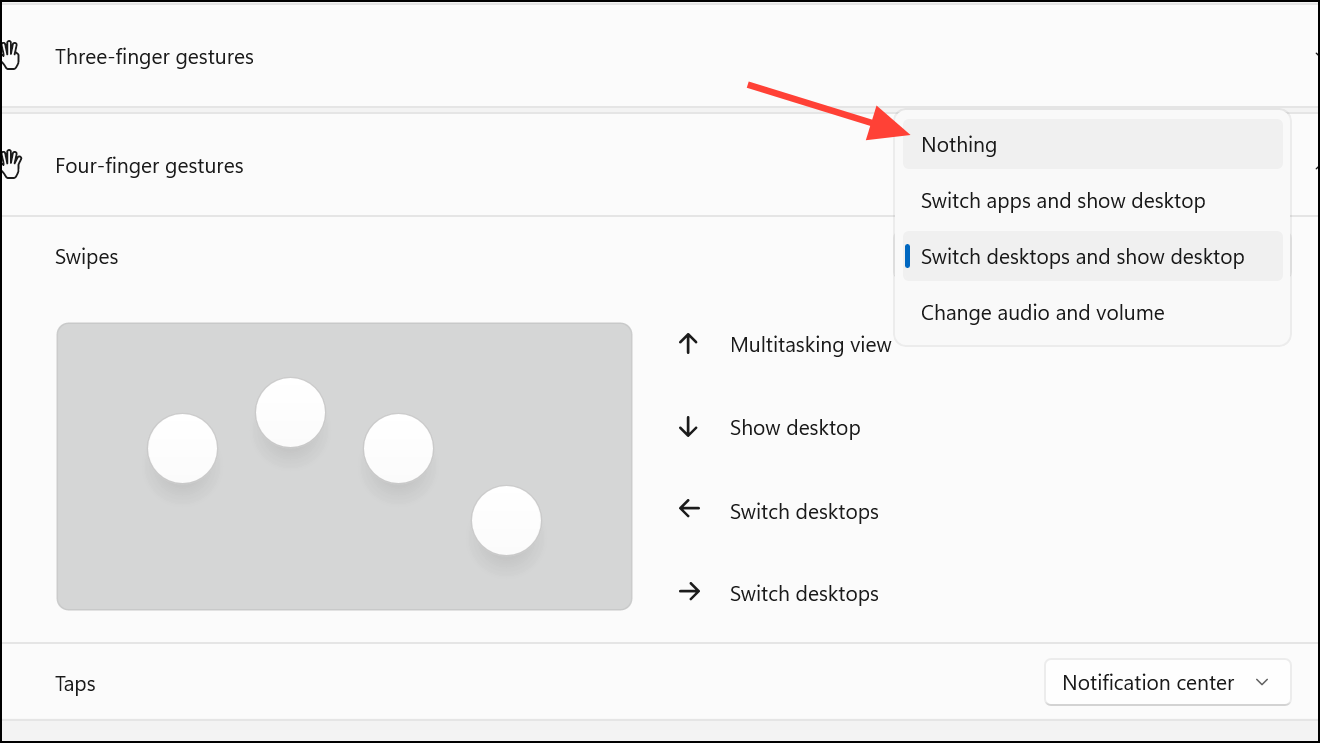
Disable Four-Finger Touchpad Gestures
Accidental touchpad gestures frequently trigger the Action Center to open. Disabling or customizing these gestures can prevent unintentional pop-ups, especially on laptops with precision touchpads.
Windows + I. In the sidebar, select Bluetooth & devices, then click Touchpad.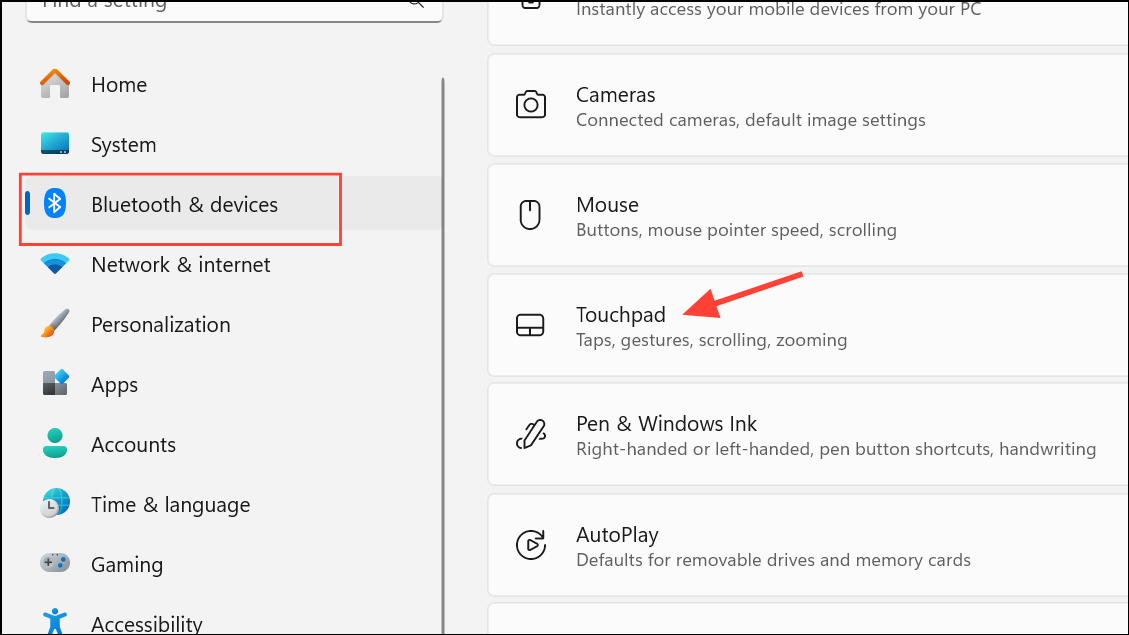
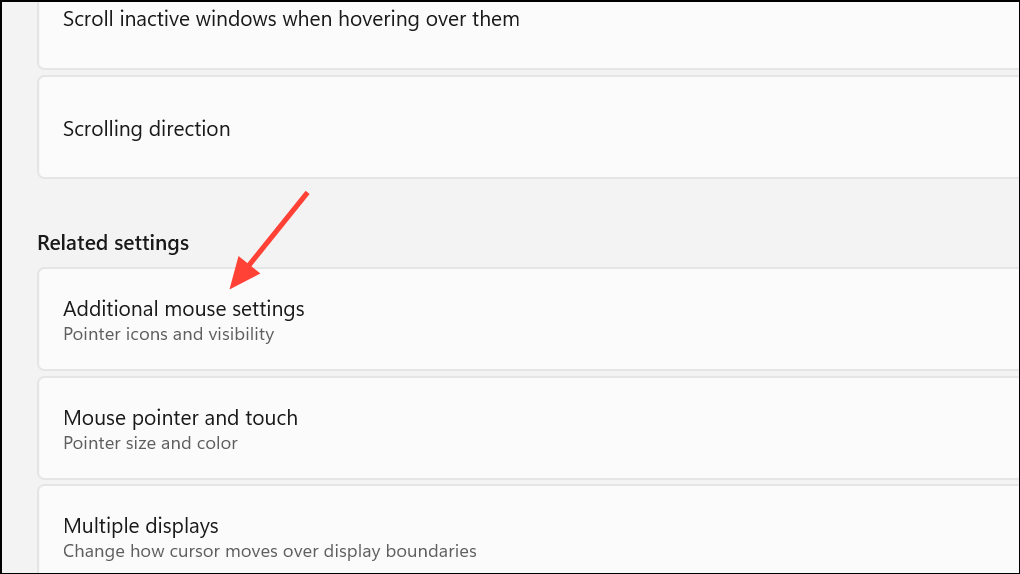
For some devices, you may need to access additional touchpad settings via Settings > Devices > Mouse and Touchpad > Additional Mouse Options, then find your touchpad’s configuration utility to turn off multi-finger gestures.
Enable Do Not Disturb Mode
Do Not Disturb (DND) mode consolidates notifications in the Notification Center without displaying pop-up banners, reducing interruptions. This is especially useful during focused work sessions or presentations.
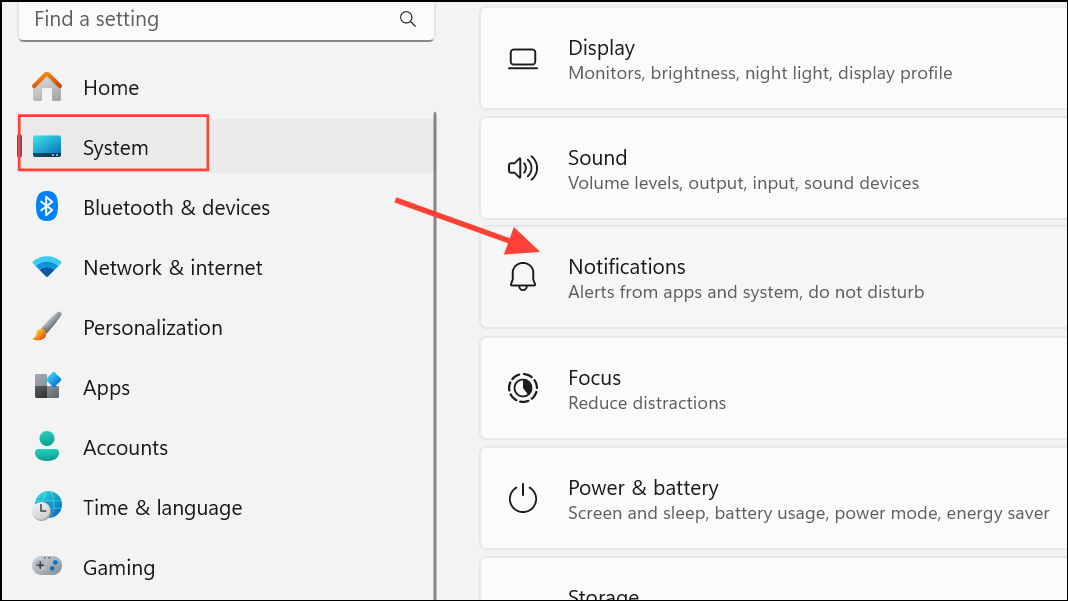
Windows + N.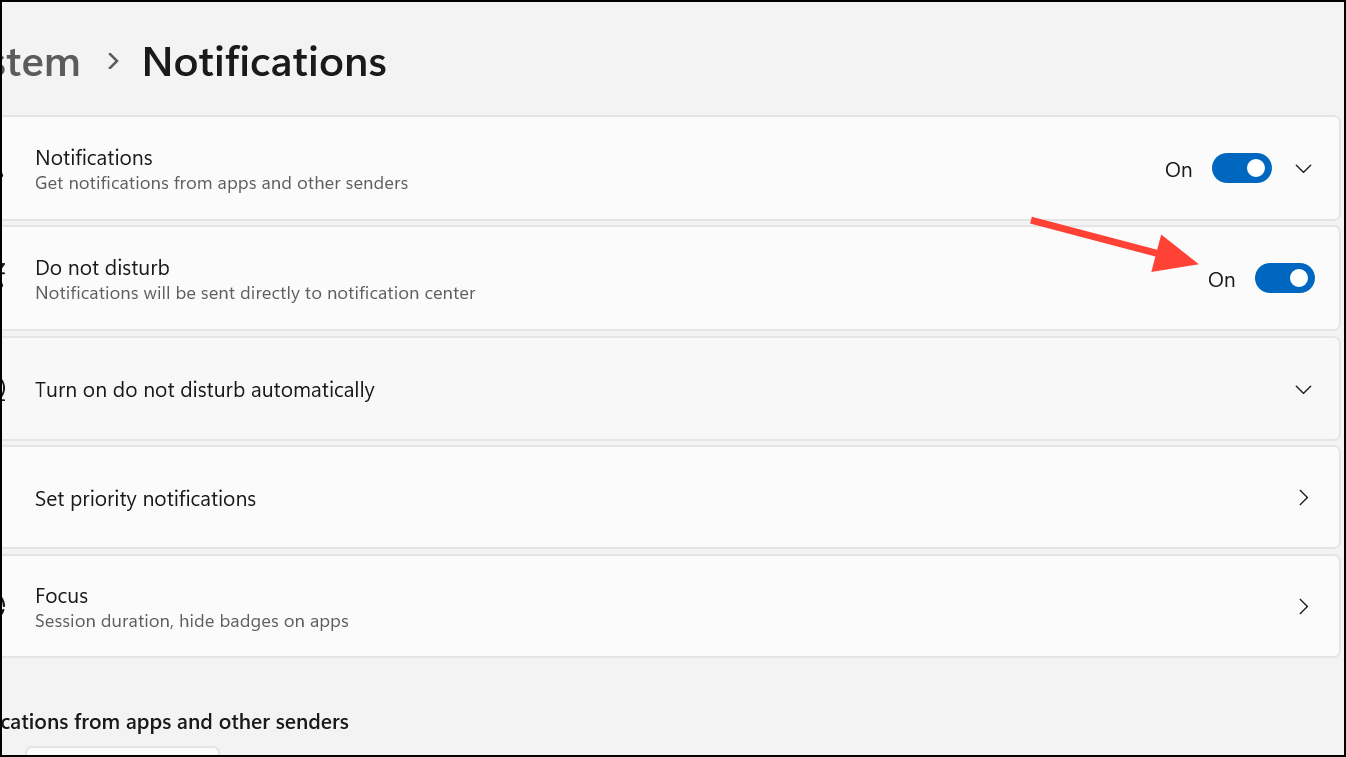
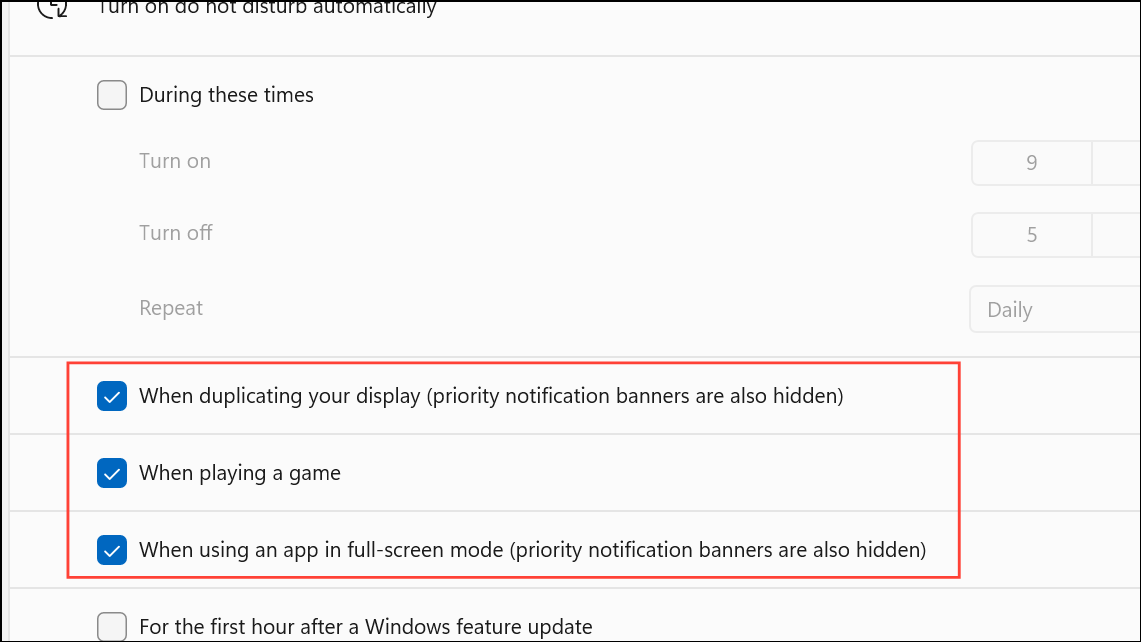
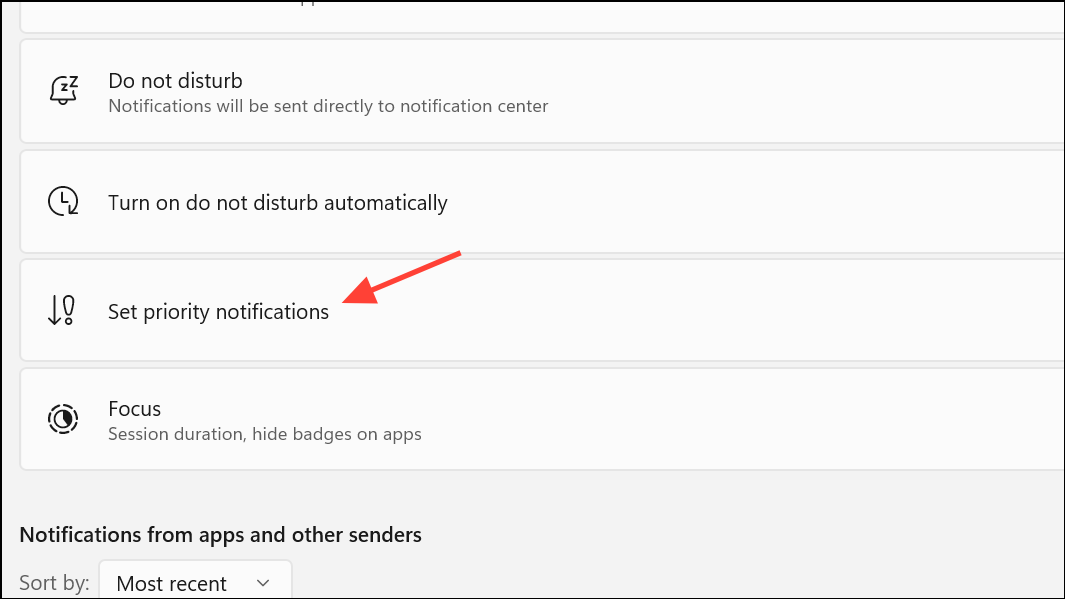
Adjust Notification Settings for Specific Apps
Some applications may send frequent notifications, causing the Action Center to open repeatedly. Adjusting notification preferences for these apps can minimize interruptions.
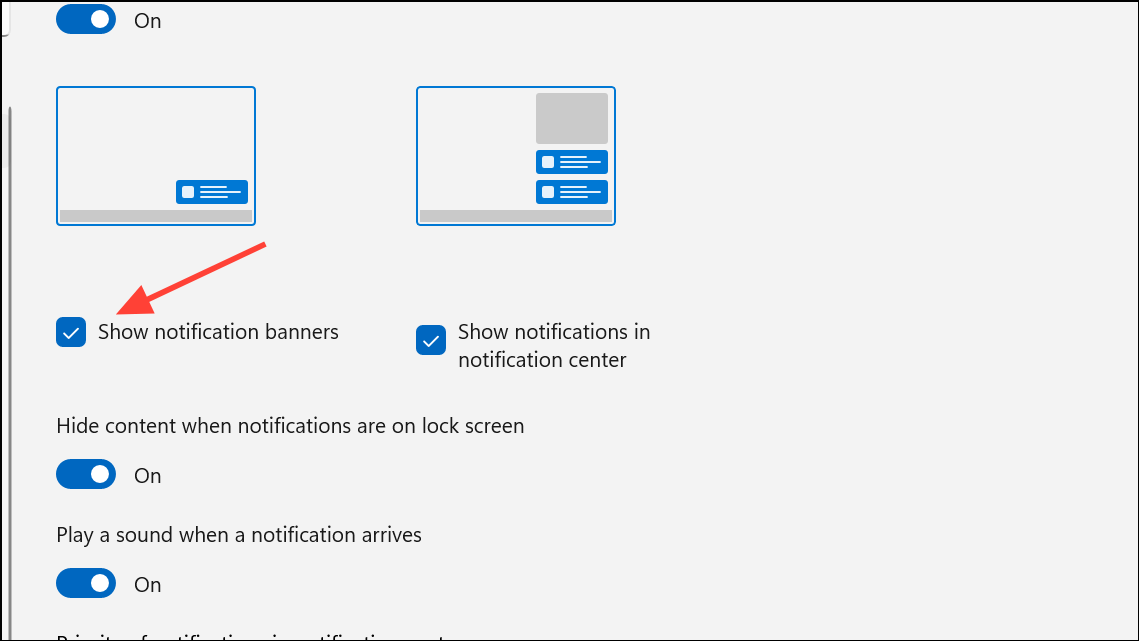
Shorten Notification Banner Duration
Windows 11 allows you to set how long notification banners remain visible. Reducing this time minimizes the window in which the Action Center might pop up and linger on your screen.
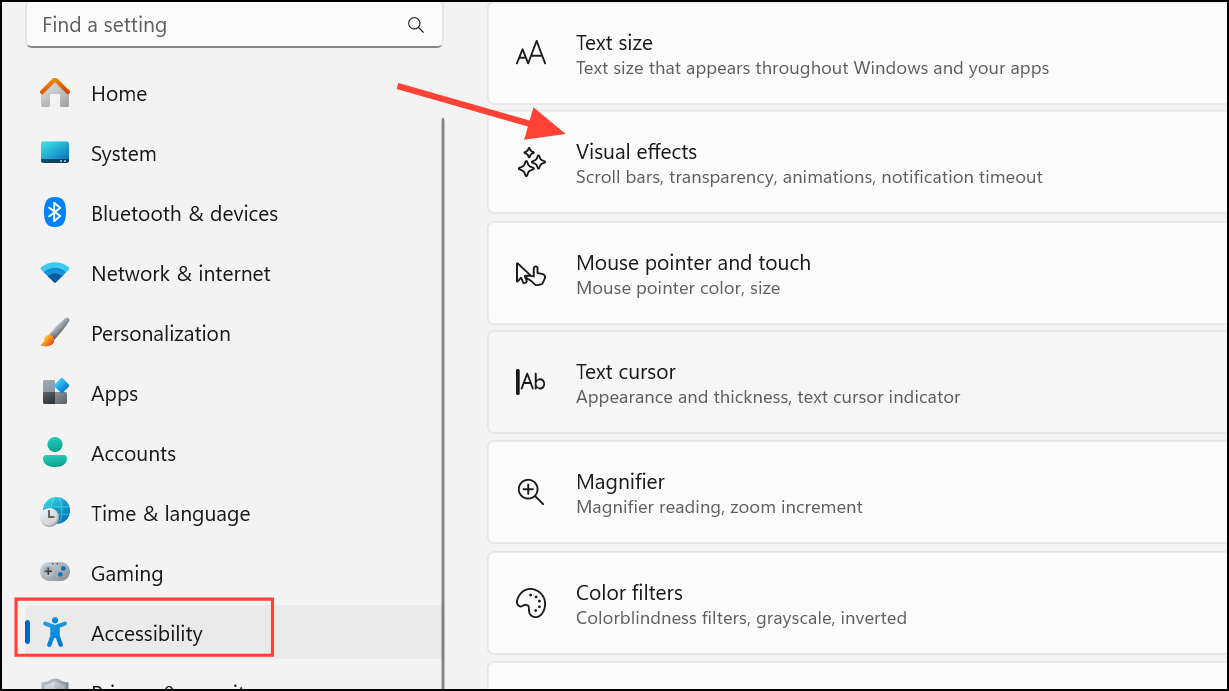
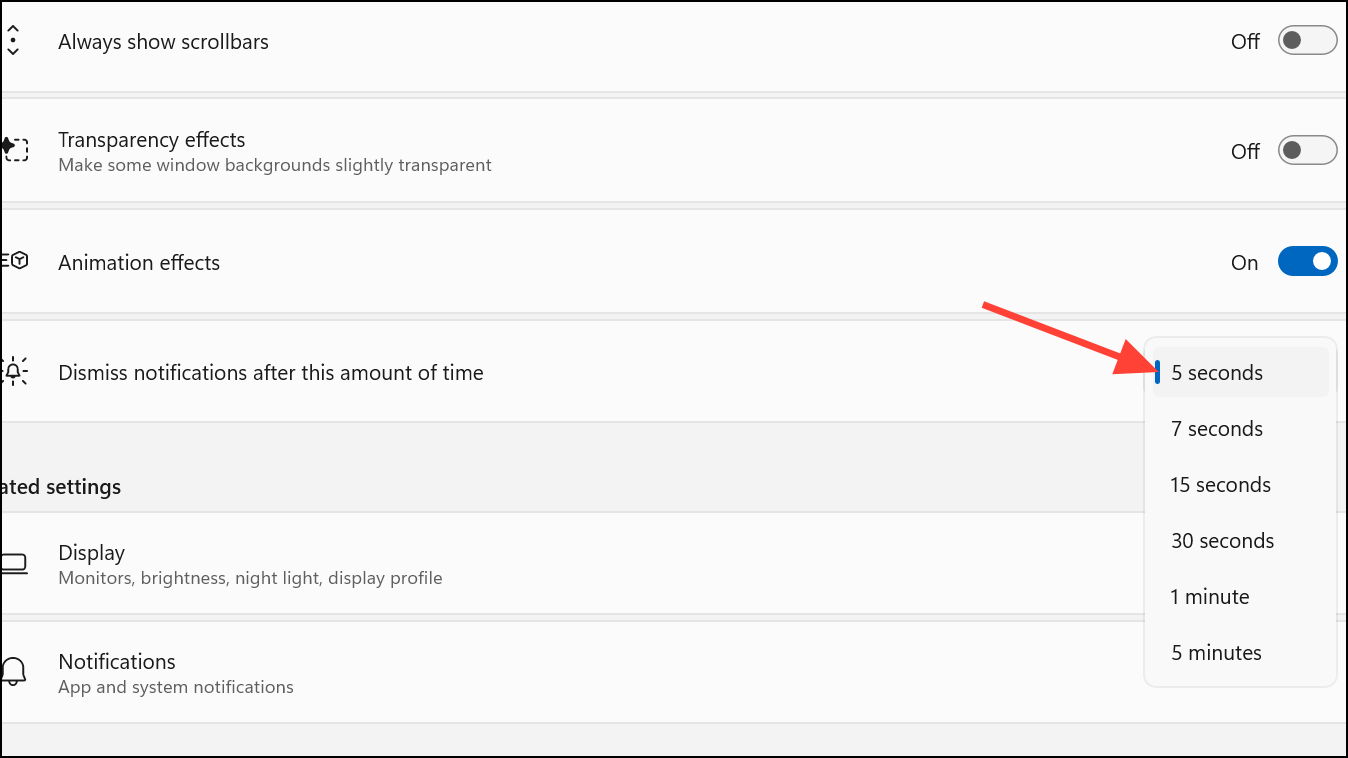
This setting ensures notification banners disappear quickly, reducing distraction.
Disable Action Center via Registry Editor
For a more permanent solution, you can disable the Action Center entirely through the Windows Registry. This prevents the Action Center from opening, even if triggered by gestures or system events.
Windows + R to open the Run dialog, type regedit, and press Enter to launch the Registry Editor.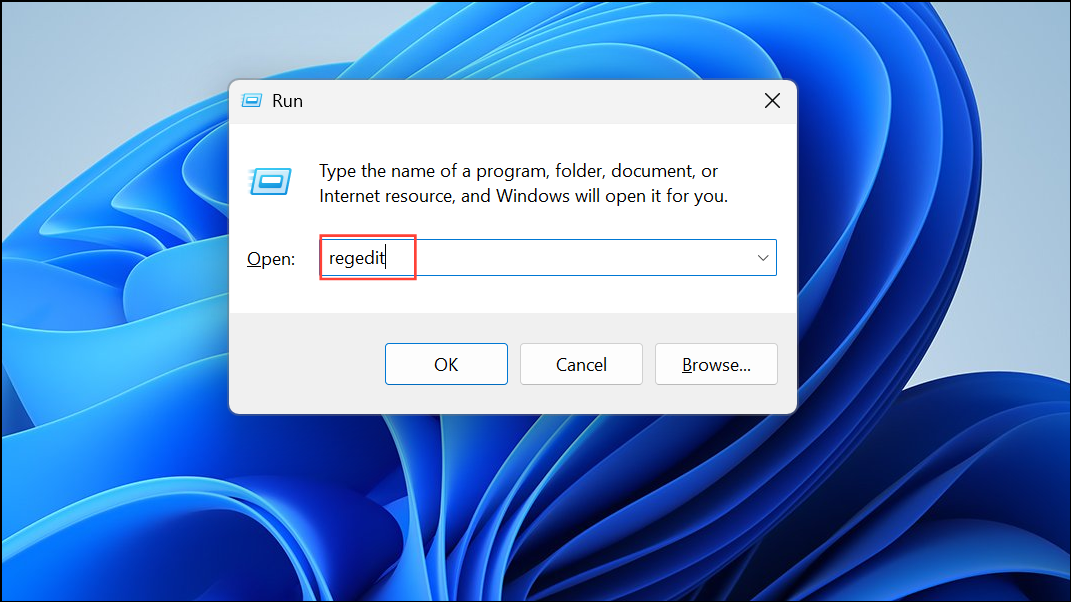
HKEY_CURRENT_USER\Software\Policies\Microsoft\Windows\Explorer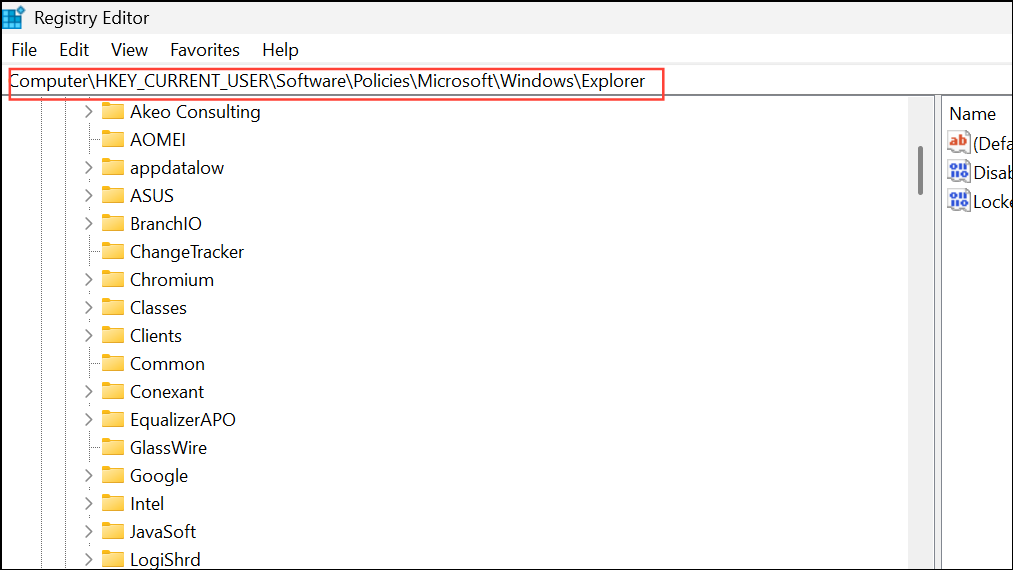
If the Explorer key does not exist, right-click the Windows folder, select New > Key, and name it Explorer.
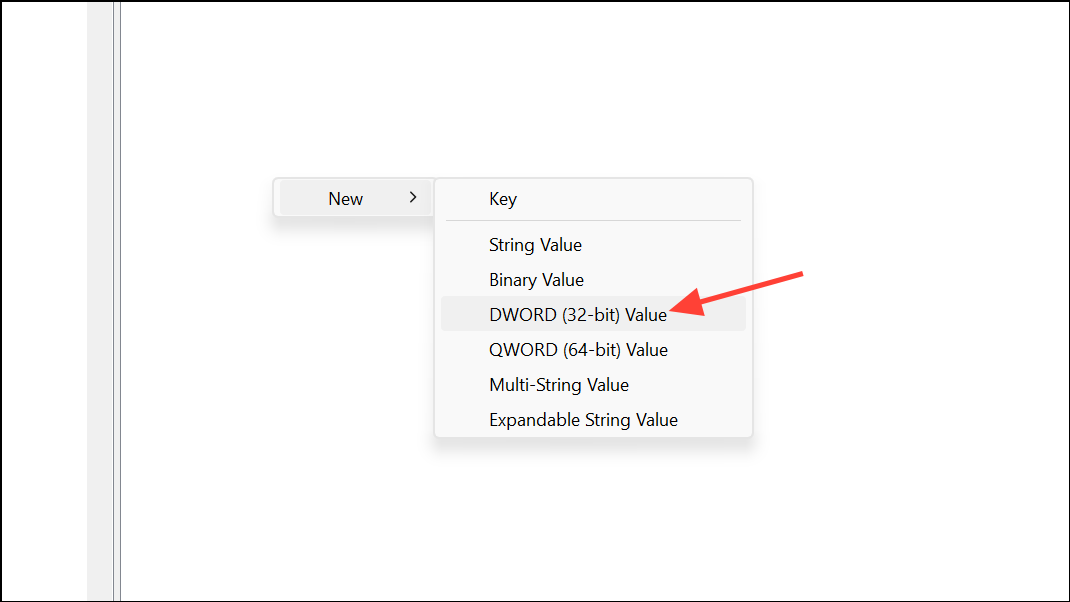
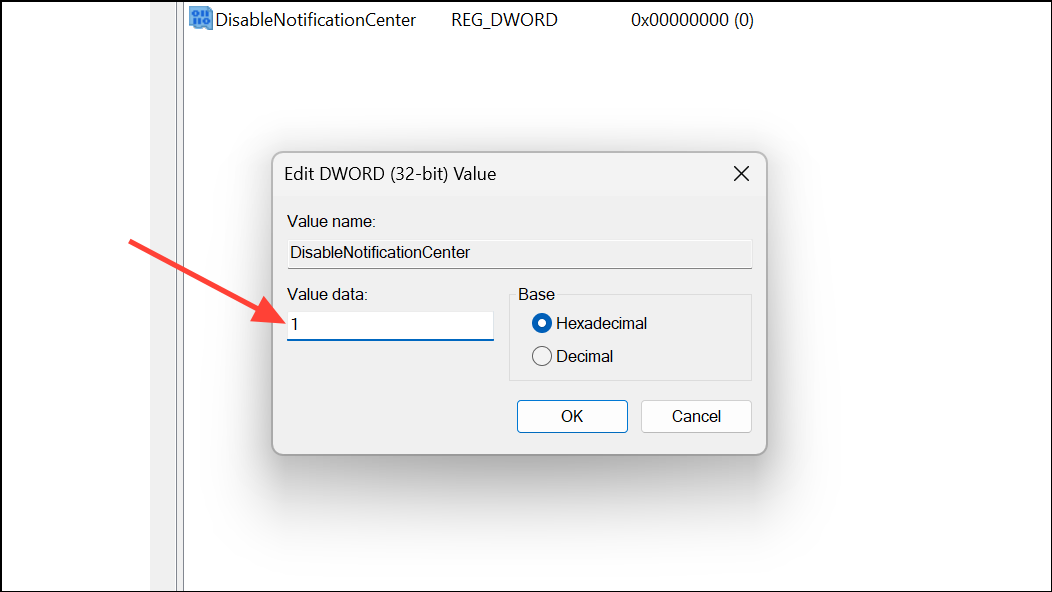
To re-enable, set the value back to 0 or delete the DisableNotificationCenter entry.
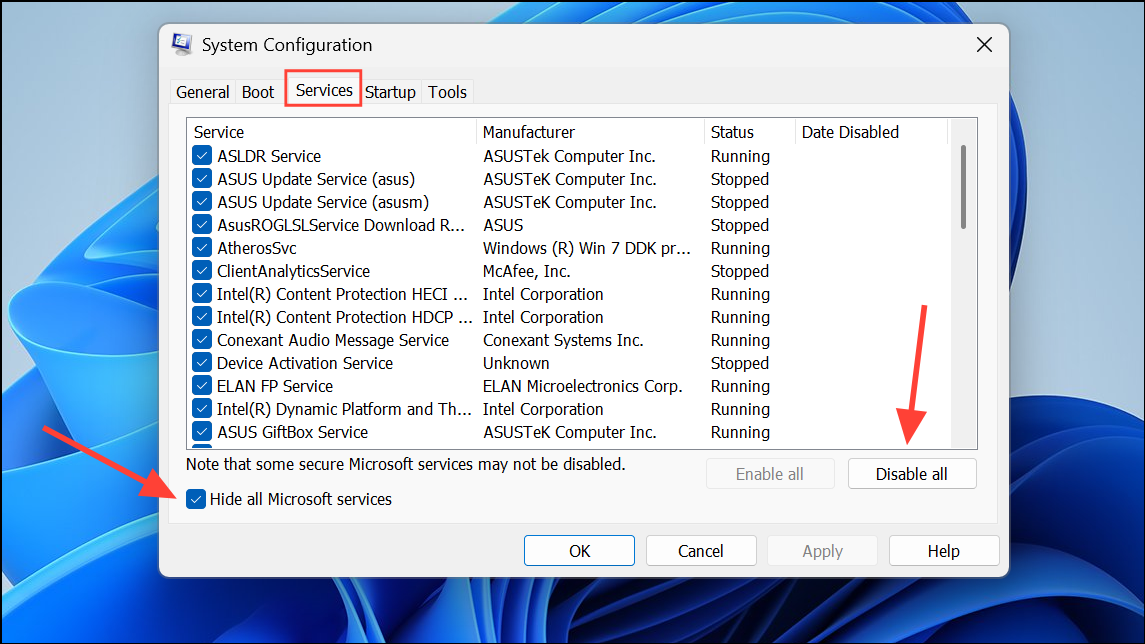
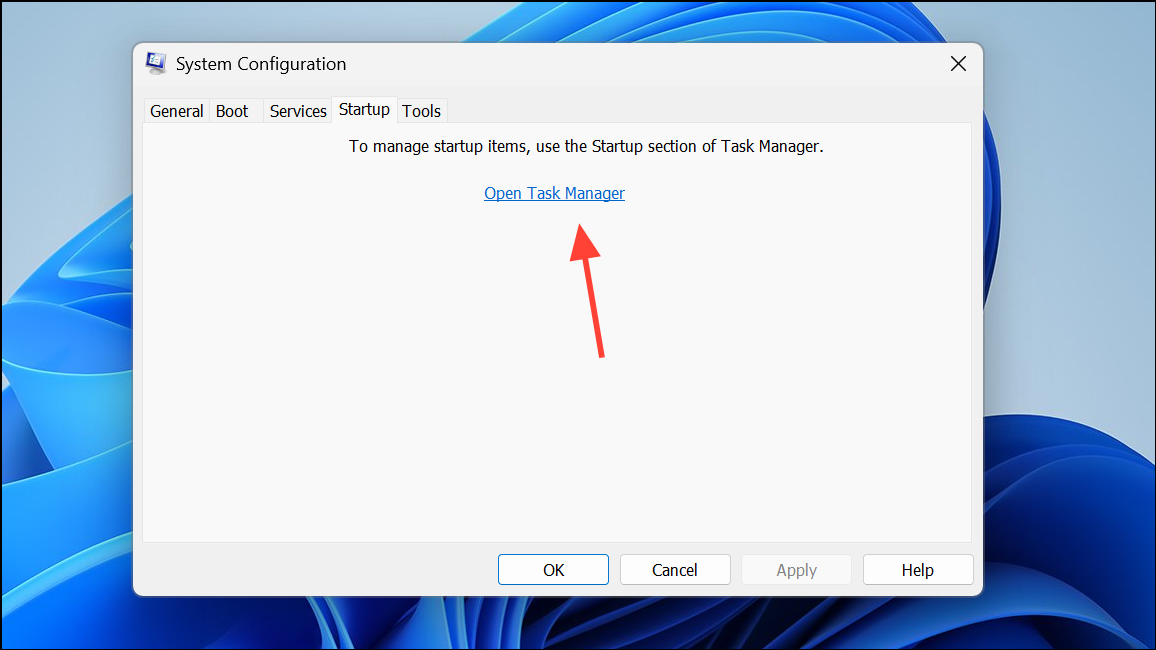
Use Clean Boot to Identify Conflicting Software
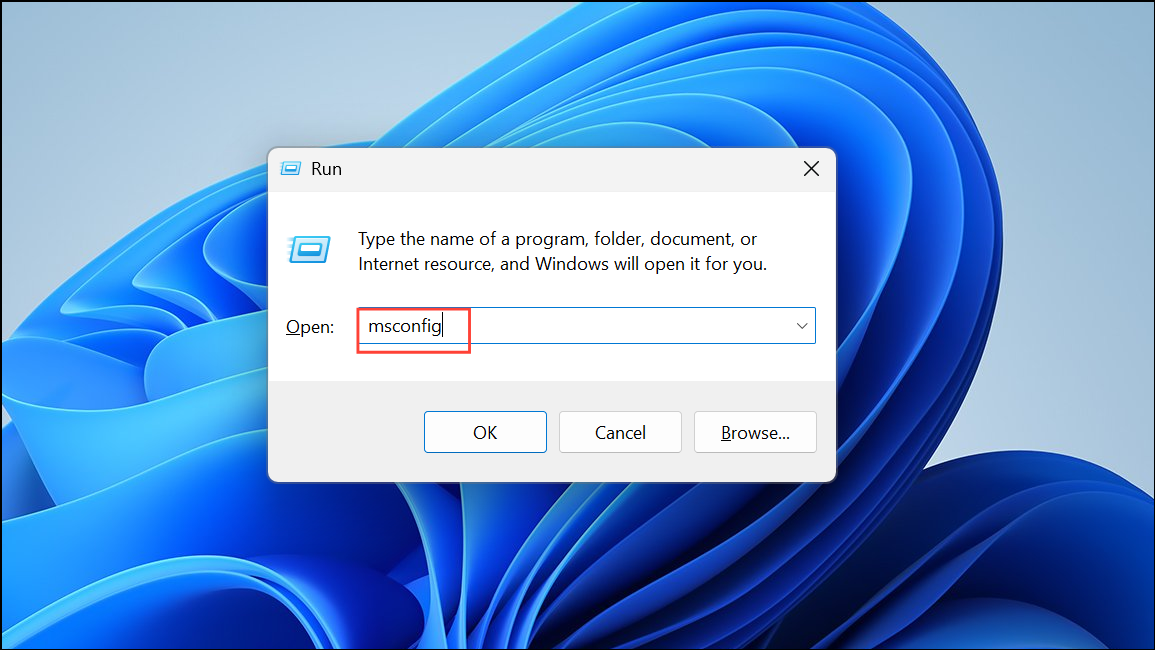
Background applications or third-party utilities can sometimes cause the Action Center to open unexpectedly. Performing a clean boot starts Windows with only essential Microsoft services and drivers, helping you isolate the problematic software.
By refining touchpad gestures, managing notification behavior, or disabling the Action Center, you can regain control over unwanted pop-ups in Windows 11. Regularly reviewing these settings helps keep distractions to a minimum and your workflow uninterrupted.



