

Windows Sandbox in Windows 11 provides a secure, isolated environment for running untrusted software, but its usefulness drops sharply when internet connectivity fails inside the sandbox. Web browsing, software downloads, and connectivity-dependent testing all become impossible when Sandbox displays the “No Internet Access” error, even though the host PC is online. This guide details proven methods to resolve the Windows Sandbox no internet connection error, starting with the most effective approaches.
Reinstall Windows Sandbox and Enable Required Features
Reinstalling Windows Sandbox is the most direct way to fix persistent connectivity issues, especially if you’ve installed or removed virtualization software (like VMware or VirtualBox), changed system components, or updated network drivers. This process also ensures that all required virtualization features are active.
Turn Windows features on or off. Select the matching result to launch the Windows Features dialog.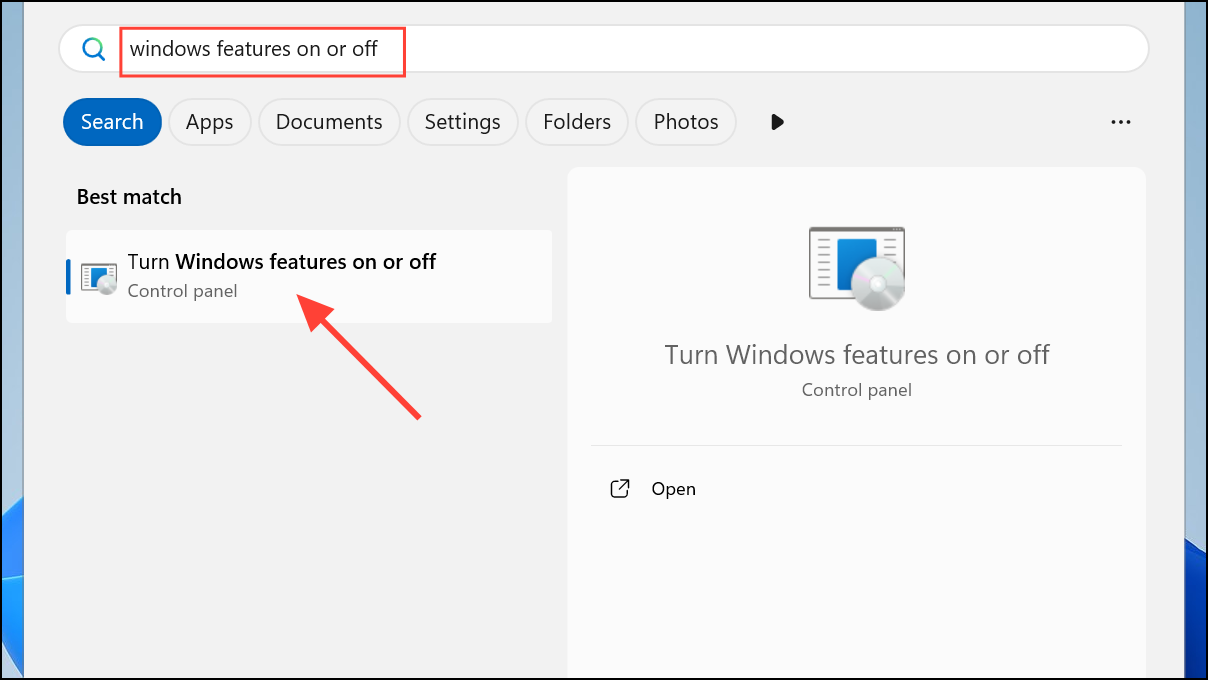
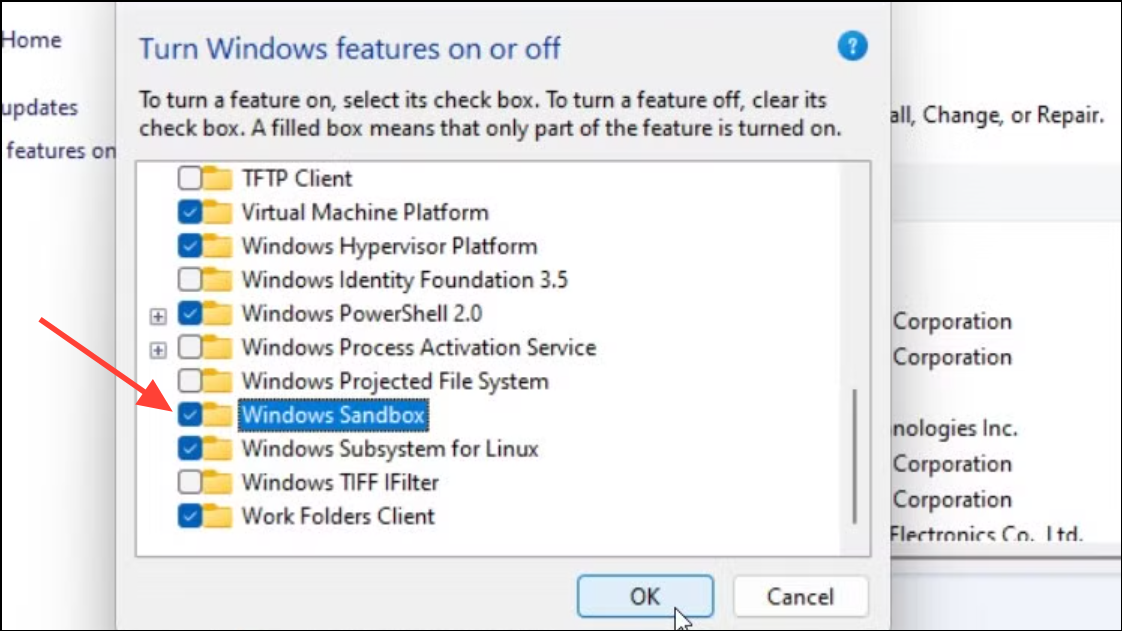
- Containers.
- Hyper-V.
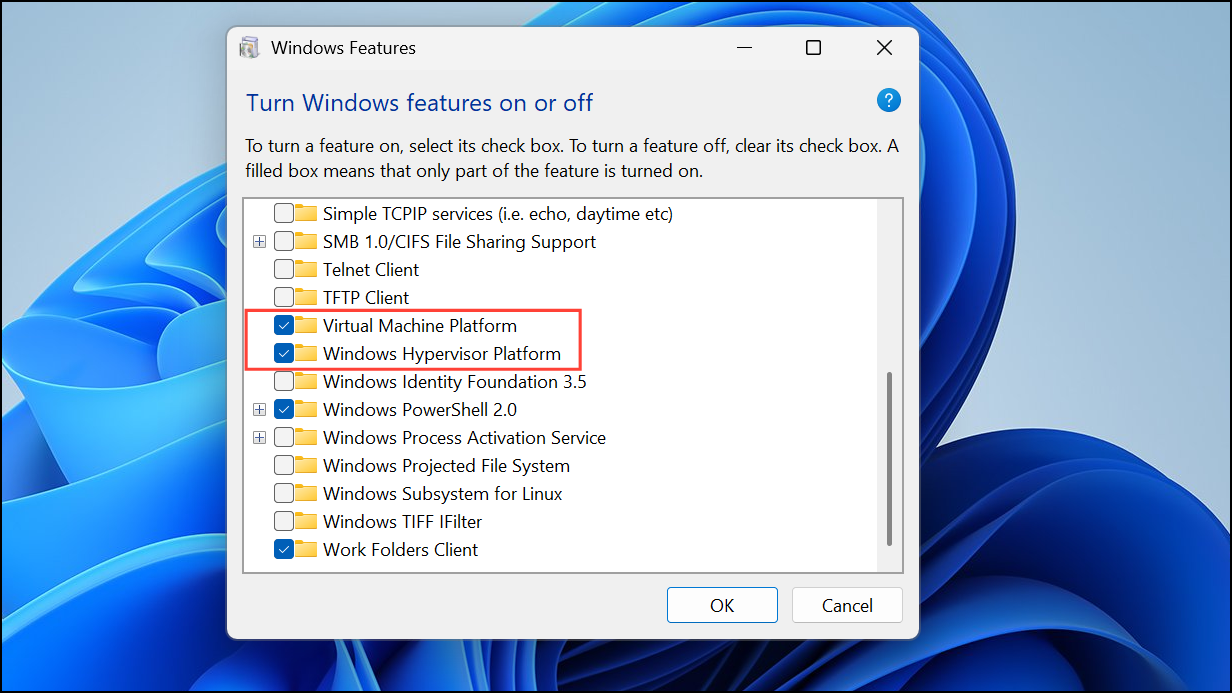
- Virtual Machine Platform.
- Windows Hypervisor Platform.
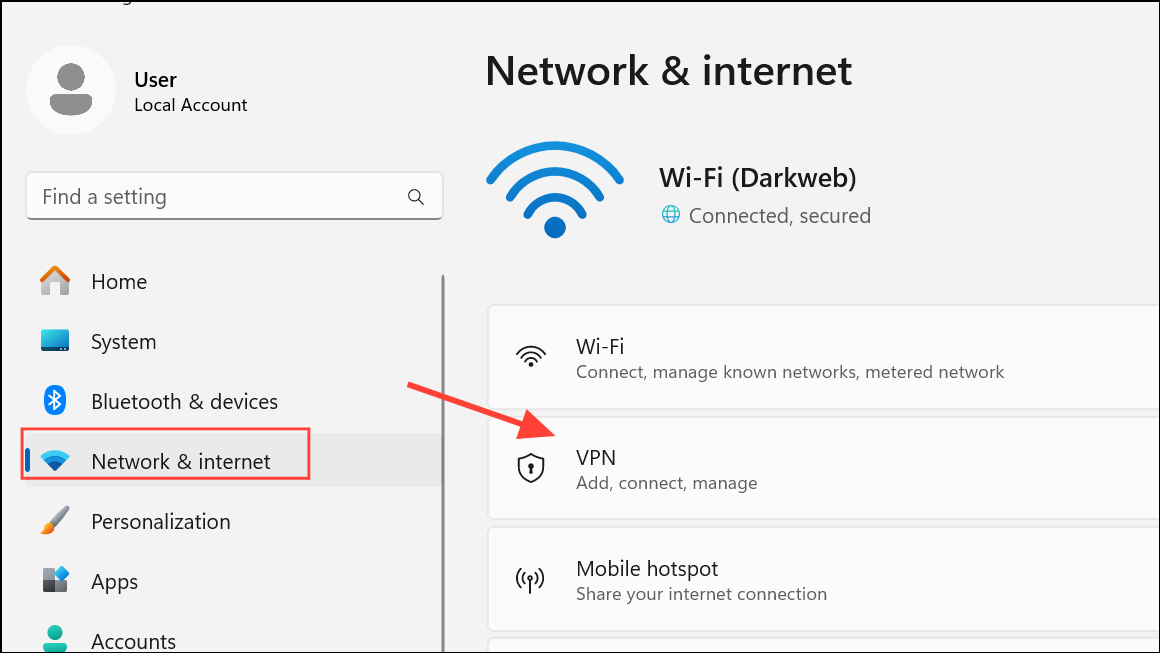
Disconnect VPN and Proxy Connections
VPN software and proxy settings often route network traffic in ways that block or isolate virtual environments like Windows Sandbox. This is a common cause of internet loss inside the sandbox, even while the host PC remains online.
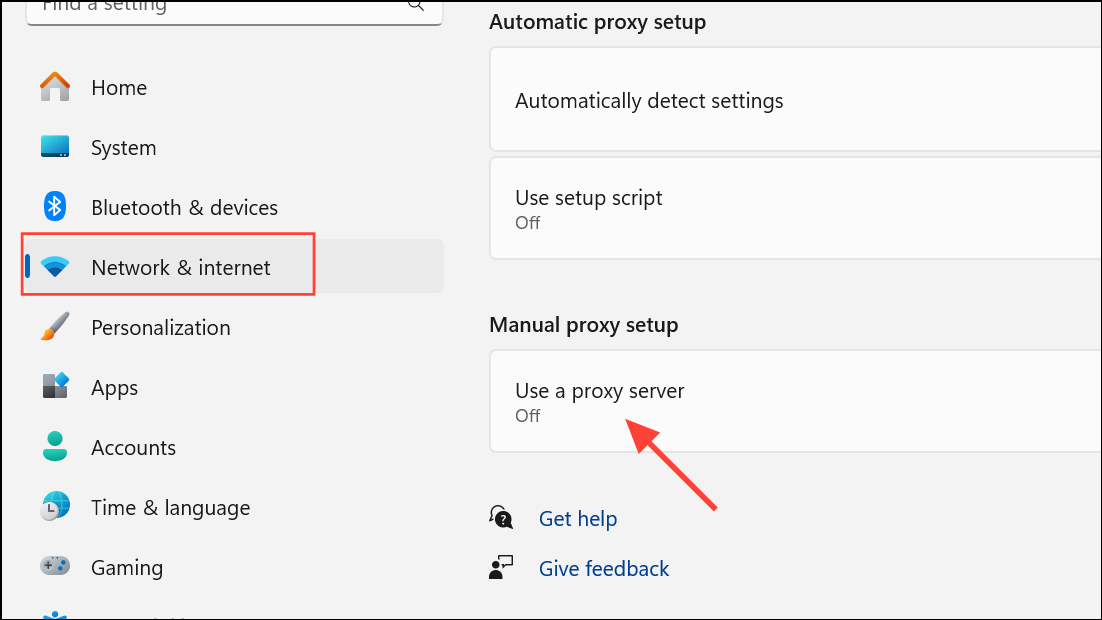
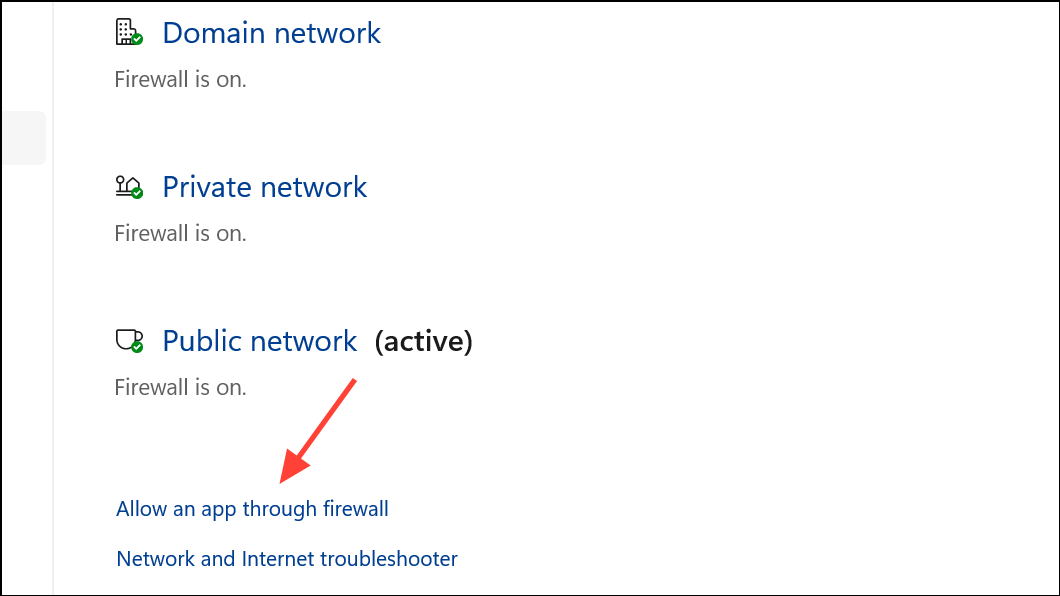
Adjust Firewall and Antivirus Settings
Third-party firewalls and security suites can block network traffic for virtualized environments like Windows Sandbox. Even Windows Defender Firewall may require configuration to allow Sandbox connections.
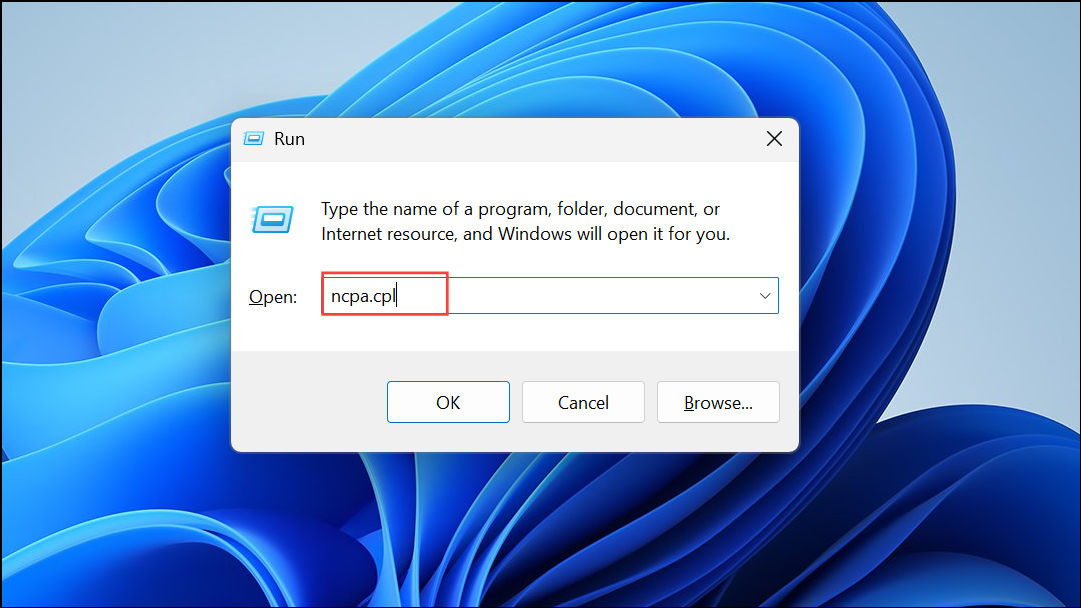
Bridge Network Connections
Windows Sandbox relies on a virtual network adapter (vEthernet) to share the host’s internet connection. Sometimes, bridging the vEthernet adapter with your main network adapter resolves connectivity issues, especially when network configurations have changed or adapters have been disabled.
Ctrl and click to select both your primary internet connection (e.g., Ethernet or Wi-Fi) and vEthernet (Default Switch) or vEthernet (Hyper-V).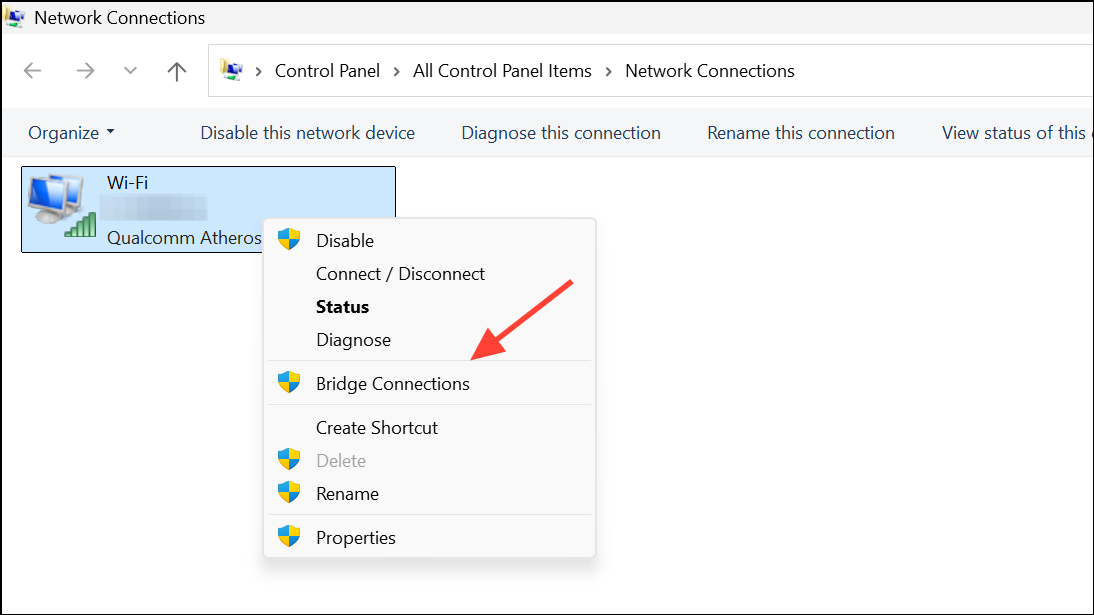
Flush DNS Cache
Corrupted or outdated DNS cache can prevent Windows Sandbox from resolving domain names, resulting in the no internet error. Flushing the DNS cache on the host system often resolves this problem.
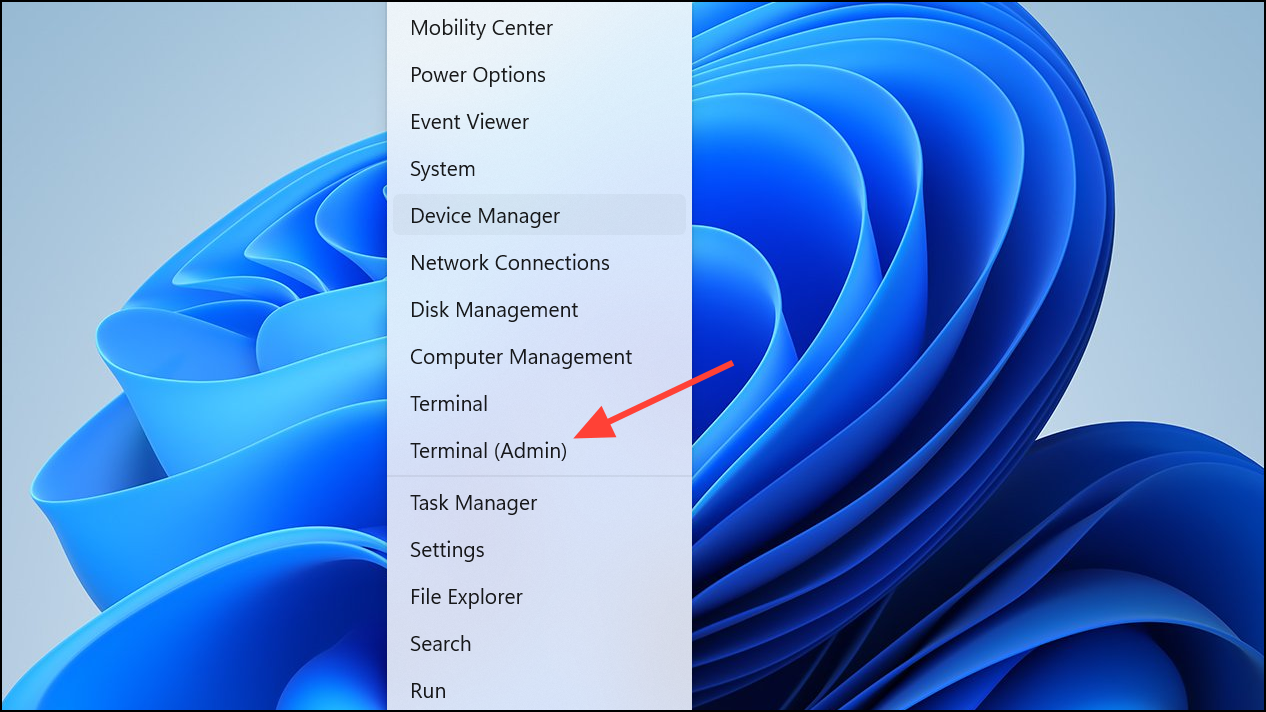
ipconfig /flushdns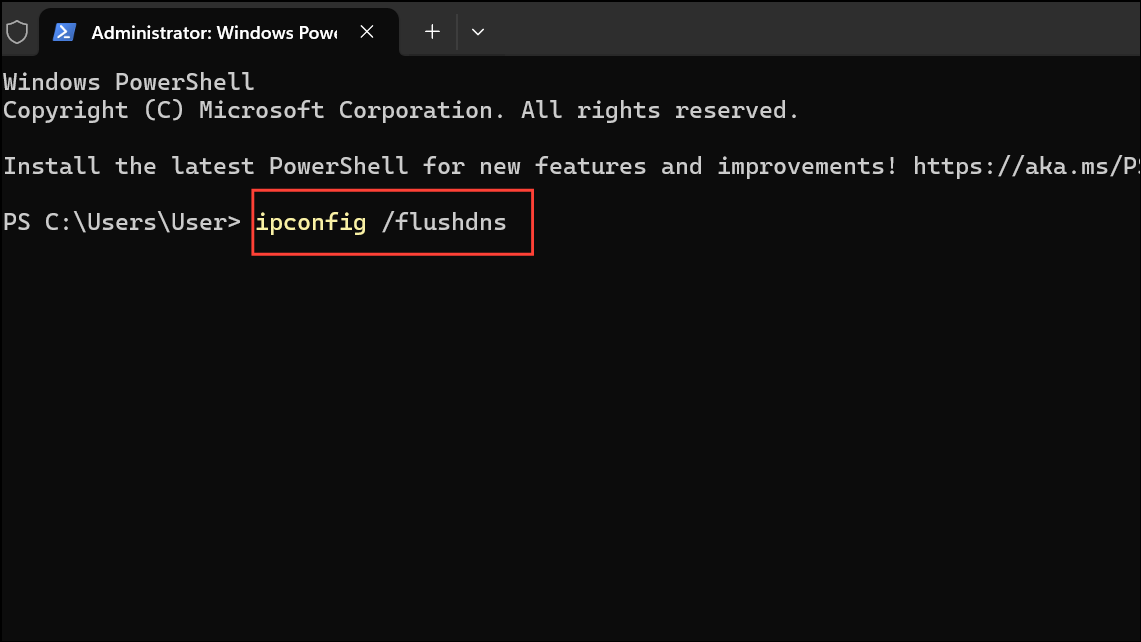
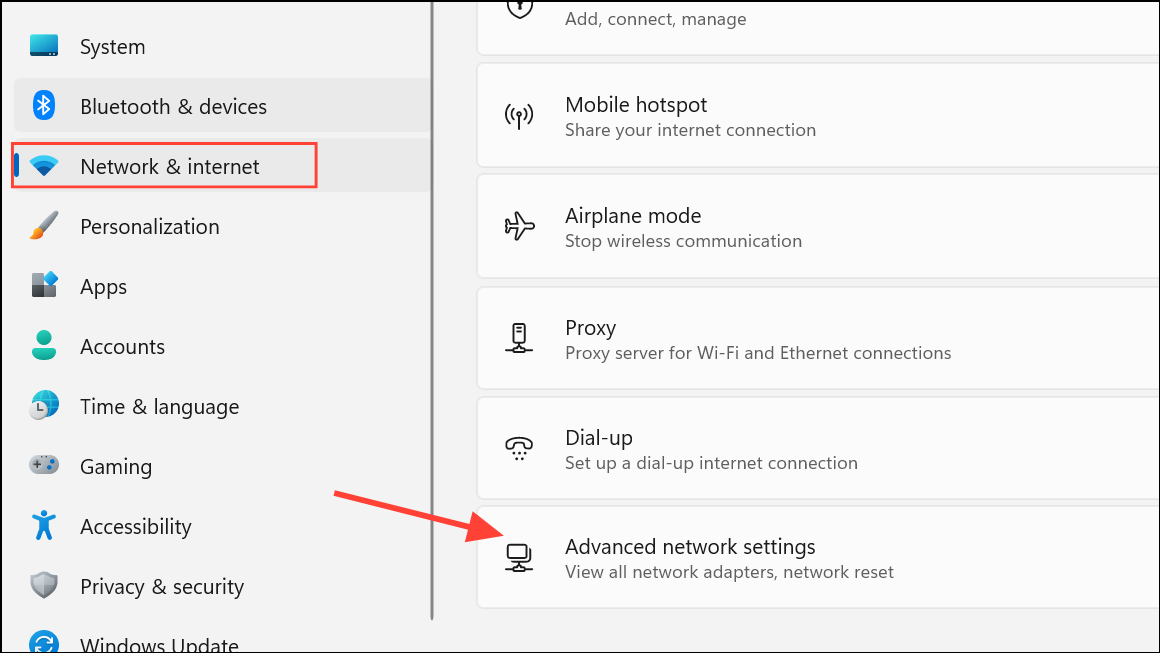
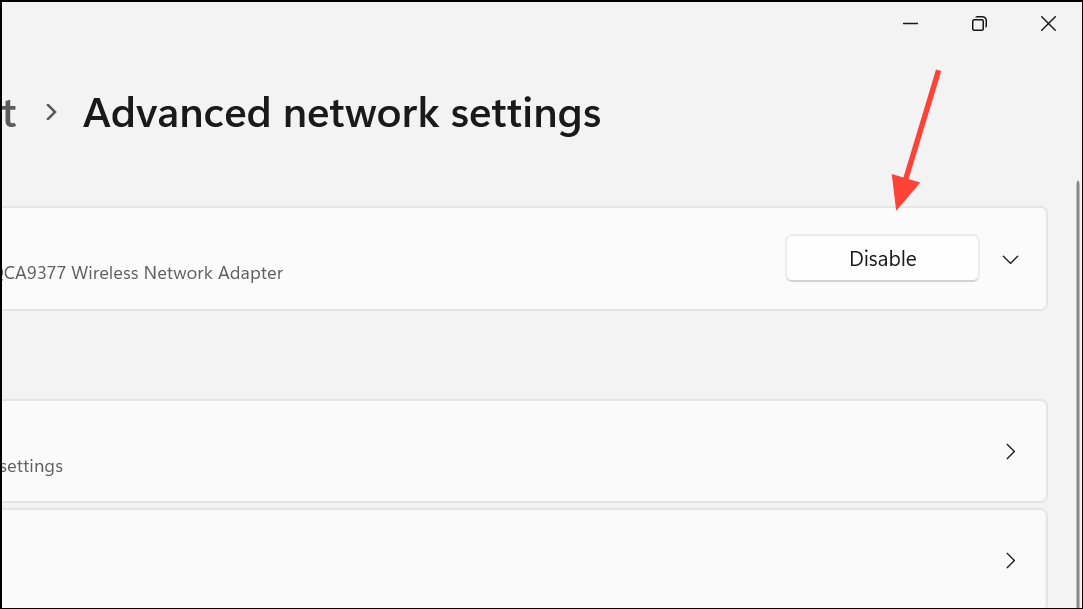
Disable Unnecessary Network Adapters
Multiple active network adapters, especially virtual adapters from third-party software, can interfere with Windows Sandbox’s ability to access the internet. Disabling unused adapters streamlines the host’s network configuration and may resolve the error.
Run Windows Troubleshooters
Windows 11 includes built-in troubleshooters that automatically diagnose and fix common network issues, including those affecting virtual environments like Sandbox.
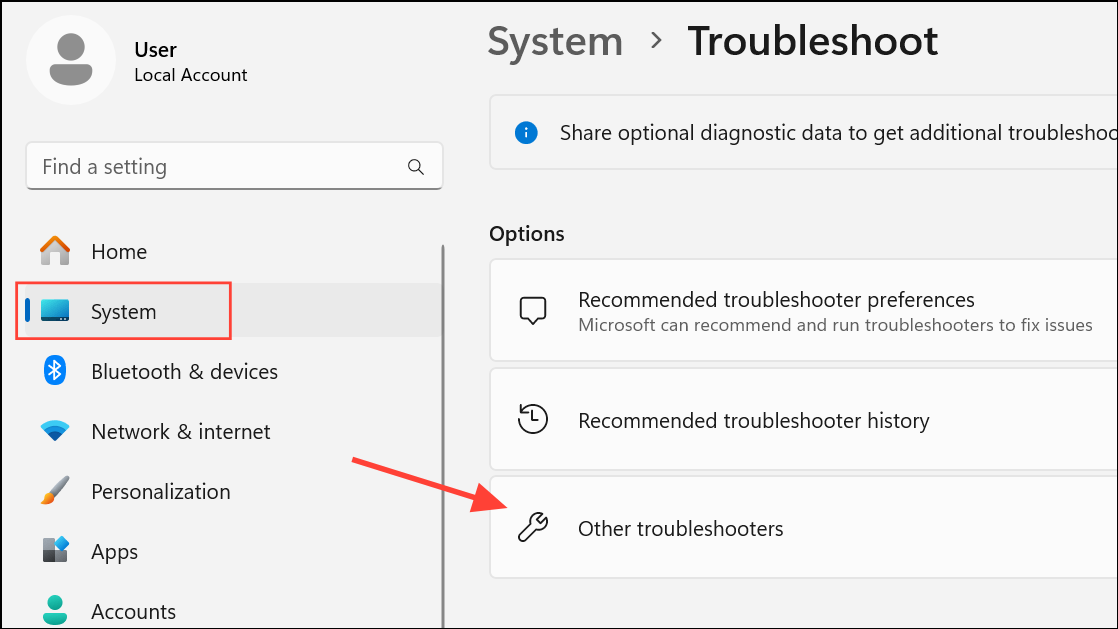
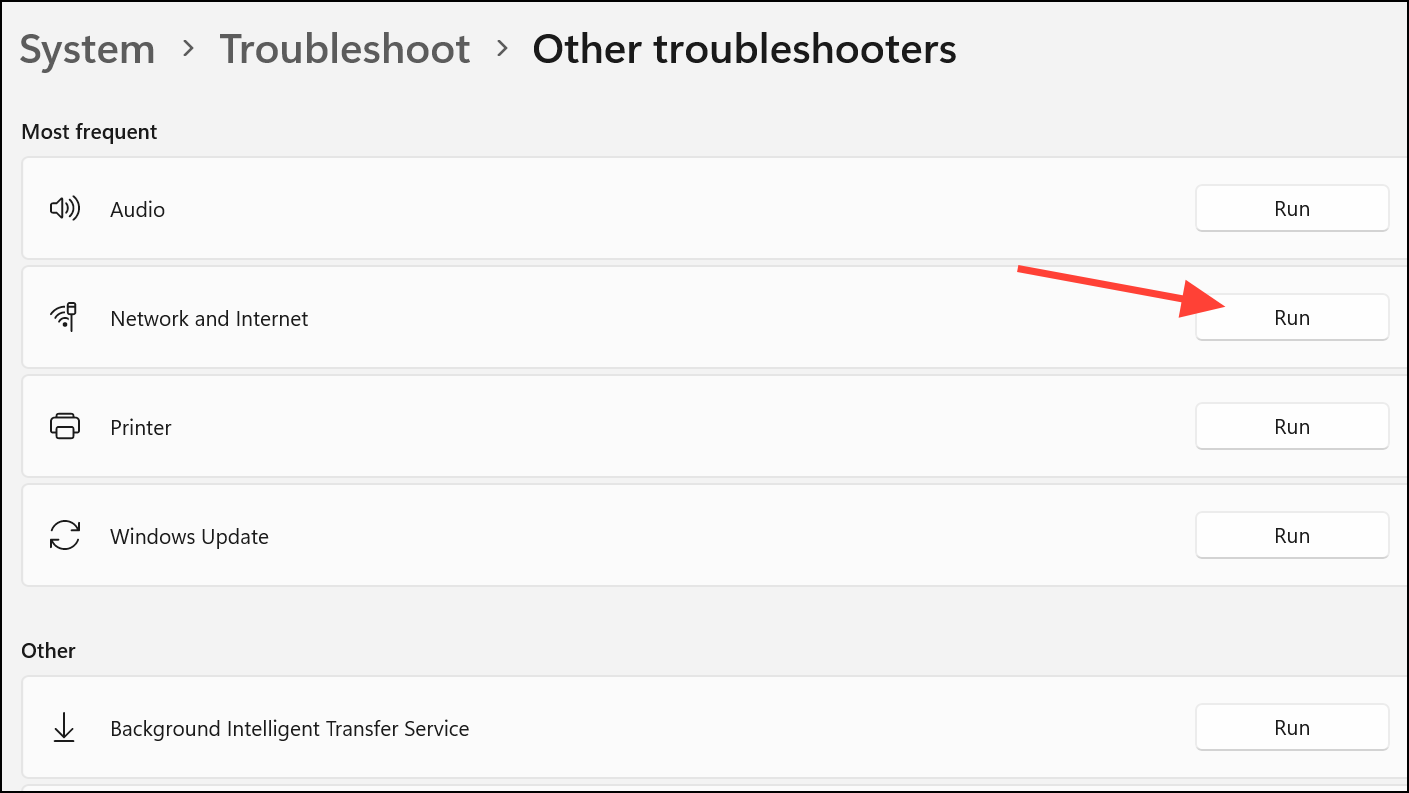
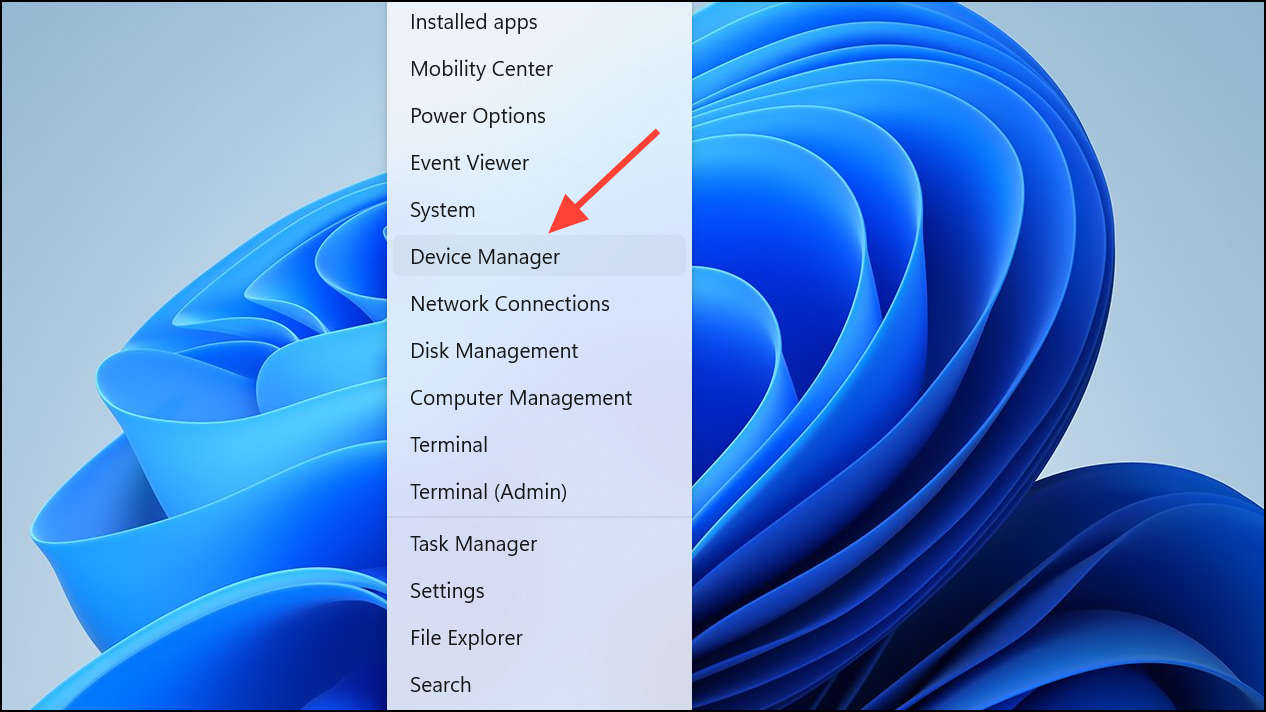
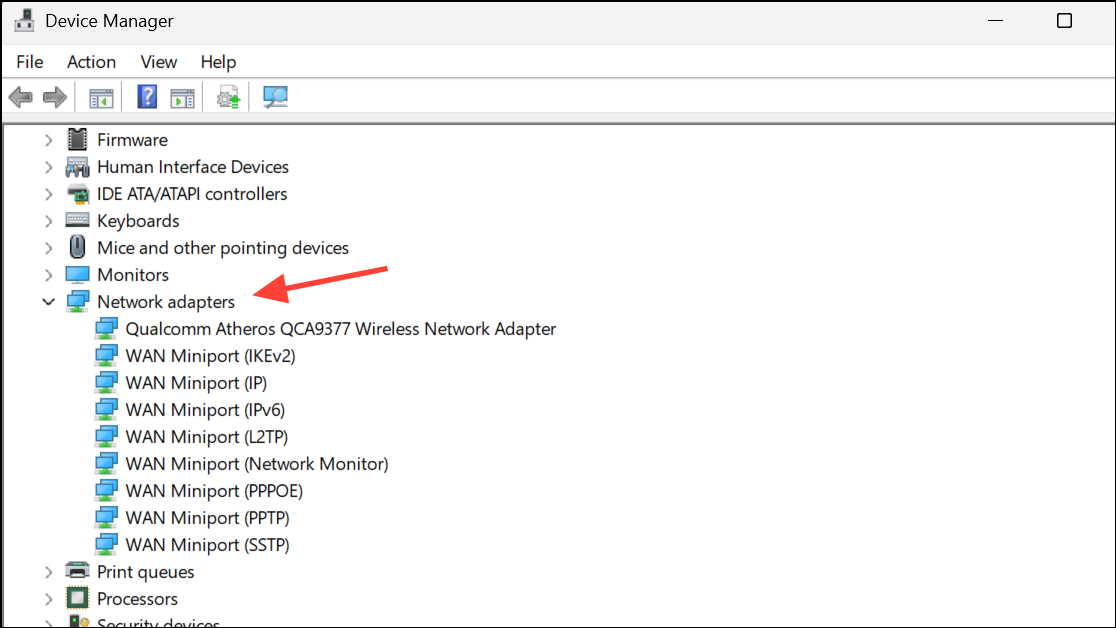
Verify and Reset Virtual Network Adapter
Windows Sandbox uses a virtual Ethernet adapter (vEthernet) managed by Hyper-V. If this adapter is disabled or malfunctioning, Sandbox will lose internet access.
Restoring internet access in Windows Sandbox on Windows 11 usually involves addressing VPN, firewall, or network adapter conflicts, or reinstalling the Sandbox feature to reset its configuration. After applying these methods, you should be able to use the sandbox for web browsing, software testing, and other tasks requiring connectivity.



