
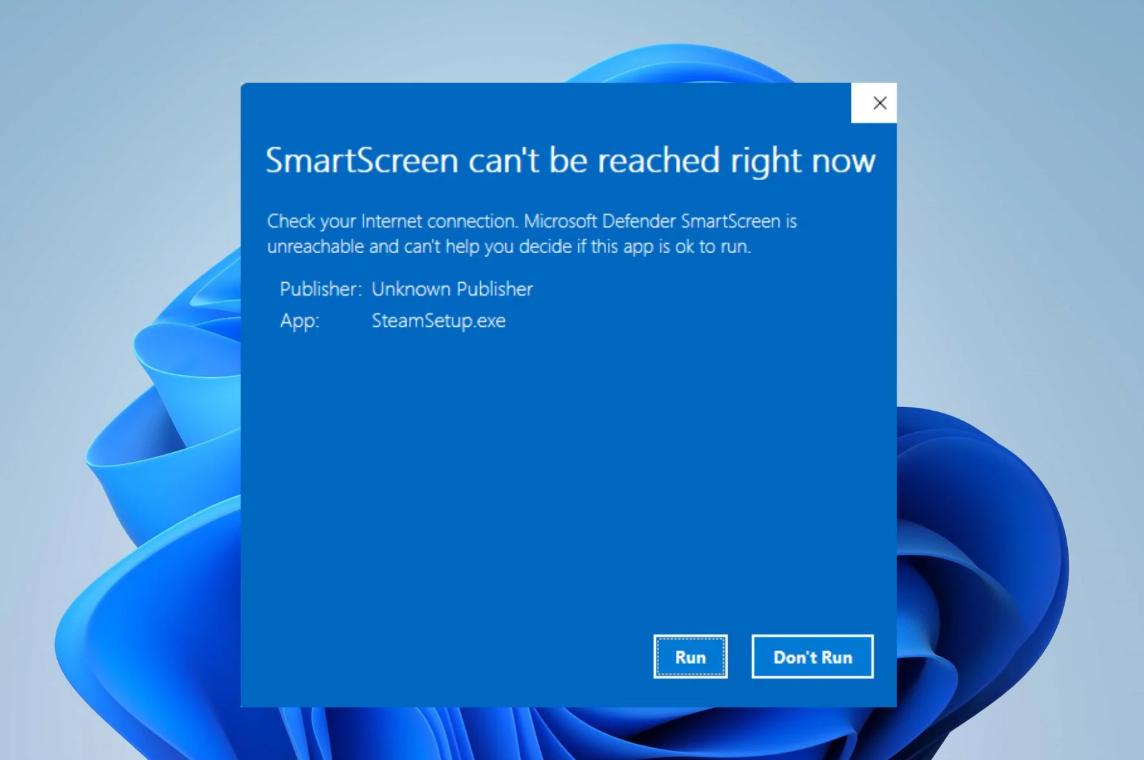
Receiving the message “SmartScreen can’t be reached right now” means Windows Defender SmartScreen is unable to check app safety with Microsoft’s servers. This disrupts the system’s ability to block potentially harmful software, leaving your device less protected. The problem often stems from network interruptions, incorrect security settings, or policy misconfigurations. The following methods address the most effective solutions, starting with network troubleshooting and moving through system settings and group policy adjustments.
Check Internet Connection and Network Configuration
SmartScreen relies on a stable internet connection to verify files and apps. If your connection is unstable or blocked, SmartScreen cannot function. Start by testing and fixing your network.
Settings > System > Troubleshoot > Other Troubleshooters and select Network and Internet troubleshooter. Follow the prompts to let Windows automatically detect and fix network problems.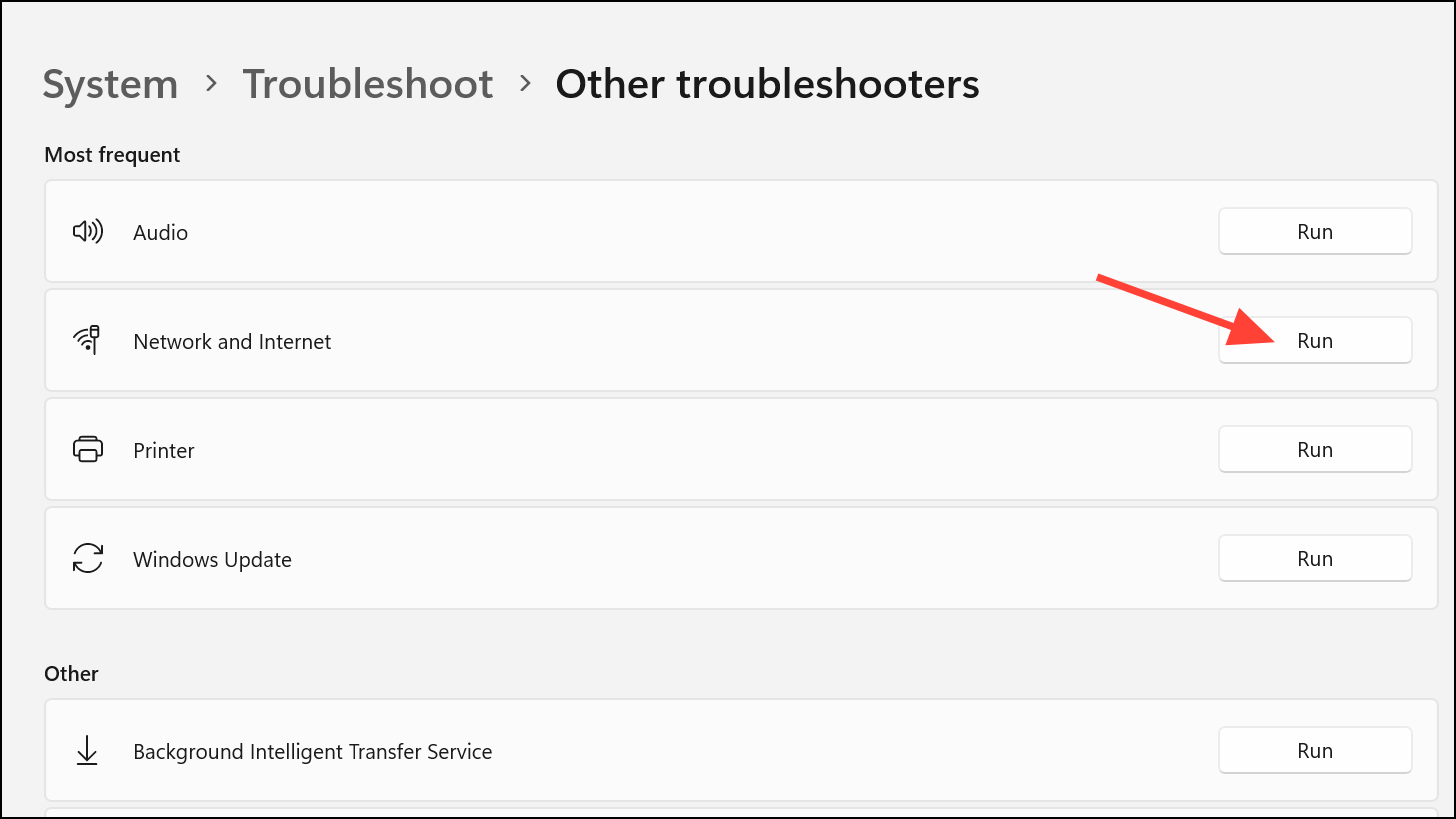
Verify and Adjust SmartScreen Settings in Windows Security
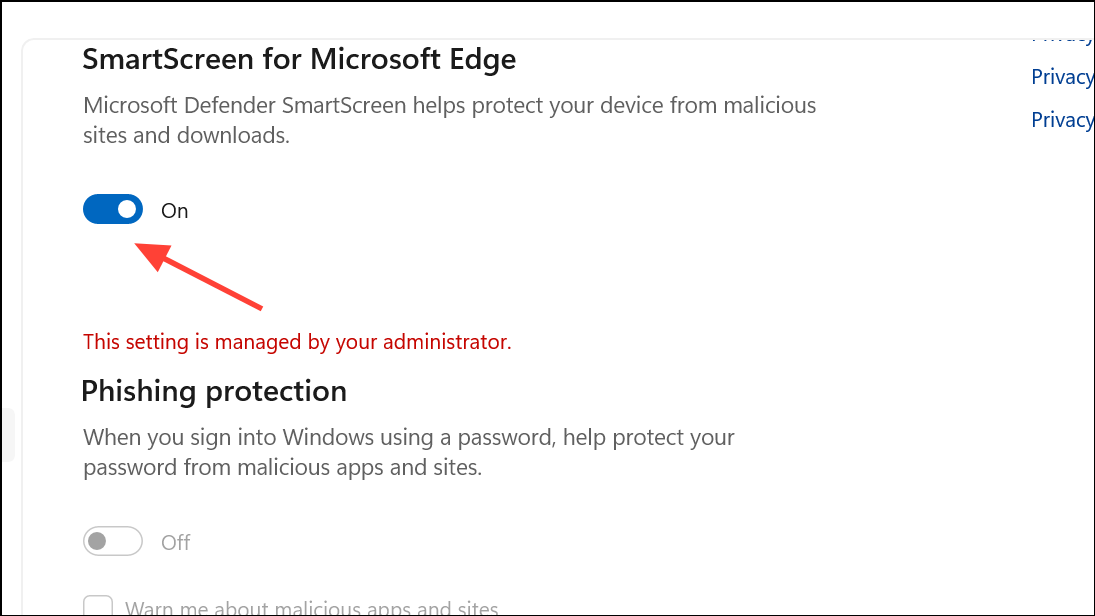
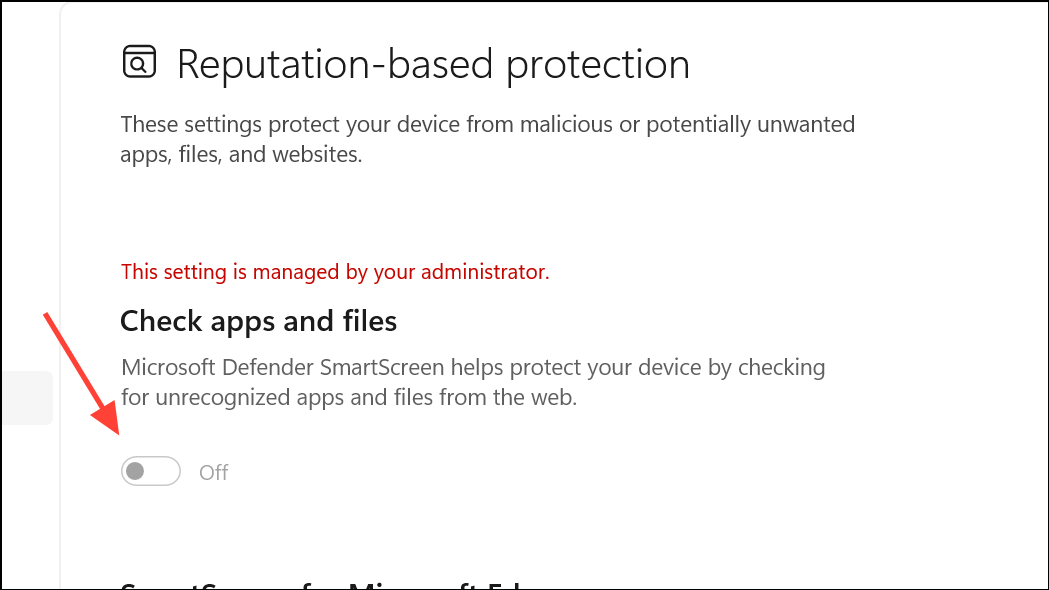
Incorrect SmartScreen settings or disabled features can trigger the error. Confirm that all SmartScreen protections are active.
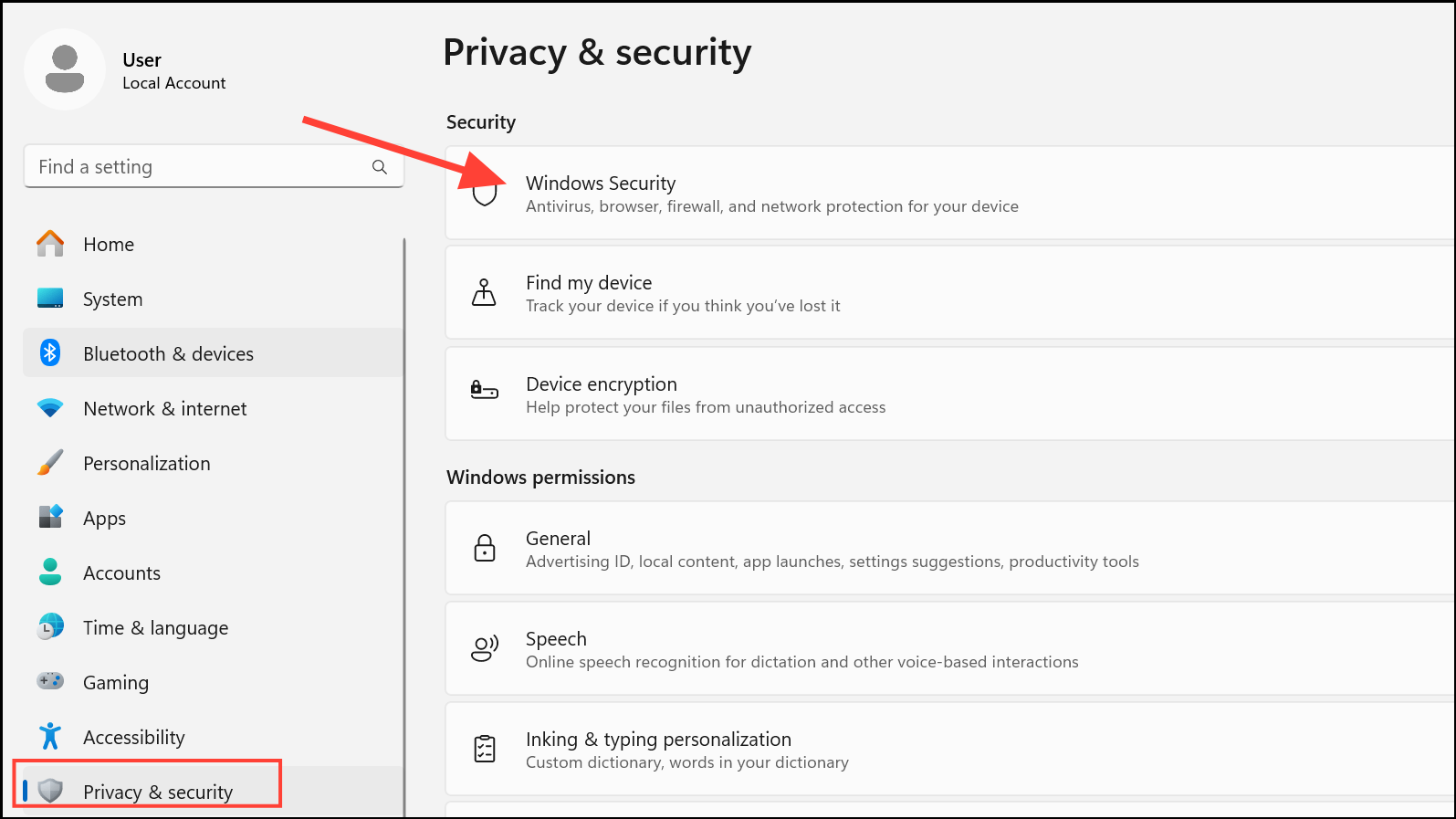
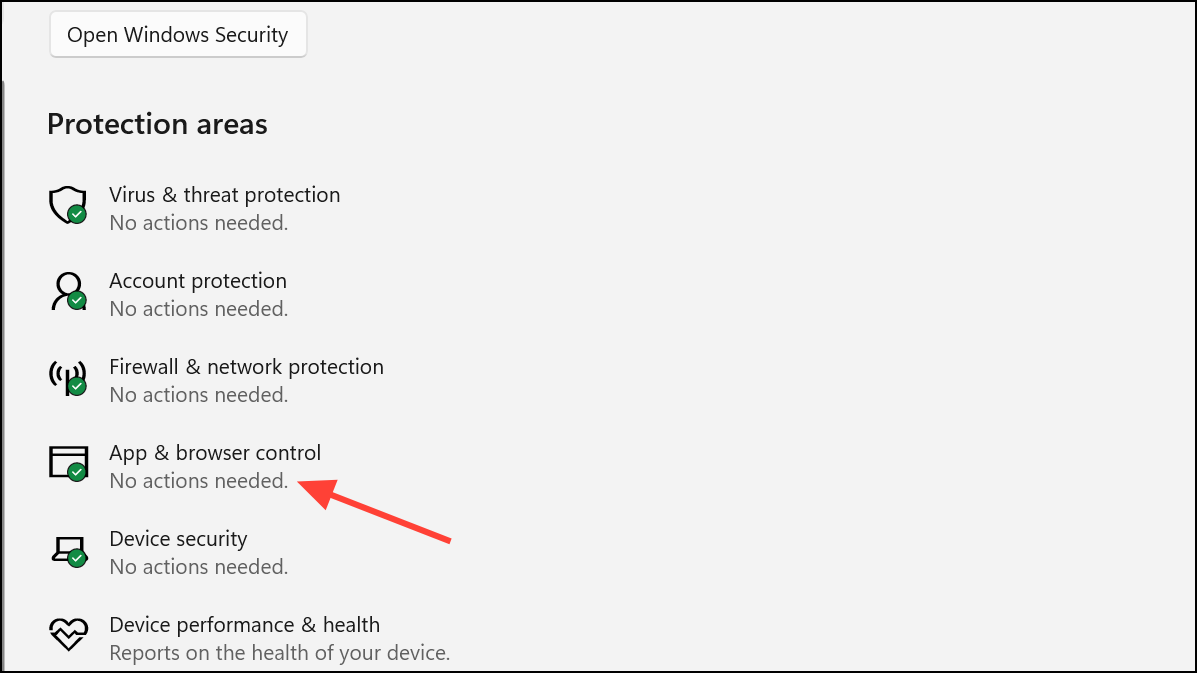
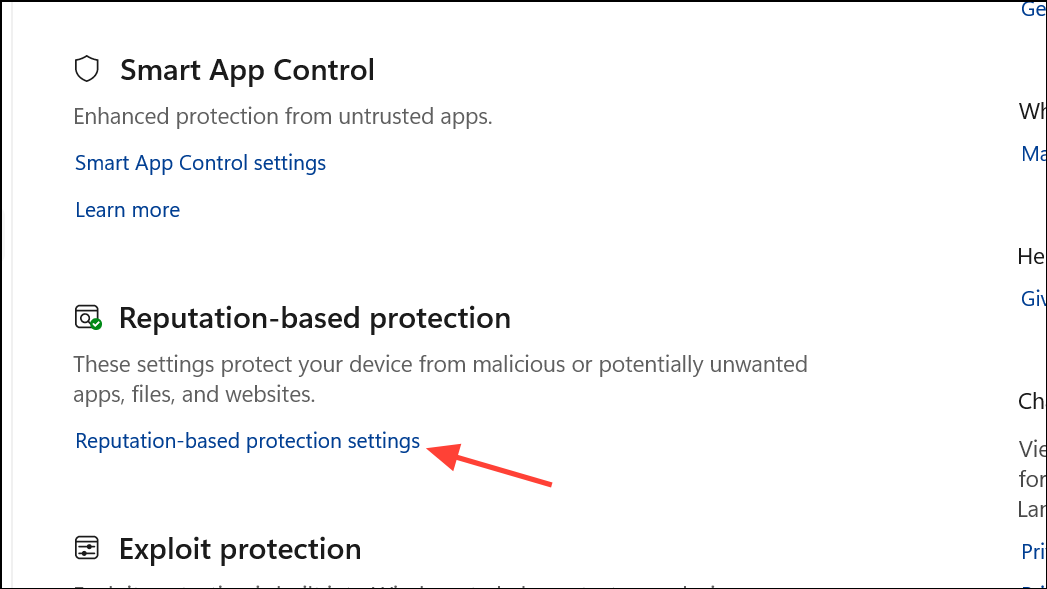
- Check apps and files.
- SmartScreen for Microsoft Edge.
- Potentially unwanted app blocking.
- SmartScreen for Microsoft Store apps.
This configuration allows SmartScreen to scan files and apps, and blocks suspicious content in real time.
Enable SmartScreen Through Local Group Policy Editor (Windows 11 Pro)
On Windows 11 Pro or Enterprise, group policy settings may override user controls. If SmartScreen is disabled by policy, you can re-enable it with these steps.
WIN+R to open the Run dialog. Type gpedit.msc and click OK to launch the Local Group Policy Editor.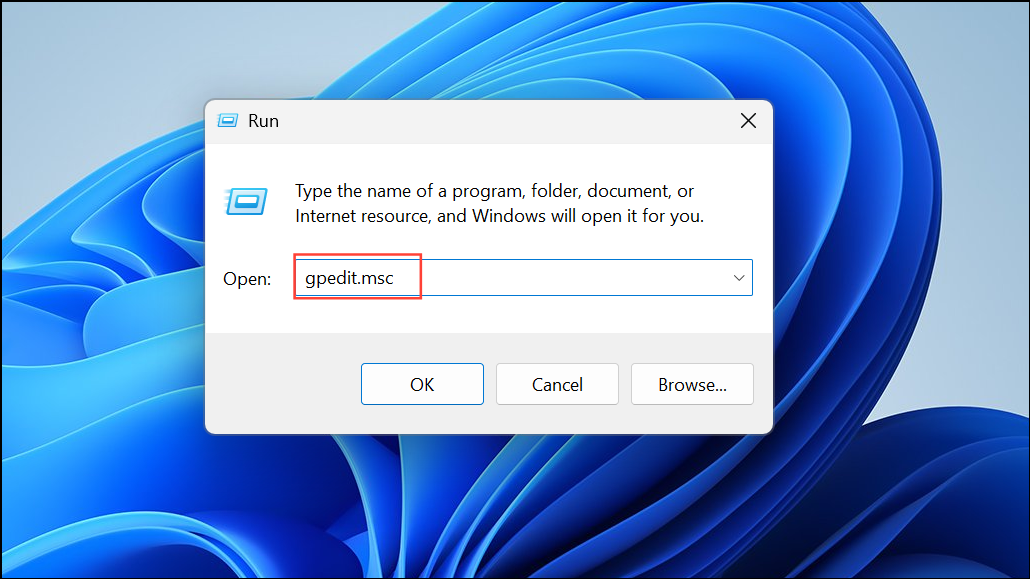
Computer Configuration > Administrative Templates > Windows Components > File Explorer
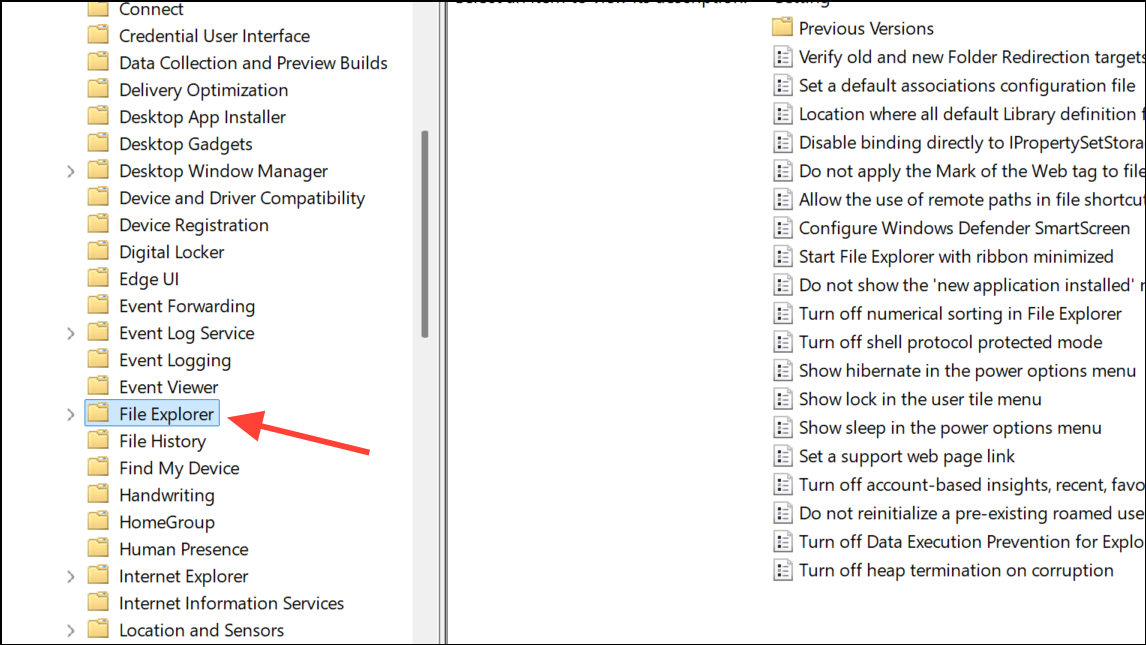
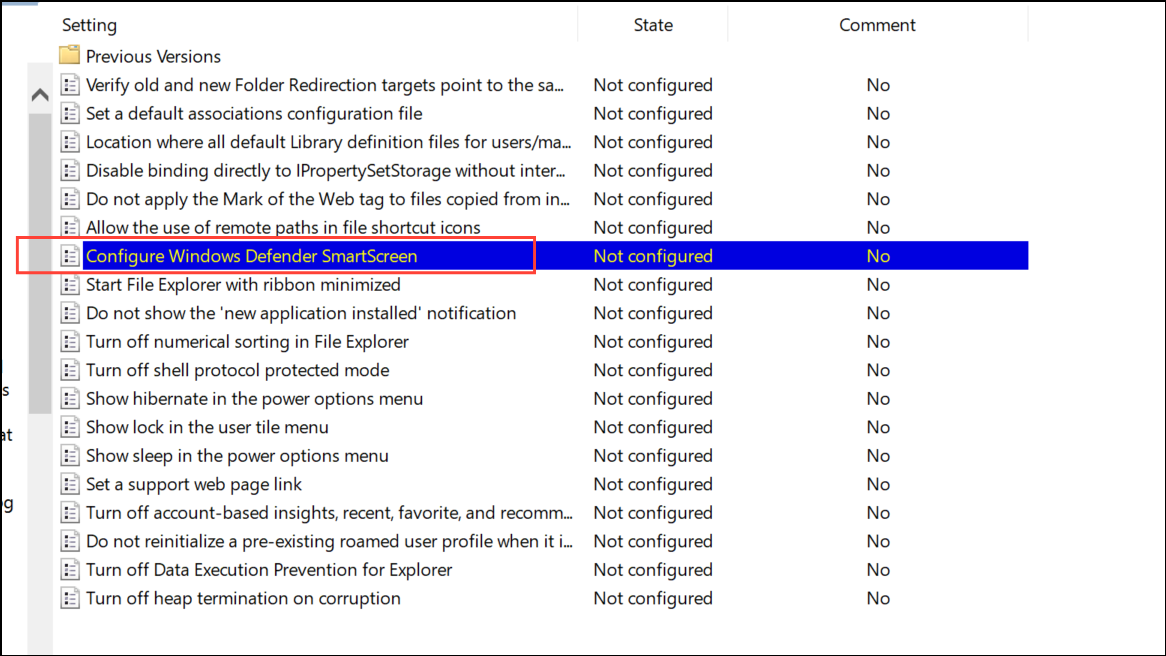
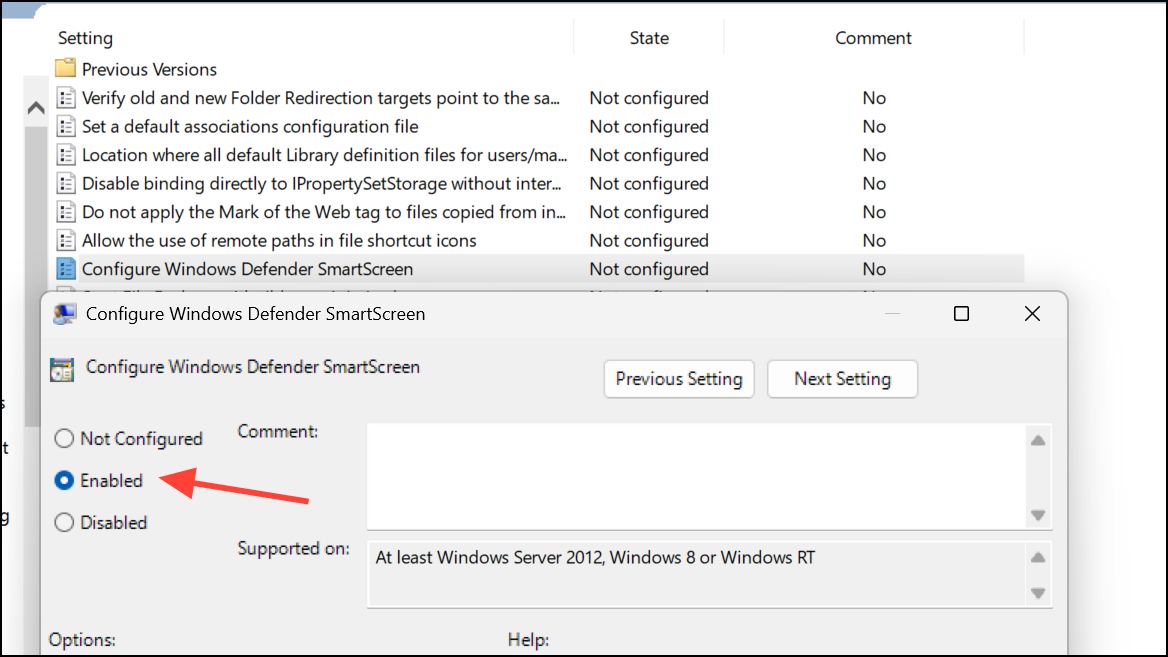
Scan for Malware or System Corruption
Malware or system corruption can interfere with SmartScreen’s ability to connect or function. A thorough scan helps rule out this possibility.
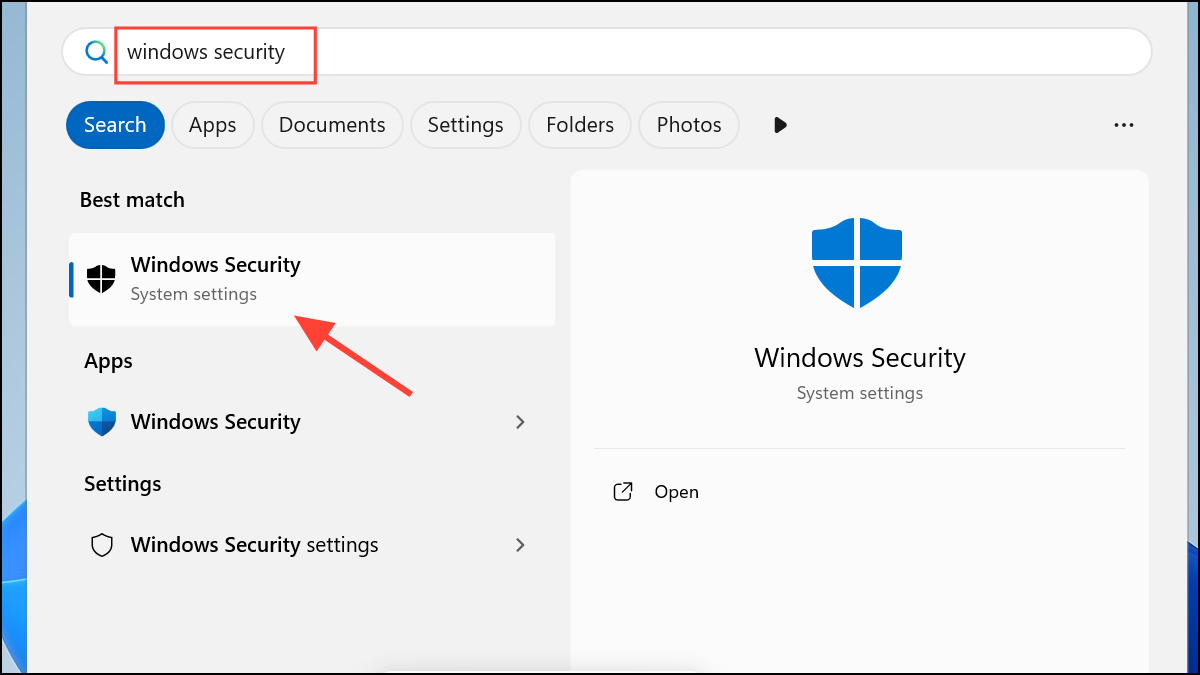
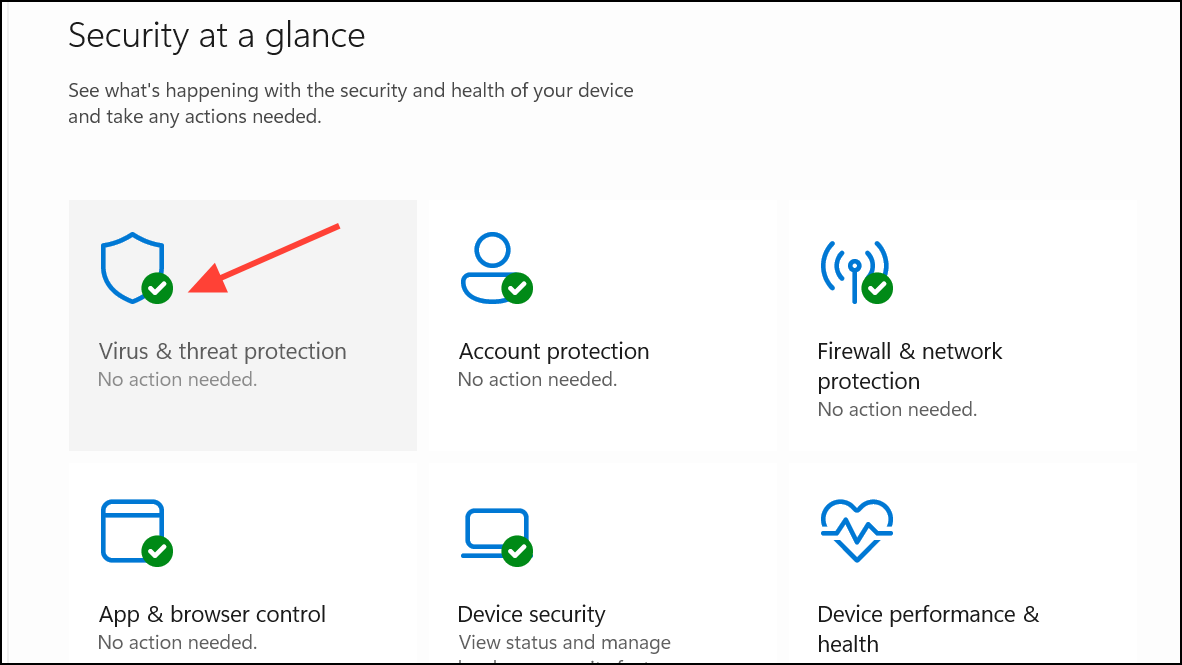
Full scan and click Scan now. Wait for the scan to complete and follow any prompts to remove threats.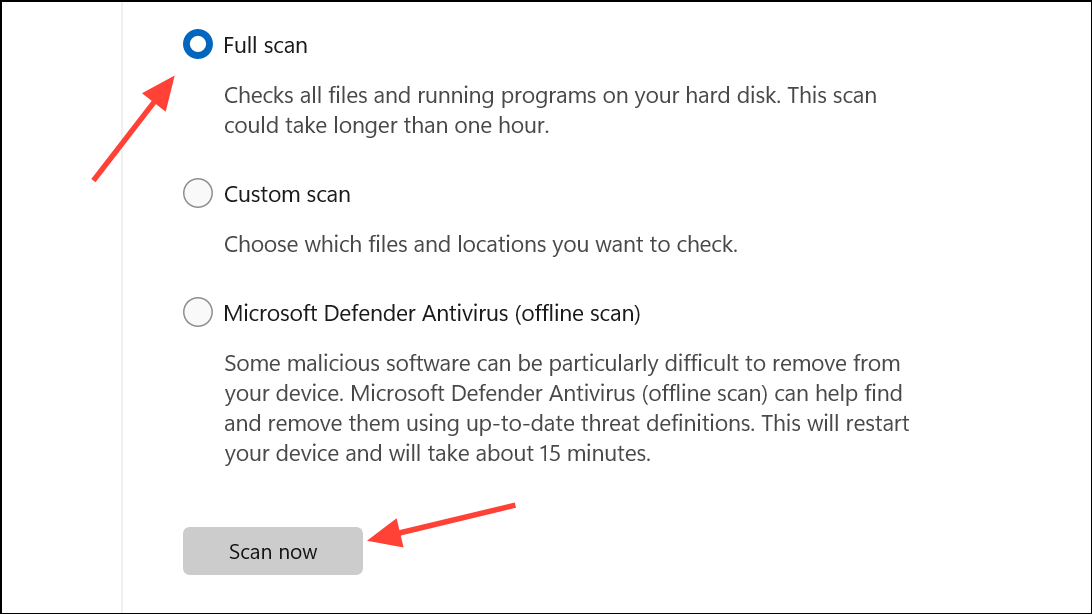
Additional Checks and Troubleshooting
There are a few more steps to try if the problem persists:
- Check for proxy settings in
Settings > Network & Internet > Proxyand disable any active proxy, as it can block SmartScreen communication. - Test with a new Windows user account. Sometimes, user profile corruption causes persistent issues. Create a new local admin account, sign in, and see if SmartScreen works.
- Temporarily disable third-party antivirus or firewall software. Some security suites block SmartScreen connections. Re-enable them after testing.
- Check for Windows updates in
Settings > Windows Updateand install any pending updates.
Resolving the “SmartScreen can’t be reached right now” error restores Windows 11’s real-time protection for apps and downloads. If you continue to see the error after these steps, consider checking Microsoft’s support forums for ongoing server issues or reporting your case for further troubleshooting.



