
Scanner software on Windows 11 often relies on the Windows Image Acquisition (WIA) driver to establish communication between your computer and imaging hardware. When the error message “You need a WIA driver to use this device” appears, it blocks scanning tasks and disrupts workflow. This issue can result from missing, outdated, or incompatible drivers, disabled system services, or conflicts introduced by recent Windows updates. Addressing the root cause restores scanning capability and prevents recurring interruptions.
Restart and Configure the Windows Image Acquisition (WIA) Service
Windows + R, typing services.msc, and pressing Enter. This displays a list of all background services running on your system.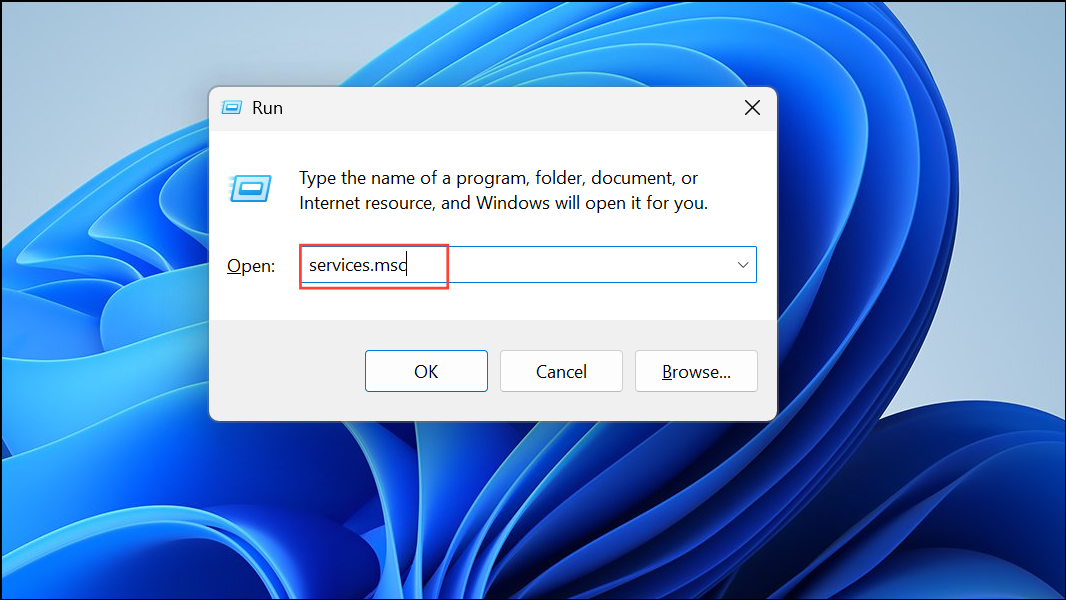
Restart if the service is running, or Start if it is stopped. This action reinitializes the service, which is essential for scanner operations.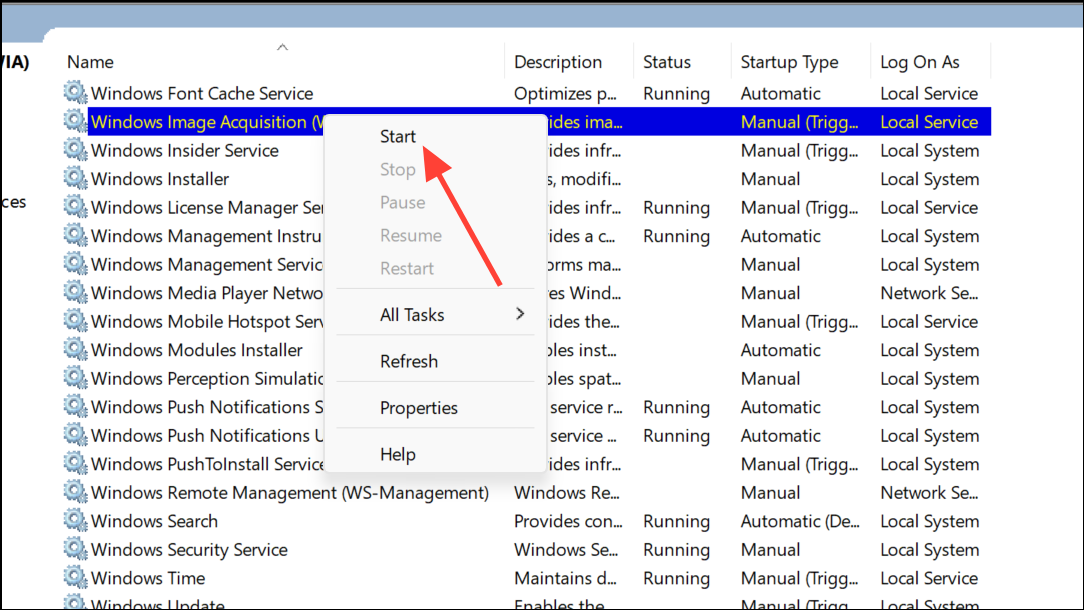
Automatic. This ensures the service starts automatically with Windows, preventing future interruptions.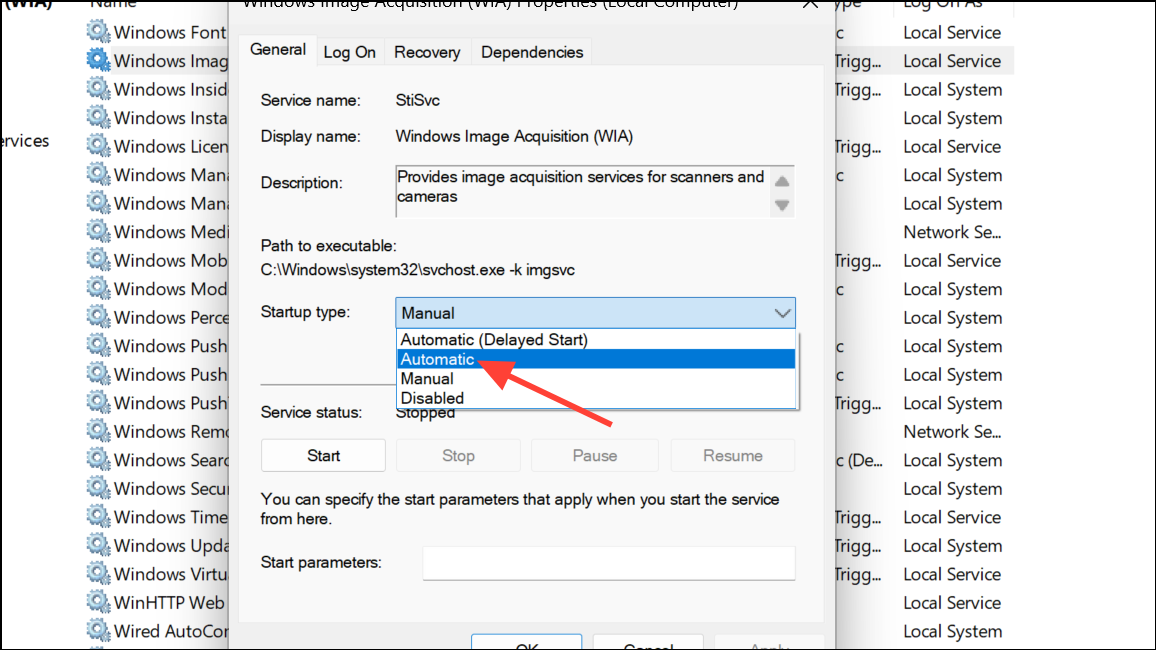
Local System account and check the box for Allow service to interact with the desktop. Click Apply and OK. This change grants the service broader system permissions, which can be necessary for driver communication.Update or Reinstall the Scanner’s WIA Driver
Windows + X and selecting Device Manager. Expand the “Imaging devices” section to find your scanner.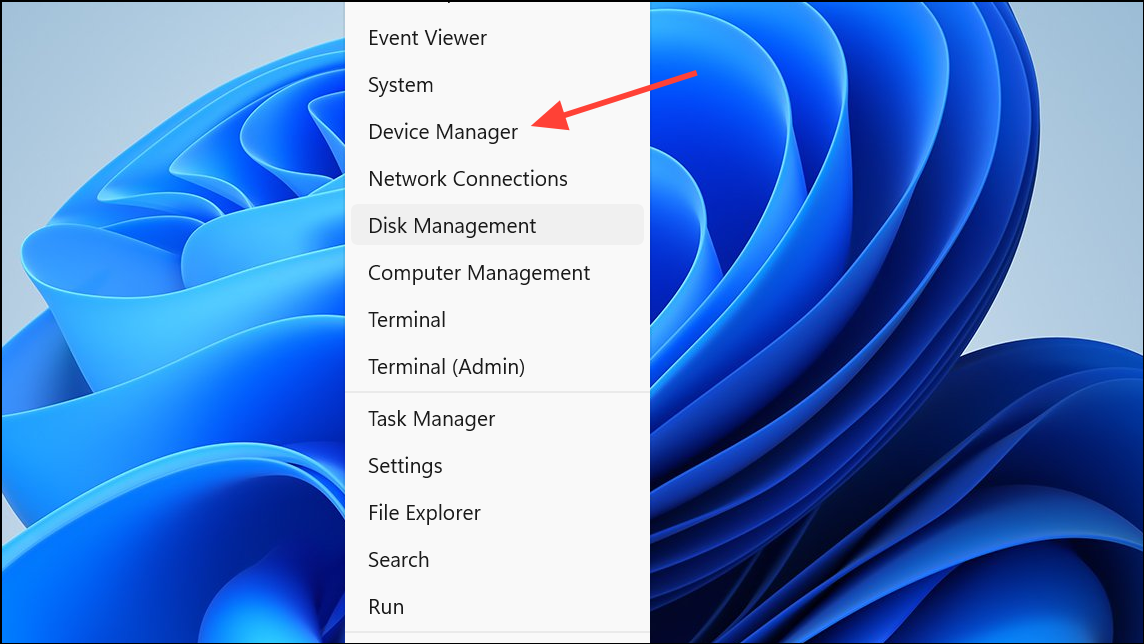
Uninstall device. Confirm the uninstallation if prompted. This removes the existing driver, which may be outdated or corrupted.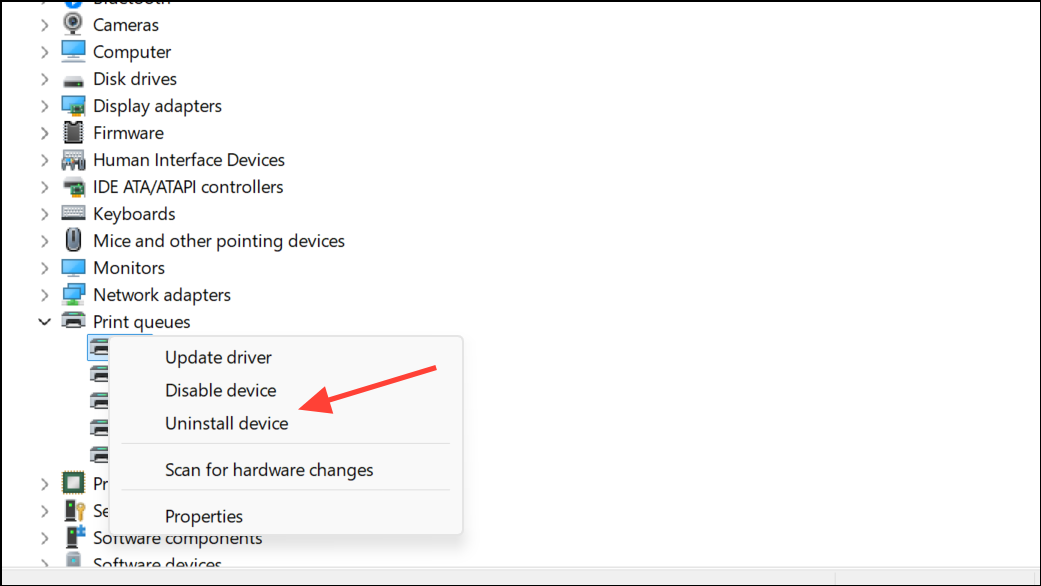
Run the Windows Troubleshooter for Devices and Printers
Windows + I. Navigate to System > Troubleshoot > Other troubleshooters.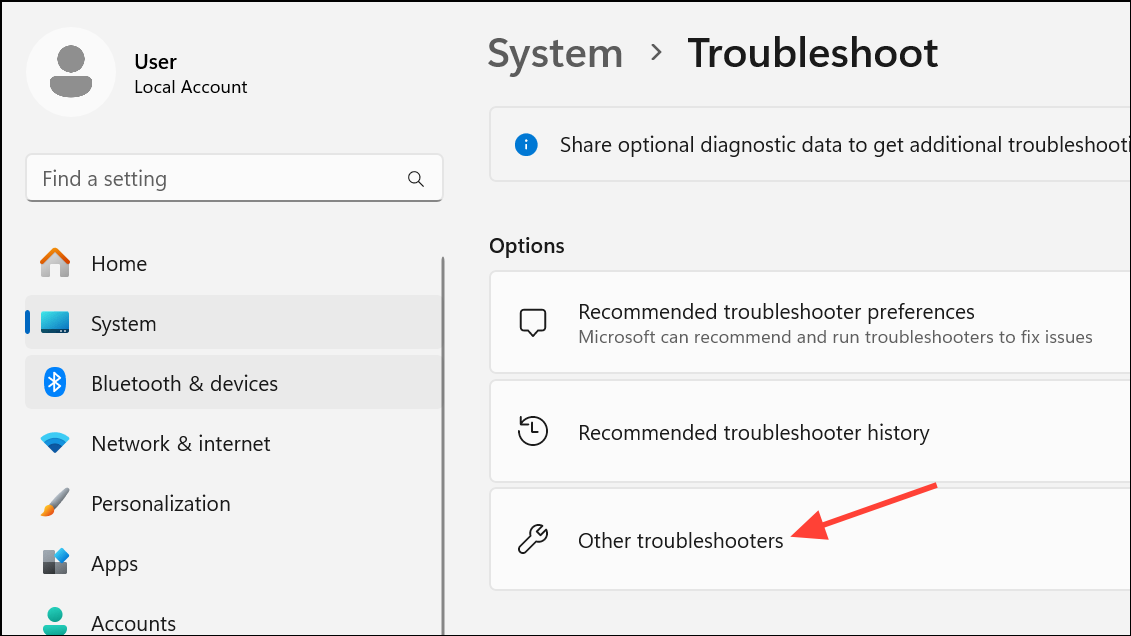
Run. The troubleshooter will scan for common issues with scanner and printer devices, including missing or malfunctioning drivers.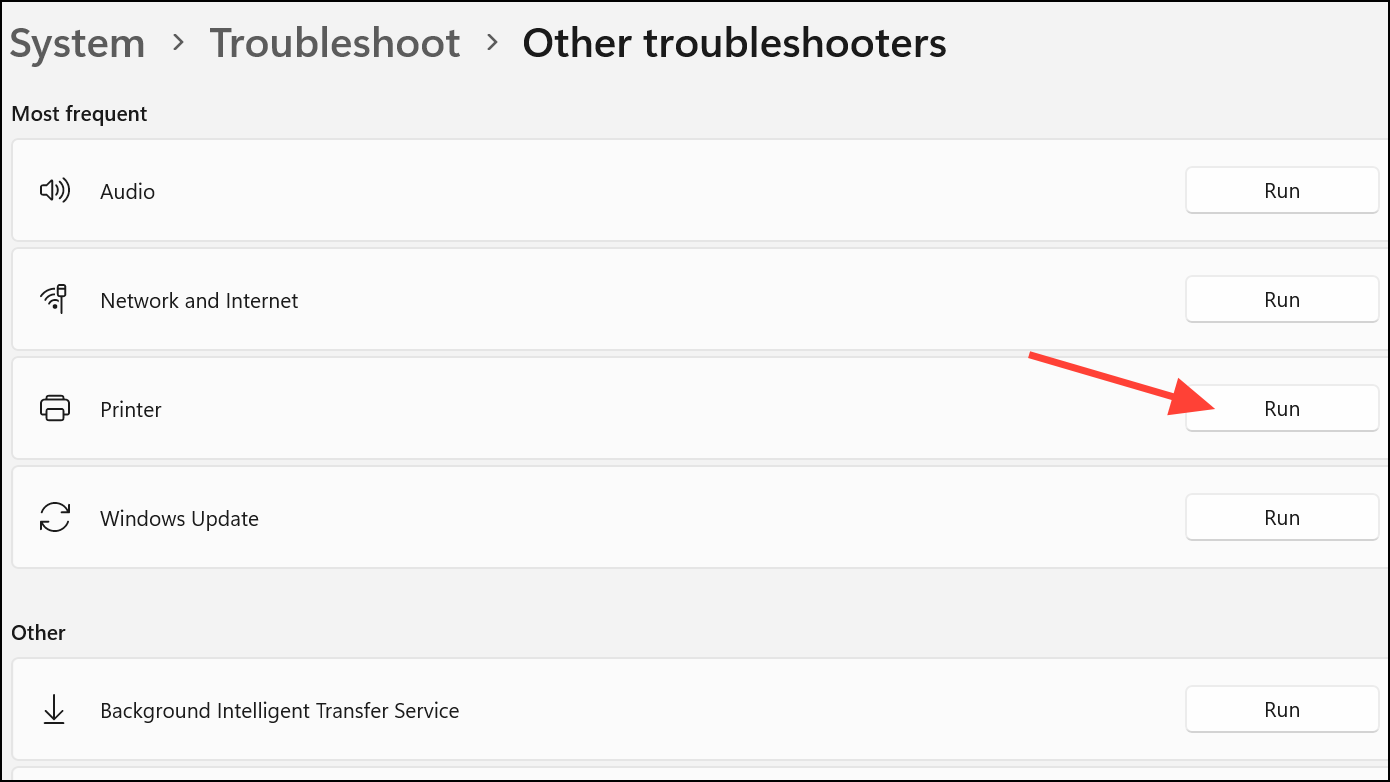
Adjust Windows Update Settings to Prevent Driver Conflicts
Windows + R, typing gpedit.msc, and pressing Enter (note: not available in Windows 11 Home).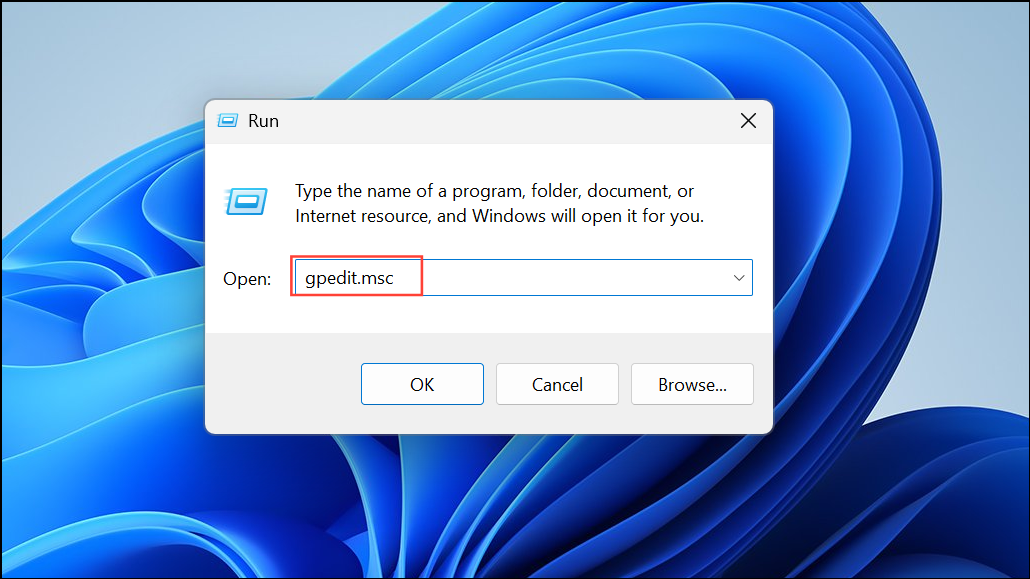
Computer Configuration > Administrative Templates > Windows Components > Windows Update > Do not include drivers with Windows Updates.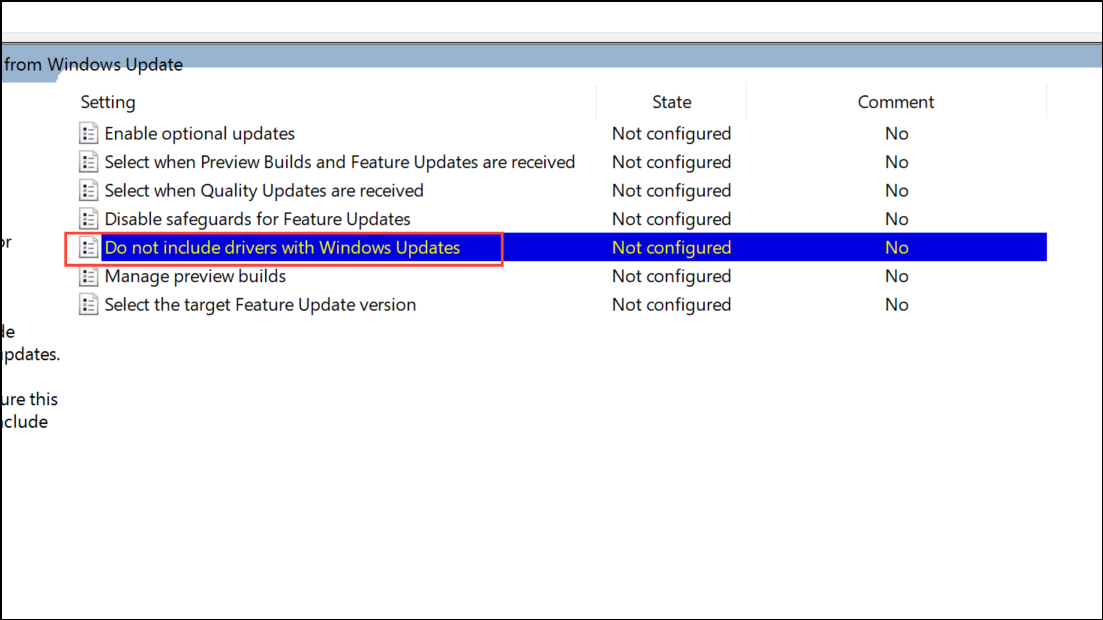
Enabled. Click Apply and OK. This stops Windows Update from automatically replacing your working scanner driver.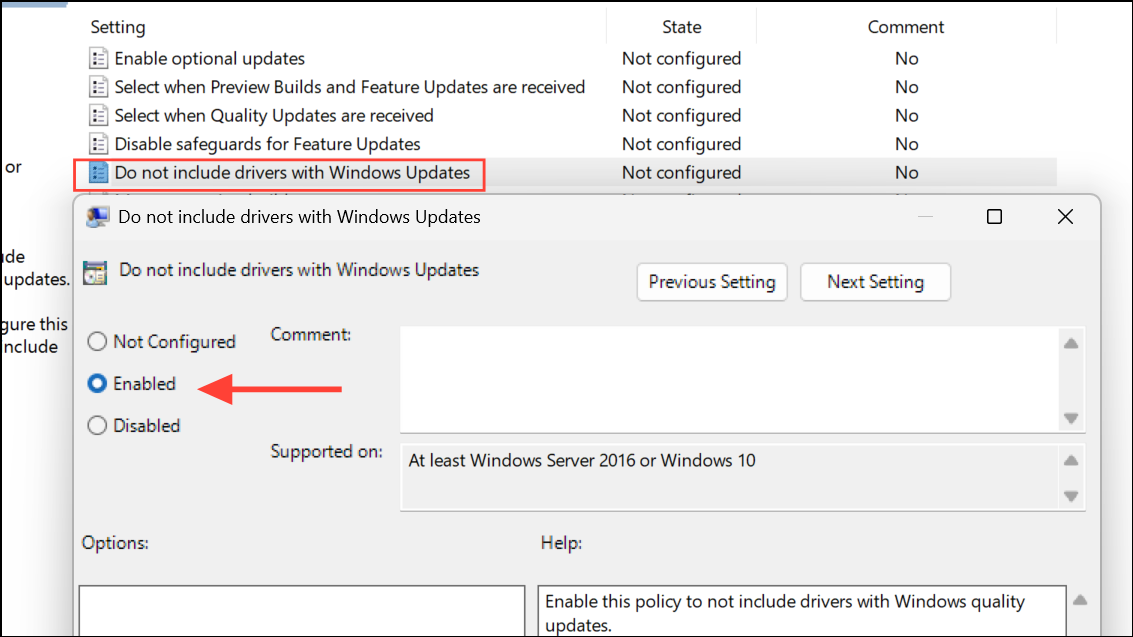
Additional Troubleshooting Steps
- Temporarily disable antivirus or firewall software if you suspect it is blocking scanner communication, then test scanning again.
- Check for compatibility updates or firmware upgrades from the scanner manufacturer, especially for older devices.
- For persistent issues, consider alternative scanning applications such as VueScan or SilverFast, which may offer broader device support and improved driver handling for legacy hardware.
Addressing the WIA driver error on Windows 11 restores full scanning functionality and prevents recurring disruptions. Regularly updating drivers from official sources and monitoring Windows Update changes help maintain reliable scanner performance.



