

Unresponsive programs that refuse to close—even after using Task Manager—can stall your workflow and disrupt system performance. Windows 11 users have several effective ways to force close these stubborn applications, restoring control and preventing system slowdowns or crashes. Below, you’ll find detailed instructions for the most reliable solutions, starting with the most robust method.
Force Close Programs Using the Taskkill Command
cmd, then right-click Command Prompt and select Run as administrator. This step ensures you have the necessary permissions to terminate protected or stubborn processes.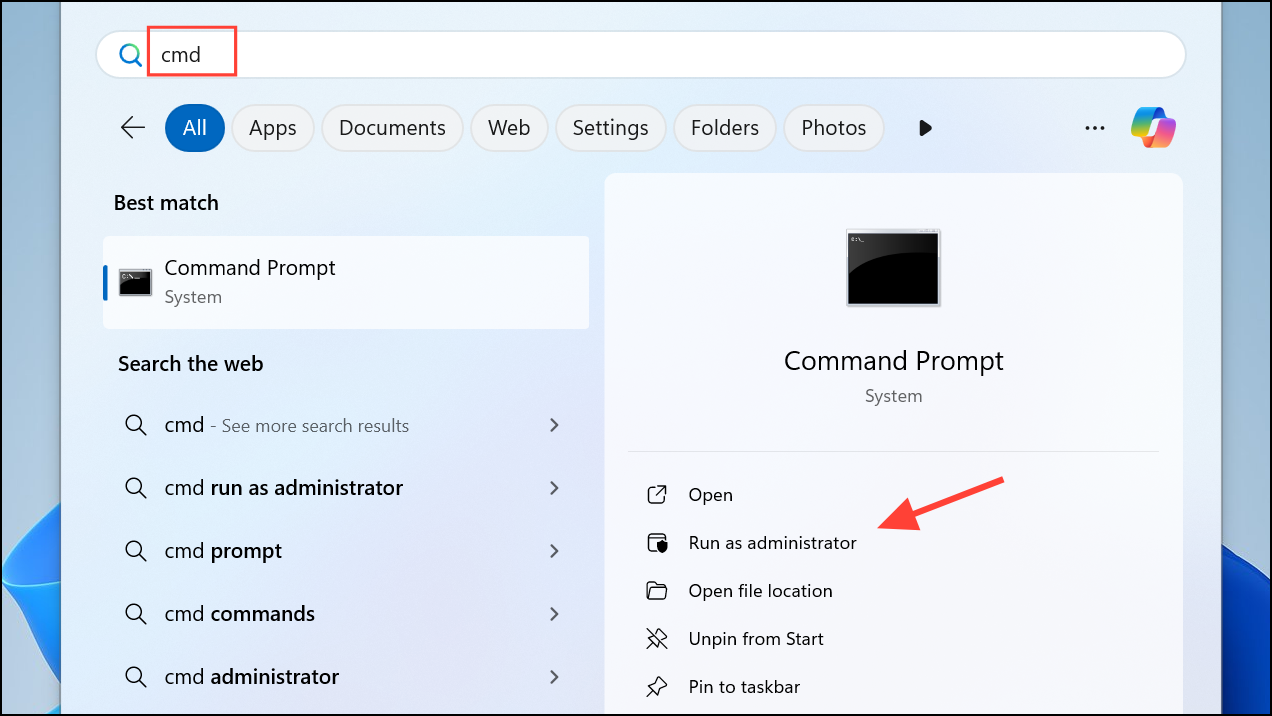
tasklist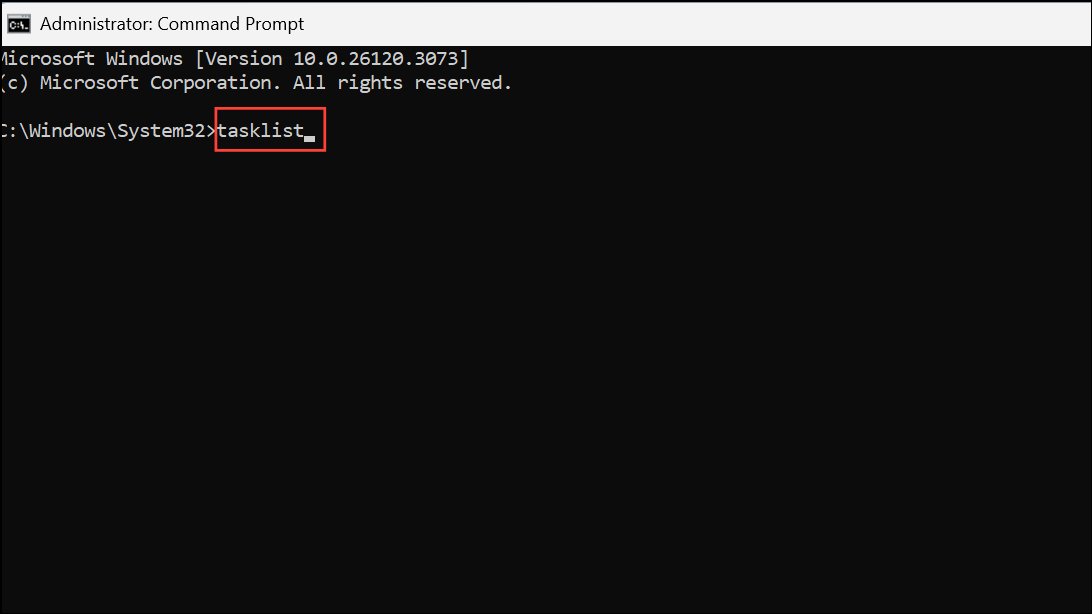
This command lists every active process, along with their process names and IDs (PIDs). Note the name or PID of the unresponsive program you want to terminate.
taskkill /IM programname.exe /F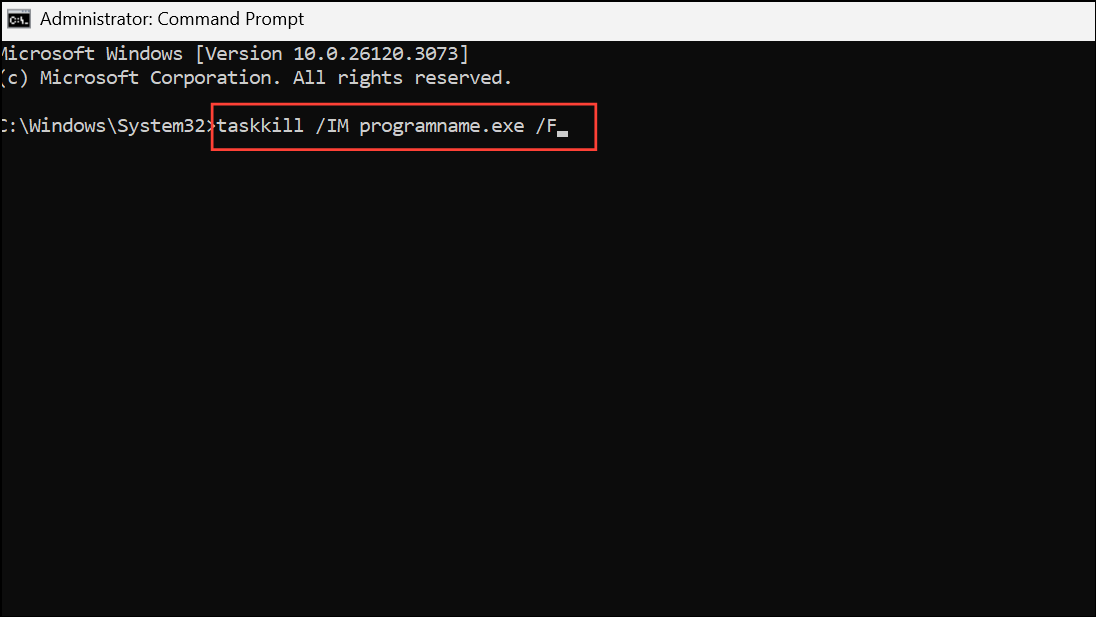
Replace programname.exe with the actual name of the process (for example, chrome.exe). The /F flag forces termination.
To kill a process by its PID, use:
taskkill /PID 1234 /F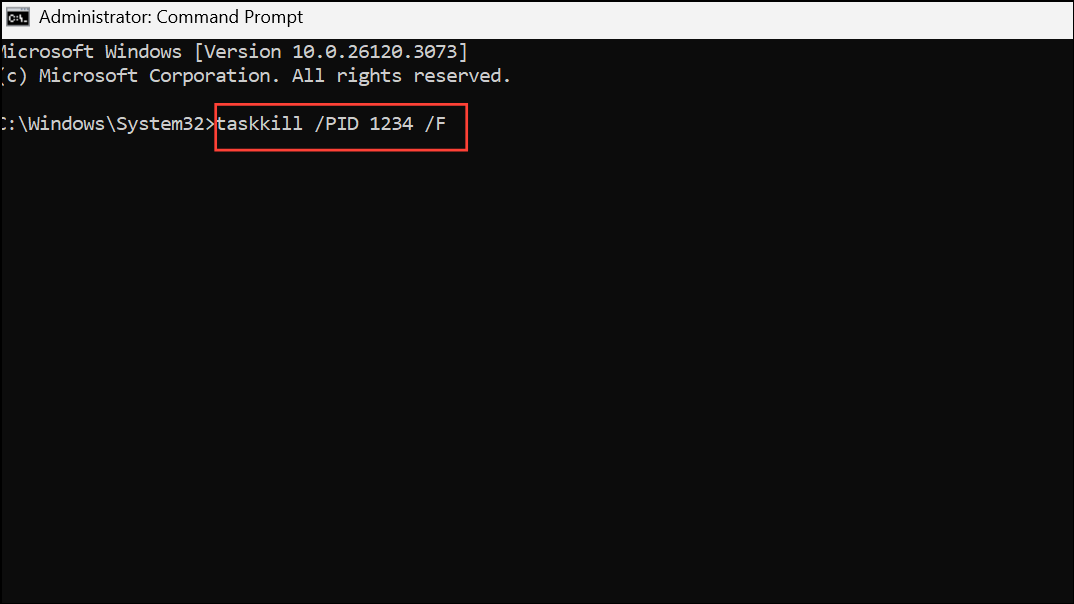
Replace 1234 with the actual process ID.
taskkill /f /fi "status eq not responding"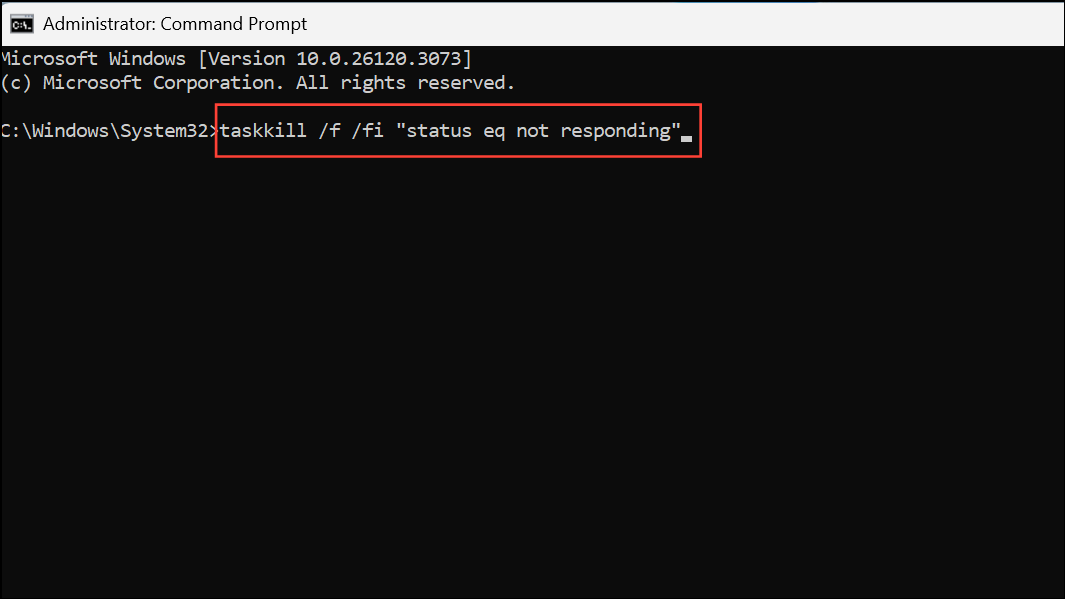
This command filters and force-closes only processes marked as “Not Responding,” minimizing the risk of closing essential background tasks by mistake.
- Right-click on your desktop and select New > Shortcut.
- Paste
taskkill /f /fi "status eq not responding"into the location field. - Click Next, name your shortcut (e.g., “Force Close”), and finish.
- Double-click this shortcut whenever a program refuses to close.
Terminate Apps Instantly with Keyboard Shortcuts
Alt + Tab to cycle through open apps.Alt + F4 together. This shortcut sends a close command to the active window. On laptops, you may need to hold Fn as well.This method works for most apps, but may not succeed if the program is deeply frozen or running with elevated permissions.
Force Close via Task Manager’s End Process Tree
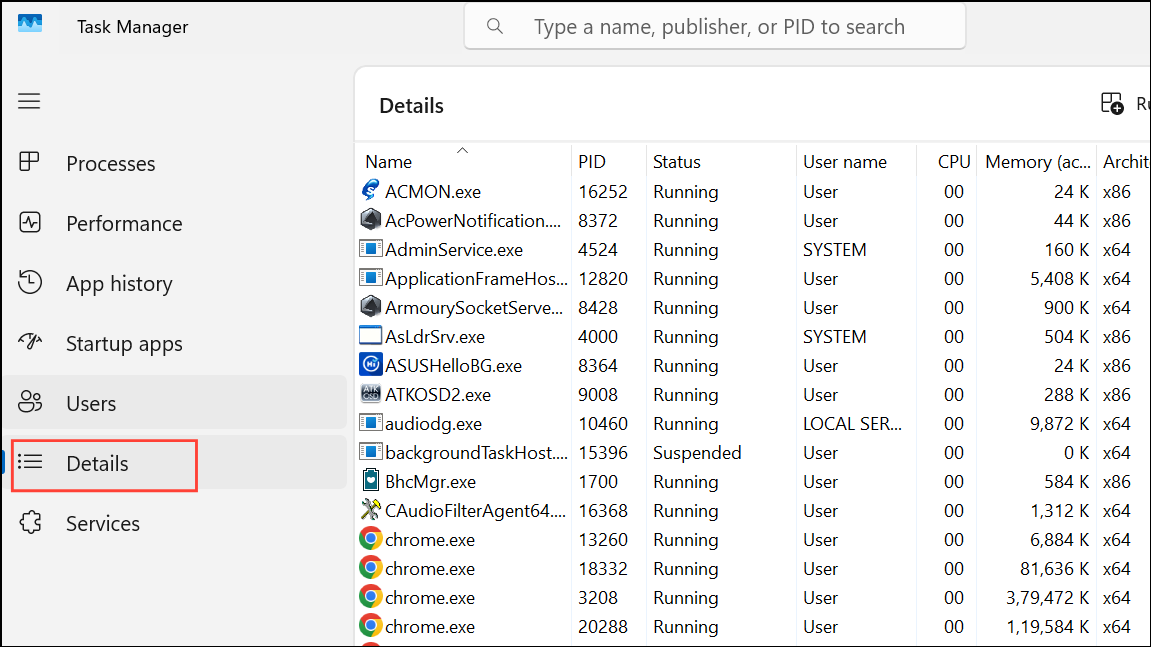
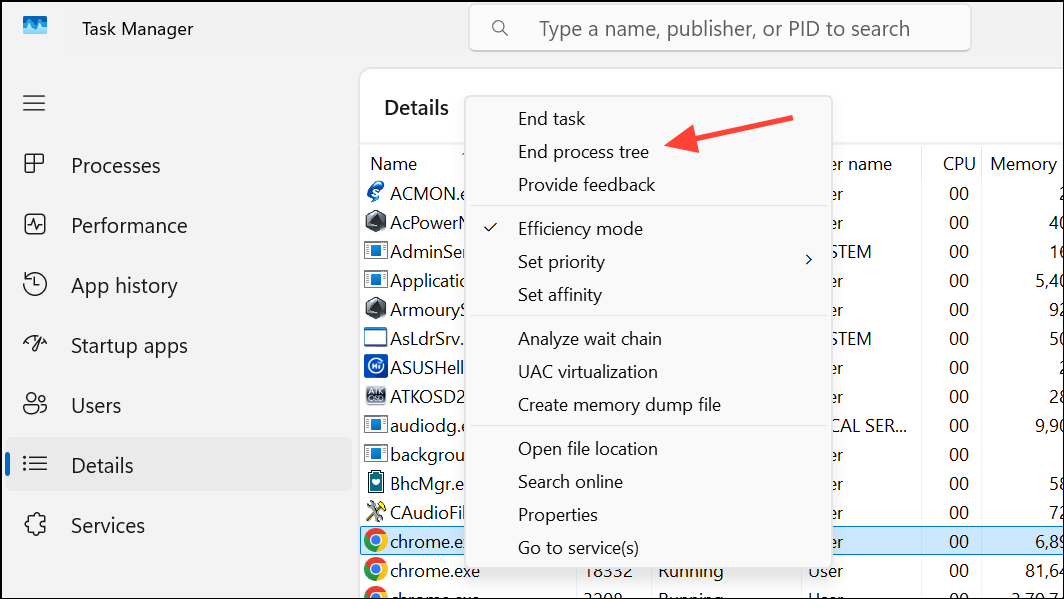
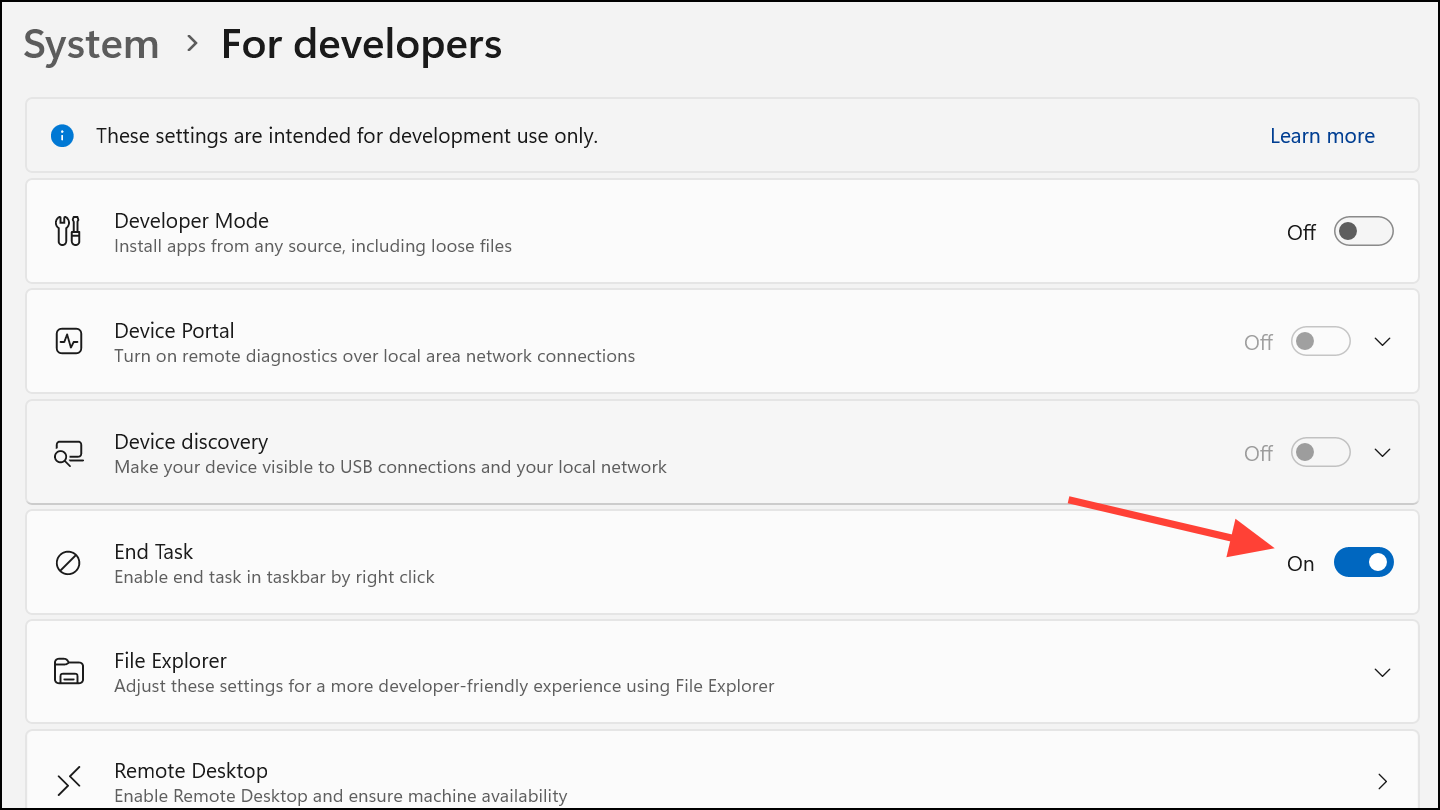
Enable and Use Taskbar’s End Task Option (Windows 11 Only)
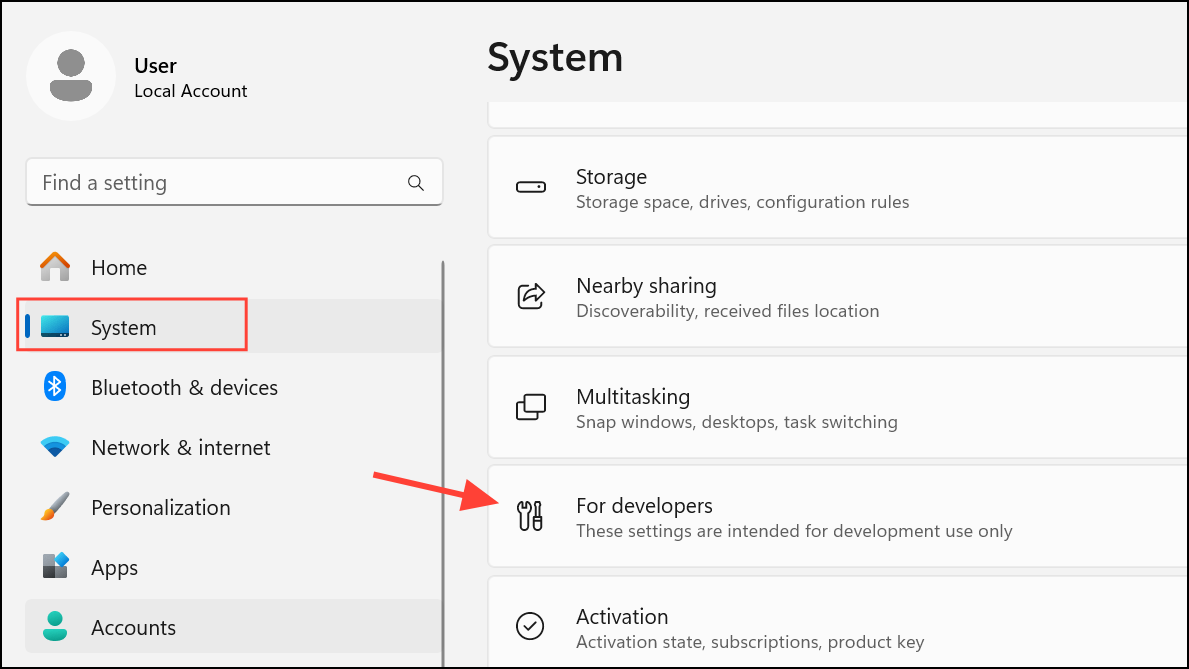
Alternative Tools and Final Measures
For persistent issues, third-party utilities such as Process Explorer or ProcessKO offer advanced controls for terminating stubborn processes. These tools can identify and kill processes that resist standard Windows commands, but they should be downloaded only from reputable sources to avoid security risks.
If all software-based methods fail and the app still won’t close, perform a system restart. If the system itself is unresponsive, hold down the power button for several seconds to force a shutdown. Be aware that unsaved work may be lost during forced shutdowns, so save progress frequently and consider enabling automatic backup features.
By following these steps, you can reliably regain control over unresponsive programs on Windows 11—even when Task Manager cannot terminate them—ensuring smoother performance and fewer interruptions during critical tasks.



