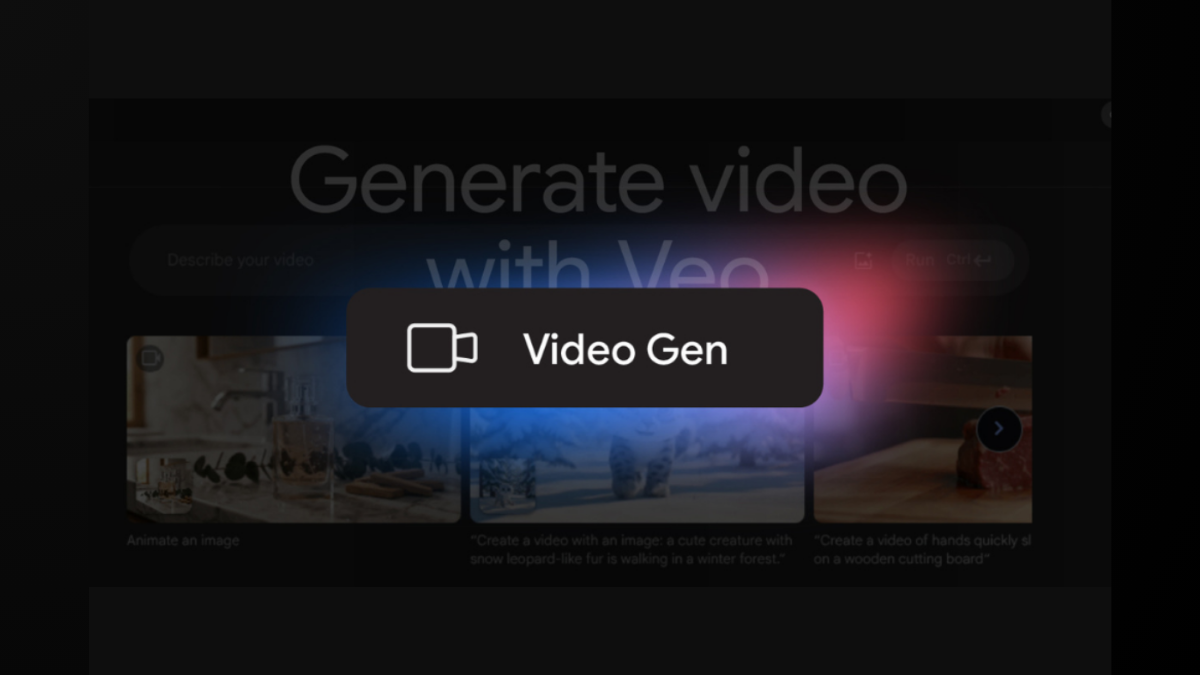
Google’s Veo 2 video generation model, integrated into Gemini, offers users the ability to produce short, cinematic-quality videos from simple text descriptions. This technology converts your ideas into vivid 8-second video clips at 720p resolution with a 16:9 aspect ratio, all packaged in MP4 format. Access to Veo 2 is available for Gemini Advanced users subscribed to Google One AI Premium.
Generating Videos in Gemini Using Veo 2
Using Whisk Animate to Turn Images into Videos
Whisk Animate is a companion tool that allows Google One AI Premium subscribers to animate images into 8-second video clips using Veo 2 technology. This feature supports both text and image prompts, enabling you to bring static images to life with smooth motion and cinematic effects.
To use Whisk Animate, visit labs.google/whisk, upload or create an image, and apply animation settings as desired. The tool will generate an animated video clip that you can download or share.
Crafting Effective Prompts for Video Generation
Successful video creation with Veo 2 depends on how well you communicate your vision through prompts. Consider including the following elements in your descriptions:
- Subject: Define the main focus, such as a person, animal, object, or scene.
- Action: Specify what the subject is doing, e.g., walking, reading, or driving.
- Setting: Describe the environment or background, such as a forest, beach, or urban street.
- Camera Angles and Movement: Indicate perspectives like close-up, aerial view, or tracking shot.
- Lighting and Ambiance: Mention time of day, mood, or lighting conditions like soft sunlight or twilight.
- Style: Suggest artistic or cinematic styles, such as realistic, cartoon, or noir.
For example, a detailed prompt might be: “A close-up shot of a crystal perfume bottle with rose gold accents resting on polished white marble, soft diffused lighting highlighting its facets, with a delicate hand gently touching the bottle’s top.”
Integrating Veo 2 into Development Workflows
Developers can incorporate Veo 2 video generation directly into their applications using the Gemini API. The API supports generating videos from text prompts or animating images, allowing for automated video content creation within custom platforms.
Here is a simplified Python example to generate a video from a text prompt using the Google Gen AI SDK:
import time
from google import genai
from google.genai import types

client = genai.Client()

operation = client.models.generate_videos(
    model="veo-2.0-generate-001",
    prompt="Panning wide shot of a calico kitten sleeping in the sunshine",
    config=types.GenerateVideosConfig(
        person_generation="allow_adult",
        aspect_ratio="16:9",
    ),
)

while not operation.done:
    time.sleep(20)
    operation = client.operations.get(operation)

for n, generated_video in enumerate(operation.response.generated_videos):
    client.files.download(file=generated_video.video)
    generated_video.video.save(f"video{n}.mp4")
This code requests an 8-second video clip based on the prompt and saves the resulting MP4 file locally. Developers can adjust parameters such as aspect ratio, person generation permissions, and the number of videos generated.
Safety Measures and Usage Policies
Google has implemented multiple safeguards to ensure the responsible use of Veo 2. All generated videos include a SynthID digital watermark embedded in each frame, clearly marking them as AI-generated. Additionally, content moderation and red teaming efforts help prevent the creation of harmful or policy-violating videos.
Users should be aware that video generation is subject to monthly limits, and Gemini will notify users as they approach these thresholds. The feature is available globally in all languages supported by Gemini and requires users to be 18 years or older.
Tips for Maximizing Video Quality
To achieve the best results, refine your prompts iteratively based on the outputs you receive. Avoid vague or generic descriptions and include specific visual details. Use cinematic terminology such as “tracking shot,” “close-up,” or “soft focus” to influence camera behavior and scene composition.
Experiment with styles and subjects to explore the range of Veo 2’s capabilities, from realistic nature scenes to animated characters and abstract concepts. The model understands complex instructions and can simulate real-world physics and human motion for lifelike animations.
Veo 2 in Gemini opens new possibilities for quick, high-quality AI video generation accessible to both casual users and developers. With detailed prompts and the right tools, you can create compelling video content that brings your ideas to life in just moments.