
Graveyard Keeper 2 is not Steam Deck verified, and it ships without a fine-grained graphics menu. Left on its defaults, it runs on the High preset and delivers a juddering framerate on the handheld. A short set of changes, split between the game and SteamOS, brings the frame pacing under control while keeping the game’s hand-drawn look intact.
Quick answer: Set the in-game Graphical Settings to Low and cap the Steam Deck Frame Limit to 40 FPS (40 Hz) through the Performance menu.
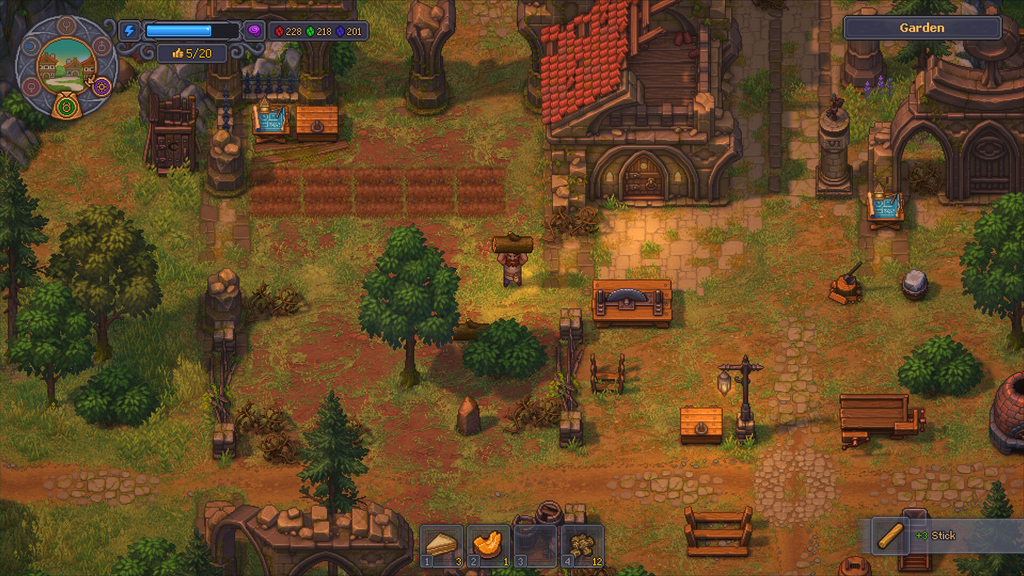
Best Graveyard Keeper 2 Steam Deck settings
The game exposes a single Graphical Settings option that runs from Lowest to High, so most of the tuning happens on the Steam Deck side. The combination below balances visual fidelity against a steadier framerate.
| Setting | Where | Recommended value |
|---|---|---|
| Graphical Settings | In-game options | Low |
| Frame Limit | Steam Deck Performance tab | 40 FPS (40 Hz) |
| Controls | Automatic | No manual mapping needed |
The 40 FPS cap limits the maximum framerate, but the slow pace of the game means the reduction is hard to notice in play. Pushing the limit to 45 FPS reintroduces choppiness, so 40 is the more reliable target.

How to apply the settings
If you prefer a higher framerate over sharper visuals, you can raise the Frame Limit and drop the in-game graphics to Lowest instead. Low graphics with a 40 FPS cap remains the steadier balance of the two approaches.
Controller support
There is no need to spend time on control mapping. Graveyard Keeper 2 has native controller support, and the Steam Deck picks up its buttons and sticks automatically with a correct default layout.
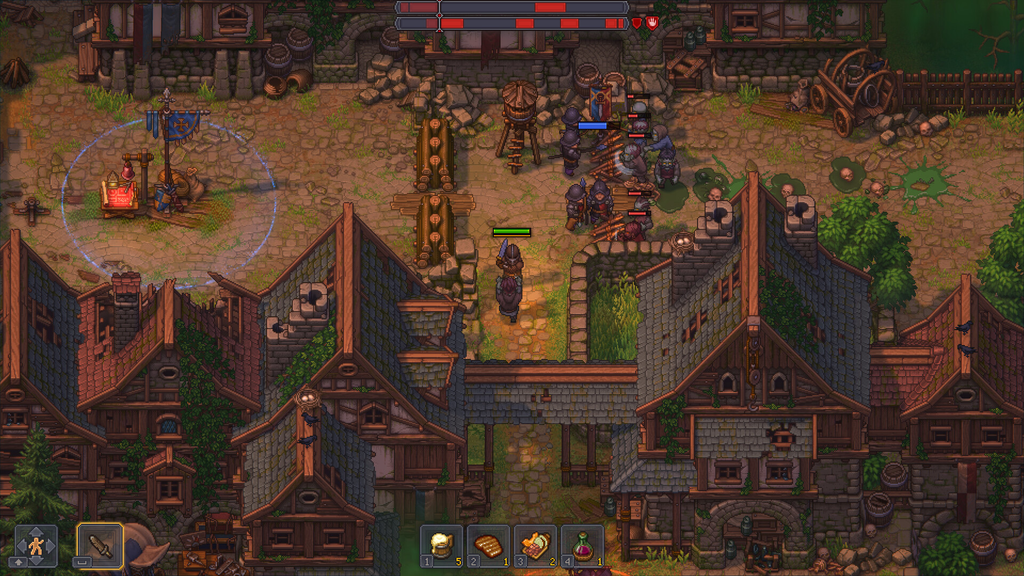
How to confirm it worked
You will know the tuning has taken effect when the previously stuttering framerate settles into a smoother, more consistent feel during normal movement and menus. The game still looks close to its PC presentation on the Low preset, so you are trading very little visual detail for a much steadier experience. A future update from Lazy Bear Games could optimize the game for the handheld and remove the need for these manual changes, but until then this configuration is the dependable way to play on Steam Deck.