
Saving in GTA 6 runs through the pause menu, but during a mission the Save Game option is greyed out, and that’s easy to mistake for a bug.
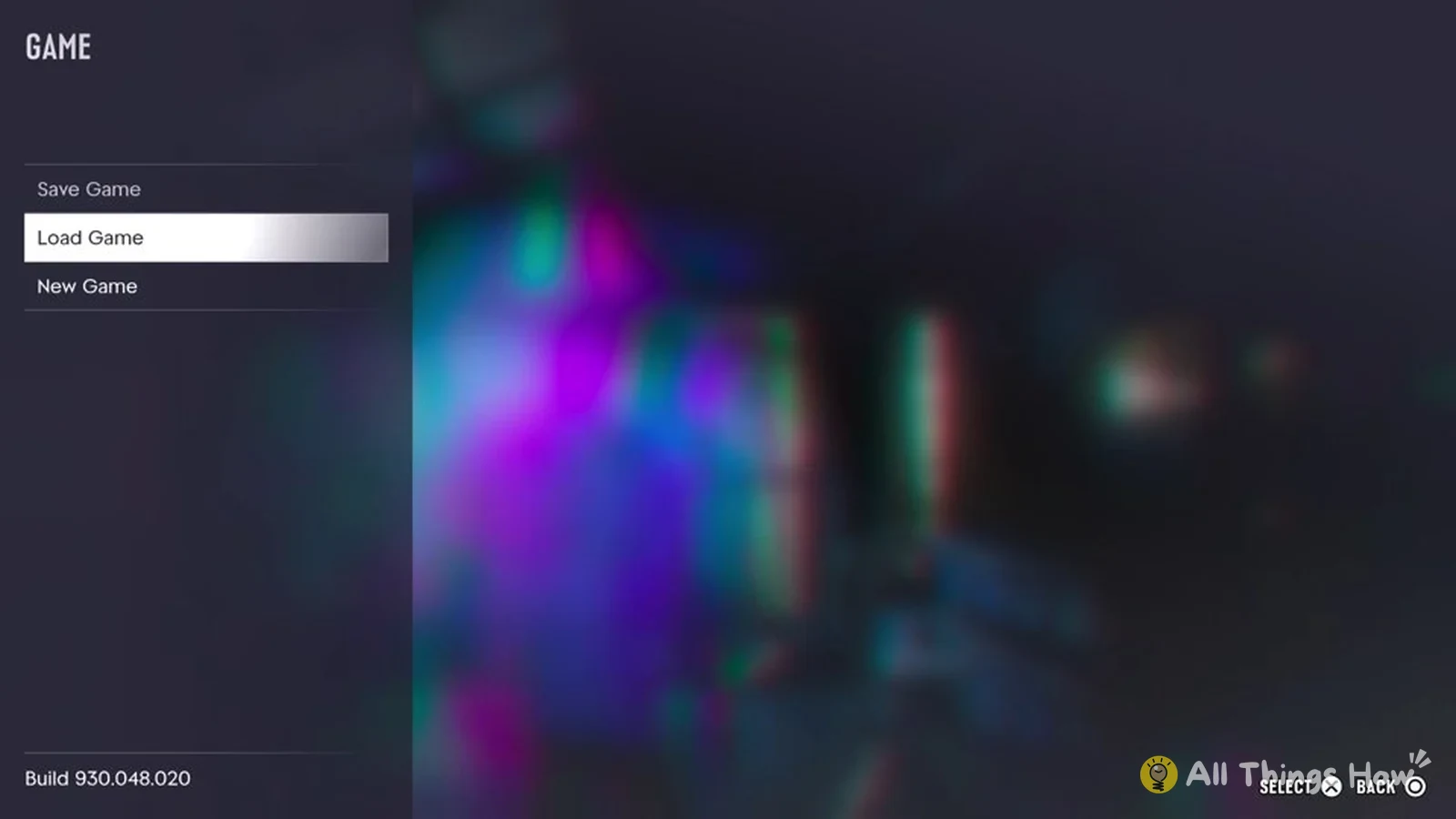
Quick answer: Pause with Options, open Game, and select Save Game. It’s greyed out and unavailable while a mission is underway. You can find your autosave under Game > Load Game.
How to save in GTA 6 from the pause menu
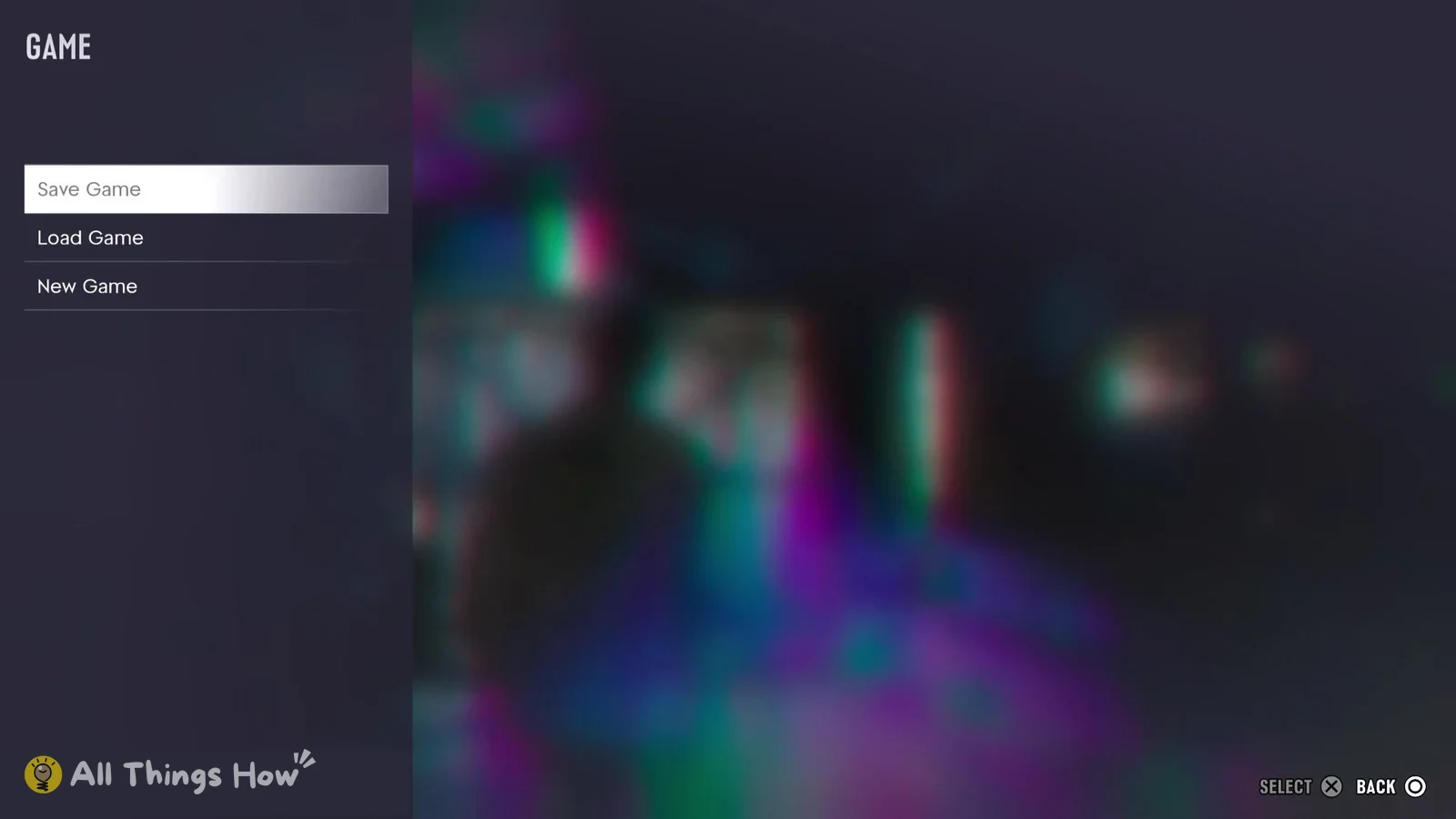
Why Save Game is greyed out during a mission
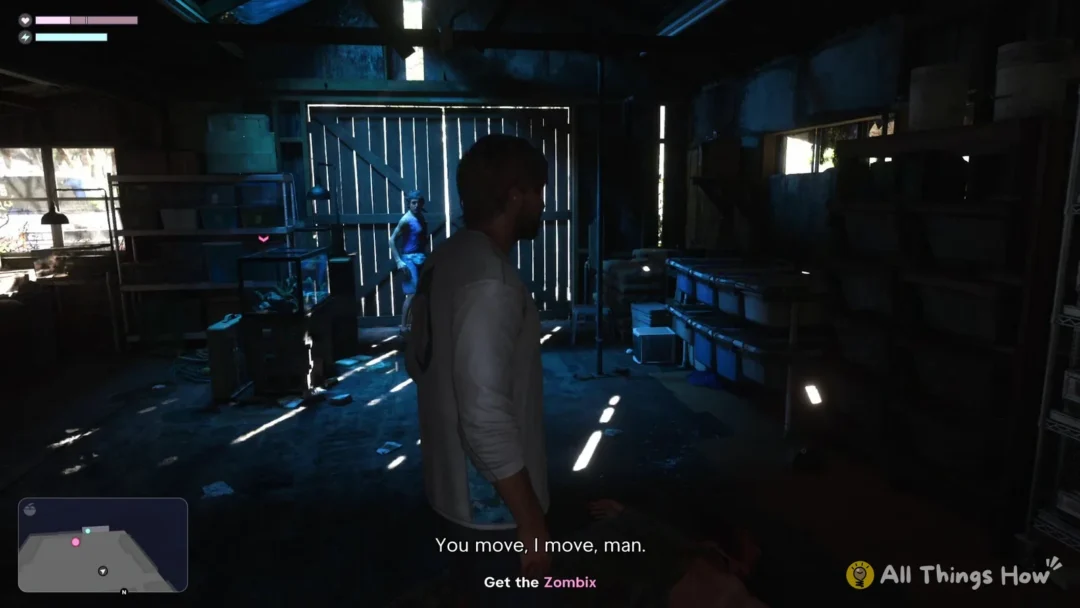
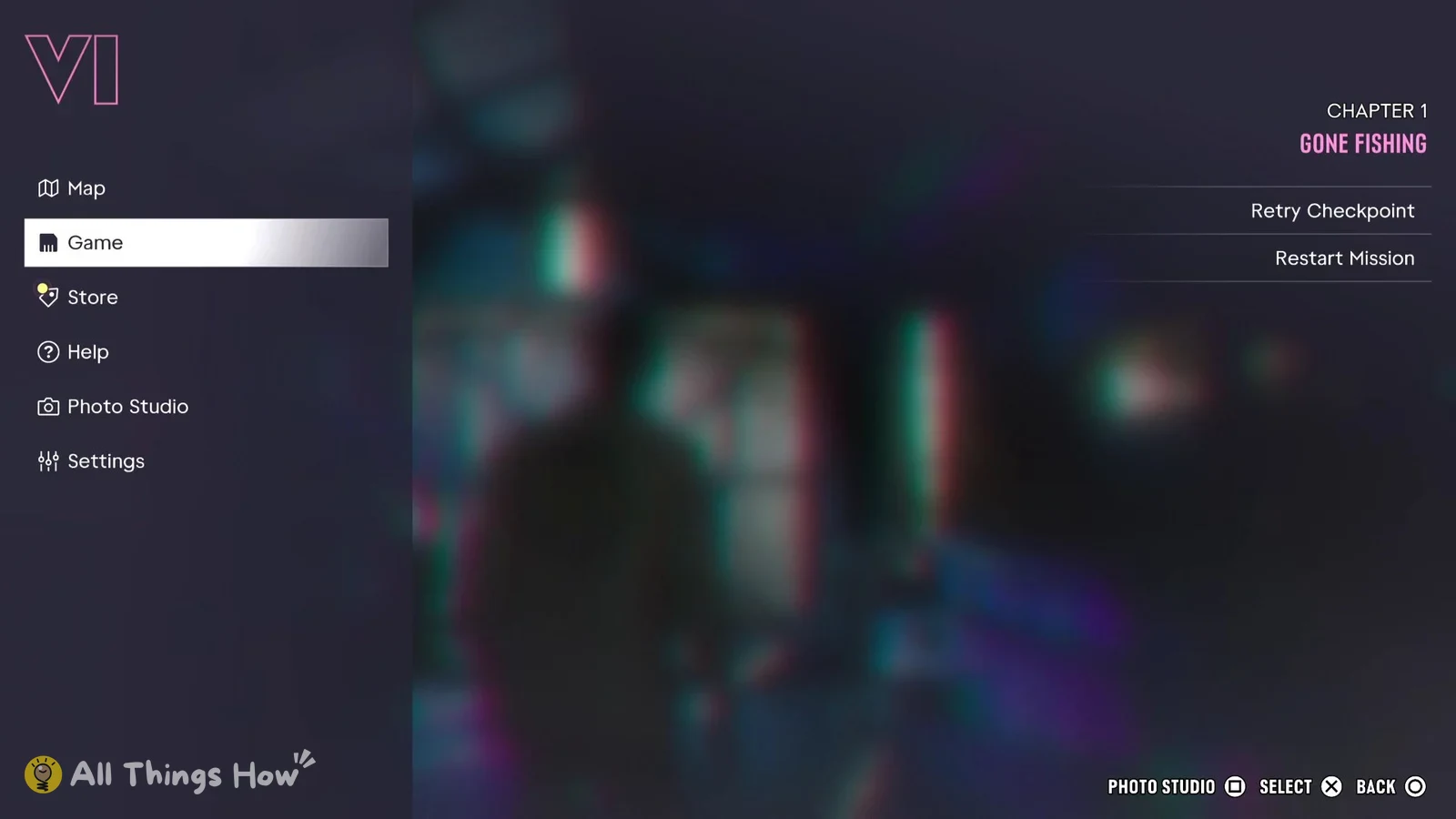
While you’re in a mission, such as the Chapter 1 mission “Gone Fishing”, Save Game shows up greyed out on the Game page. The “Select” prompt at the bottom right is dimmed too, and pressing Cross on the option does nothing at all. There’s no way to save by hand from inside a mission through this menu.
The two mission options on the right side of the pause menu, Retry Checkpoint and Restart Mission, are what the game offers for the mission you’re in instead.
Where to find your GTA 6 autosave
GTA 6 keeps an autosave for you, and you can check it by pausing, choosing Game and then Load Game. That opens the “GAME / LOAD” screen, a list of your saves. An autosave appears with a name like “(Autosave) Prologue (2%)” next to the date and time it was made, so the name tells you the chapter and your completion percentage at that point.
When you highlight a save, the right side of the screen shows a picture and a one-line summary of where that save sits in the story, for example “Lucia meets with a prison counselor to discuss her arrest and the possibility of early release.” The buttons along the bottom are Delete (Square), Load (Cross) and Back (Circle). Press Circle to back out without changing anything.
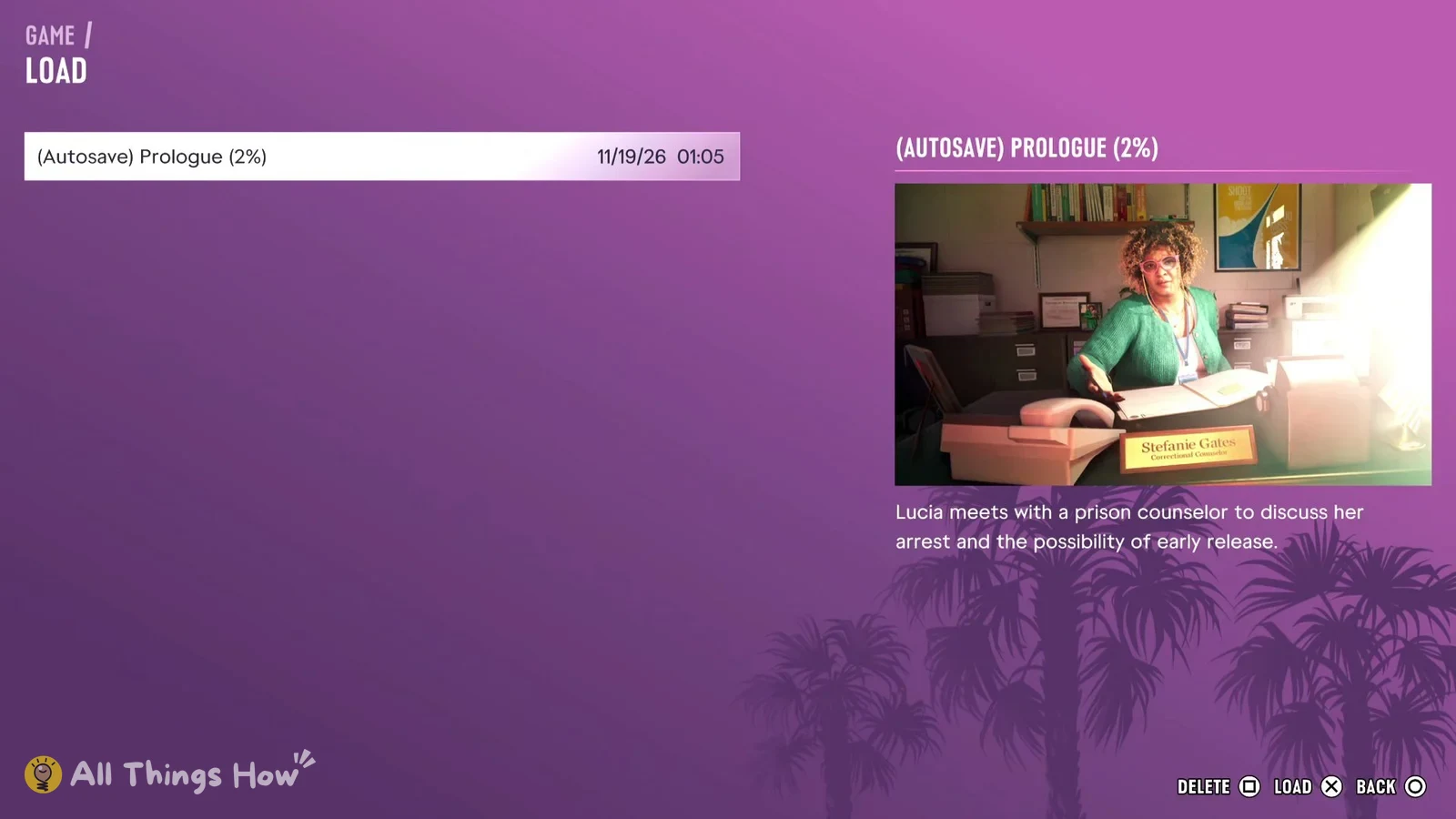
Progress you make inside a mission isn’t written to the save list right away. The autosave can still read Prologue even when you’re well into a Chapter 1 mission, so the chapter and percentage in the save name show where the last autosave was made, not where you are right now.